
01Who this is for
- Form creators can quickly tweak copy without leaving the builder, keeping their forms up to date.
- Survey designers can adjust question text right away to match new requirements.
02Inline editing, explained
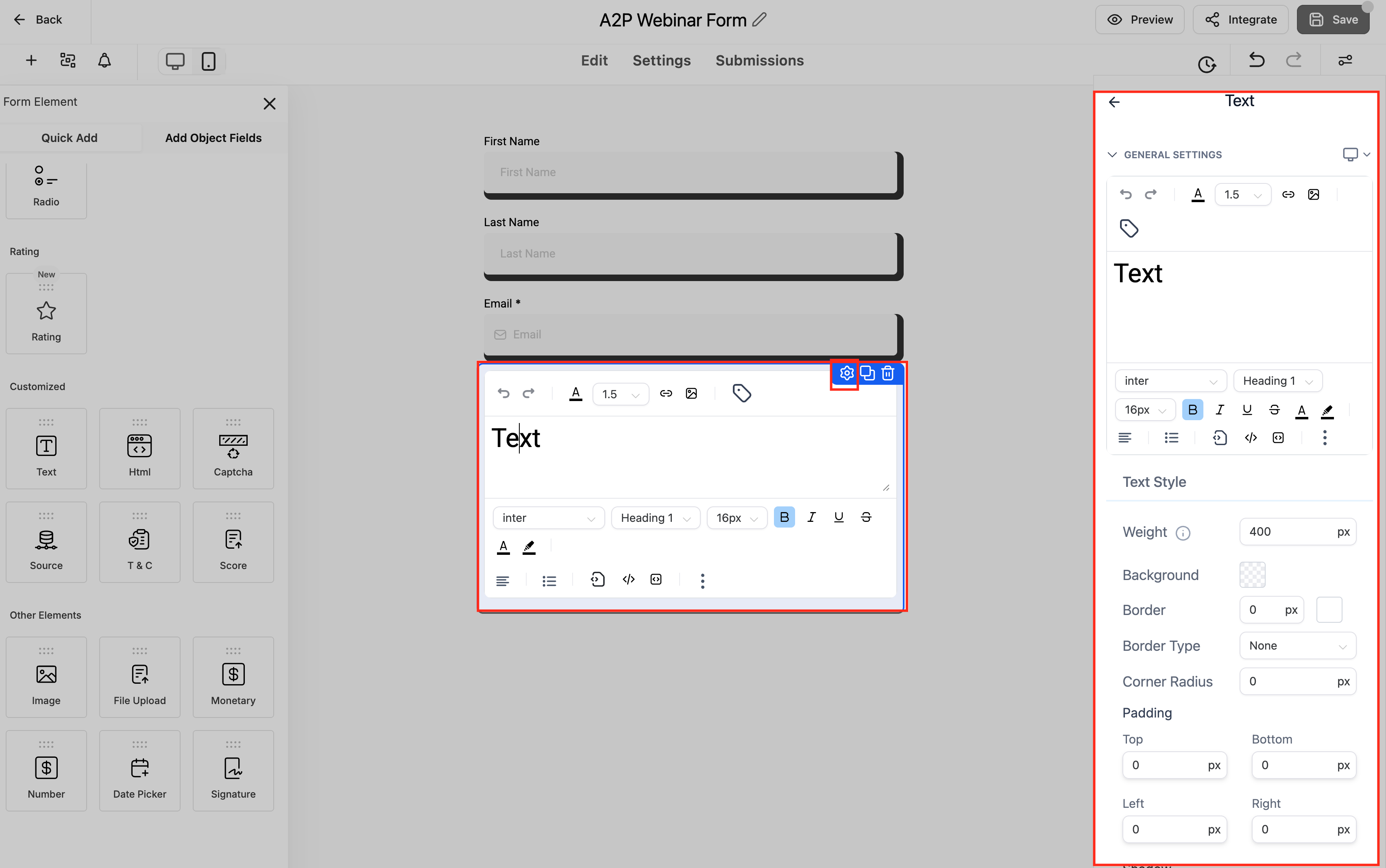
The Inline Editor is part of the form, survey, and quiz builder in HighLevel. It appears when you click directly on a text element in the live preview, removing the need to open the settings panel.
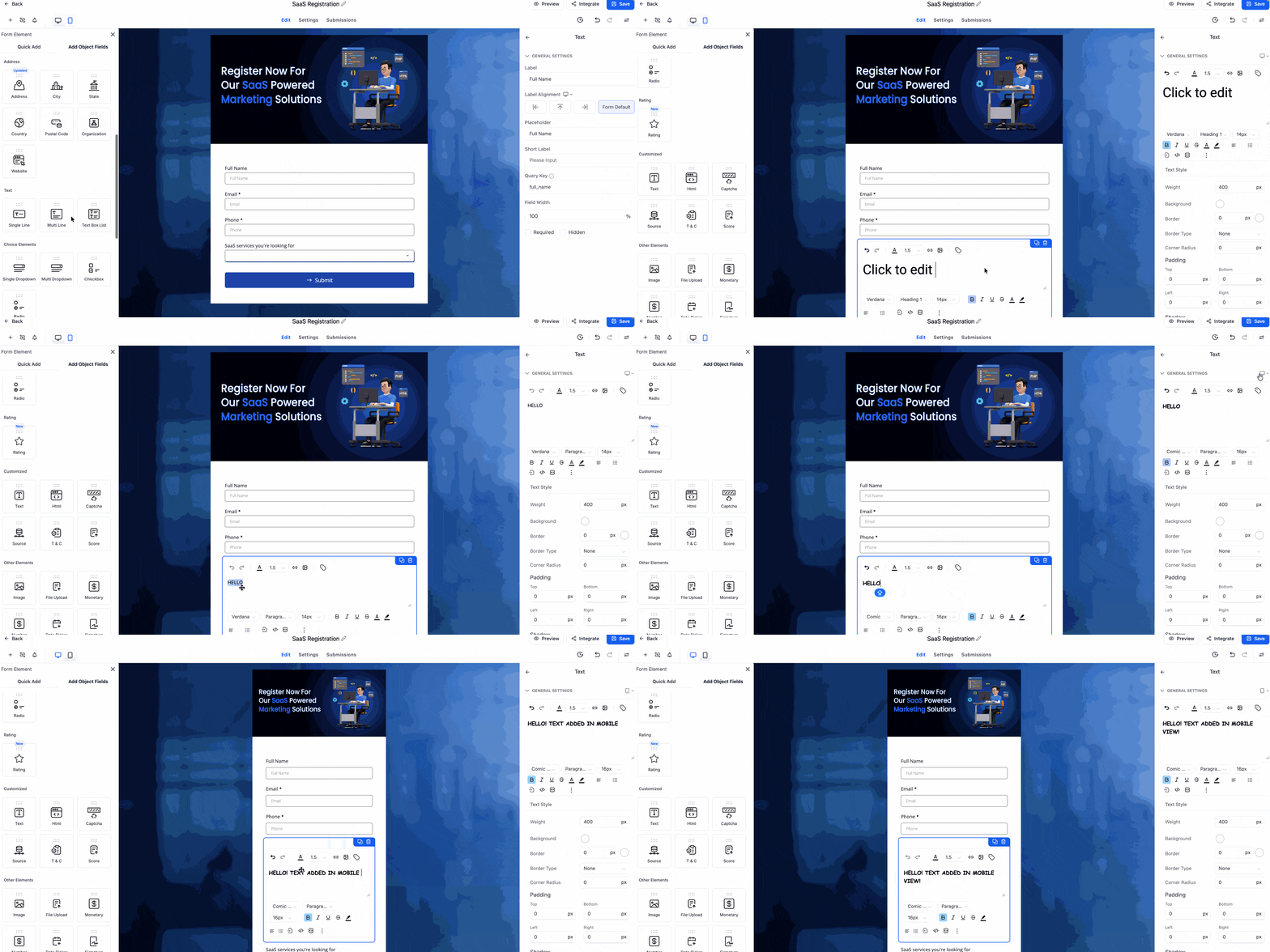
When the toolbar shows, you can type new copy, change placeholders, button labels, dropdown options, or choice text. Changes are reflected right away in the preview, and you can continue editing other elements before saving.
A device toggle lets you switch the preview to Mobile view. Text entered while in Mobile mode is stored separately from the desktop version, so each device can show its own copy.
03How businesses use inline editing
- Dental practice. A dental office can open its appointment request form, click the label for the phone field, and type a shorter version for mobile users. After editing, they save and publish the form so patients see device specific copy.
- Real estate agency. An agency can edit the headline of a property inquiry survey directly in the builder, applying bold formatting to highlight key words. The updated headline appears right away in the preview and is saved with a single click.
- Online course provider. A course creator can modify quiz option text by clicking the option label and typing a clearer answer choice. The change is shown immediately, and the updated quiz is saved and published for learners.
04The numbers and rules that matter
- Formatting options include bold, italic, underline, font size, color (extend list per live toolbar, Needs Confirmation).
05How to set up and use inline editing in HighLevel
Edit text inline
- Open the Form, Survey, or Quiz Builder via Sites > Forms (or Surveys/Quizzes).
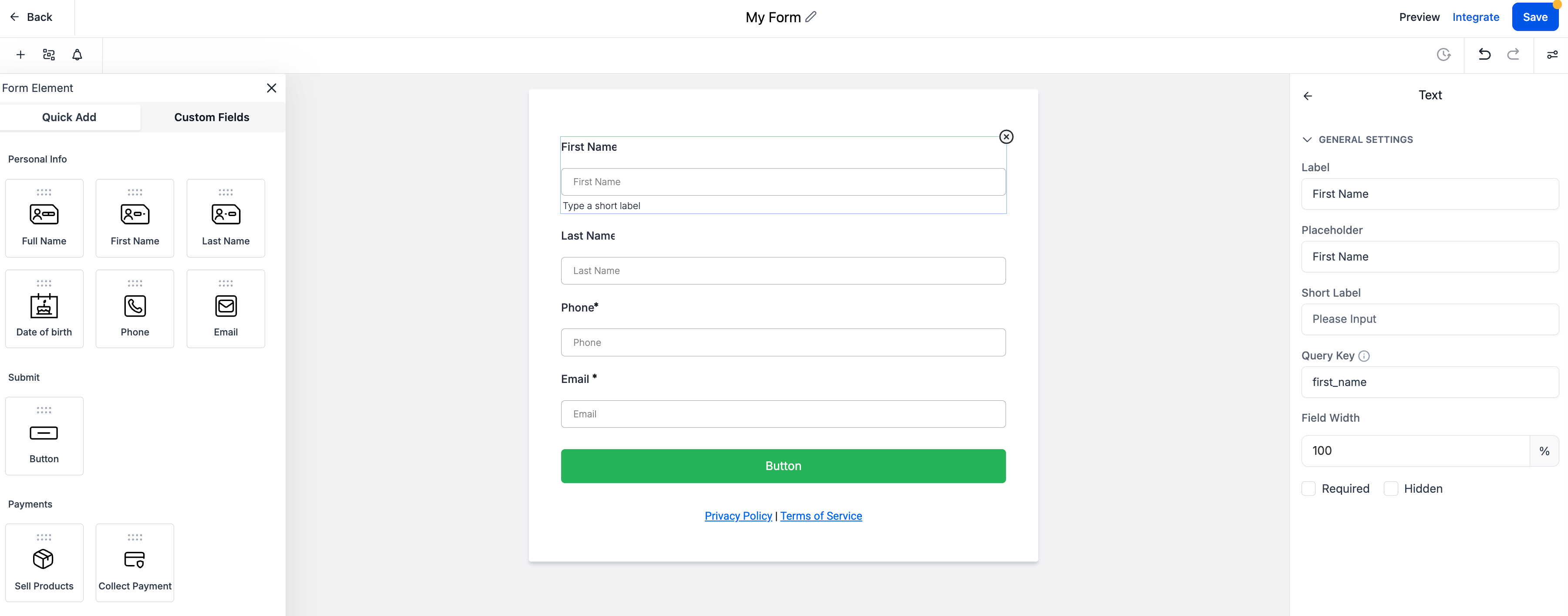
- Click the text element you want to change, such as a label, placeholder, or button.
- The inline editor toolbar appears; adjust formatting if desired.
- Type the new content directly in the preview area.
- Repeat the process for any additional elements.
- Click Save and then Publish to apply all changes.
Edit mobile specific text
- Open the Form, Survey, or Quiz Builder.
- Click the device toggle and select Mobile view.
- Click the text element you wish to modify for mobile.
- Enter the mobile specific copy; the desktop version stays unchanged.
- Save and Publish the form to make the mobile text live.
06What it looks like in HighLevel
07Things to know before you rely on it
- Mobile fallback behavior is not confirmed; if mobile text is empty it may revert to the desktop version or show nothing.
- The list of available formatting options may be extended; currently includes bold, italic, underline, font size, and color.
08How it connects to the rest of HighLevel
- Add or edit custom fields in forms and surveys to capture more data alongside inline edits. Custom fields
- Design, test, and share contact forms using HighLevel’s form builder, complementing the inline editor for rapid copy updates. Contact form builder
- Enable sticky contact options in forms, surveys, and calendars, which work together with inline edited fields. Sticky contact
Michael's take

If I were building a quiz for a client, I’d open the builder, click the question title, edit the wording, and then hop over to the mobile toggle to shorten the headline for smaller screens. I’d finish by hitting Save and publishing. A quick run through of the inline editor makes sure everything reads well everywhere before the form goes live.