
01Who this is for
- Marketing teams, capture more detailed customer preferences beyond preset choices.
- Product managers, gather unique feature ideas directly from survey participants.
- Service providers, ensure client feedback includes personalized suggestions.
02Other options, explained
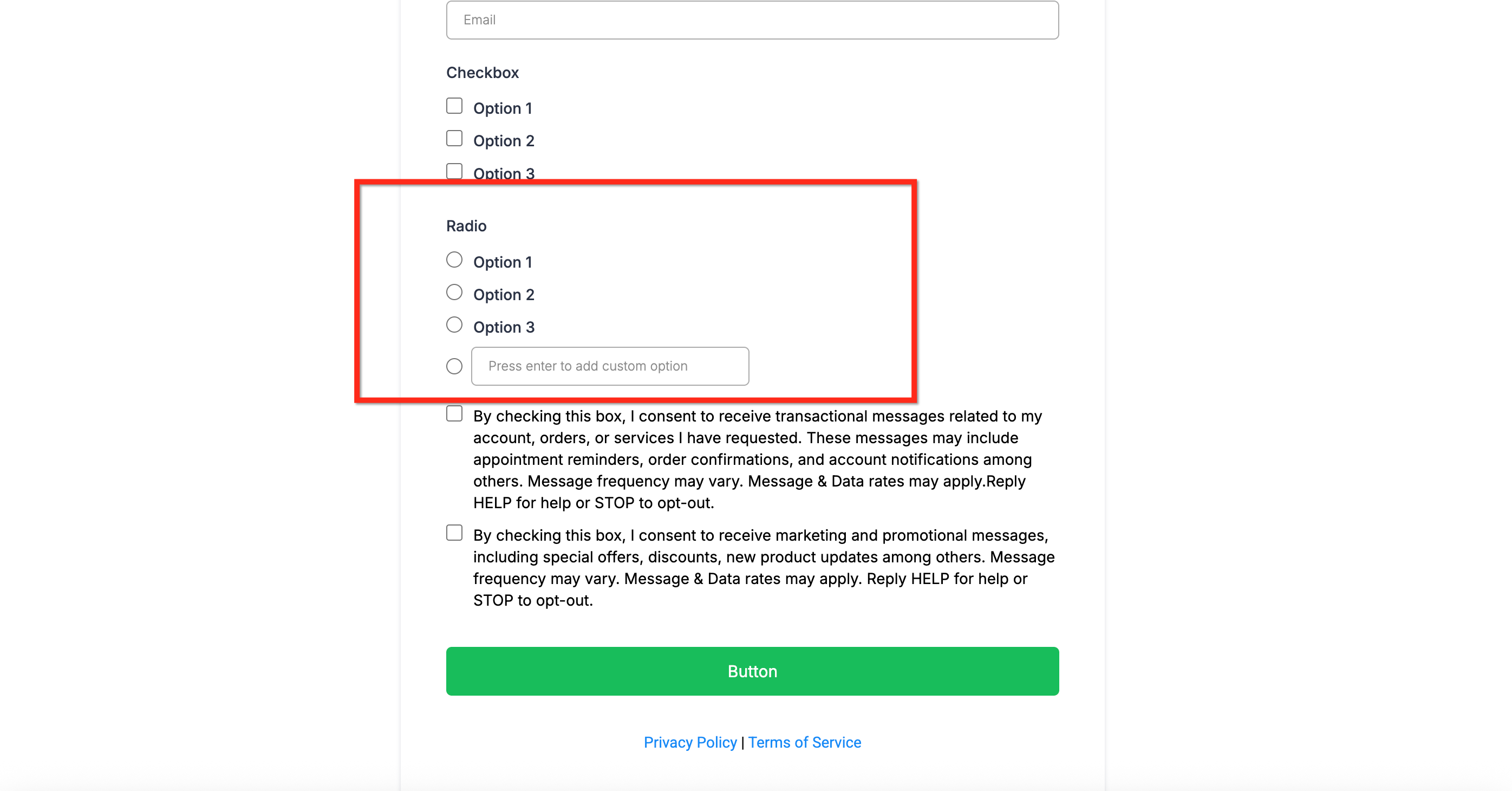
The ‘Other’ option creates a write in field that appears under a radio button question. Respondents can type any answer that is not part of the predefined list, giving you flexibility in the data you collect.
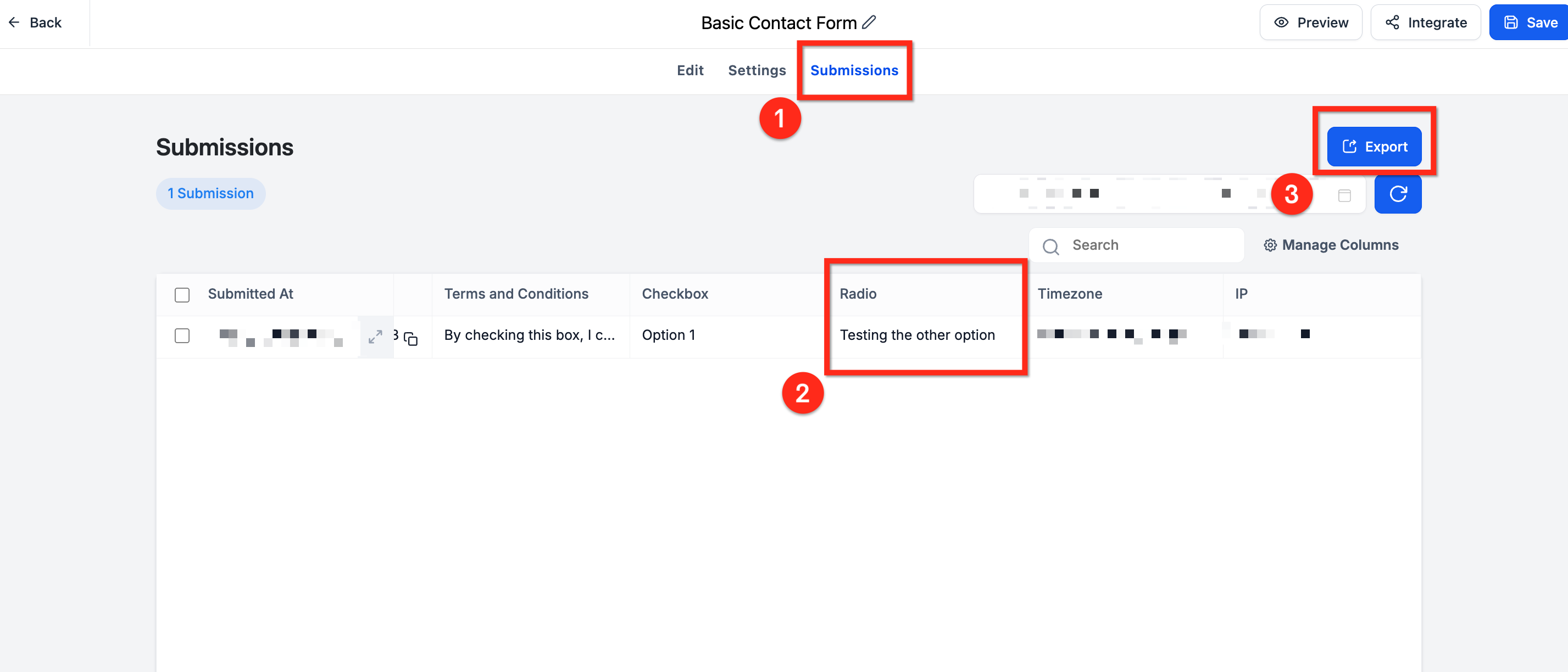
When the toggle is turned on, the custom answer is recorded in the same column as the radio field for that submission. You can view these responses in the Forms › Submissions or Surveys › Submissions area and export them to CSV along with the other answers.
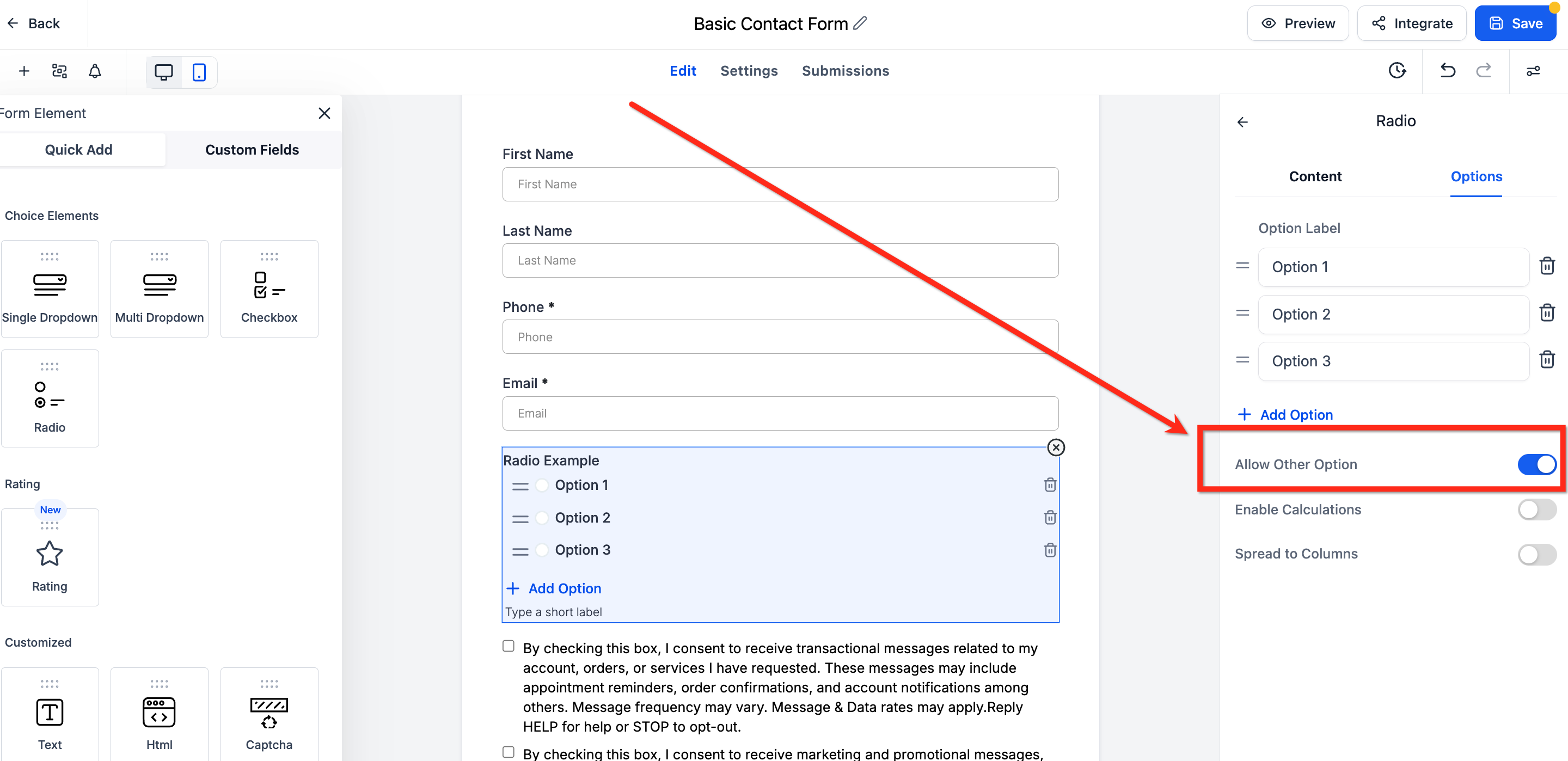
The setting is accessed from the form builder’s Options tab for a Radio element. It is a single toggle that activates the write in field, which only shows up in the preview or when the form is live.
03How businesses use the Other option
- Real estate agency. Add a radio question about preferred property types, enable the Other option, and let prospects type an unconventional property style. The typed answer appears in the submission report for easy follow up.
- Fitness studio. Create a survey asking members which class they want next, turn on the Other toggle, and capture class ideas that are not in the preset list. Review the custom entries in the submissions dashboard.
- SaaS startup. Include a radio question about desired product features, enable the Other option, and allow beta users to suggest features not listed. The suggestions are stored with the regular responses for product review.
04The numbers and rules that matter
- No character limit for custom responses.
05How to set up and use the Other option in HighLevel
Enable the Other option for radio buttons
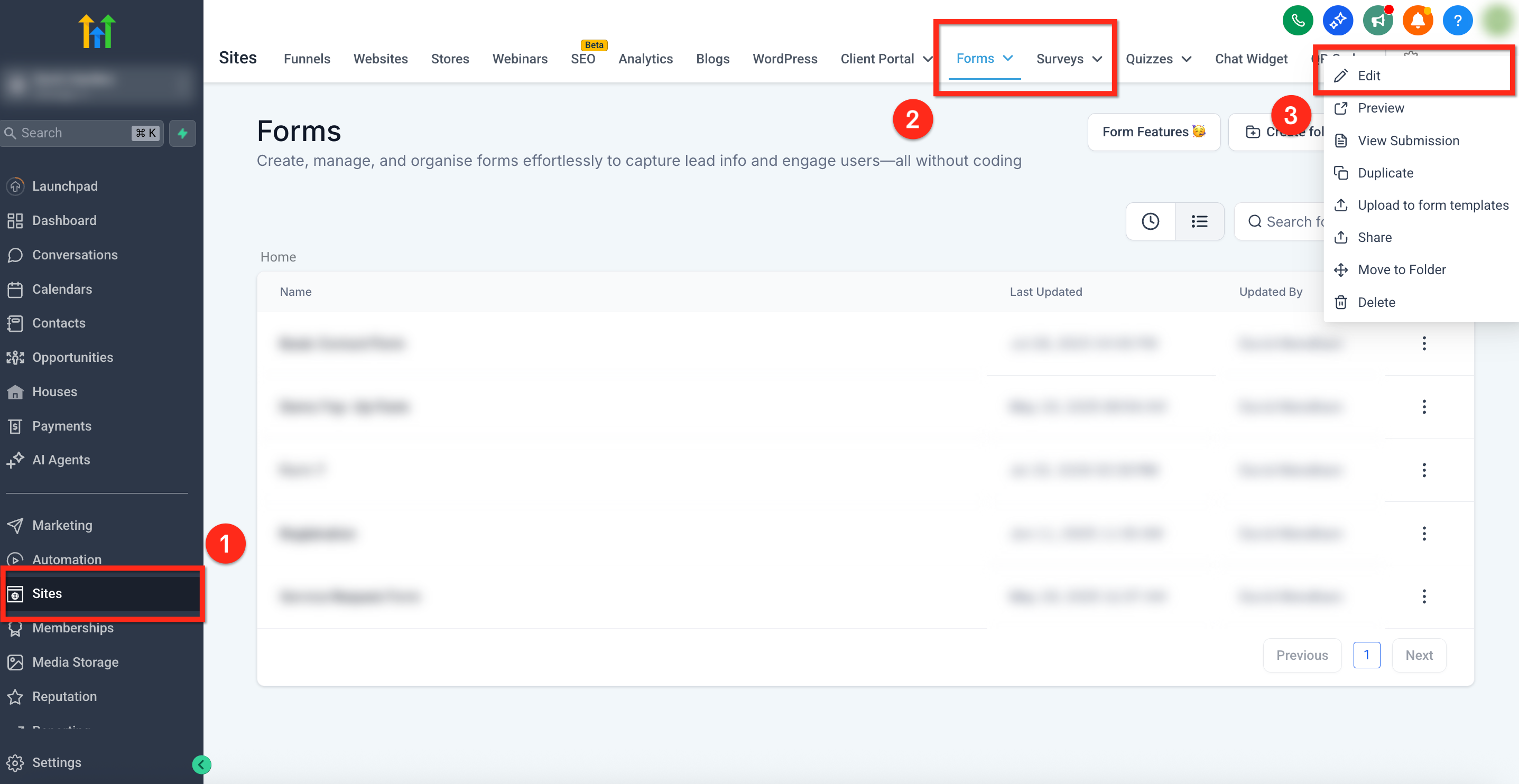
- Select Sites from the left navigation bar.
- Open Forms or Surveys from the top ribbon.
- Click the three dot menu beside the chosen form or survey and choose Edit.
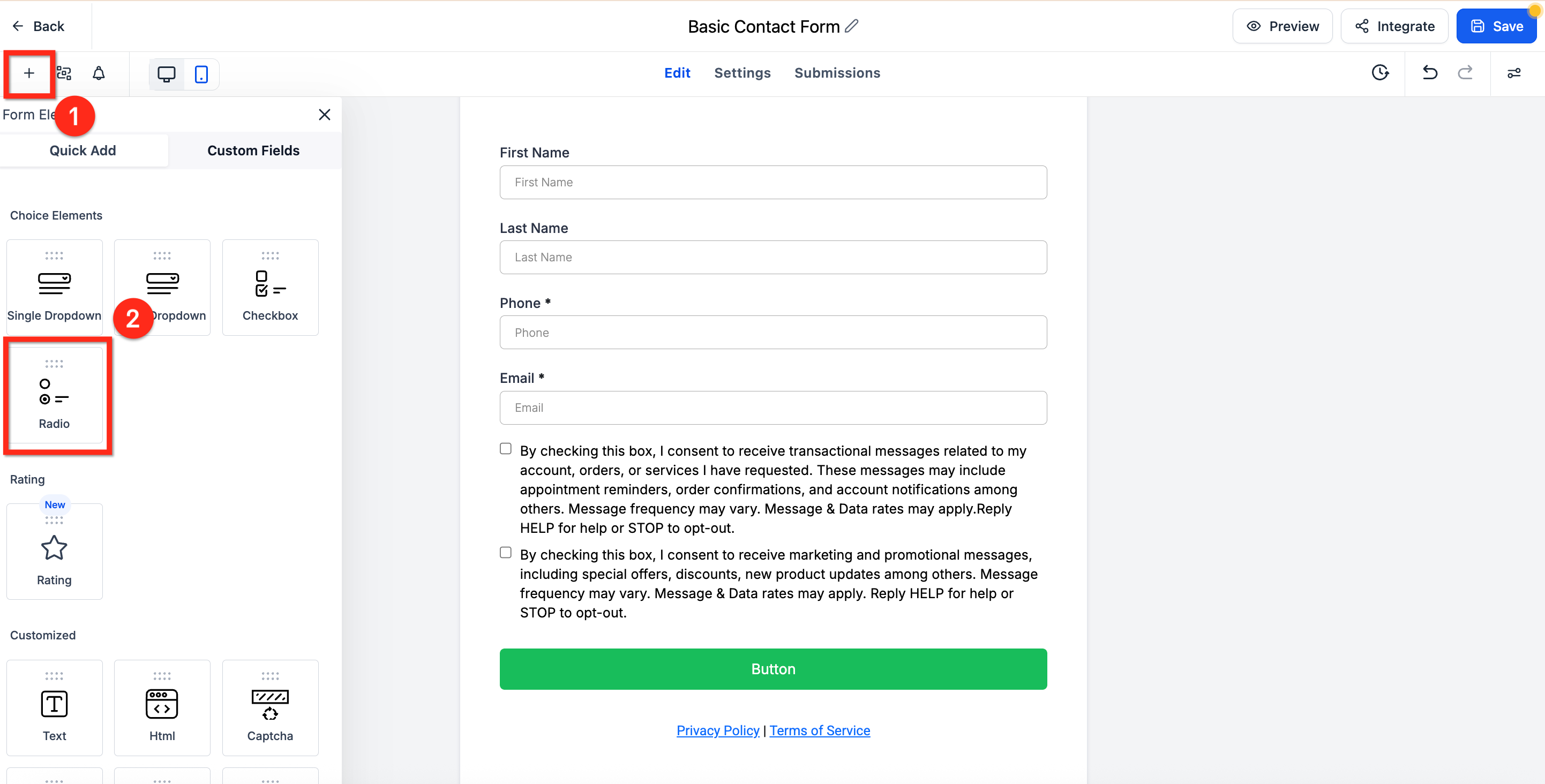
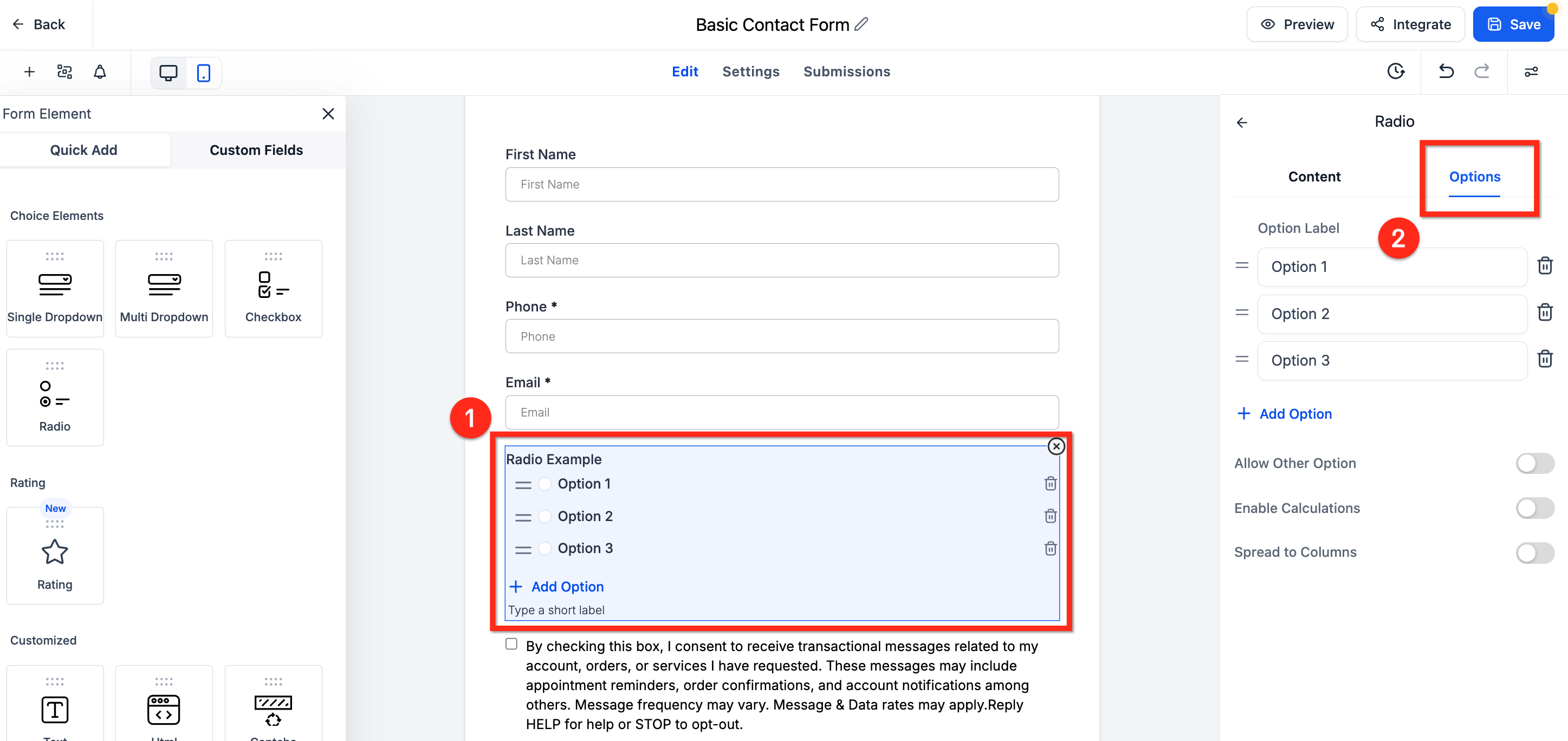
- Click the plus (+) icon to open the Element panel.
- Find the Radio element and drag it onto the canvas.
- Select the placed Radio element to display its settings on the right.
- Click the Options tab within the settings panel.
- Switch on the Allow Other Options toggle.
- Note: the ‘Other’ option will not appear in the builder preview but will appear when the form is live.
06What it looks like in HighLevel
07Settings that matter
- Allow Other Options. Activates a write in field for a radio button question so respondents can enter custom answers.
08Things to know before you rely on it
- The Other option works only with radio button elements, not with dropdowns or checkboxes.
- There is no character limit for the custom response text.
- The option is usable in forms embedded in Funnels, Websites, or external sites via embed code.
- The write in field does not appear in the builder preview but is visible when the form is live.
09How it connects to the rest of HighLevel
- Enable Sticky Contact in HighLevel forms, surveys and calendars Sticky Contact
- How to set up the Source field in HighLevel forms Source field
- Embedding HighLevel forms on popular website builders Embed forms
Michael's take

The Other option is worth the time for any small business that relies on honest feedback, because it lets customers voice ideas that you didn’t think to include. I would turn it on for any survey that asks for preferences or opinions.
Don’t forget to actually preview the form so you can see the write in field in action.