
01Who this is for
- Digital marketing agencies benefit by managing tracking settings for each client website, keeping data clean and privacy compliant.
- Ecommerce merchants can select which checkout forms generate contacts while still gathering form analytics.
- SaaS Founders running partner landing pages gain control over lead capture and accurate field mapping without extra code.
02Field mapping control and iFrame form tracking, explained
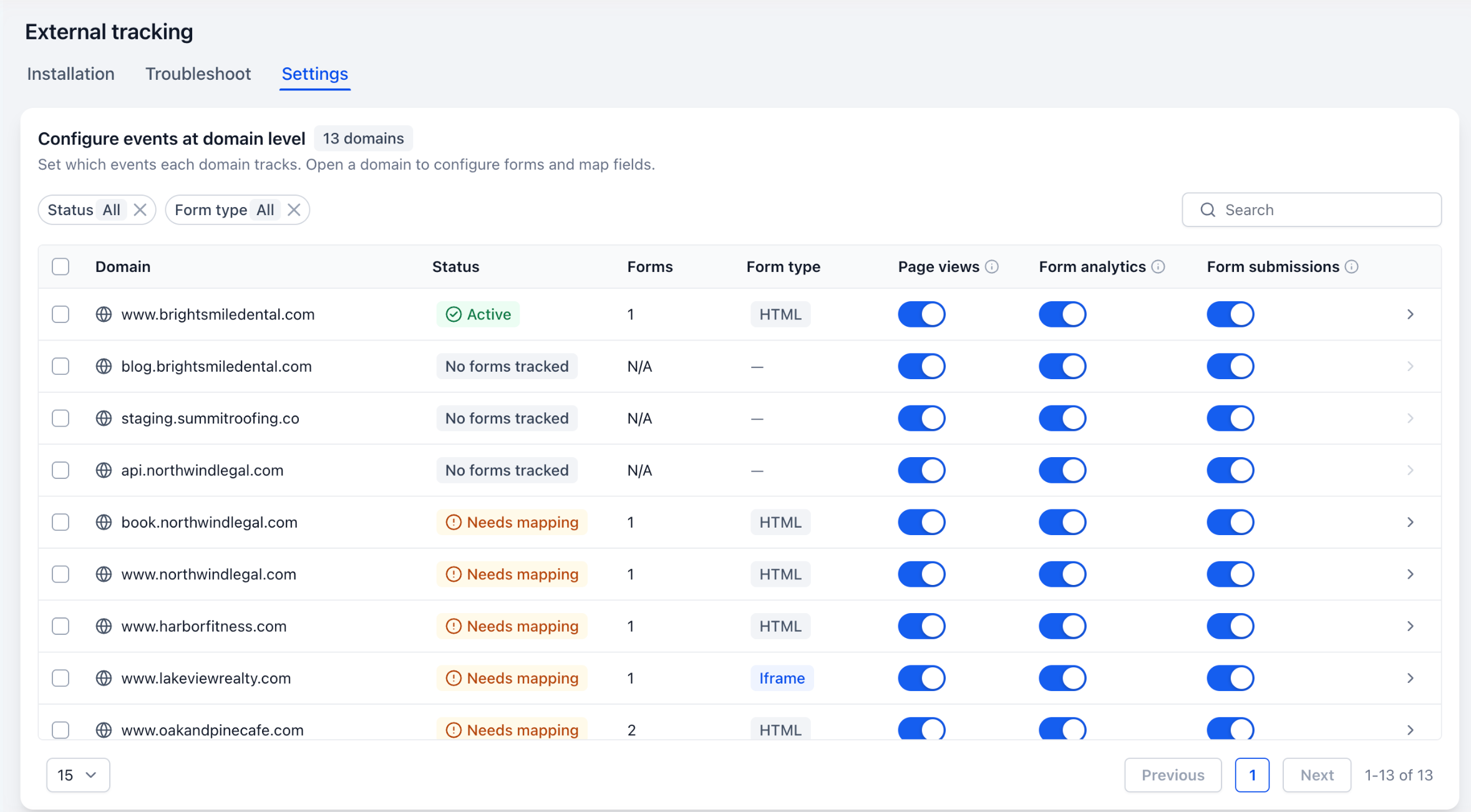
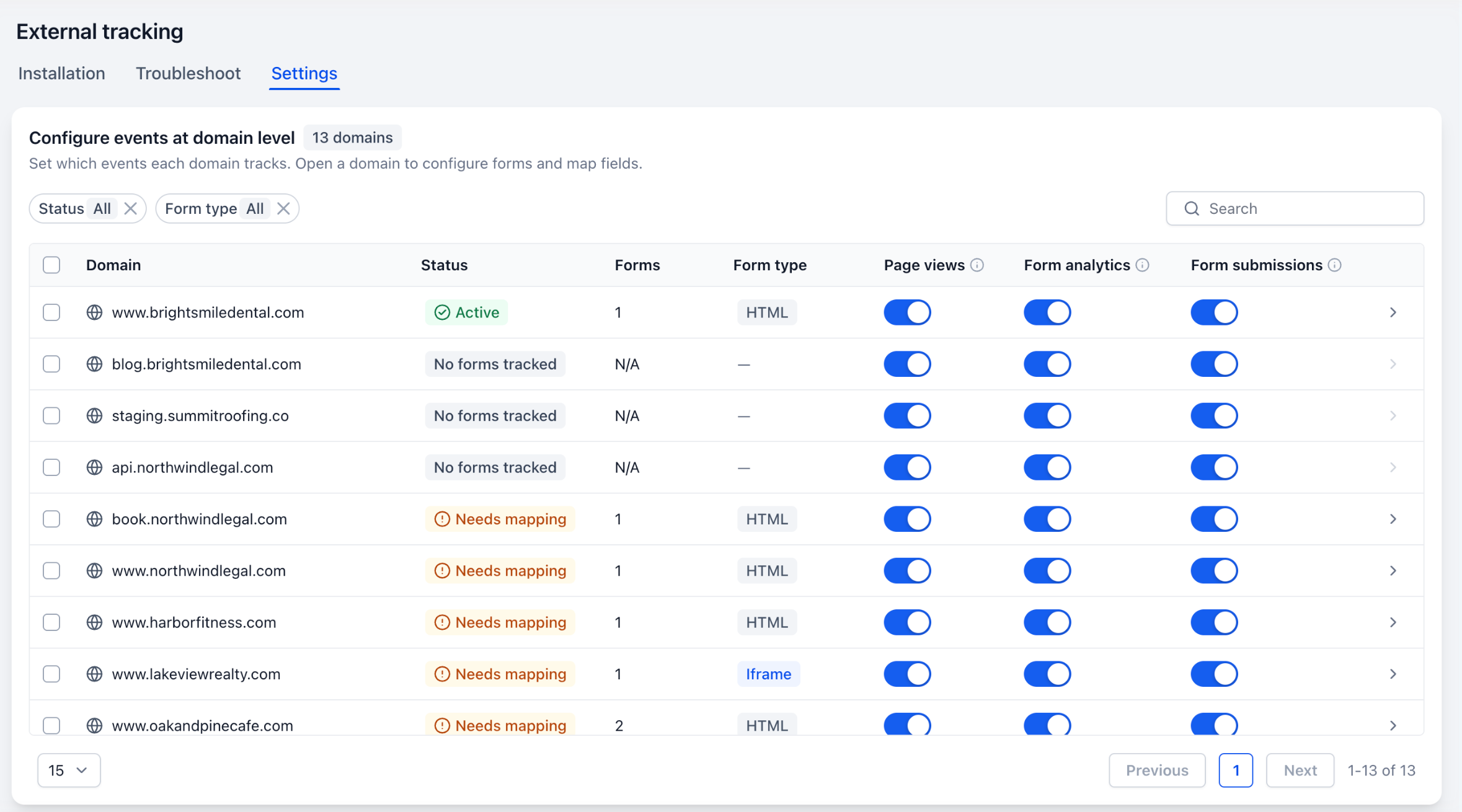
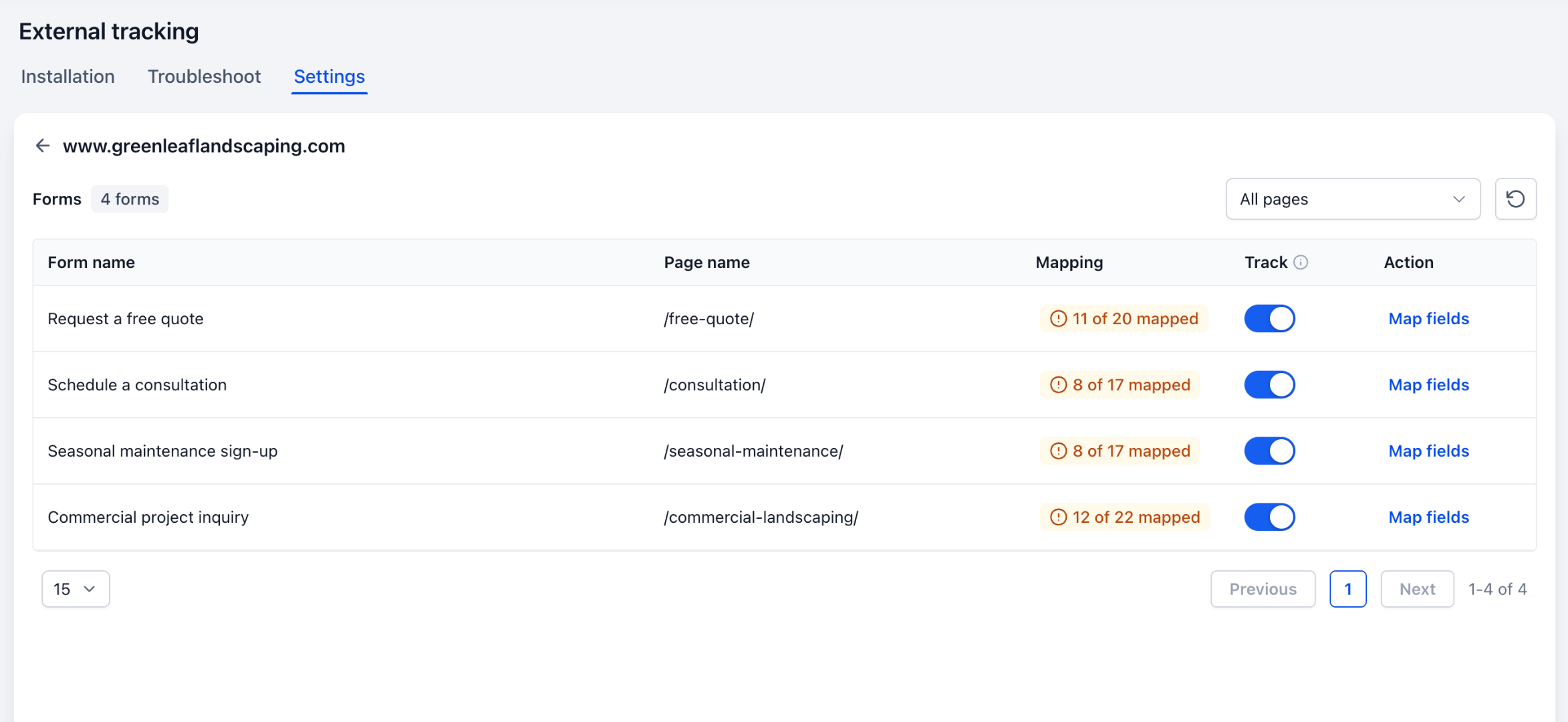
Field mapping control adds a per domain switch for page views, form analytics, and form submissions. Each domain shows its tracking status and lets you bulk update settings. Form level options let you enable or disable contact creation for individual forms and edit how each input maps to standard CRM fields.
iFrame form tracking expands data capture to forms embedded on a different domain. Two snippets are required: one placed on the page that hosts the actual form (the source) and another on the parent page containing the iFrame. The source snippet includes a data parent origin attribute that must match the parent URL exactly, while the parent snippet carries data iframe tracking="true" to receive the submission data.
All settings reside under Settings > External Tracking. The domain list, form list, and mapping interface are accessed from the Settings tab, while snippet installation is found under Settings > External Tracking > Installation > Tracking code > iFrame forms.
03How businesses use field mapping control and iFrame form tracking
- Digital marketing agency. The agency opens Settings > External Tracking, finds each client domain, and toggles page view or form analytics switches as needed. It then maps each client’s lead form fields to Standard CRM fields, ensuring consistent contact records across campaigns.
- Ecommerce store. The store embeds a payment processor’s checkout form in an iFrame. It installs the source snippet on the processor’s page, sets data parent origin to its storefront URL, and adds the parent snippet on the storefront page. After publishing, submissions flow into HighLevel without capturing payment data.
- SaaS company. The SaaS team enables tracking only on selected partner blog forms. They disable the Track switch on unwanted forms, keep Form analytics active, and map required fields like First Name and Email to HighLevel contacts, capturing leads while avoiding unnecessary contact creation.
04The numbers and rules that matter
- Three independent switches per domain: Page views, Form analytics, Form submissions.
- Standard CRM fields include First Name, Email, Phone, Organization and other supported fields.
05Before you start
- External Tracking experience must be enabled through Labs for your location.
06How to set up and use field mapping control and iFrame form tracking in HighLevel
Configure domain level tracking
- Open Settings > External Tracking > Settings.
- Search or filter to locate the desired domain.
- Toggle the Page views, Form analytics, and Form submissions switches as needed.
- Select multiple domains with checkboxes and apply Bulk actions to change the chosen event settings.
Configure form tracking and field mapping
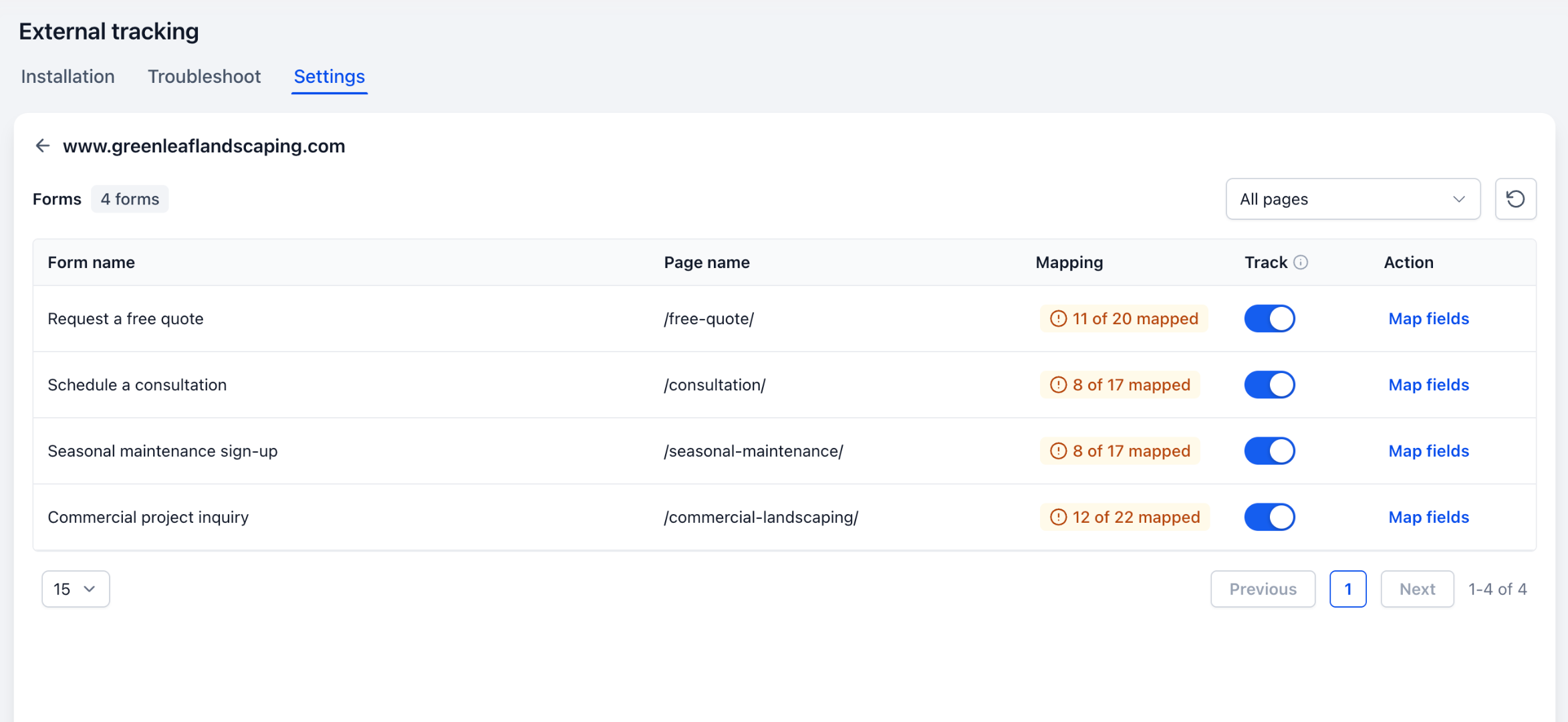
- Navigate to Settings > External Tracking > Settings and open the target domain.
- Find the specific form in the list.
- Turn the Track switch on or off depending on whether the form should create contacts.
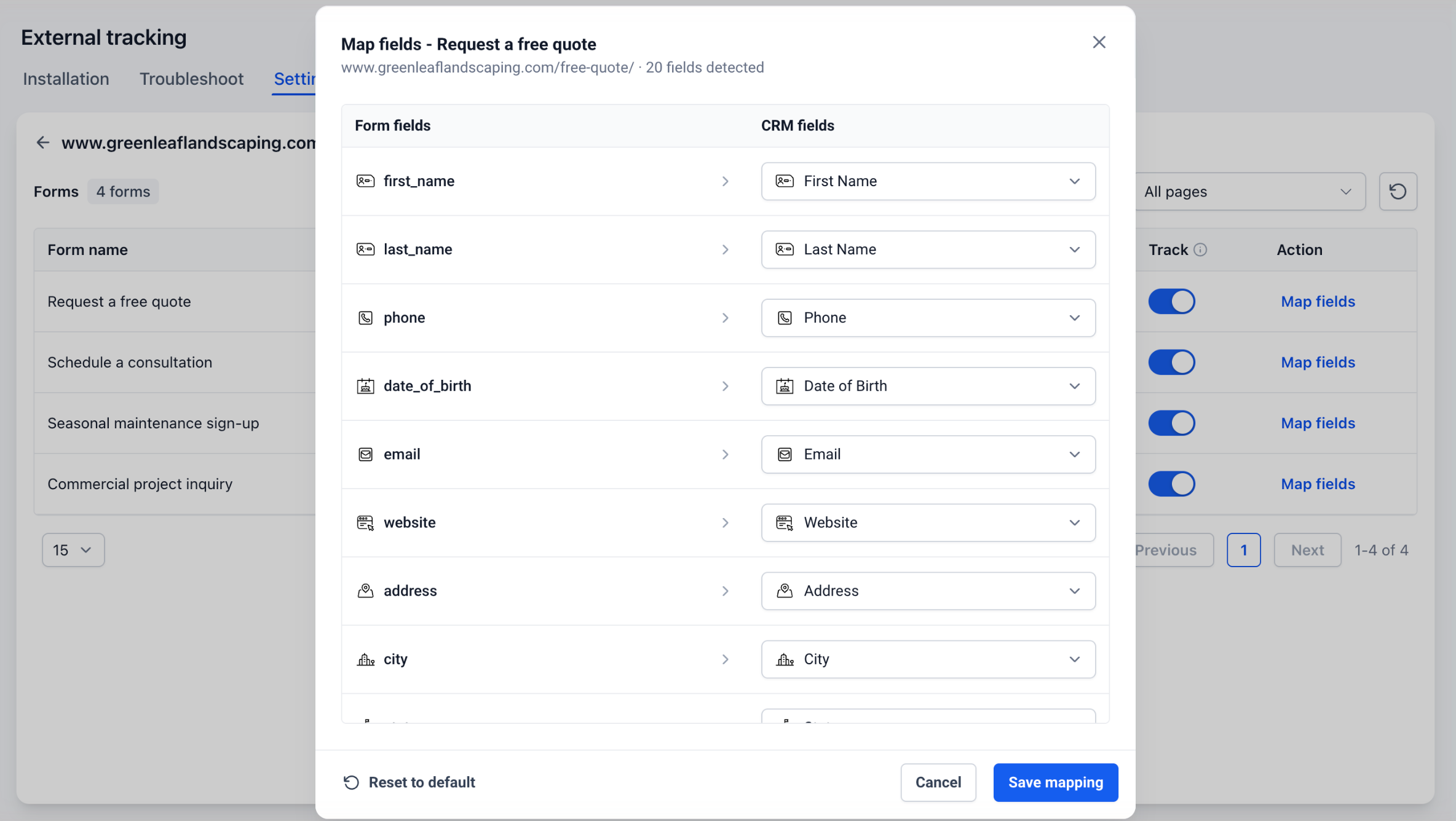
- Click the Map fields button to open the mapping screen.
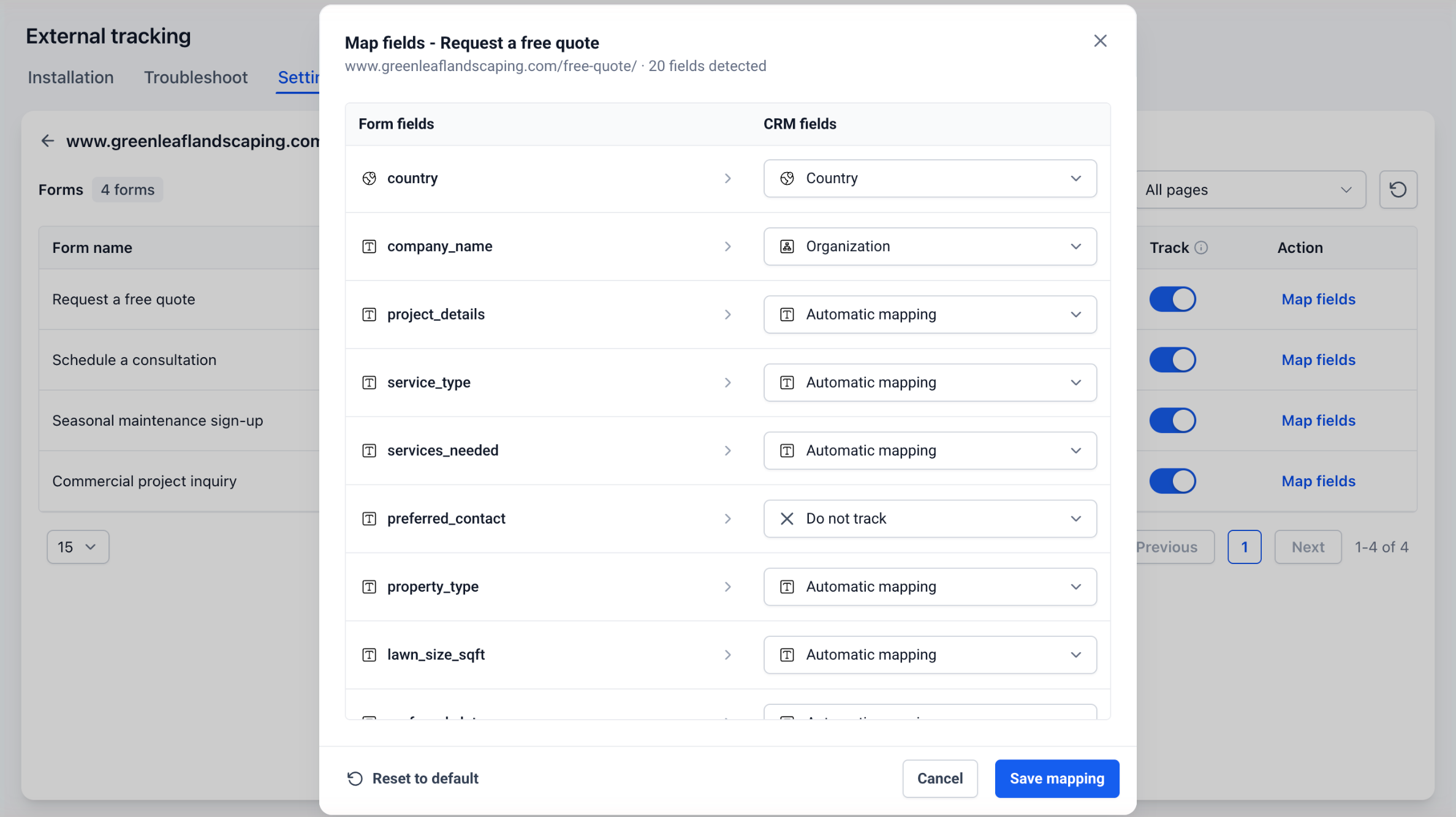
- Review each automatically matched field and choose the appropriate Standard CRM field or select Do not track for optional inputs.
- Press Save mapping to store the selections.
- Submit a test form and verify the captured contact information in HighLevel.
Set up iFrame form tracking
- Go to Settings > External Tracking > Installation > Tracking code > iFrame forms.
- Copy the iFrame source snippet.
- Paste the source snippet on the page that hosts the actual form inside the iFrame, setting data parent origin to the exact main website origin (for example https://www.example.com).
- Copy the parent page snippet.
- Place the parent snippet on the main website page that contains the iFrame.
- Publish both pages and submit a test form.
- In External Tracking > Settings, locate the main website domain, ensure the iFrame form appears, enable its Track switch if needed, adjust field mappings via Map fields, and click Save mapping.
07What it looks like in HighLevel
08Settings that matter
- Page views. Controls whether HighLevel records visits to the external website.
- Form analytics. Enables tracking of form engagement and performance without creating contacts.
- Form submissions. Determines if form submissions are sent to HighLevel as contact records.
- Track. Switches a specific form on or off for creating HighLevel contacts when domain level submission tracking is active.
- Map fields. Opens the interface to assign each form input to a Standard CRM field or exclude it.
- Do not track. Excludes an optional form field from being stored in the contact record.
- Reset to default. Restores the automatic field matching that HighLevel provides.
- data parent origin. Attribute on the source snippet that specifies the exact parent website URL allowed to receive the submission data.
- data iframe tracking="true". Attribute on the parent page snippet that enables receipt of iFrame submission data.
09Things to know before you rely on it
- Manual mapping is limited to Standard CRM fields; custom contact fields cannot be manually mapped.
- Required form fields must remain mapped to a contact field and cannot be set to Do not track.
- Mapping changes affect only future submissions; existing contacts are unchanged.
- Each iFrame source snippet supports a single configured parent origin; a new snippet is needed for each parent website.
- The parent origin value must match exactly, including protocol (https) and www.
- Only forms that trigger the browser’s normal submit event are trackable; custom JavaScript only submissions and certain nested iFrames are unsupported.
- Password, payment, and hidden fields are never captured; for file uploads only the file name is recorded.
10If something goes wrong
- iFrame form is not detected. Confirm that both the source and parent snippets are installed, the data parent origin matches the parent URL exactly, the form uses the browser’s normal submit event, and the domain and form tracking switches are enabled.
11How it connects to the rest of HighLevel
- Explore all site related features in HighLevel All Sites features
- View HighLevel pricing and plan options HighLevel pricing and plans
- Start a free 30 day trial of HighLevel Start a 30 day HighLevel trial
Michael's take

Field mapping control and iFrame tracking let a small business keep contact data clean while still pulling leads from any site or embedded form, which helps with consistent follow up and reporting.
Avoid mismatching the parent origin. Even a missing "www" will stop the iFrame data from arriving.