
01Who this is for
- Marketing agencies can build client funnels faster because they no longer need to pre plan layout containers.
- Online coaches benefit from quick landing page creation, letting them focus on content rather than structure.
- Ecommerce owners can adjust product showcase sections right away by reordering columns without rebuilding rows.
02Enhanced drag and drop, explained
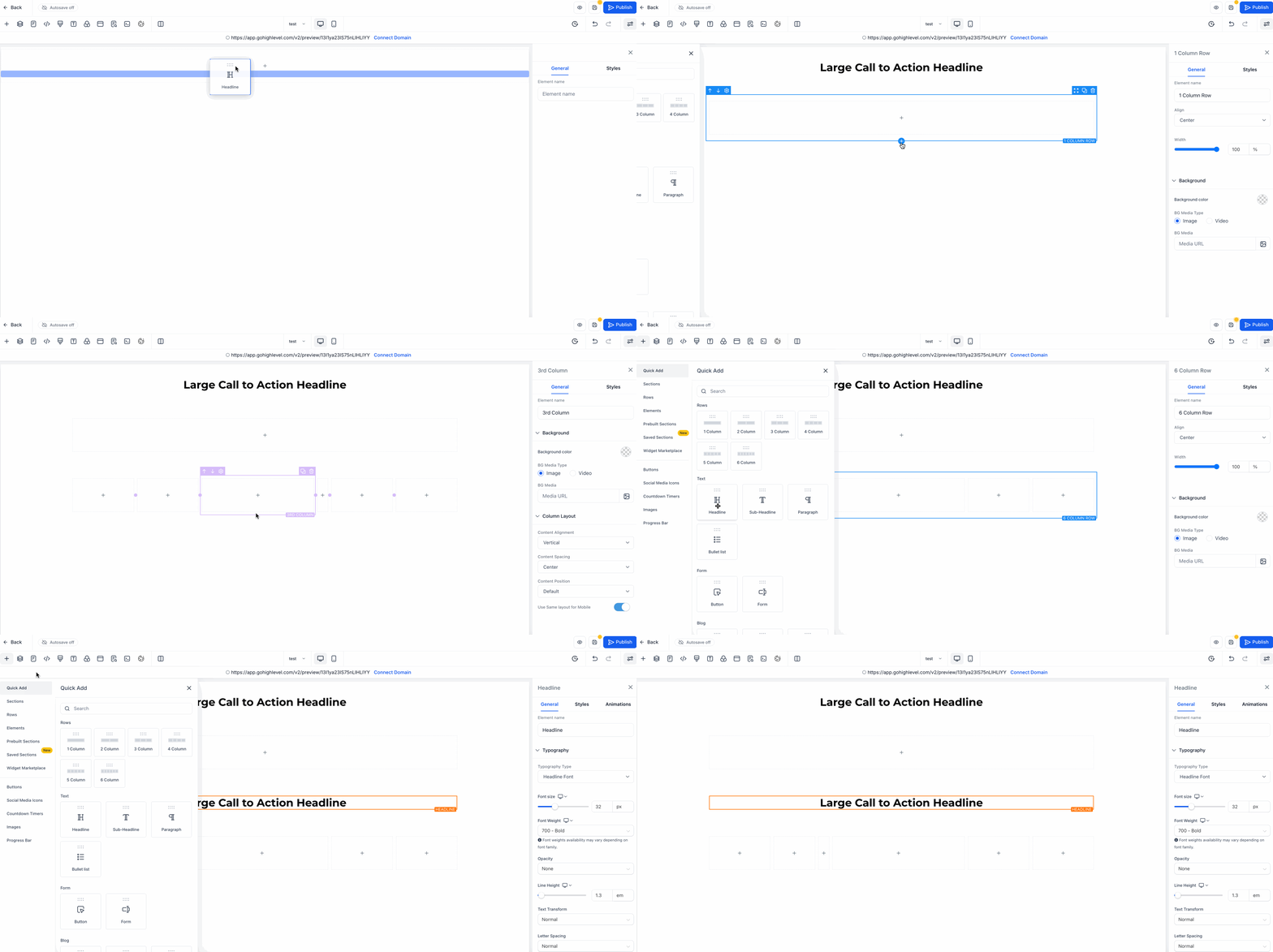
The feature adds true drag and drop freedom inside the funnel and website builder. When you drag a widget such as text, button or image onto an empty canvas area, the system automatically wraps it with a Section, a Row and a Column in the correct order. This auto wrap logic removes the need to create layout containers manually.
You can also move any existing element by clicking anywhere on it, no separate move handle is required. Hovering over a Row reveals an inline “+ Add Column” button, allowing you to expand the layout without leaving the canvas. Column reordering works by dragging a column left or right within the same Row; a drop indicator shows the new position. The experience is available for both Funnels and Websites once the feature is turned on.
The setting lives under Agency View > Labs, where you enable the Enhanced Drag & Drop option for subaccounts. After activation, all editors in the account receive the new behavior.
03How businesses use enhanced drag and drop
- Digital marketing agency. The agency opens a client funnel page, drags a button element onto the canvas, and the builder creates the Section Row Column hierarchy automatically. They then add a new column by clicking the + Add Column button on the existing row to place a testimonial widget.
- Online coach. The coach creates a landing page, drags a text block directly onto the blank canvas, and the platform generates the necessary layout containers. Later they reorder the image and text columns within the same row to improve visual flow.
- Ecommerce store owner. The store owner designs a product showcase page, drops an image element onto the canvas and lets the builder create the layout. They add another column inline to introduce a price badge, then reposition columns to prioritize key details.
04Before you start
- Enable Enhanced Drag & Drop in Agency View > Labs so subaccounts can use the feature.
05How to set up and use enhanced drag and drop in HighLevel
Try enhanced drag and drop
- Open a funnel or website page in the builder editor.
- Select an element such as Text, Button or Image from the sidebar.
- Drag the chosen element onto an empty area of the canvas.
- Observe the automatic creation of Section, Row and Column containers around the element.
- Click and hold any part of the element to move it to a new location.
- Hover over a Row and click the + Add Column button to insert additional columns.
Reorder columns within a row
- Hover over the target row to show column boundaries and drop zones.
- Grab the column you want to move by clicking anywhere on it.
- Drag the column left or right inside the same row.
- Release the mouse when the drop indicator appears at the desired spot.
06What it looks like in HighLevel
07Settings that matter
- Enhanced Drag & Drop. When turned on, it activates auto hierarchical layout creation and allows elements to be moved by dragging any part of them.
08Things to know before you rely on it
- Column reordering works only within the same row and may affect responsive stacking, so tablet and mobile views should be reviewed after changes.
- The auto wrap behavior cannot be disabled at this time.
- The feature is available in both Funnels and Websites after enabling it in Labs.
09How it connects to the rest of HighLevel
- Learn how to set up a website and manage pages. Website setup overview
- Add custom tracking code to funnels and websites. Add tracking code
- Connect a root domain or subdomain for your sites. Domain connect
Michael's take

Enhanced drag and drop changes the way pages are assembled.
If you enjoy building every section by hand, this feature may feel unnecessary.