
01Who this is for
- SEO consultants: they can precisely set page metadata for client sites without developer help.
- Digital marketers: they gain control over how campaign landing pages appear in search results and social feeds.
- Small business owners: they can prevent draft pages from being indexed and improve search visibility on their own.
02Custom meta tags, explained
The feature lets you write your own meta tags for any page built in the funnel or website editor. You enter a tag name, such as robots, and supply its content, like noindex, to direct search engine behavior. The tags are stored with the page and sent to crawlers when the page loads.
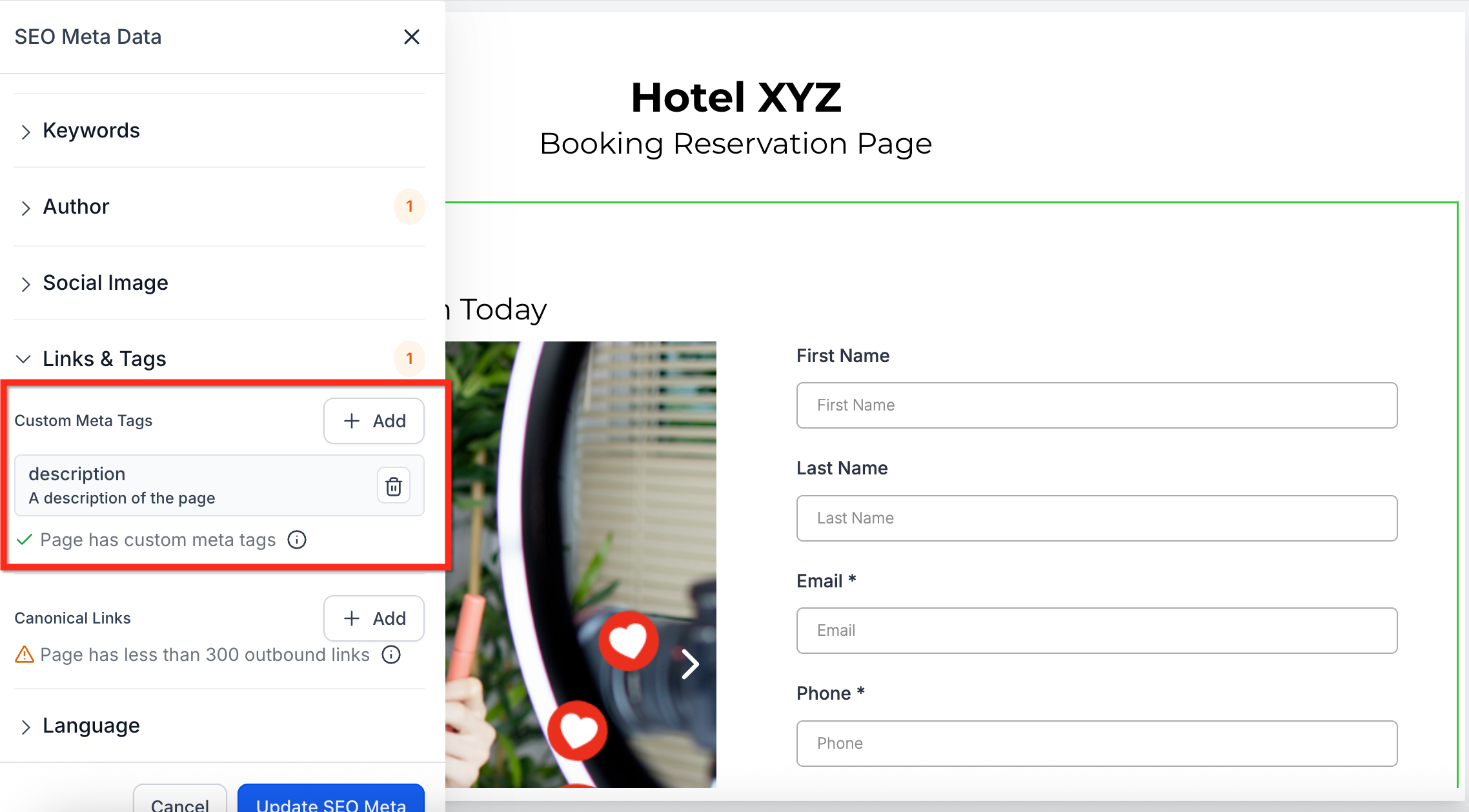
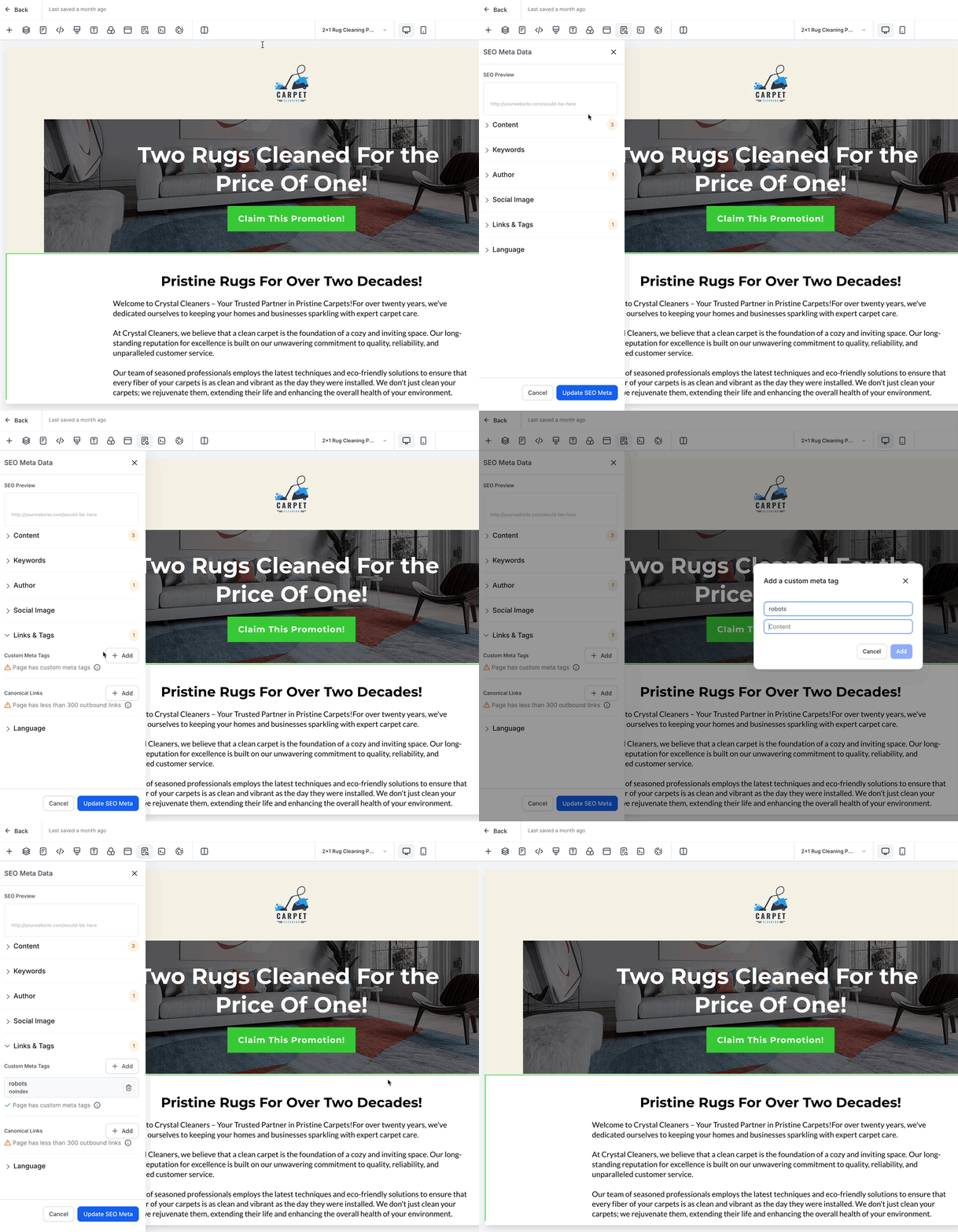
To use the tool, open the page editor, select the SEO Meta Data tab, scroll to the Links and Tags dropdown, and add as many custom tags as needed. After adding, you press Update SEO Meta to apply the changes. The tags affect how browsers, search engines, and social networks render the page, but they do not change any visual design.
The control panel for this feature resides inside the page builder under Sites > Funnels or Sites > Websites. From there you choose the specific funnel or website, open a page, and navigate to the SEO Meta Data section where the custom tag inputs appear.
03How businesses use custom meta tags
- Ecommerce store. The store owner adds a meta tag with name robots and content noindex to product pages that are out of stock. Inside HighLevel they open each page, go to the SEO Meta Data tab, add the custom tag, and save, ensuring search engines skip those pages.
- Real estate agency. Agents create a meta tag called og:image with the URL of a property’s main photo. They use the SEO Meta Data interface in HighLevel to insert the tag, so when a listing is shared on social media the chosen image appears.
- SaaS startup. The marketing team defines a title and description meta tag for their pricing page. They edit the page in HighLevel, add the custom tags in the SEO Meta Data section, and update, giving search results a concise, branded snippet.
04How to set up and use custom meta tags in HighLevel
Add custom meta tags to a funnel or website page
- Open Sites > Funnels or Sites > Websites in the navigation.
- Choose the funnel or website that contains the page you want to modify.
- Select the specific page or step within the builder.
- Click the SEO Meta Data icon at the top of the builder.
- Open the SEO Meta Data tab at the top of the editor.
- Scroll down until you see the Links and Tags dropdown.
- Press the plus sign next to Custom Meta Tags to create a new entry.
- Enter the meta tag name and the corresponding content value.
- Click the Add button to record the new tag.
- Press Update SEO Meta to save all changes to the page.
05What it looks like in HighLevel
06Settings that matter
- Custom Meta Tags. Defines the name and content of each meta tag you add to a page, controlling how search engines and social platforms interpret the page.
07How it connects to the rest of HighLevel
- Add tracking code to funnels and websites in HighLevel Add tracking code
- Set a page load popup in HighLevel Page load popup
- View HighLevel pricing and plan options Pricing
Michael's take

Custom meta tags are a niche feature that only matters if you care about fine tuning SEO or social previews.
Skip it if you have no time to manage individual page tags or if you rely entirely on default platform settings.