
01Who this is for
- Small service based businesses such as salons can give clients a QR code that opens the appointment booking page right away.
- Event organizers with calendar groups can place QR codes on flyers so attendees can reserve sessions without typing a URL.
- Equipment rental companies can attach QR codes to items, allowing renters to launch the reservation page directly.
02QR codes for calendars, services & rentals, explained
The QR Code feature creates scannable images that point to a specific calendar, service, or rental booking page inside HighLevel. When a user scans the code, the platform opens the linked booking destination, letting the customer complete the reservation.
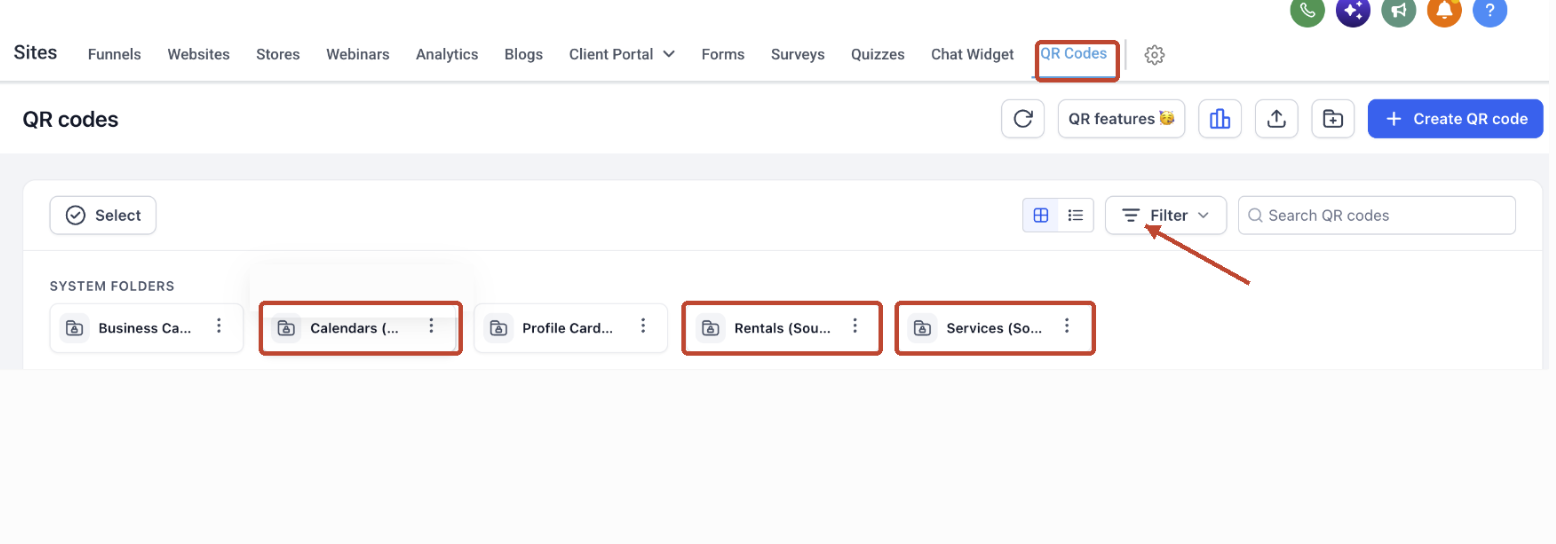
You can build QR codes manually through the QR Code Builder or use the prebuilt versions that appear inside the Calendar, Service, and Rental settings. All codes appear in the central Sites > QR Codes list, where you can view scan counts, edit appearance, and download files.
The feature lives under Sites in the left navigation. From there you reach QR Codes, the Builder, and the folders that group codes by product type. Prebuilt codes are also reachable directly from each product’s settings.
03How businesses use QR codes for calendars, services & rentals
- Dental practice. The practice creates a QR code for each dentist’s calendar using the QR Code Builder, selects the dentist’s calendar as the destination, customizes the color to match branding, and then prints the code on appointment reminder cards.
- Yoga studio. The studio accesses the prebuilt QR code for its class schedule from the Calendar settings, reviews the scan activity to see which classes attract the most interest, and downloads a PNG to display on the studio wall.
- Car rental agency. The agency opens the Rentals area, selects the QR code option for a specific vehicle, edits the QR design to add the company logo, and saves the updated code to be placed on the vehicle’s key tag.
04The numbers and rules that matter
- Supported QR Code types: Calendar, Service, Rental.
05Before you start
- Create a Calendar, Service, or Rental that you want customers to book.
- Make sure you have access to the HighLevel subaccount containing that booking destination.
06How to set up and use QR codes for calendars, services & rentals in HighLevel
Create a QR code
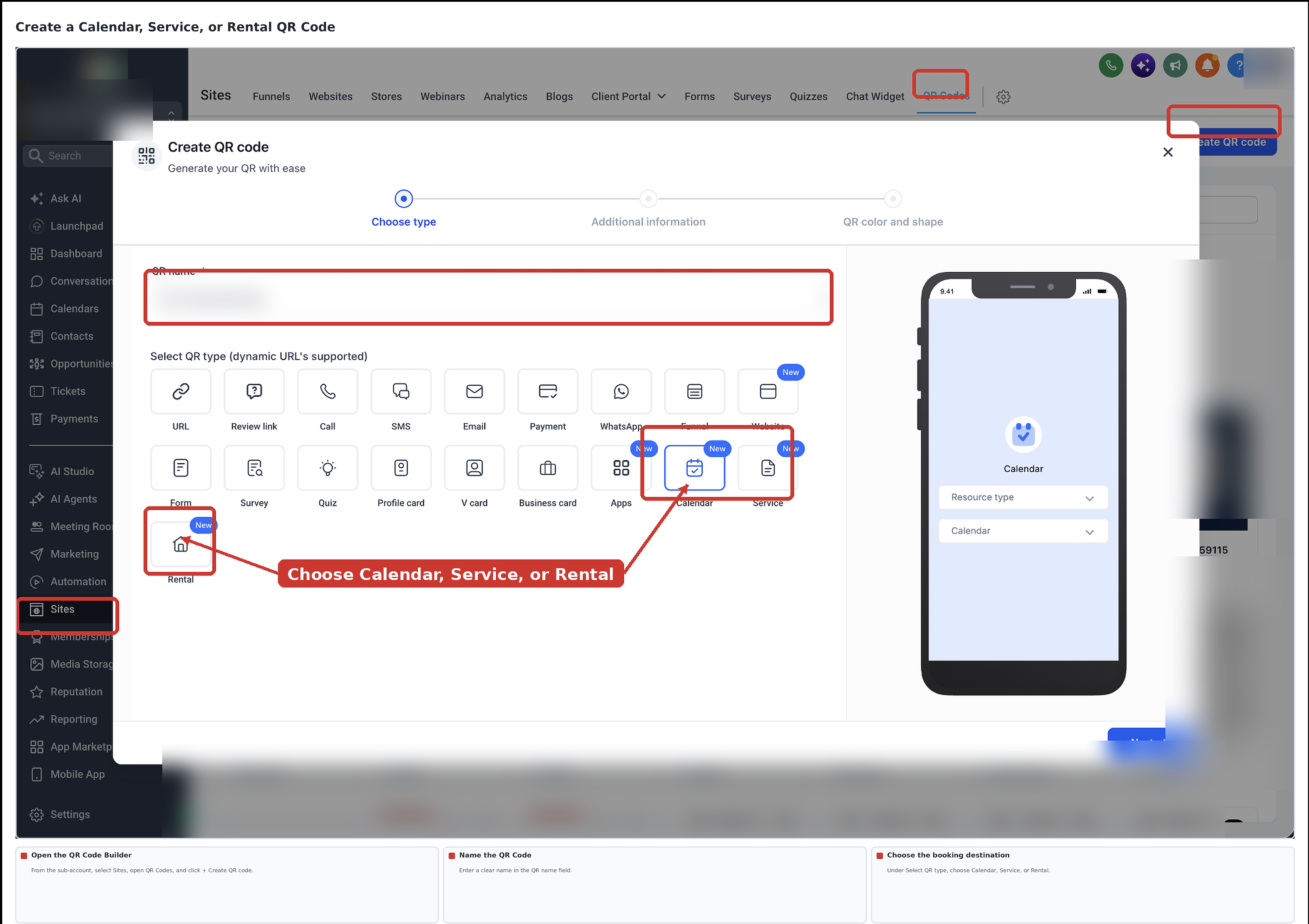
- Open your HighLevel subaccount and click Sites in the left navigation.
- Select QR Codes from the top menu.
- Press the + Create QR code button.
- Type a name into the QR name field.
- Choose Calendar, Service, or Rental as the QR type.
- Click Next to continue.
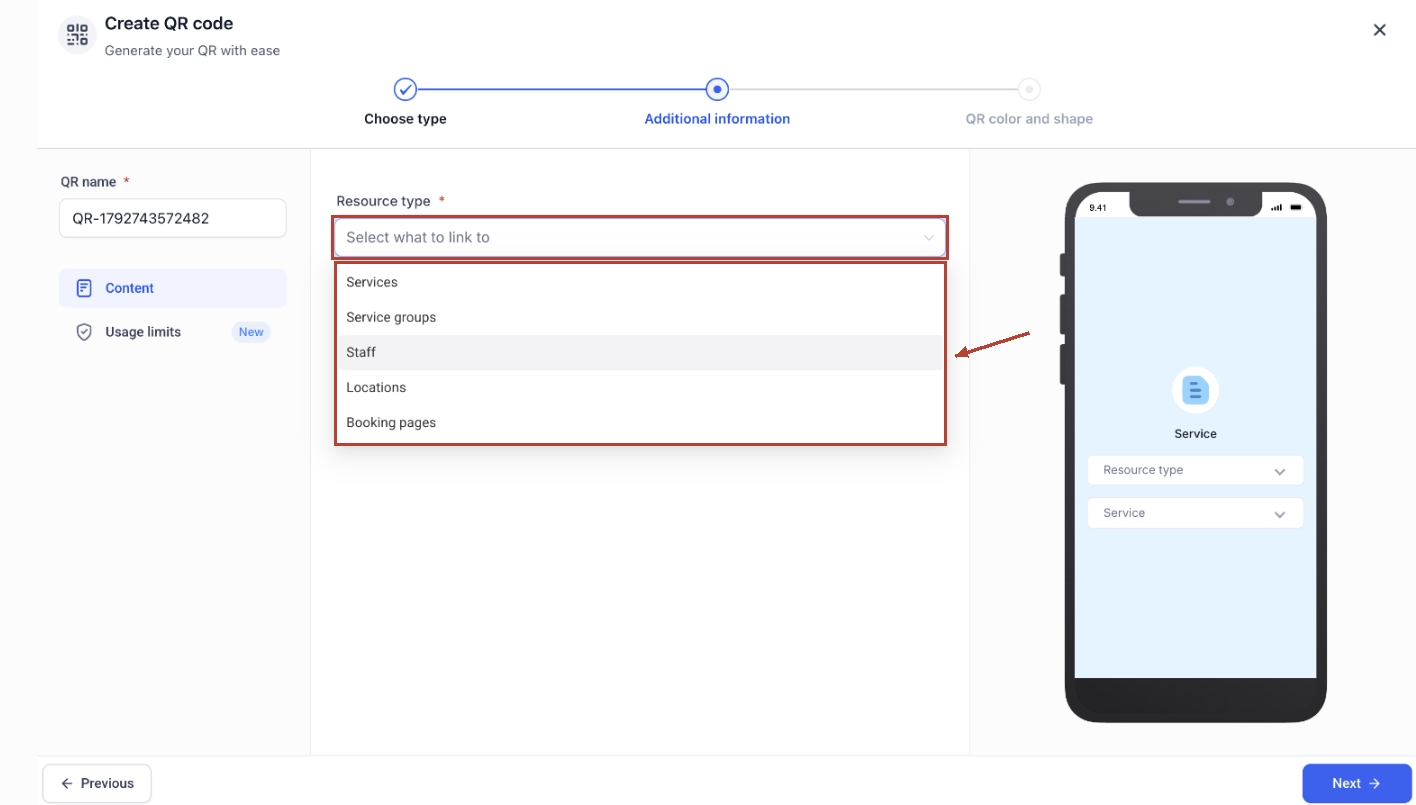
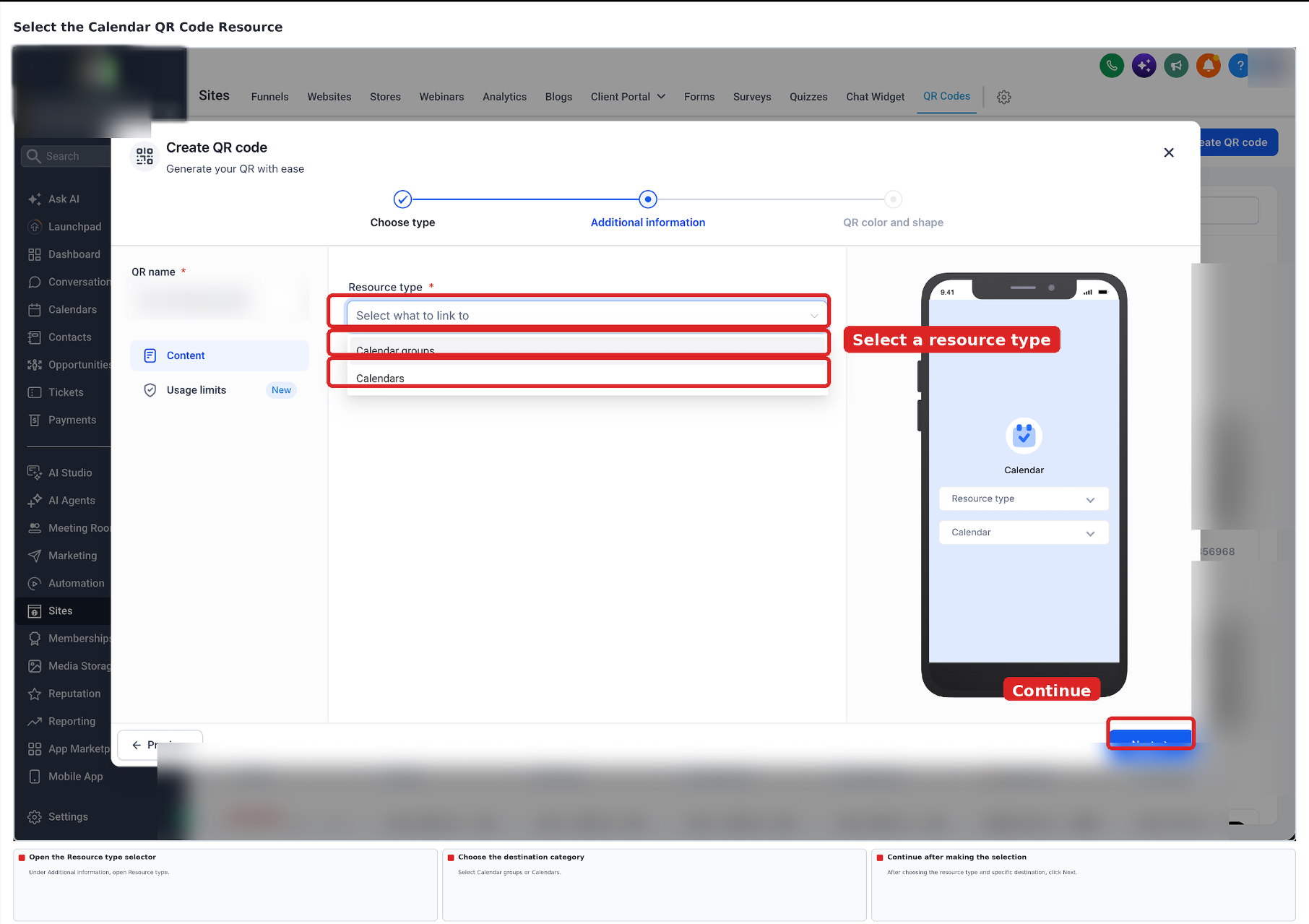
- Pick the Resource type you want the QR code to open.
- If you chose a Calendar QR code, select Calendar groups or Calendars.
- Select the exact Calendar you want the code to open.
- Choose the specific booking destination for the code.
- Click Next to reach the QR color and shape screen.
- Adjust the QR design as desired.
- Save the QR code.
- Scan the saved QR code to verify it opens the correct booking page.
Access a Calendar QR code
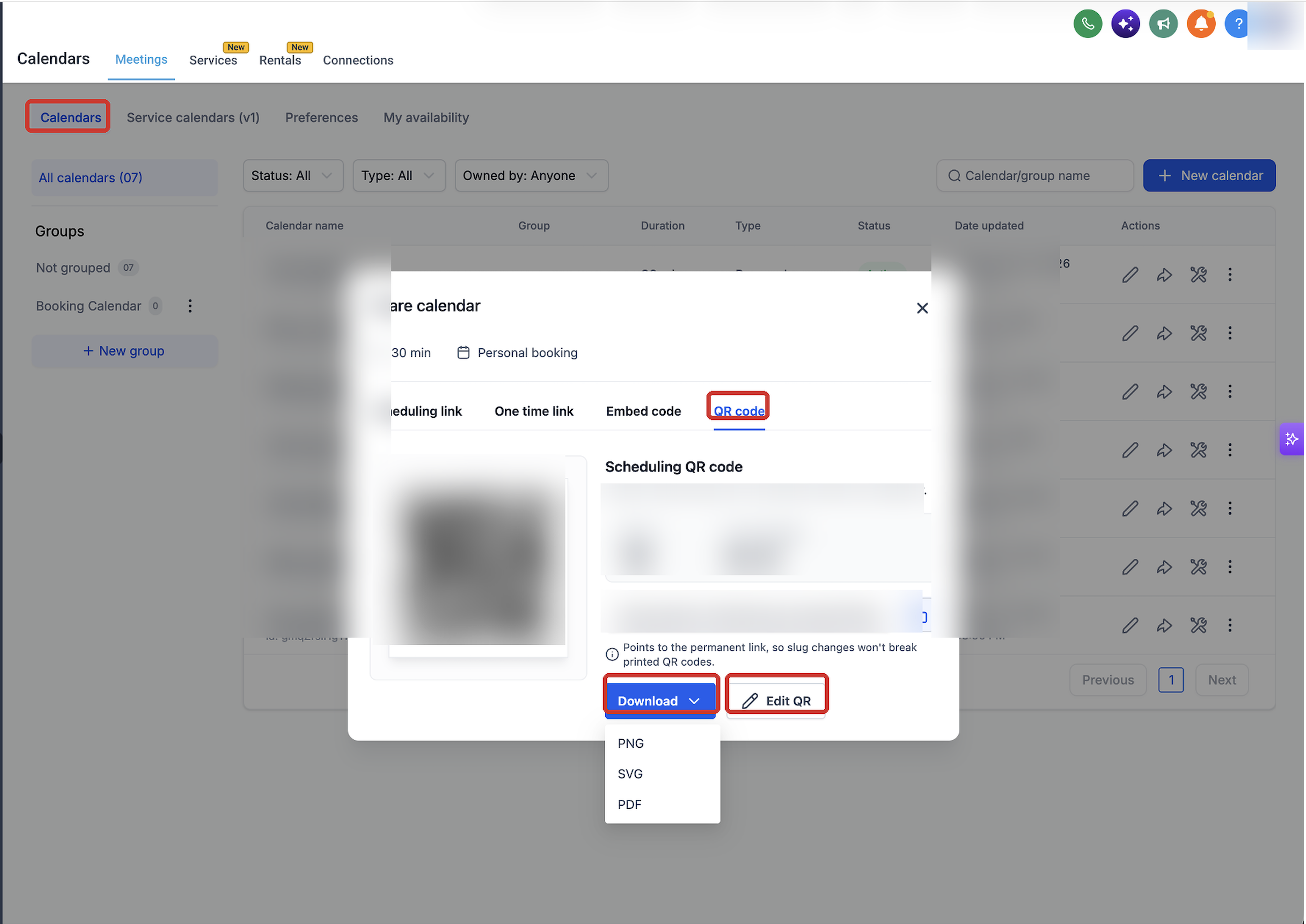
- From your HighLevel subaccount, click Calendars.
- Open Calendar Settings.
- Enter the Calendars area.
- Find the Calendar you wish to share.
- Open the sharing options for that Calendar.
- Select the QR code tab.
Access a Service QR code
- From your HighLevel subaccount, click Calendars.
- Open Calendar Settings.
- Open the Services area.
- Find the Service you want and open its QR code option.
Access a Rental QR code
- From your HighLevel subaccount, click Calendars.
- Open Calendar Settings.
- Open the Rentals area.
- Find the Rental you want and open its QR code option.
Download a QR code
- Click the Download button on the QR code view.
- Choose PNG as the file format to save the code.
- Choose SVG or PDF as the file format to save the code.
Customize a QR code
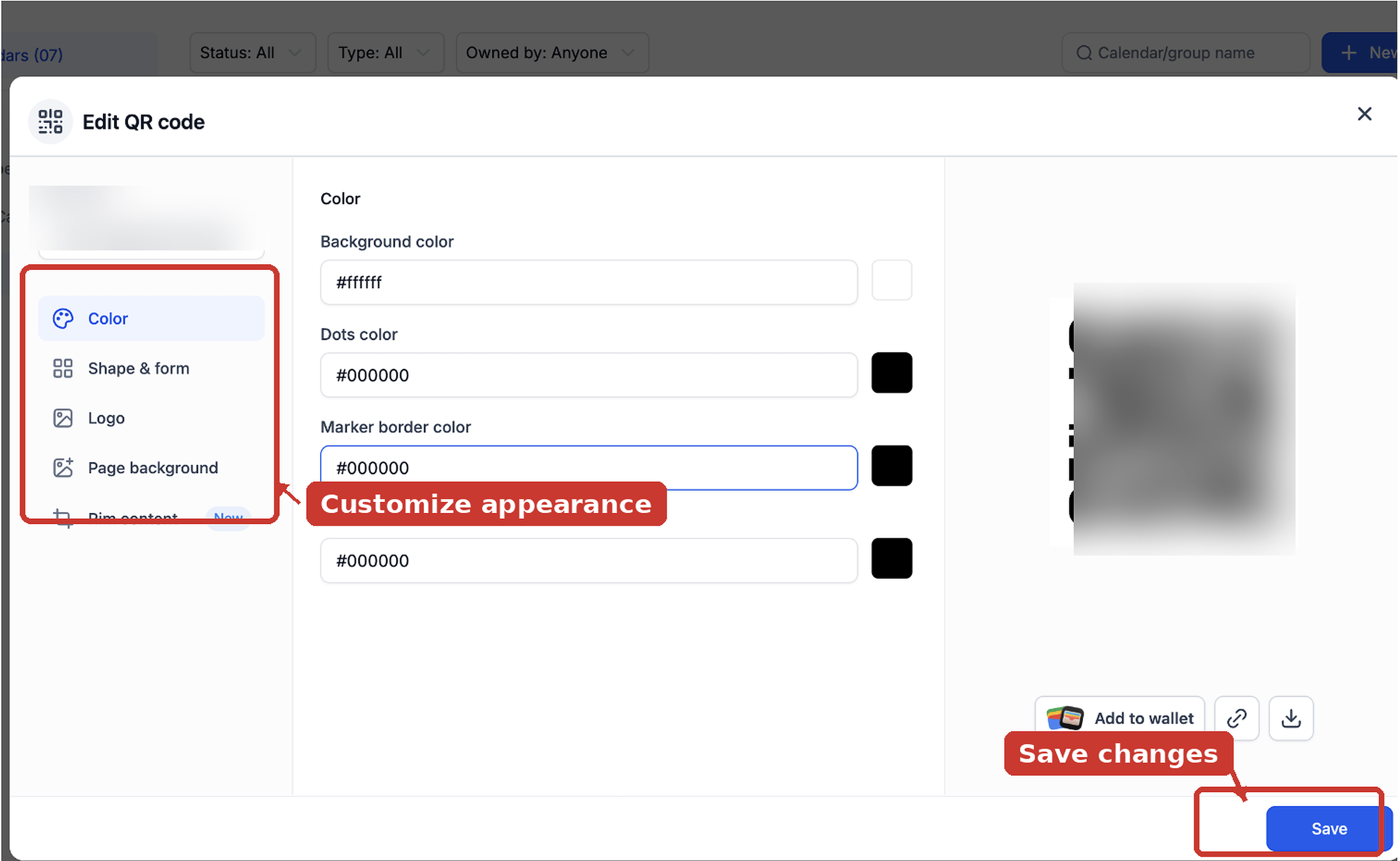
- Select Edit QR to open the customization panel.
- Change the Color setting to your preference.
- Adjust the Shape & form setting.
- Update the Logo, Page background, or Rim content and then Save.
07What it looks like in HighLevel
08Settings that matter
- QR name. Defines the label used to identify the QR code inside the QR Codes list.
- Select QR type. Determines whether the QR code will link to a Calendar, Service, or Rental destination.
- Resource type. Specifies the kind of resource (e.g., calendar groups, services, staff) the QR code will open.
- QR color and shape. Controls the visual appearance of the QR code, including its color palette and shape style.
- Edit QR. Opens the editor that lets you modify color, shape, logo, page background, and rim content.
09Things to know before you rely on it
- You must already have a Calendar, Service, or Rental set up before creating a QR code.
- Destination choices are limited to the options listed for each QR code type.
- Prebuilt QR codes are automatically linked to their destinations and cannot be re linked to a different one.
- Always scan a QR code after creation or editing to confirm it opens the intended booking page.
10How it connects to the rest of HighLevel
- Step by step guide for generating, customizing and downloading QR codes. QR code guide
- Learn how to use search, filters, views and bulk actions to manage QR codes. Manage QR codes
- View pricing tiers and plan options for HighLevel. Pricing
Michael's take

QR codes add a step you have to verify each time you change a link. Scanning the code before sharing helps ensure it opens the correct booking destination.