
01Who this is for
- Marketers who need to present only relevant product options to each prospect, reducing confusion and improving data quality.
- Coaches creating intake forms that adapt to a client’s selected service level, ensuring they answer only applicable questions.
02Conditional logic in surveys, explained
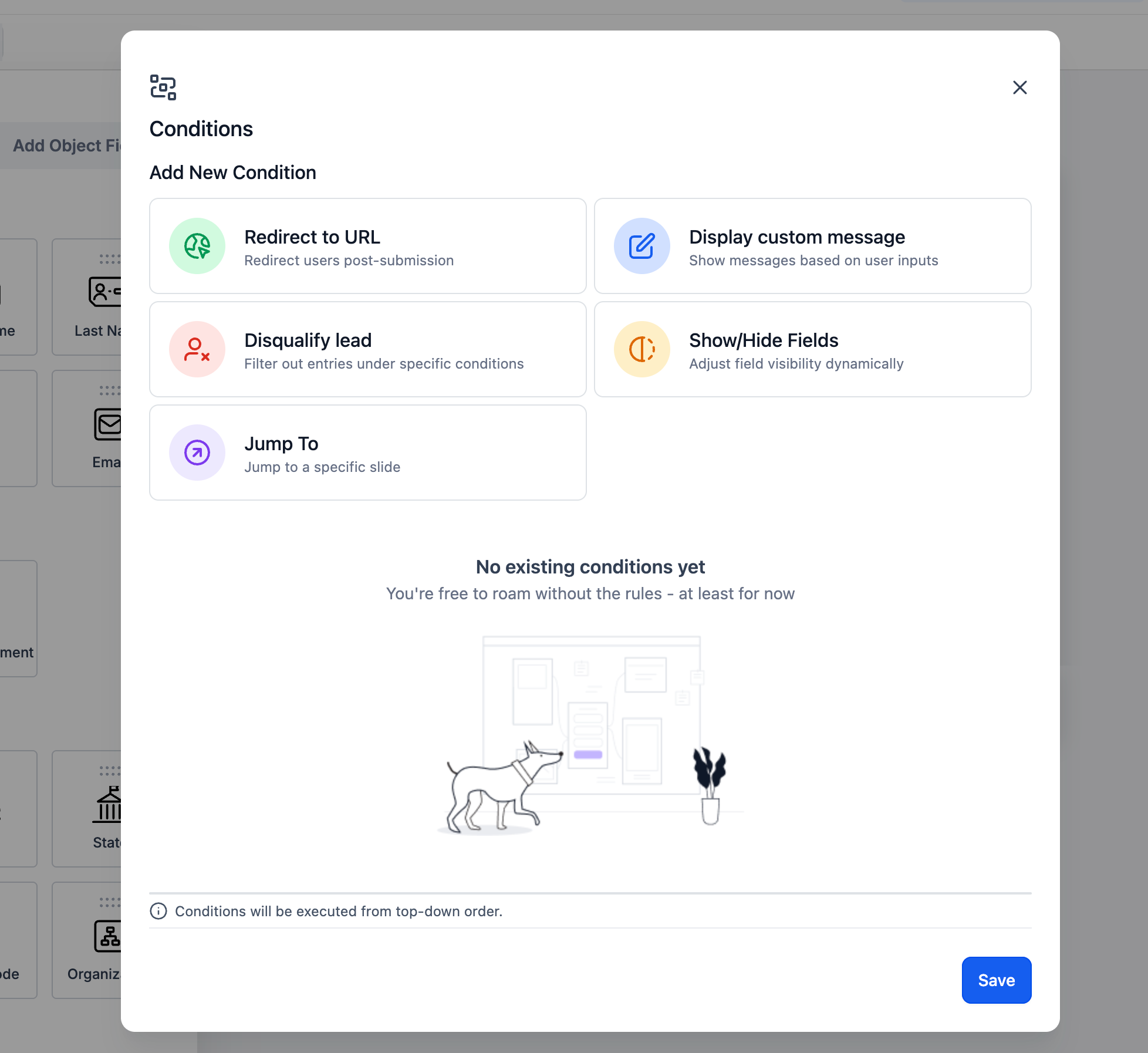
Conditional Logic v2 lives inside the Survey Builder under Sites > Surveys. It adds an action panel where you define IF conditions and select one of five possible outcomes. The outcomes include showing or hiding fields or products, redirecting respondents to a URL, displaying a custom message, disqualifying the lead, or jumping to another slide.
The builder supports both regular survey fields and individual products as condition sources. You can target an entire Sell Products element, a single product, or a specific product variant. Operators vary by field type; for example text fields allow Equal To, Contains or Starts With, while number fields allow Greater Than or Between. All rules are evaluated in the order they appear, and later visibility rules can override earlier ones.
03How businesses use conditional logic in surveys
- Digital marketing agency. The agency creates a survey that offers different service packages. Using Conditional Logic, selecting a paid package triggers additional questions about budget and timeline, while hiding unrelated options. The rule is built inside the survey’s Conditional Logic panel.
- Ecommerce store. The store’s order form lists T shirts in various sizes and colors. Conditional Logic shows only the size and color variants that match the customer’s previous choices, keeping the form concise. Visibility settings are configured on the Show/Hide Fields action.
- Online coaching business. A coach adds a Disqualify Lead rule that disqualifies prospects who pick a free resource and prevents them from completing the full intake form. The rule uses the Disqualify Lead action linked to the selected product.
04The numbers and rules that matter
- Five actions are supported: Show/Hide Fields, Display Custom Message, Redirect to URL, Disqualify Lead, Jump To.
- Supported field operators include Equal To, Not Equal To, Contains, Starts With, Ends With, Is Empty, Is Filled, Greater Than, Less Than, Between, Before, After, Is Checked, Is Not Checked.
- Supported field types: Text, Number, Score, Monetary, Date, Dropdown, Radio, Checkbox, Terms & Conditions, File Upload, Signature.
- Conditional Logic v2 is available for newly created or cloned surveys.
05Before you start
- All required survey questions, product listings, product variants, and slides must be added before creating Conditional Logic rules.
06How to set up and use conditional logic in surveys in HighLevel
Set up conditional logic rule
- Open the Survey Builder via Sites > Surveys.
- Select an existing survey or create a new one.
- Add the necessary questions, slides, and a Sell Products element if needed.
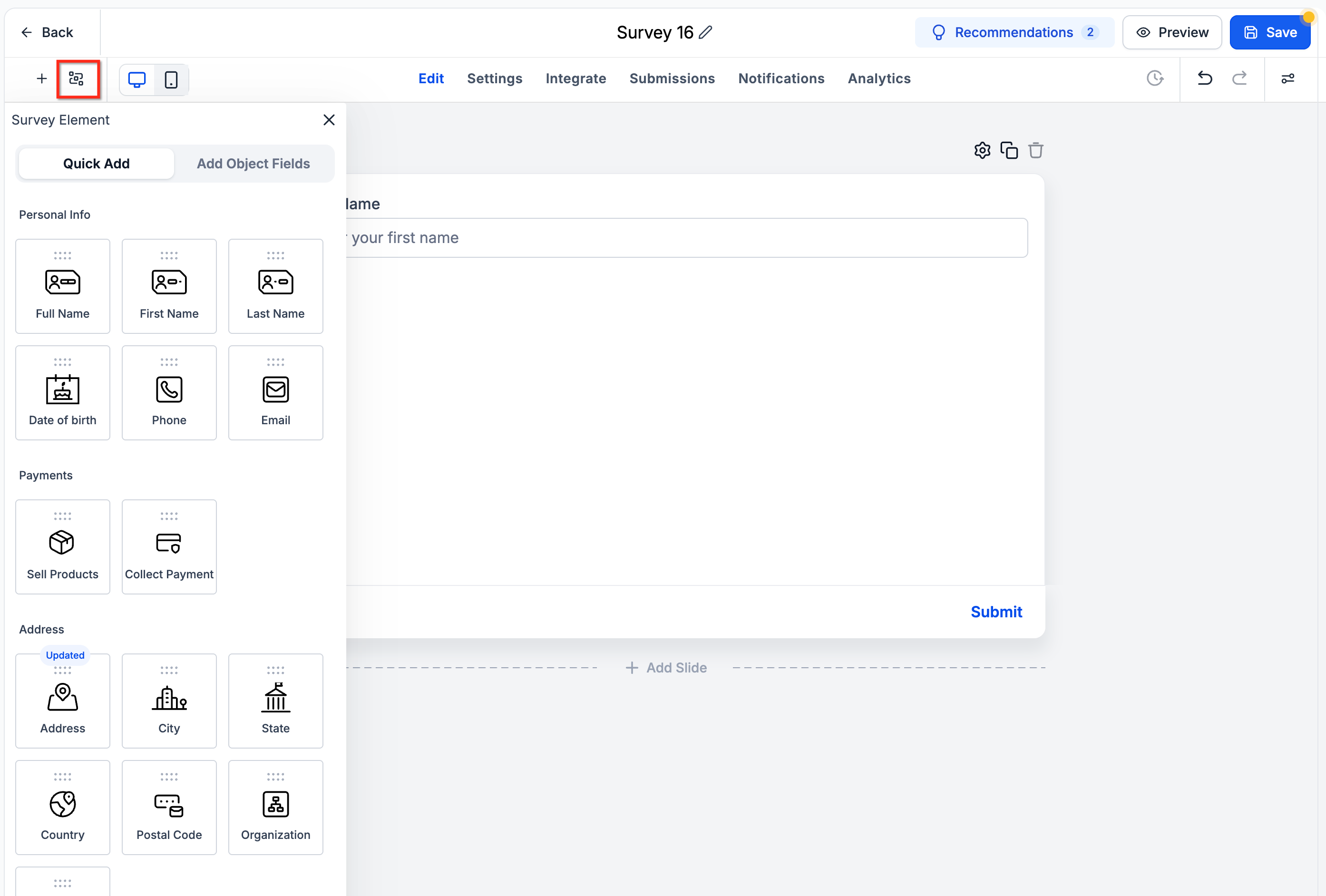
- Click the Conditional Logic button in the builder.
- Press Add New Condition to start a rule.
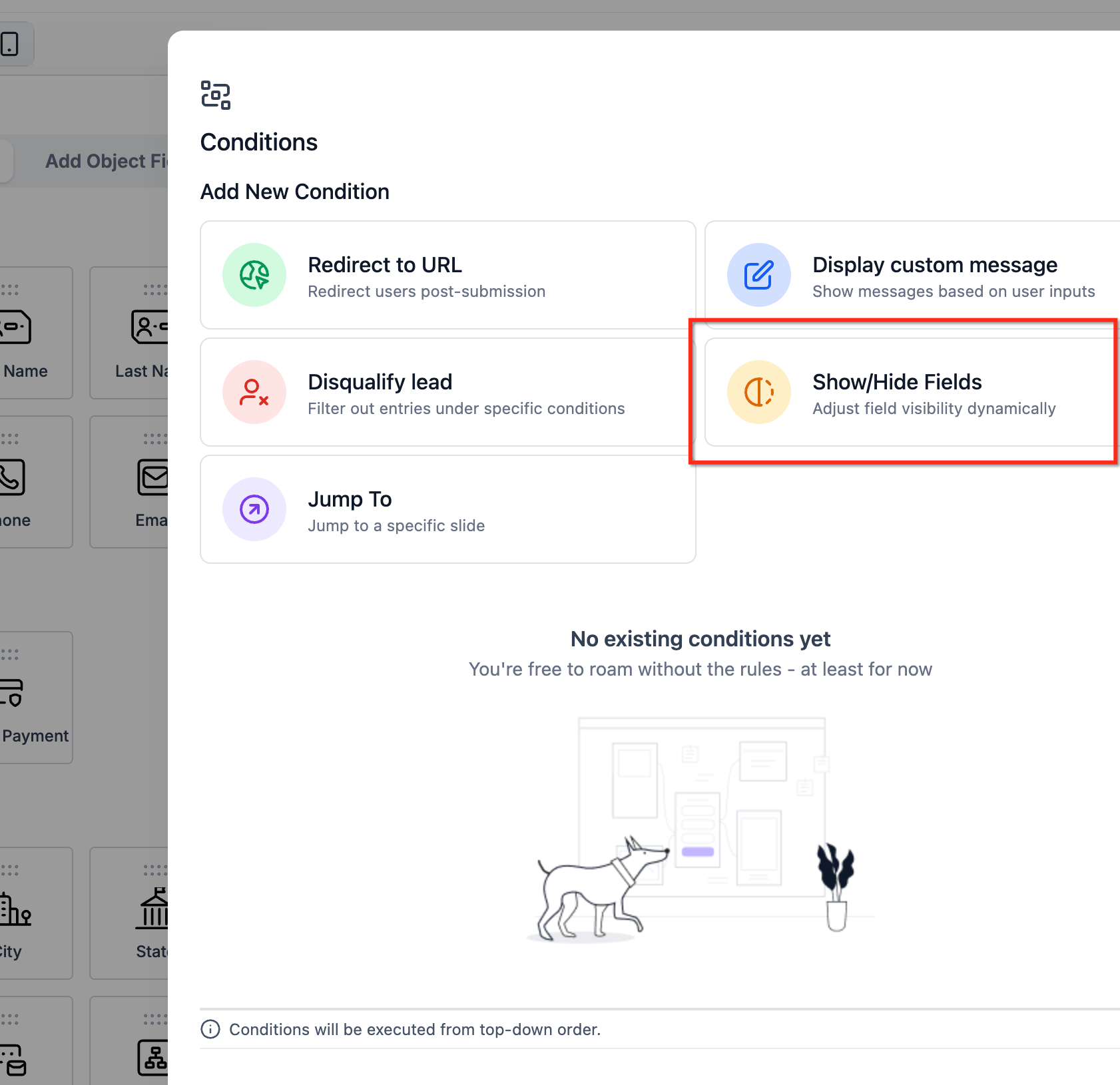
- Choose one of the five actions: Show/Hide Fields, Redirect to URL, Display Custom Message, Disqualify Lead, or Jump To.
- Select a Field or product for the IF condition.
- Pick the State operator that matches the field type.
- Enter the Value that the response must meet, when required.
- Add additional conditions and link them with AND or OR as needed (a rule can use only one connector type).
- Save the rule to store the condition.
Configure product visibility
- In the Conditional Logic builder, set the action to Show/Hide Fields.
- Define the IF condition(s) that will trigger the visibility change.
- Choose the visibility target type: Entire Sell Products element, Individual product, or Specific product variant.
- If targeting an individual product, select that product from the list.
- If targeting a variant, select the appropriate variant option.
- Decide whether the chosen target should be shown or hidden.
- Review the condition logic to ensure it reflects the desired scenario.
- Save the visibility rule.
Test and publish
- Save all configured Conditional Logic rules.
- Open the survey preview mode.
- Run through different answer combinations and product selections.
- Confirm that fields, products, and variants appear or disappear as expected.
- Verify redirects, custom messages, disqualification, and slide navigation work correctly.
- Preview every possible survey path before publishing, especially when multiple visibility rules affect the same products.
07What it looks like in HighLevel
08Settings that matter
- Field. Selects the survey input or product that will be evaluated in a condition.
- State. Specifies the comparison operator used to test the field’s value.
- Value. Provides the specific answer or product identifier that must match for the condition to be true.
- AND/OR connector. Determines whether multiple conditions in a rule are combined with logical AND or OR; a rule can use only one type.
- Visibility target. Defines whether the rule affects the whole Sell Products element, a single product, or a specific product variant.
09Things to know before you rely on it
- A single rule can use either AND or OR conditions, not both.
- Product based conditions are not available for the Jump To action.
- Calendar fields cannot be used in Conditional Logic.
- Rules are evaluated from top to bottom; later Show/Hide rules can overwrite earlier ones.
- Conditional Logic rules are excluded from account snapshots.
- Survey fields must have unique Query Keys to avoid configuration issues.
10How it connects to the rest of HighLevel
- Review HighLevel pricing and plan options. Pricing
- Start a 30 day trial to test Conditional Logic in your own surveys. 30 day trial
Michael's take

Conditional Logic in Surveys v2 is a useful upgrade for businesses that need dynamic forms without building separate experiences. Skip it if you never use product selections or don’t need to tailor questions based on answers.
If you’re already using simple surveys, you can add a few rules to personalize the flow and reduce friction. Test each path before you go live to make sure the logic behaves as expected.