
01Who this is for
- Marketing managers can capture leads through registration pages and automated follow up workflows.
- Coaches and trainers can deliver live classes or evergreen training libraries.
- Product teams can run launch webinars and Q&A sessions to engage prospects.
02Webinars, explained
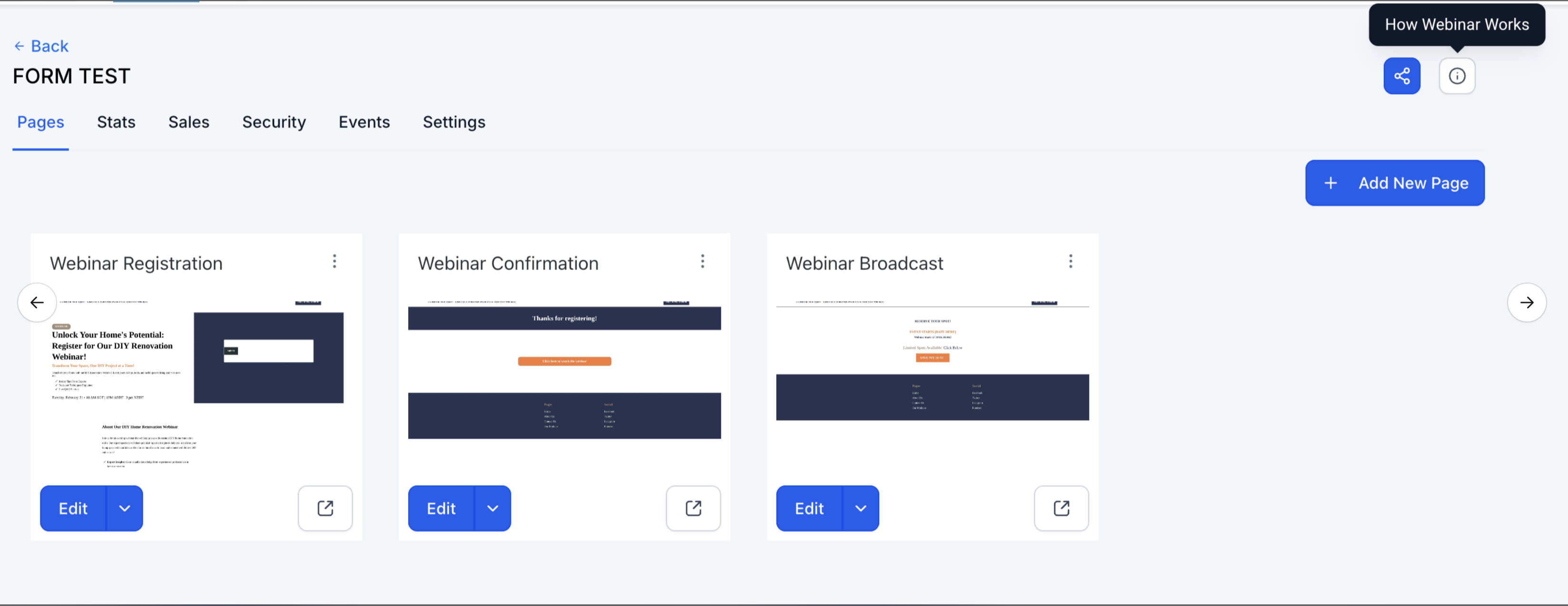
HighLevel webinars are built inside the Sites section and support two formats: live events that run at a scheduled date and time, and on demand recordings that play anytime after registration. When a webinar is created, the platform generates a funnel that includes a registration page, a confirmation page and a broadcast page.
For live webinars you provide a streaming URL from services such as Zoom, YouTube Live, WebinarJam or a custom link. On demand webinars use a video file uploaded to the media library in MP4, MOV or AVI format. All required fields are validated, and entries are auto saved, appearing immediately in the webinar list.
Webinar funnels integrate with HighLevel's forms and workflows, so registrations can trigger reminders, follow ups, tagging and record updates. Existing webinars can be cloned, allowing the date, time and template to be edited while reusing the original settings.
03How businesses use webinars
- Marketing agency. Create a live product launch webinar, attach a registration form to collect leads, and set up reminder emails and SMS through workflow automation.
- Online coach. Upload a pre recorded training session as an on demand webinar, choose a template that includes a registration page, and deliver the video after sign up.
- SaaS company. Clone a quarterly feature update webinar, edit the new date and time, and reuse the same funnel template to keep the registration process consistent.
04The numbers and rules that matter
- Supported platforms: Zoom, YouTube Live, WebinarJam, Custom webinar links.
- Supported video formats: MP4, MOV, AVI.
- Reminder timings: 24 hours before, 1 hour before, 10 minutes before.
05Before you start
- A registration form built under Sites > Forms (required for live webinars).
- A streaming link from Zoom, YouTube Live, WebinarJam or a custom URL (required for live webinars).
- A video file in MP4, MOV or AVI format for on demand webinars.
06How to set up and use webinars in HighLevel
Set up a live webinar from start to finish
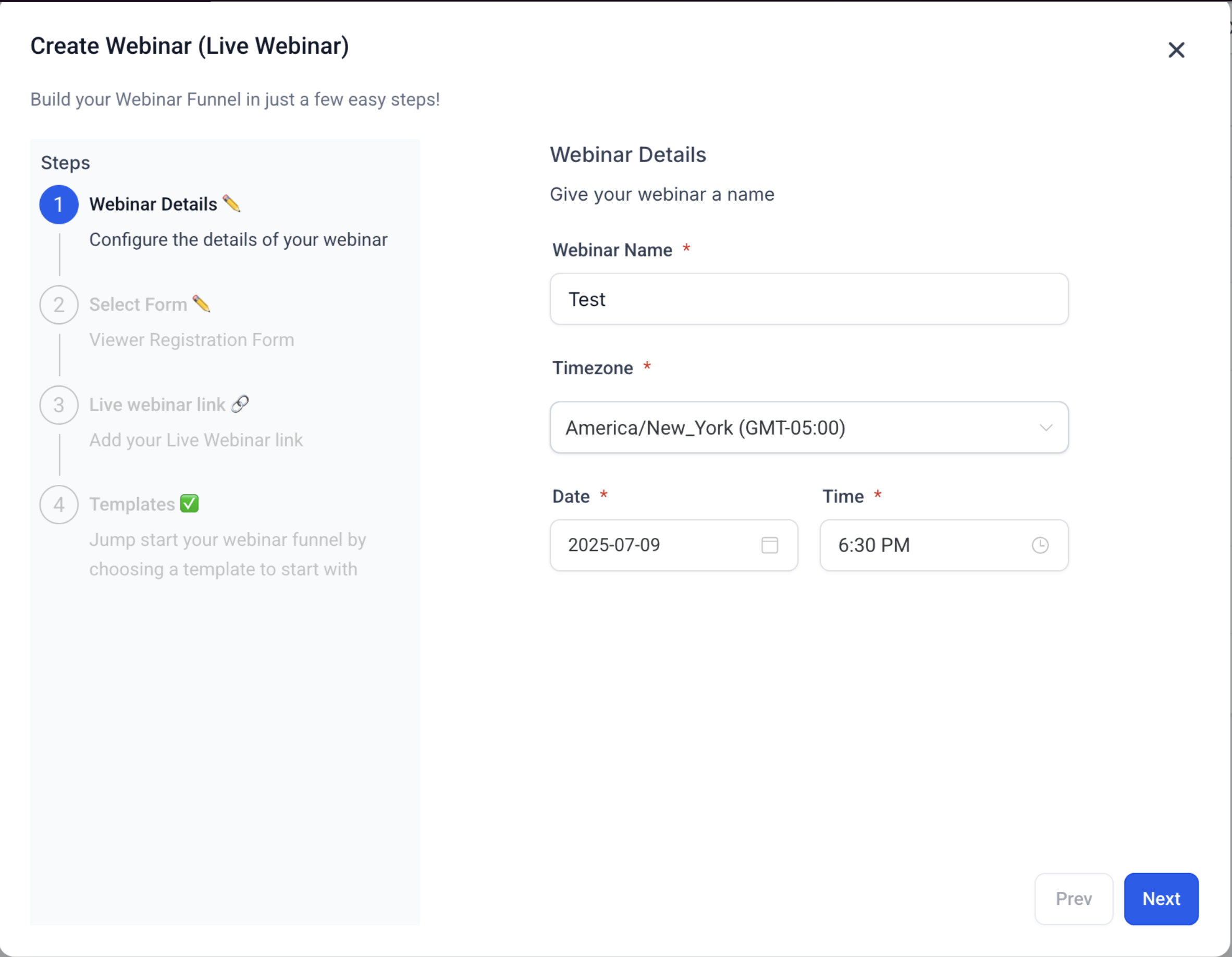
- Open Sites > Webinars > New Webinar Funnel and select Live Webinar.
- Enter a Webinar Name in the required field.
- Choose the Date, Time and Timezone using the improved pickers.
- Select a registration form from Sites > Forms.
- Paste the streaming URL from Zoom, YouTube Live, WebinarJam or a custom link.
- Choose a pre built webinar funnel template or create one from scratch.
- Confirm that the entry is saved automatically and appears in the webinar list.
Create an on demand webinar that can be watched anytime
- Open Sites > Webinars > New Webinar Funnel and select On Demand Webinar.
- Provide a Webinar Name in the required field.
- Supply a video URL or prepare to upload a file (date, time and timezone are not required).
- Upload a pre recorded video (MP4, MOV or AVI) or select media from the library.
- Choose a webinar funnel template or build a custom one.
- Review the automatically generated registration, confirmation and broadcast pages.
- Verify that the webinar entry is auto saved and appears in the webinar list.
Clone an existing webinar to reuse its settings
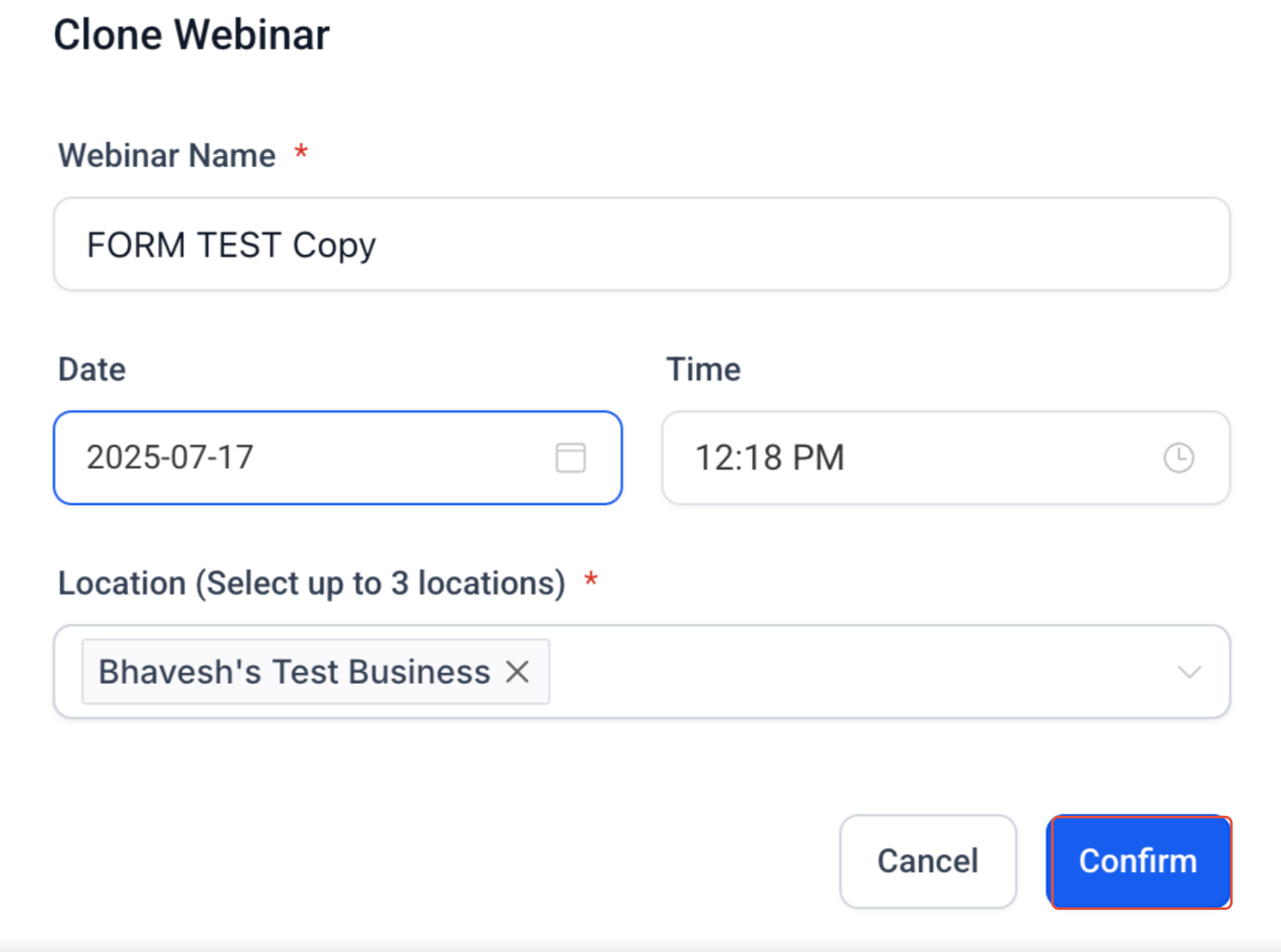
- Open the existing webinar and click Clone to open the Clone Webinar modal.
- Edit the date field to the new desired date.
- Edit the time field to the new desired time.
- Confirm the cloning to create a duplicate with the updated schedule and reused settings.
07What it looks like in HighLevel
08Settings that matter
- Webinar Name. Defines the title that appears on registration and broadcast pages.
- Timezone. Specifies the regional time reference for live webinar scheduling.
- Date. Sets the calendar day on which a live webinar will start.
- Time. Sets the clock time for a live webinar based on the chosen timezone.
- Webinar Video or Link. Provides either a streaming URL for live events or a video file/link for on demand webinars.
09Things to know before you rely on it
- All mandatory fields must be completed; otherwise validation blocks the webinar from being created.
- Live webinar streaming URLs are limited to Zoom, YouTube Live, WebinarJam or custom links.
- Uploaded on demand videos must be in MP4, MOV or AVI format.
- Reminder automations commonly run 24 hours, 1 hour and 10 minutes before a live session.
10If something goes wrong
- Webinar link not working. Verify the webinar URL before publishing.
- Incorrect timezone. Double check webinar timezone selection during setup.
- Video upload failed. Verify file format and upload size.
- Poor video quality. Upload higher resolution media files.
- Webinar not saving. Verify all required fields are completed.
- Registration form not working. Confirm form integration and workflow setup.
11How it connects to the rest of HighLevel
- HighLevel website setup: create pages, customize design, connect domain, and review mobile settings before launch Website setup overview
- How to add tracking code in HighLevel funnels and websites Add tracking code
- How to add click to call, text and email links in HighLevel Click to call links
Michael's take

Webinars feel like a small convenience when you need to move from a static landing page to a real time or on demand presentation.
A fitness studio can use an on demand webinar to showcase a weekly workout series; members register, receive automated reminders and a replay link, and the registrations are added to HighLevel.