
01Who this is for
- Marketing managers can plan releases and avoid accidental live posts.
- Content creators use drafts and schedules to work without public exposure.
- Site administrators gain clear control over what the audience sees.
- Agency teams keep client blogs organized by archiving old articles.
02Blog and blog post statuses, explained
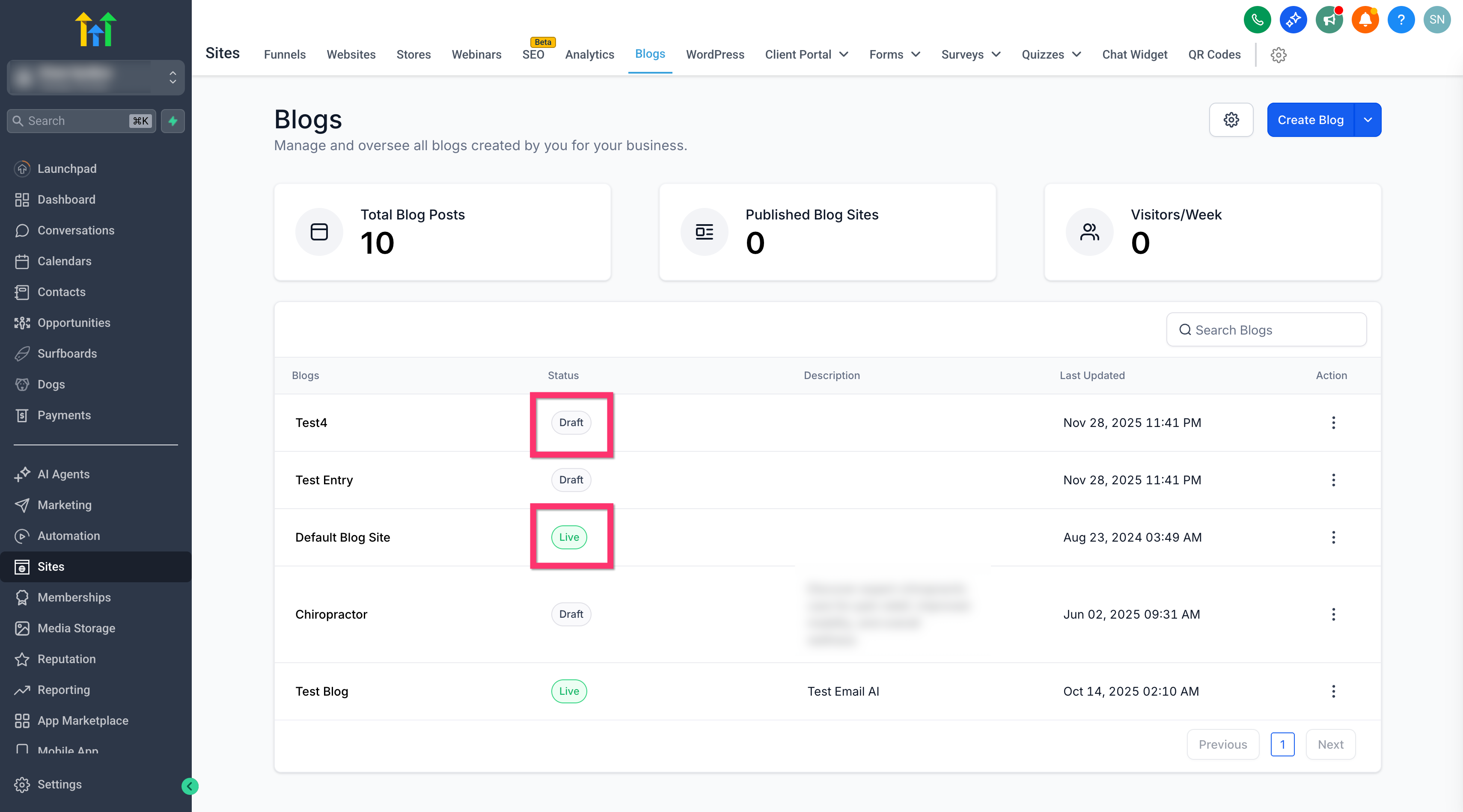
The status feature works at two levels. At the blog level, you choose whether the whole blog container is hidden, visible, or removed. At the post level, each article can be kept as a draft, scheduled for a future moment, published right away, archived from navigation, or deleted completely. These choices determine what visitors can access on the public site.
In HighLevel, blog statuses are set within the Sites module when you create or edit a blog. Post statuses appear in the same editor when you open an individual blog post. Changing a status updates the site in real time, but deleting any item is irreversible.
03How businesses use blog and blog post statuses
- Digital marketing agency. The agency creates drafts for client blogs, schedules posts to align with campaign calendars, and archives outdated pieces while preserving their URLs for SEO purposes.
- SaaS company blog. The SaaS team drafts product updates, sets a future publish time for coordinated announcements, and archives older release notes without removing their links.
- Local service business. A plumber writes service articles, keeps them as drafts until vetted, then publishes them or archives seasonal content while retaining the live page address.
04How to set up and use blog and blog post statuses in HighLevel
Set blog and blog post statuses
- Select Draft for the blog to keep the entire blog hidden from visitors.
- Select Live for the blog to make it publicly accessible.
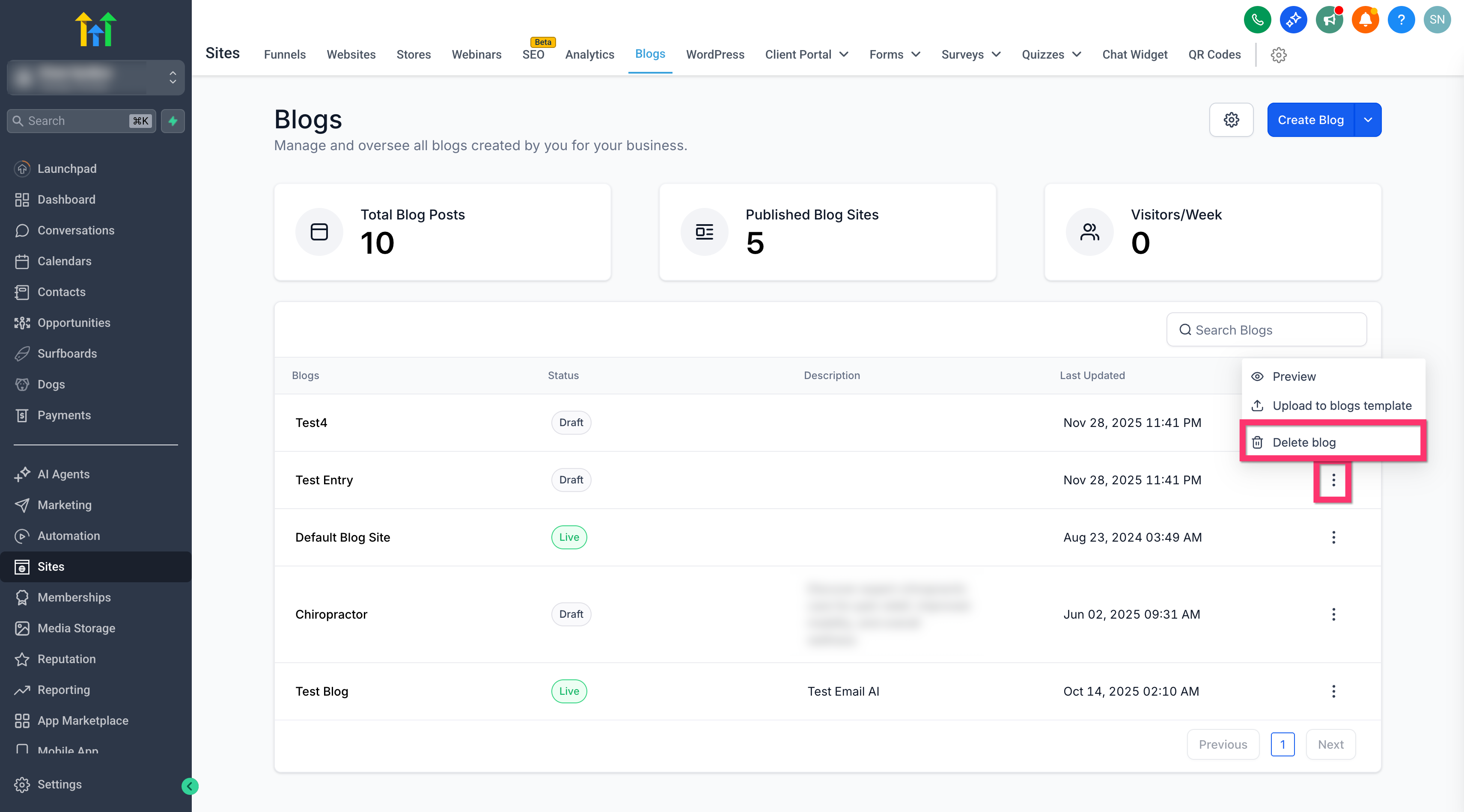
- Select Delete for the blog to permanently erase it (use with caution).
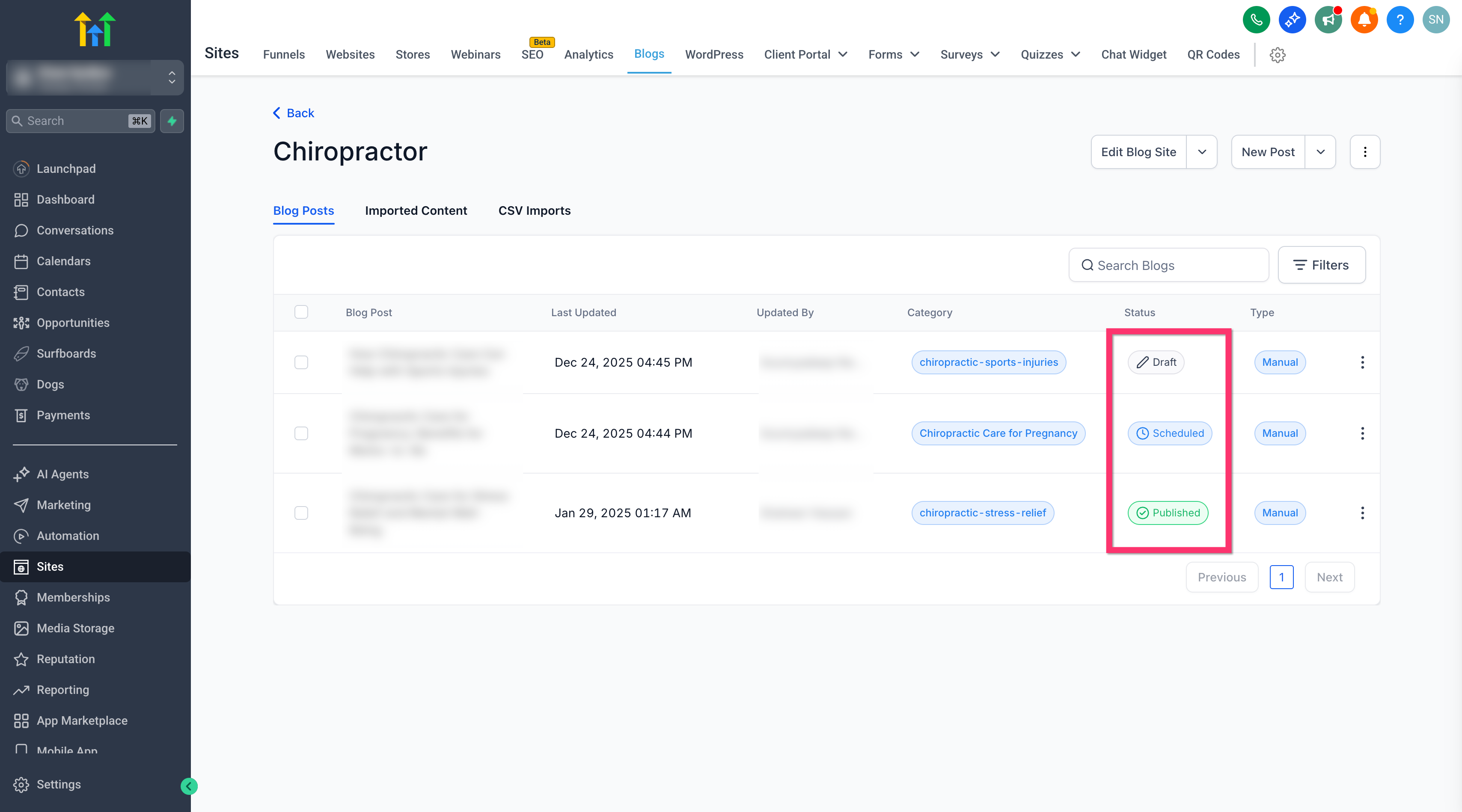
- Select Draft for a post to keep the article private.
- Select Scheduled (Queued) for a post to define an automatic future publish date and time.
- Select Published for a post to make the article visible immediately.
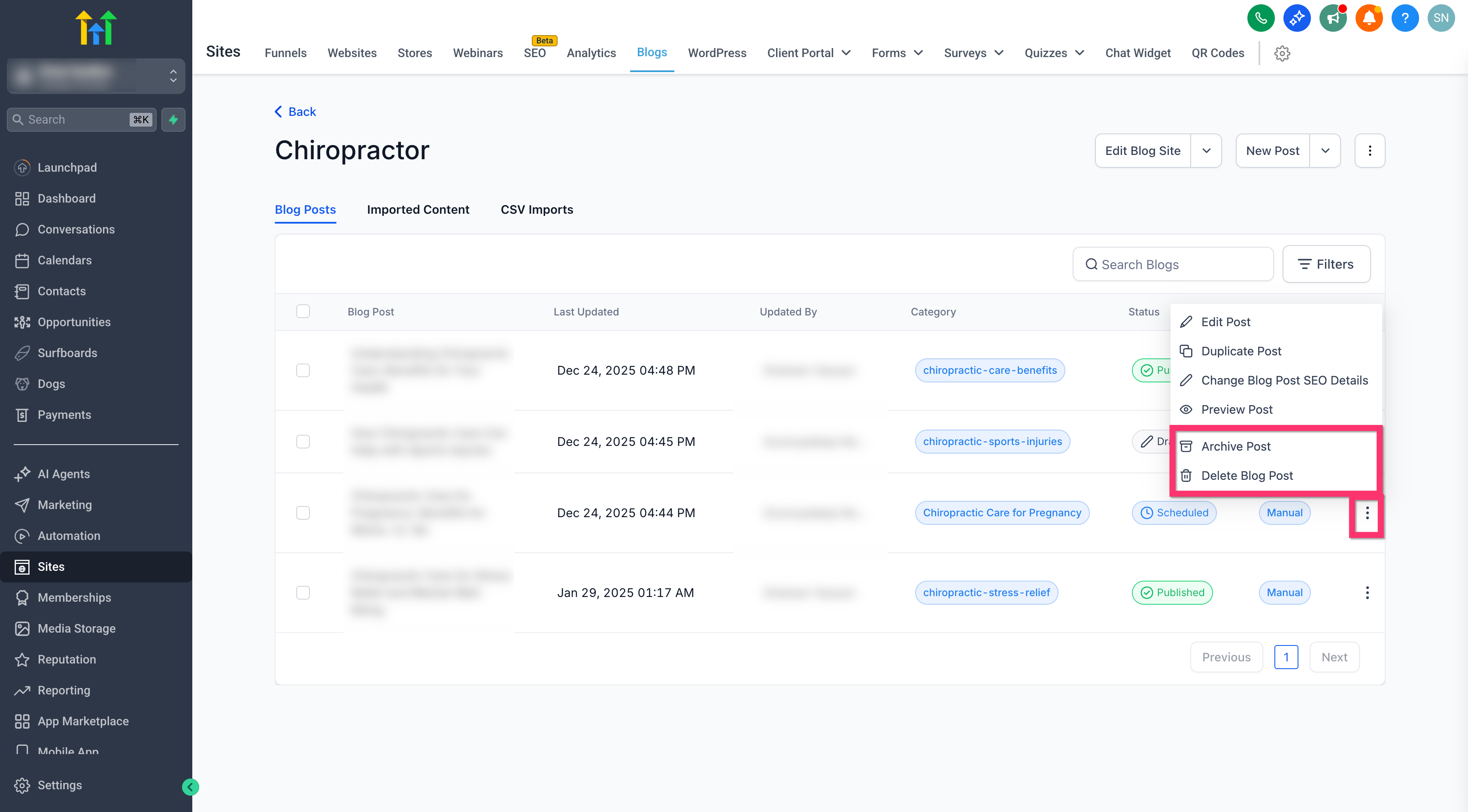
- Select Archive for a post to remove it from lists and navigation while leaving its live URL functional.
- Select Delete for a post to permanently remove it from the site (use with caution).
05What it looks like in HighLevel
06Things to know before you rely on it
- Choosing Delete removes the blog or post permanently and cannot be undone.
- Archive hides a post from navigation but the content remains reachable via its URL.
- Scheduled posts become live only at the exact date and time set.
07How it connects to the rest of HighLevel
- Getting started with blogs and posts Blog basics
- Create and publish a blog post manually Create post
- Generate an RSS feed for your blog RSS feed
Michael's take

Blog and blog post statuses feel like a small convenience that can turn a chaotic publishing workflow into a tidy process. The ability to draft, schedule, archive or delete without surprises keeps the site looking professional and the team on the same page.
A local coffee shop that runs a weekly “brew tip” column would keep each tip in Draft until it’s ready, schedule the release for the next Thursday, and archive older tips once the menu changes. That way the shop’s blog stays fresh without anyone accidentally publishing half finished content.