
01Who this is for
- Local retailers with lunch breaks and evening shifts can list exact opening windows, reducing caller uncertainty.
- 24 hour service providers can signal round the clock availability without listing separate intervals.
- Online businesses that operate by appointment can indicate they are open without showing specific times.
02Split business hours, explained
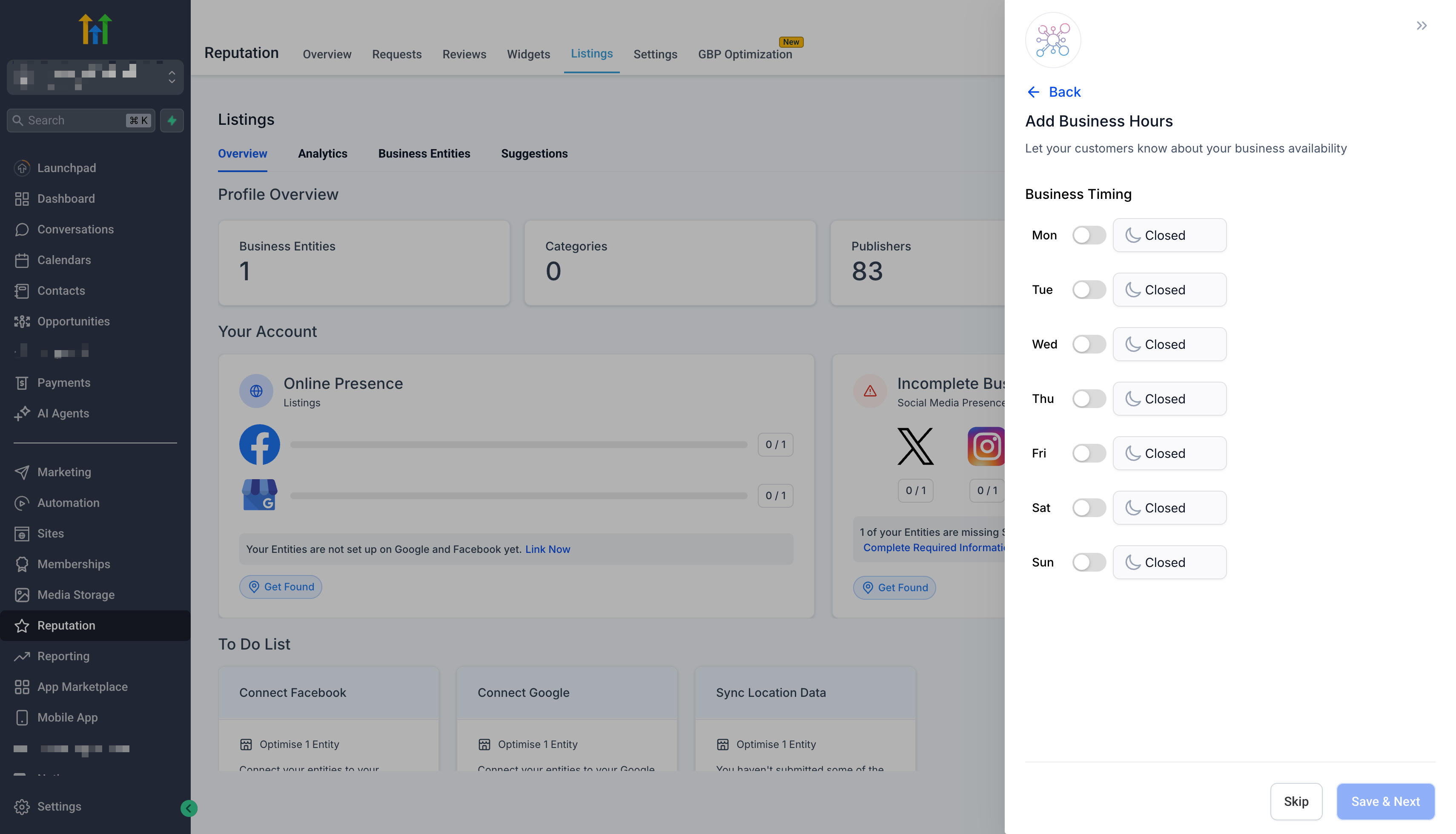
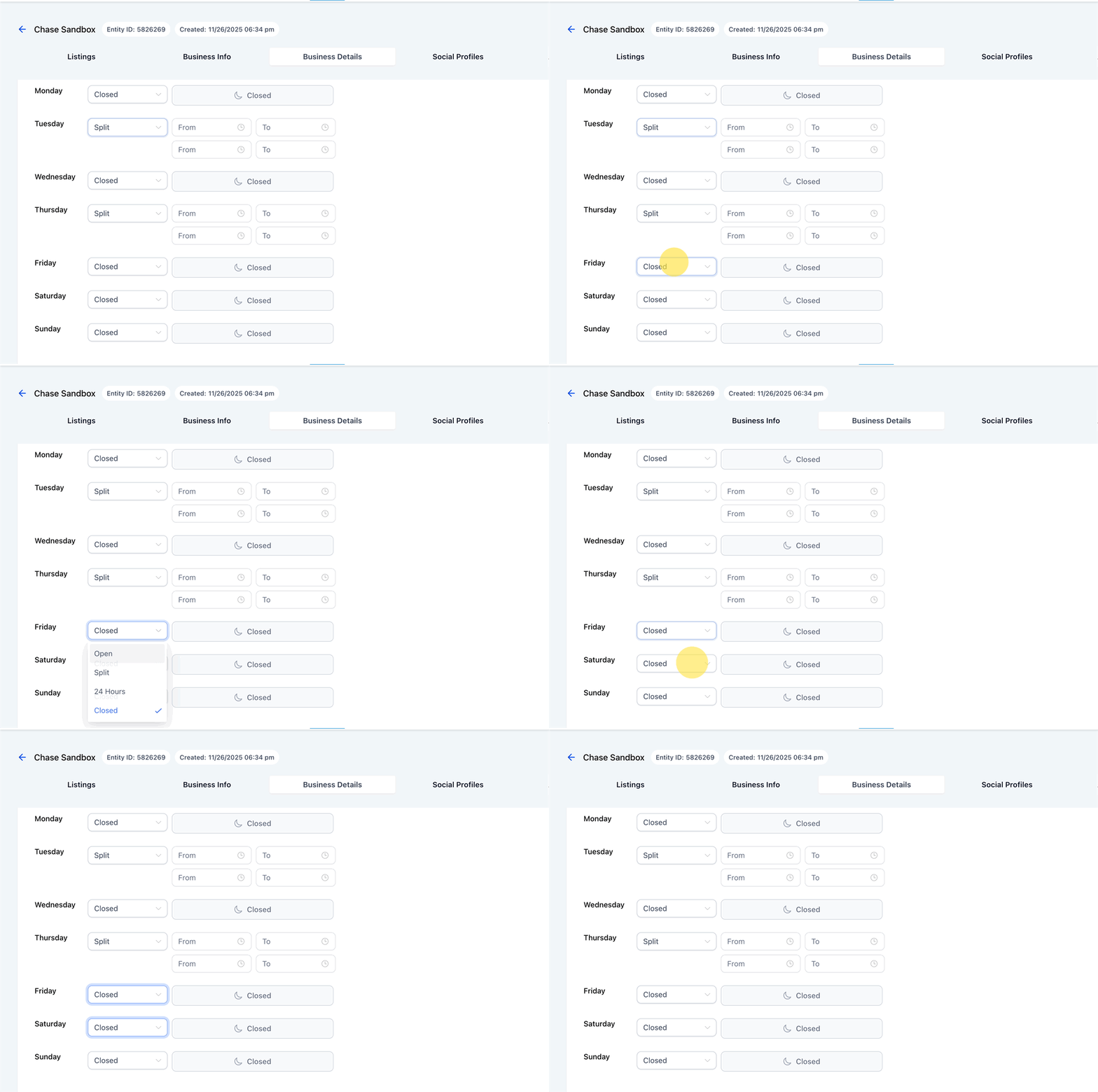
The Split Business Hours feature adds flexibility to the Hours section of a Listings entry. Users choose a schedule type for each day, Split for multiple intervals, 24 Hours for full day availability, Open for a single continuous range, or Closed to hide the day. An optional toggle marks the business as open without publishing set hours.
These settings are edited on the Business Details page of a Listings business. After configuring a day, the Copy to all option replicates the same configuration to every other day, simplifying week long schedules. Saving writes the changes to the listing and makes them visible wherever the directory integration supports them.
The feature works with Listings that use Yext or Uberall engines. How each directory displays split intervals may differ, but the schedule data is sent to the integration.
03How businesses use split business hours
- Coffee shop. The shop selects Split for weekdays to list a morning service, a lunch break, and an evening shift. It uses Copy to all to apply the same pattern to Saturday and Sunday, then saves the listing.
- 24 hour pharmacy. The pharmacy marks each day as 24 Hours, ensuring the listing shows round the clock service. No additional time blocks are needed.
- Online consulting firm. The firm enables Business open without set hours so the listing indicates availability while keeping appointment times private. It then saves the change.
04The numbers and rules that matter
- Schedule types: Split, 24 Hours, Open, Closed.
05Before you start
- A Listings business must already exist in the platform.
- You must be on the Business Details screen of that Listings entry.
06How to set up and use split business hours in HighLevel
Set business hours in a Listings entry
- Open the desired Listings business.
- Navigate to Business Details.
- Select the day you want to edit under Business hours.
- Choose a schedule type: Split, 24 Hours, Open, or Closed.
- Turn on Business open without set hours if you do not want to publish fixed times.
- Click Copy to all to duplicate the configuration for the remaining days.
- Press Save to store the changes.
07What it looks like in HighLevel
08Settings that matter
- Business hours. The section where you assign a schedule type and time blocks for each day.
- Schedule type. Determines whether the day uses Split intervals, a single Open range, 24 Hours, or is marked Closed.
- Business open without set hours. Indicates the business is available but does not publish specific operating times.
- Copy to all. Copies the current day's schedule configuration to every other day in the week.
09Things to know before you rely on it
- Split hours are supported only for Listings that use Yext or Uberall integrations; other engines may not show the option.
- Directory publishers may display split intervals differently, so the exact appearance can vary.
- The feature appears only for users with access to Listings; accounts without Listings will not see the option.
10If something goes wrong
- Split option does not appear in the schedule type list.. Verify you are editing hours in the Listings Business Details screen, refresh the page, and confirm the business is connected through Yext or Uberall.
11How it connects to the rest of HighLevel
- Activate and resell HighLevel Listings for local SEO Activate Listings
- Online listings supported countries and coverage Supported countries
- HighLevel pricing and plans Pricing
Michael's take

I would set up split blocks for each part of the day, enable the 24 Hours toggle for any all day operation, and turn on Business open without set hours for services that run 24/7 but don’t need a public schedule. Test the listing on a few directories to confirm the times appear as intended before relying on it.