
01Who this is for
- Agency owners who sell SaaS subscriptions can include Listings to increase the value of their packages.
- Product managers can bundle Listings across multiple plans to differentiate service tiers.
02Listings, explained
Listings provides a way for businesses to keep name, address, phone, hours and other profile details consistent across supported online directories. In HighLevel the service is offered as an add on that can be attached to a SaaS plan through the SaaS Configurator. When a new qualifying subaccount is created with that plan, the platform automatically provisions Listings for the subaccount.
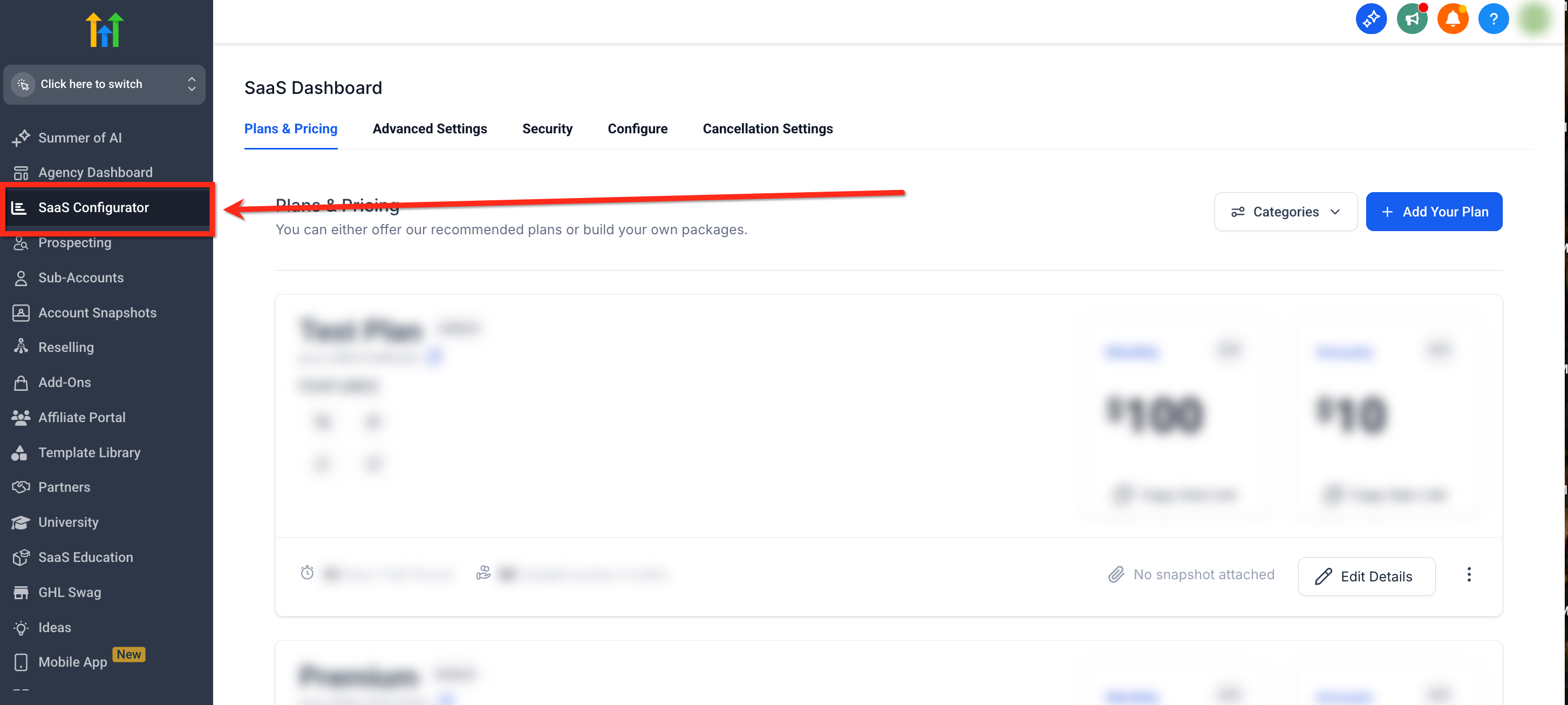
The add on cost is charged to the agency, not to the subscribing subaccount. The agency must factor that cost into the overall SaaS price. Existing subaccounts keep their current configuration; only future qualifying accounts receive the new bundle. The feature lives under Agency View > SaaS Configurator for plan setup and under Reputation > Listings inside each subaccount for client onboarding.
03How businesses use listings
- Digital marketing agency. The agency opens the SaaS Configurator, edits a plan, and selects Listings in the Add Ons area. The agency then adjusts the plan price to cover the add on cost. New client subaccounts created with that plan automatically receive Listings access.
- Local restaurant chain. The owner purchases a SaaS plan that includes Listings. After the subaccount is provisioned, the owner logs into the subaccount, goes to Reputation > Listings, and completes the required business information for each location.
- Real estate brokerage. The brokerage adds Listings to a premium SaaS offering. When a new agent signs up, the agent’s subaccount is provisioned with Listings. The agent then opens Listings in Reputation to verify and update their office details.
04The numbers and rules that matter
- For SaaS V1 Stripe is the billing system of record and must be configured for the agency.
- For SaaS V2 billing is tied to the configured Agency Subaccount and its supported payment provider setup.
05Before you start
- Access Agency View > SaaS Configurator.
- Create the SaaS plan or select an existing one to edit.
- Complete payment provider setup for the SaaS architecture you use.
- Review the cost of Listings before setting the plan price.
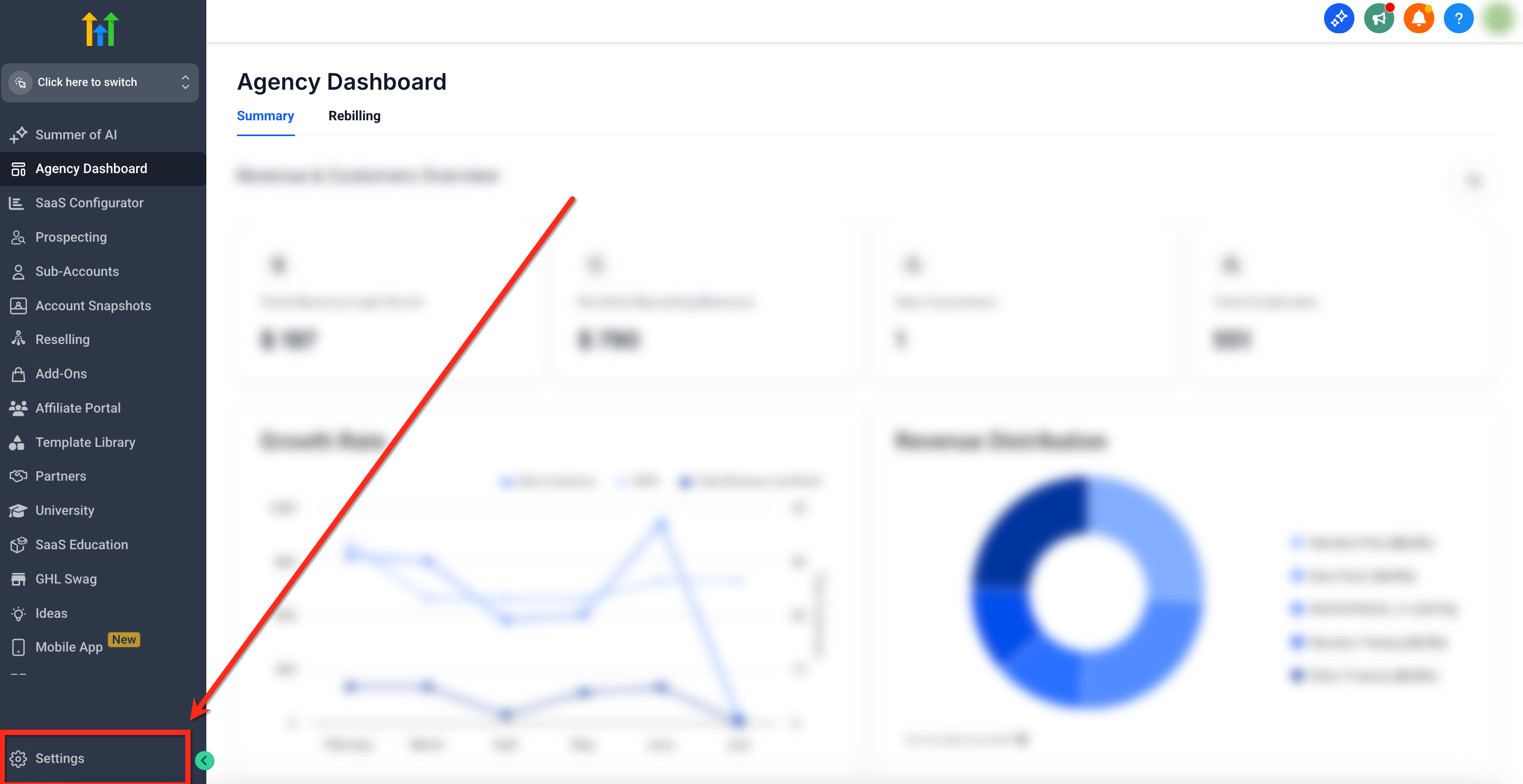
06How to set up and use listings in HighLevel
Add Listings to a SaaS plan
- From Agency View select SaaS Configurator.
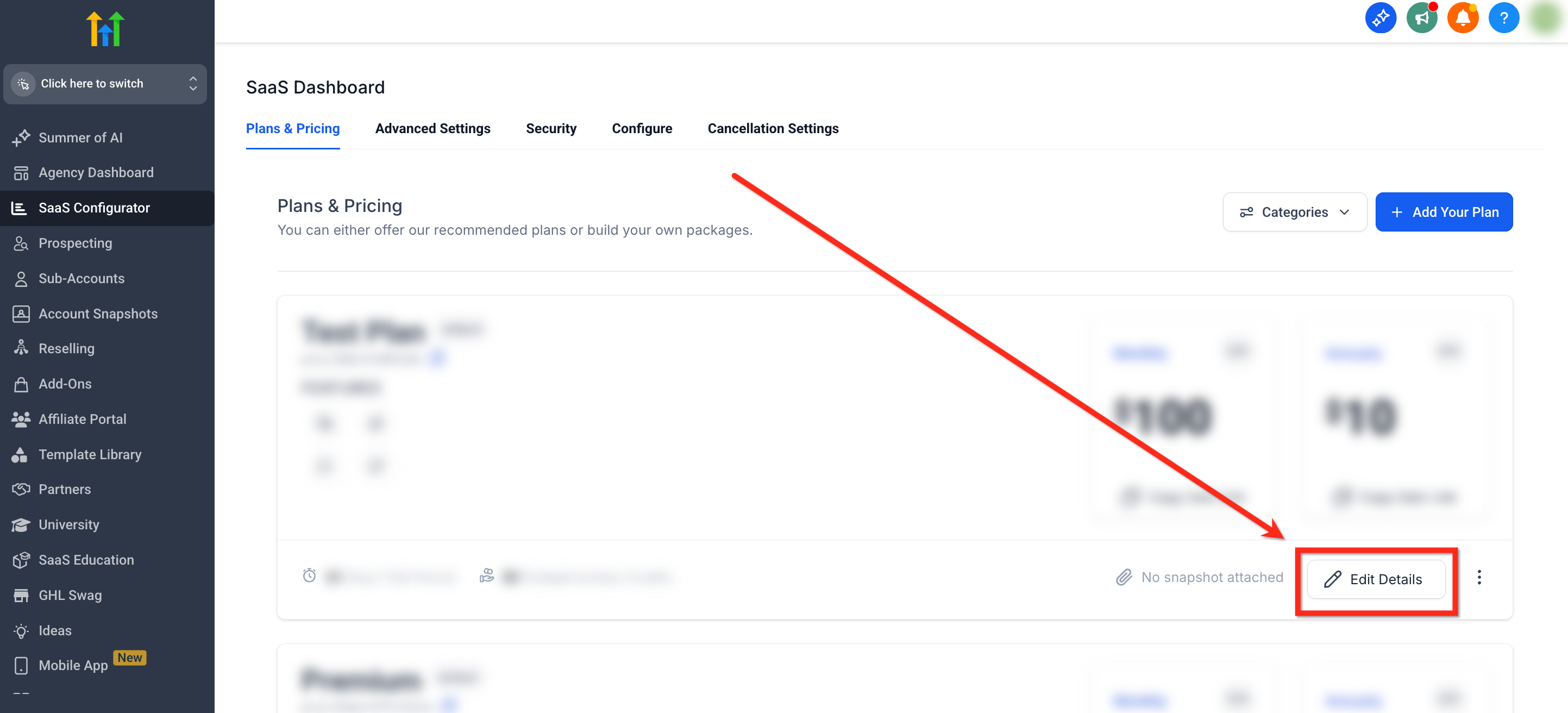
- Locate the SaaS plan you want to update and click Edit Details.
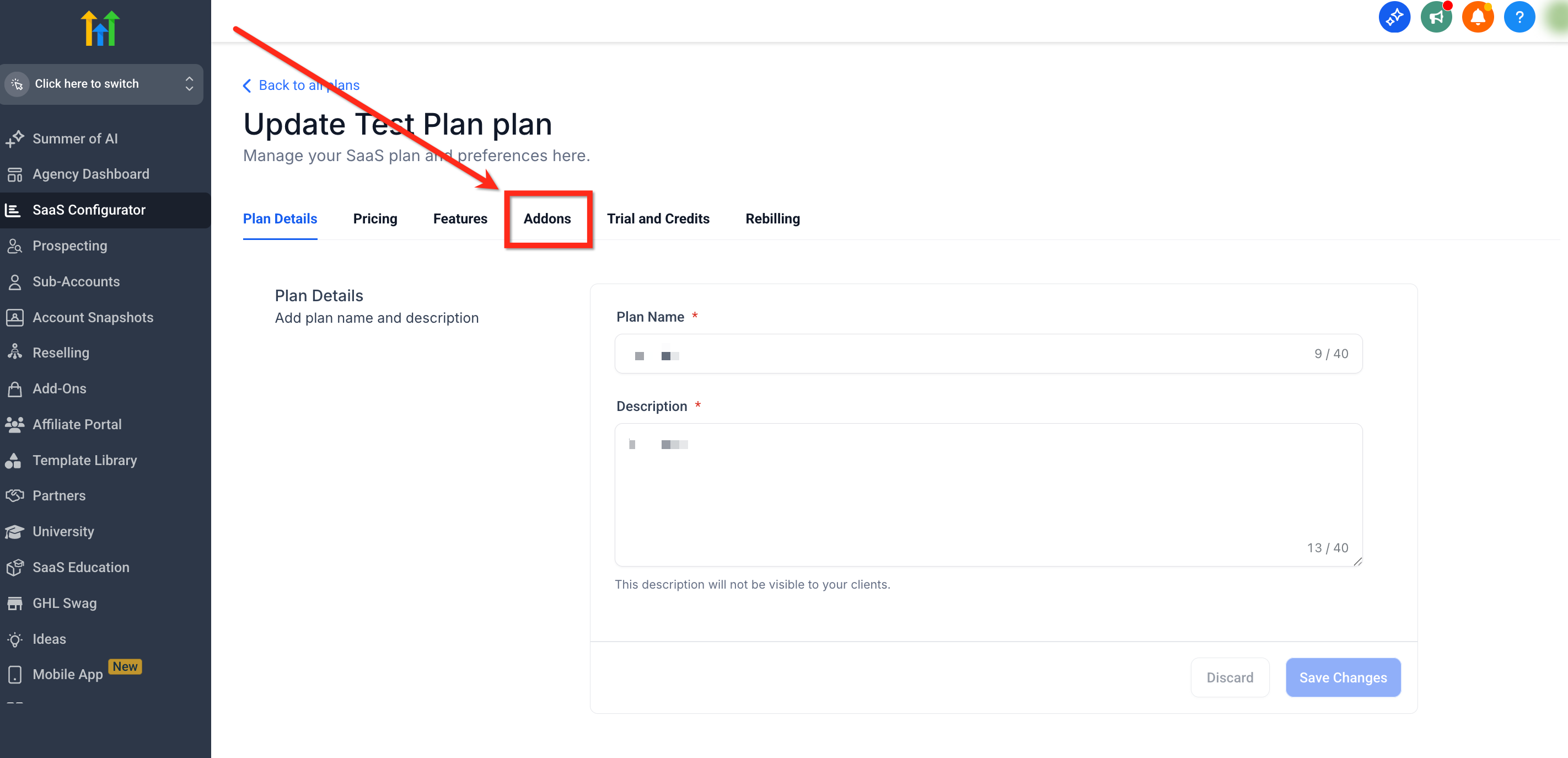
- Open the Add Ons section of the plan configuration.
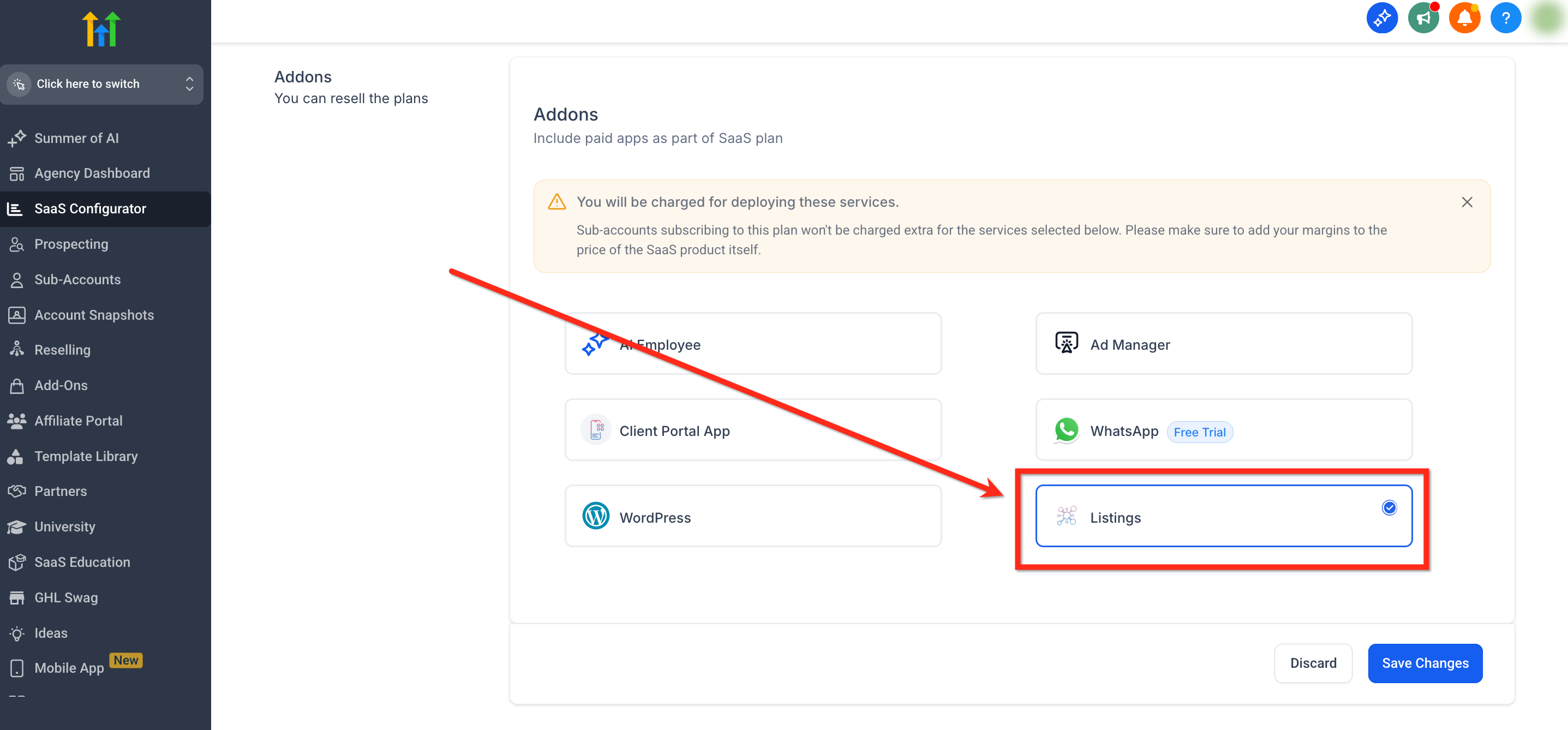
- Locate Listings and select it to include the add on in the plan.
- Review the add on cost displayed in the Configurator.
- Confirm that your SaaS subscription price accounts for the Listings cost and your desired margin.
- Click Save Changes.
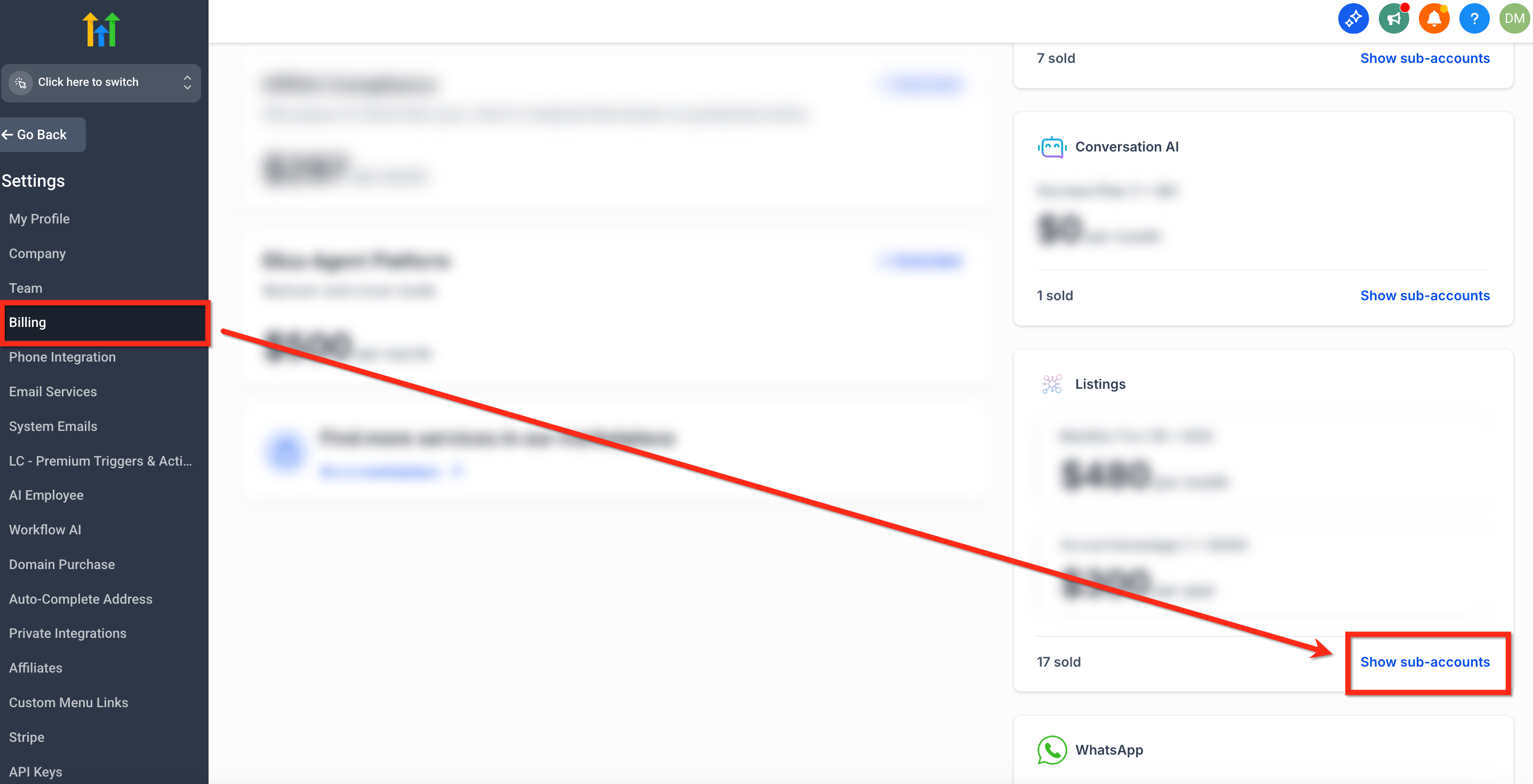
Find subaccounts with Listings enabled
- From Agency View open Subaccounts.
- Click Advanced Filters.
- Open the Reselling filter category.
- Select the Listings filter and choose the applicable status.
- Apply the filter to review matching subaccounts.
07What it looks like in HighLevel
08Settings that matter
- Listings. Controls whether the Listings add on is attached to a SaaS plan and thus provisioned for qualifying subaccounts.
- Add, Ons. The section where add on services such as Listings are selected for inclusion in a SaaS plan.
09Things to know before you rely on it
- The agency bears the Listings add on cost when it is bundled in a SaaS plan.
- The subscribing subaccount is not charged separately for the bundled add on.
- Changes to bundled add ons affect only future qualifying subaccounts, not existing ones.
- Removing Listings from a plan does not automatically cancel an existing subscription; manage it separately.
10How it connects to the rest of HighLevel
- Setup and sell HighLevel Listings for local SEO Listings setup guide
- Activate and resell HighLevel Listings for local SEO Activate Listings
- Getting started with Listings Listings basics
Michael's take

In my experience, making sure the software pricing already includes the Listings cost helps protect your margin.
The first setting I would lock down is the Listings add on selection in the SaaS Configurator. Getting the cost right there ensures the agency pays the right amount and the client receives a fully provisioned directory management service without extra surprise charges.