
01Who this is for
- Agencies that resell services, they can apply a markup to Listings and add it to SaaS offers.
- Small business owners, they gain consistent local directory presence without separate contracts.
02Listings, explained
Listings lives in the Reselling section of the agency dashboard. It generates directory backlinks and synchronises business information across many online listings. The feature can be bundled into SaaS plans, priced at the agency level, or overridden for individual subaccounts.
When a client activates Listings, the platform collects the required business data, submits it to supported directories, and updates the information whenever changes are made inside HighLevel. Billing follows a two layer model: the agency pays HighLevel, and the client pays the agency via Stripe.
03How businesses use listings
- Digital marketing agency. The agency adds Listings to its SaaS packages, sets a default price using the pricing slider, and then lets clients activate the service from their own subaccounts.
- Real estate brokerage. Each office is set up as a subaccount; the broker customises the Listings price per office and deploys the service without charging each office separately.
- Restaurant chain. The chain connects each location’s social media profiles in the Listings dashboard, ensuring unified branding across directories and social platforms.
04The numbers and rules that matter
- Creates backlinks on 70+ reputable websites.
- Minimal commitment (1 month minimum).
- Sync time typically 24 to 48 hours, up to one week for some platforms.
05How to set up and use listings in HighLevel
Add listings to a software offer
- Open the agency dashboard and select SaaS Configurator.
- Choose the plan to modify and click Edit Details.
- Scroll to the Addons section.
- Tick the Listings checkbox and press Save Changes.
Set agency wide listings default pricing
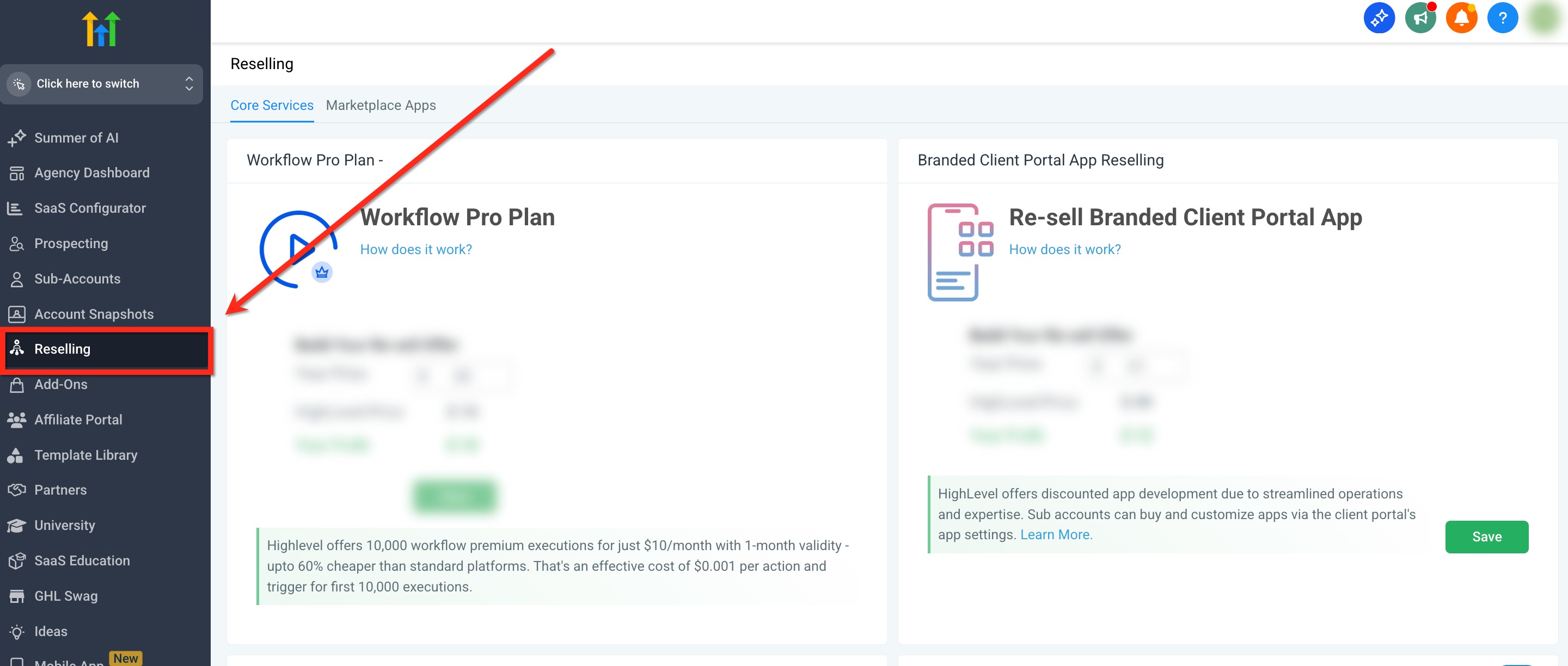
- From the Agency View, click Reselling in the left navigation.
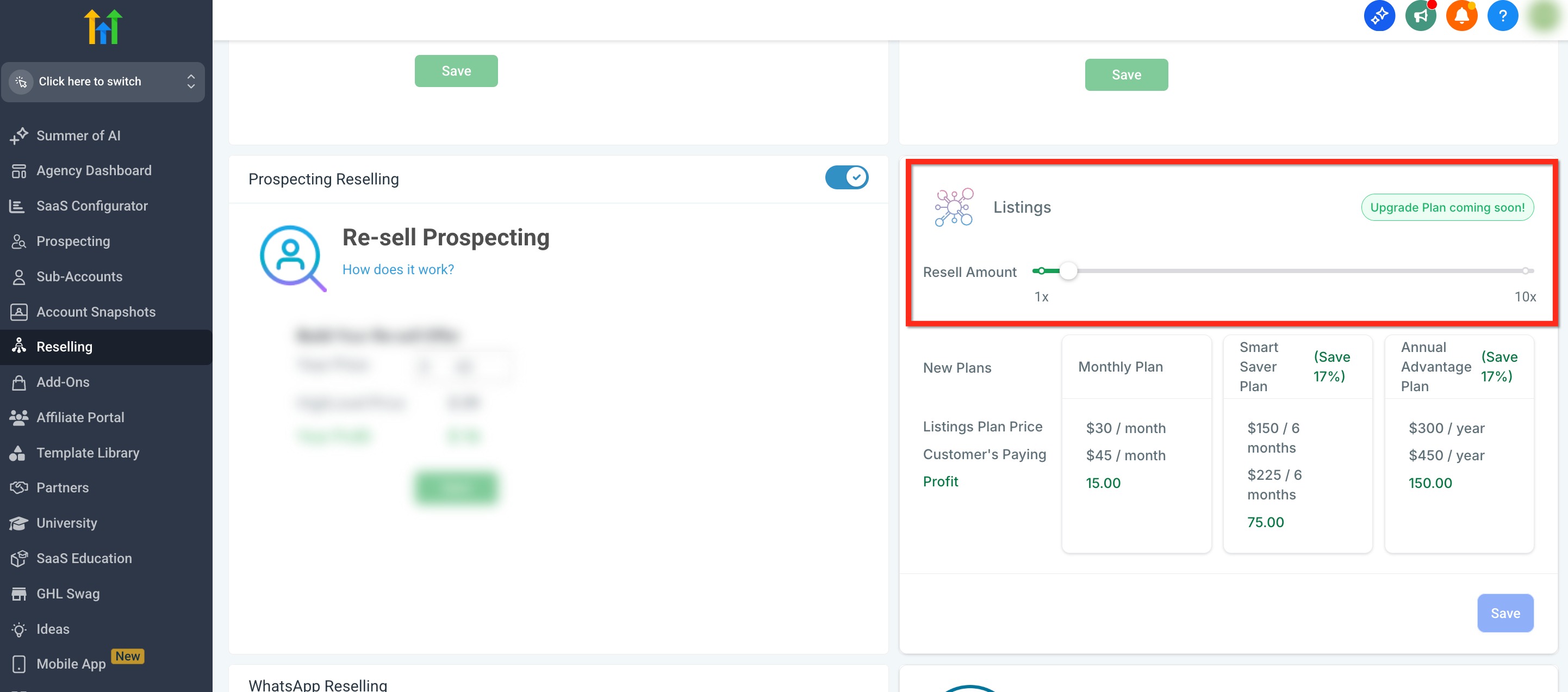
- Locate the Listings row and move the pricing slider to the desired rate.
- Review the preview of Client Pricing, Your Cost, and Your Profit.
- Click the blue Save button to apply the pricing.
Customize listings pricing per subaccount
- In Agency View, open Subaccounts from the left navigation.
- Click the three dot icon on the target subaccount and choose Manage Client.
- Go to Reselling then Listings.
- Adjust the pricing slider to the custom amount and save.
Activate listings as a client
- Inside the subaccount, open Reputation from the left navigation.
- Select the Listings tab at the top.
- Press the Activate Listings button.
- Choose a plan and confirm payment.
- Enter the required listing information and submit.
Deploy listings without directly charging the client
- From Agency View, go to Subaccounts in the left navigation.
- Find the target subaccount and click the three dot icon, then choose Manage Client.
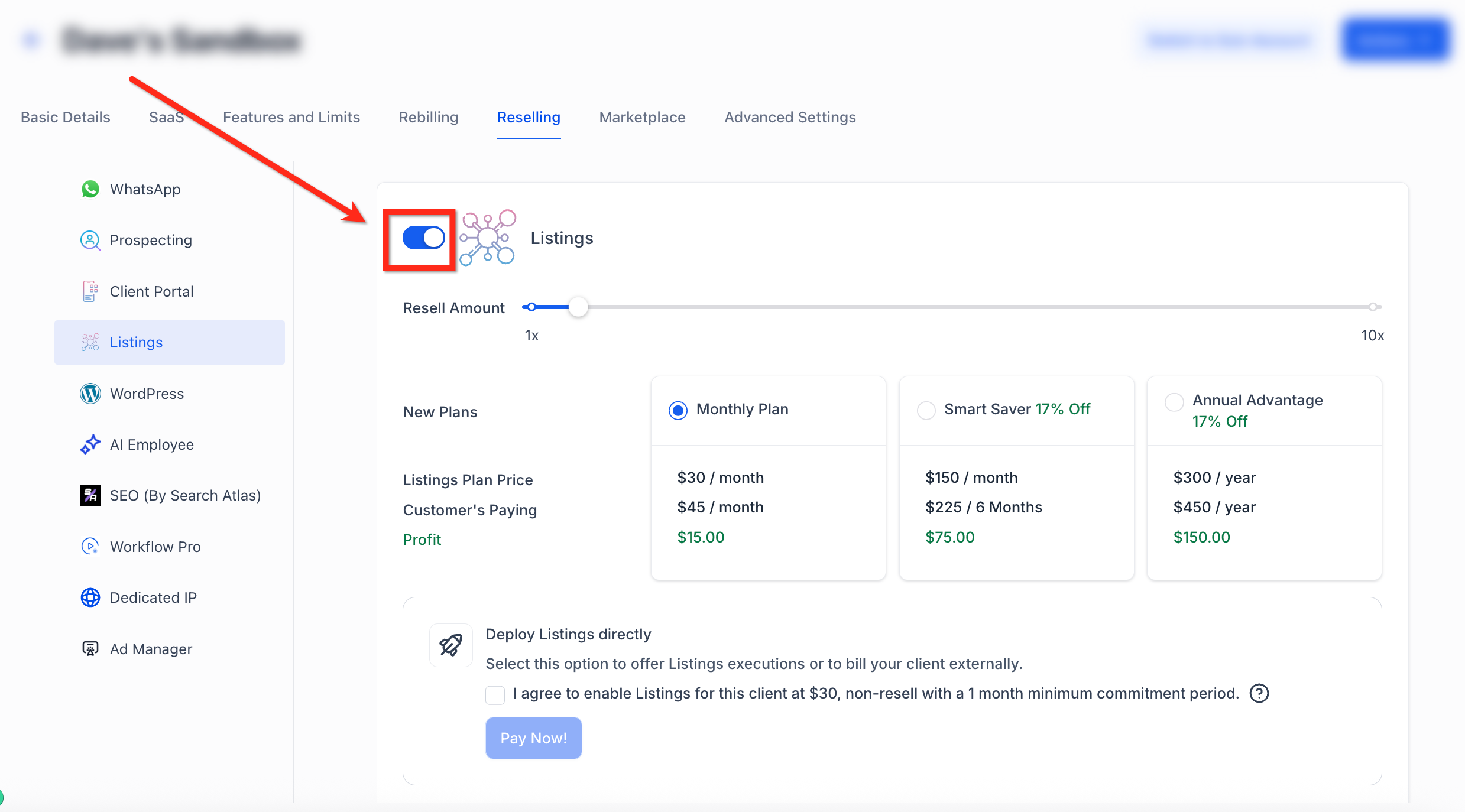
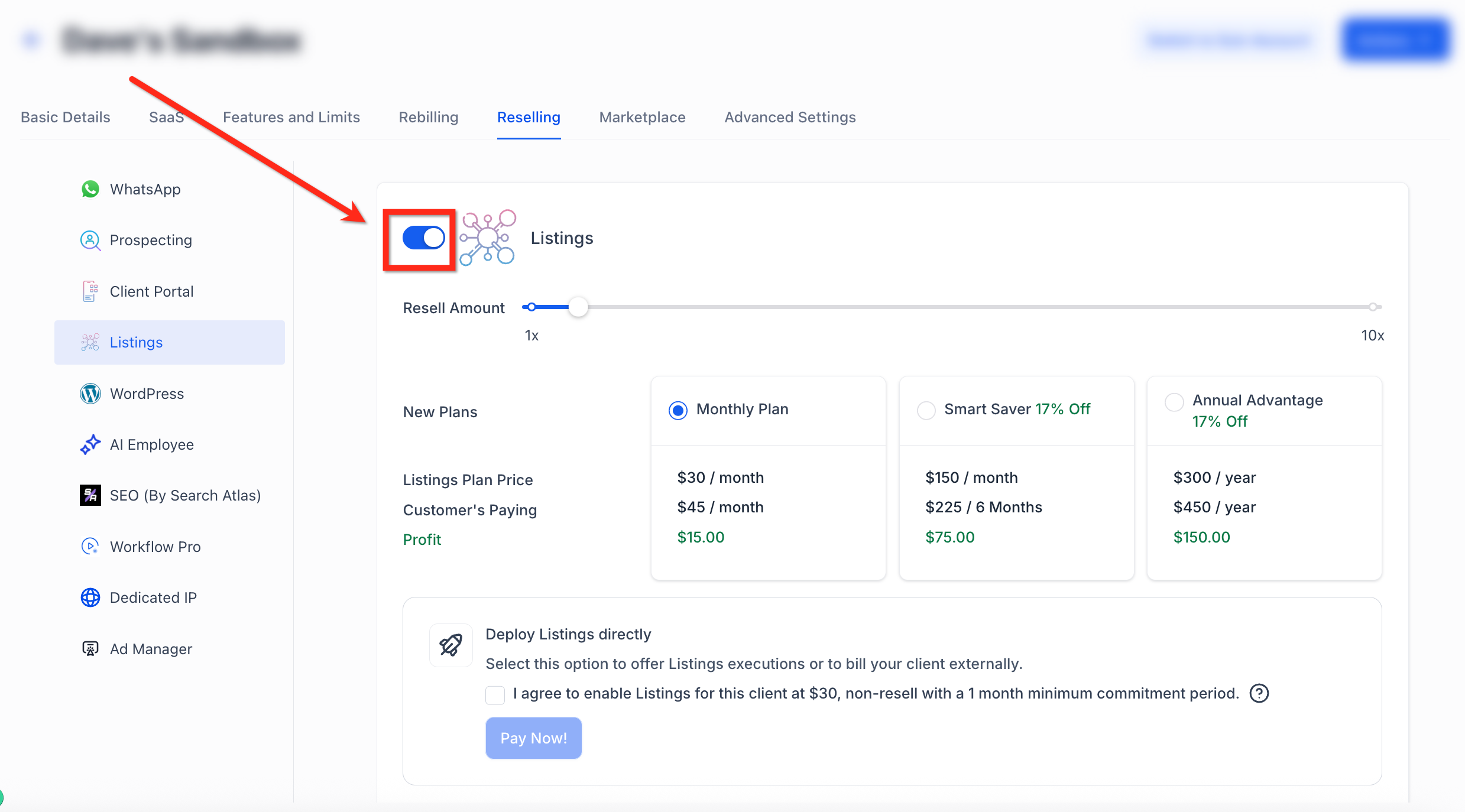
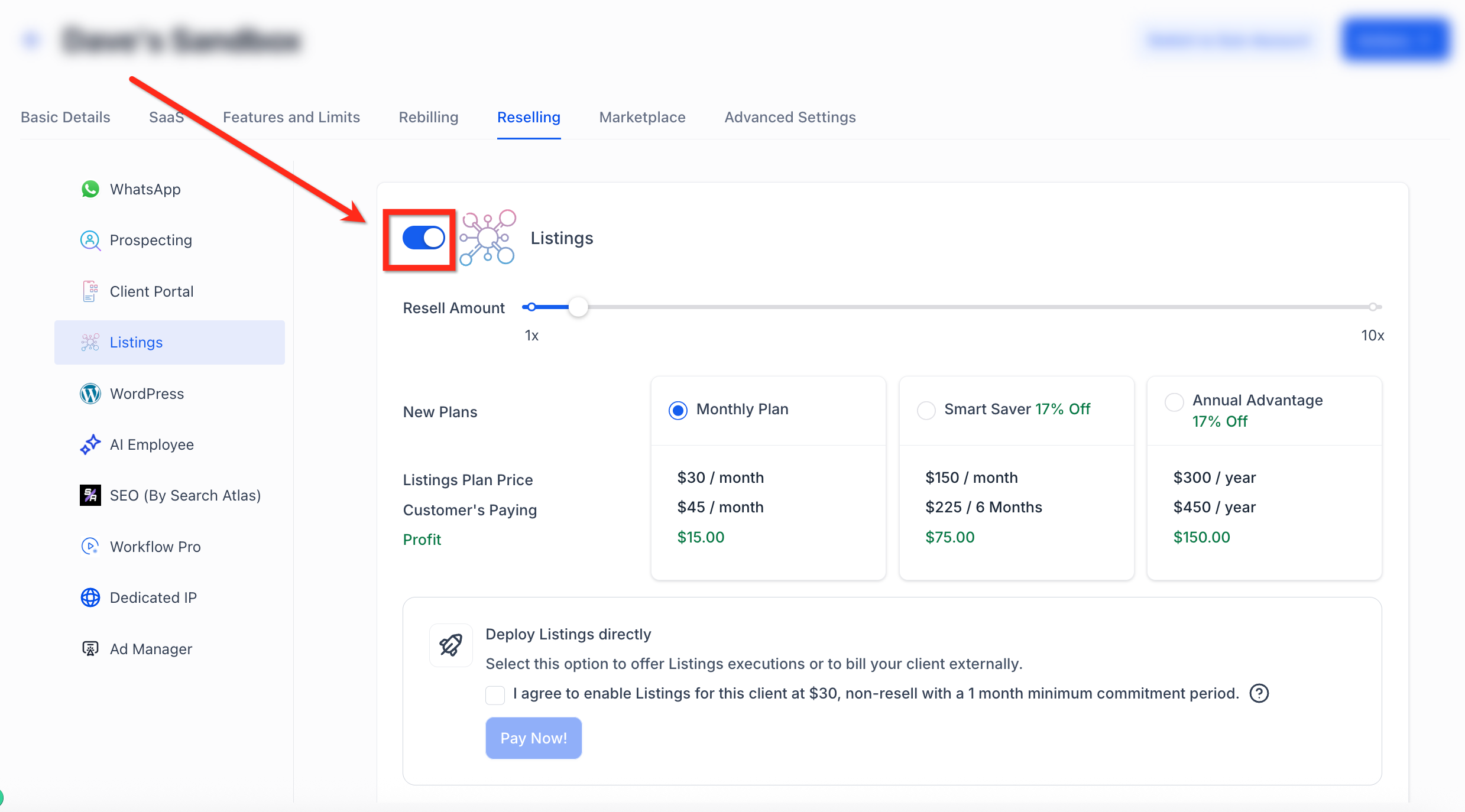
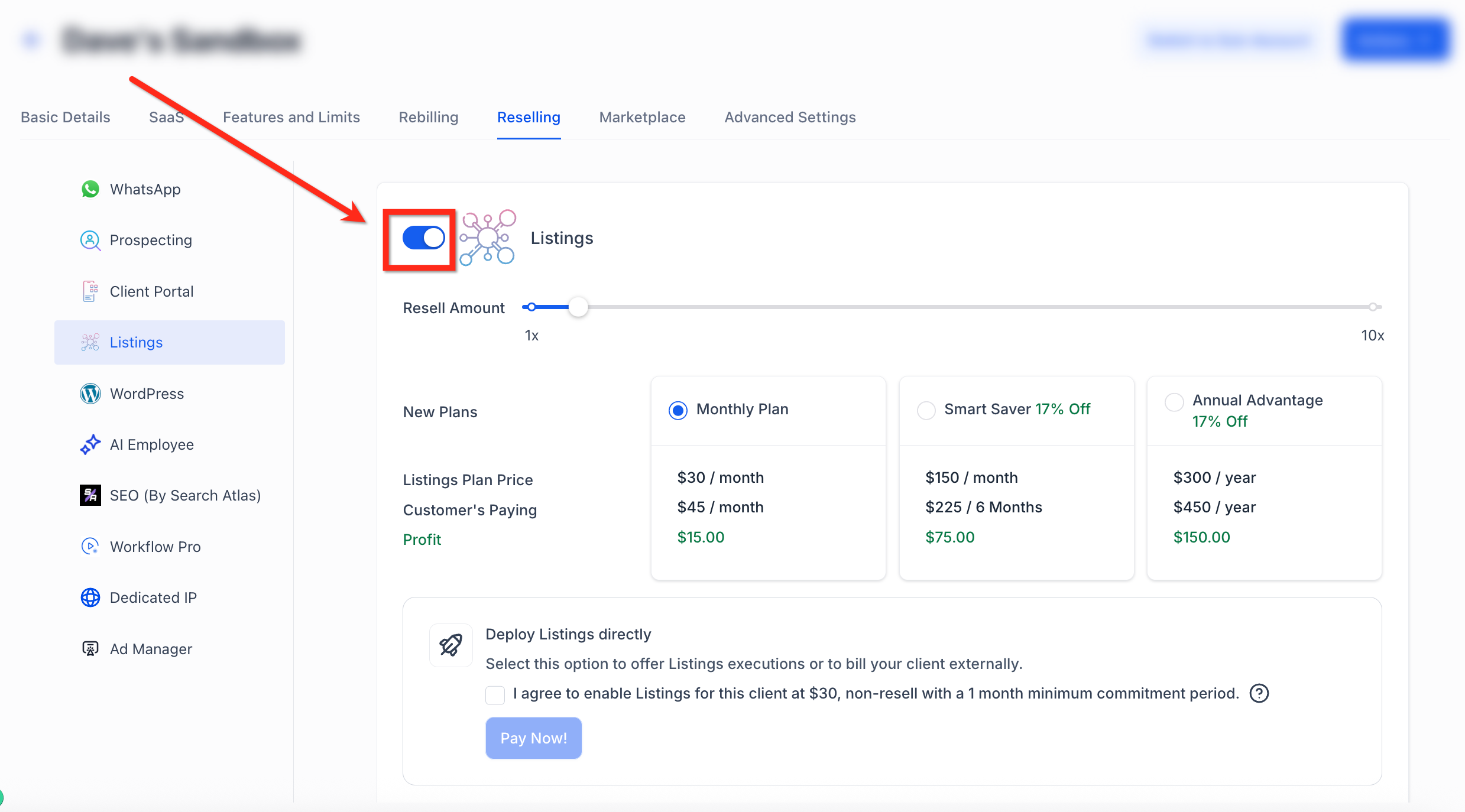
- In the top ribbon, select Reselling and then Listings from the secondary left navigation.
- Scroll to the Deploy Listings Directly section, check the agreement box.
- Click the blue Pay Now. button to complete deployment.
Connect client social media to listings
- In the client’s subaccount, navigate to Reputation > Listings.
- If prompted, click Complete Required Information to reach the Social Profiles tab.
- Input the social media links or usernames and save.
View which subaccounts have listings active
- Open the Agency Dashboard.
- Select Subaccounts from the navigation.
- Open the Advanced Filter option.
- Choose the Listings filter to display active subaccounts.
06What it looks like in HighLevel
07Settings that matter
- Listings. Controls whether the Listings addon is included in a SaaS plan.
- Pricing slider. Sets the default price the agency charges clients for Listings.
- Deploy Listings Directly. Enables the agency to provision Listings for a client without separate billing.
- Agreement box. Requires the agency to confirm deployment terms before enabling direct deployment.
08Things to know before you rely on it
- Listings are submitted to over 70 directories.
- The service requires a minimum commitment of one month.
- Incorrect address, PIN code, PO box, suite number, business name, phone or email can delay processing.
- Duplicate data may place listings in an in review state.
- Legal conflicts with a previous provider can cause a cancelled status.
09If something goes wrong
- Listings look wrong or stay processing. Log into the Listings account and correct any address, PIN code, PO box, suite, business name, phone or email errors.
- In review message appears. Follow the guide for resolving duplicate or in review listings.
- Cancelled message appears. Contact HighLevel support to address contractual conflicts with a prior provider.
10How it connects to the rest of HighLevel
- Pricing details for Listings are available on the HighLevel pricing page. HighLevel pricing
- Start a trial to test Listings and other features. 30 day trial
- Learn how to get started with Listings in the agency. Getting started with Listings
- Read the guide on deploying Listings without billing the client. Deploy Listings without charging
- Explore how to sell Listings as part of a SaaS offer. Sell Listings in SaaS offers
Michael's take

Most people think the hardest part is getting the directories to list the business. The real issue is often simple form errors. Wrong address formatting, missing suite numbers, or an invalid phone number. Those small mistakes keep the listing from going live and cause endless back and forth.
I would double check every field before you submit, especially the address line and contact details. If the data looks clean, consider using Deploy Listings Directly so you can add the service without generating a separate invoice.