
01Who this is for
- Agencies that resell listings benefit from a single view to control client locations quickly.
- Businesses with several storefronts gain consistency by sharing core details while customizing site specific information.
02Multilocation management, explained
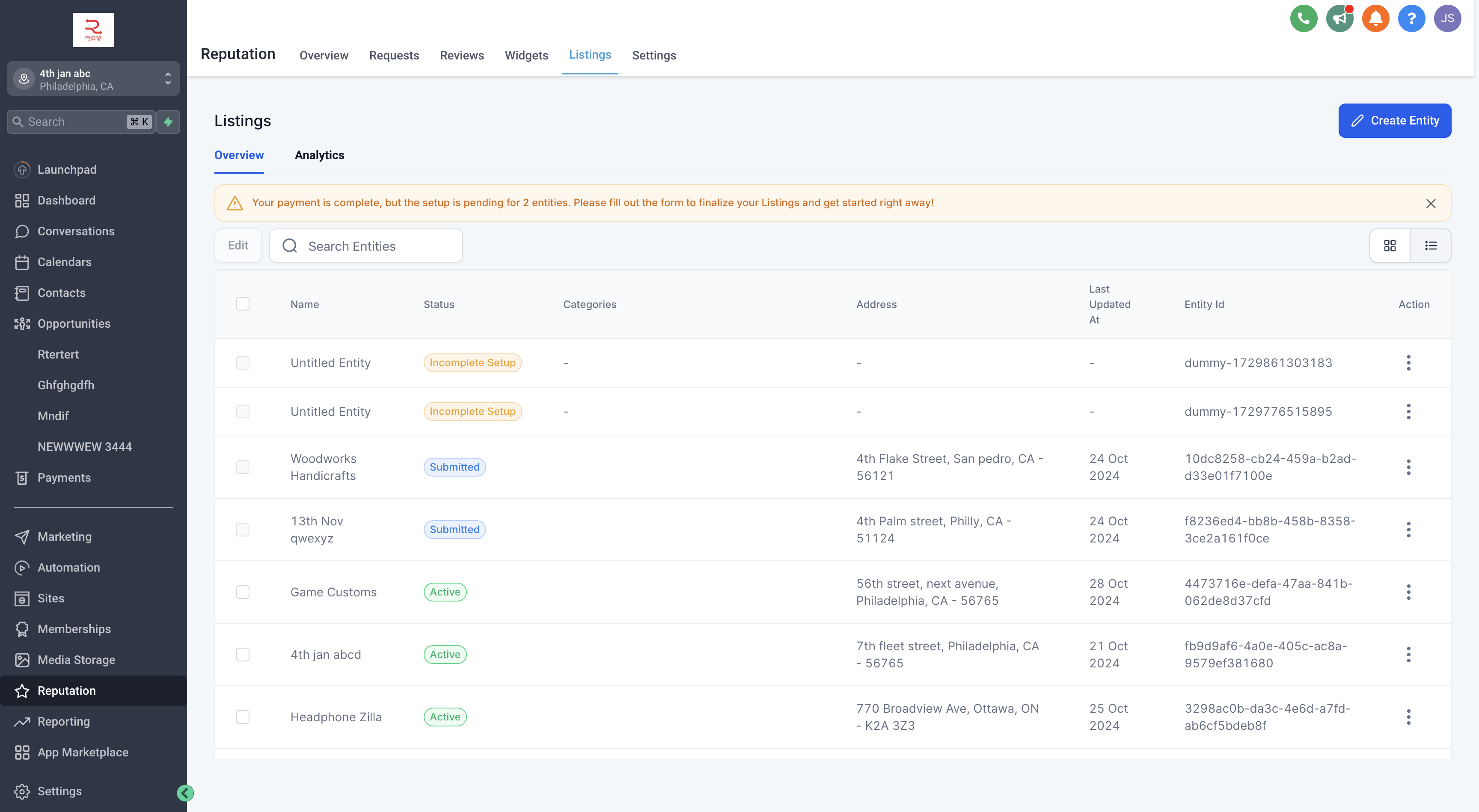
The feature adds a Multi Entity Dashboard where every online listing appears as a card. From this view you can edit, unsubscribe, or select several cards for bulk actions.
Creating a listing starts with the Create Listing command, which opens a pre filled form for the chosen location. After saving, the listing shows up immediately on the dashboard.
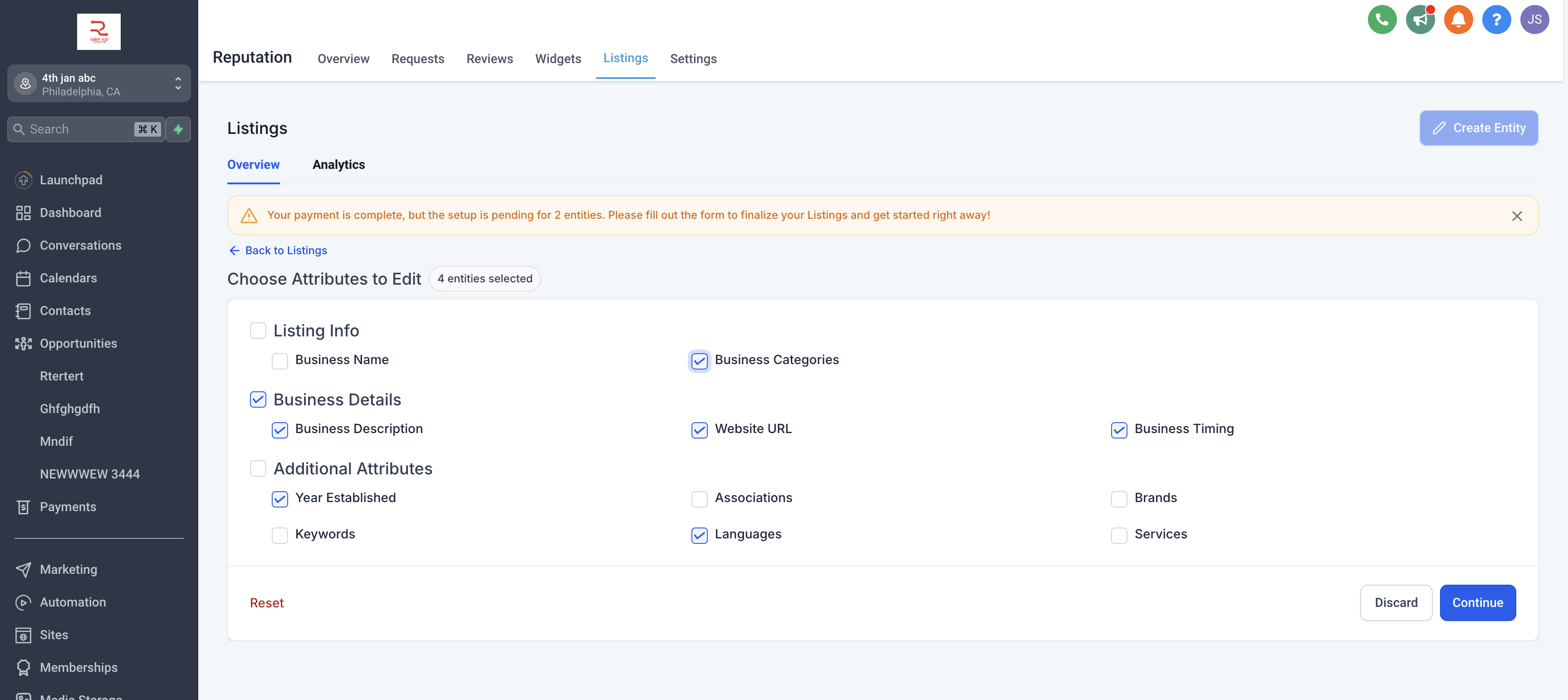
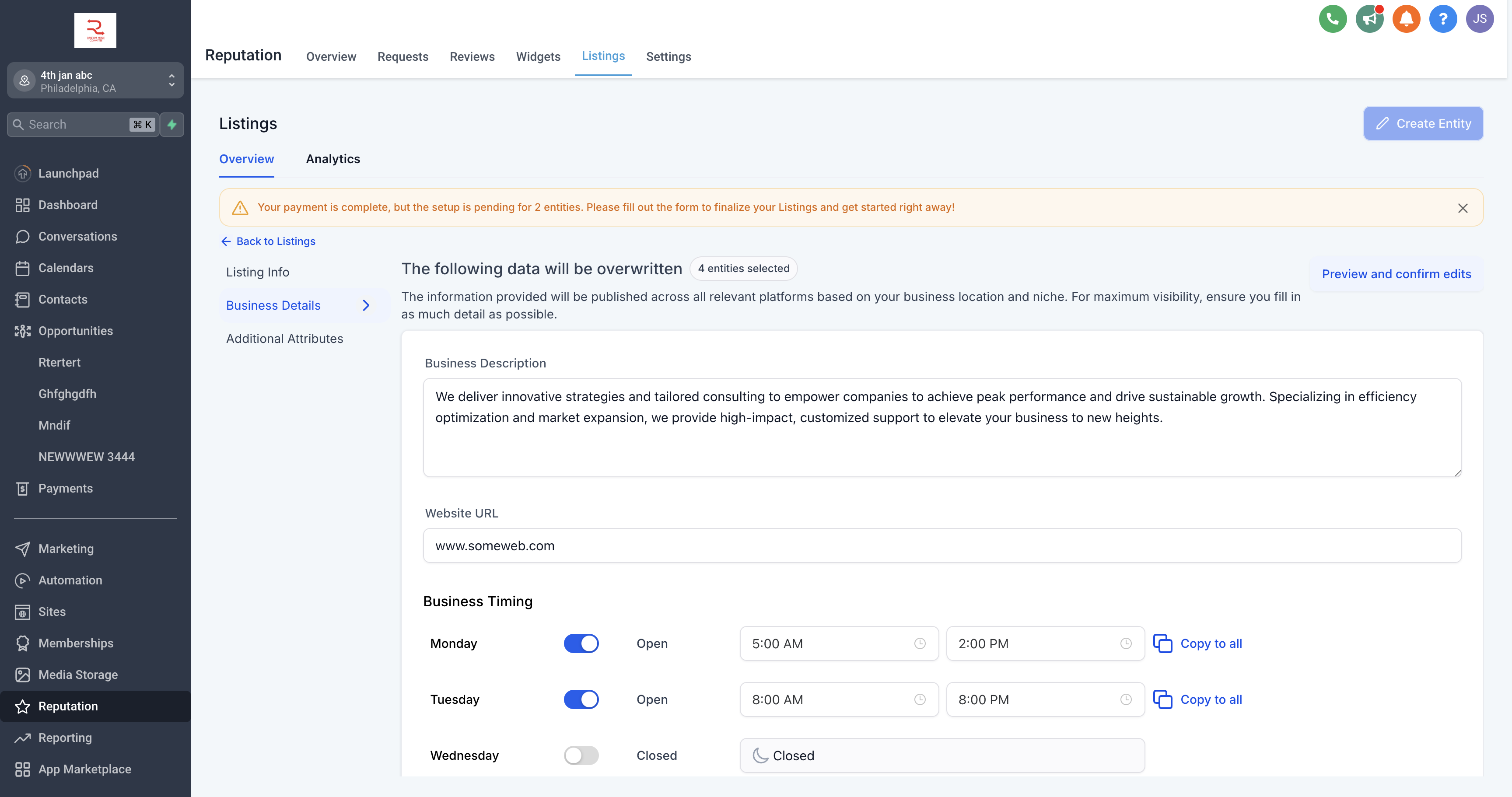
Bulk edit lets you pick multiple locations, choose which fields to change, preview the updates, and confirm them in one step, with notifications confirming completion.
03How businesses use multilocation management
- Restaurant chain. Add each restaurant as a separate listing using the Create Listing flow. When opening hours or address change, use the bulk edit to apply the update to all affected sites at once.
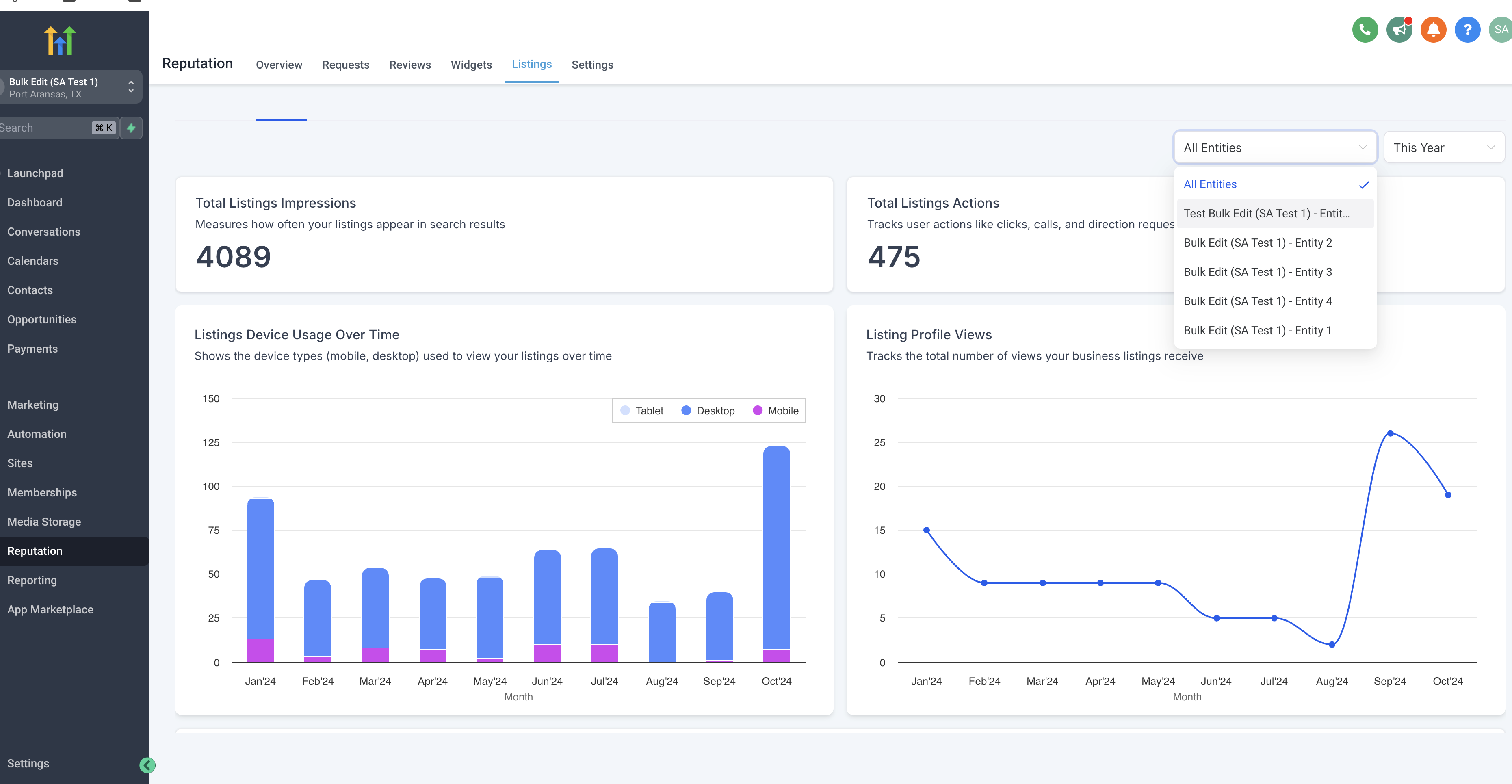
- Real estate agency. View all office listings on the centralized dashboard. Monitor performance metrics for each office and unsubscribe any outdated or duplicate listings directly from the card view.
- Dental practice. Enter each clinic as a listing. Use bulk edit to modify the services offered across all clinics, keeping the core information consistent while allowing clinic specific notes.
04How to set up and use multilocation management in HighLevel
Creating listings
- Click the Create Listing button.
- Enter the location specific details in the pre filled form.
- See the new listing appear right away on the dashboard.
Using the centralized dashboard
- Open the Multi Entity Dashboard to view all location cards.
- Select a card to edit or unsubscribe a single listing.
- Choose multiple cards to start a bulk edit from the same view.
Bulk edit flow
- Select the locations that need updates.
- Pick the fields you want to change across those listings.
- Preview the proposed changes.
- Confirm the edits to apply them and receive a completion notification.
05What it looks like in HighLevel
06How it connects to the rest of HighLevel
- Set up and sell HighLevel Listings for local SEO Listing setup guide
- Manage brand information and SEO with HighLevel Listings Brand and SEO guide
- Check which countries support online listings Supported countries
Michael's take

Michael ReimerFounder of CRM Pros, HighLevel Commander and Certified Admin
I find this feature useful when managing many locations.
Get More InformationOpens on HighLevelPublished November 2, 2026 · Updated November 17, 2026