
01Who this is for
- Agency owners who need to present listing performance with their own branding, to keep client communications on brand.
- Marketing managers for local SEO services who must share regular performance snapshots without platform branding.
02White labeled listings analytics reports, explained
The White Labeled Listings Analytics Reports feature lives inside the Listings section of the platform. After opening the Analytics tab, you can generate a report that pulls data such as impressions, actions and device usage. The report can be customized with your agency logo, a headline and a description, and you decide which graphs appear.
Delivery options include an instant PDF download or an email sent from a custom agency address. Email recipients can include up to 50 contacts, and staff members are added automatically as they are created. Access to the feature is restricted to agency users and admins, ensuring control over who can produce reports.
03How businesses use white labeled listings analytics reports
- Digital marketing agency. The agency logs into a client subaccount, selects the desired date range and graphs, adds its logo and headline, then exports a PDF to attach to a monthly performance email.
- Local SEO consultancy. The consultant generates a report for a single business entity, chooses the email delivery method, enters a custom from address, adds the client’s email, and sends the branded report directly from the platform.
- Franchise management firm. The firm creates a report for each franchise location, picks the relevant graphs, uploads its corporate logo, and downloads PDFs to distribute in a quarterly review meeting.
04The numbers and rules that matter
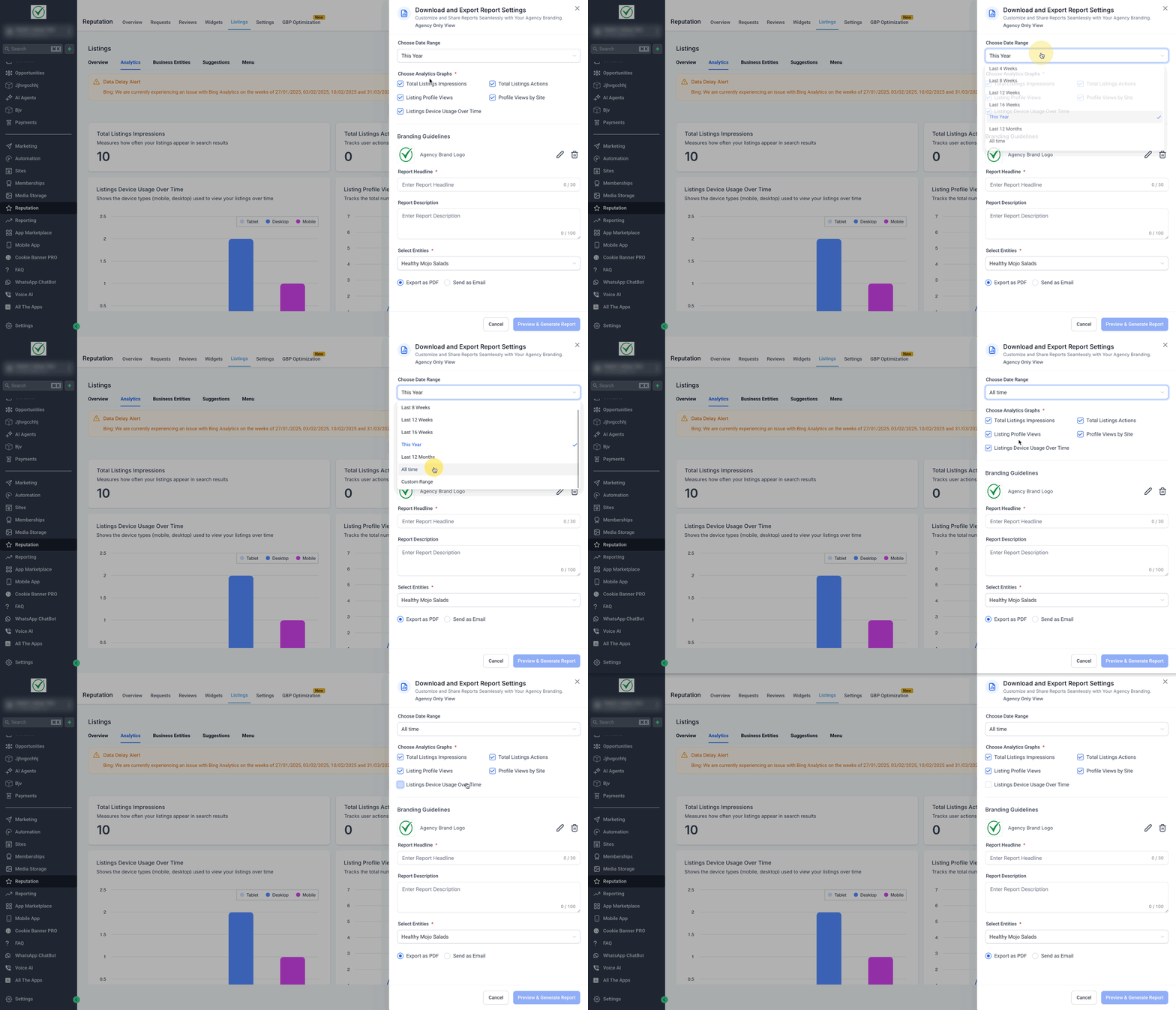
- Time Range options: Last 4 weeks, 8 weeks, 12 weeks, 16 weeks, This year, Last 12 months, All time.
- Graphs available: Total Listing Impressions, Total Listing Actions, Listing Profile Views, Profile Views by Site, Listings Device Usage Over Time.
- Up to 50 recipient email addresses can be added when sending by email.
05Before you start
- You must be logged in as an agency user or admin; subaccount only roles cannot access the feature.
- At least three analytics graphs must contain data for the Generate Report button to be active.
06How to set up and use white labeled listings analytics reports in HighLevel
Generate and send a white labeled report
- Log in to your Subaccount.
- Open the Reputation tab.
- Click Listings.
- Select the Analytics tab next to Overview.
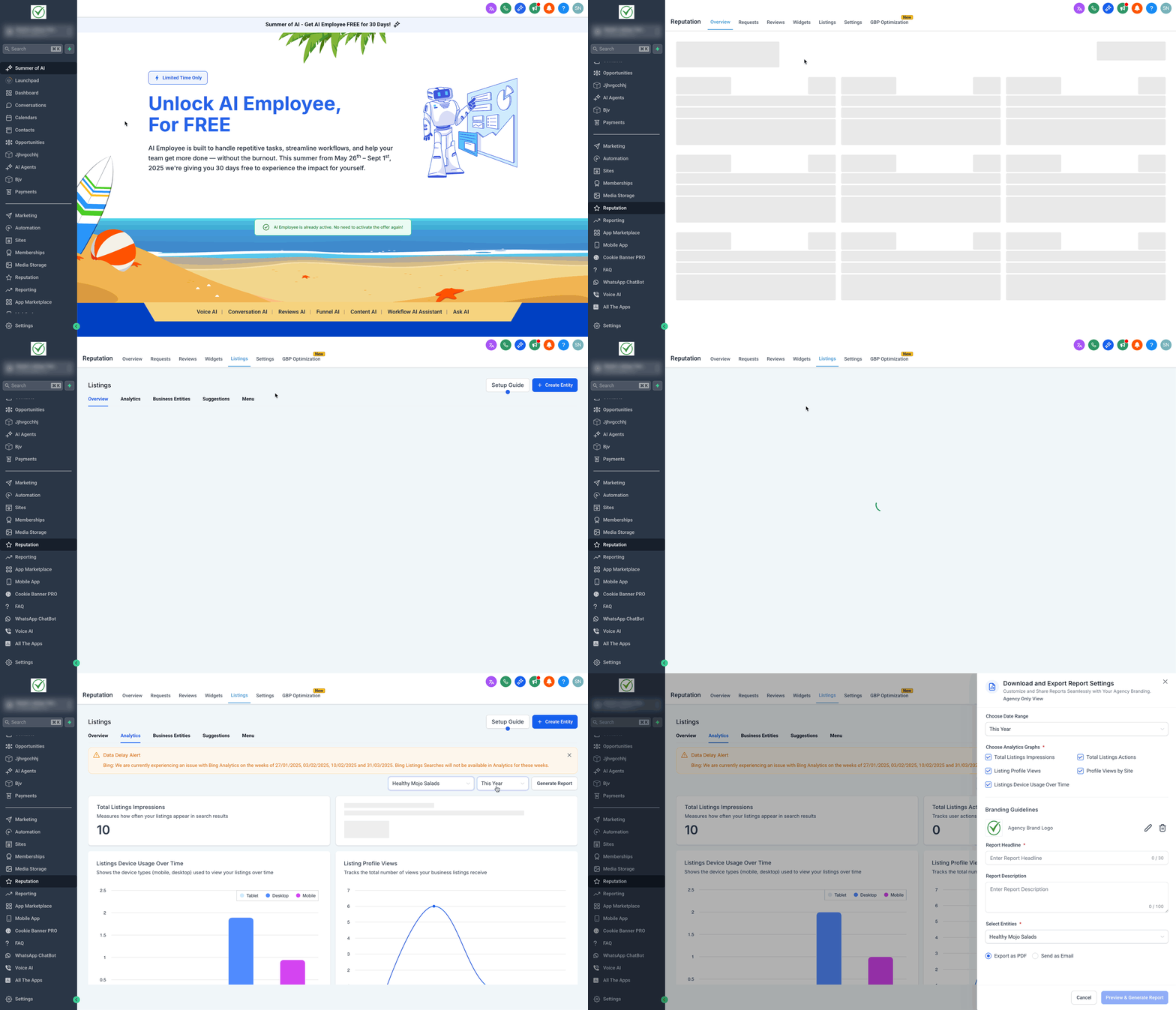
- Click the Generate Report option (visible only when at least three graphs have data).
- Choose a Time Range from the available list.
- Select or deselect the analytics graphs you want to include.
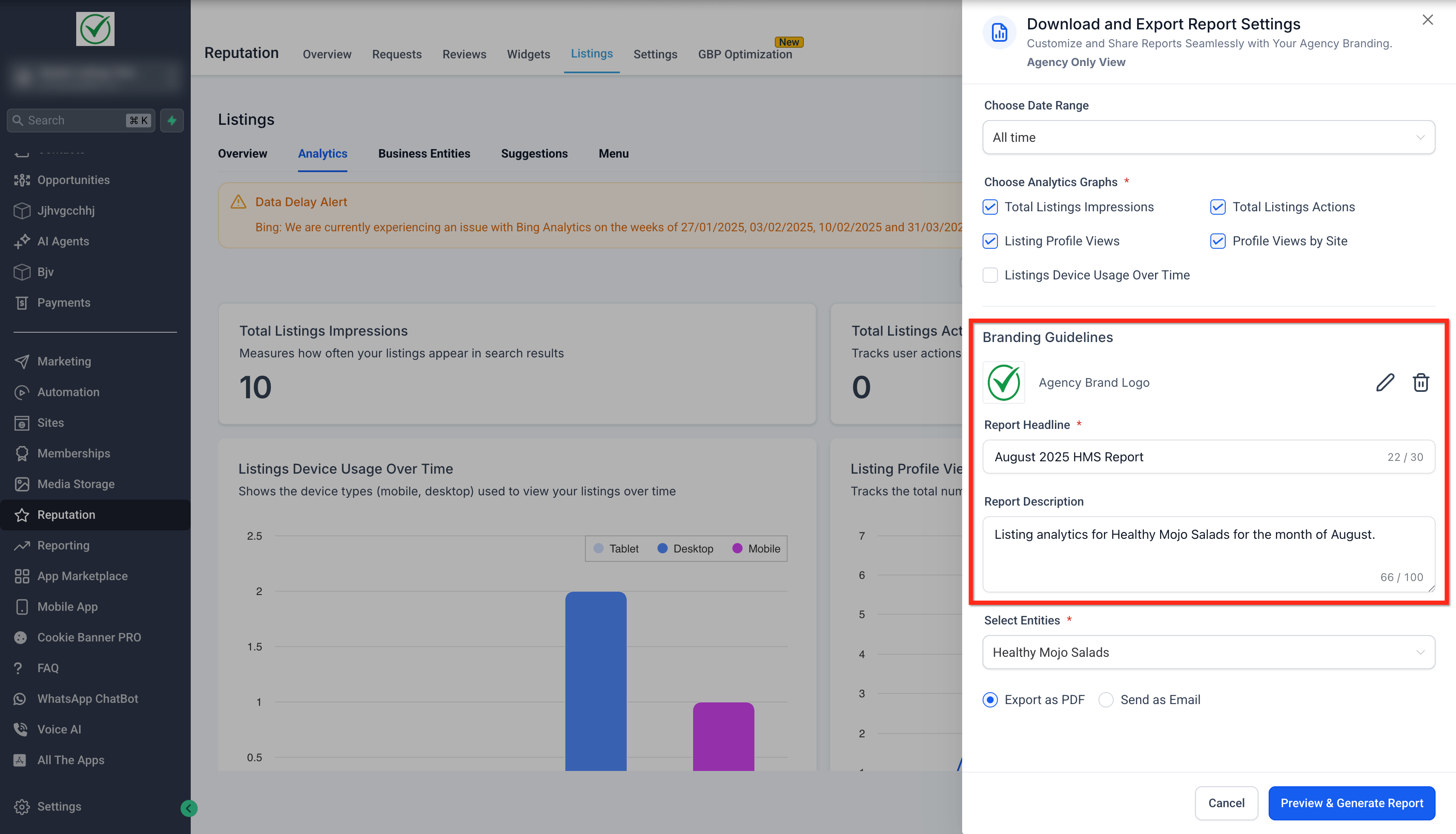
- Upload your agency logo and enter a report headline and description.
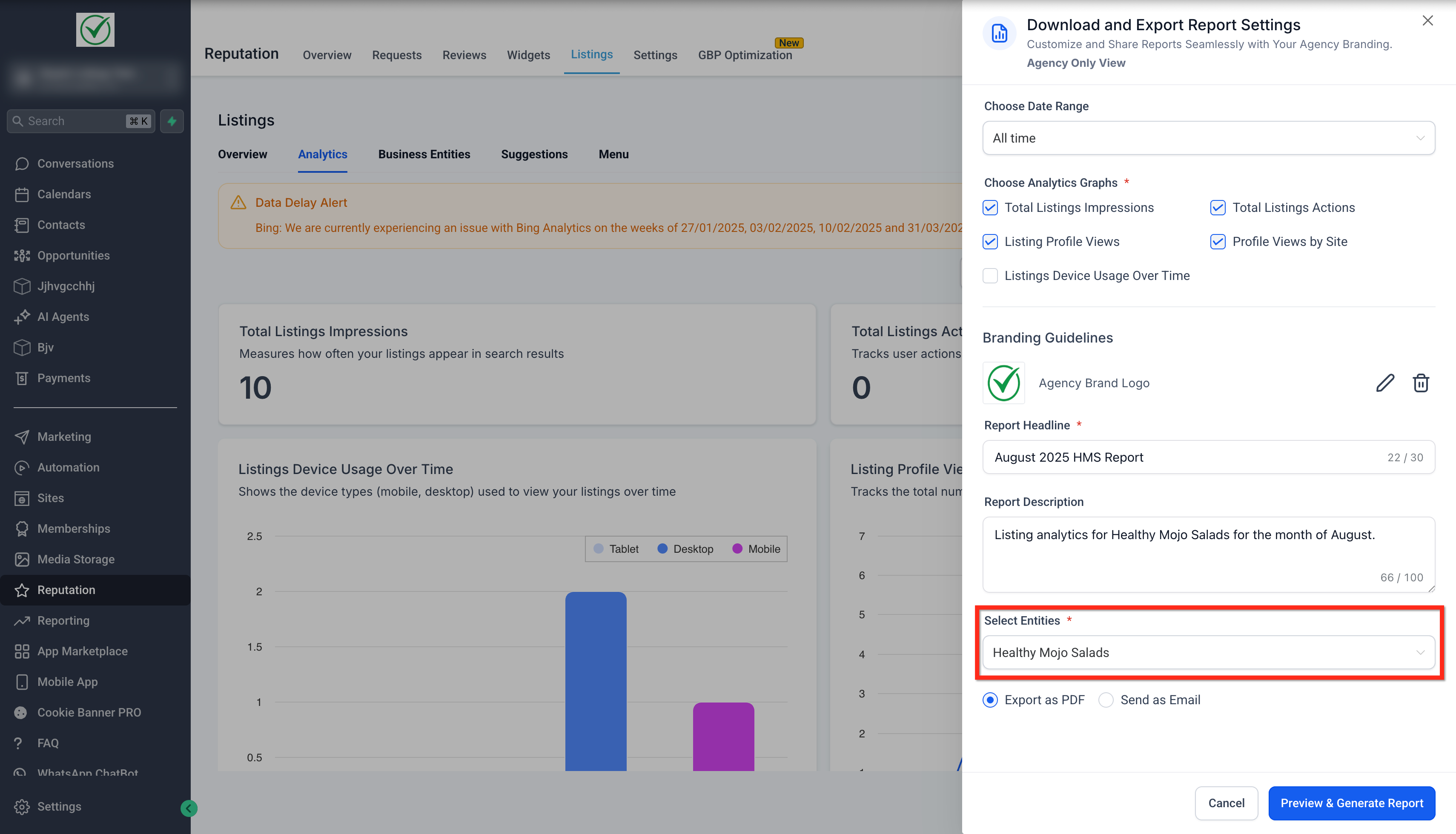
- Select the Entity that the report will cover.
- Choose either Export as PDF or Send as Email as the delivery method.
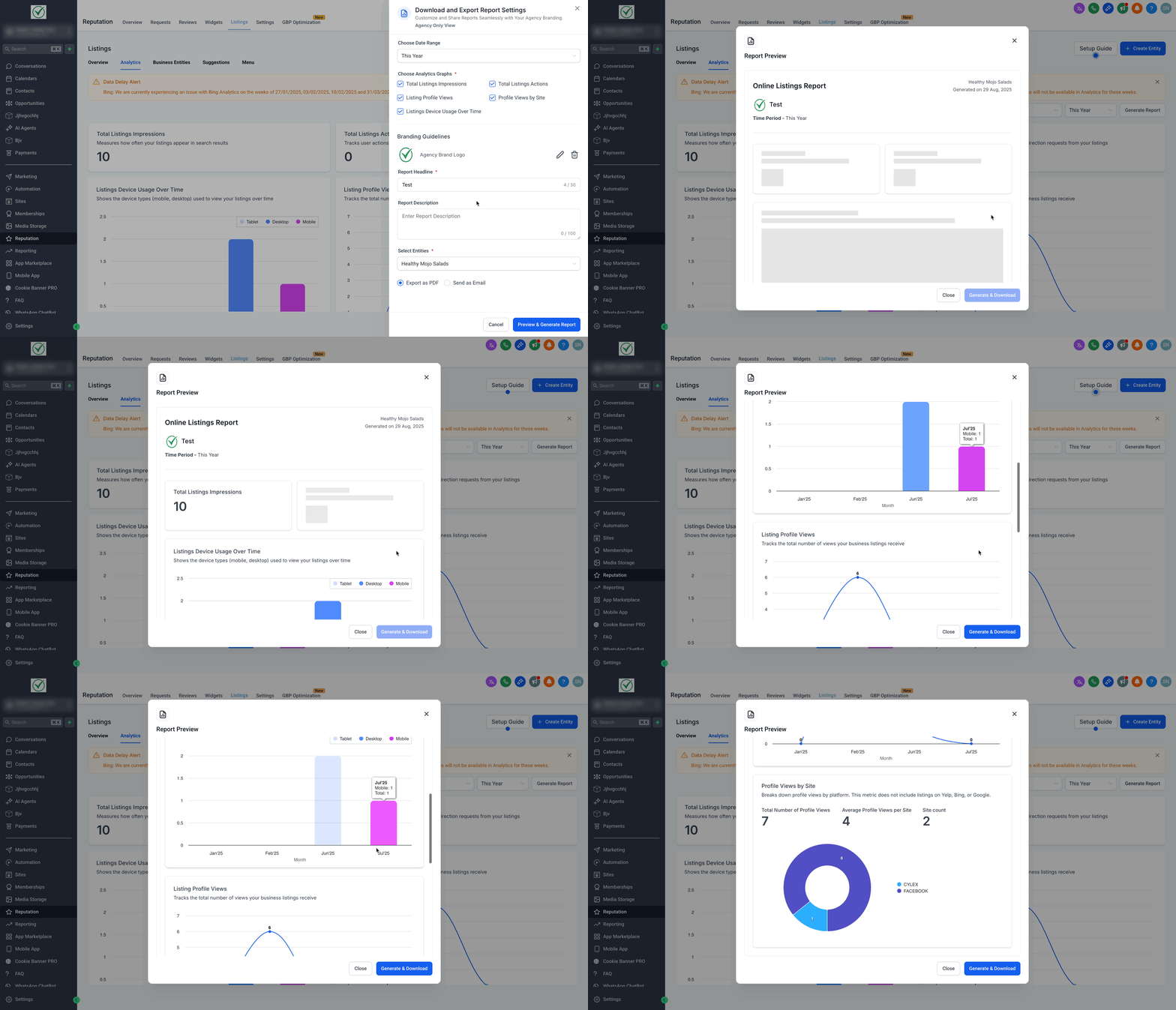
- If exporting, click Preview & Generate Report, then click Generate & Download to save the PDF.
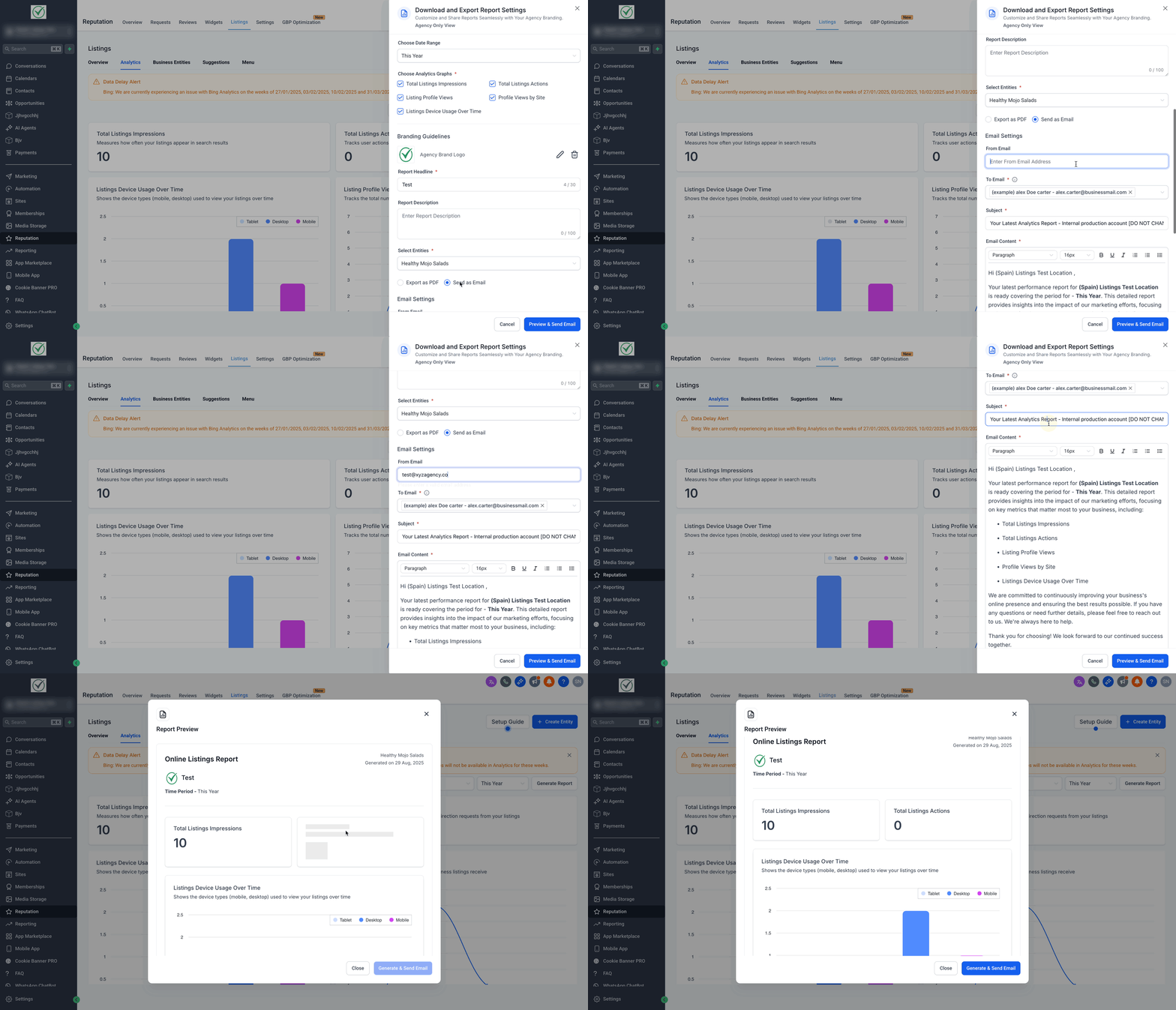
- If emailing, enter a From Email address, add up to 50 recipient emails, fill in the subject and email content, click Preview & Send Email, then click Generate & Send Email.
07What it looks like in HighLevel
08Settings that matter
- Time Range. Determines the period for which analytics data is compiled in the report.
- Choose Analytics Graphs. Lets you include or exclude specific data visualizations such as impressions or device usage.
- Report Headline. Sets the main title that appears at the top of the branded report.
- Report Description. Provides context, highlights or goals that accompany the report content.
- From Email. Specifies the sender address used when the report is emailed, allowing white label delivery from your domain.
- To Email(s). Lists the recipient addresses for the email delivery option, up to 50 addresses.
- Subject. Defines the email subject line that recipients see.
- Email Content. Contains the body of the email, fully editable with rich text formatting.
- Export as PDF. Selects the option to generate a downloadable PDF version of the report.
- Send as Email. Selects the option to email the report directly from the platform.
09Things to know before you rely on it
- Time Range options are limited to Last 4 weeks, 8 weeks, 12 weeks, 16 weeks, This year, Last 12 months, or All time.
- You can add up to 50 email addresses when using the email delivery method.
- The All Entities choice is unavailable if the subaccount contains both Uberall and Yext entities; you must select a single entity.
- At launch, reports support Yext analytics only; Uberall support will be added in a future update.
- The Generate Report button is disabled unless at least three analytics graphs contain data.
10If something goes wrong
- Agency users cannot see the Generate Report option.. Confirm you are logged in as an agency user or admin; subaccount only roles do not have access.
- "All Entities" option is greyed out.. Check whether the subaccount mixes Uberall and Yext entities; if so, select a single entity instead.
- Generate Report button is disabled.. Ensure that at least three analytics graphs contain data for the selected entity and date range.
11How it connects to the rest of HighLevel
- How to set up and sell HighLevel Listings for local SEO Listing setup guide
- Using HighLevel Listings to manage brand information and SEO Brand info with Listings
- HighLevel pricing and plans Pricing page
Michael's take

Clients often want clear proof of how their listings are performing, but creating a polished report takes time and design skill. The first thing I would get right is the branding. Upload the agency logo and set a headline so every report fast looks like it belongs to my business.
Once the look is locked in, I would run a test report for a single entity, check the graphs, and verify the email lands in the inbox from my own domain. That quick check ensures the data, branding and deliverability all line up before I start sending reports to clients.