
01Who this is for
- Digital marketing agencies benefit by centralizing duplicate handling for multiple client listings, saving time on outreach.
- Local business owners gain a clearer online presence, reducing confusing or outdated information that can affect customer visits.
- Franchise operators can verify that each location is unique and avoid mistakenly suppressing legitimate nearby branches.
02Duplicate suppression management, explained
The feature scans major directories each month and flags entries that share name, address, phone or other identifiers with your primary listing. When a potential duplicate appears, it moves into a review queue where you decide to suppress it or mark it as not a duplicate.
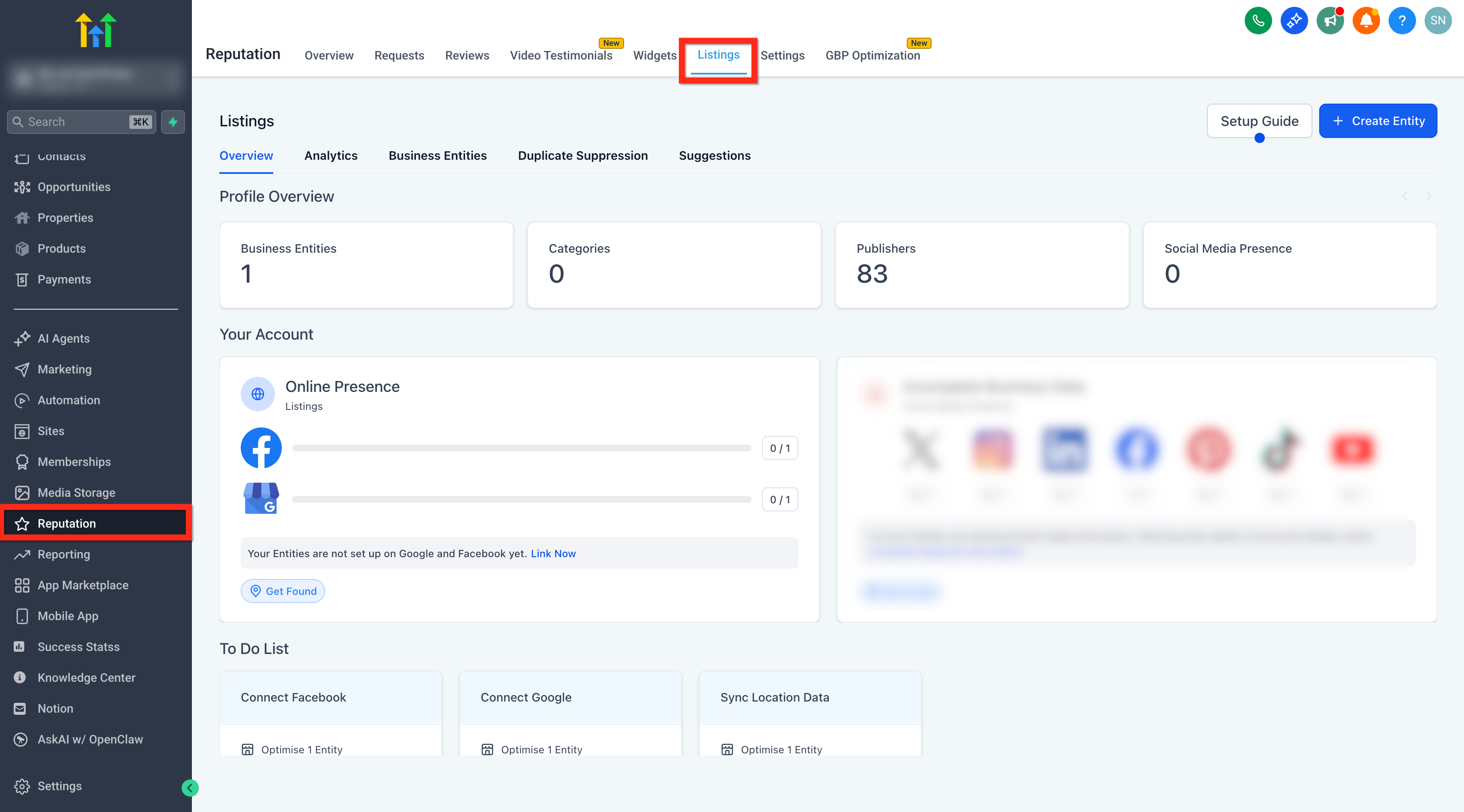
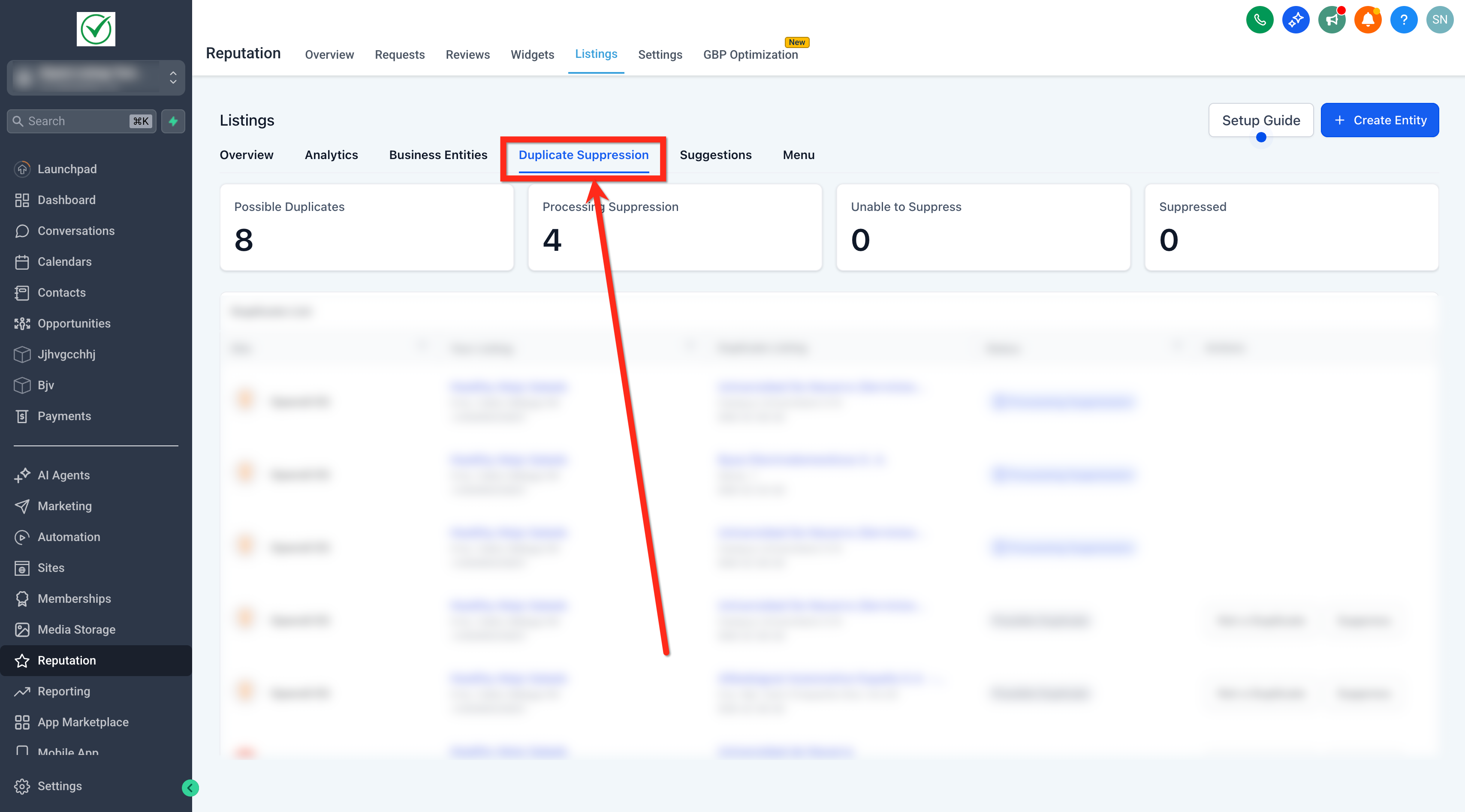
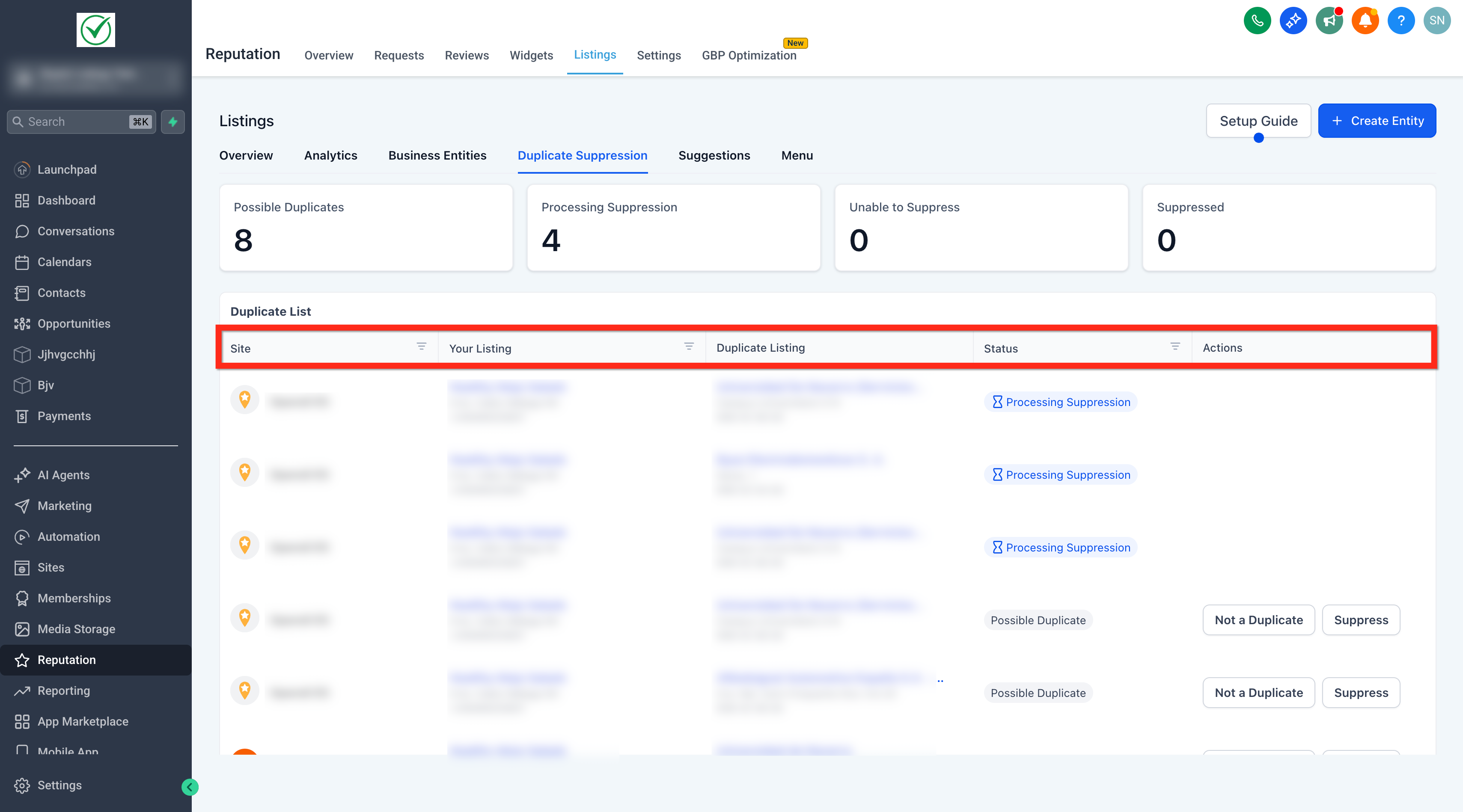
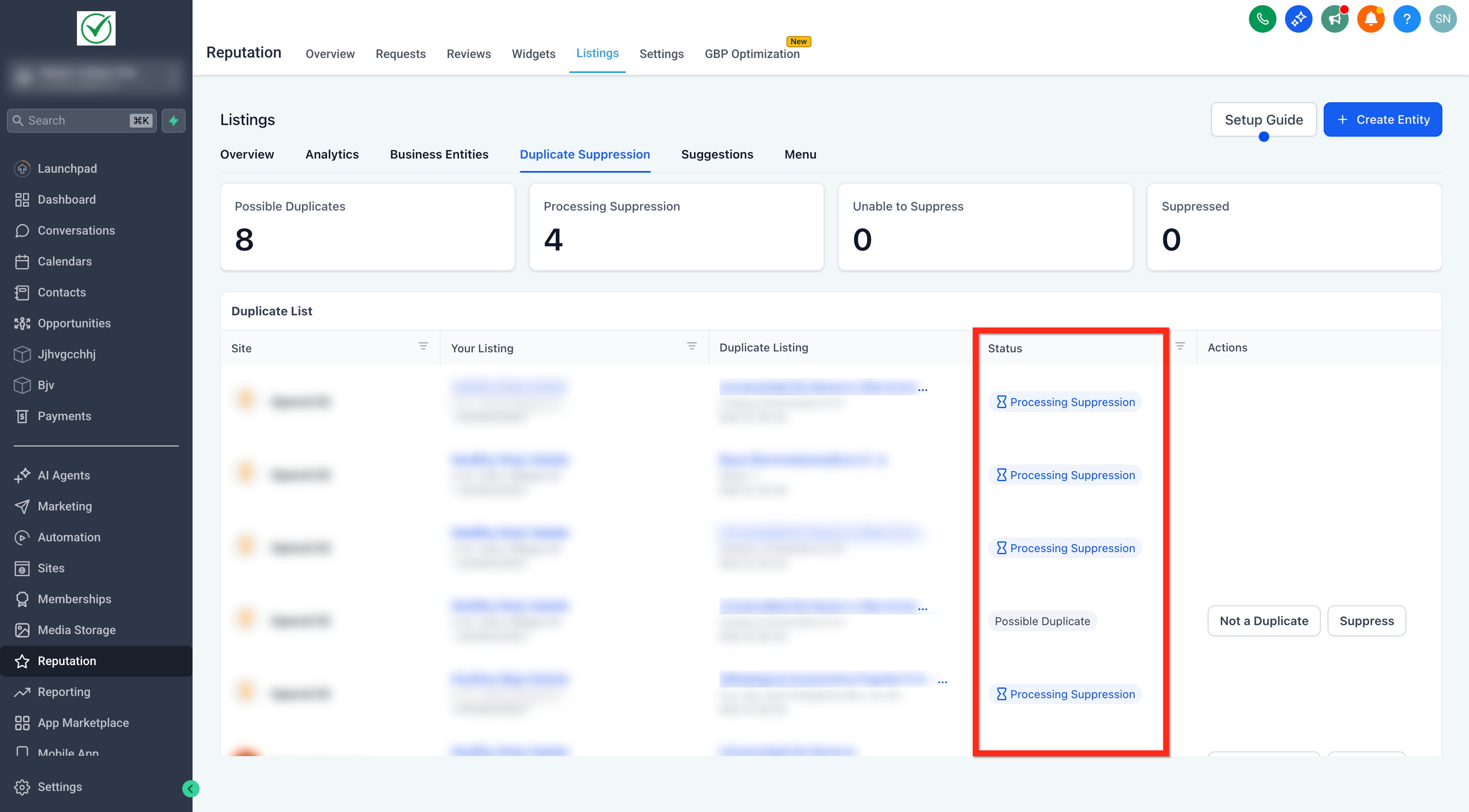
Duplicate Suppression lives in the Listings dashboard under Reputation > Listings. The tab shows a grid with the source site, your authoritative entry, the duplicate candidate, its current status, and actions you can take. Statuses guide you through the workflow from detection to final outcome.
03How businesses use duplicate suppression management
- Local restaurant. The owner opens the Listings page, reviews any flagged duplicate on food service directories, and clicks Suppress to hide the outdated address. The status updates to Processing Suppression and later to Suppressed, ensuring diners see the correct location.
- Multi location franchise. A franchise manager checks the grid for each city, confirming that flagged entries are not separate stores. For true duplicates, they use the Suppress action, and for misidentified spots they select Not a Duplicate to keep the record visible.
- Real estate agency. The agency reviews duplicate listings on local business directories, dismisses false positives with Not a Duplicate, and monitors the status chips to see when a publisher removes the extra entry, keeping contact information consistent.
04Before you start
- A subaccount must be opened in HighLevel.
- The subaccount must contain at least one active Yext entity for the Duplicate Suppression tab to appear.
05How to set up and use duplicate suppression management in HighLevel
Use duplicate suppression
- Open the subaccount and go to Reputation > Listings.
- Select the Duplicate Suppression tab; it appears only if a Yext entity is active.
- Examine the grid showing Site, Your Listing, Duplicate Listing, Status and Action.
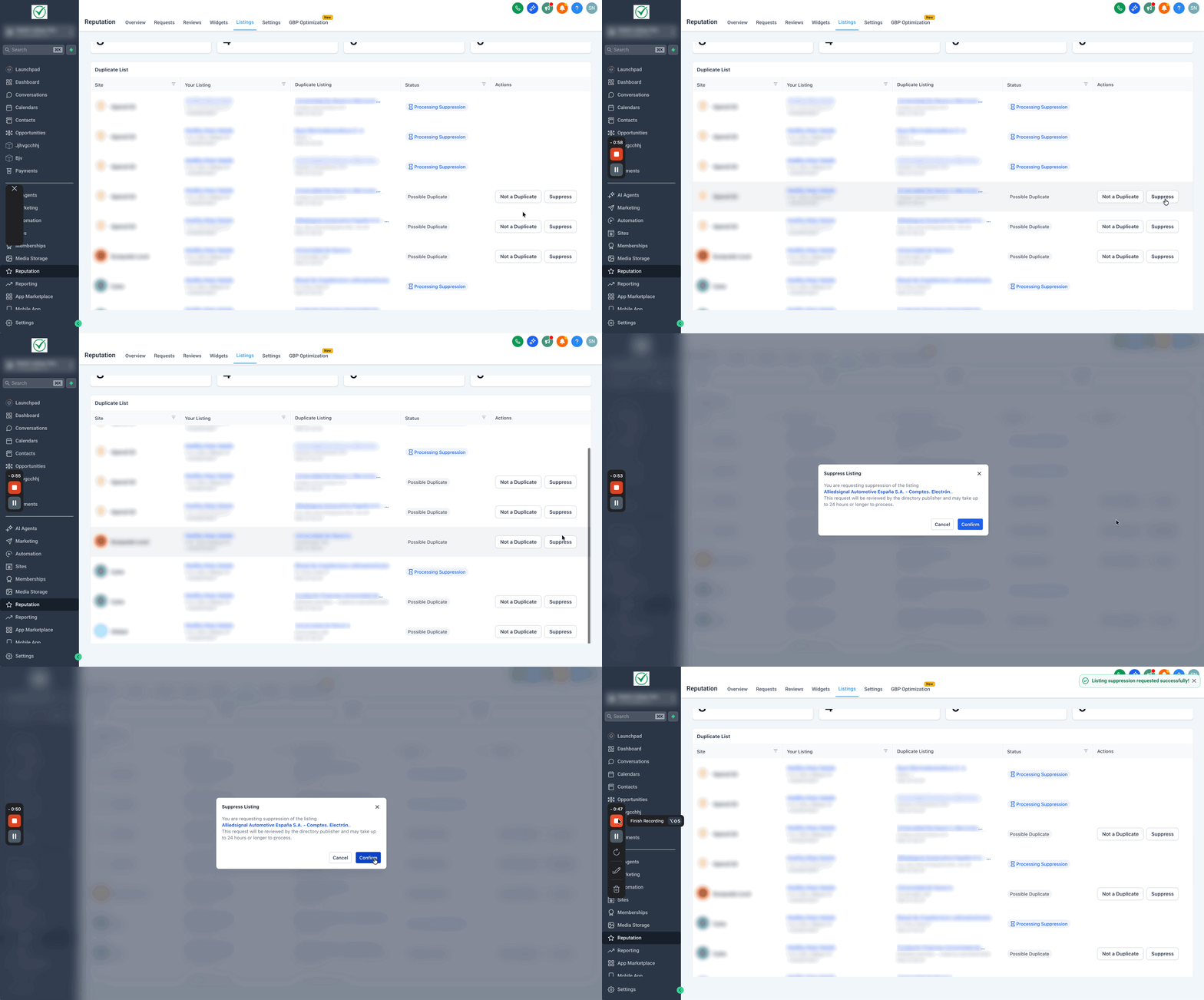
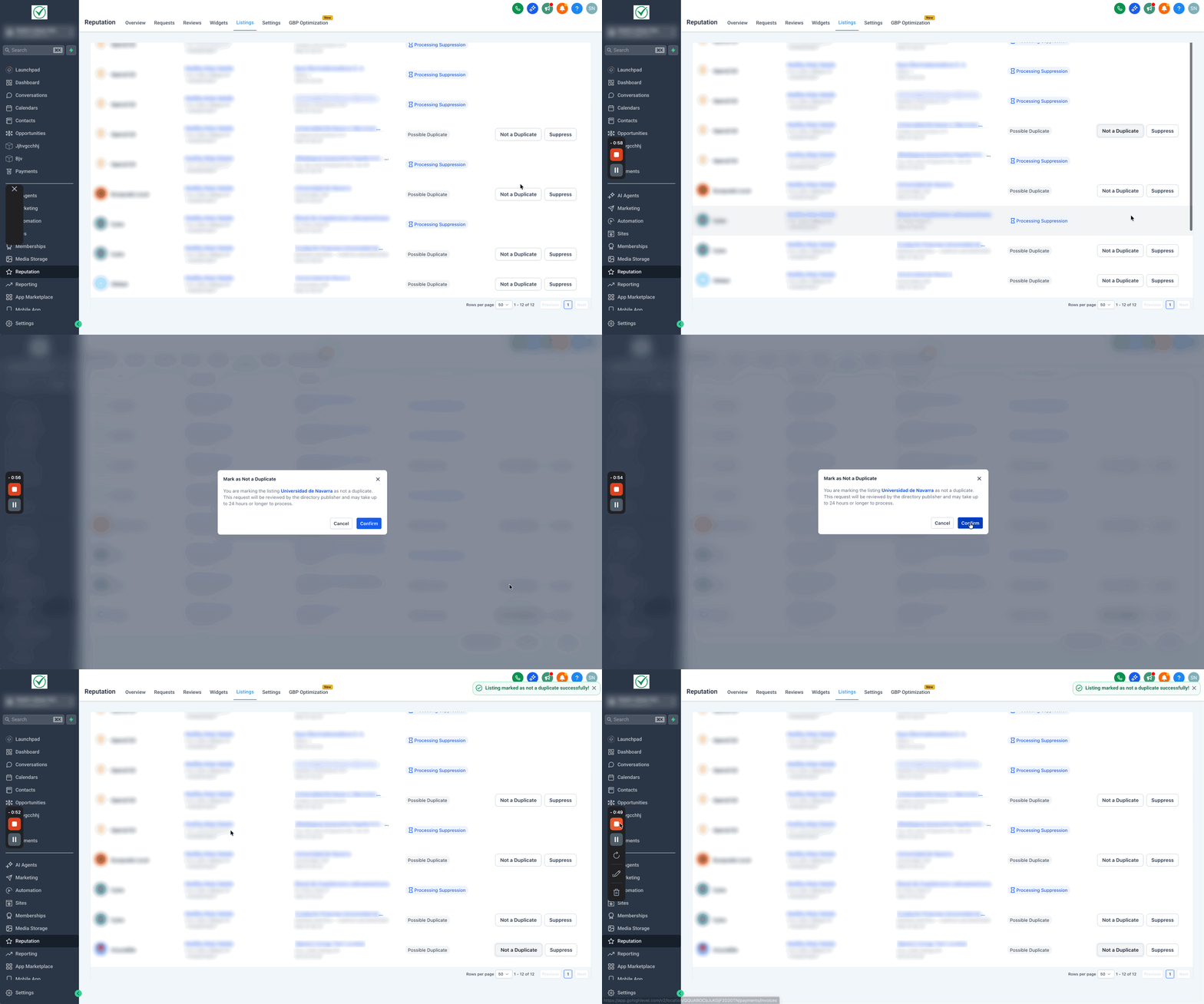
- For a confirmed duplicate, click Suppress and then Confirm.
- For a false positive, click Not a Duplicate and then Confirm.
- Watch the Status chips for Processing Suppression, Suppressed, or Unable to Suppress.
- Return each month after the scan refreshes to handle any new duplicate candidates.
06What it looks like in HighLevel
07Things to know before you rely on it
- The feature works only with Yext entities; Uberall entities are not supported.
- The Duplicate Suppression tab is visible only when the subaccount has an active Yext entity.
08If something goes wrong
- Duplicate Suppression tab does not appear. Verify that the subaccount contains an active Yext entity.
- Unable to Suppress status shows. Confirm the candidate listing, collect any required evidence, and contact support as some publishers decline requests.
09How it connects to the rest of HighLevel
- Activate Listings for a client without billing Deploy listings without billing
- Online listings supported countries and coverage Supported countries
- HighLevel pricing and plans Pricing page
Michael's take

If you don’t regularly see duplicate entries or your directory coverage is already tight, the feature may add little value. The extra step of confirming each candidate each month can feel like busy work when there are few or no duplicates to manage.