
01Who this is for
- Agency administrators who manage multiple client listings can track edits for accountability.
- Marketing managers can review who updated SEO fields to ensure proper oversight.
- IT security teams can monitor system generated changes for compliance checks.
02Entity History, explained
Entity History adds a detailed audit trail to each listing record. Every modification, whether entered by a user or triggered by a workflow, is recorded with the user ID, timestamp, entity ID, and before and after values. The logs appear inside the platform’s Audit Logs, providing a single source for compliance and accountability.
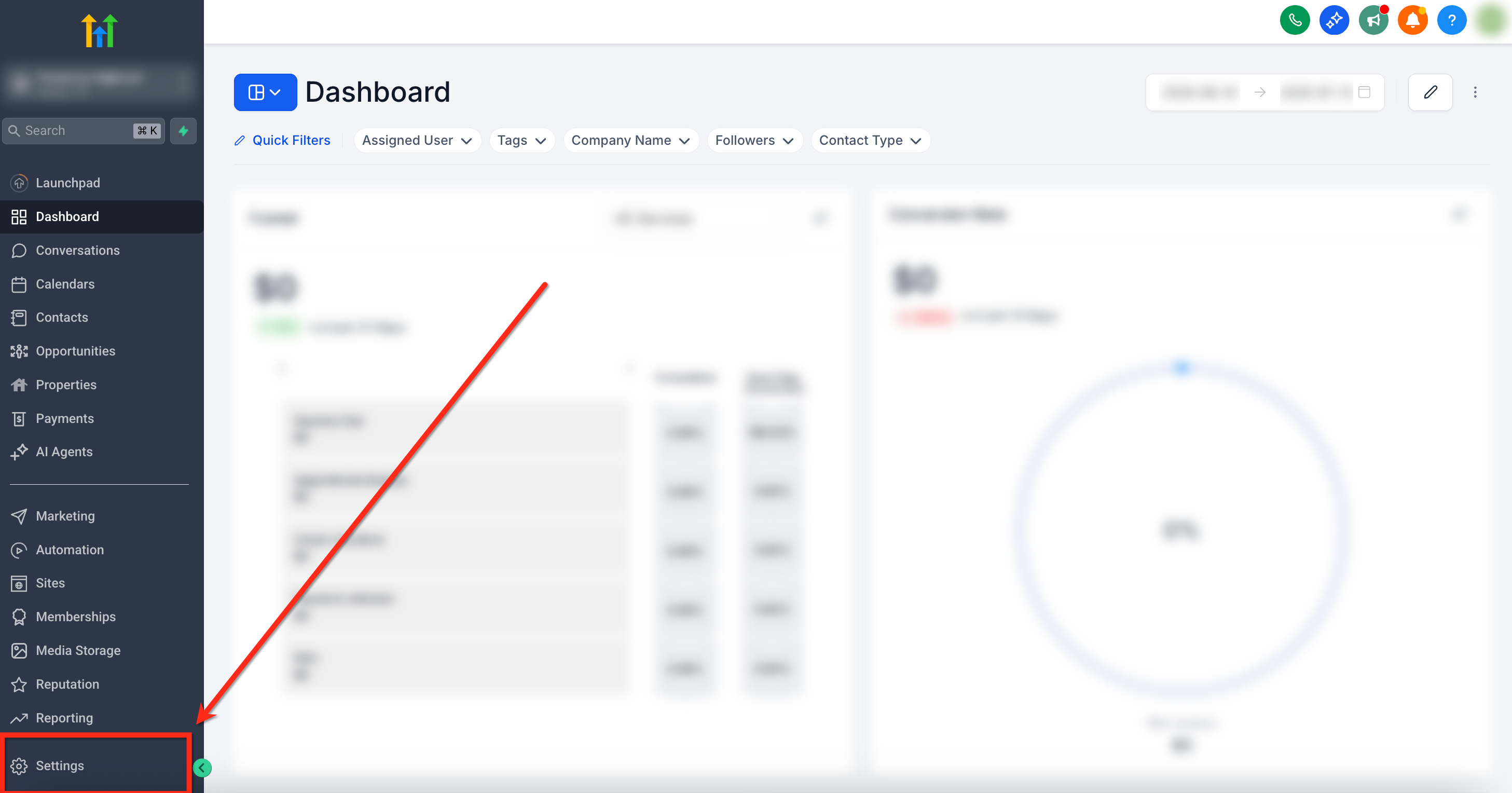
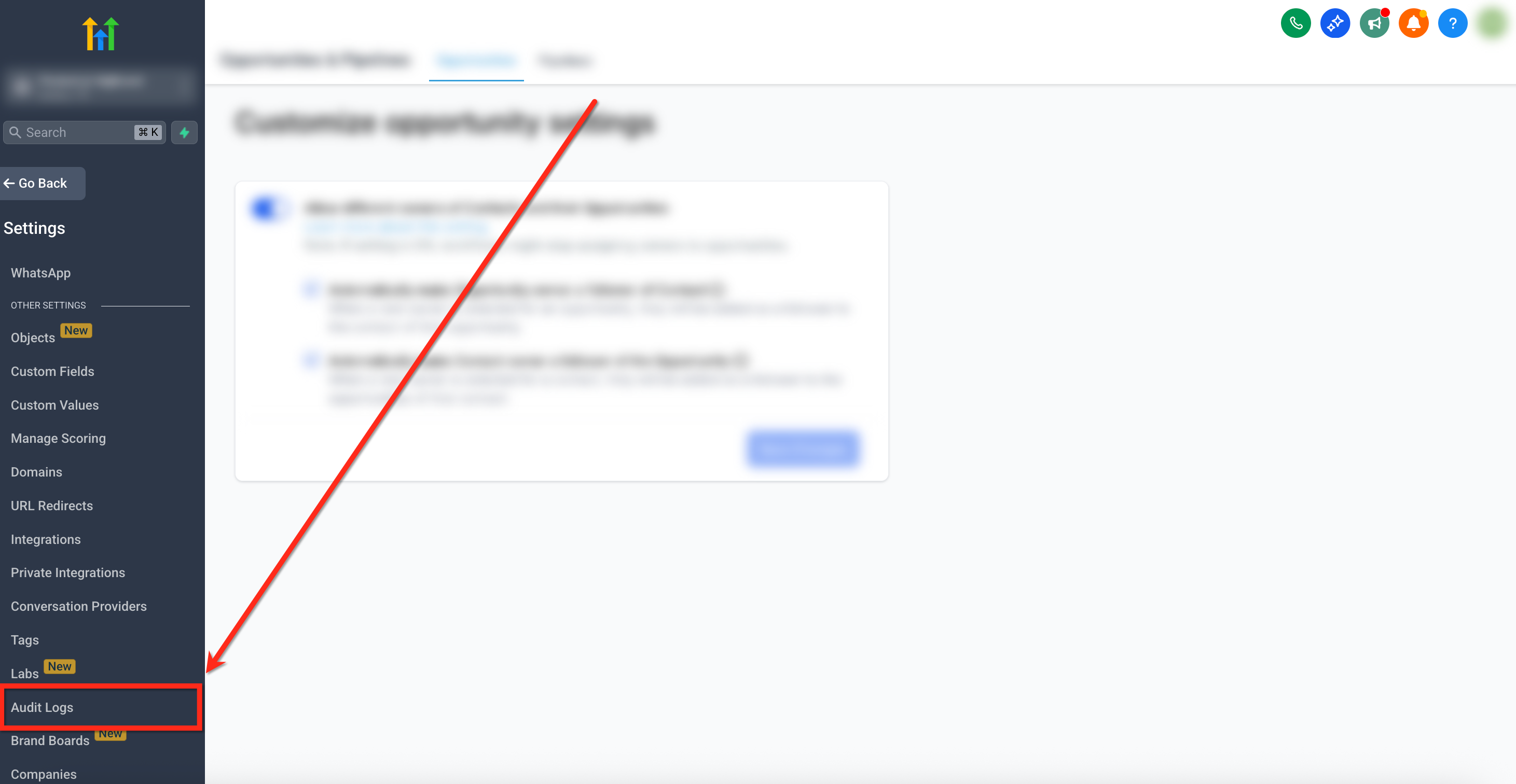
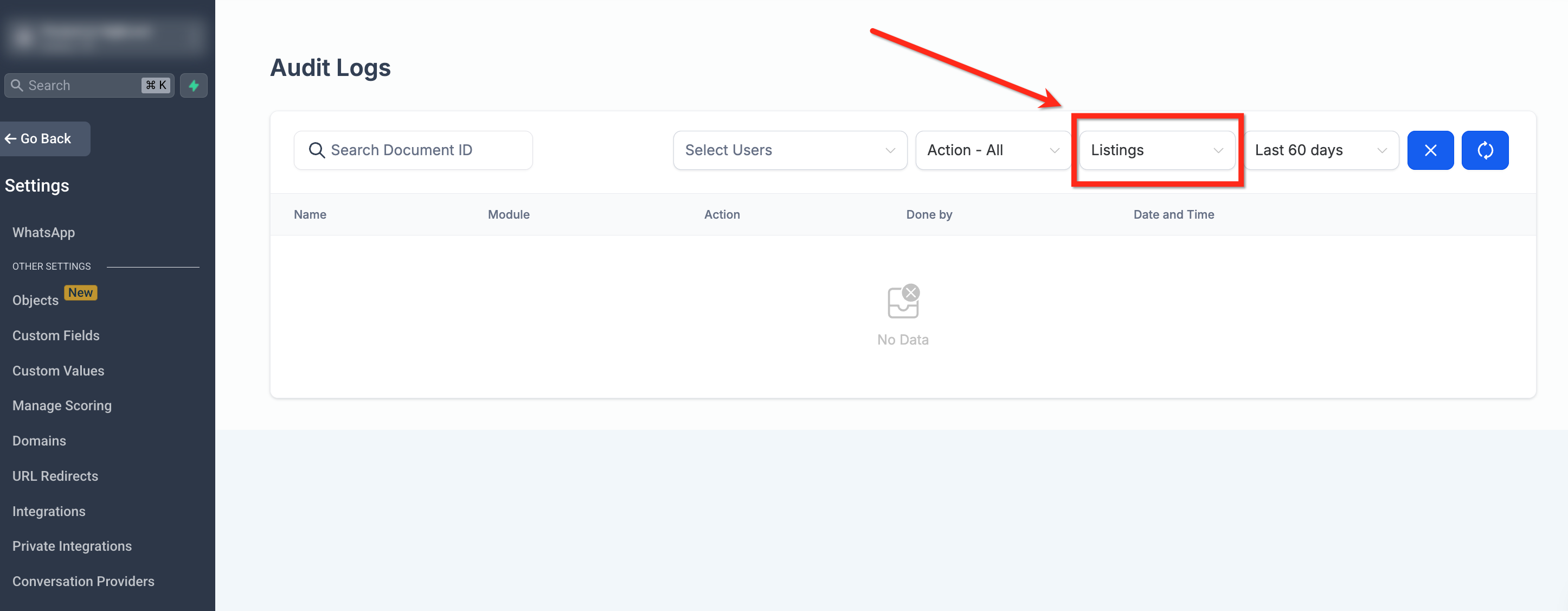
The feature lives under the Settings area. From the subaccount dashboard, go to Settings, open Audit Logs, choose the Listings module, and then filter or select an entity to see its full change history. The view shows who made each change, what data was altered, and when the action occurred.
03How businesses use Entity History
- Digital marketing agency. The agency opens Audit Logs, filters by the Listings module, and selects a client’s listing to verify which team member edited the SEO description and when. This helps maintain client reporting accuracy.
- Real estate brokerage. A broker accesses the Entity History of property listings, clicks an entry, and reviews the before and after values to confirm that price updates were made by authorized agents only.
- Restaurant chain. The chain’s manager uses the audit filters to locate changes made to a location’s online menu listing, ensuring that any edits follow the approved workflow and are traceable.
04How to set up and use Entity History in HighLevel
Access entity history in audit logs
- Open the subaccount dashboard and click Settings in the left navigation.
- Within Settings, select the Audit Logs option.
- In the Audit Logs view, open the Module dropdown and choose Listings.
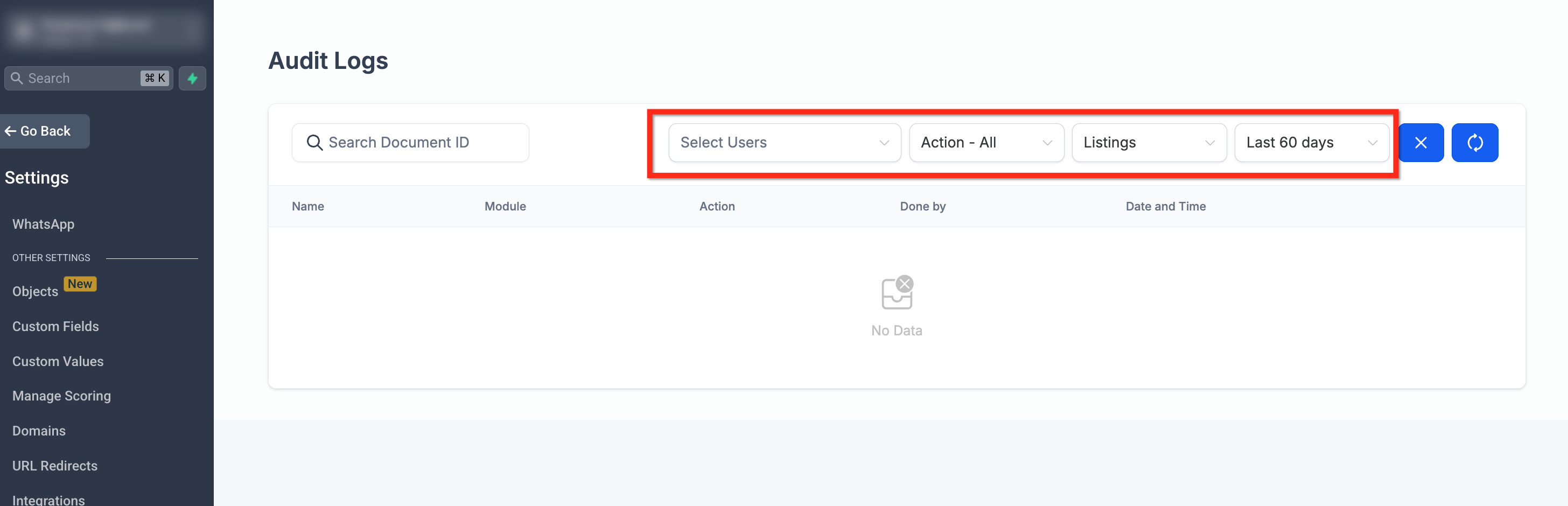
- Apply filters such as entity ID, timestamp, or user to narrow the results.
- Click on a listed entity to open its full update timeline with before and after details.
05What it looks like in HighLevel
06Settings that matter
- Audit Log access permissions. Controls which users can view Entity History records in the Audit Logs.
07Things to know before you rely on it
- Exporting Entity History logs through a public API is not supported.
- Only users granted Audit Log access permissions can see the logs.
- Deletions of listings are captured with before and after state snapshots.
- Changes made by automations or workflows are included and labeled as system initiated.
08How it connects to the rest of HighLevel
- Set up and sell HighLevel Listings for local SEO Listings setup guide
- Online listings supported countries and coverage Supported countries
- HighLevel pricing and plans Pricing
Get More InformationOpens on HighLevelPublished November 2, 2026 · Updated November 17, 2026