
01Failed payments, explained
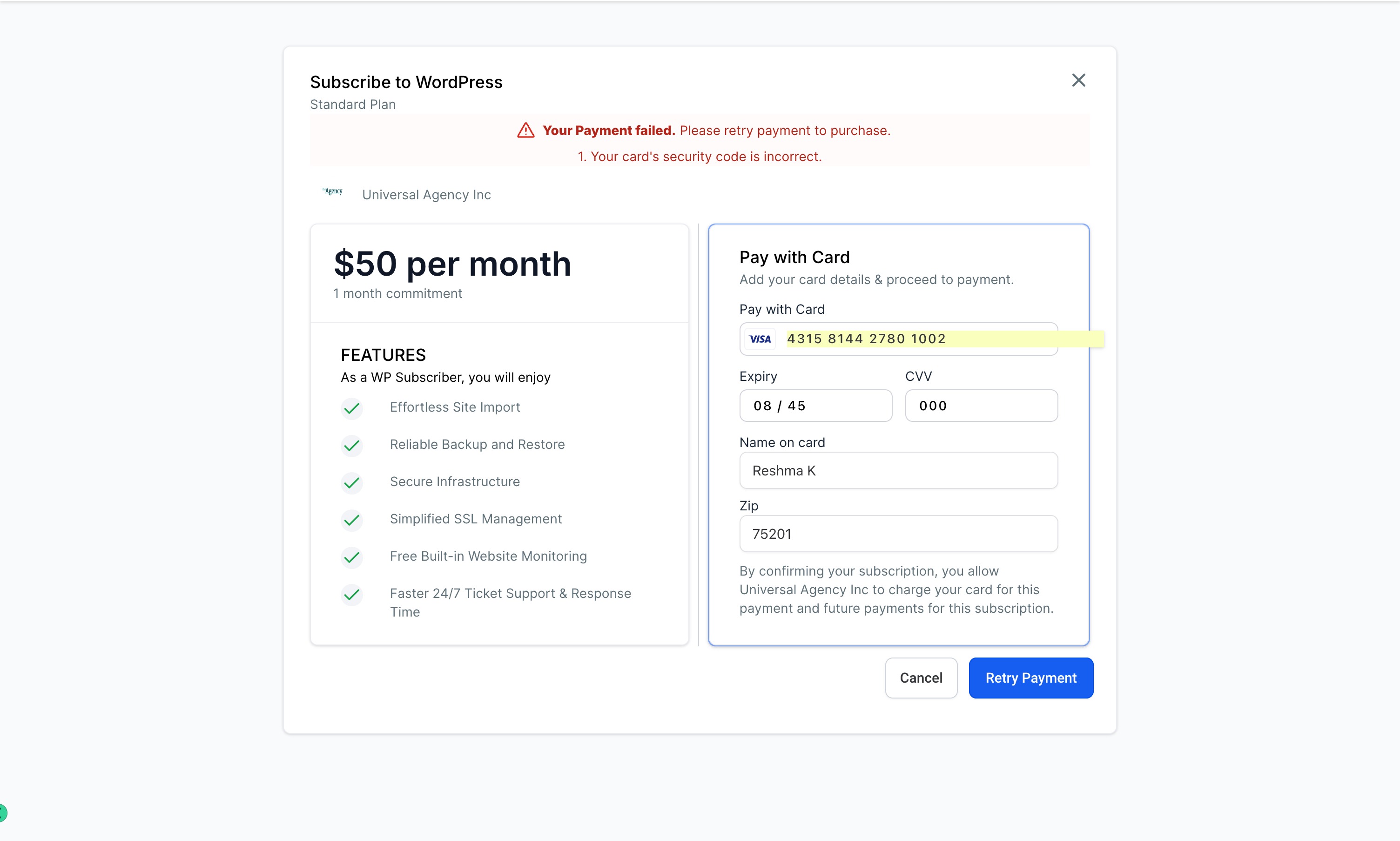
When a customer’s payment for a product does not go through, HighLevel shows a notification prompting you to retry the payment. The feature lets the buyer return to the product page and update any incorrect card information before resubmitting the payment.
This process works for any product in your account. After the retry succeeds, you should receive a success notification.
02How businesses use retry a failed payment
- Fix a declined card transaction. A buyer whose card was declined can open the product page, click the Retry Payment button, correct the card details if needed, and submit again. The payment is reinitiated and, if successful, you receive a success notification.
03How to set up and use retry a failed payment in HighLevel
Retry payment
- Go to the Product Page.
- Visit the Product which you want to subscribe.
- Submit your credentials to make payment.
- Click “Retry Payment”.
- On the Purchase page, locate the "Retry Payment" button.
- Click on it to reinitiate the payment process.
- If needed, update payment information and double check all details.
- Confirm the payment.
- Receive a success notification once the payment is accepted.
04What it looks like in HighLevel
05If something goes wrong
- Payment still isn’t going through. Reach out to the Support Team for assistance.
Michael's take

Retrying a failed payment is a small convenience that can keep a sale from slipping away. It’s a quick way to give a customer a second chance when a card is declined, without forcing them to start over.
Think of a small online boutique that sells digital templates. When a buyer’s card is declined, they can simply click the retry button, update the expiration date, and finish the purchase. If I were setting this up, I’d make sure the retry button is clearly visible so shoppers don’t get stuck.