
01Who this is for
- Agency subaccount users who need to manage their own add on licenses without contacting the agency, gaining direct control.
- Founders of small businesses that rely on WhatsApp or AI tools and want to stop paying for unused features quickly.
02In App cancellation for reselling subscriptions, explained
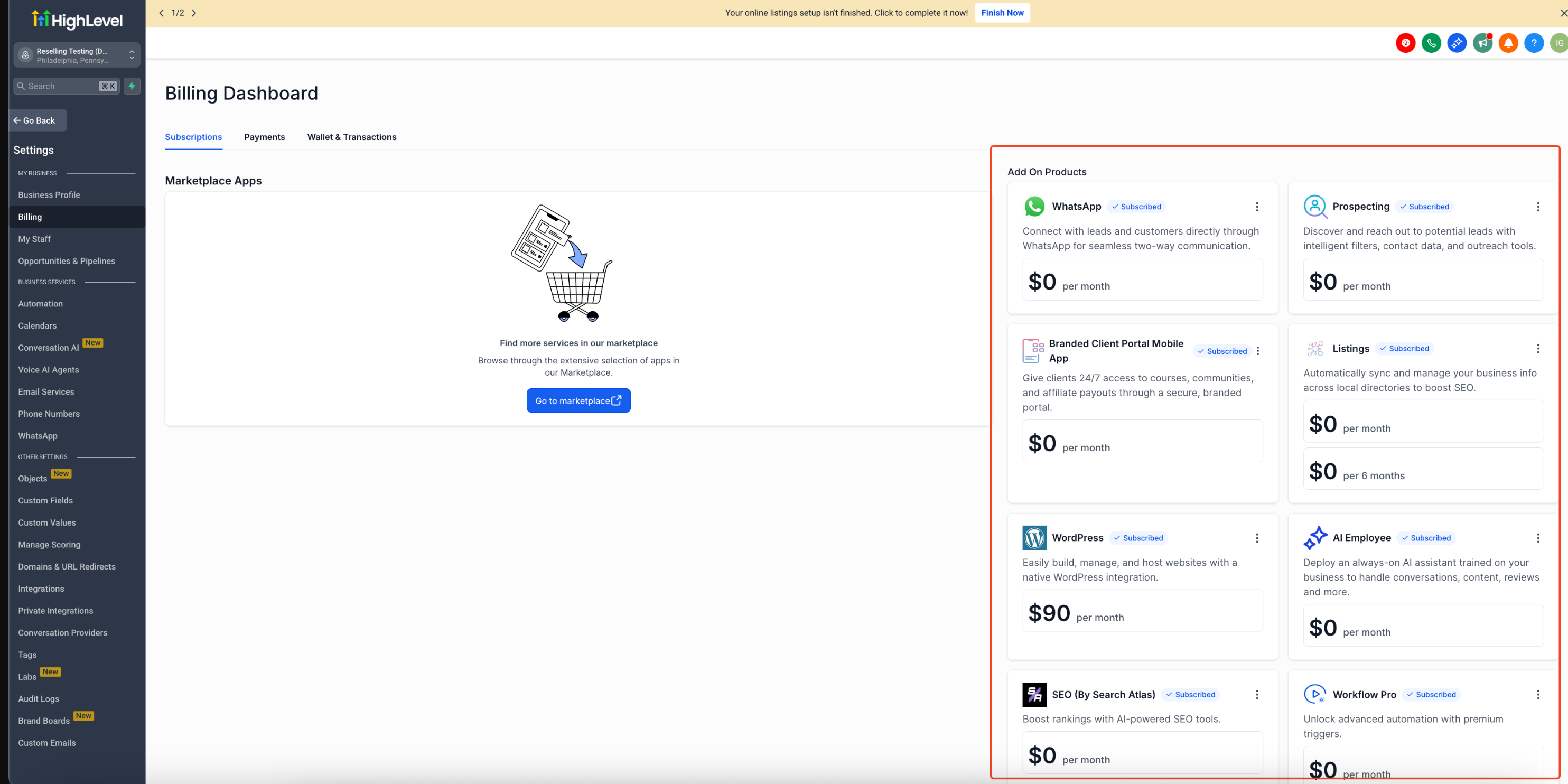
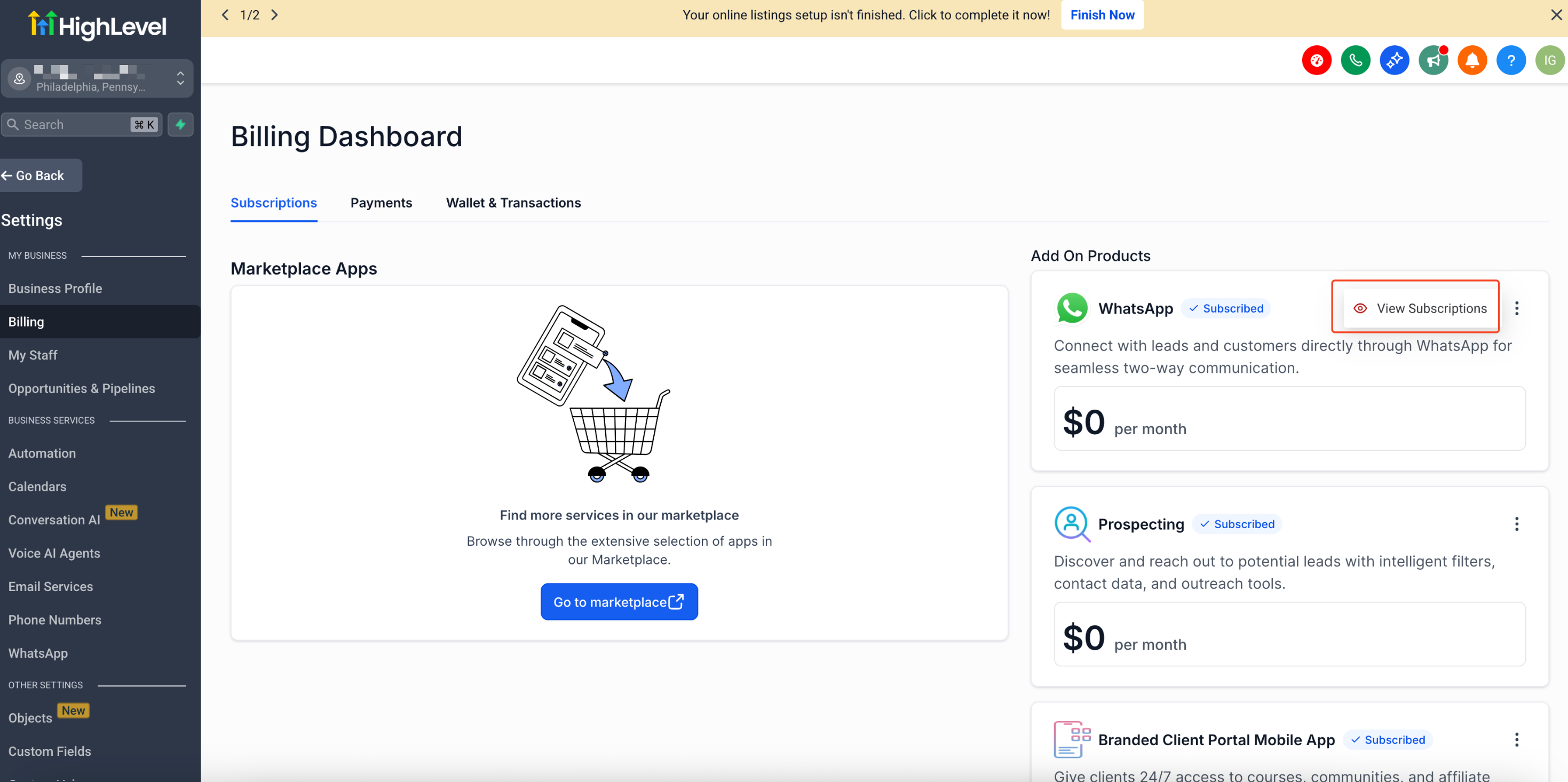
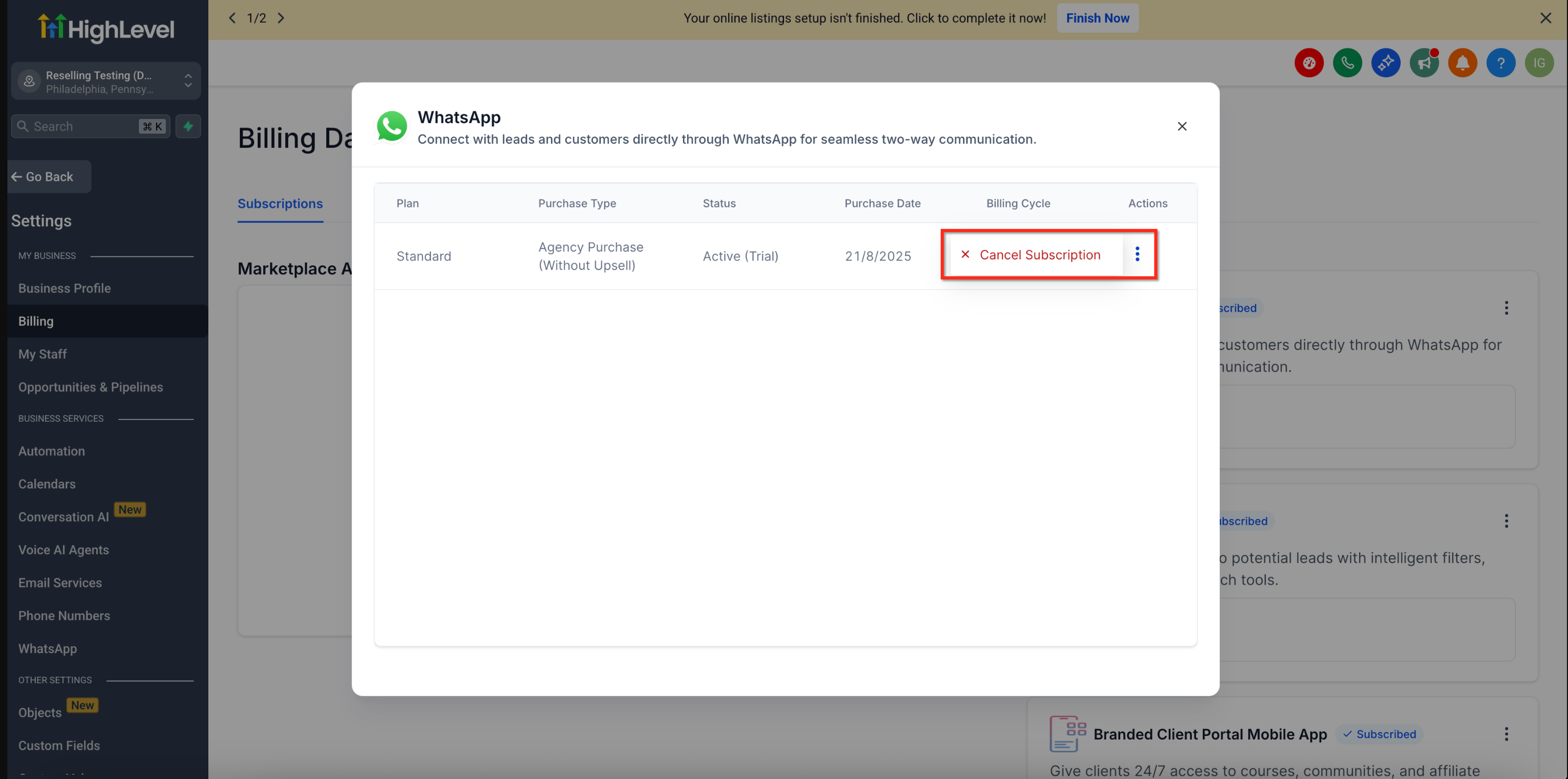
The feature adds a cancel button to each resold add on shown on the Subaccount Settings > Billing > Subscriptions page. When a user opens the View Subscriptions modal, they can see details such as plan name, purchase type, status, purchase date and billing cycle.
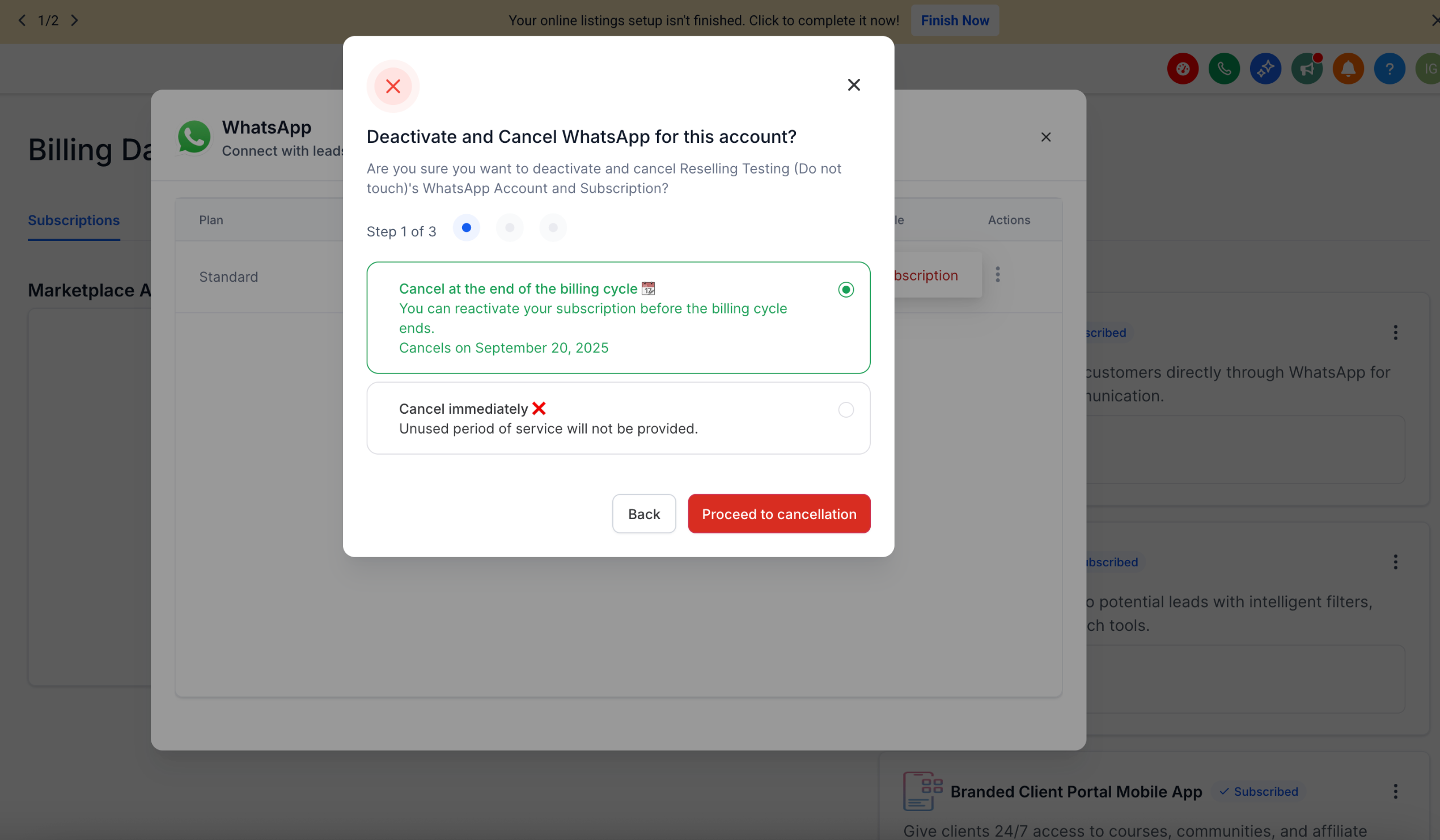
From that modal the user selects the Actions menu and chooses Cancel Subscription. A unified dialog then asks whether to end the subscription at the end of the current billing cycle or to cancel it immediately, and it completes the process with confirmation feedback.
03How businesses use In App cancellation for reselling subscriptions
- Digital marketing agency. The agency opens a client subaccount, navigates to Settings > Billing > Subscriptions, reviews the WhatsApp add on details, and cancels it directly when the client no longer needs the service.
- Ecommerce store. The store’s subaccount manager locates the AI tools add on, checks the billing cycle, and selects Cancel immediately to stop further charges after a short trial period.
- Local SEO provider. The provider views the Listings add on, chooses End of billing cycle to let the current month run out, and later reactivates it from the same screen before the effective date.
04Before you start
- Be logged into the target subaccount (the left sidebar breadcrumb must show the subaccount name).
- Have permission to open Settings > Billing in that subaccount.
- The subscription to cancel must be a resold add on that appears under Add On Products on the Billing dashboard.
05How to set up and use In App cancellation for reselling subscriptions in HighLevel
Cancel a resold add on subscription
- Open the subaccount and go to Settings > Billing > Subscriptions.
- Find the card for the desired add on and click View Subscriptions.
- In the modal, review the plan, purchase type, status, purchase date and billing cycle.
- Open the Actions menu (⋮) for that entry and select Cancel Subscription.
- Choose End of billing cycle (default) or Cancel immediately, then click Proceed to cancellation.
- Complete any remaining prompts until a success message is shown.
06What it looks like in HighLevel
07Settings that matter
- Cancel Subscription. Starts the unsubscribe workflow for the selected add on.
- End of billing cycle. Sets the subscription to stop when the current billing period ends.
- Cancel immediately. Ends the subscription right away, stopping further service.
08Things to know before you rely on it
- Only resold add on subscriptions appear in this flow; the core SaaS plan cannot be cancelled here.
- Some add ons or billing sources may not support in app cancellation, so the Cancel option will not be visible for those products.
09If something goes wrong
- Cancel option is not visible. Confirm you are in the correct subaccount, have Billing access, and that the add on is eligible for in app cancellation.
10How it connects to the rest of HighLevel
- Retry a failed payment for any reselling products in HighLevel Retry failed payment
- Reselling Paywall payment error handling improves checkouts in HighLevel Paywall error handling
- HighLevel pricing and plans Pricing
- Start a 30 day HighLevel trial 30 day trial
- The HighLevel Founder Plan Founder Plan
Michael's take

Most people assume they must ping the agency every time they want to stop a tool like WhatsApp or AI. The reality is that subaccount users can do it themselves, right from the Billing page. That reduces the back and forth and speeds up subscription management.
If I were in that subaccount, I’d pull up Settings > Billing > Subscriptions, verify the add on details, and choose End of billing cycle unless I needed the service to stop now. I’d also check that the Cancel button is available before assuming I need agency help.