
01Who this is for
- Agency owners who manage multiple client locations benefit because they can control all listings from a single platform.
- Local business Founders gain by keeping their Google and Facebook information aligned without juggling separate accounts.
02Google Business Profile and Facebook integration, explained
The feature resides in the Listings section of the Reputation menu. It provides OAuth based connections to a Google Business Profile and a Facebook Page for each location. After authentication, the platform stores a shared token that also powers Social Planner.
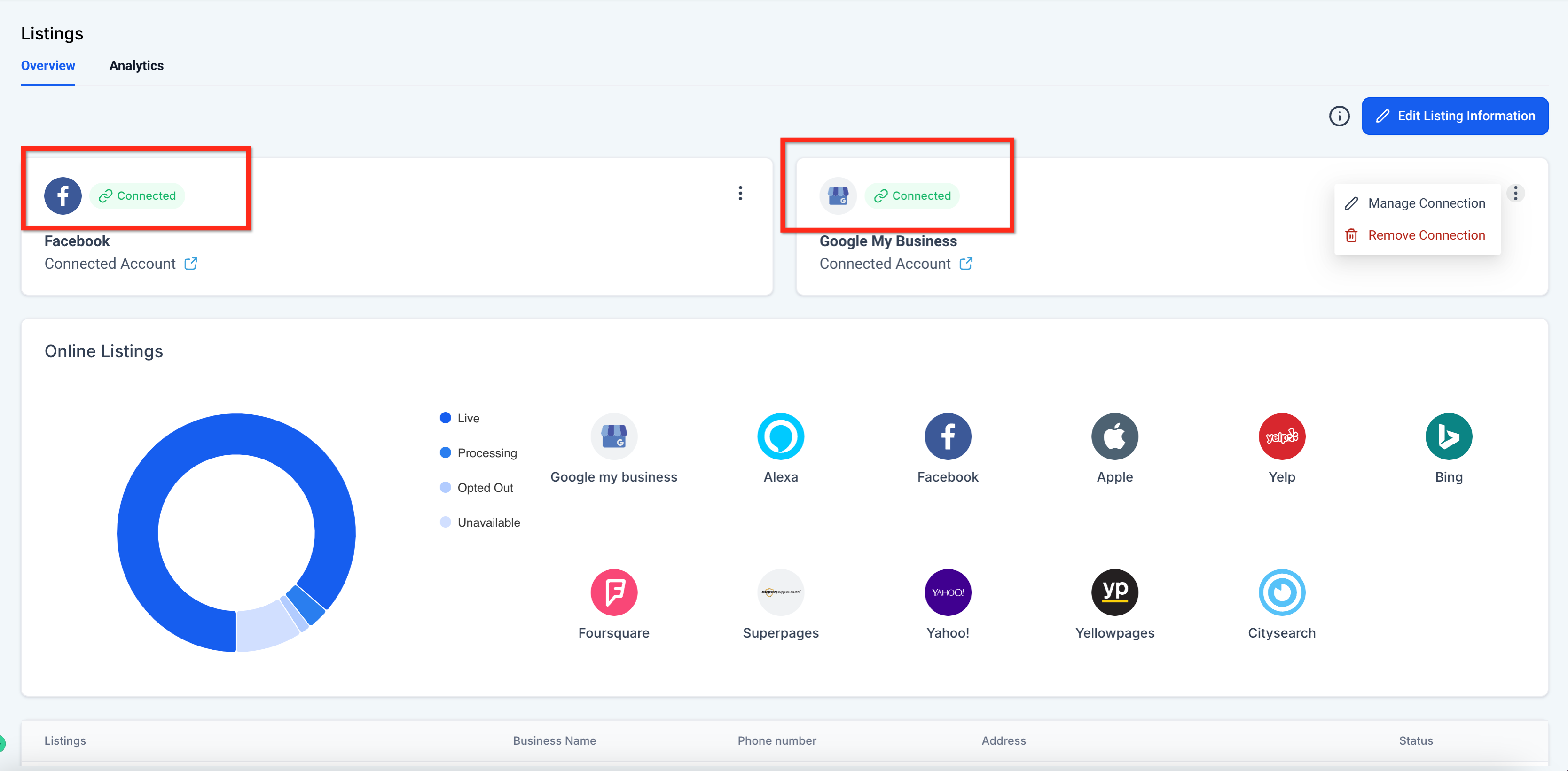
When both publishers are linked, HighLevel automatically syncs address, hours, photos and reviews between the two platforms. The integration updates in real time and displays a green “Connected” badge for each active link.
If a connection is removed, syncing stops immediately and the dashboard shows an “Action Required” flag until the publisher is re connected.
03How businesses use Google Business Profile and Facebook integration
- Digital marketing agency. The agency opens Listings, clicks the link to connect a client's Google Business Profile, authenticates, then repeats the process for the Facebook Page. The green Connected badge confirms the setup, allowing the agency to manage client locations from one place.
- Restaurant chain. The owner navigates to Listings, selects each restaurant location, and connects the respective Google and Facebook accounts. Once linked, any change to hours or photos in HighLevel propagates to both external listings.
- Real estate brokerage. The broker accesses Listings, authenticates the brokerage’s Google Business Profile and Facebook Page, and verifies the Connected status. This keeps office locations and contact information consistent across Google and Facebook.
04Before you start
- Hold an Admin or Owner role for the Google Business Profile you intend to connect.
- Have Facebook Page Admin rights for the page you plan to link.
- Disable the browser pop up blocker for the session.
05How to set up and use Google Business Profile and Facebook integration in HighLevel
Set up integration
- Confirm you have Admin or Owner access to the Google Business Profile.
- Confirm you have Admin rights on the Facebook Page you want to link.
- Turn off any browser pop up blocker for the current session.
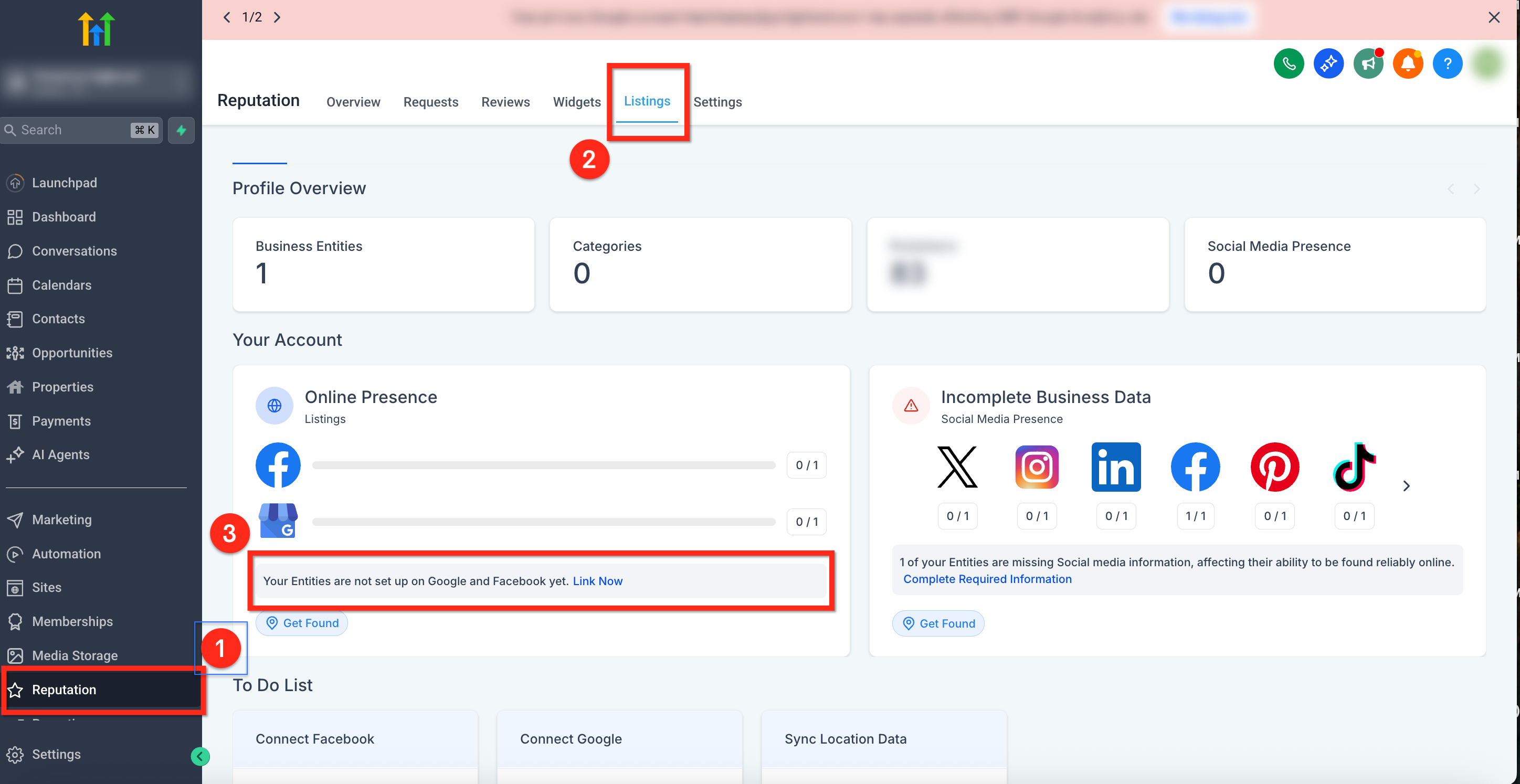
- From the HighLevel dashboard go to Reputation > Listings.
- Click the “Your Entities are not set up on Google and Facebook yet. Link Now” link.
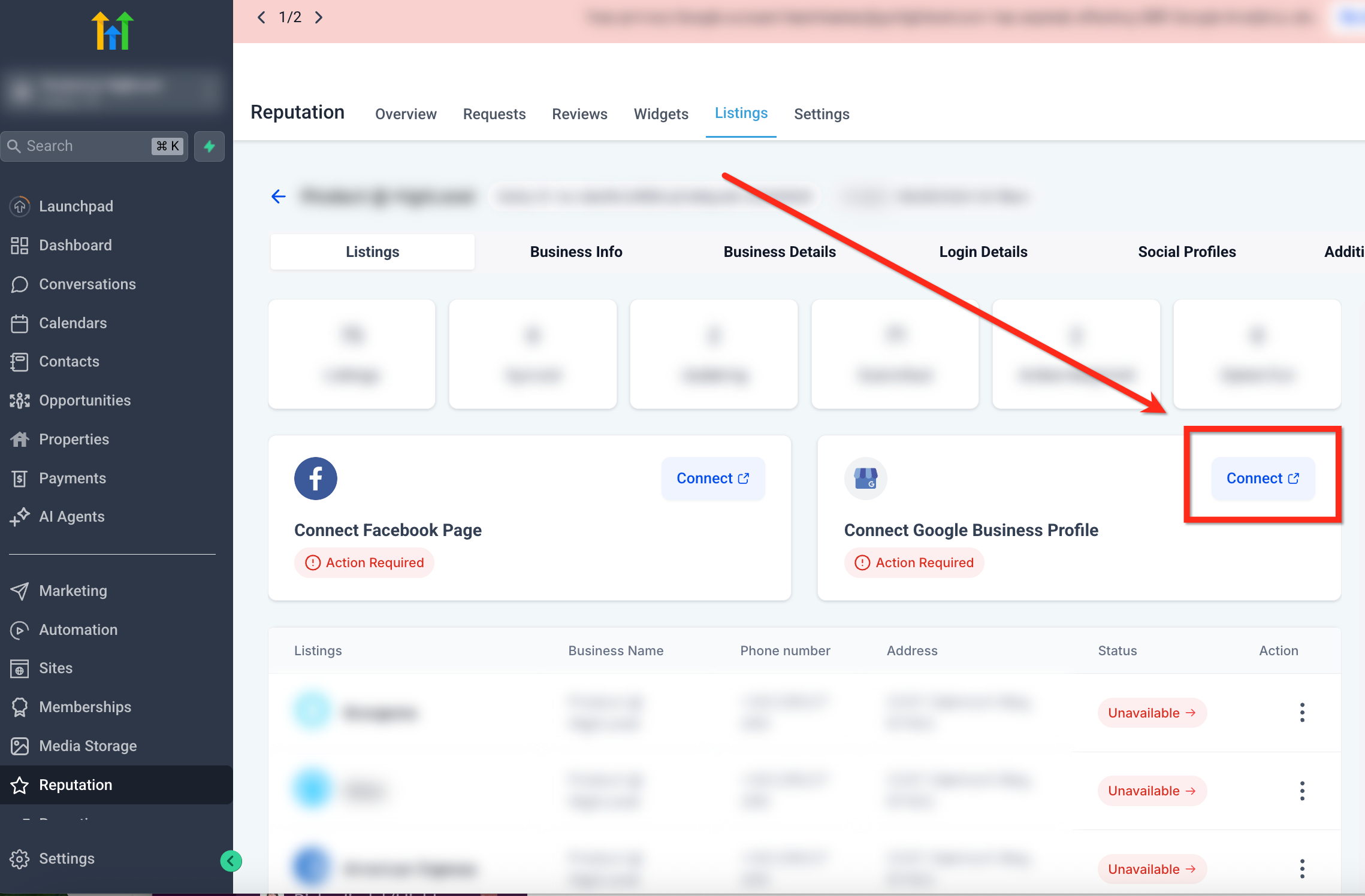
- Press the Connect button next to Connect Google Business Profile and complete the Google sign in flow.
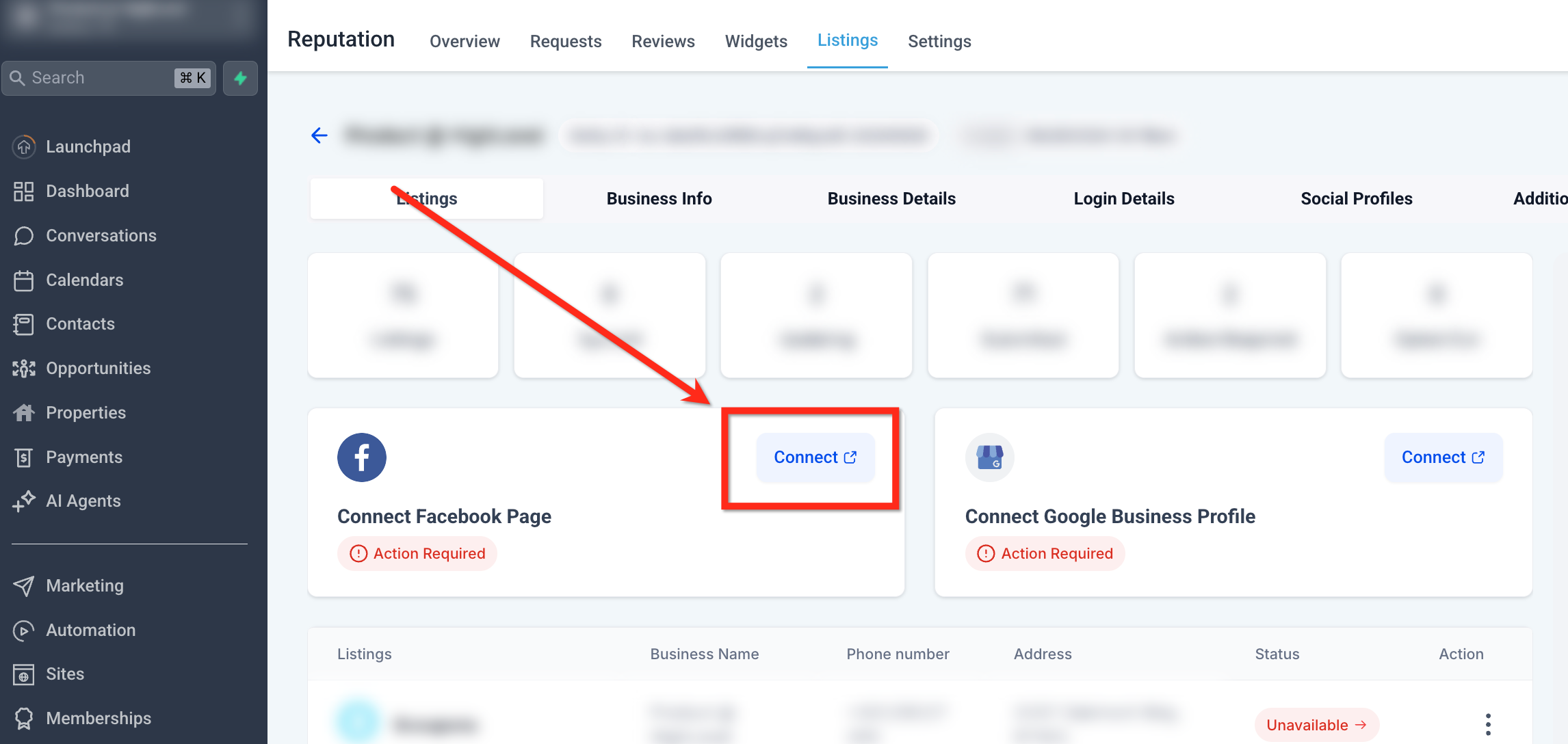
- Press the Connect button next to Connect Facebook Page, choose the correct page and grant permissions.
- Return to the Listings dashboard and verify a green “Connected” badge appears for both publishers.
06What it looks like in HighLevel
07Things to know before you rely on it
- Each location can support only one Google Business Profile and one Facebook Page.
- Removing a connection stops syncing right away and flags the publisher as Action Required until reconnected.
- The integration shares one OAuth token with Social Planner; linking here also authorizes Social Planner.
08If something goes wrong
- Connection was removed and listings stopped syncing. Re connect the affected publisher by following the integration steps again; the Action Required flag will disappear.
09How it connects to the rest of HighLevel
- Overview and setup guide for HighLevel Listings Listings overview
- How to activate and resell HighLevel Listings for local SEO Activate Listings
- Supported countries and coverage for online listings Supported countries
Michael's take

Linking Google Business Profile and Facebook in HighLevel Listings eliminates the need for external logins, allowing you to manage both accounts in one place.
Be sure you have admin rights for the profile and page, otherwise the connection cannot be completed.