
01Who this is for
- Marketing agencies that manage client listings can boost each client’s online profile by adding precise service descriptions and brand affiliations.
- Local retailers seeking to highlight the brands they sell can use the Brands field to signal product variety to shoppers.
- Multilingual service providers can list spoken languages to reach a broader audience and signal inclusivity.
02Additional attributes, explained
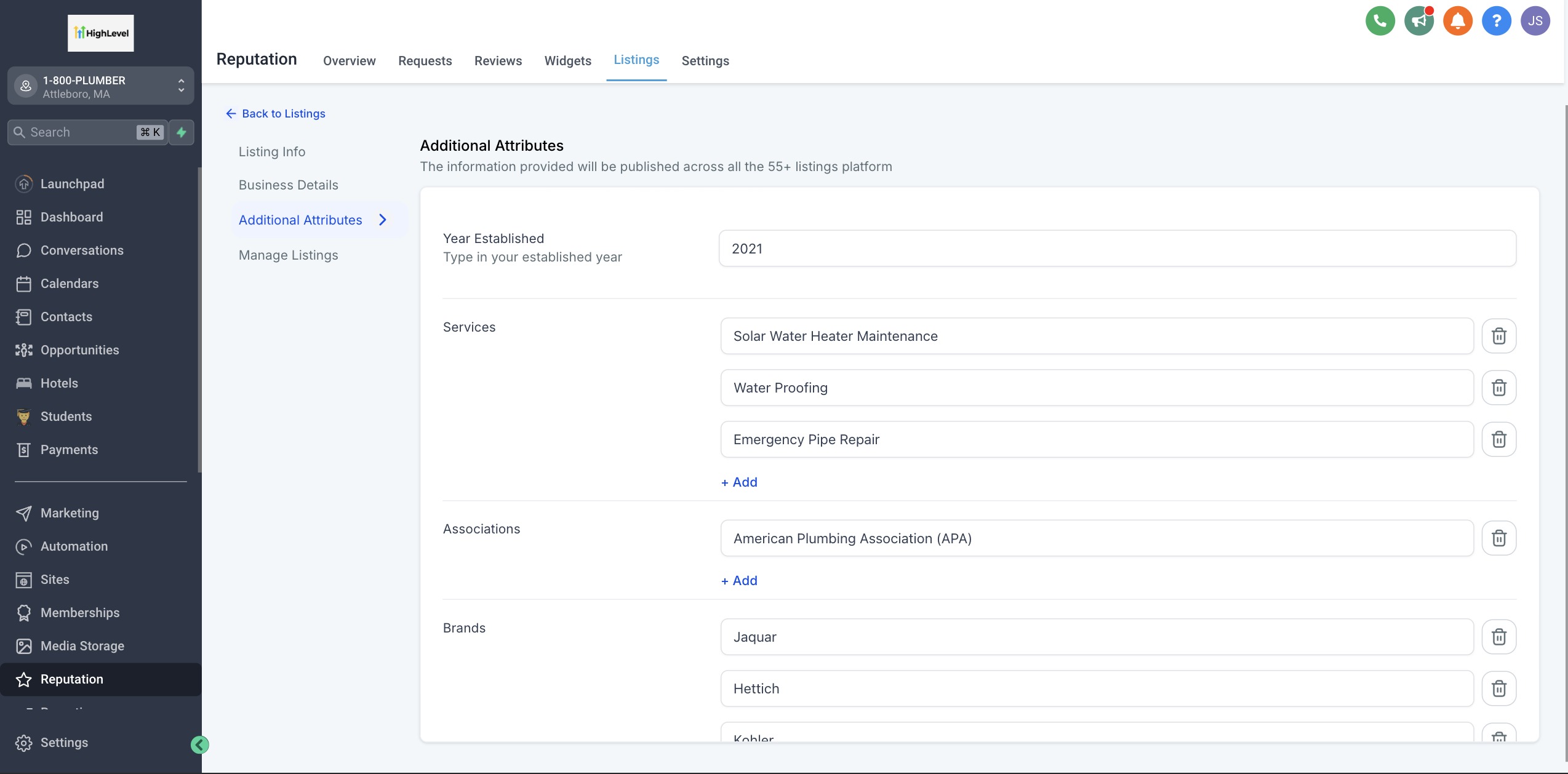
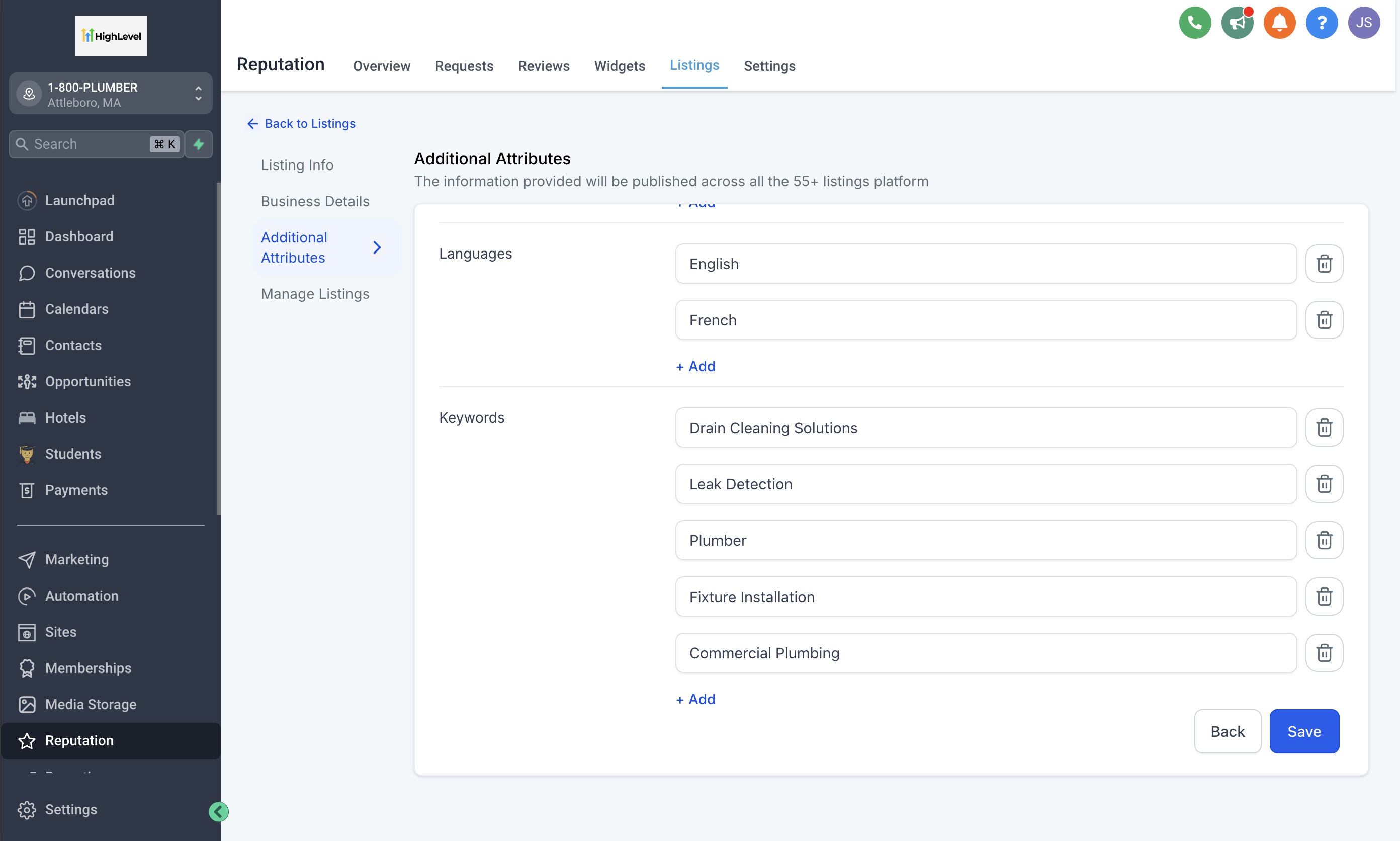
The Additional Attributes feature lives inside the Listings section of HighLevel. It supplies a set of fields where you can enter specific data about a business entity, such as the founding year, offered services, professional associations, brands carried, languages spoken, and targeted keywords.
When you fill out these fields, the information becomes part of the online listing that is syndicated to search platforms. The platform does not require every field; you may complete only those that are relevant. After saving, the changes are sent to partner directories and usually become visible within a day or two.
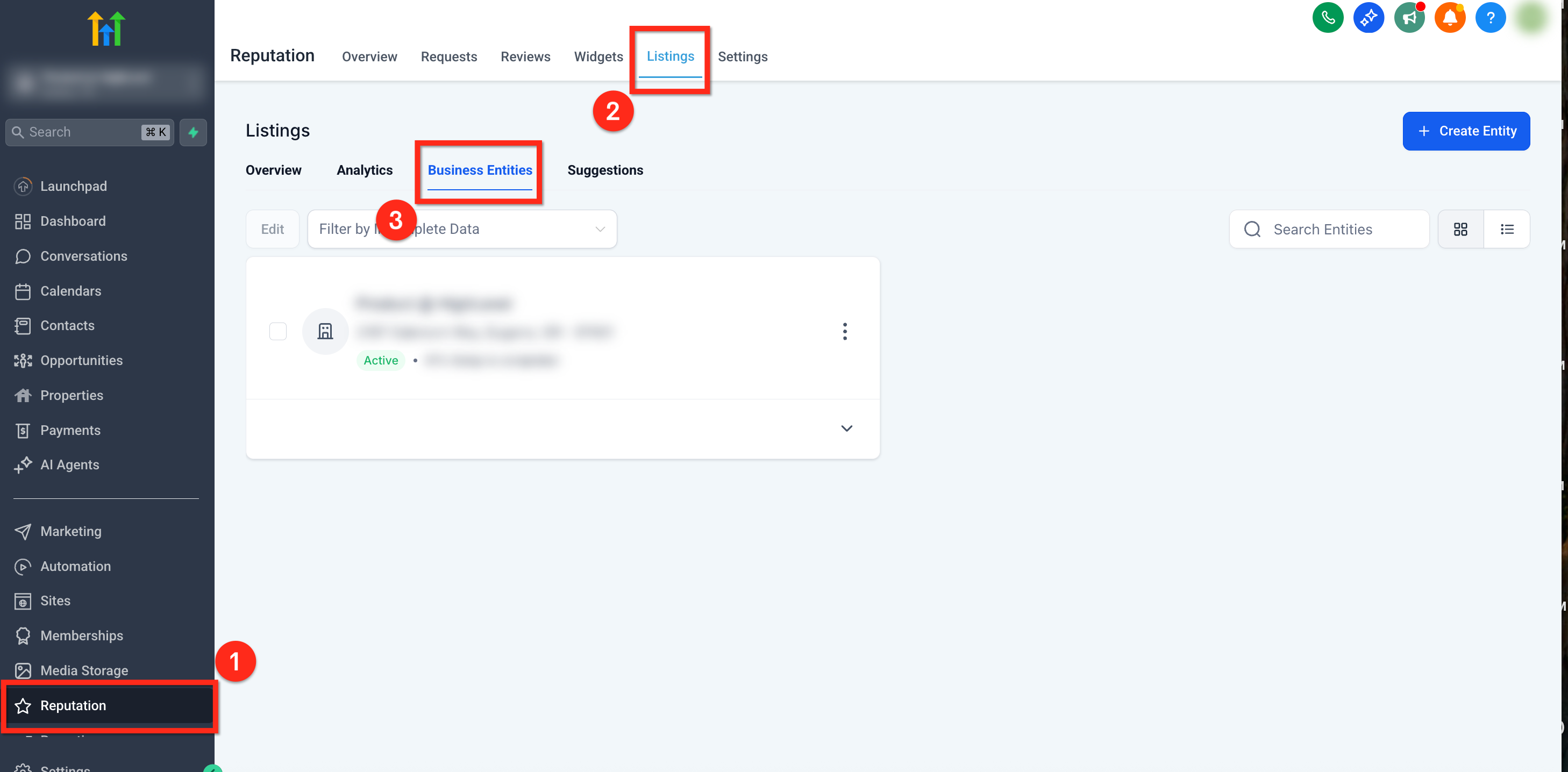
You access the feature by opening the Business Entities view under Reputation > Listings, selecting the entity, and opening the Additional Attributes tab. From there you can edit any field and save the record.
03How businesses use additional attributes
- Restaurant. A restaurant can list the cuisines it serves, any culinary awards, and the languages spoken by staff. The owner opens the Listings page, edits the restaurant entity, adds those details in the Services and Languages fields, then saves.
- Auto dealership. An auto dealer can specify the car brands it sells and any manufacturer certifications. In HighLevel, the dealer navigates to the dealership entity, selects Brands and Associations, enters the appropriate entries, and saves the changes.
- Language school. A language school can highlight the languages taught and the year it was founded to convey experience. The administrator opens the school’s business entity, fills in the Languages and Year Established fields, and clicks Save.
04The numbers and rules that matter
- Changes typically appear within 24 to 48 hours.
05How to set up and use additional attributes in HighLevel
Add or update additional attributes
- Open Reputation, then choose Listings, and go to Business Entities.
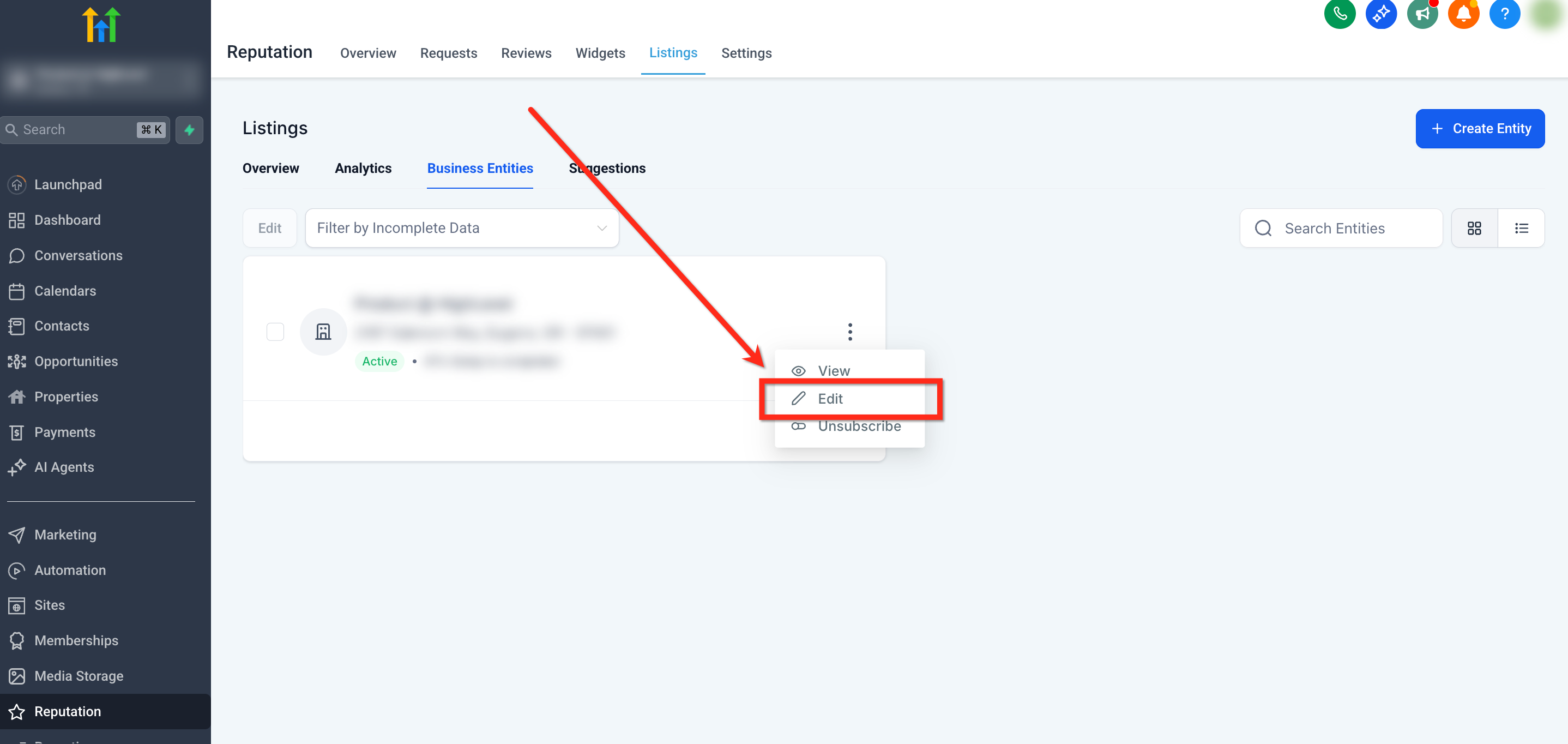
- Find the target entity, click the three dot menu beside it, and select Edit.
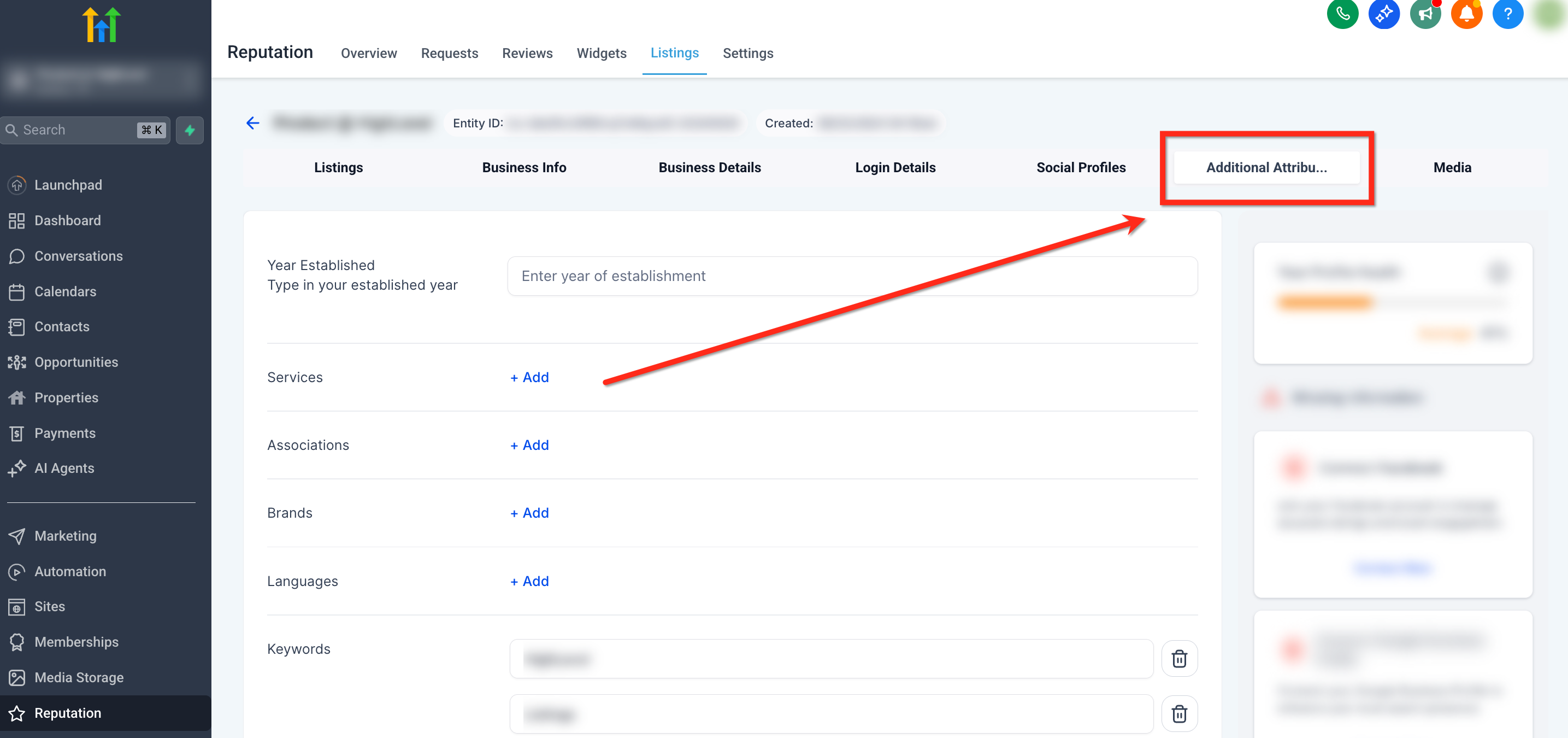
- Select the Additional Attributes tab that appears at the top of the edit screen.
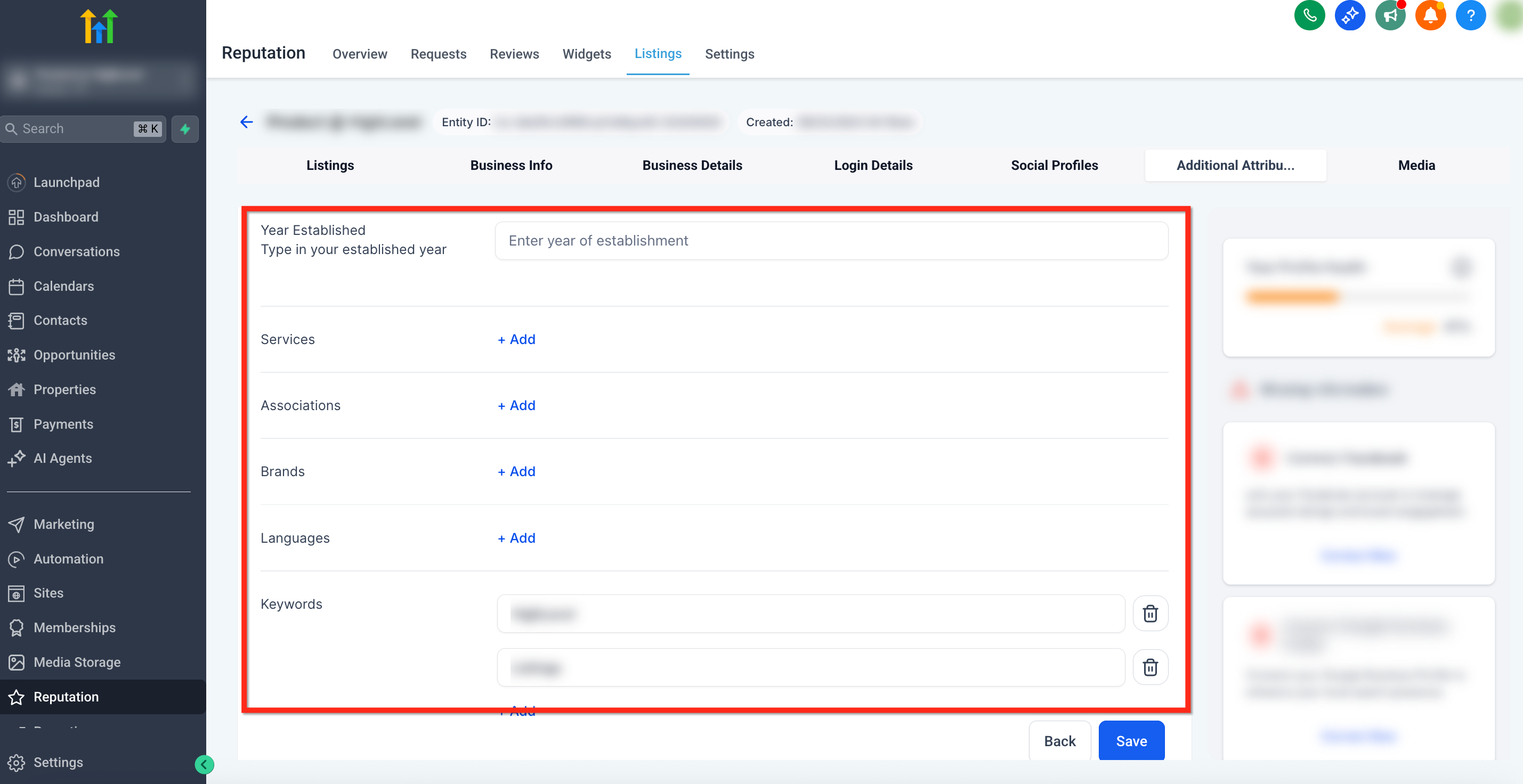
- Enter or modify the desired attribute values and press the blue Save button.
06What it looks like in HighLevel
07Settings that matter
- Year Established. Specifies the calendar year the business began operating, helping to convey longevity.
- Services. Lists the specific services the business provides so that prospects know exactly what is offered.
- Associations. Names professional groups or affiliations the business belongs to, adding credibility.
- Brands. Identifies the product brands the business carries or represents, aiding brand recognition.
- Languages. Shows the languages spoken by staff, supporting accessibility for diverse customers.
- Keywords. Adds descriptive terms that help search platforms match the listing to relevant queries.
08Things to know before you rely on it
- All attribute fields are optional; you may fill only those that apply to your business.
- Updates to attributes typically take between 24 and 48 hours to appear in external directories.
09How it connects to the rest of HighLevel
- Getting started with Listings and their benefits Listing overview
- How to activate Listings for a client without billing Client activation
- HighLevel pricing and plans for reselling features Pricing
Michael's take

If I were setting up a new listing, I’d start by filling in the year established and services, then add any brand names and languages that matter to my market.