
01Who this is for
- Marketing managers who need instant alerts for new customer videos, so they can review content quickly.
- Customer success teams that want to thank reviewers automatically and keep track of testimonial submissions.
- Compliance officers who must separate marketing approved testimonials from those without consent.
02Video testimonial received triggers, explained
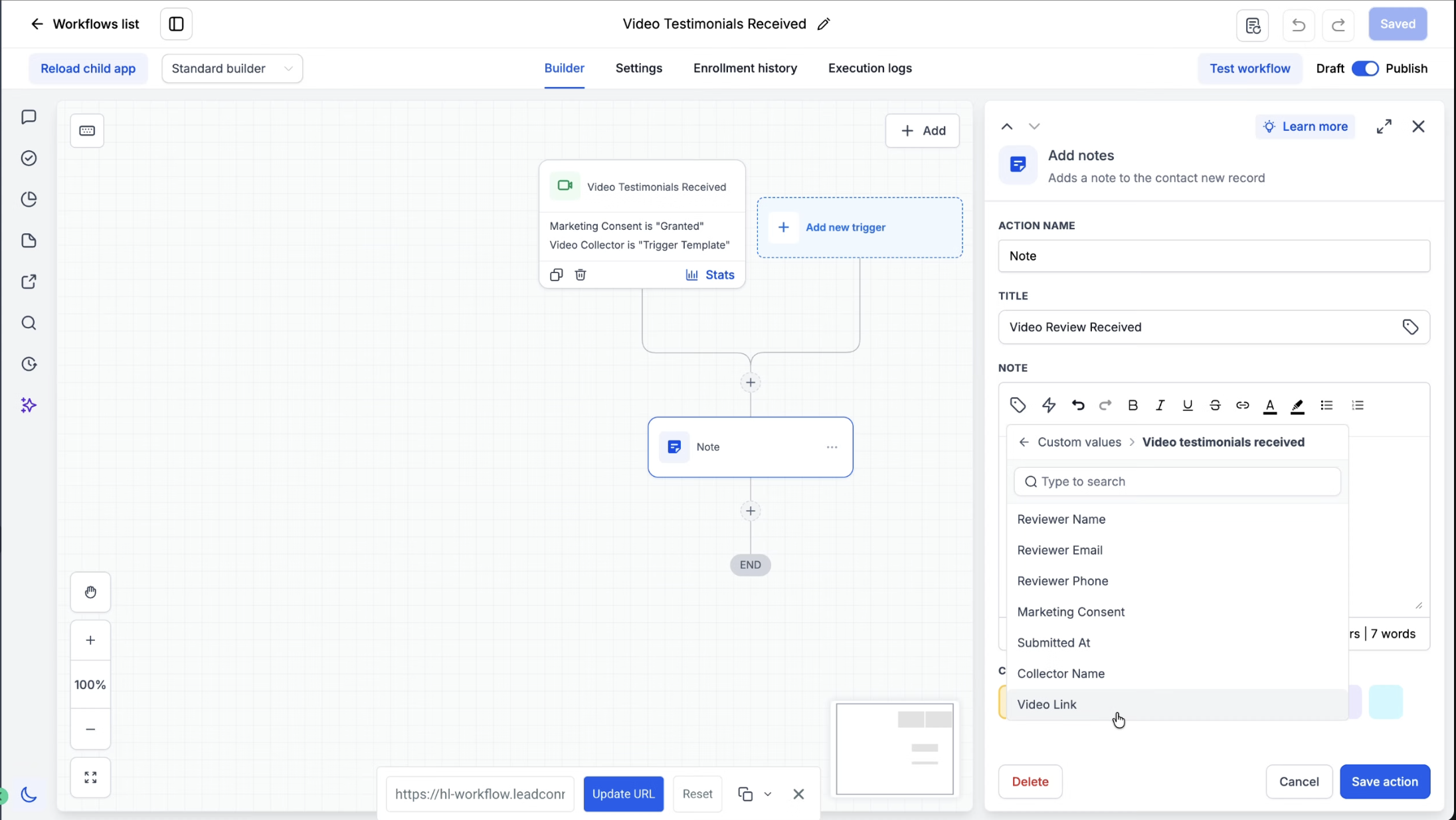
The trigger fires whenever a video testimonial is successfully uploaded via a Video Testimonial Collector. Once activated, it passes information such as reviewer name, email, phone, consent status, submission time, collector name and a link to the video. These details appear as custom values that can be inserted into any supported workflow action.
The trigger lives inside the Workflow Builder under Automation > Workflows. After adding the trigger, users can attach actions like internal notifications, notes, tasks, or messages. Optional filters let the workflow run only for submissions that meet specific consent or collector criteria. The same pattern is used for other event based triggers in the platform.
03How businesses use the Video Testimonial Received trigger
- Dental practice. The practice creates a workflow that notifies the front desk when a patient submits a video testimonial. The workflow also adds a note to the patient’s record containing the video link, allowing staff to review and share the testimonial.
- Real estate agency. Agents set a filter for the Marketing Consent custom value so only testimonials with permission are forwarded to the marketing team. The workflow then sends a thank you email to the reviewer and stores the video link for future ads.
- Online course provider. The provider uses the Video Collector filter to separate course completion testimonials from general feedback. Each set triggers a different automation: one adds the video to the course gallery, the other creates a task for the content team.
04The numbers and rules that matter
- Custom Values available: Reviewer Name, Reviewer Email, Reviewer Phone, Marketing Consent, Submitted At, Collector Name, Video Link.
05How to set up and use the Video Testimonial Received trigger in HighLevel
Set up video testimonial received trigger
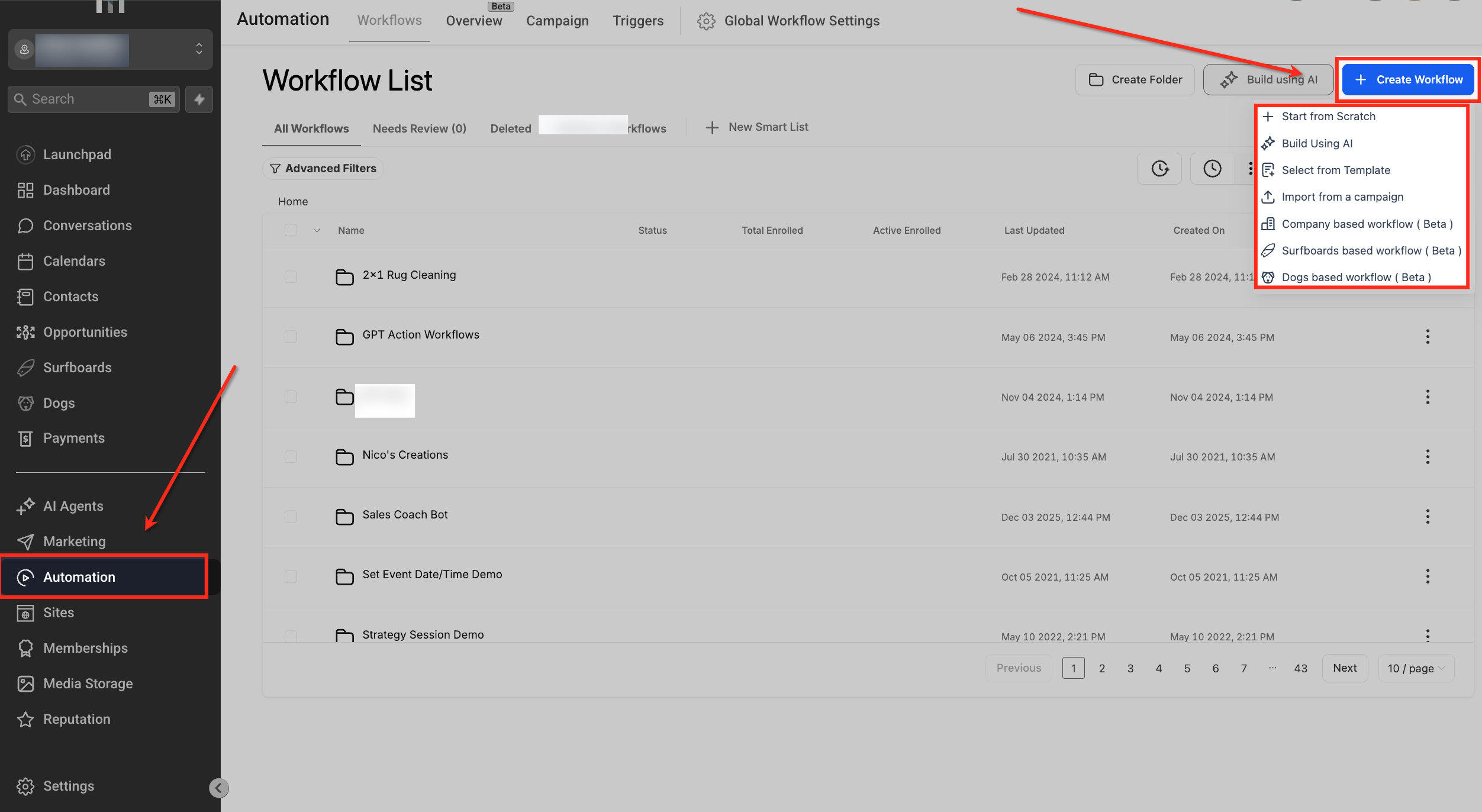
- Navigate to Automation > Workflows.
- Open an existing workflow or click + Create Workflow.
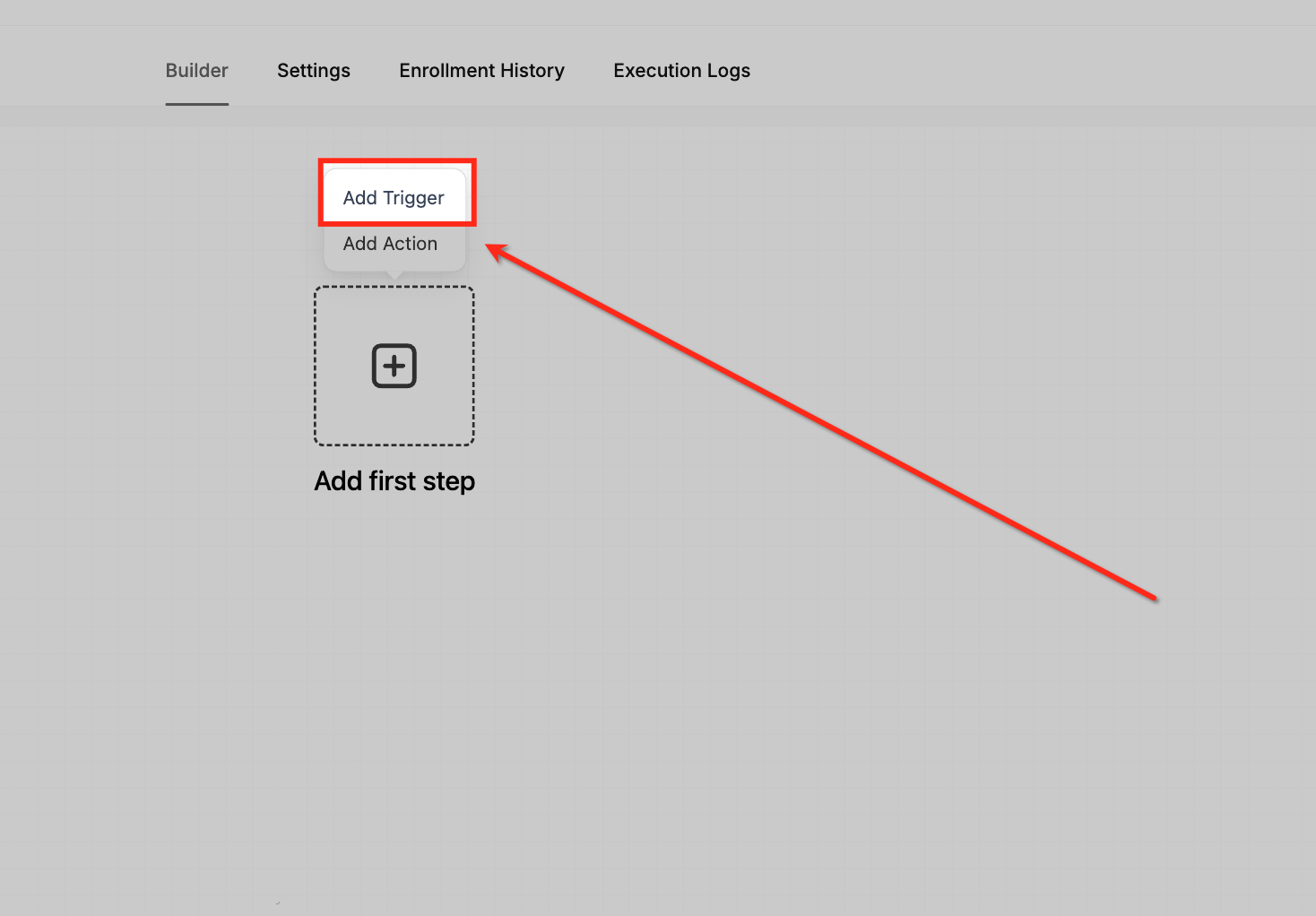
- In the Workflow Builder, click Add Trigger.
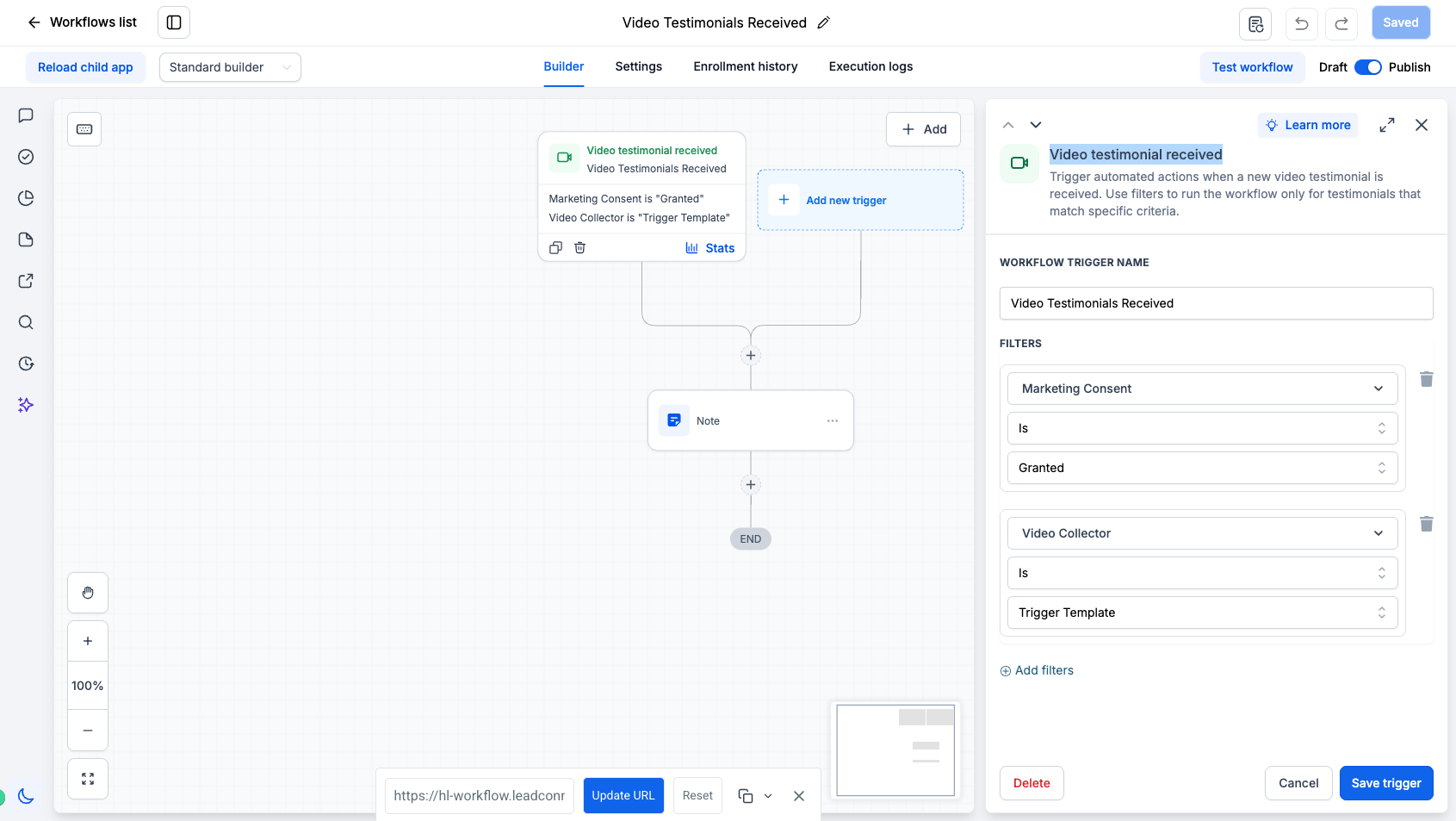
- Search for and select Video Testimonial Received.
- Enter a descriptive name for the trigger.
- Add a Marketing Consent filter if required.
- Add a Video Collector filter if required.
- Click Save Trigger.
- Test the workflow with a sample submission before publishing.
06What it looks like in HighLevel
07Settings that matter
- Marketing Consent filter. Determines whether the workflow runs only when the reviewer has granted permission for marketing use.
- Video Collector filter. Limits the workflow to submissions made through a specific video collector.
- Video Testimonial custom values. Provides reviewer details, consent status, submission time, collector name and video link for use in later workflow actions.
08Things to know before you rely on it
- Filters are optional; without them the workflow runs for every new video testimonial.
- Custom values are available only inside supported workflow actions.
09How it connects to the rest of HighLevel
- Learn how to collect and display video testimonials in HighLevel. Video testimonial collection
- Explore options for sending review requests manually or via workflows. Review request methods
- Check plan details and pricing for access to workflow features. Pricing
Michael's take

Automating the moment a testimonial lands lets the team act quickly, thank the reviewer, and keep the video organized for marketing use.
I find the Marketing Consent filter useful for separating consented and nonconsented submissions.