
01Who this is for
- Marketing managers can capture face to face customer stories to enrich brand content.
- Customer experience teams can collect video feedback without requiring an app, simplifying the process.
- Website owners can directly embed vetted video reviews in their sites, improving credibility.
02Video testimonials, explained
Video Testimonials is a Reputation feature that provides shareable, branded collector pages where contacts record or upload a video review from any modern device. No additional application is needed and the collector can be customized with logos, colors, and a spokesperson image.
Requests for the collector can be sent through email, SMS, or WhatsApp using the Send Review Request option. All submitted videos appear on the Responses page where they can be reviewed, hidden, or downloaded. Visibility for each testimonial is controlled without editing the widget itself.
Videos are displayed on the site via Review Widgets. When creating or editing a widget, select Video Testimonials as the review type, choose the source collector, and decide whether new submissions auto publish or require manual approval.
03How businesses use video testimonials
- Dental practice. The practice creates a collector with its logo, sends the link to patients via SMS after appointments, reviews each video in the Responses list, hides any unsuitable content, and publishes approved videos in a Review Widget on its website.
- Real estate agency. The agency builds a collector featuring the agent’s photo, shares the link in follow up emails to home buyers, checks the submitted videos in the Responses tab, and selects specific testimonials to show in a widget on the agency’s property listings page.
- SaaS startup. The startup sends a WhatsApp message with the collector link to trial users, uses the Responses page to view each video, chooses auto publish to add them automatically to a Review Widget on the product landing page.
04The numbers and rules that matter
- Maximum video length is 2 minutes 30 seconds per submission.
- Up to three questions can be added to a collector.
- Unlimited collectors per location, and collectors can be cloned.
- Supported sending channels: Email, SMS, WhatsApp.
05Before you start
- Log in to the appropriate subaccount before starting the setup.
06How to set up and use video testimonials in HighLevel
Create a video collector
- Log in to the subaccount.
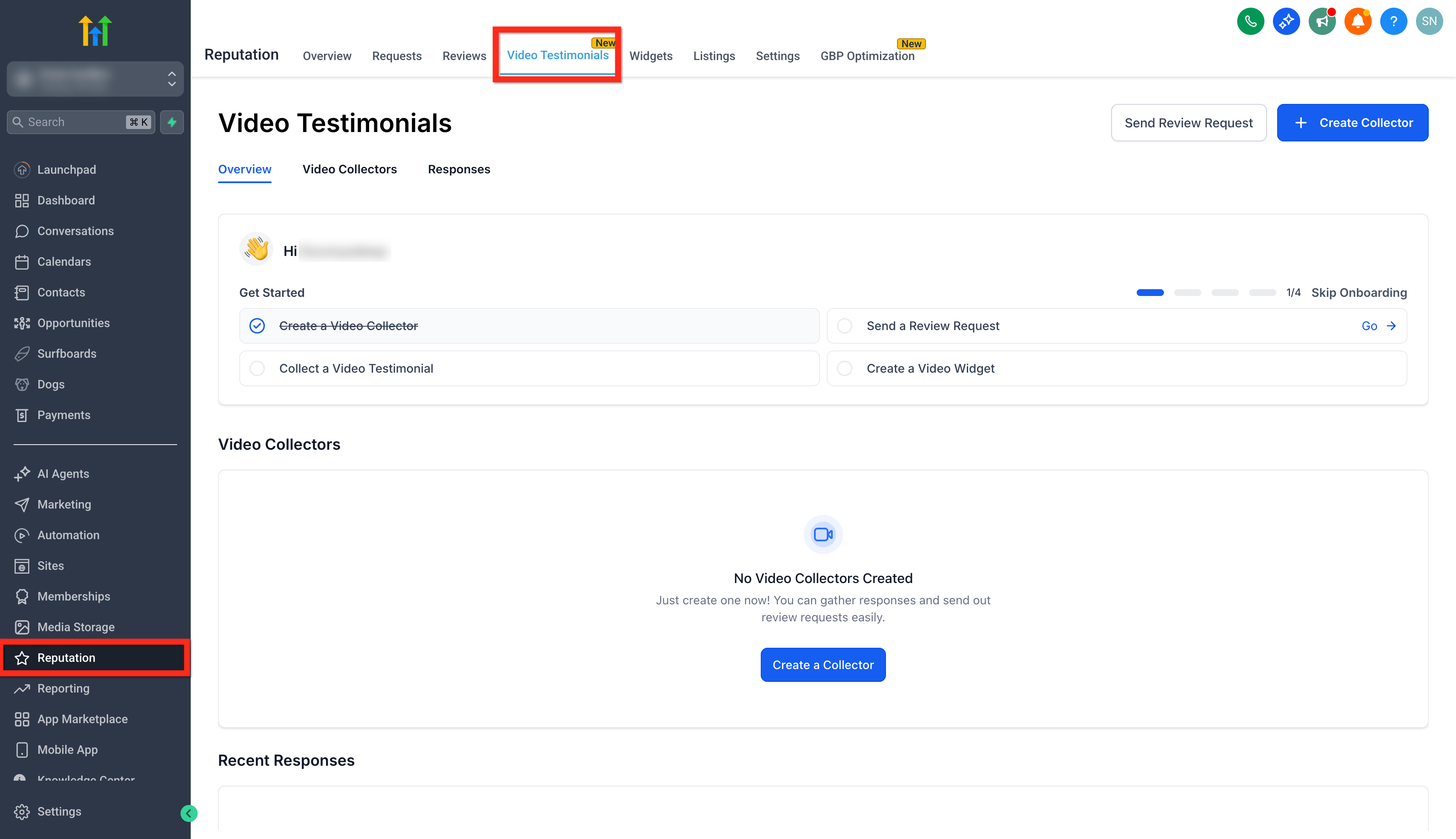
- Navigate to Reputation > Video Testimonials.
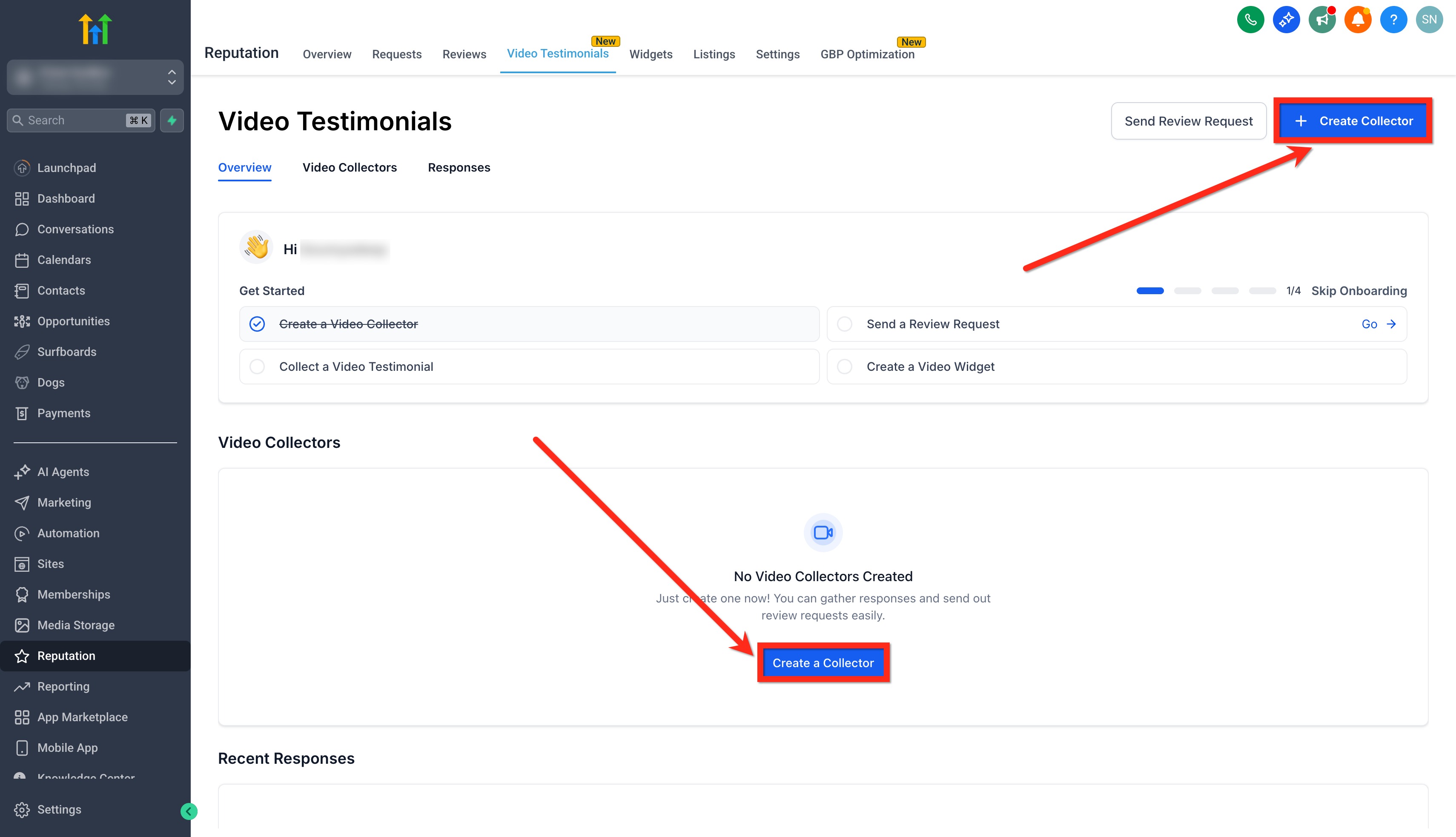
- Click the + Create Collector button.
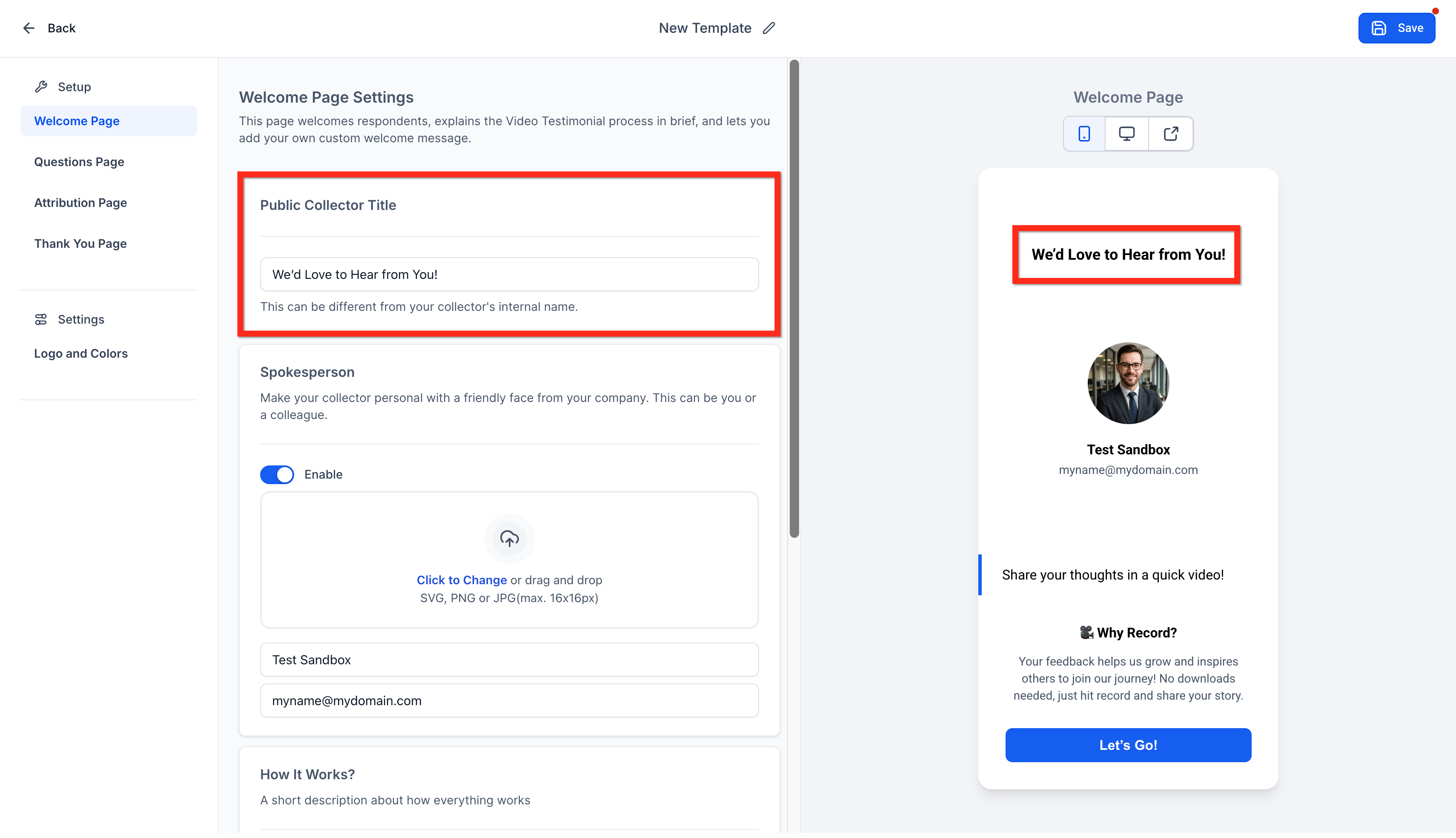
- Enter a Public Collector Title.
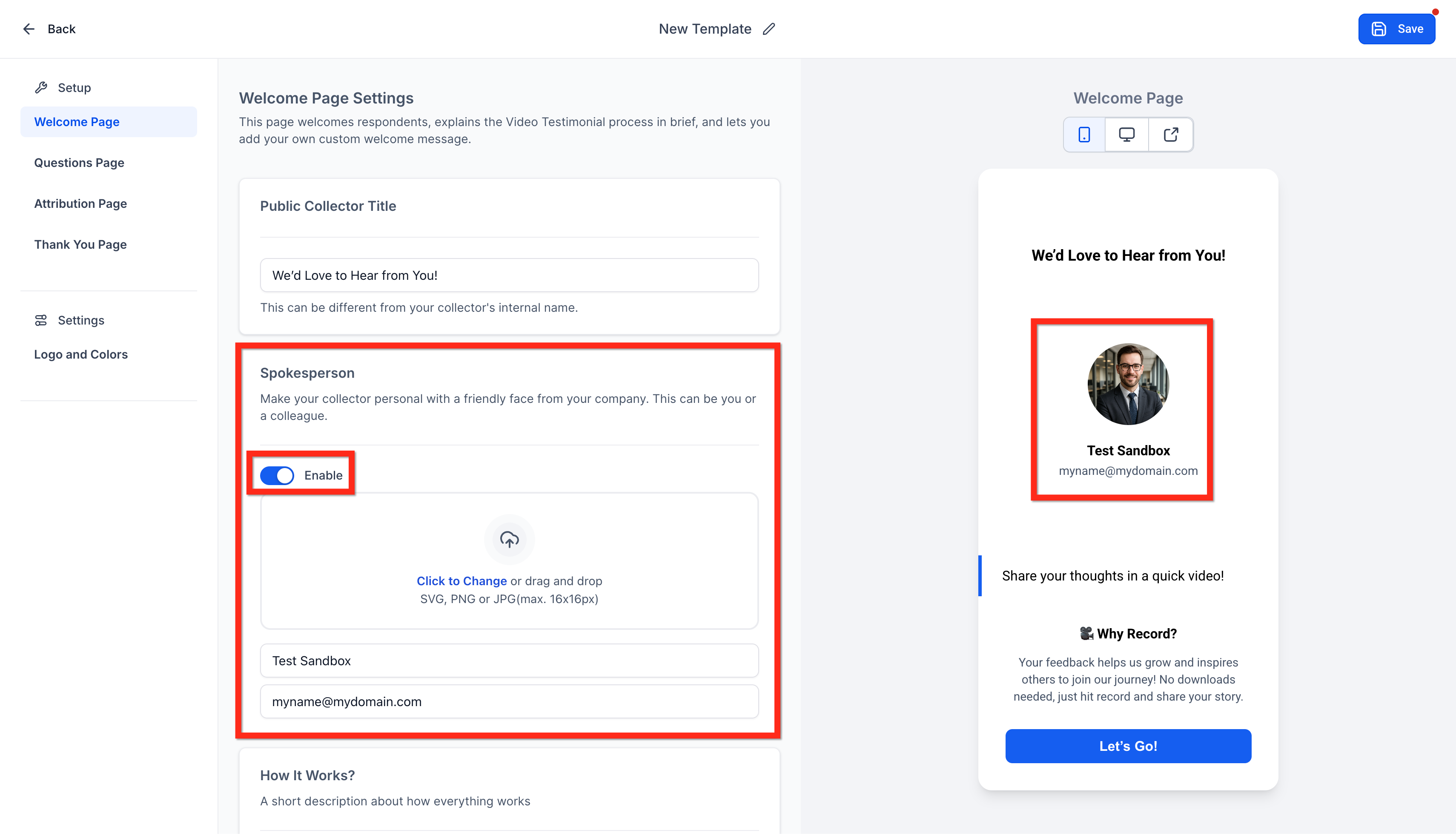
- Enable or disable the Spokesperson Image and provide spokesperson details.
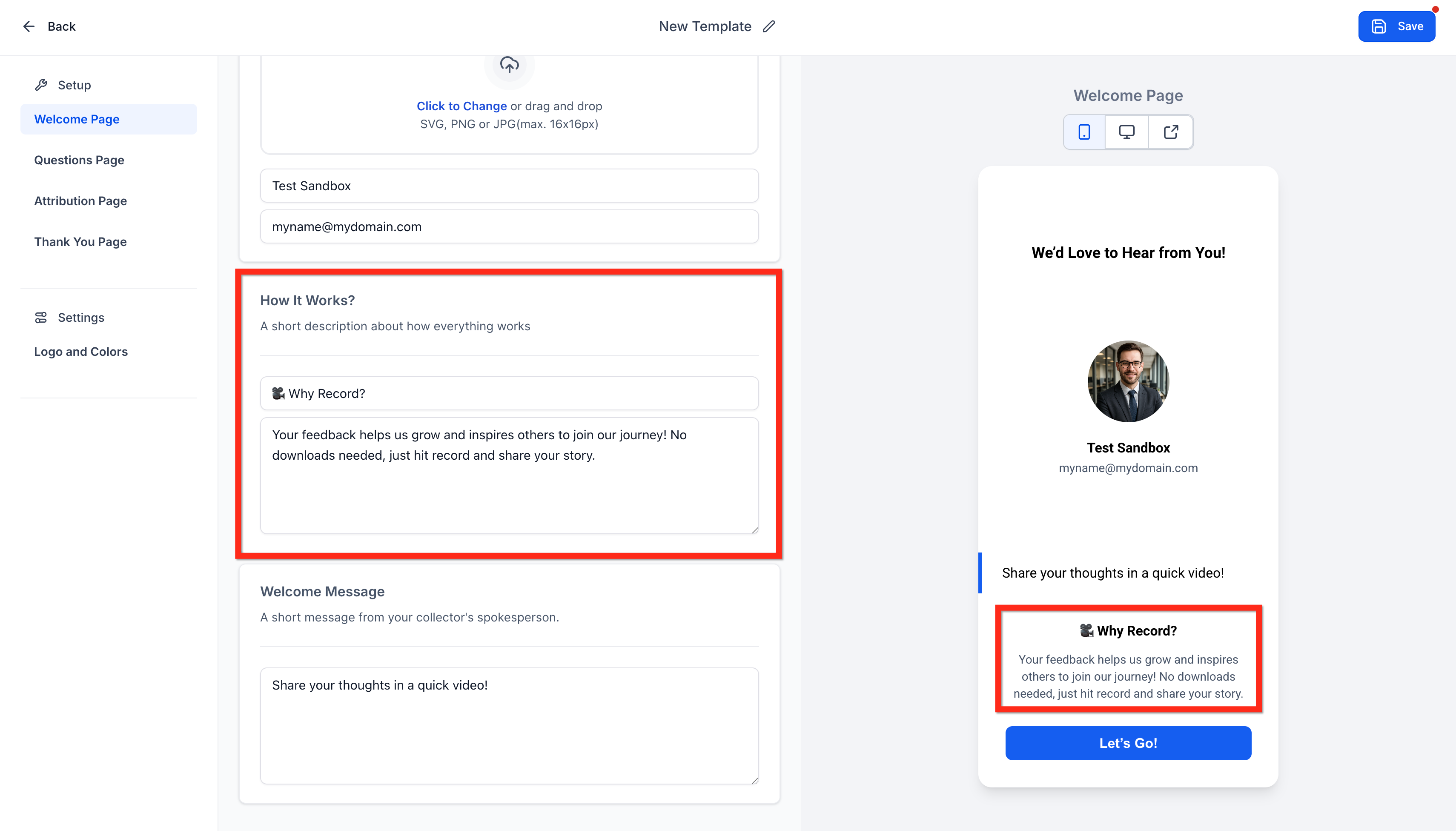
- Add a How it Works description.
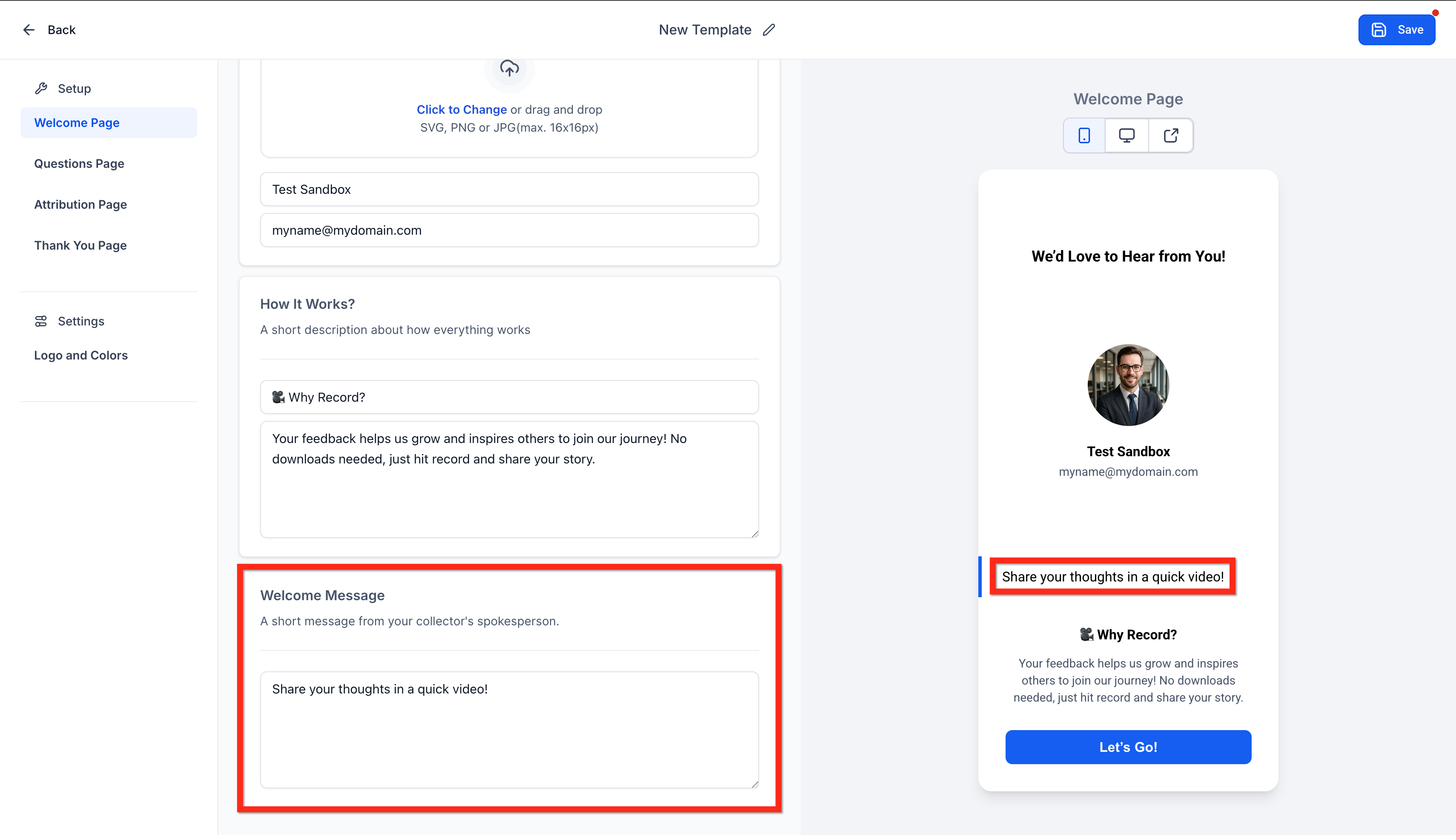
- Add a Welcome Message.
- Add up to three questionnaire questions and arrange their order.
- Fill in the Attribution Page headline and message.
- Complete the Thank You Page headline, message, and spokesperson email.
- Enable and add a logo; optionally enable White Background Behind Logo.
- Set background, text, secondary text, accent, and button colors.
- Click Save.
- Click Preview to see exactly what the respondent will see.
Share video collector link
- Locate the collector under Video Testimonials > Collectors.
- Click Copy Link to copy the collector URL and paste it into email, chat, social post, or a QR code.
- Or click Send Review Request, select a contact, choose Email, SMS, or WhatsApp, optionally use Override Video Link, pick a template, and click Send Review Request.
Manage and display videos
- Open Reputation > Video Testimonials > Responses.
- Open a submission to view the video.
- Toggle the show/hide control to set widget visibility for that testimonial.
- Click the download icon to save the original video file.
- Go to Reputation > Widgets, edit or create a Review Widget, set Review Type to Video Testimonials, select the collector as the source, configure publishing options (auto publish or manual approval), and click Save.
07What it looks like in HighLevel
08Settings that matter
- Public Collector Title. Defines the title displayed at the top of the collector page.
- Spokesperson Image. Enables or disables a photo of a company representative on the collector.
- Spokesperson details. Provides the name and role of the person shown in the image.
- How it Works section. Adds a brief description explaining the video review process.
- Welcome Message. Shows a greeting text from the spokesperson to the respondent.
- Questionnaire questions. Allows up to three custom questions to guide the respondent.
- Attribution Page headline. Sets the heading shown when the respondent confirms their identity.
- Attribution Page message. Provides additional instructions or information on the attribution screen.
- Thank You Page headline. Displays the heading after a video is submitted.
- Thank You Page message. Shows a closing note to thank the respondent.
- Thank You Page spokesperson email. Adds an email address for follow up contact on the thank you screen.
- Logo & colors. Controls the collector’s visual branding, including logo, background, text, secondary text, accent, and button colors, and whether a white background appears behind the logo.
09Things to know before you rely on it
- Each video can be up to 2 minutes 30 seconds long.
- A collector can contain a maximum of three questionnaire questions.
- Unlimited collectors can be created per location, and existing collectors can be cloned.
10How it connects to the rest of HighLevel
- Trigger a workflow when a video testimonial is received. Workflow trigger
- Customize the SMS and email messages used in review requests. Customize request messages
- Learn manual and workflow options for sending review requests. Send review requests
Michael's take

People often think any video will do, but the biggest mistake is sending a generic link without branding or a personal touch. Without a spokesperson image or a clear welcome message, respondents feel less compelled to share their story.