
01Who this is for
- Agency owners, can deliver regular proof of value without manual effort.
- Location admins, receive clear scores and action items for each listing they manage.
- Marketing teams, get a unified view of visibility and engagement trends across all client locations.
02Listings performance recap reports, explained
The feature creates a polished email and in app digest that grades every business location on a 0 to 100 performance score. It combines profile completion health with live Analytics data to show visibility, engagement and actionable recommendations.
The reports are generated on a cadence you set, monthly, quarterly or half yearly, and are delivered through email, in app notifications, or both. Each report includes the score, profile completion percentage, views, clicks, CTR trends and the top three quick wins.
You configure the report from the Listings Analytics view under Reputation. All settings, from branding to recipient list, are saved in a schedule that runs automatically, and the dashboard shows the latest score and its change from the prior period.
03How businesses use listings performance recap reports
- Dental practice. The practice sets up a quarterly recap for each clinic, branding the report with its logo and selecting the dentist’s email as the recipient. The summary shows appointment URL clicks and suggests adding insurance information to boost the score.
- Restaurant chain. The chain creates a monthly performance report for each location, choosing metrics like impressions and device usage. The report is emailed to the regional manager and includes a recommendation to add a delivery link.
- Property management company. The company schedules a half yearly recap for each property’s listing, selects language appropriate for local tenants, and delivers the PDF via email to owners while sending an in app notification to the internal team.
04The numbers and rules that matter
- Score range 0, 100.
- Report includes Listings Performance Score, Profile Completion %, Views, clicks, CTR trends, Top 3 recommended actions, White labeled header and footer.
- Data compared 30 / 90 / 180 days to previous period.
05Before you start
- User must have Listings permission (agency owner, agency admin or location admin).
- The business must have at least one location entity set up in Listings.
06How to set up and use listings performance recap reports in HighLevel
Set up listings performance recap report
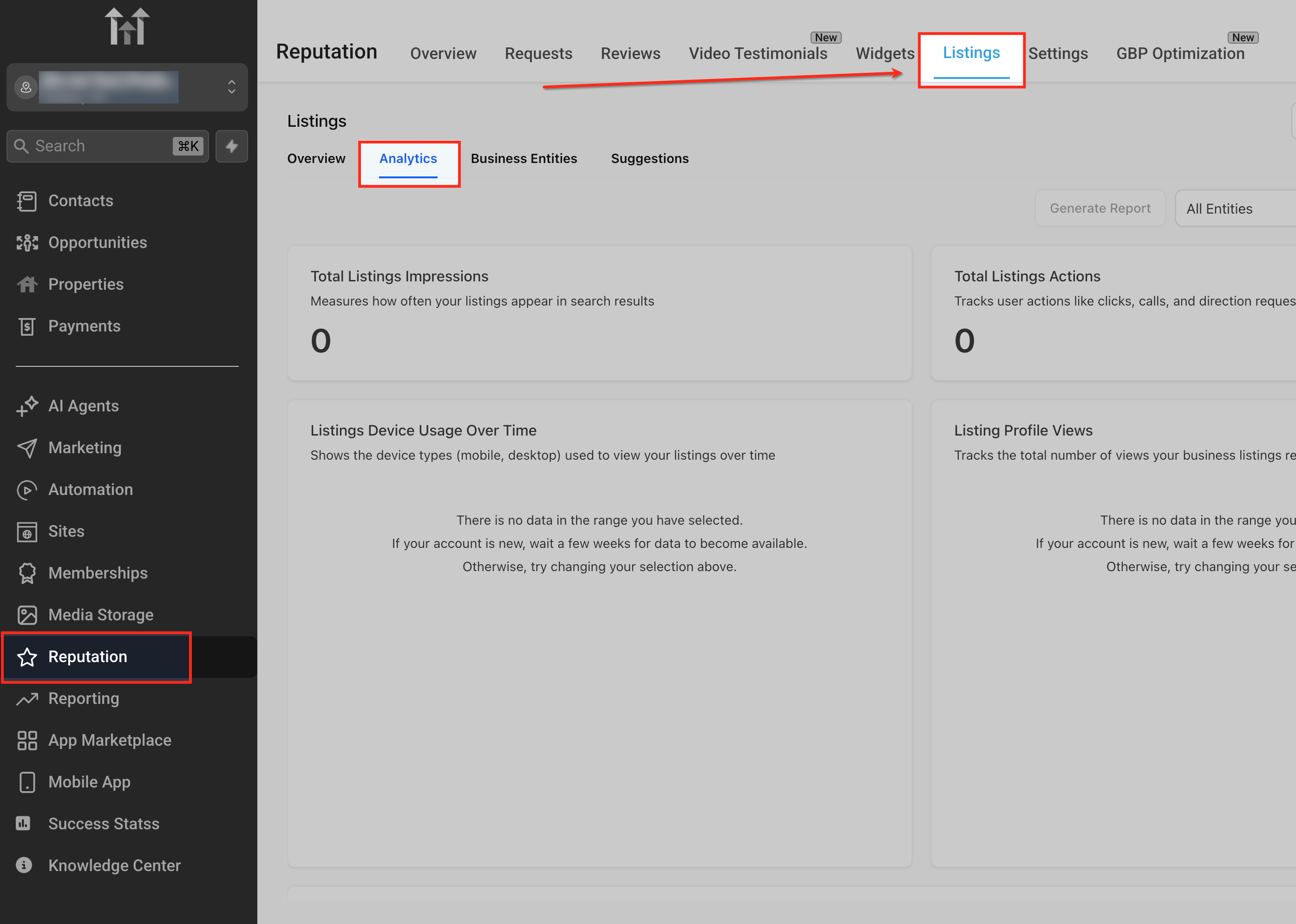
- Open the Listings Analytics view by navigating Reputation > Listings and selecting the Analytics tab.
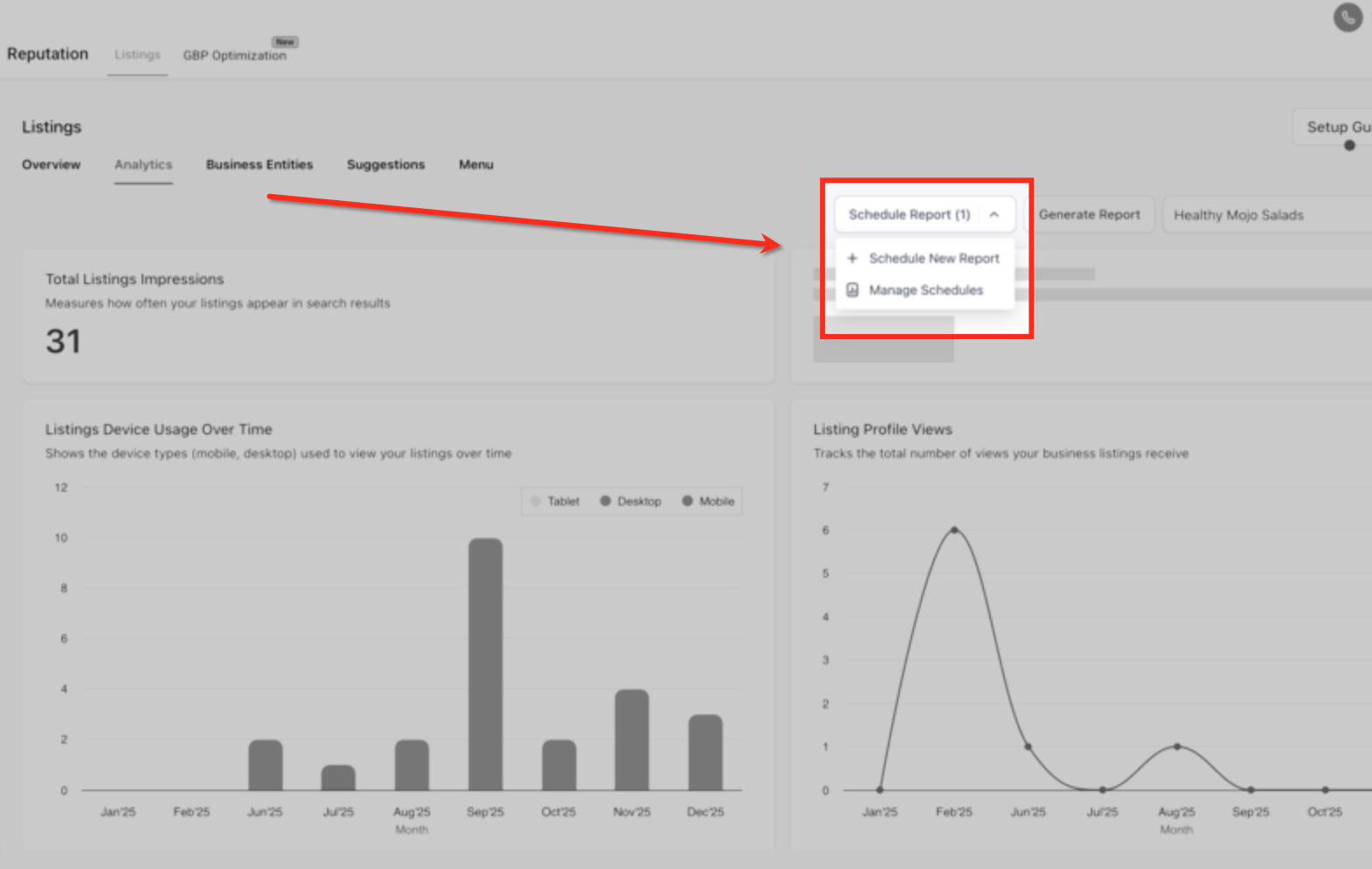
- Click Schedule Report in the top right corner and choose Schedule New Report.
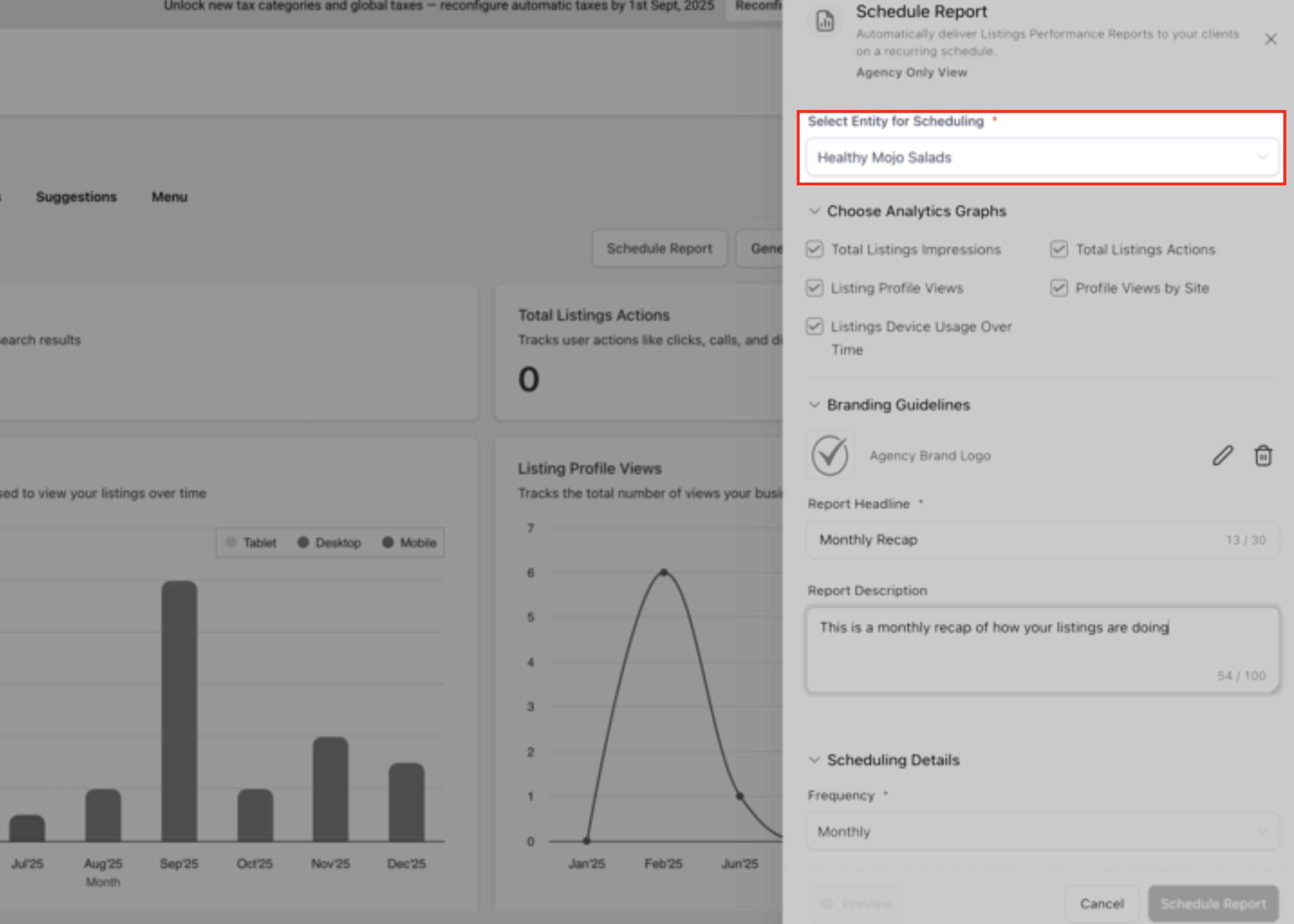
- Pick the business location or entity from the Select Entity for Scheduling dropdown.
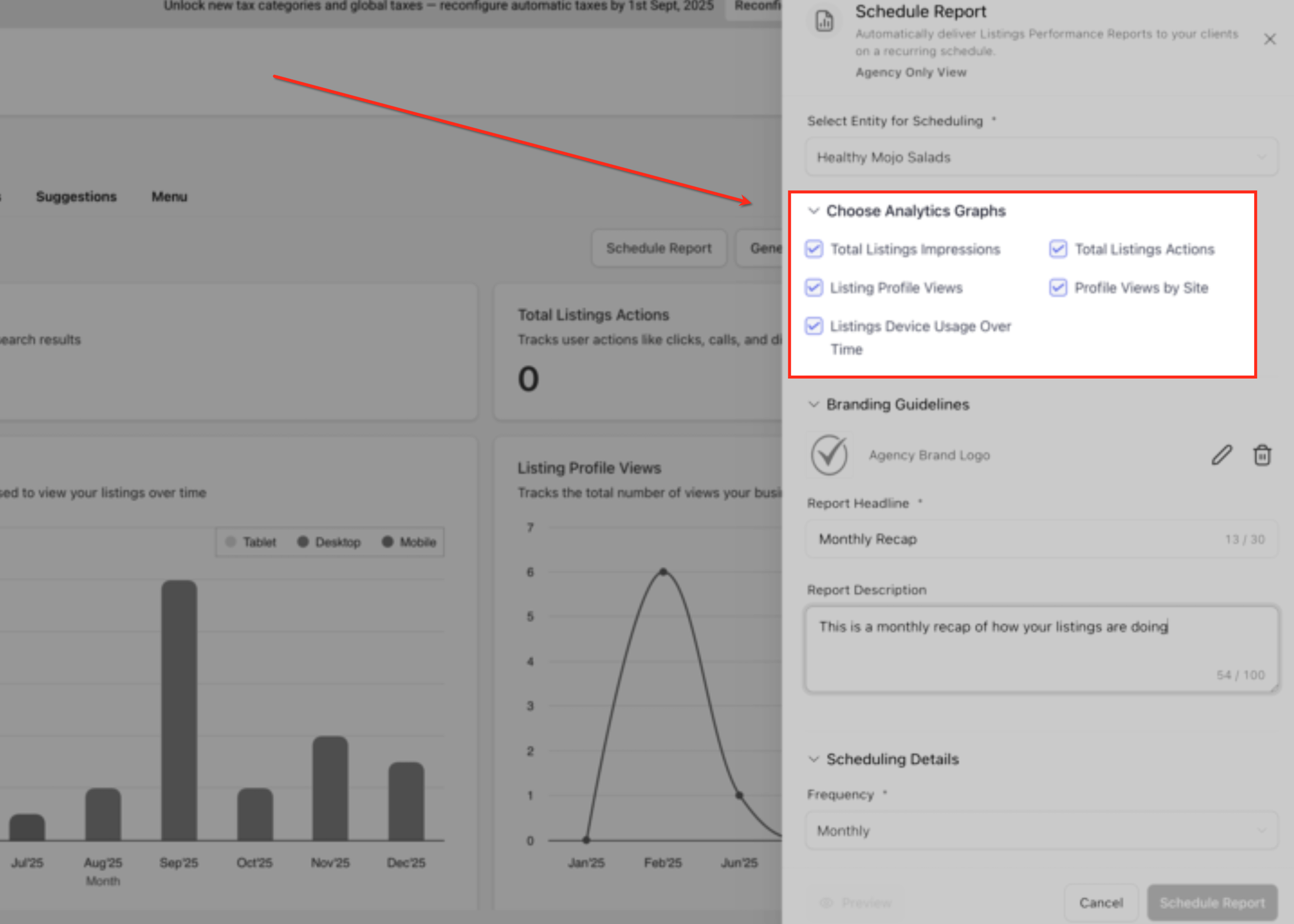
- Choose the analytics graphs you want to include, such as impressions, actions, profile views and device usage.
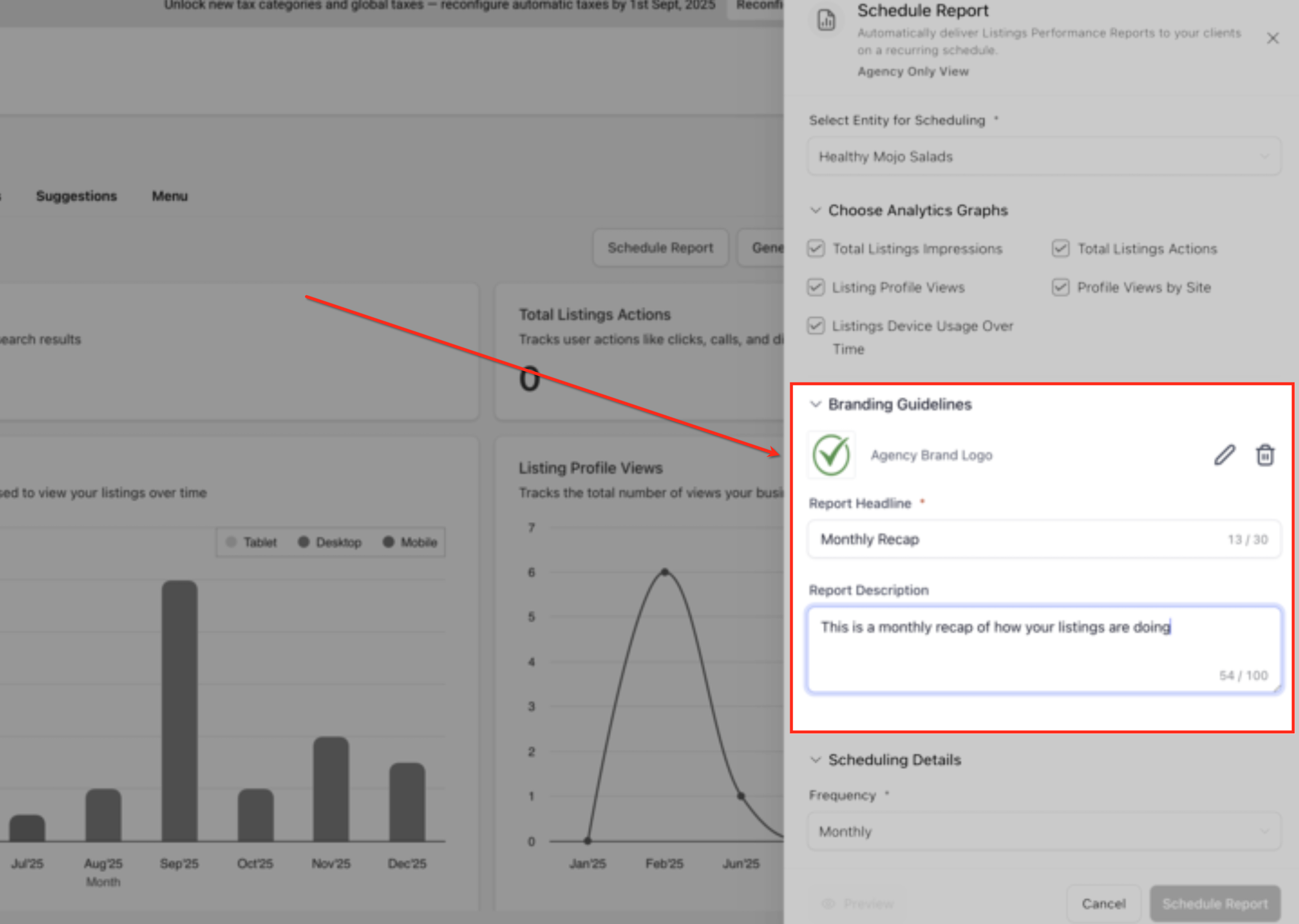
- Confirm or update the agency logo, then enter a Report Headline and Report Description in the Branding Guidelines section.
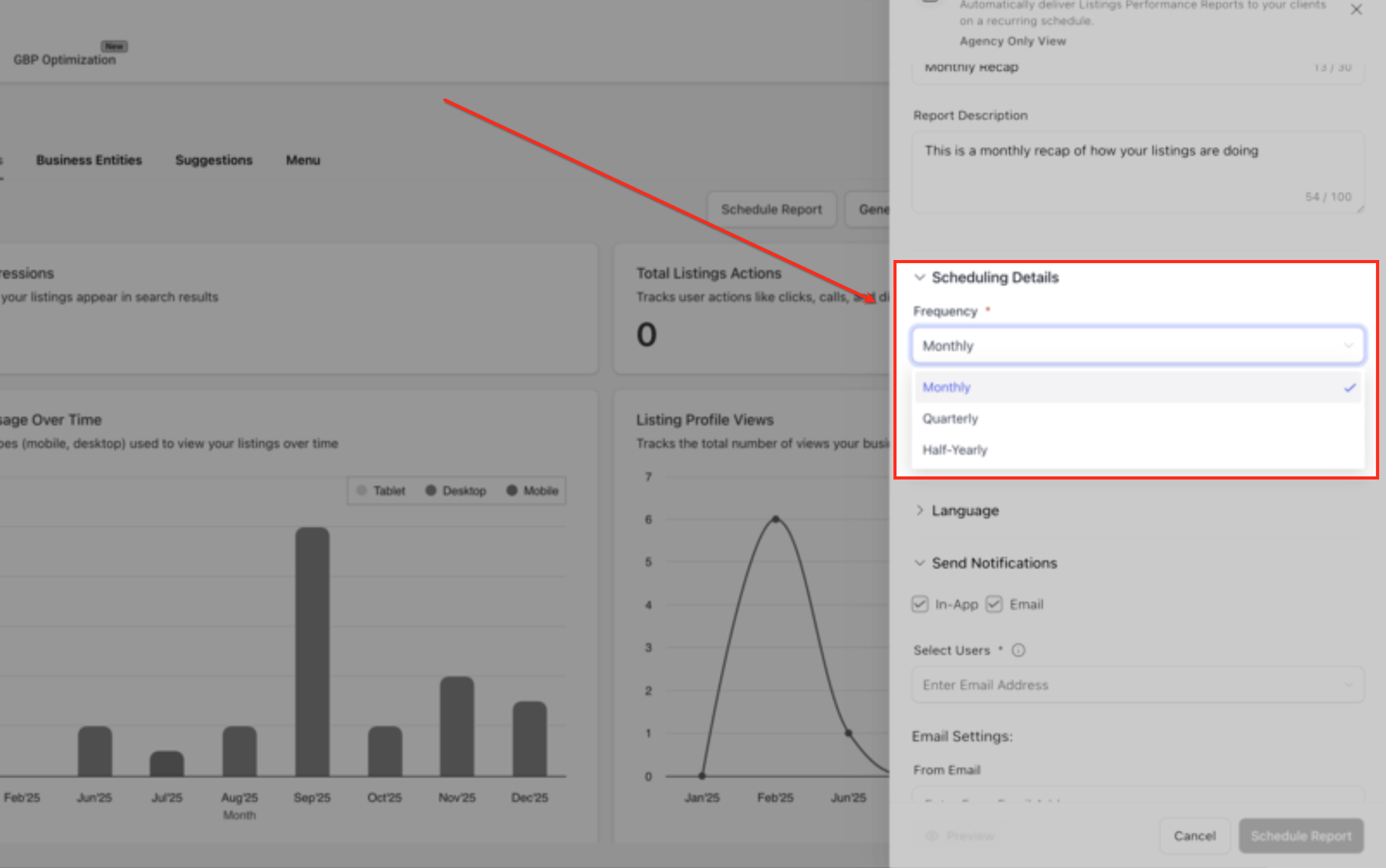
- Select the report frequency: Monthly, Quarterly, or Half Yearly in the Scheduling Details area.
- Set the exact delivery time and start date using the At and Starting On fields.
- Choose the language for the report in the Language section.
- Decide whether to send the report via In App, Email, or both, and pick the users or email addresses that should receive it.
- Enter the From Email address, customize the Subject line, and edit the Email Content in the Email Settings section.
- Review all settings and click Schedule Report to activate the automated recap.
07What it looks like in HighLevel
08Settings that matter
- Select Entity for Scheduling. Determines which location’s listings data will be used for the performance recap.
- Choose Analytics Graphs. Controls which metrics and charts appear in the generated report.
- Branding Guidelines. Sets the agency logo, report headline and description to match brand identity.
- Scheduling Details (frequency). Selects the cadence, Monthly, Quarterly, or Half Yearly, for report delivery.
- At and Starting On. Specifies the exact time of day and the start date for the first report.
- Language. Chooses the language used in the report content.
- Send Notifications. Determines whether the report is delivered via email, in app notification, or both, and selects recipients.
- Email Settings. Controls the From Email address, email subject line and the body content shown to email recipients.
09Things to know before you rely on it
- Report cadence options are limited to Monthly, Quarterly or Half Yearly.
- Scoring uses Yext powered metrics at launch; Uberall analytics integration is planned but not yet available.
10How it connects to the rest of HighLevel
- Explore other reputation management features available in HighLevel. All Reputation Management & Reviews features
- Review pricing options before adding this feature to your agency plan. HighLevel pricing and plans
- Start a free trial to test automated listing reports in your own account. Start a 30 day HighLevel trial
Michael's take

Automated recap reports can feel risky if you’re not sure clients will actually read them. Without a clear notification strategy, the effort you put into branding could go unnoticed, and the data might sit unread in an inbox.
When it works, the reports become a concise proof of value that clients appreciate each month or quarter. The graded score and quick win recommendations give them a tangible reason to stay engaged with your agency.