
01Who this is for
- Marketing managers who need to keep multiple Google listings fresh without manual effort.
- Agency owners who manage several clients and want to schedule posts in bulk from a single dashboard.
02Google Business Profile post scheduler, explained
The GBP Post Scheduler lives inside the GBP Optimization workspace. It uses the Social Planner engine, so all post creation, editing and scheduling happen without leaving HighLevel. Users can select a post type, write or generate copy, attach an image and set a publish time.
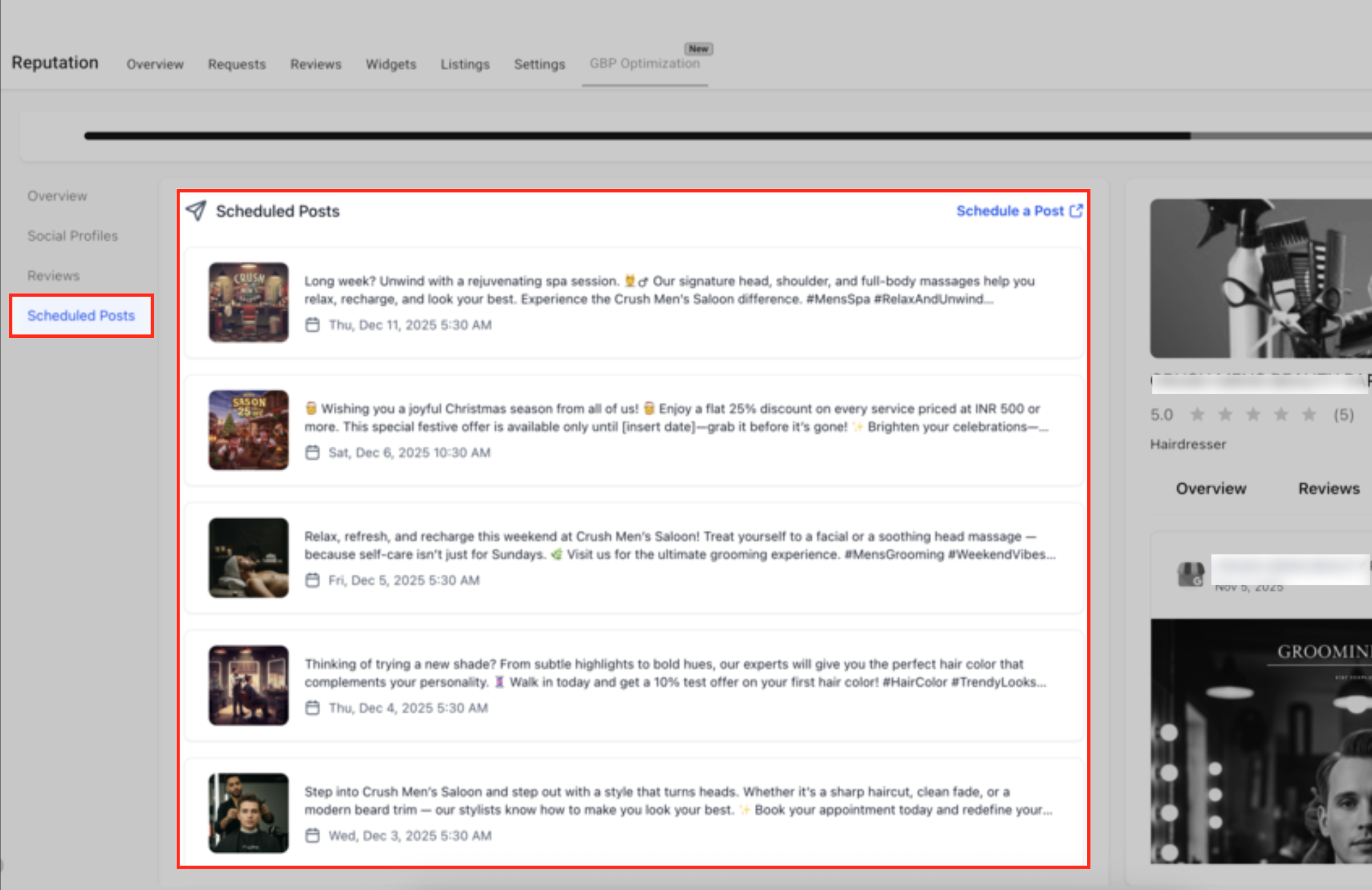
When a post is scheduled, it appears in the Scheduled Posts tab. The right hand Updates panel shows a live preview of how the post will look on the Google Business Profile. Edits to a scheduled post replace the draft before it goes live; changes after publishing are pushed to Google within seconds.
03How businesses use Google Business Profile post scheduler
- Dental practice. The practice connects its Google Business Profile, then uses AI Assist to create a 30 day schedule of appointment reminders and seasonal offers. Each post is assigned to the practice's single location and scheduled to publish at optimal times.
- Restaurant franchise. The franchise links all its locations, selects the Offer post type, and bulk publishes a limited time promotion across every Google listing. The same copy is reused, but the location name can be edited before scheduling.
- Real estate agency. The agency creates an Event post for an open house, chooses the relevant location, and schedules the post to go live the day before the event. The AI feature helps draft a compelling description and selects a suitable image.
04The numbers and rules that matter
- Up to 1,500 characters per Google post.
- Image minimum 250 × 250 px, maximum 5 MB, JPEG or PNG.
- Google limit of 100 posts per 24 hours applies per user token.
05Before you start
- Each Google Business Profile must be connected in the Social Planner before any post can be scheduled.
06How to set up and use Google Business Profile post scheduler in HighLevel
View scheduled posts in the GBP Post Scheduler
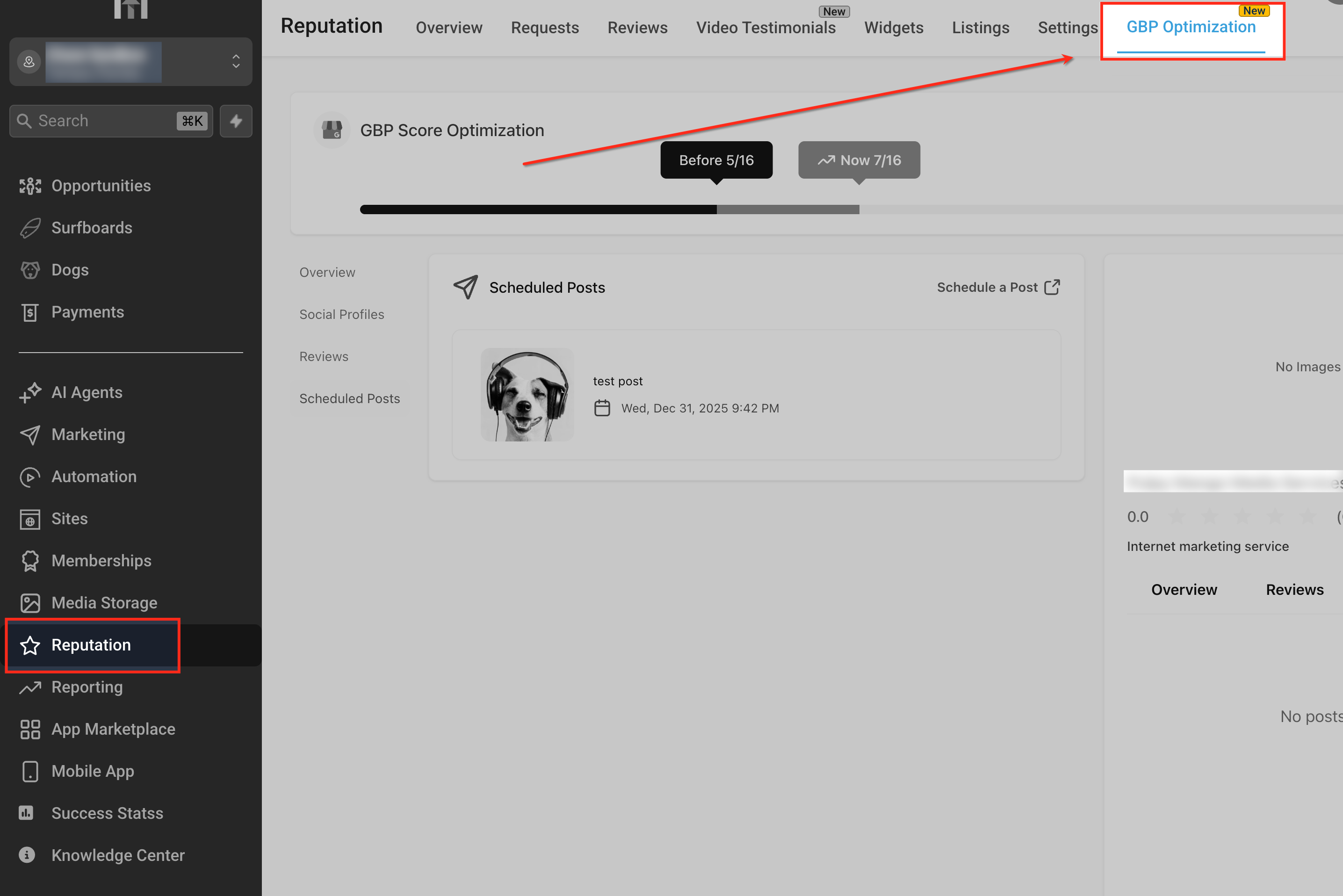
- Open Reputation from the left menu and select GBP Optimization.
- Click the Scheduled Posts tab or choose Schedule a Post to see upcoming posts.
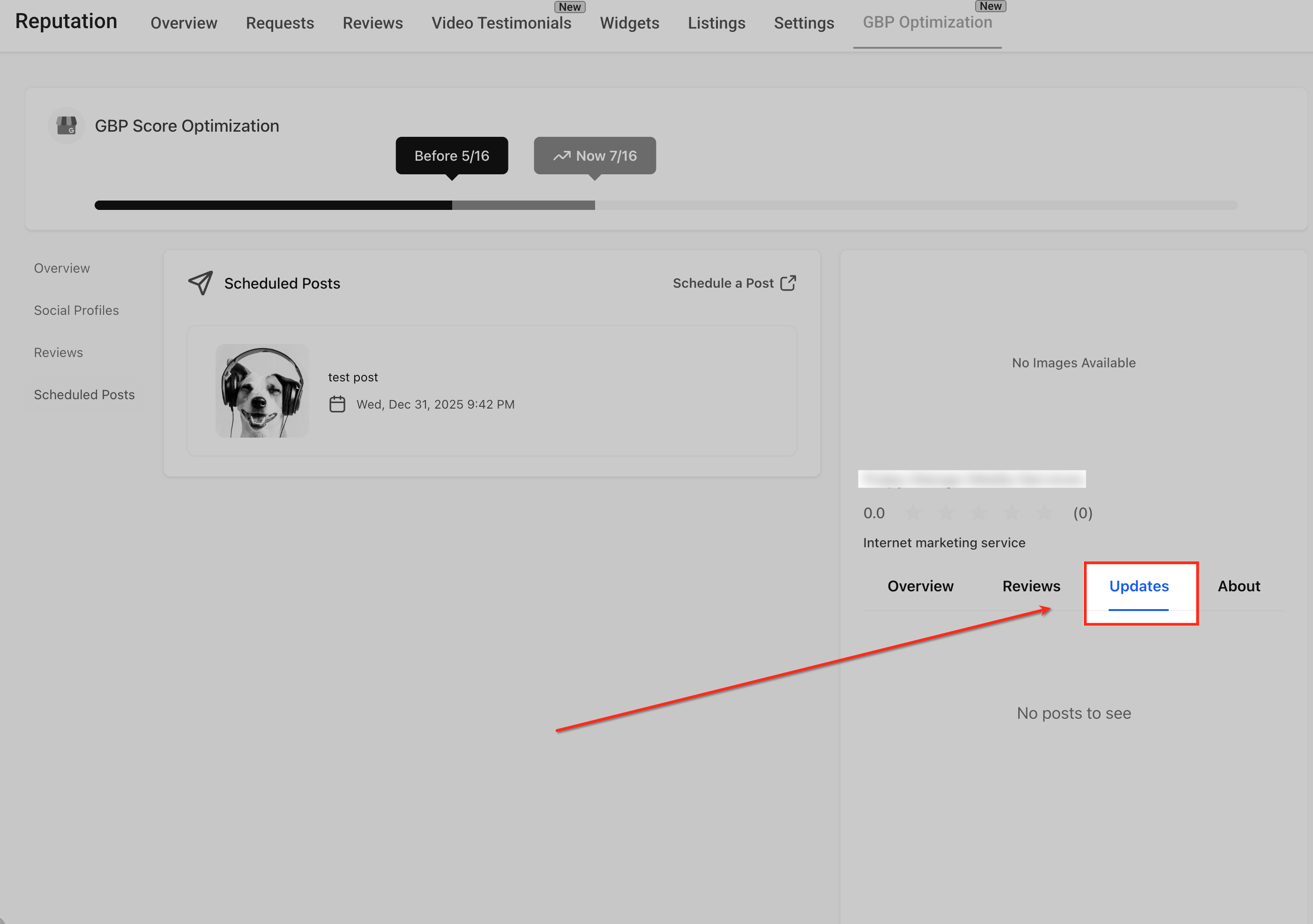
- Look at the Updates panel on the right to preview how each post will appear on Google.
Connect a Google Business Profile to Social Planner
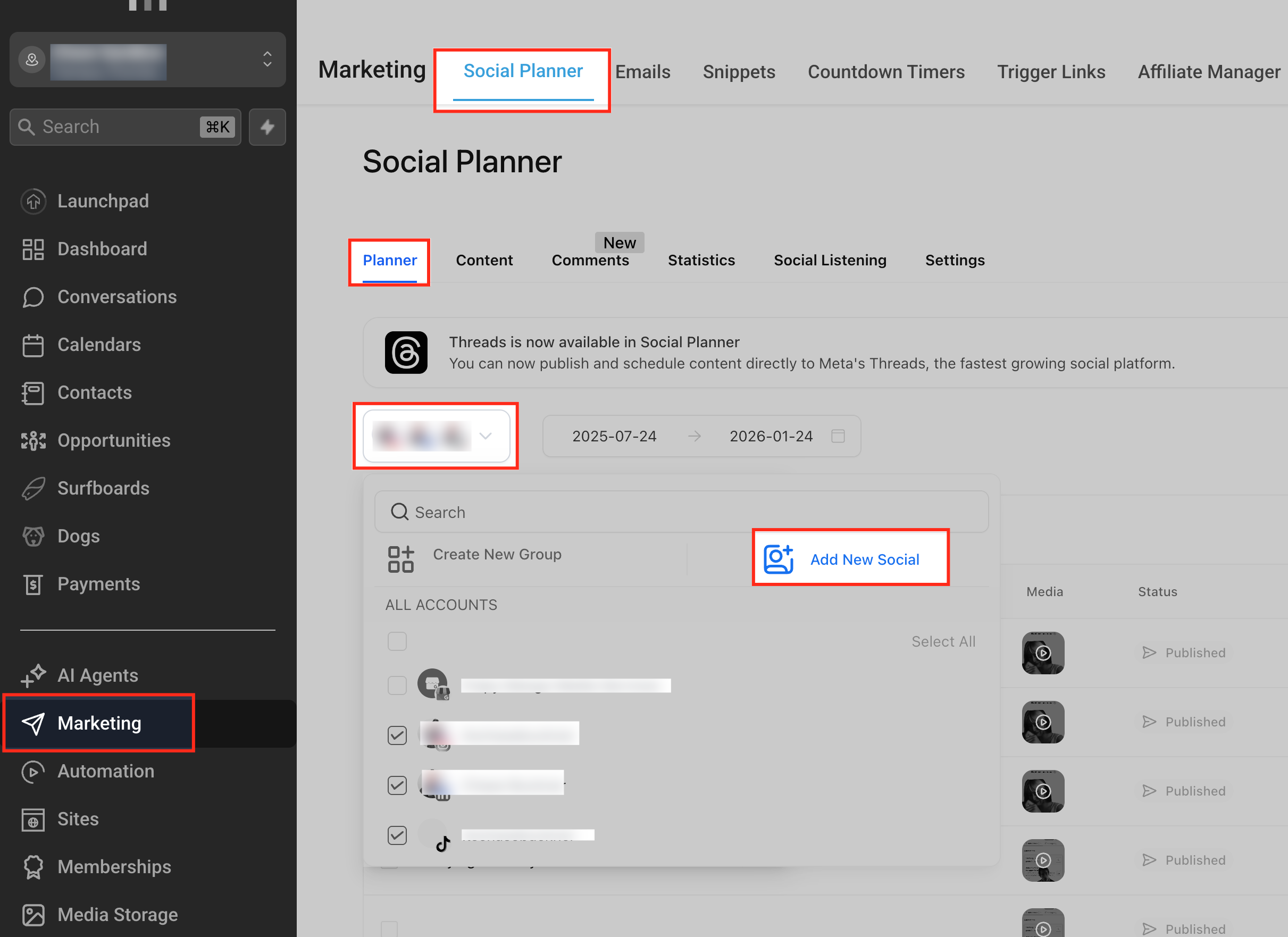
- Navigate to Marketing, select Social Planner, and ensure the Planner tab is active.
- Use the account dropdown to pick the appropriate subaccount.
- Click Add New Social.
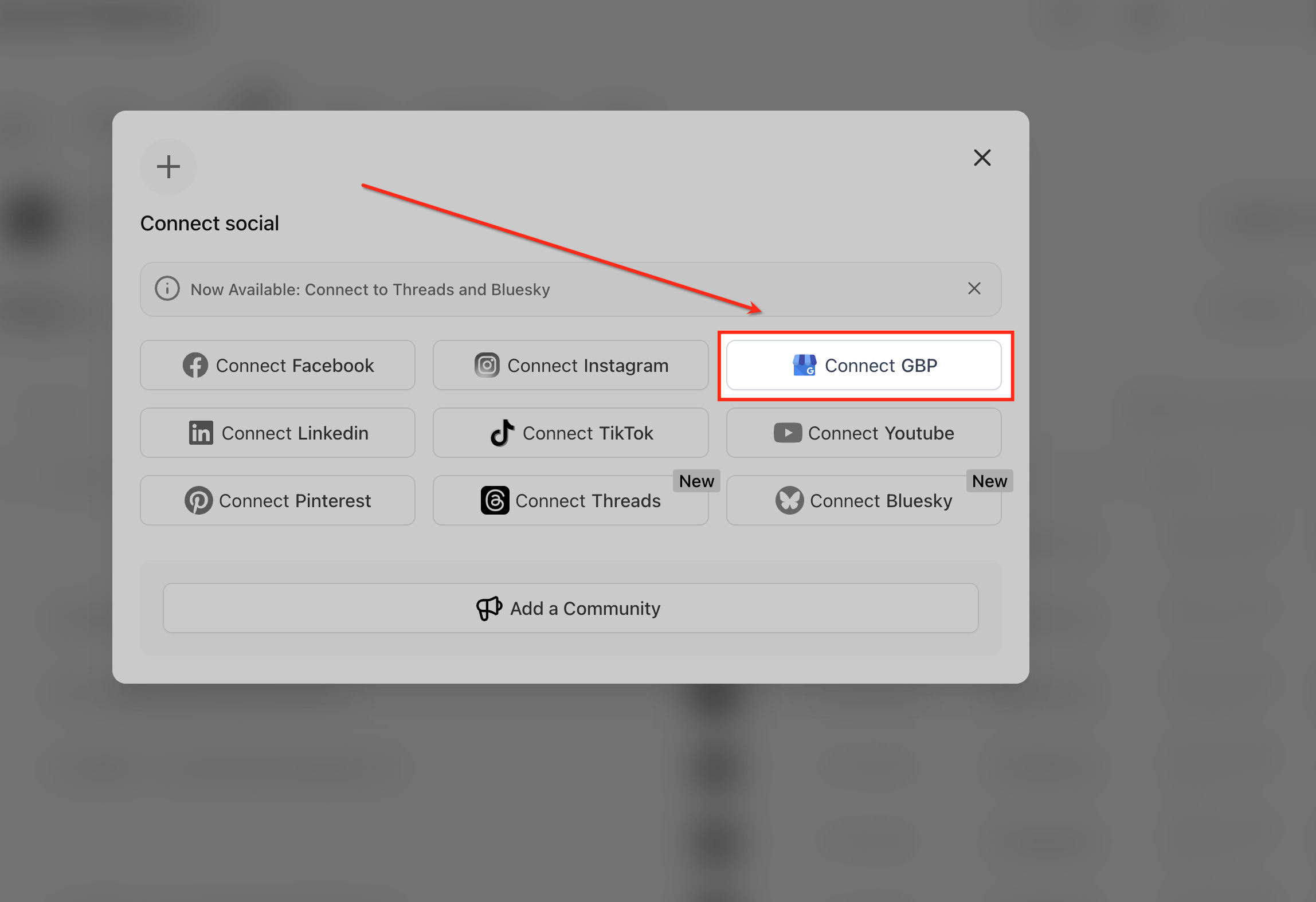
- Choose Connect GBP from the list of platforms.
- Select the Google account, pick the desired location from the list, and click Add.
Create a new Google Business Profile post
- Click New Post in the top right corner and select Create New Post.
- Choose the target Google Business Profile from the Post to dropdown.
- Select the post type, Update, Offer, or Event.
- Enter the message in the editor, staying within the 1,500 character limit.
- Click AI to generate optimized copy if needed.
- Add an image that meets the size and dimension requirements.
- Choose Schedule Post, Post Now, or Send Post for Approval and confirm the selection.
Edit or manage a scheduled GBP post
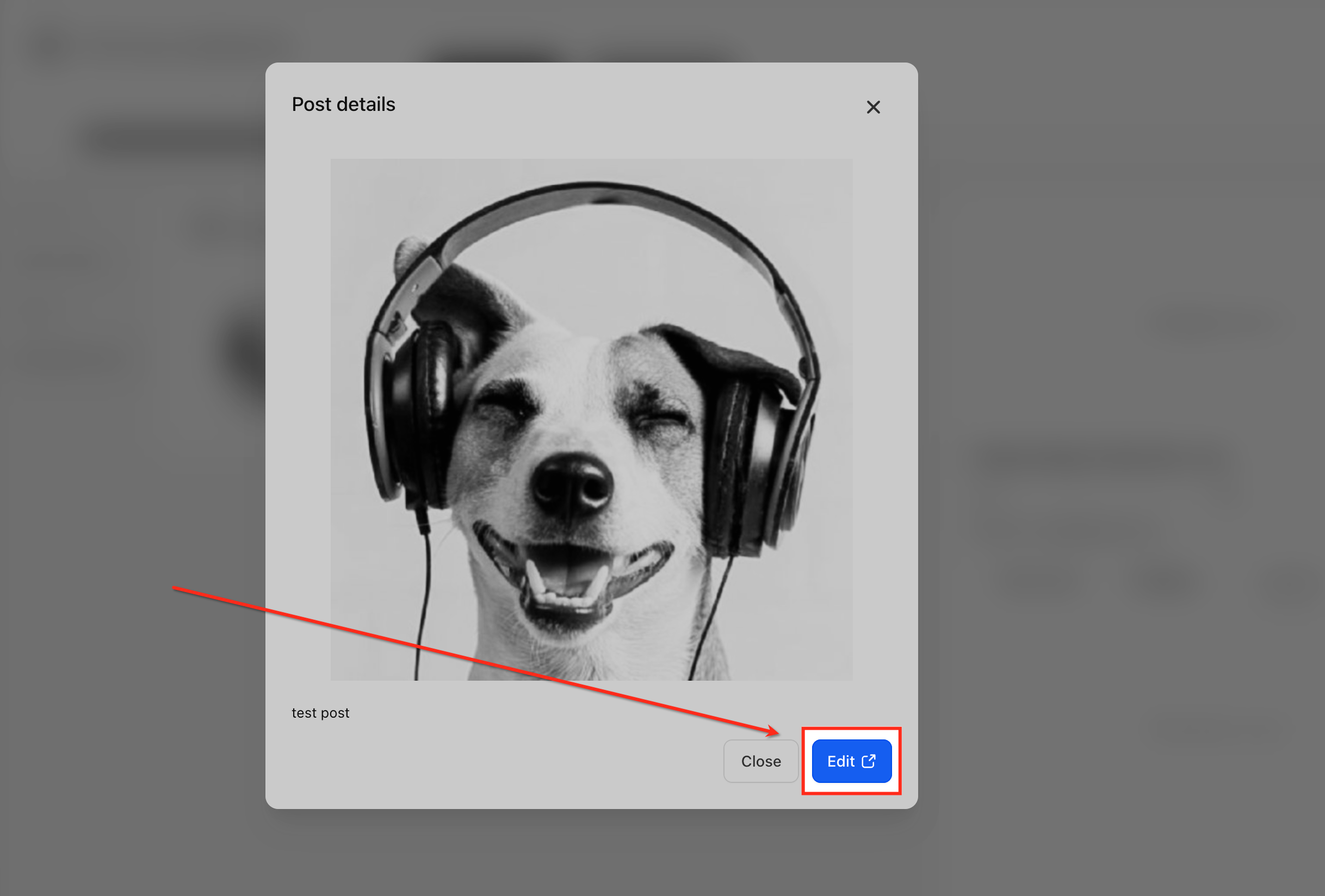
- Select a scheduled post from the list to open its details.
- Click Edit to launch the post editor in Social Planner.
- Modify the text, replace the image, or adjust the scheduled date and time.
- Save the changes, or duplicate or delete the post as required.
Preview published posts
- Open the Updates panel on the right while viewing a scheduled or published post.
- Verify that the content and image appear correctly as they will on the live Google Business Profile.
07What it looks like in HighLevel
08Things to know before you rely on it
- Post content can be up to 1,500 characters long.
- Images must be at least 250 × 250 px, in JPEG or PNG format, and no larger than 5 MB.
- Video posts are not supported through the API.
- Google allows a maximum of 100 posts per 24 hour period per user token.
- If a connected GBP token expires, the post will fail and the profile is flagged as “Action Required”.
09If something goes wrong
- Connected GBP token expires. Reconnect the profile in Social Planner and reschedule the post.
10How it connects to the rest of HighLevel
- How to set up GBP Optimization in HighLevel GBP Optimization setup
- HighLevel pricing and plans Pricing
- Start a 30 day HighLevel trial Free trial
Michael's take

The GBP Post Scheduler is a direct route to keep every location’s Google listing fresh without chasing a spreadsheet of reminders.
Don’t forget to reauthorize any expired Google tokens before the scheduled date.