
01Who this is for
- Agencies that manage client locations benefit from a single dashboard to keep each profile accurate.
- Local retailers gain a quick way to update hours, photos, and contact methods without switching tools.
- Service based businesses such as plumbers or salons can ensure their listing stays current to attract nearby customers.
02GBP optimization, explained
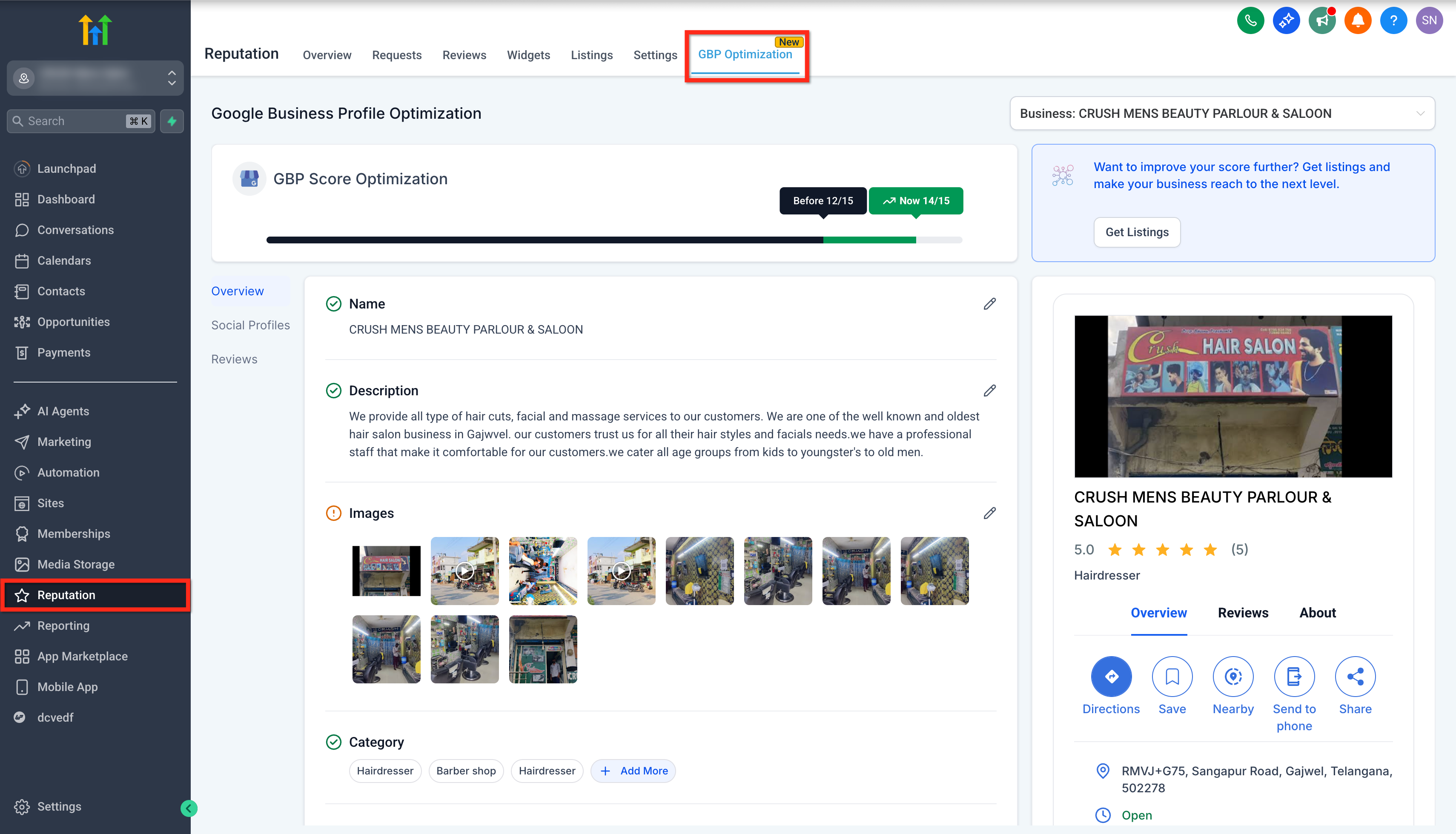
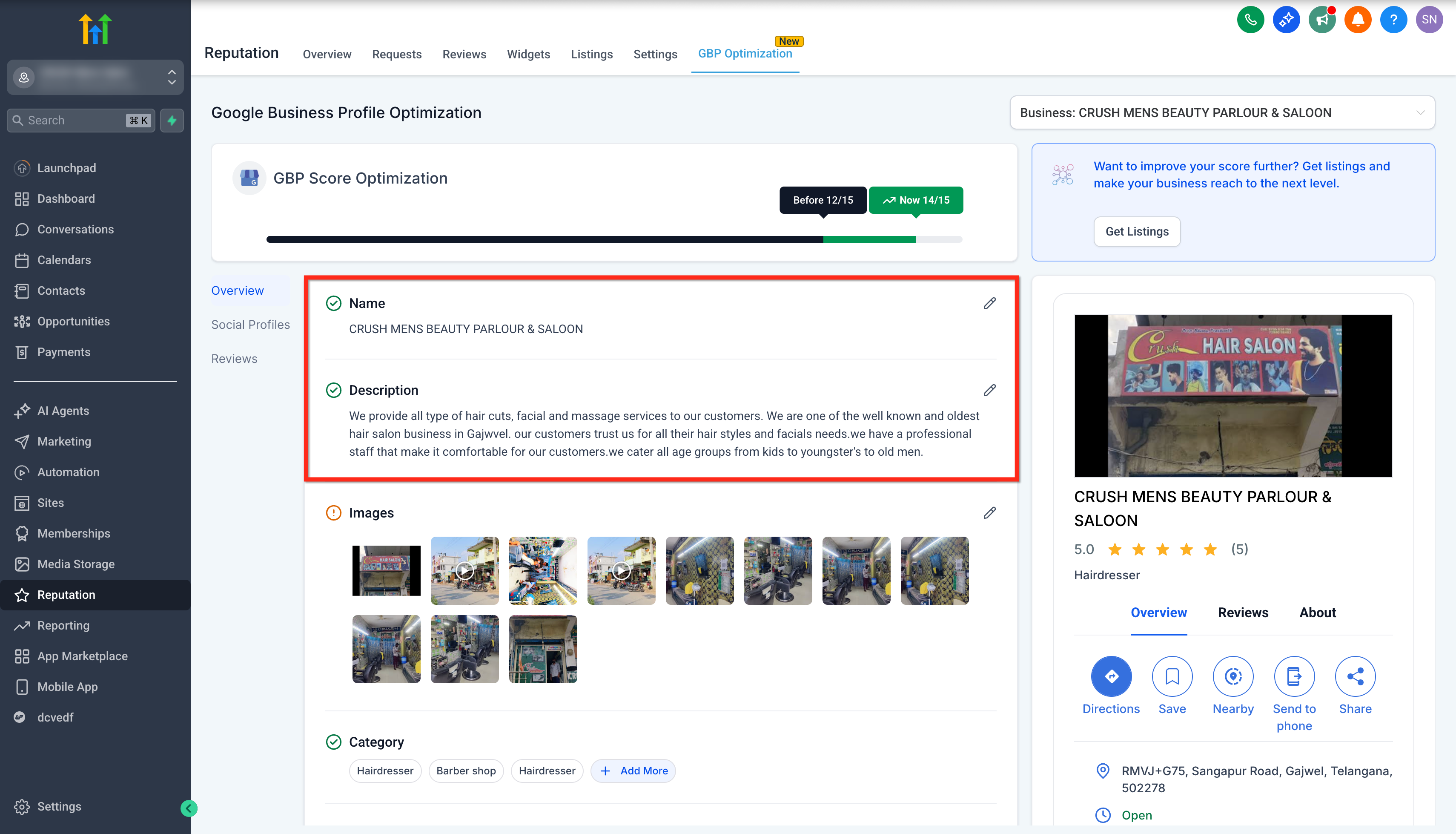
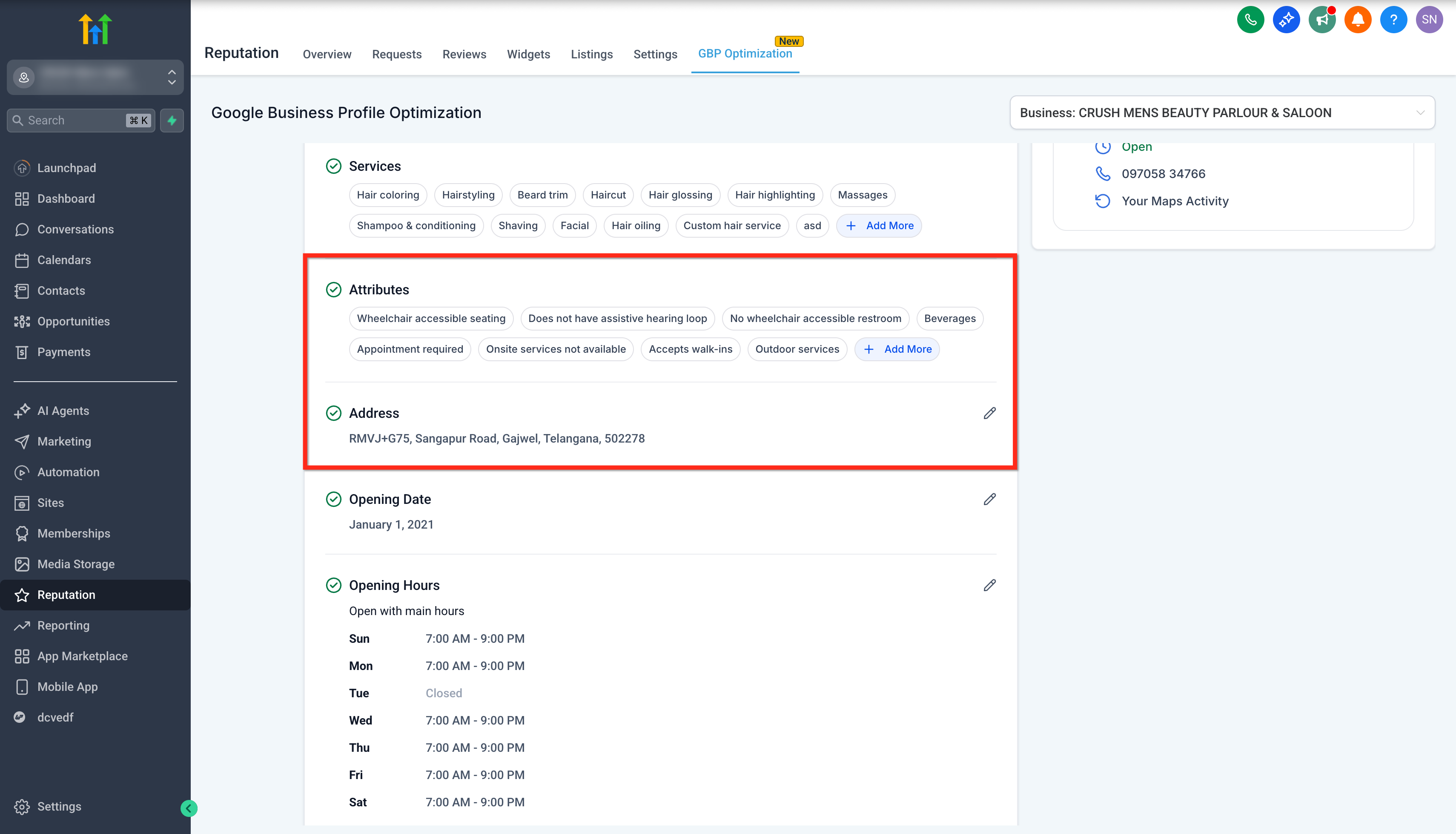
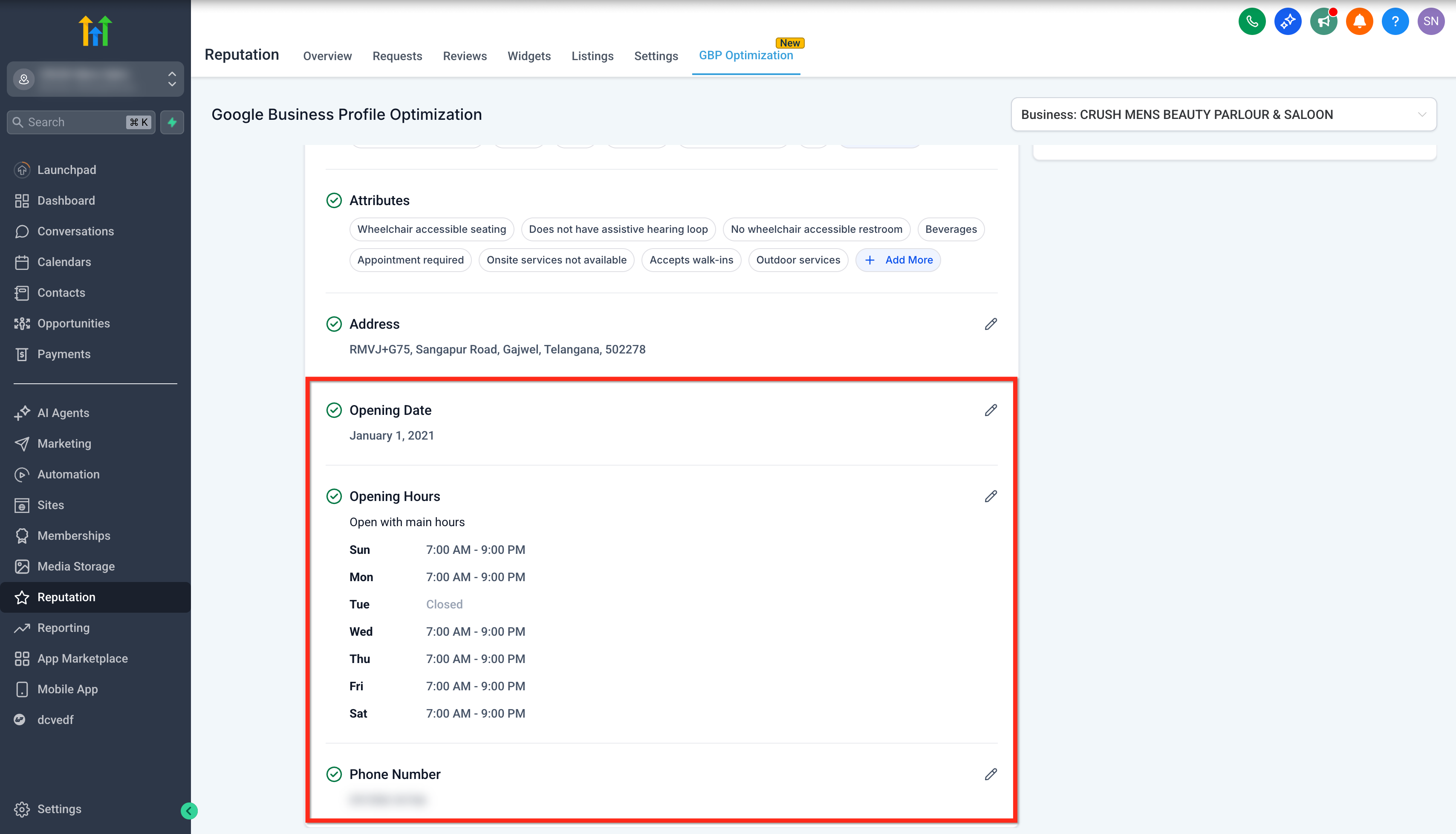
GBP Optimization lives under the Reputation tab in HighLevel. It provides fields for business name, description, photos, categories, services, attributes, address, hours, phone, WhatsApp and text chat options, and social profile links. The feature also shows a built in profile score that flags missing information and a live preview that mirrors how the profile will appear on Google Maps.
When a user saves changes, most edits sync to Google within minutes, though Google may take up to 24 hours for certain items like address changes. The profile score updates automatically, highlighting sections that need attention. The live preview updates right away, letting the user verify appearance before the changes go live.
03How businesses use GBP optimization
- Dental practice. The practice logs into its subaccount, opens Reputation > GBP Optimization, updates its address, business hours, and uploads high quality photos of the office. It then checks the profile score and uses the live preview to confirm the listing looks correct before publishing.
- Restaurant. The restaurant adds its menu categories and services, uploads a cover photo of the dining area, and includes a WhatsApp contact option. The live preview shows the updated listing on Google Maps, and the profile score guides the owner to fill any missing fields.
- Home cleaning service. The cleaning company enters its service areas, sets opening hours, adds a text message chat link, and links its Instagram profile. It reviews the live preview to ensure the information displays properly and resolves any score alerts.
04The numbers and rules that matter
- Google can take up to 24 hours to review and publish certain changes, especially address edits.
05Before you start
- A subaccount must be accessible.
- At least one Google Business Profile must be connected to the HighLevel account.
06How to set up and use GBP optimization in HighLevel
Set up a GBP profile
- Log in to the appropriate subaccount.
- Select the Reputation tab.
- Open the GBP Optimization tab.
- Enter or modify the Business Name and Description fields.
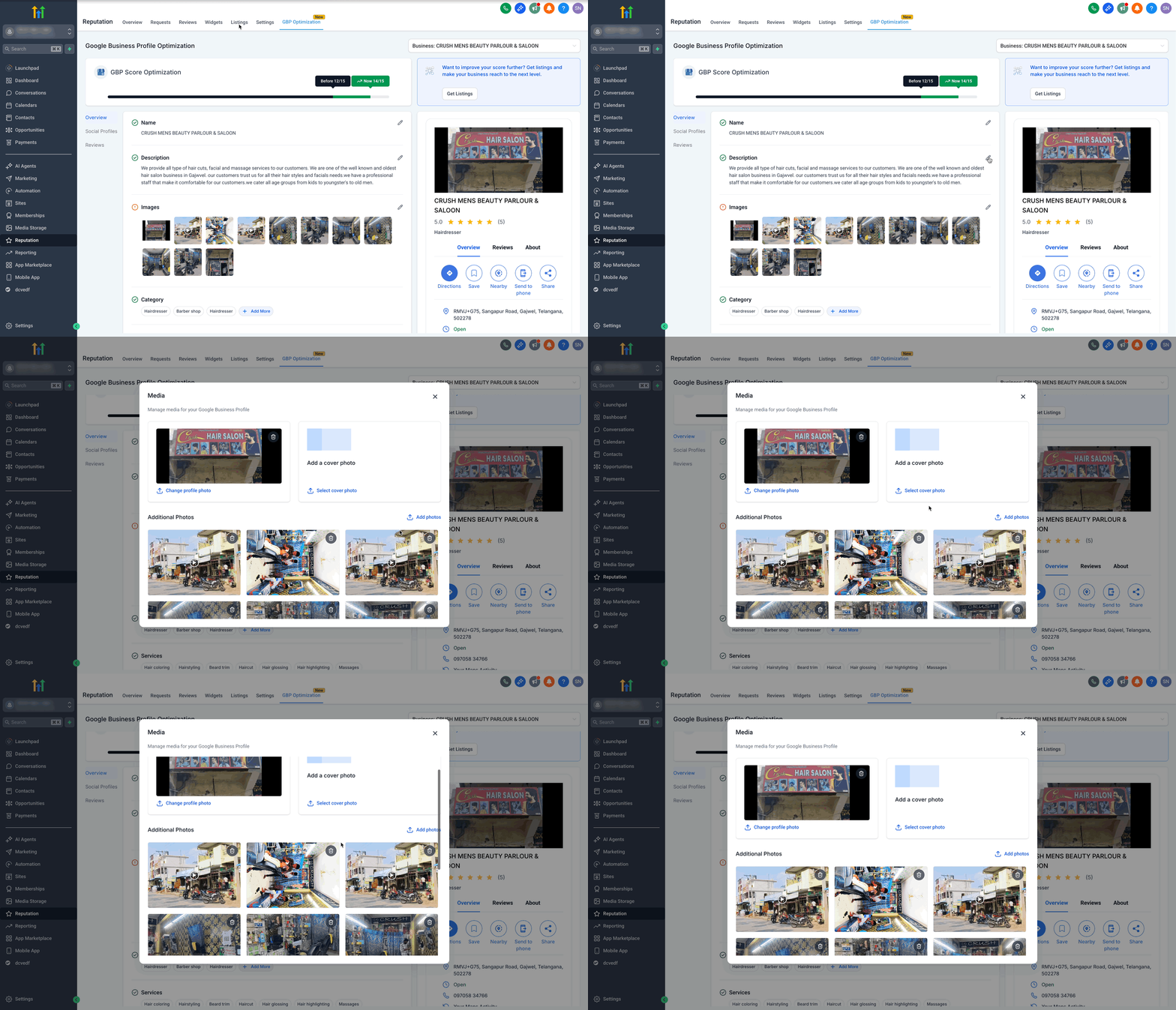
- Upload a Profile Photo, a Cover Photo, and any Additional Photos.
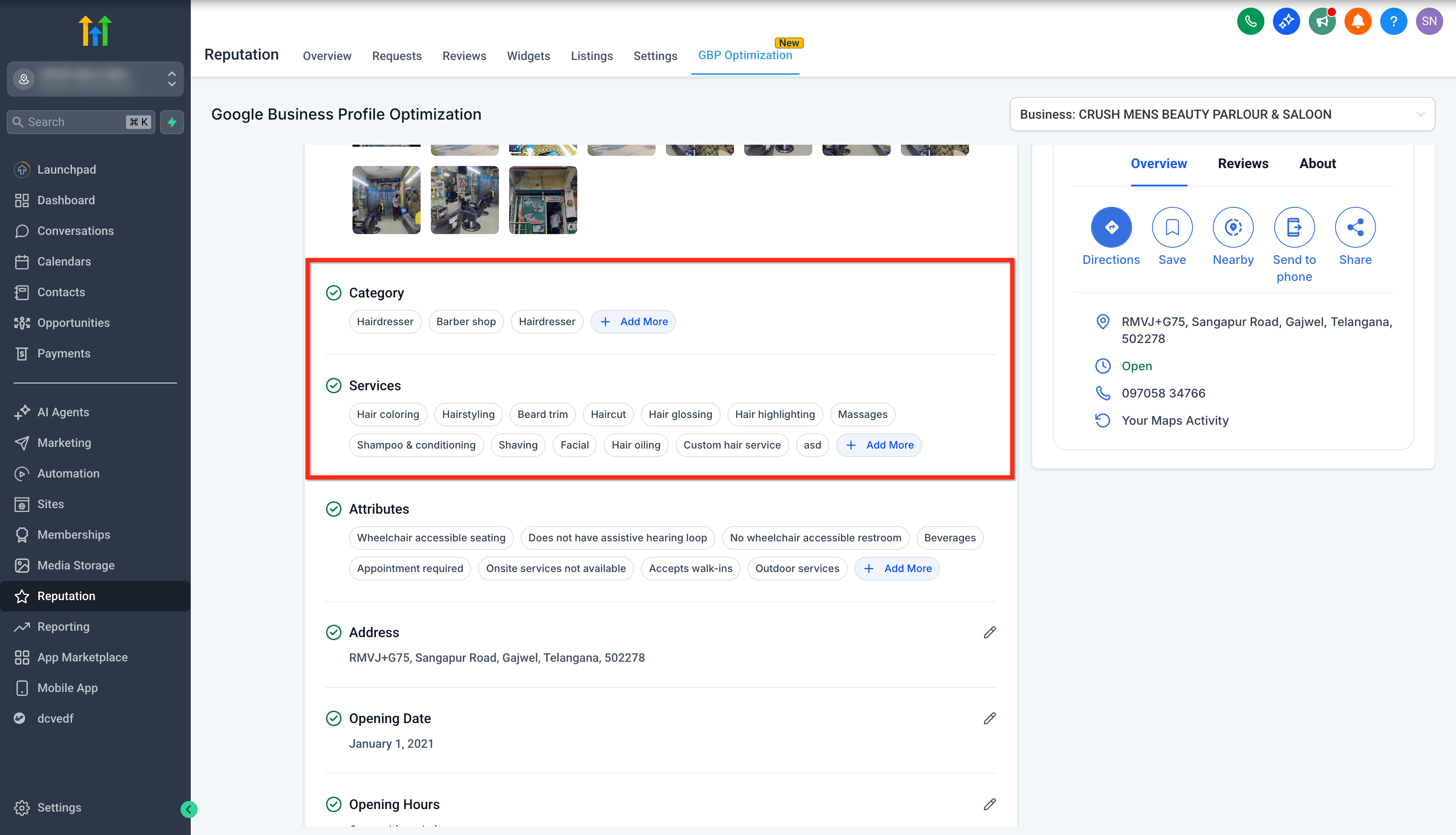
- Choose the appropriate Category and list Services offered.
- Add or edit Attributes and the business Address.
- Set the Opening Date, define Opening Hours, and enter the Phone Number.
- Provide a WhatsApp contact and/or a Text Message chat option; note that Text Message takes priority if both are filled.
- Enter links for social media accounts in the Social Profiles section.
- Open the Reviews tab and review all existing reviews.
07What it looks like in HighLevel
08Settings that matter
- Profile Score. Shows a numeric evaluation of how complete the Google Business Profile is and highlights missing sections with alert icons and tooltips.
- Live Preview. Displays real time visual updates of the profile as changes are entered, matching the appearance on Google Maps.
- GBP Optimization. Provides a centralized interface inside the Reputation tab for editing core business details, visuals, and contact options for a Google Business Profile.
09Things to know before you rely on it
- Most edits sync to Google within a few minutes, but address changes can take up to 24 hours for Google to review and publish.
- If both WhatsApp and Text Message fields are filled, the text message option will be shown on the Google listing.
- The profile score reflects completeness only; it does not guarantee any ranking position.
10How it connects to the rest of HighLevel
- Explore all Reputation Management & Reviews features All Reputation Features
- Schedule posts for your Google Business Profile GBP Post Scheduler
- Start a 30 day trial to try GBP Optimization 30 Day Trial
Michael's take

If you already spend time in HighLevel, having GBP updates inside the same dashboard is convenient and helps keep information current.
I’d start by pulling the profile score and fixing the red alerts, as those items are linked to ranking factors in the FAQ. After that, adding high quality photos and a text message contact option can improve how prospects reach you.