
01Who this is for
- Marketing agencies that need to tag lead capture forms for client analytics.
- Ecommerce owners who want to track checkout steps as events in Google Analytics.
- SaaS Founders who wish to record trial sign ups or support calls as custom events.
02Google Analytics events, explained
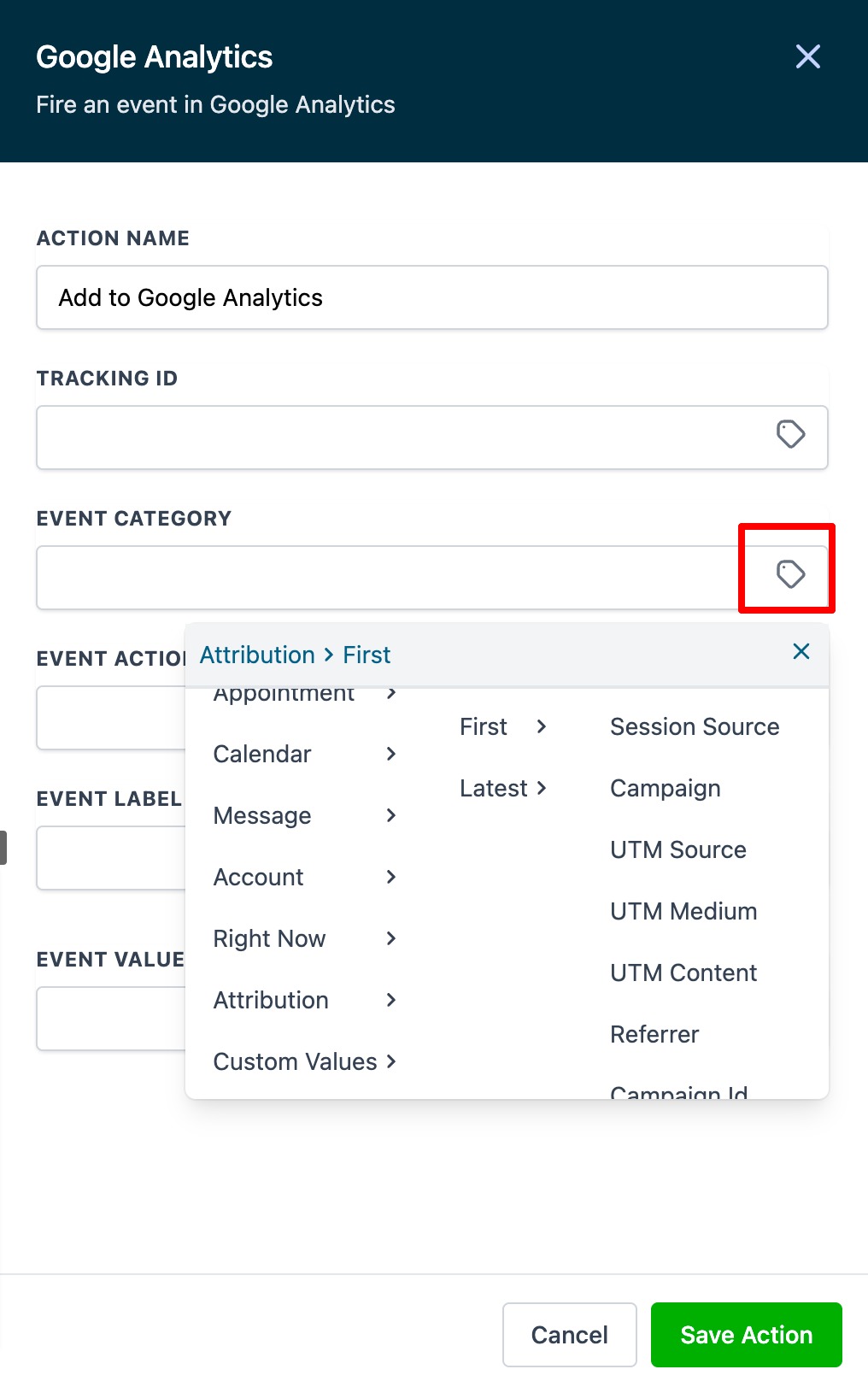
HighLevel includes a "Google Analytics" event trigger that can be added to any workflow. When the trigger fires, the platform sends an event to the Google Analytics property you specify. The trigger requires a tracking ID for Universal Analytics or a property ID for GA4, plus optional event fields.
The trigger exposes five fields: tracking/property ID, event category, event action, event label and event value. Category, action and label are standard for Universal Analytics; GA4 treats every hit as an event and does not use those fields. The values can be static or populated with dynamic tags.
You find the appropriate ID inside Google Analytics under the Admin area. The workflow builder then maps the event data to the fields, and Google Analytics records the event in real time.
03How businesses use send data to Google Analytics
- Marketing agency. The agency opens a workflow that runs after a lead form is submitted. They add the Google Analytics trigger, paste the client’s UA tracking ID, set the category to "Form Submission", the action to "Lead Capture", and the label to the campaign name. The workflow then records each lead as a GA event.
- Ecommerce store. The store creates a workflow that fires when a checkout step is completed. They select the GA4 property ID, enter an event label such as "checkout_step", and optionally add an event value representing the order total. Each step is sent to GA4 as a custom event.
- SaaS startup. The startup adds a trigger to a support call workflow. They input the UA tracking ID, choose the category "Support", action "Call Completed", and label the support agent’s name via a dynamic tag. This logs every support interaction in Google Analytics.
04The numbers and rules that matter
- For Google Analytics 4 users, the property ID is a number.
05How to set up and use send data to Google Analytics in HighLevel
Find tracking ID in Universal Analytics
- Open Google Analytics and sign in.
- Click the Admin tab.
- In the left hand column, click Tracking Info.
- Click Tracking Code to view the UA prefixed ID.
Find property ID in GA4
- Open Google Analytics and sign in.
- Click the Admin tab.
- In the left hand column, click Property Settings.
- Click Property ID to see the numeric ID.
Set up Google Analytics event trigger in a workflow
- Open the workflow builder in HighLevel.
- Add a new trigger to the workflow.
- Select the "Google Analytics" event trigger.
- Enter the tracking ID (UA) or property ID (GA4).
- Specify the Event Category value.
- Specify the Event Action value.
- Enter the Event Label and optionally the Event Value.
06What it looks like in HighLevel
07Settings that matter
- Tracking id/property id. Identifies the Google Analytics property that will receive the event.
- Event Category. Groups events under a common label for Universal Analytics reports.
- Event Action. Describes the specific action taken by the user within the category.
- Event label. Provides additional detail such as campaign name or form name.
- Event value. A numeric value that can be used for calculations in Analytics.
08Things to know before you rely on it
- Universal Analytics IDs begin with "UA"; GA4 IDs are numeric only.
- GA4 properties do not support Event Category, Action, and Label; those fields are ignored in GA4 reporting.
09How it connects to the rest of HighLevel
- Add GA4 tracking in a HighLevel workflow GA4 workflow guide
- Set up Google Ad reporting in HighLevel Google Ads reporting
- HighLevel pricing and plans Pricing
Michael's take

If you skip confirming the correct tracking ID, the workflow may not send data to Google Analytics, which can leave you without the insights you expect.
When the ID is entered correctly, the trigger provides a straightforward way to push custom events like form submissions, opt ins or support calls into GA without needing additional code.