
01Who this is for
- Support agents who need a quick overview of long ticket threads can use AI summaries to catch up faster.
- Customer service managers can enable AI suggested replies to help agents draft consistent responses using company knowledge bases.
- Administrators who maintain support documentation benefit from connecting knowledge bases so AI can reference up to date articles.
02AI in ticketing, explained
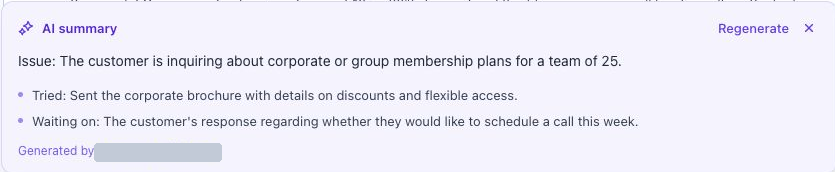
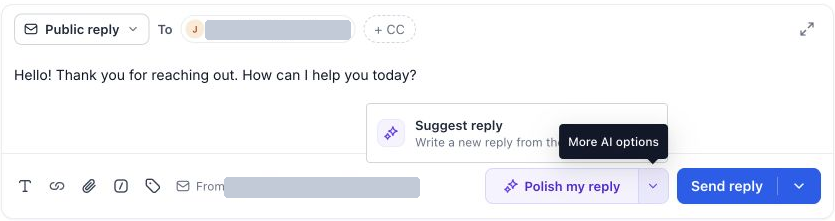
The AI features live inside the ticket view and reply editor. Summarize with AI creates a short card that highlights the customer's issue, actions already taken, and what is pending. Suggest reply produces a draft response that draws on the ticket content and any connected knowledge bases. Polish my reply refines text you have already typed, improving tone and clarity.
These tools appear as buttons in the ticket top panel or reply editor. The AI only suggests content; agents must review, edit, and manually send the final reply. Knowledge bases must be connected in the ticket settings for the AI to reference support articles.
03How businesses use AI in ticketing
- SaaS product support. An agent opens a support ticket, clicks Summarize with AI to get a quick issue overview, then uses Suggest reply to draft a response that pulls from the product documentation knowledge base. The agent edits the draft and sends it.
- Managed IT services. A technician reviews a ticket, writes a preliminary answer, and selects Polish my reply to improve wording. The refined draft is checked for accuracy before being sent to the client.
- Ecommerce customer care. The support lead connects the order policy knowledge base in Ticket Settings, enabling AI suggested replies. When a new order issue appears, the agent uses Suggest reply to generate a response that references current policy articles.
04How to set up and use AI in ticketing in HighLevel
Generate a ticket summary
- Open the ticket you want to review.
- Select Summarize with AI from the top panel.
- Read the summary card displayed in the main ticket area.
- Compare the summary with the relevant messages before deciding.
- Click Regenerate for a new summary or dismiss the card when finished.
Generate and review a suggested reply
- Open the ticket and read its latest customer message.
- Enter the public reply editor.
- Select Suggest reply, or open More AI options to find it if another AI action is primary.
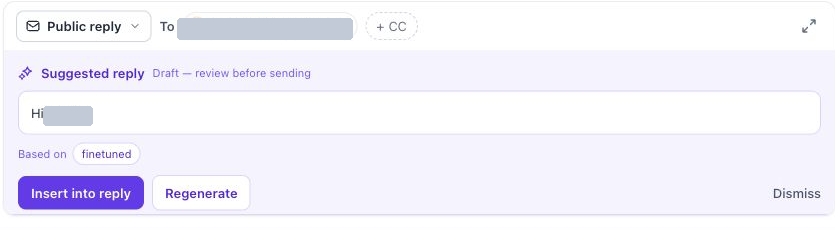
- Wait for the suggested reply card to finish generating.
- Read the proposed response and verify names, facts, and any commitments.
- Choose Insert into reply to use it, Regenerate for another option, or Dismiss to discard.
- Edit the content as needed in the reply editor and click Send reply when ready.
Polish an existing reply
- Write your response in the reply editor.
- Select Polish my reply.
- Review the revised wording before sending.
Connect knowledge bases
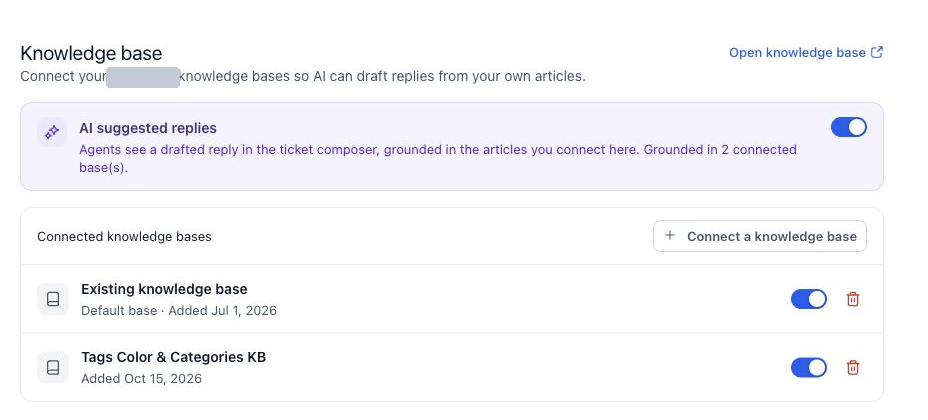
- Open Tickets > Settings > Knowledge base.
- Click Connect a knowledge base.
- Search for and choose the appropriate existing knowledge bases.
- Confirm the connection.
- Review the Connected knowledge bases list.
- Turn on AI suggested replies and enable the individual bases you want used for replies.
05What it looks like in HighLevel
06Settings that matter
- AI suggested replies. Controls whether the platform can generate draft responses for tickets.
- knowledge base. Specifies which support articles the AI can reference when creating suggested replies.
07Things to know before you rely on it
- AI actions only appear when the ticket has sufficient context; limited history may produce incomplete summaries.
- If a summary or suggested reply misses recent messages, you must review the latest messages and regenerate.
- Generated drafts are marked Draft and must be reviewed before sending; the AI does not verify business facts.
08If something goes wrong
- Suggest reply is not the main button. Open More AI options; existing text can make Polish my reply the primary action.
- Suggested replies are unavailable. Check the AI suggested replies setting and ensure you are using the public reply editor.
- A knowledge base is missing from the connected list. Use Connect a knowledge base and confirm that the expected base is available in this subaccount.
- A base is connected but should not be used. Check its individual switch or disconnect it from Ticketing.
- A summary misses recent context. Review the latest messages and regenerate; do not rely on a summary without checking what happened afterward.
- A draft gives an incorrect or incomplete answer. Edit or discard it, check the source content, and verify the relevant facts before sending.
- Generation fails. Review the displayed error and try again. You can continue writing a response manually.
09How it connects to the rest of HighLevel
- Overview of ticketing features and how tickets are tracked Ticketing overview
- Guide to creating tickets and linking email integrations Create tickets
- Details on automating ticket actions with workflows Ticket automations
Michael's take

AI in Ticketing can feel like handing a draftsman a shortcut, but the risk is relying on a machine generated answer without a human check. The tool may miss nuance, outdated policies, or specific pricing, so every draft needs a careful glance before hitting send.