
01Who this is for
- Sales managers overseeing multiple deals can view and assign tasks from the opportunity screen, keeping pipeline activity organized.
- Operations teams that run repetitive processes can automate recurring tasks, ensuring regular actions are not missed.
02Unified task management, explained
The feature adds a task tab to both the Contacts and Opportunities modules. When a record is opened, a panel appears where tasks can be added, edited, filtered, and sorted. The layout matches across the two modules, so users do not need to learn a separate interface for each area.
Task records include a title, optional description, due date and time, assignee, and optional recurrence settings. Filters let users narrow the list by owner or status, and a sort button lets them order items by creation or due date. All existing tasks appear unchanged in the new view.
03How businesses use unified task management
- Real estate brokerage. Agents open a client contact, click the Tasks icon, and add a follow up call task with a due date. They assign the task to the appropriate agent and, if the activity repeats weekly, enable recurrence. The task then appears in the same panel for that contact and any related opportunity.
- Dental practice. The office manager selects a patient record, creates a reminder to call for appointment confirmation, and sets the task to repeat every month. The task is assigned to the front desk staff member who handles confirmations. Filtering by assignee lets the manager see all pending reminders at a glance.
- Software consulting firm. Project leads open an opportunity, add a task to deliver a proposal, set a specific due time, and assign it to the sales engineer. They use the sort function to view tasks by creation date when reviewing the pipeline. Recurring tasks are used for weekly status report requests tied to the same opportunity.
04The numbers and rules that matter
- Recurring task options include the repeats every field, Ends on (Never, On, After) and the option to create a new task even if the previous task is overdue.
05Before you start
- The Unified Task Management toggle must be turned on in Labs for the subaccount before the panels appear.
06How to set up and use unified task management in HighLevel
Access contact list
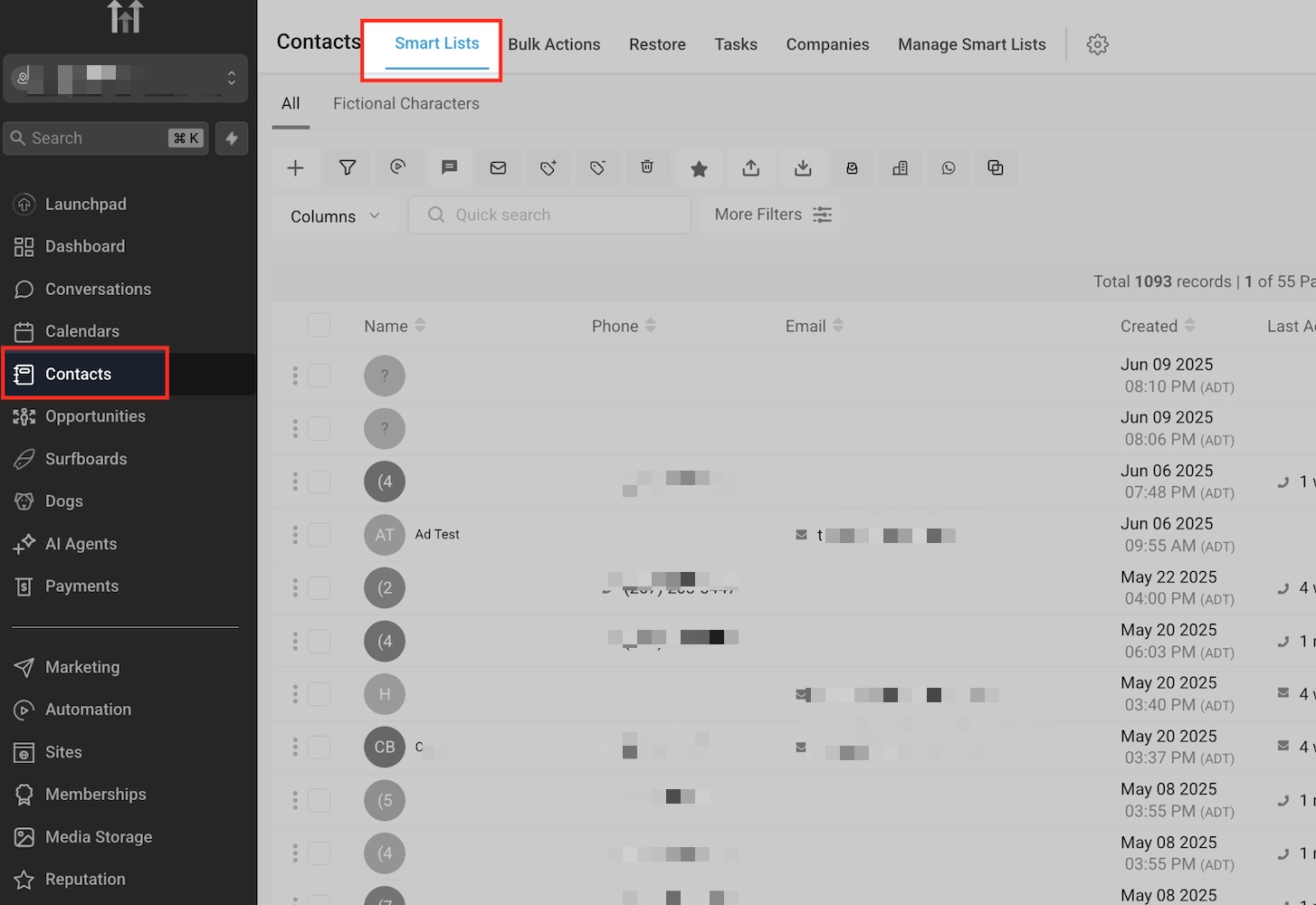
- Open the Contacts area from the left navigation.
- Select the Smart Lists tab to view all contacts.
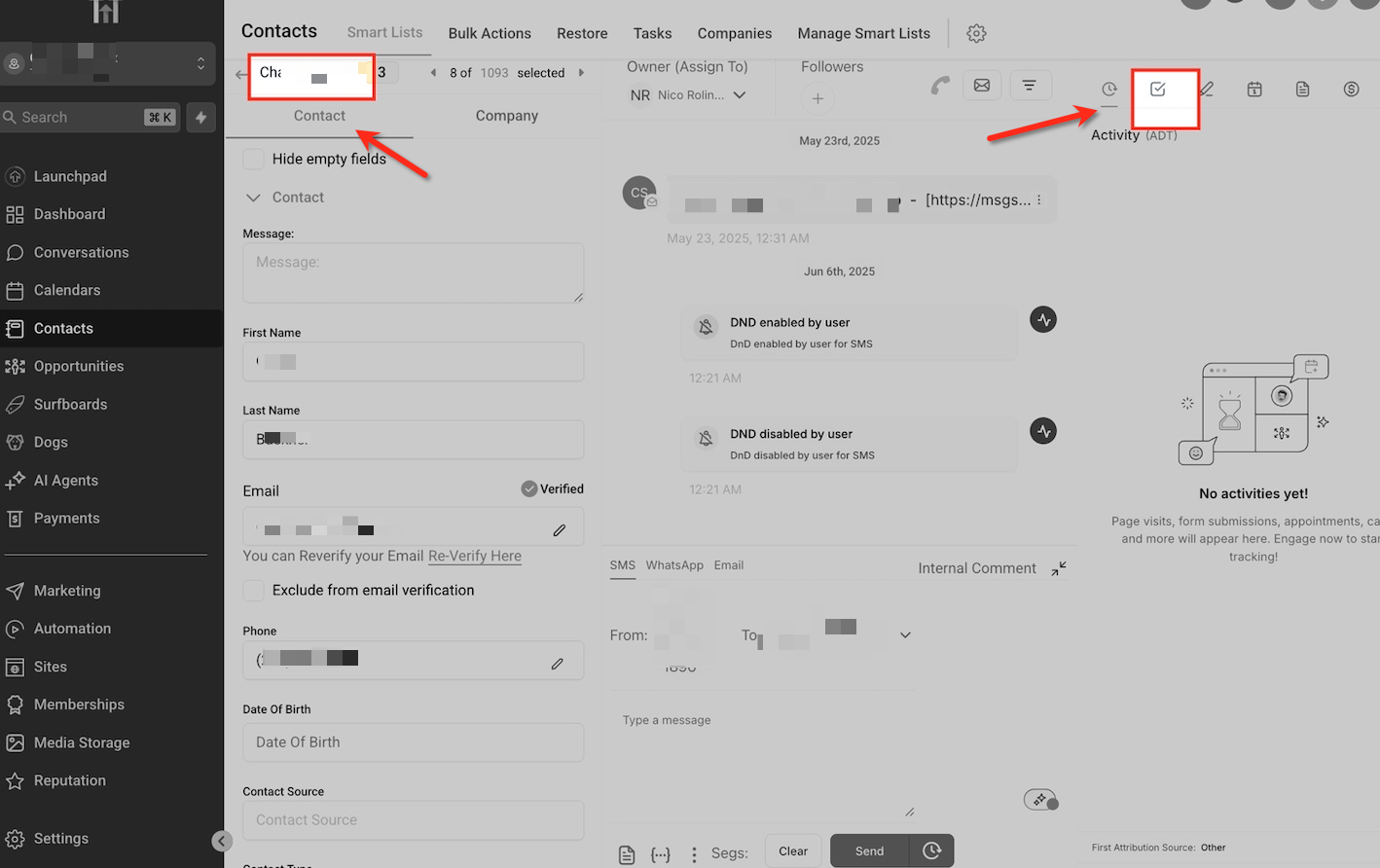
- Click a contact name to open the full profile.
Open a contact record
- Click a contact to open their detailed profile.
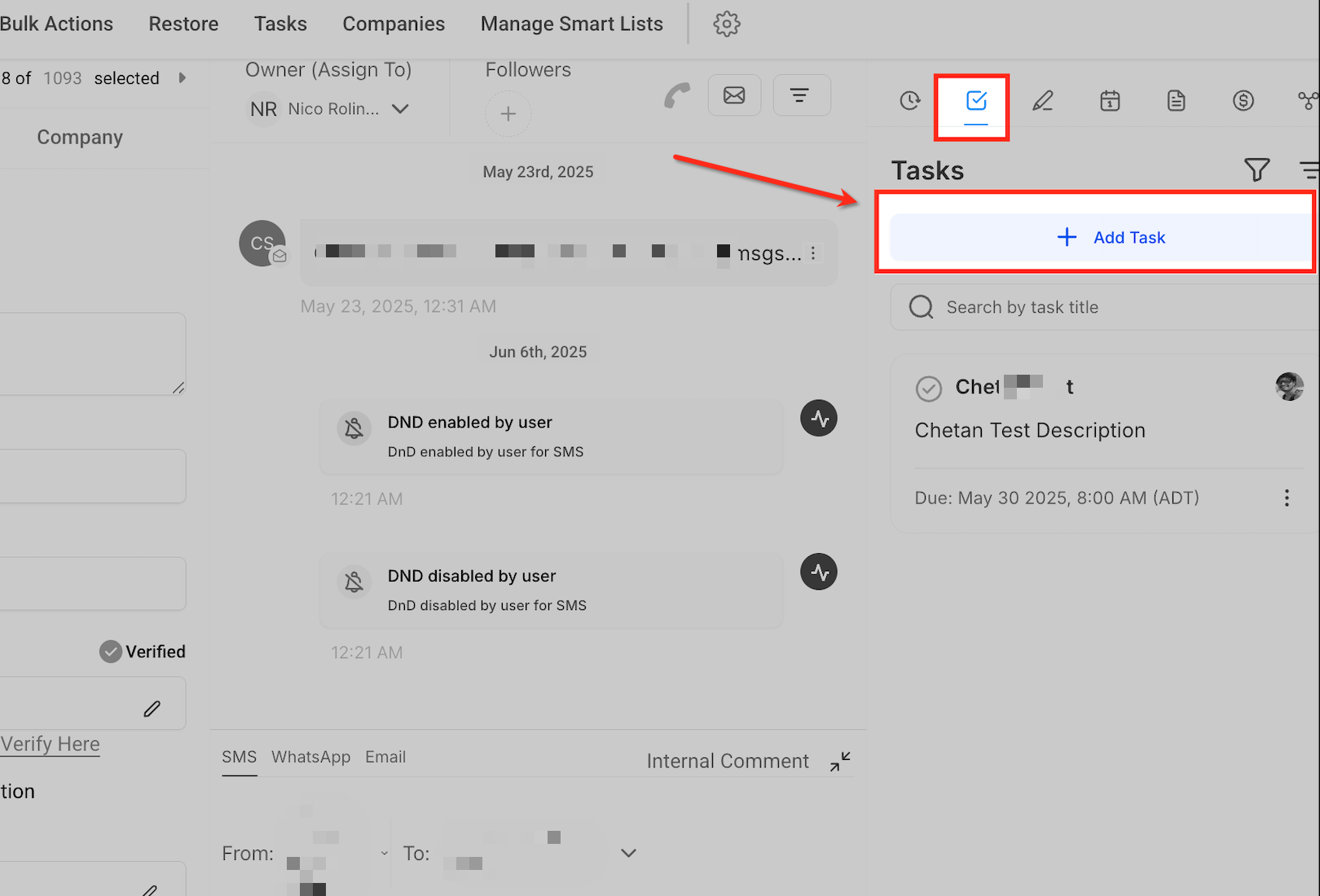
- Locate and click the Tasks icon at the top right corner of the contact view.
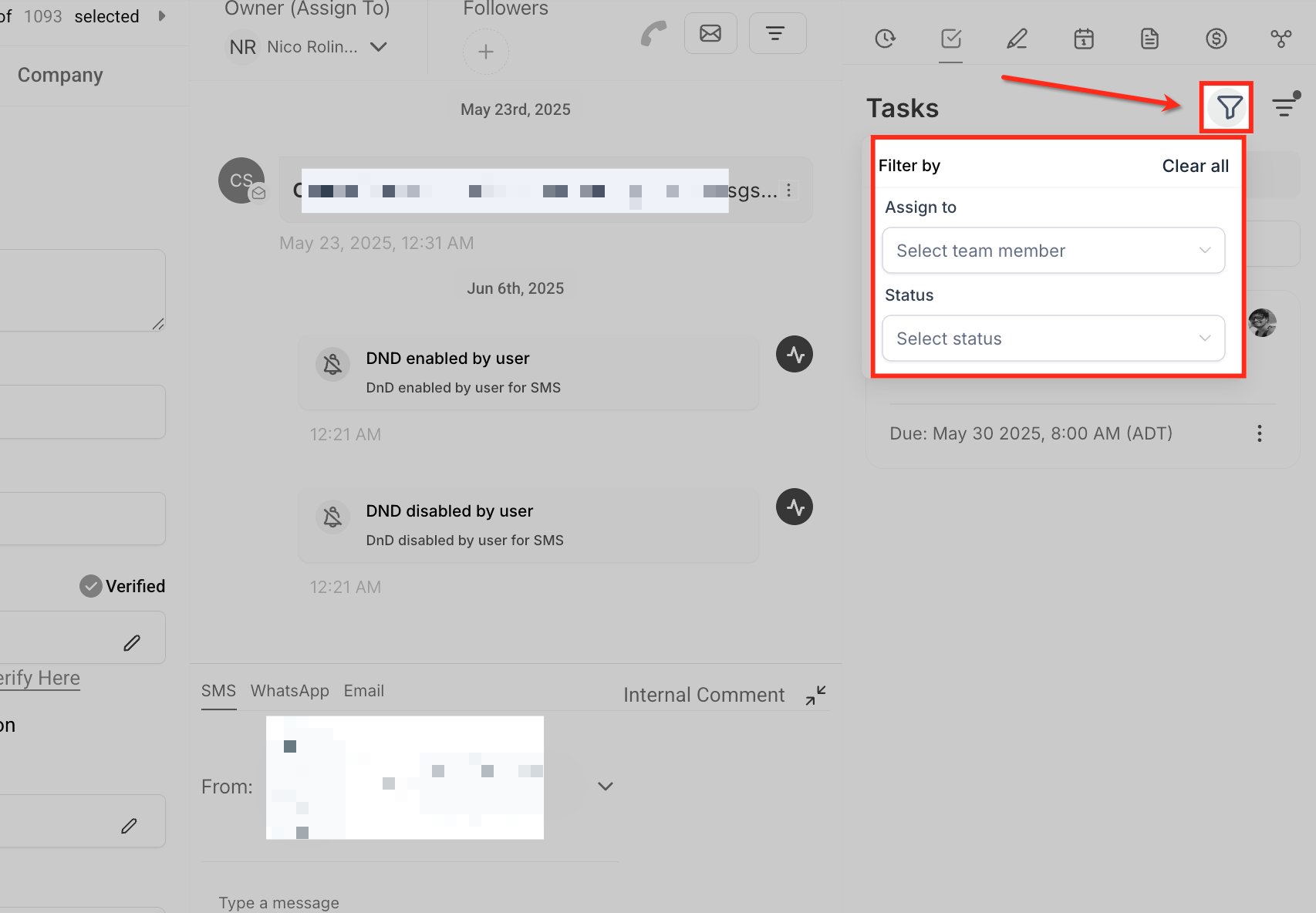
Filter tasks by team or status
- Click the filter icon in the task panel.
- Select the desired assignee or task status to narrow the list.
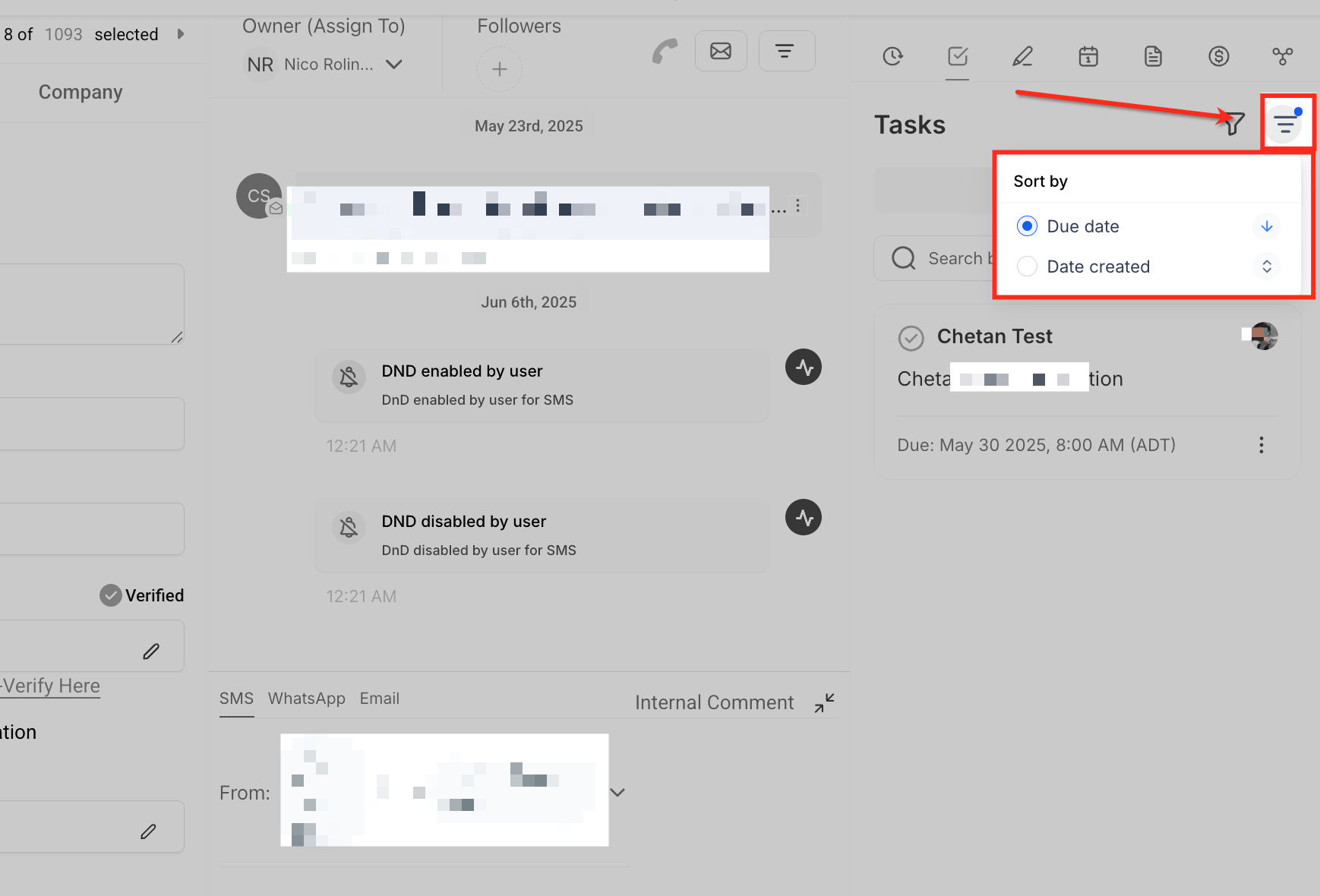
Sort tasks for better visibility
- Press the sort icon in the task panel.
- Choose to order tasks by due date or creation date.
- Switch between ascending and descending order as needed.
Edit or delete tasks
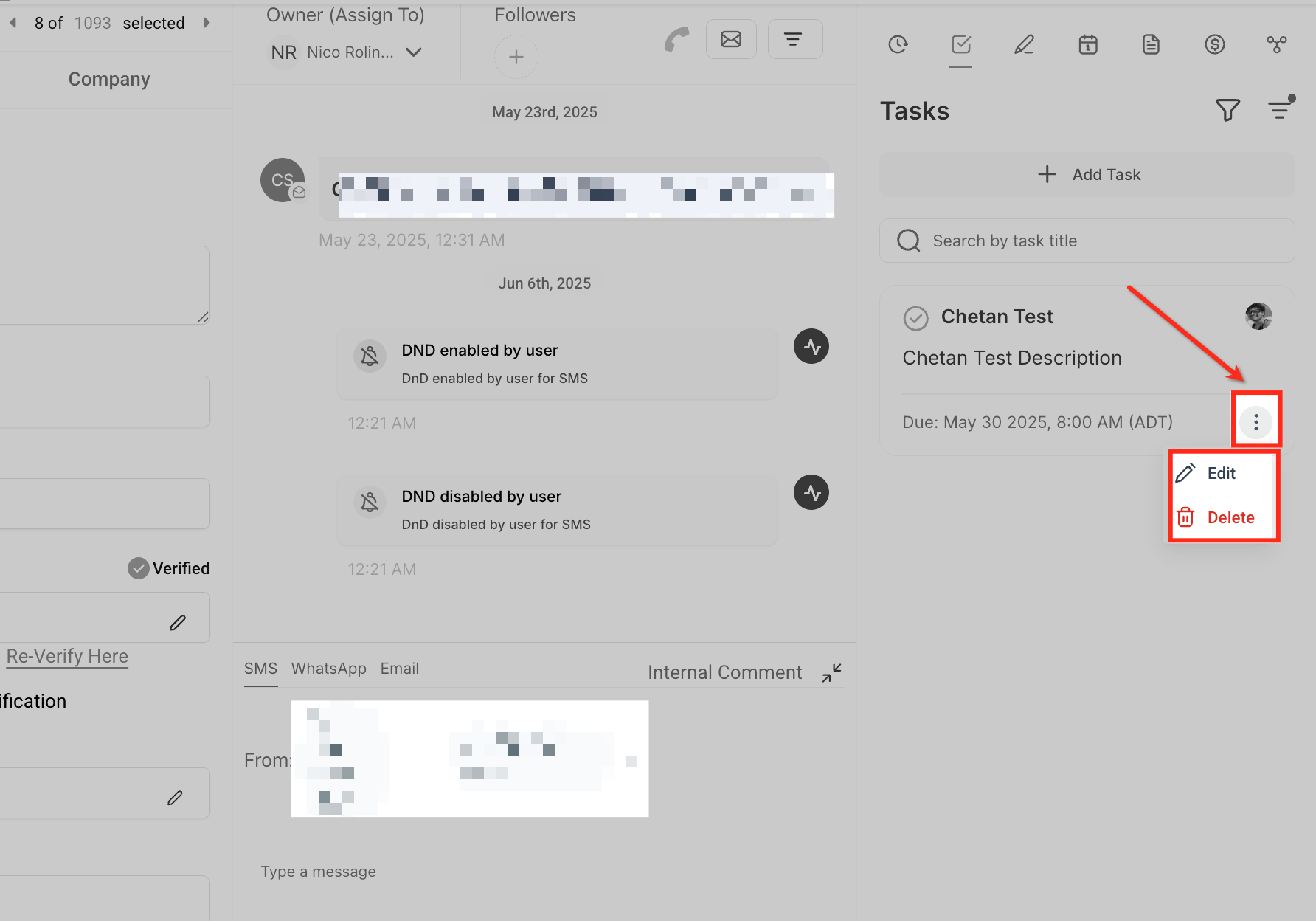
- Click the three dot menu next to a task.
- Select Edit to modify task details or Delete to remove it permanently.
Add a new task
- Press the + Add Task button in the task panel.
- Enter a clear title in the Title field.
- Click Add description and type any additional details.
- Set the due date and time using the calendar and time picker.
- Toggle the Recurring tasks option and define the repeat pattern and end condition.
- Select a team member from the Assign to dropdown.
- Click Save or Save and Add Another to store the task.
07What it looks like in HighLevel
08Settings that matter
- Title. The required field that identifies the task in lists and filters.
- Add description. Optional free form text that provides context or instructions for the task.
- Due date. The calendar selector that determines when the task should be completed.
- Time. A dropdown that lets the user specify the exact hour and minute for the task deadline.
- Recurring tasks. A toggle that, when enabled, makes the task repeat on a defined schedule.
- Repeats every. Sets the frequency of the recurrence, such as every X days, weeks, or months.
- Ends on. Controls when the recurrence stops: never, on a specific date, or after a set number of repeats.
- Create new task even if previous is overdue. Ensures a new instance appears on schedule regardless of whether the prior task was completed.
- Assign to. Drops down a list of account users so a specific person can own the task.
09Things to know before you rely on it
- The feature must be manually enabled in Labs for each subaccount.
- Disabling the Labs toggle returns the older task system without losing any existing tasks.
- Recurring task options are available on both contact and opportunity records.
- The update changes only the user interface; it does not affect automations or workflows.
10If something goes wrong
- Task panel does not appear in contacts or opportunities.. Verify that the Unified Task Management toggle is turned on in Labs for the subaccount.
- Need to revert to the previous task layout.. Turn off the Unified Task Management toggle in Labs; the earlier interface will be restored.
11How it connects to the rest of HighLevel
- Explore full task management capabilities in HighLevel. Task management overview
- Set up recurring tasks to automate repeat work. Recurring tasks guide
- Learn how to add rich text to task descriptions. Rich text notes
Michael's take

Wondering if you really need another way to handle to dos? Unified task management gives you one place to see and edit tasks whether you’re looking at a person or a deal, so you stop chasing the same item in two screens. It’s a clean form, filters and recurring options that keep the team on the same page.
If I were setting it up, I’d flip the Labs toggle first, then walk through a couple of contacts and opportunities to confirm the task panel feels familiar. I’d add a recurring follow up for my daily check ins and watch how the overdue continue option behaves before rolling it out to the whole crew.