
01Who this is for
- Teams can keep work organized by creating tasks, assigning owners, and tracking completion.
- Users can link tasks to contacts or create standalone tasks when no contact is available.
02Tasks, explained
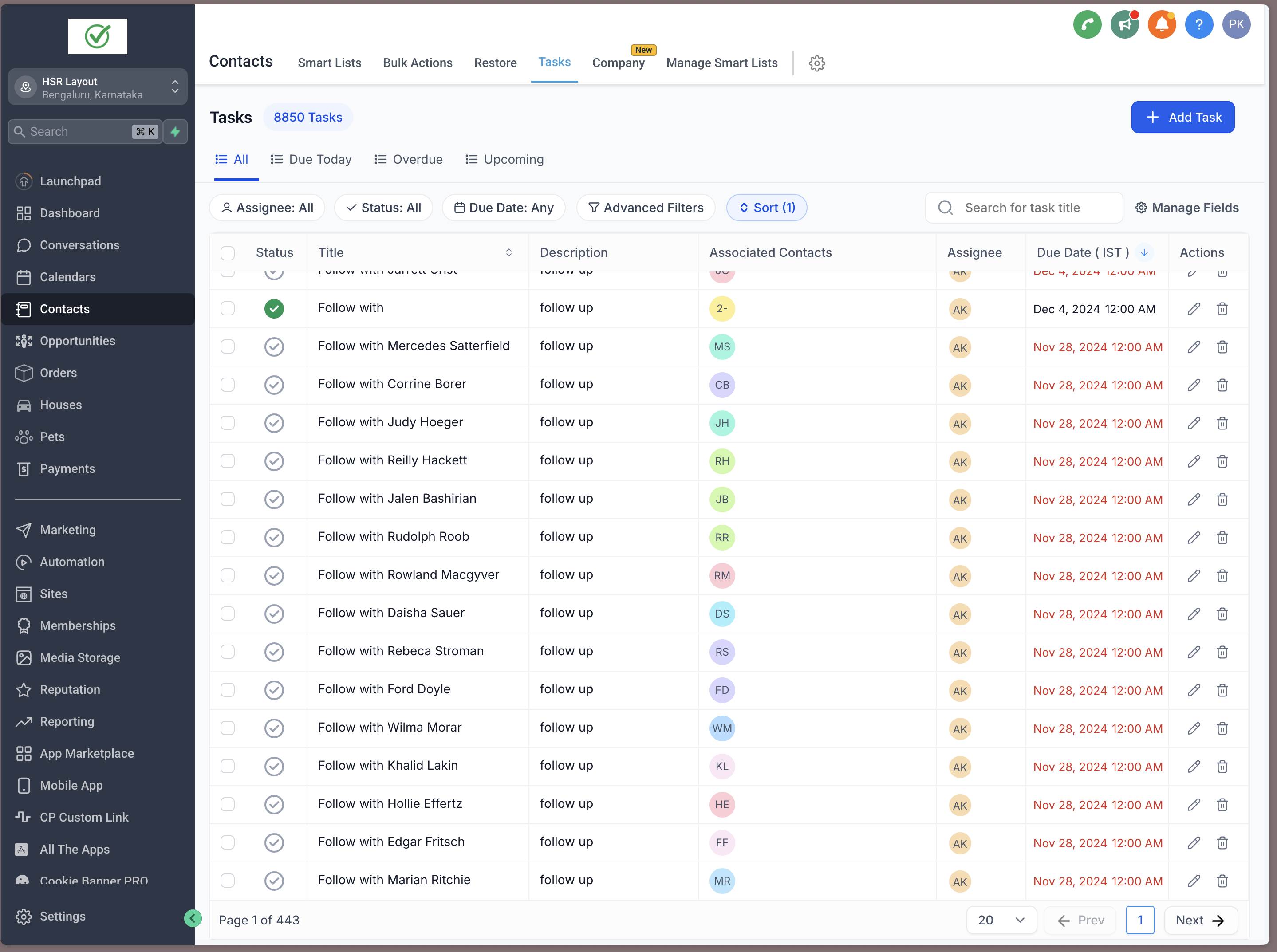
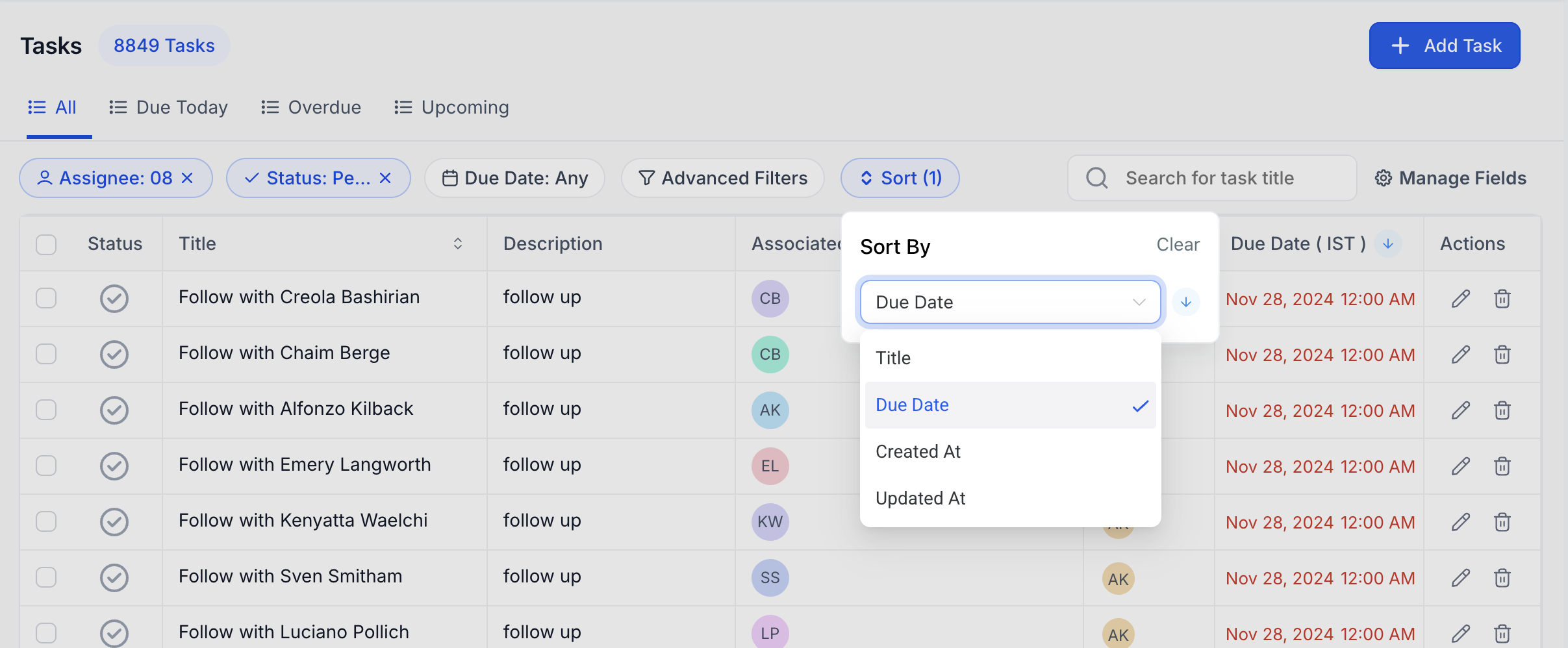
The task list view lives under Contacts > Tasks. It shows every task in a table with options for filtering, sorting and bulk handling at the top. You can create tasks with a title, optional description, deadline, repeat schedule, contact link and assignee.
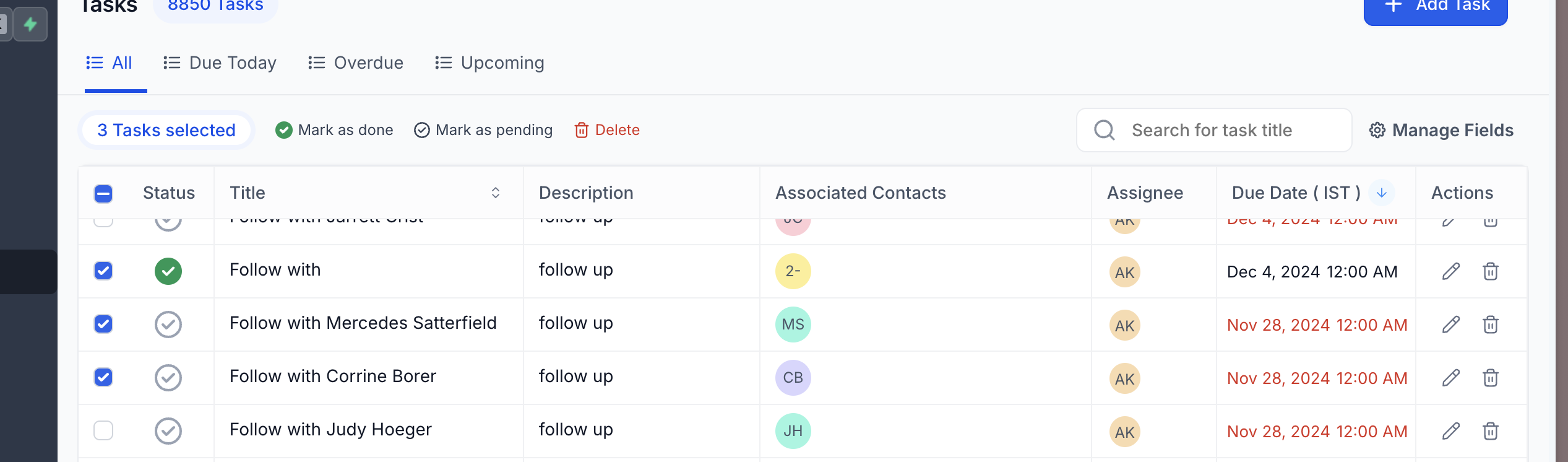
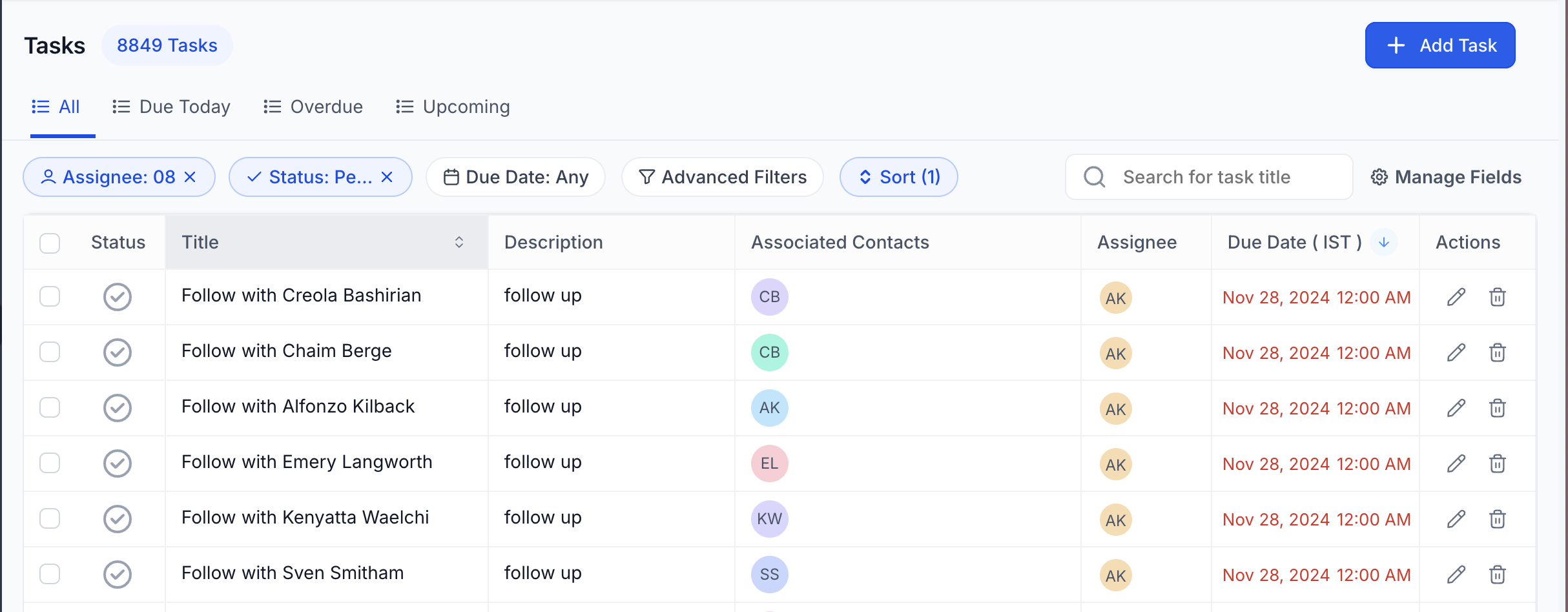
When a task is saved without a contact, HighLevel stores it as a standalone entry. Tasks can be edited directly from the list, removed, or restored within two months. Bulk actions let you change status or delete many tasks at once. Advanced filters and sort controls let you narrow the view by assignee, status, dates or custom fields.
03How businesses use tasks
- Assign work. Create a task, select an assignee, and use the filter by Assignee to see each team member’s workload.
- Track contact follow ups. Add a task and link it to a contact so all related actions appear in the contact’s record.
- Schedule routine activities. Enable the Recurring Task toggle to automatically generate tasks on a custom schedule, such as weekly reports.
04How to set up and use tasks in HighLevel
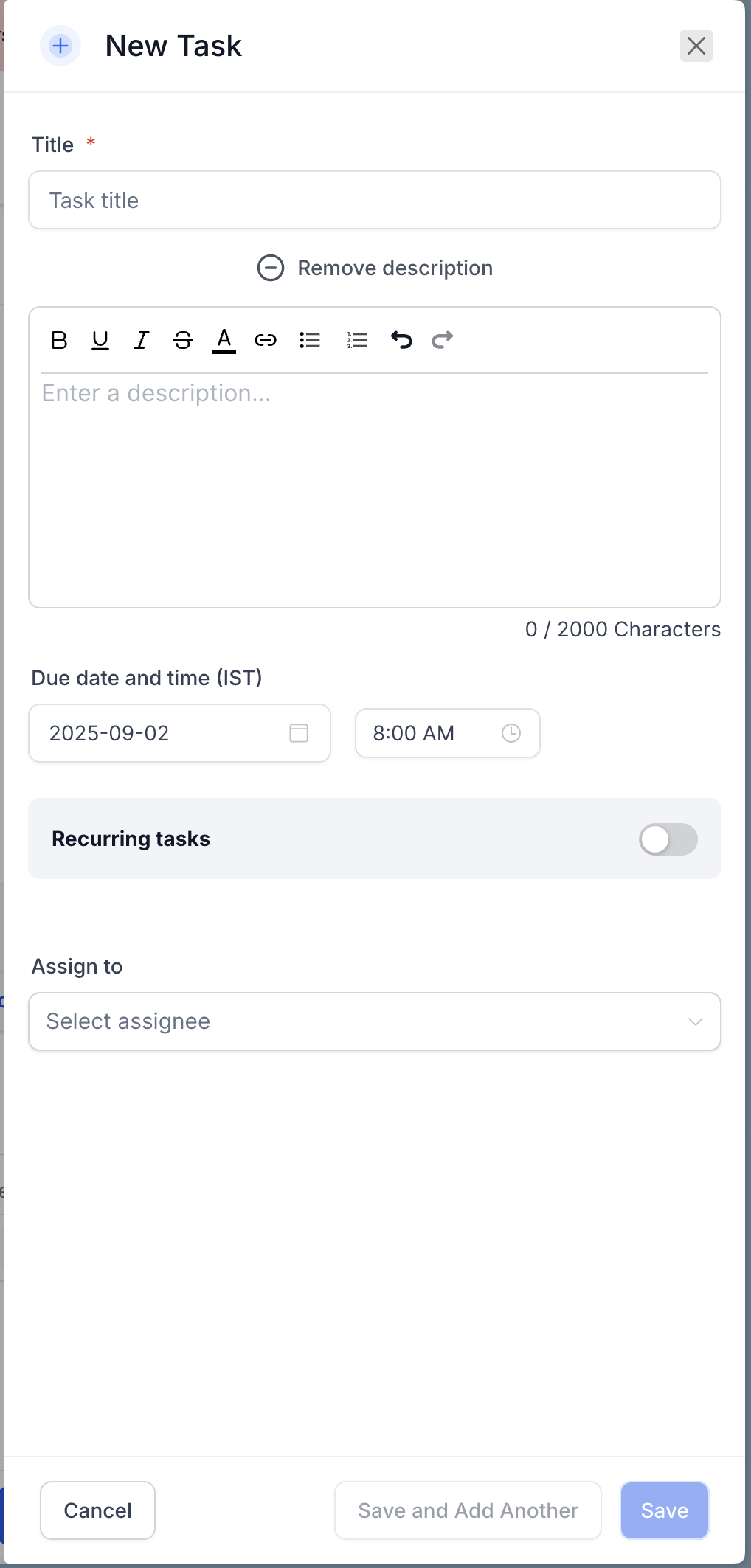
Create a new task
- Select the + Add Task button in the upper right corner of the Tasks screen.
- Enter a short title that captures the task purpose.
- Optionally add a description; rich text formatting such as bold, color or links is supported.
- Choose the due date and time for the task.
- If the task should repeat, toggle the Recurring Task option and configure the schedule.
- Optionally pick a contact so the task attaches to that record.
- Optionally assign a team member by selecting an assignee.
- Click Save to finish, or choose Save and Add Another to keep creating tasks.
- Note: If no contact is selected, the task is stored as a contact less (standalone) task.
Manage tasks
- Open a task for editing by clicking the pencil icon in the Actions column or by clicking the task title.
- Select a task and press Delete; the task can be recovered within two months.
- Mark several tasks using the checkboxes and apply a bulk action such as Mark Done or Delete.
05What it looks like in HighLevel
06Settings that matter
- Title. Defines the short description that appears as the task name in the list.
- Description. Provides additional details; supports rich text formatting and links.
- Due Date and Time. Sets the deadline for when the task should be completed.
- Recurring Task. Enables the task to repeat on a custom schedule.
- Contact. Links the task to a specific contact record if one is chosen.
- Assignee. Assigns responsibility for the task to a selected team member.
07Things to know before you rely on it
- Deleted tasks remain recoverable for a period of two months.
- If no contact is chosen when a task is created, it is stored as a contact less (standalone) task.
08How it connects to the rest of HighLevel
- Learn how tasks can be attached to both contacts and opportunities in a unified view. Unified task management
- Set up tasks that repeat automatically using the recurring task feature. Recurring tasks
- Explore how to organize work with spaces, folders, and lists alongside tasks. Organize work
Michael's take

When a team’s to do list expands, it’s easy to lose track of who is doing what and when deadlines slip. The first thing I would lock down is the default view’s filters so every member sees tasks that are due today or overdue right away.
Once that’s set, I’d make sure the bulk actions are enabled so we can quickly clear completed items or batch assign new work. A clean, filtered view keeps the whole operation moving without drowning in endless spreadsheets.