
01Who this is for
- Operations managers keep regular follow ups without re entering tasks each time
- Service agencies schedule routine client check ins that recur on a set cadence
- HR coordinators automate recurring onboarding or compliance reminders
02Recurring tasks, explained
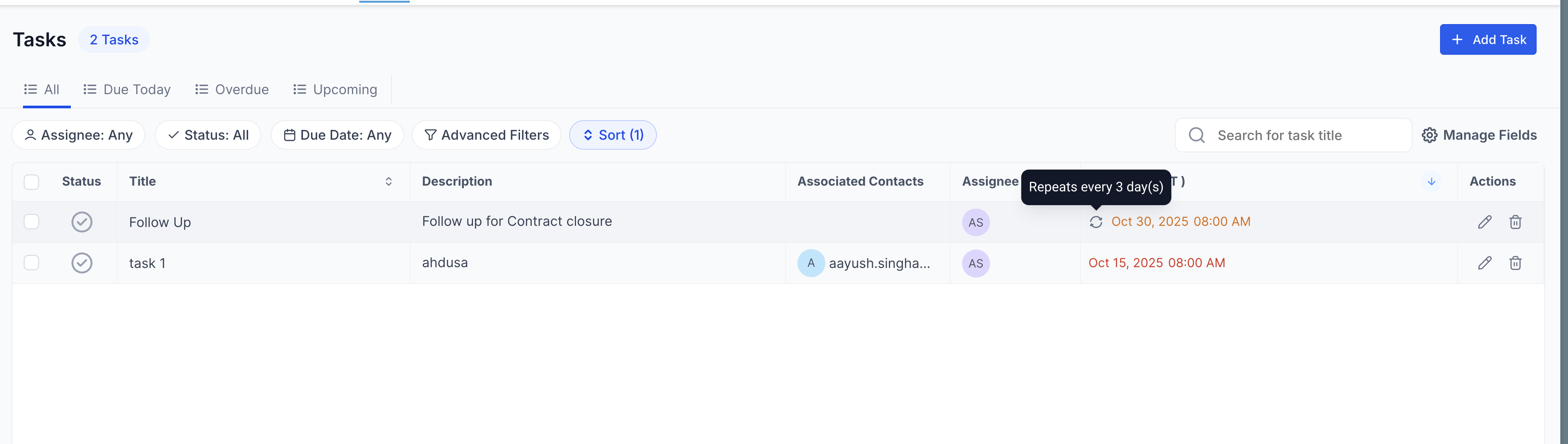
Recurring tasks are a feature that automatically generates new task instances based on a schedule you define. After you create the first task, the platform creates follow up tasks at the interval you select, without any further manual effort. You can choose the frequency, hourly, daily, weekly, monthly, or yearly, and decide when the series should stop.
The recurrence behavior respects the settings you choose. The next task appears only at the time dictated by the original creation date, not immediately after the previous task is closed. You may also enable an option that forces the next task to be created even if the prior one is still overdue.
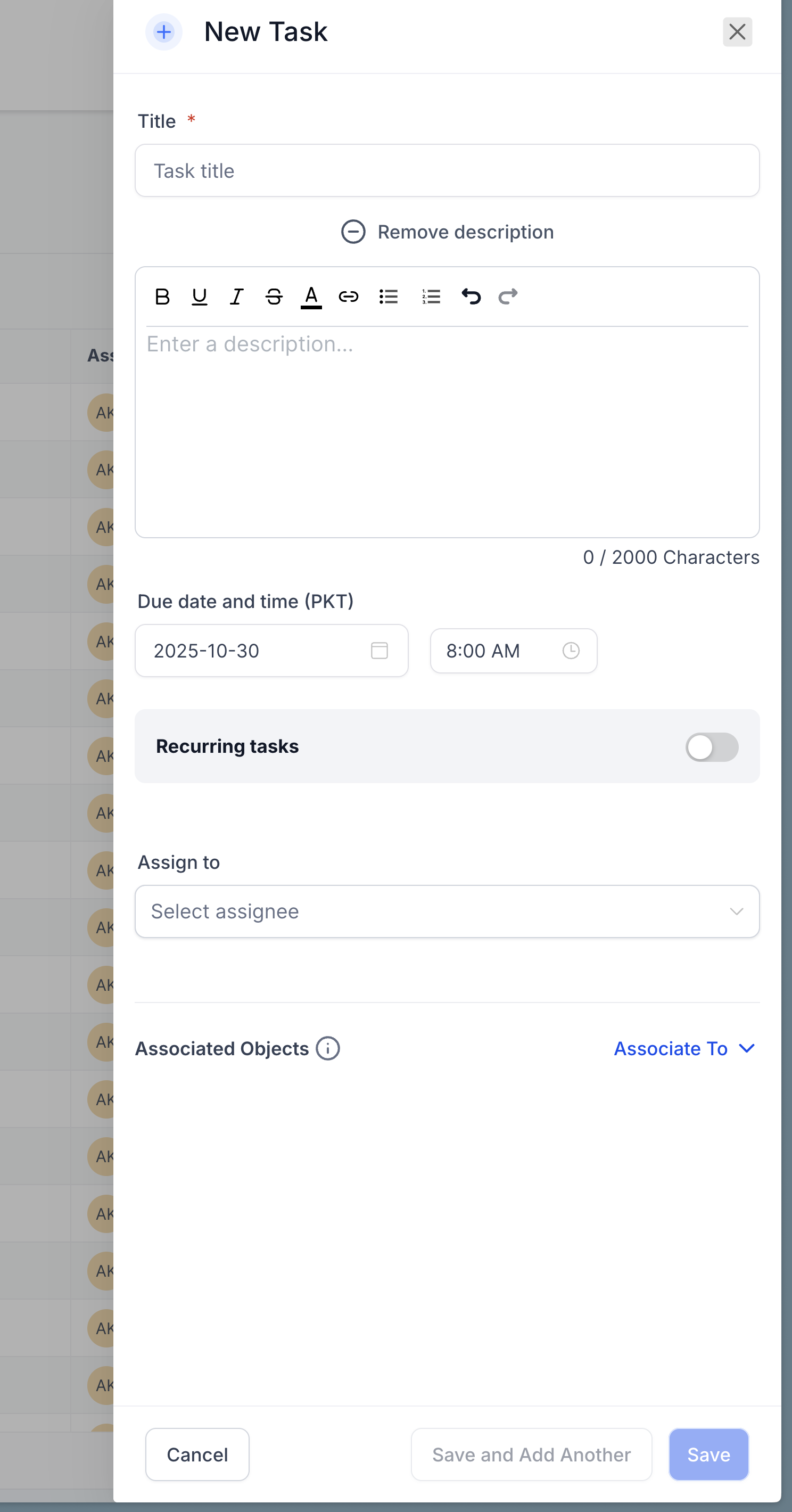
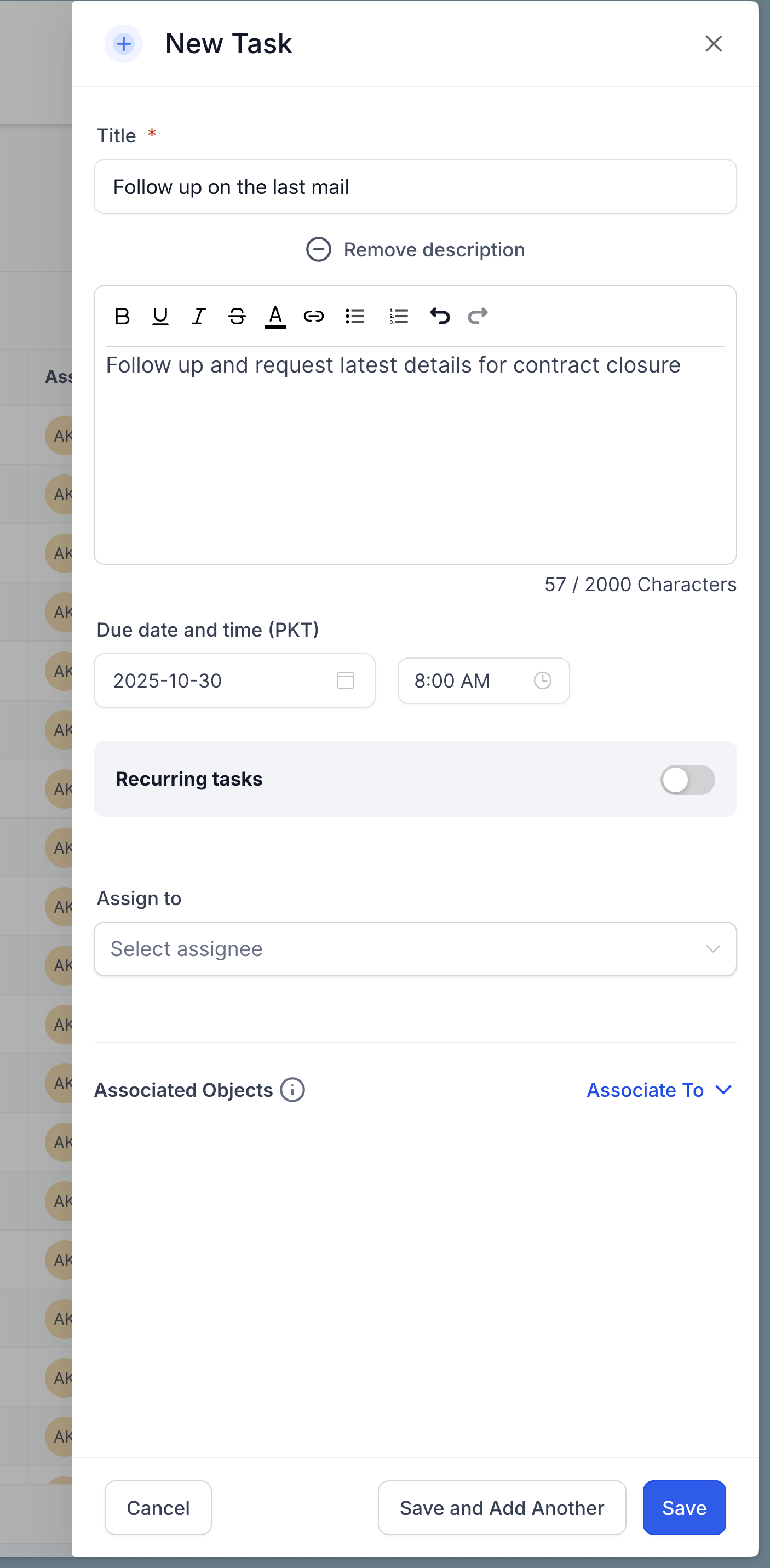
You access recurring task creation from the Add New Task modal, which can be opened on the Tasks, Contacts, or Companies pages. All configuration, including assigning the task and selecting the assignee, occurs within that modal before you save the record.
03How businesses use recurring tasks
- Marketing agency. The agency creates a weekly content review task that repeats every Monday. It sets the task to continue indefinitely and enables the overdue creation option so a new review is always scheduled even if the previous one is not completed on time.
- Property management company. The company sets a monthly maintenance checklist to repeat on the first of each month. It selects a custom end date for a one year lease period, ensuring the task stops automatically when the lease ends.
- Medical clinic. The clinic converts an existing patient follow up task into a recurring task that occurs quarterly. It chooses the "after a set number of occurrences" end option to limit the series to four repeats for a year long treatment plan.
04How to set up and use recurring tasks in HighLevel
Create a recurring task
- Open the Add New Task modal from the Tasks, Contacts, or Companies page.
- Enter the task name, description, and any other required details.
- Toggle the Recurring Task option to activate recurrence settings.
- In the Repeats Every field, specify the interval such as every 1 day or every 2 weeks.
- Choose an end condition, Never, a Custom Date, or After a set number of occurrences.
- Optionally, check the box to Create a new task even if the previous one is overdue.
- Select an Assignee and associate a Contact if the task relates to a person.
- Click Save to store the task and start the recurrence schedule.
05What it looks like in HighLevel
06Settings that matter
- Recurring Task. Turns on recurrence for the task, allowing you to set repeat intervals and end conditions.
- Repeats Every. Defines how often the task repeats, such as every 1 day, every 2 weeks, etc.
- Ends On. Determines when the series stops, never, on a specific custom date, or after a defined number of repetitions.
- Create a new task even if the previous one is overdue. Ensures the next scheduled task is generated regardless of whether the prior occurrence has been completed.
07Things to know before you rely on it
- The next occurrence is created only at the scheduled time based on the original creation date, not immediately after the previous task is closed.
- Restoring a deleted task does not recreate any recurrences that would have occurred during the period the task was deleted.
08How it connects to the rest of HighLevel
- How to use HighLevel task management features Task management guide
- HighLevel project organization: using spaces, folders, and lists Project organization
- HighLevel pricing and plans Pricing
Michael's take

Most people set a recurring task and then wonder why a new instance doesn’t appear right after they close the previous one. The system only creates the next task at the scheduled time based on the original created date, so closing early doesn’t shift the calendar.
I would set the repeat interval exactly to the cadence you need, then leave the schedule untouched. If you want to keep the rhythm even when a task slips, turn on the "Create a new task even if the previous one is overdue" option so the pipeline never stalls.