
01Who this is for
- Sales teams can emphasize client information in contact notes, helping teammates scan key points quickly.
- Customer support agents can structure troubleshooting steps with numbered lists in task descriptions for clearer guidance.
- Project managers can embed links to shared documents in notes, keeping reference material reachable across the platform.
02Rich text for notes and task descriptions, explained
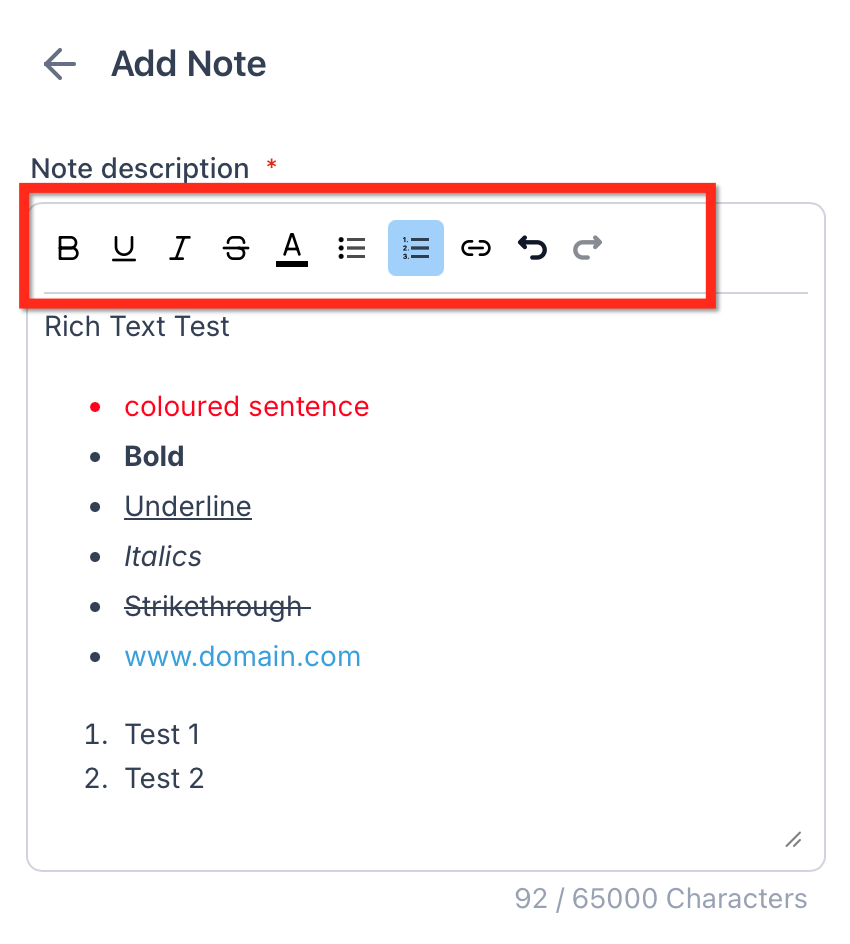
The feature adds a lightweight editor to the note and task description fields. It supplies a toolbar with controls for bold, italics, underline, strikethrough, bulleted and numbered lists, hyperlinks, and undo/redo. Users select text, click a toolbar icon, and the formatting appears right away.
Formatting is stored with the note or task and shows the same way in Contacts, Opportunities, Companies, Conversations and Calendars. The editor works in the web version of HighLevel; mobile views display the formatted result but the toolbar is not available on mobile devices.
Rich Text does not alter how data is exported or accessed via the public API. When content is printed or exported, formatting may be simplified, so users should verify the output if precise layout matters.
03How businesses use rich text for notes and task descriptions
- Real estate brokerage. Agents open a property contact note, use the toolbar to bold address details, add a bulleted list of property features, and insert a link to the MLS listing. They save, and the formatted note appears for any team member reviewing the property.
- Software development firm. Project leads create a task for a feature request, apply a numbered list to outline development steps, and embed a hyperlink to the design document. After saving, the task description displays the list and link for developers.
- Event planning company. Coordinators edit an opportunity note, underline client names, add a bulleted checklist of event requirements, and link to a shared Google Sheet. The formatted note remains consistent wherever the opportunity is viewed.
04The numbers and rules that matter
- Unsupported: Images, tables, headings, text colors, text alignment, code blocks, checkbox style task lists.
05How to set up and use rich text for notes and task descriptions in HighLevel
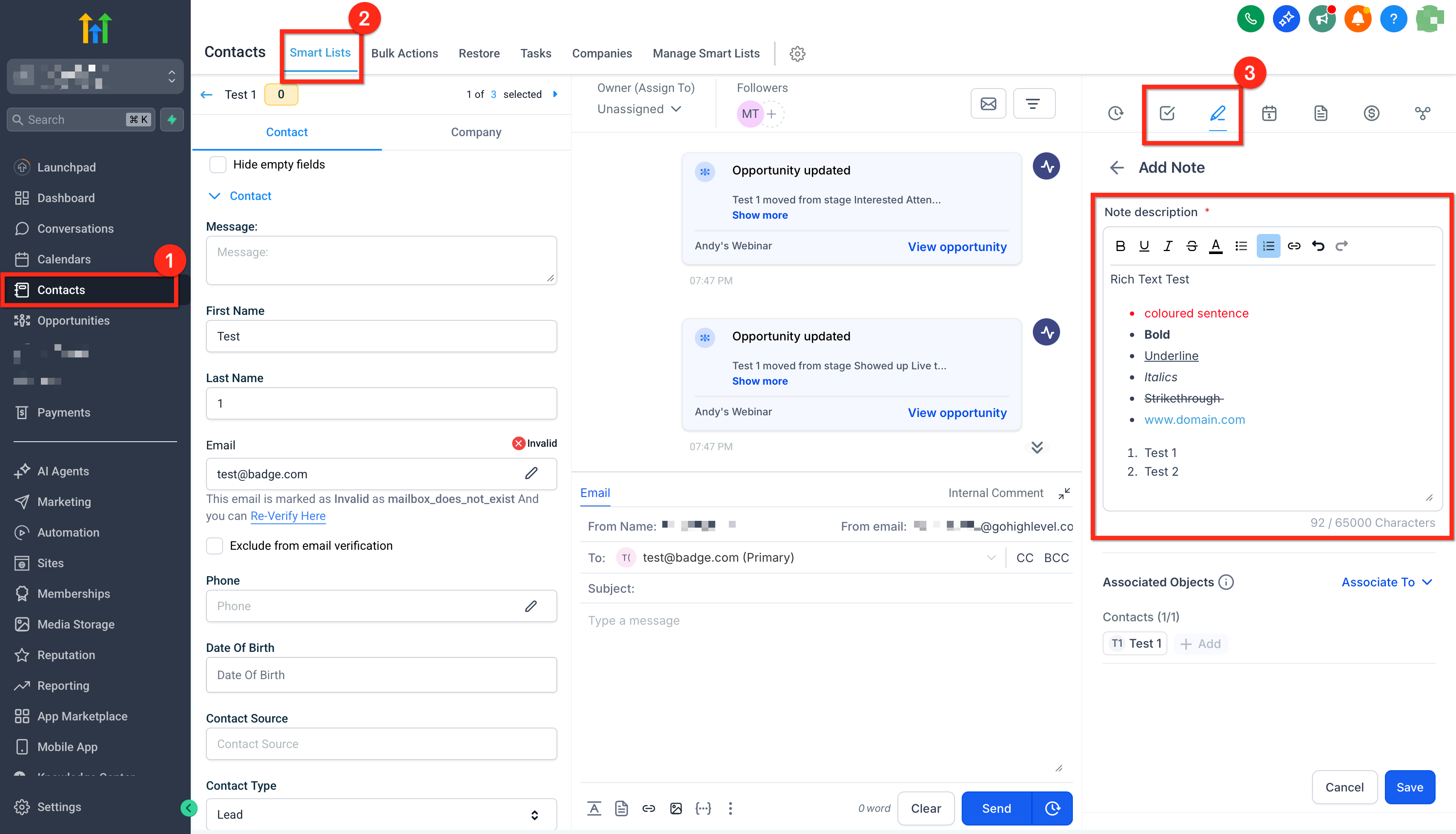
Add rich text to a note or task
- Open an existing note or task, or start a new one.
- Click inside the Note Description field to activate the editor.
- Use the toolbar to apply bold, italics, underline, strikethrough, lists, or hyperlinks as needed.
- Save the note or task to store the formatting.
06What it looks like in HighLevel
07Settings that matter
- Bold. Applies strong weight to selected text for emphasis.
- Italics. Slants selected text to highlight it subtly.
- Underline. Adds a line beneath selected text for visual distinction.
- Strikethrough. Draws a line through selected text to indicate removal.
- Bulleted list. Creates a list with bullet symbols for unordered items.
- Numbered list. Creates an ordered list with sequential numbers.
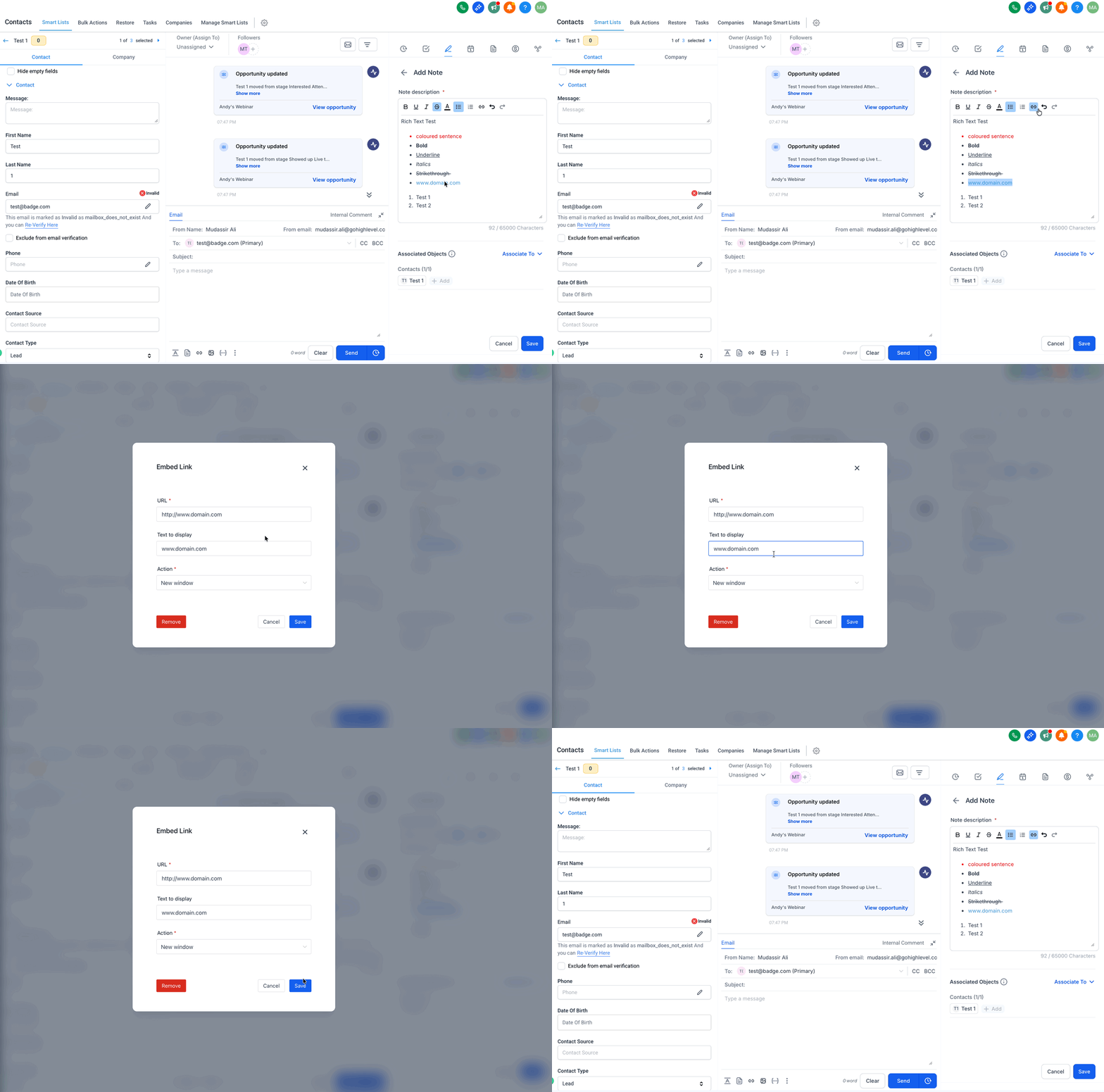
- Hyperlink. Turns selected text into a clickable URL that opens the linked resource.
- Undo / Redo. Reverses or reapplies the most recent editing actions.
08Things to know before you rely on it
- Only lightweight formatting is supported; images, tables, headings, text colors, alignment, code blocks and checkbox style lists are not available.
- Pasting from external sources keeps basic formatting such as emphasis, lists and links, but complex layouts and media are removed.
- The feature does not introduce any changes to the public API.
09How it connects to the rest of HighLevel
- See how notes fit into overall task management Task management
- Get started with HighLevel project management features Project management intro
- Review pricing and plan options for HighLevel Pricing
Michael's take

Jumping into Rich Text can feel risky if your team is used to plain text; the limited set of options means you might expect more than the feature actually offers. It only supports basic emphasis, lists, and links, and it won’t carry over images or complex layouts.
When you get past that, the upside is clear. Teams can quickly highlight important details and embed direct links to docs or tickets, keeping information consistent across contacts, opportunities, and calendars.