
01Who this is for
- Agency owners who sell project management services and need to standardize hand offs between design and development teams.
- Project managers who want to ensure follow up tasks are generated without manual data entry.
- Service based businesses that rely on repeatable task flows and need automated reminders.
02Project management workflow triggers and actions, explained
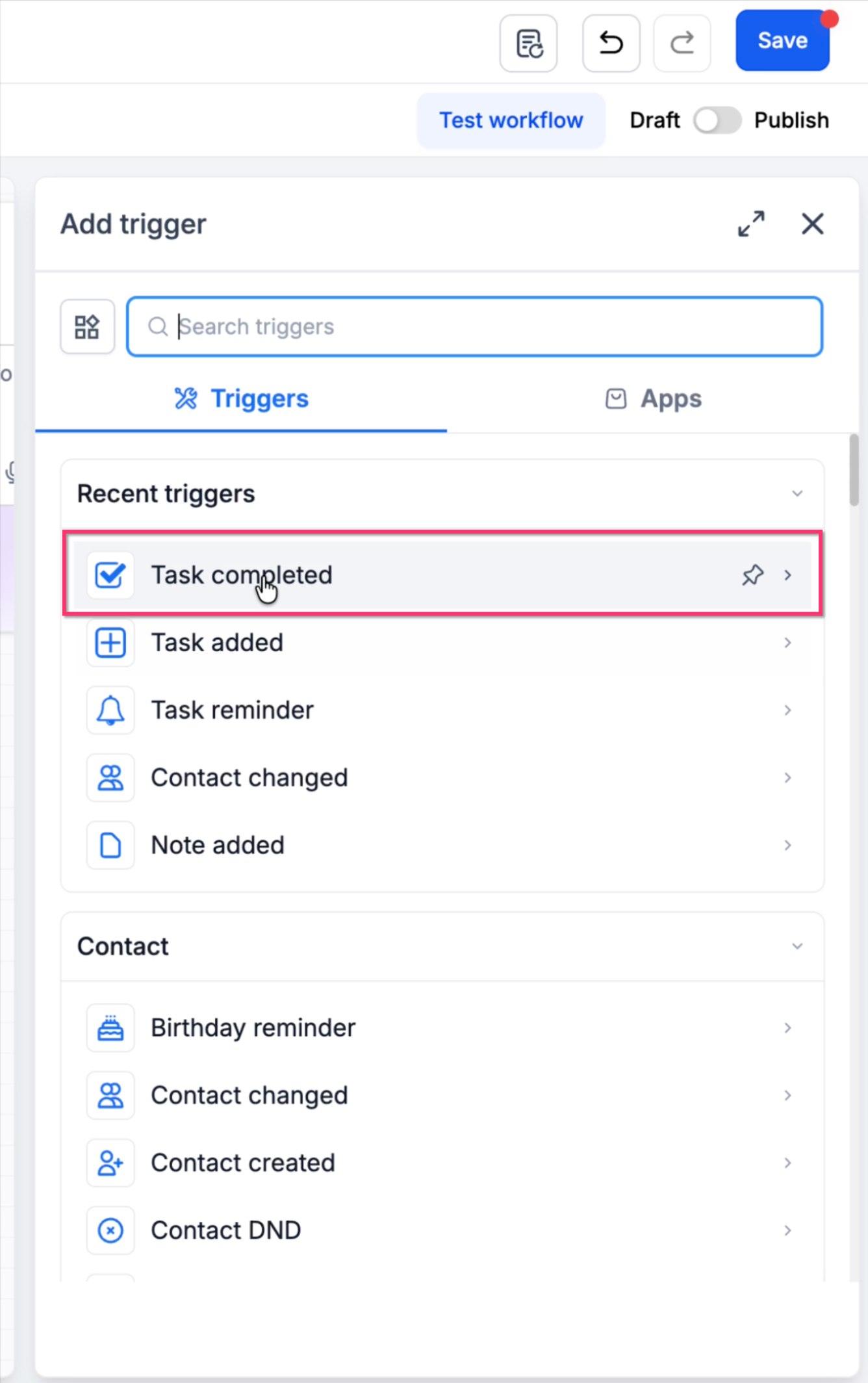
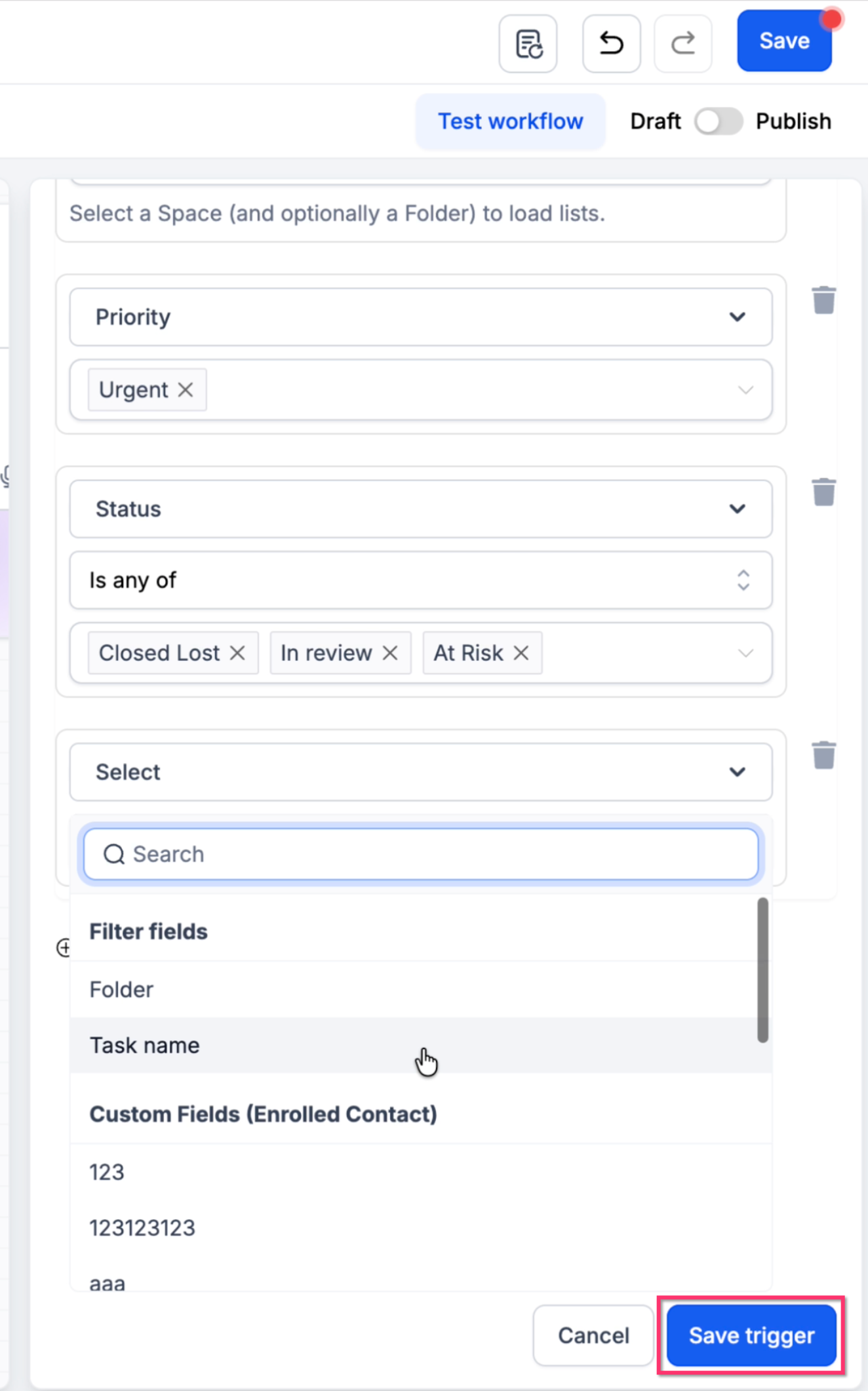
Project Management workflow triggers in HighLevel start an automation when a specific task event occurs such as a task being added, completed, or reaching a reminder date. Filters let you narrow the trigger to particular spaces, lists, priorities, statuses, or custom fields.
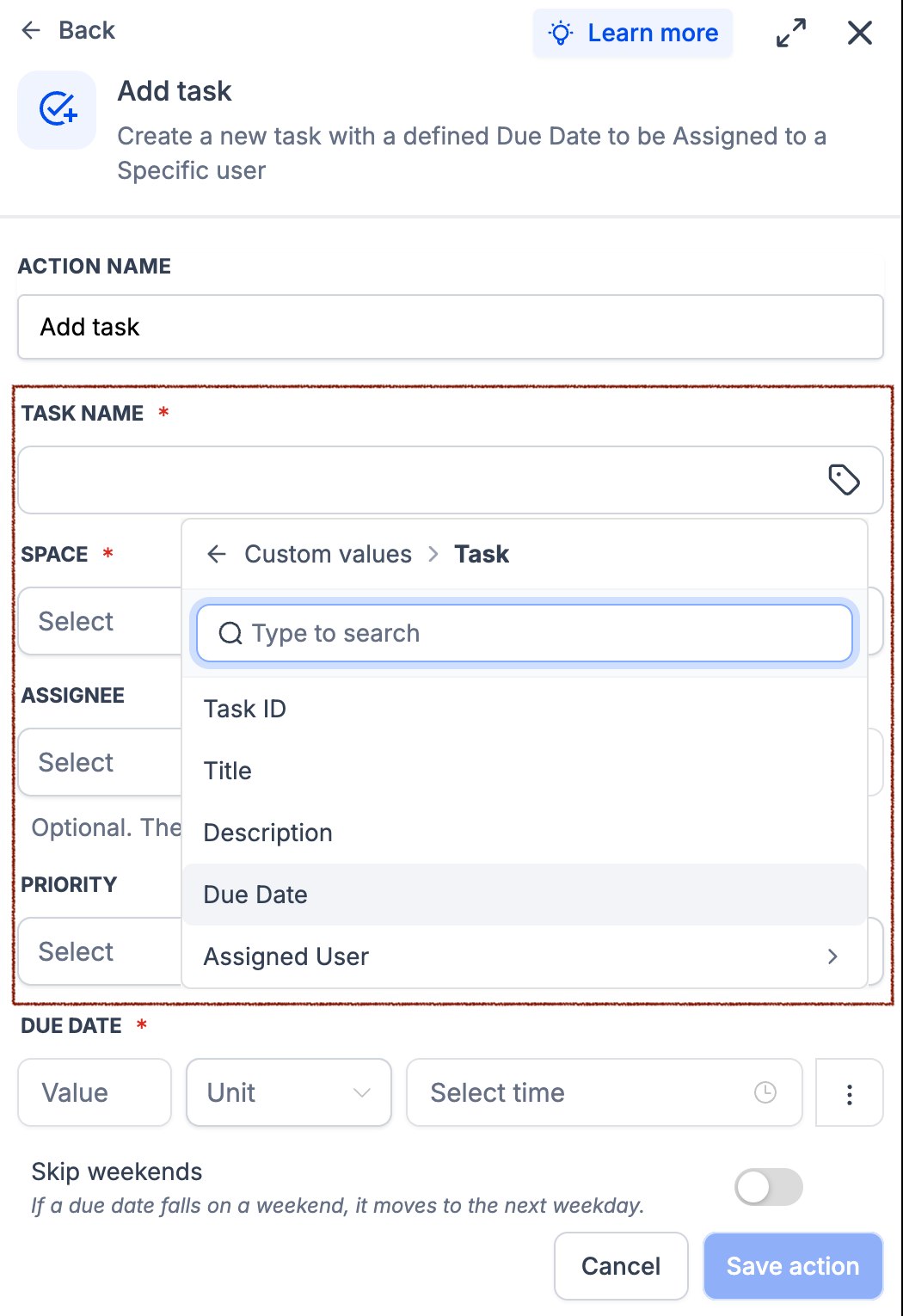
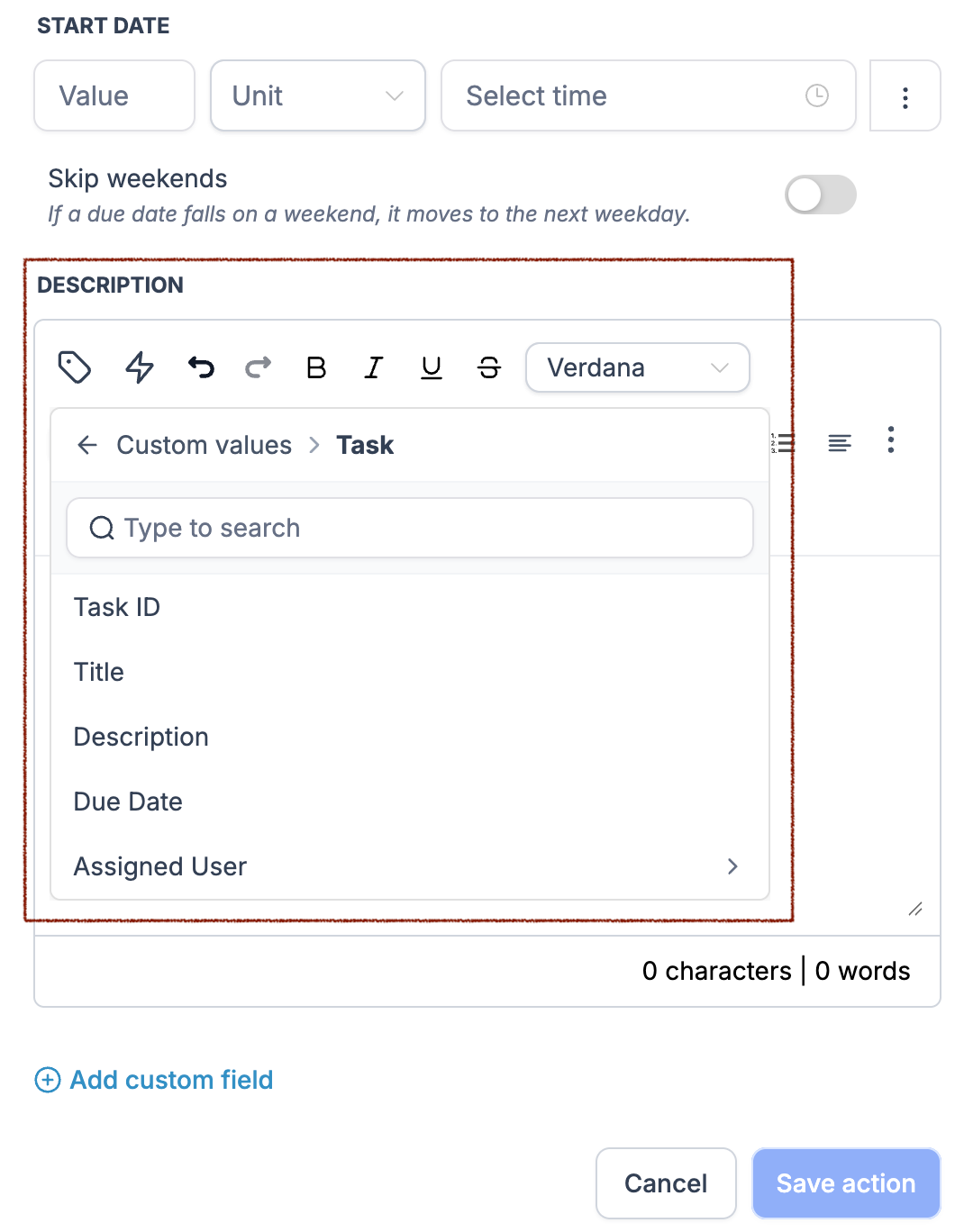
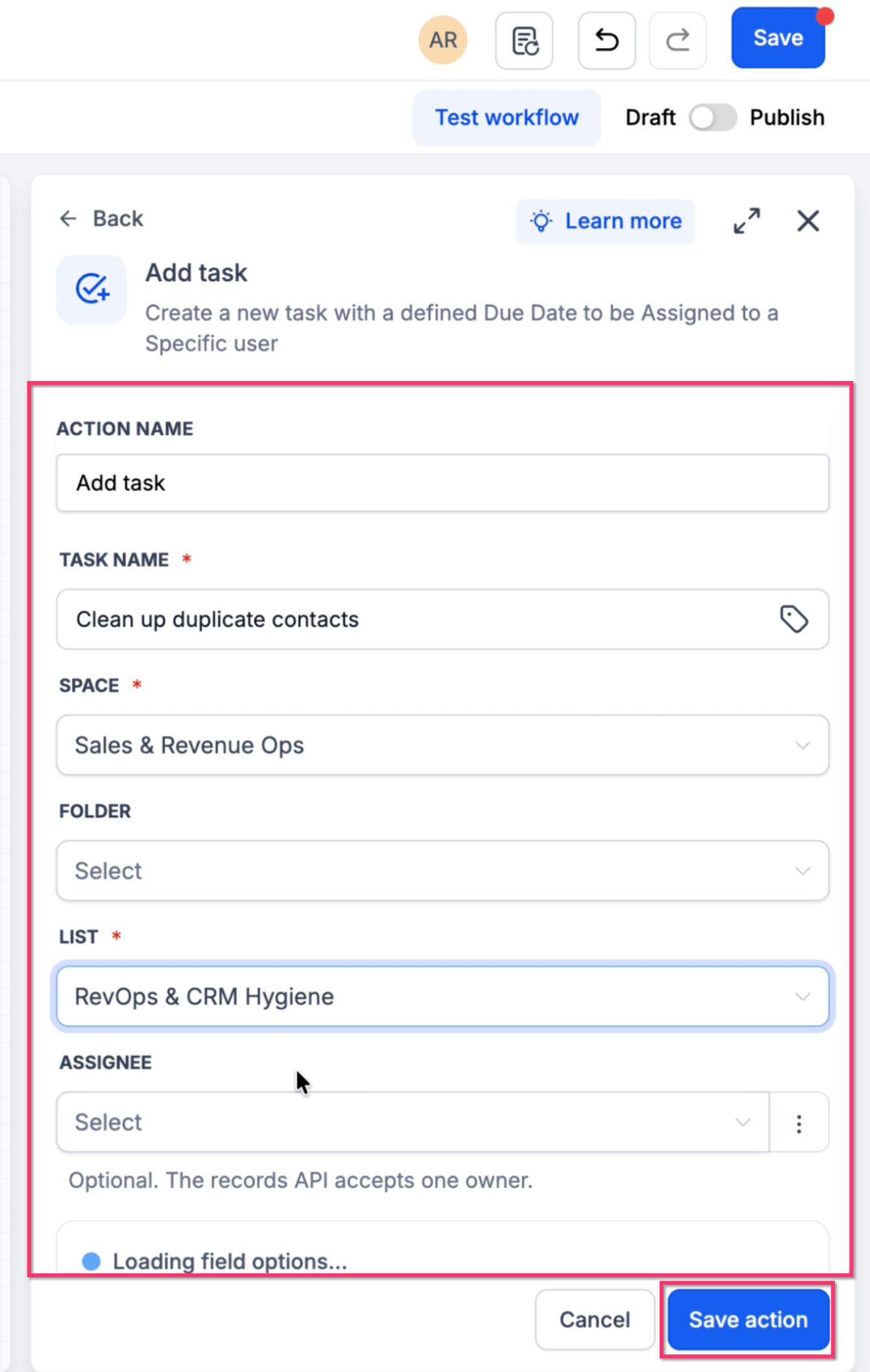
The Add Task action creates a new task as part of the same workflow. You can set the task name, location (space, folder, list), status, assignee, priority, start and due dates, description, and custom fields. Dates can be calculated relative to the workflow execution and can skip weekends.
03How businesses use project management workflow triggers and actions
- Digital marketing agency. When a client onboarding task is marked complete, the workflow automatically creates a campaign setup task, assigns it to the media buyer, and sets the due date two days later.
- Software development firm. After a design review task is completed, the workflow adds a development task in the appropriate list, copies the design brief into the description, and assigns it to the lead developer.
- Consulting practice. A reminder trigger runs one day before a consulting session start date, creating a prep task for the consultant with the session details pulled from the original task.
04The numbers and rules that matter
- Project Management is now available to agencies on the $497 plan (per HighLevel's help center, checked November 2026).
05Before you start
- Project Management must be enabled in Agency or Subaccount settings > Labs.
- Your account must be on the $497 plan or higher (per HighLevel's help center, checked November 2026).
- The workflow features need to be available in the subaccount (private beta).
06How to set up and use project management workflow triggers and actions in HighLevel
Set up a task completed trigger and add task action
- Go to Automation > Workflows and open the Workflow Builder.
- Click Add New Trigger and select Task Completed.
- Choose the source Space and List (select Folder first if required) and add any needed filters such as status or priority, then save the trigger.
- Click the + icon below the trigger, search for and select Add Task.
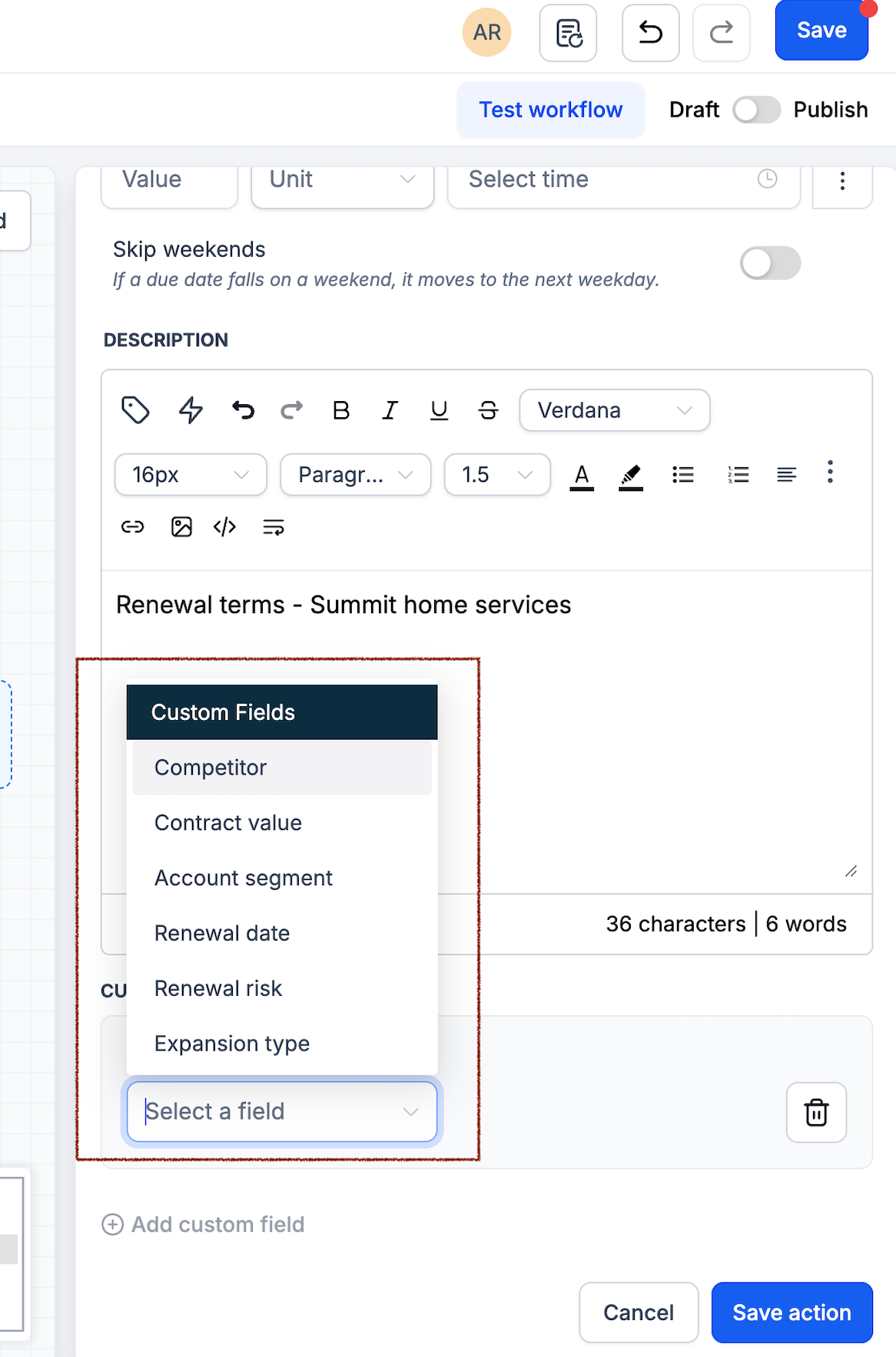
- Enter the task name, select the destination Space and List, set status, priority, assignee, and optionally add a description or custom fields.
- Under Due Date, enter a value, select the unit (days, weeks, etc.), choose the time, and enable Skip weekends if required.
- Save the action.
- Save the workflow, use the Test workflow feature where available, then change the workflow from Draft to Publish.
- Important: Saving a workflow does not automatically publish it.
07What it looks like in HighLevel
08Settings that matter
- Task Name. Sets the title of the automatically created task.
- Space, Folder, and List. Determines where the new task will be placed within the project hierarchy.
- Status. Assigns an initial status that exists in the chosen List.
- Assignee. Specifies a user or a dynamic value that receives the task.
- Priority. Sets the task’s urgency level (Urgent, High, Medium, Low).
- Start Date and Due Date. Calculates dates relative to when the workflow runs; can skip weekends.
- Description. Adds rich text details to the task.
- Custom Fields. Stores additional information on the task using fixed or dynamic values.
09Things to know before you rely on it
- Project Management workflow automation is in Private Beta and only available on the $497 plan (per HighLevel's help center, checked November 2026).
- The feature must be turned on in Labs before it appears in the workflow builder.
- Workflow triggers and actions are limited to the locations and filters supported for each trigger type.
10If something goes wrong
- Why isn't my workflow running?. Confirm the workflow is published, verify that the trigger filters match the task, and ensure Project Management features are enabled in the subaccount.
11How it connects to the rest of HighLevel
- Getting started with HighLevel project management Project management overview
- Organize work with spaces, folders, and lists Project organization
- Switch between board, kanban, and list views Board views
Michael's take

The trigger starts the automation, and the Add Task action defines the new task’s details and where it lives. I would map the exact hand off point in my process, then build a trigger that catches the finished task and an Add Task action that creates the next step with dynamic values.
That way you get a clean, repeatable flow that doesn’t rely on anyone remembering to click a button. Test it with a single task first, verify the dates and assignee, then scale it across your projects.