
01Who this is for
- Agency owners who need to keep client projects confidential can restrict entire Spaces.
- Project managers protecting sensitive internal initiatives can make a single List private while keeping the rest of the Space visible.
- Team leads who organize departmental work can limit a Folder to specific collaborators without reshaping the overall structure.
02Private spaces, folders, and lists, explained
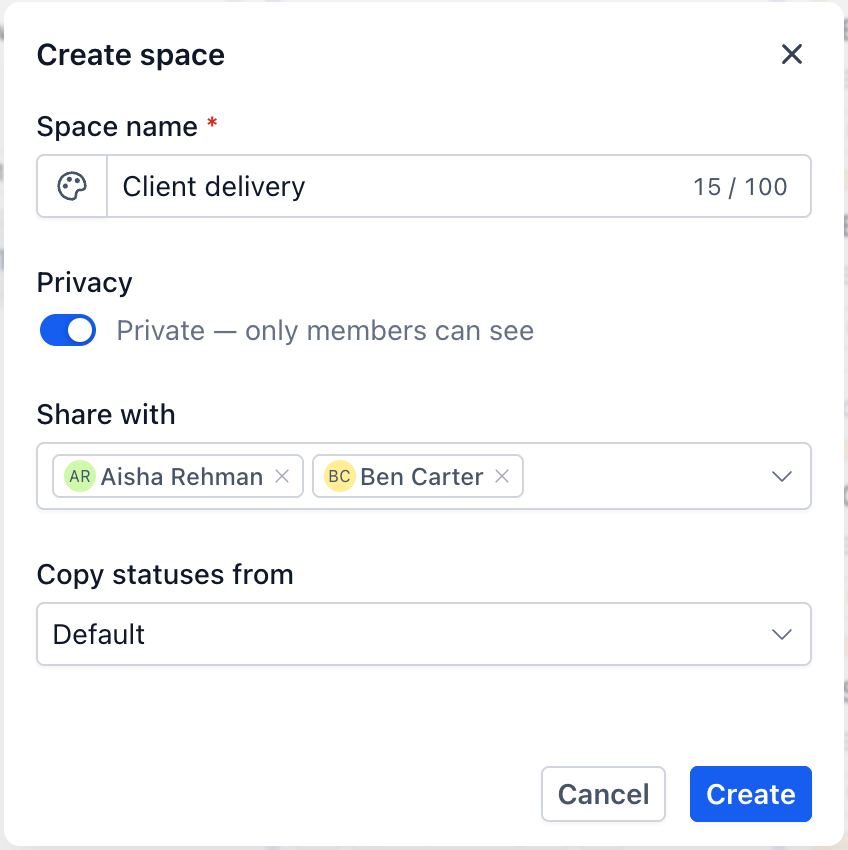
Privacy can be applied at three hierarchy levels, Space, Folder, and List, each with its own toggle. Enabling “Private space” in the Space Settings panel hides the Space and everything inside it. For Folders and Lists, the toggle turns off the “Public visible to everyone” option when they are created.
The rule governing the hierarchy states that a child cannot be more public than its parent. Consequently, making a Space private automatically restricts all contained Folders, Lists, tasks, and subtasks. Changes only take effect after clicking Save in the Settings panel.
03How businesses use private spaces, folders, and lists
- Digital marketing agency. The agency enables Project Management in Labs, then sets a client specific Space to private. Only the assigned account managers are added to the Share with list, so other team members cannot see the client’s campaigns.
- Software development startup. The startup creates a private Folder for a new product prototype. All Lists inside the Folder inherit the restriction, keeping early feature work hidden from the broader engineering team.
- Consulting firm. A consultant makes a single List private to store a confidential client proposal while keeping the surrounding Space open for general project tracking.
04The numbers and rules that matter
- Project Management is now available to agencies on the $497 plan (per HighLevel's help center, checked November 2026).
- Space name: Editable up to 100 characters.
05Before you start
- Enable Project Management in Agency or Subaccount settings > Labs.
- Your account must be on the $497 plan that includes Project Management. (per HighLevel's help center, checked November 2026)
06How to set up and use private spaces, folders, and lists in HighLevel
Make a space private
- Open the Tasks page.
- Select the Tasks tab under Contacts in the left navigation.
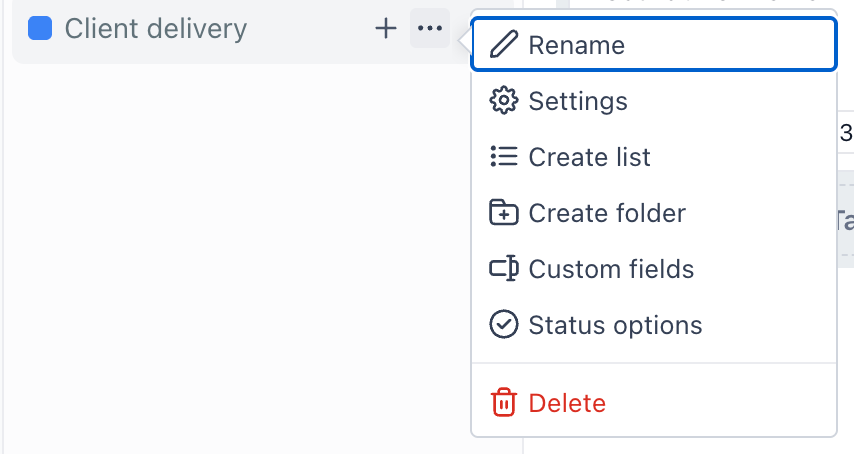
- Locate the Space you want to restrict in the left panel.
- Hover over that Space.
- Click the options control on the Space row and choose Settings.
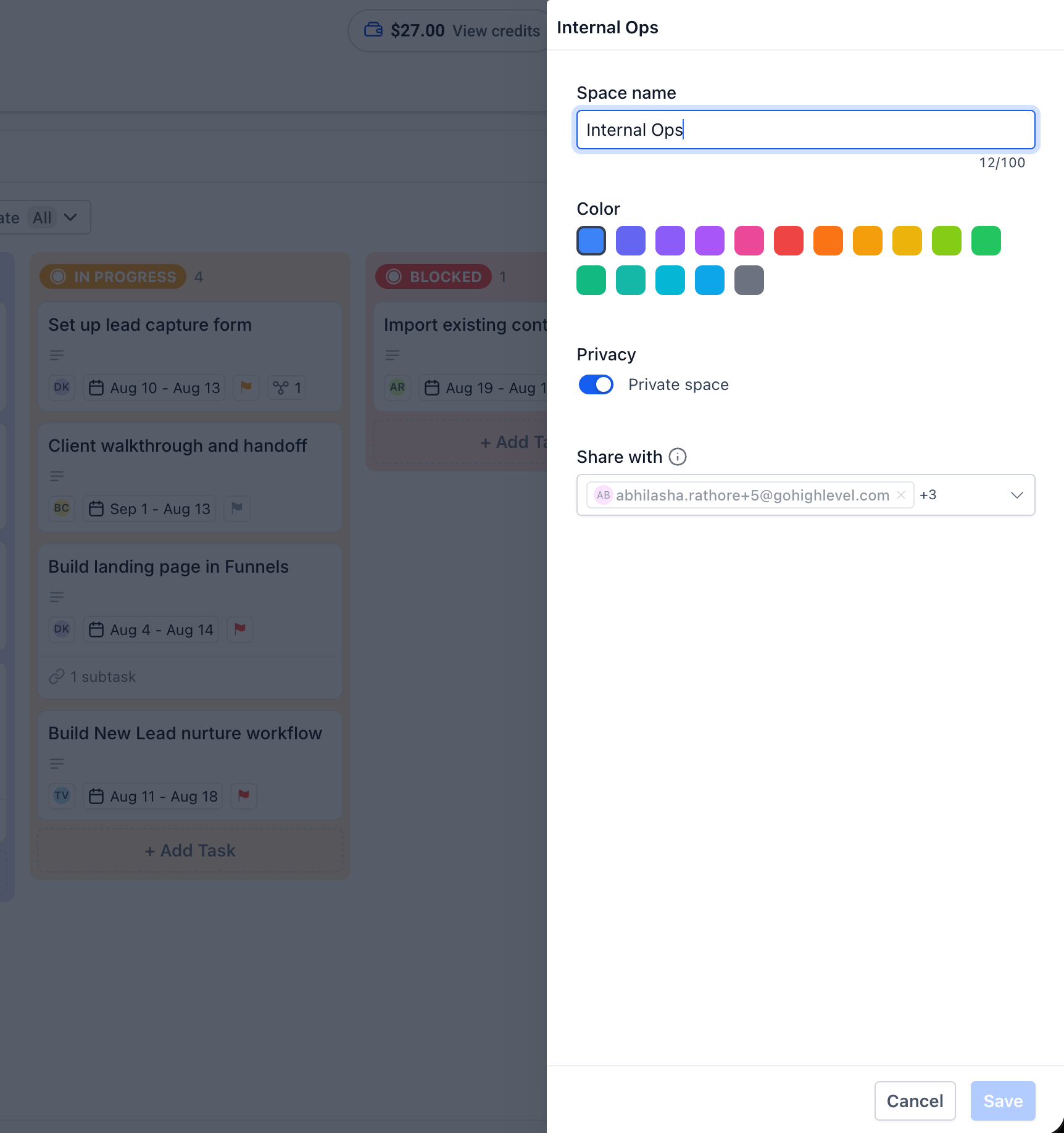
- In the Settings panel, enable the Private space option.
- Review the Share with list and add any needed members before saving.
- Click Save to apply the changes.
Share a space
- Open the Space’s Settings panel via the Space options menu.
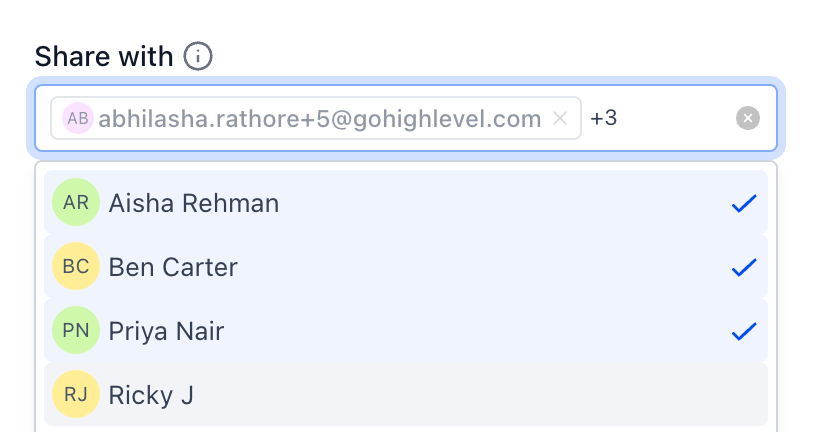
- In the Share with section, view the current members.
- Add each person who should have access.
- Click Save to confirm.
Remove someone's access
- Open the Settings panel for the Space, Folder, or List via its options menu.
- Locate the person in the Share with list.
- Check whether they have tasks assigned in that item and reassign if needed.
- Remove the person and click Save.
07What it looks like in HighLevel
08Settings that matter
- Private space. Controls whether the entire Space and all its child items are hidden from users not listed in the Share with section.
- Share with. Lists the users who have access to the Space, Folder, or List; only those people can view or be assigned tasks within the item.
09Things to know before you rely on it
- A child item can never be more public than its parent; privacy tightens down the hierarchy.
- The toggle wording differs: Space settings turn privacy on, while Folder and List creation dialogs turn public visibility off.
- Privacy changes only take effect after clicking Save; Cancel discards changes.
- When a user loses access, any tasks assigned to them remain assigned but become invisible to that user.
10How it connects to the rest of HighLevel
- Learn how to organize work with spaces, folders, and lists Organize work
- Explore board, kanban, and list view options for projects Board views
- Start a 30 day trial to test project management features 30 day trial
Michael's take

Private spaces, folders, and lists let a small business lock down sensitive work without rebuilding its entire project structure.
Never assume a toggle’s direction is the same across dialogs; read the label before you click.