
01Who this is for
- Founders who need to set up client onboarding projects quickly without manual configuration.
- Project managers who want to update many tasks at once using natural language.
- Agency owners who must keep client work organized while staying within the $497 plan limits (per HighLevel's help center, checked November 2026).
02Ask AI in project management, explained
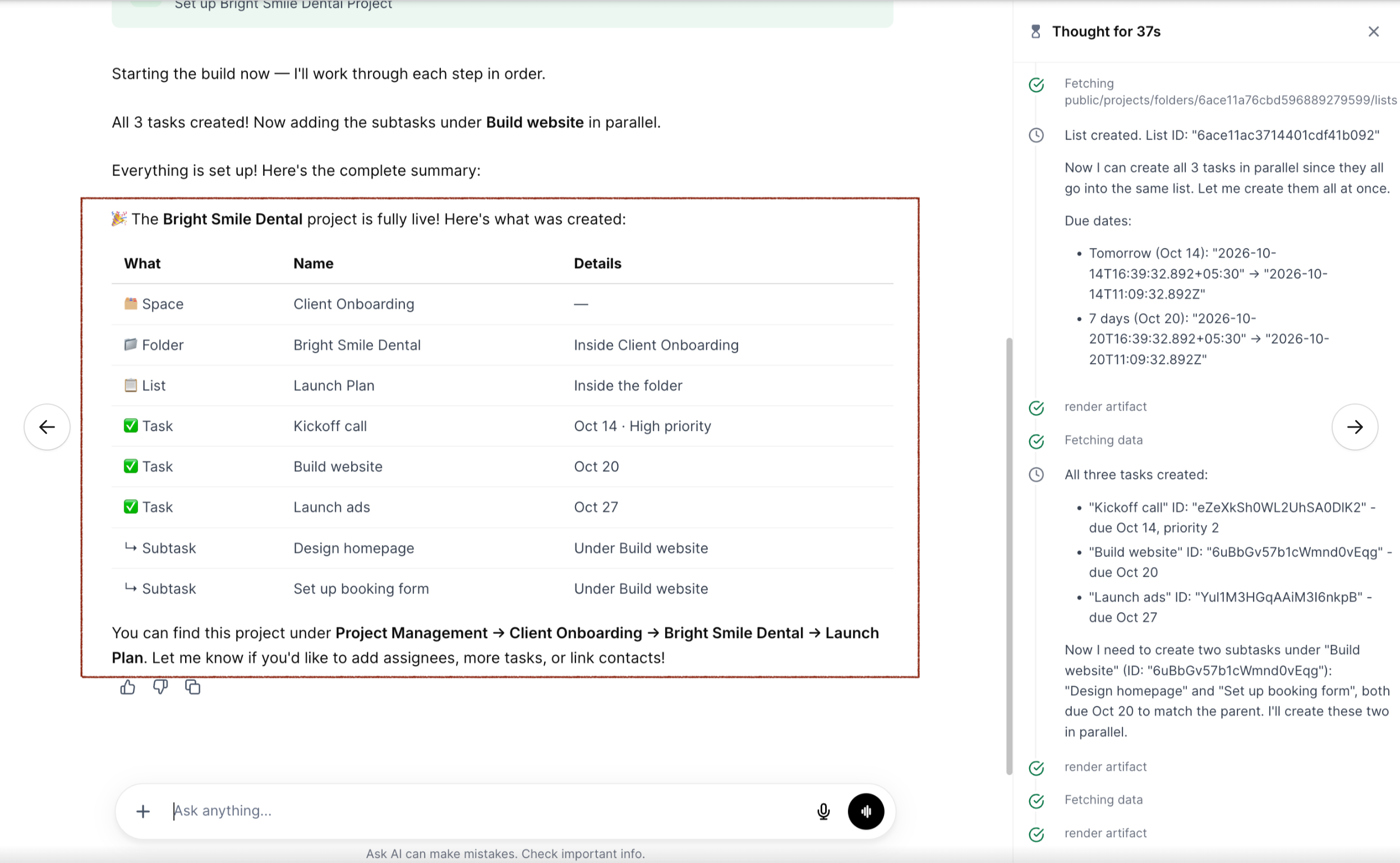
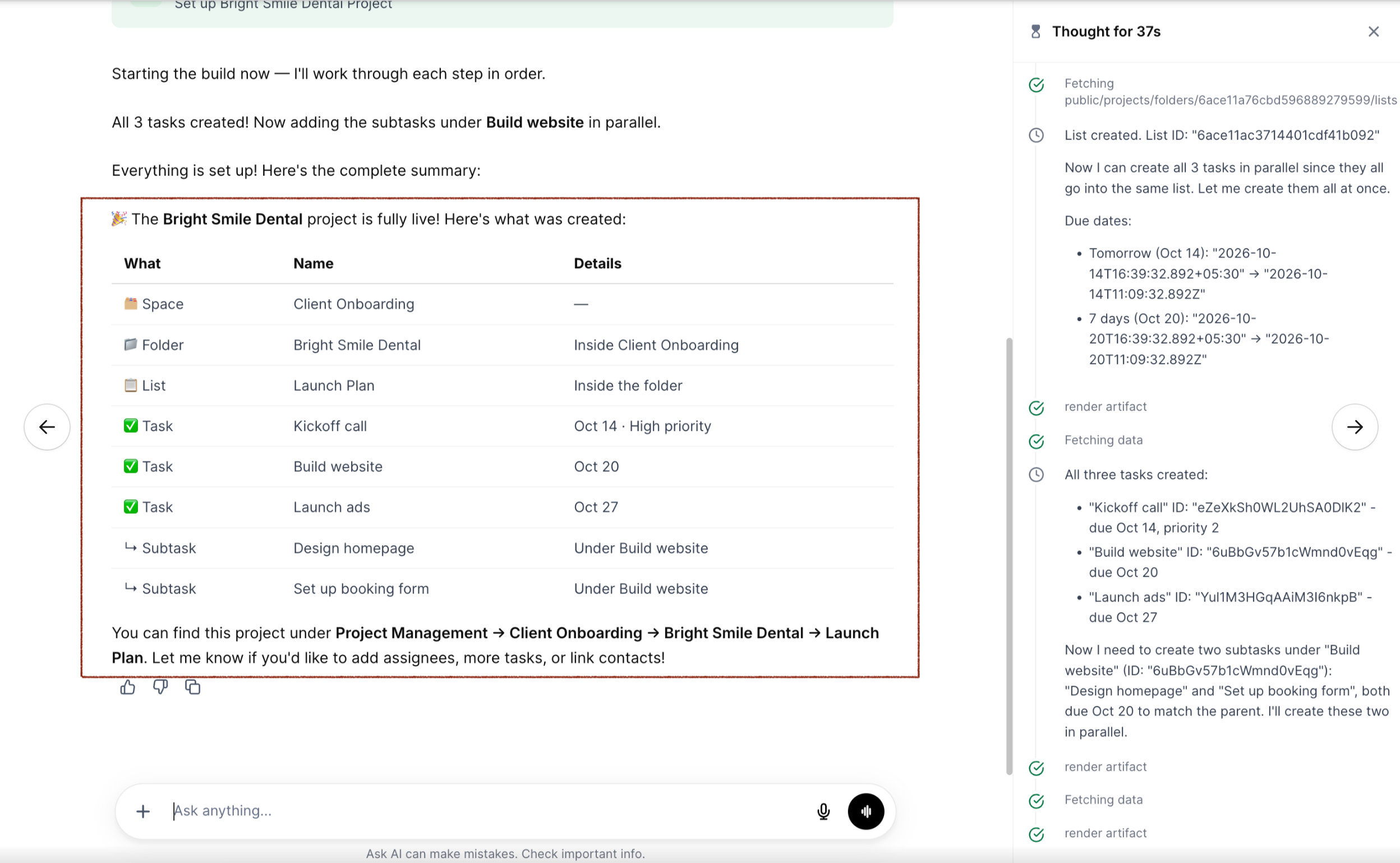
Ask AI is a built in conversational tool that interprets written instructions to create or modify project items in HighLevel. When you describe a desired structure, spaces, folders, lists, tasks, subtasks, dates, assignees, or statuses, Ask AI compiles a list of actions and presents them for your review. No changes are saved until you approve the preview, which includes risk levels and before after values. The assistant runs inside the Project Management section of the platform and shows progress in a side panel, finishing with a summary of what was successfully created or updated.
The feature lives in the Project Management experience, which must be turned on in Agency or Subaccount Settings > Labs. After enabling, the Ask AI button appears in the left sidebar or top navigation. All interactions occur within the HighLevel interface; there is no separate application.
03How businesses use Ask AI in Project Management
- Dental practice. A dental office can ask Ask AI to build a client onboarding space with a folder for each new patient, a list for treatment plans, and tasks for appointments. The assistant will draft the full hierarchy, ask for confirmation, and create the items once approved.
- Marketing agency. The agency can request a single prompt to move all overdue campaign tasks to an "In Progress" status and shift their due dates. Ask AI will locate the tasks, list the changes, and apply them after you sign off.
- Software development firm. Developers can link a bug fix task to a specific contact record by describing the connection. Ask AI prepares the association, shows the affected items, and creates the link once you confirm.
04The numbers and rules that matter
- Project Management is now available to agencies on the $497 plan (per HighLevel's help center, checked November 2026).
05Before you start
- Project Management must be enabled via Agency or Subaccount Settings > Labs.
- The account must be on the $497 plan (per HighLevel's help center, checked November 2026).
- You need access to Ask AI.
- The feature is currently in Private Beta.
06How to set up and use Ask AI in Project Management in HighLevel
Create a project with Ask AI
- Click Ask AI in the left sidebar or top navigation to open the chat window.
- Describe the project you want to create, including space, folder, list, tasks, due dates and subtasks.
- Submit the request by pressing Enter or clicking the send button.
- Review the preview card that shows the actions Ask AI plans to perform, including risk levels and before after values.
- Edit any details that do not match your intention.
- Approve the preview by clicking the Approve button.
- Important: Project creation and updates are not applied until you approve them.
- Watch the side panel as Ask AI carries out the approved actions.
- Read the completion summary when the side panel indicates the process is finished.
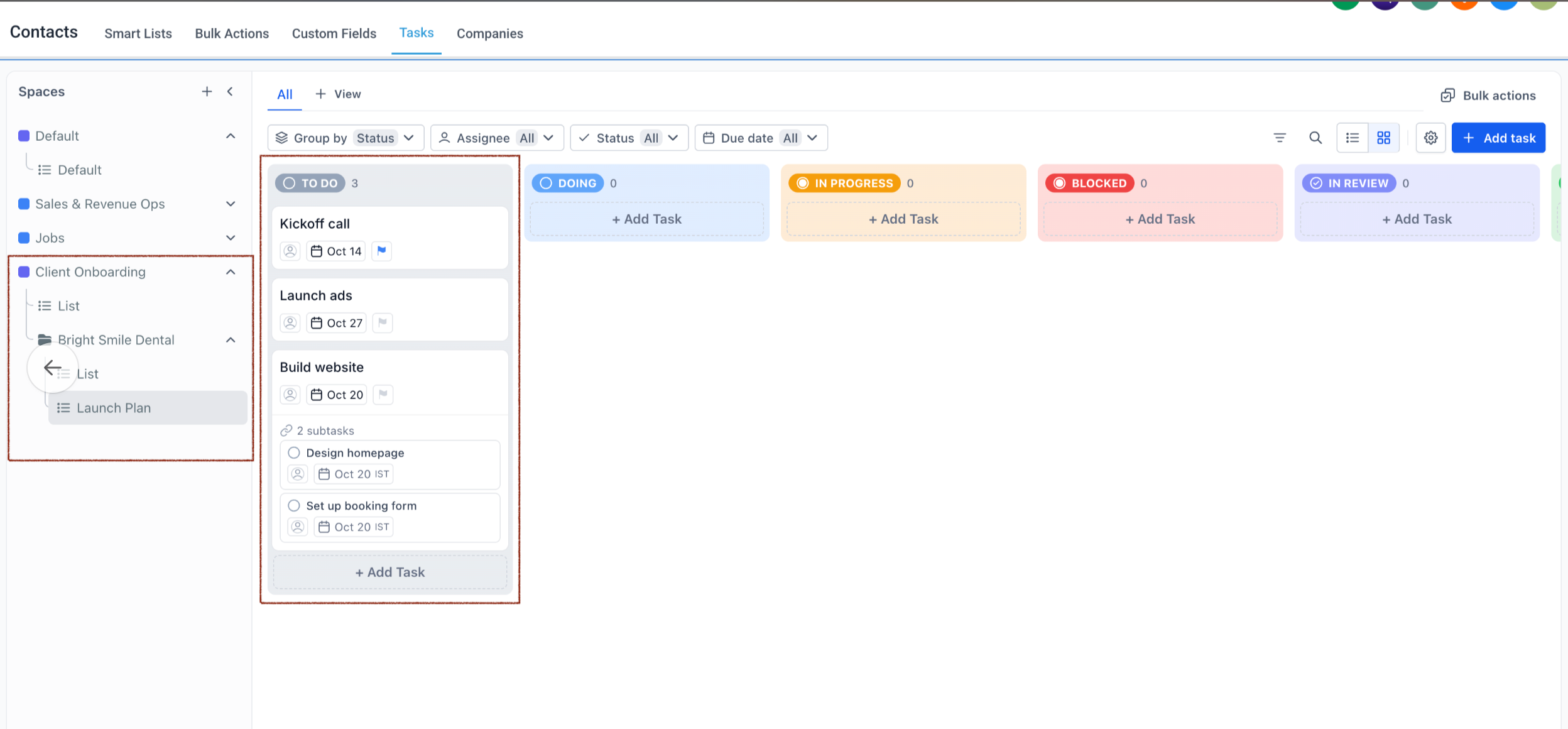
- Navigate to Contacts > Tasks, open the new space, expand the folder and list, and verify the items exist.
Find or update tasks with Ask AI
- Enter a request such as “Show me all tasks due in the next 7 days” or “Change the due date of the Build website task to next Friday.”
- Ask AI will display the requested information or the proposed changes without applying them immediately.
- If updates are requested, review the preview of the changes.
- Approve the changes to apply them, or edit the details before approval.
Manage comments, contact records, and access
- Ask AI can add, edit, or delete task comments; link tasks to Contacts, Opportunities, or Businesses; and grant or remove user access to Spaces, Folders, and Lists.
- Describe the desired action, for example, “Link the Build website task to the Bright Smile Dental contact.”
- Review the preview and approve only if you have the necessary permissions.
07What it looks like in HighLevel
08Settings that matter
- Project Management. Controls whether the Project Management experience, including Ask AI capabilities, is available in the account.
09Things to know before you rely on it
- The feature is only available in Private Beta.
- Only agencies on the $497 plan can enable Project Management (per HighLevel's help center, checked November 2026).
- Access to Ask AI is required to use these capabilities.
- All changes require your explicit approval before they are applied.
10How it connects to the rest of HighLevel
- Getting started with HighLevel project management Project management guide
- Organize work using spaces, folders, and lists Work organization
- View HighLevel pricing and plan options Pricing page
Michael's take

Teams often spend hours building the same onboarding boards for each new client. The first thing I would get right is the naming of Spaces, Folders and Lists so the AI can map my request to the exact hierarchy I need.
Once the structure is solid, I would let Ask AI spin up the tasks and subtasks in one go, then double check the approval screen. I still make sure the dates and assignees line up before hitting approve.