
01Who this is for
- Founders who want to keep their personal or brand number visible when calling clients, avoiding the need to buy a new HighLevel number.
- Small agencies that need a quick way for team members to use existing business numbers for outbound calls without extra provisioning.
02Existing verified numbers, explained
Verified caller ID is a feature that lets you use a phone number you already own as the displayed caller ID for outbound calls made through the HighLevel mobile app. The platform first confirms you control the number, then adds it to the subaccount’s list of verified caller IDs. Once verified, the number shows a Verified badge alongside any HighLevel purchased numbers in the call dialer.
When you select a verified number before dialing, the call is routed through HighLevel’s calling engine, not through the device’s native carrier. The verified number is therefore shown to the called party, while the call still takes place via the HighLevel system. The feature works only on mobile app versions 4.25.0 or later and on supported white labeled apps.
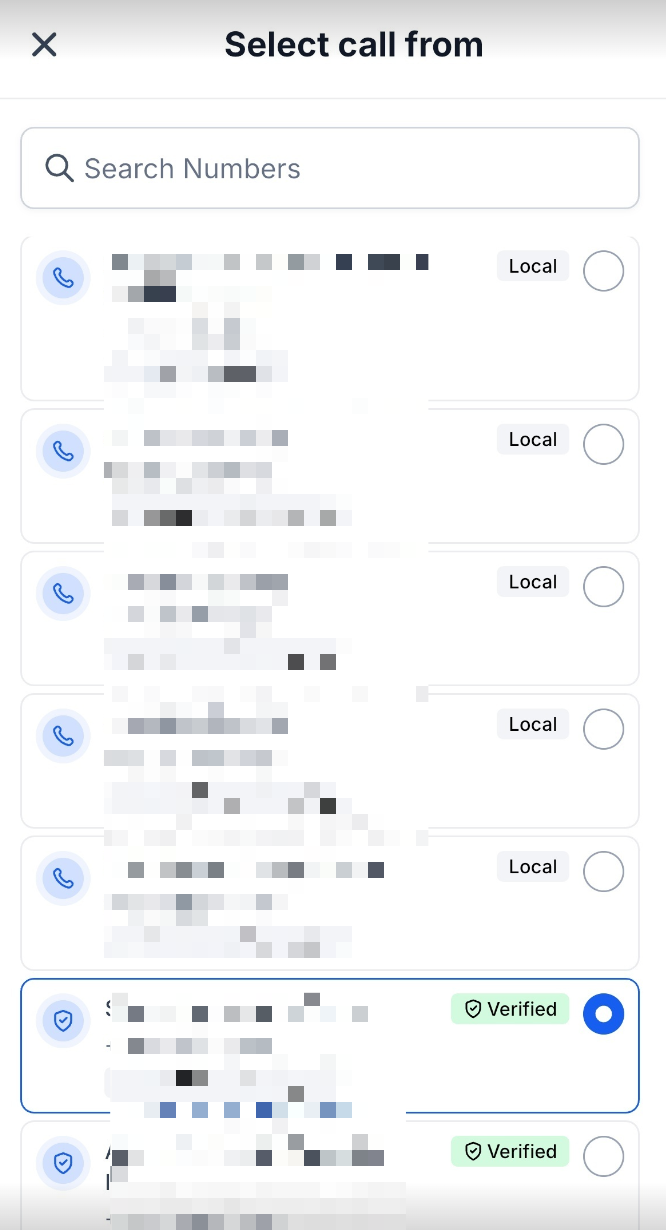
The settings for this feature live under Settings ▶ Phone Numbers in each subaccount. From there you add a number, choose Add Verified Caller ID, and complete a verification call. After verification, the number appears in the mobile Call Dialer’s Select call from screen.
03How businesses use existing verified numbers
- Real estate brokerage. Agents add the brokerage’s office line as a verified caller ID, verify it, and then select it in the mobile app when calling prospective buyers. The calls show the familiar office number, helping clients recognize the source.
- Health care clinic. The clinic registers its main phone line as a verified caller ID. Staff members use the HighLevel mobile app to call patients, selecting the clinic’s number so patients see a trusted number on their phones.
- Freelance consultant. A consultant verifies their personal business number, then picks that number in the app when reaching out to prospects, ensuring the recipient sees the consultant’s own number rather than a generic HighLevel number.
04The numbers and rules that matter
- Default limit of 10 verified caller IDs per subaccount.
- Supported mobile app versions: HighLevel v4.25.0 or later, LeadConnector v4.25.0 or later, self serve white labeled apps.
- Calls from a +91 verified caller ID to a +91 destination are not supported.
05Before you start
- You must have access to a HighLevel subaccount.
- The mobile app must be version 4.25.0 or later (or a supported white labeled app).
- You need a personal or business phone number that you own and can answer a verification call.
06How to set up and use existing verified numbers in HighLevel
Verify your existing number
- Open the appropriate HighLevel subaccount.
- Go to Settings.
- Open Phone Numbers.
- Select Add Number and choose Add Verified Caller ID.
- Enter the personal or business phone number you own.
- Click Verify Number; HighLevel displays a verification code and places a verification call to the number.
- Answer the verification call and enter the provided code, then confirm the number appears as a verified caller ID.
Select the verified number in the mobile app
- Make sure you are using HighLevel version 4.25.0 or later, LeadConnector version 4.25.0 or later, or a supported self serve white labeled app.
- Open the Call Dialer in the mobile app.
- Tap the option to open the Select call from screen.
- Review the available calling numbers.
- Find your existing number marked with the Verified badge.
- Tap the verified number to select it.
- Enter or select the contact you want to call.
- Place the call; the selected verified number is used as the outbound caller ID for the call.
07What it looks like in HighLevel
08Settings that matter
- Add Verified Caller ID. Initiates the process to register an owned phone number as a verified caller ID after ownership is confirmed.
- Verified badge. Shows next to a number in the mobile Call Dialer to indicate it has been successfully verified and can be selected for outbound calls.
- Phone Numbers. The section under Settings where you manage both HighLevel purchased numbers and verified caller IDs.
- Select call from screen. The interface in the mobile app where you choose which number to use for an outbound call.
09Things to know before you rely on it
- A subaccount can have up to 10 verified caller IDs by default; more may require contacting HighLevel Support.
- Calls from a +91 verified number to a +91 destination are not supported due to local regulations.
- The feature works only on mobile app versions 4.25.0 or later; older versions will not show verified numbers.
10If something goes wrong
- Verified number does not appear in the Select call from screen.. Confirm the number has completed verification successfully and that the mobile app version meets the 4.25.0 minimum requirement.
11How it connects to the rest of HighLevel
- Purchase a new HighLevel number if you later need additional functionality. Buy a HighLevel number
- Move phone numbers between accounts when reorganizing teams or agencies. Migrate numbers
- Review pricing details for the HighLevel phone system and rebilling rules. Phone system pricing
Michael's take

Regulatory limits can block certain calls, such as using a +91 verified number to call another +91 number in India.
When the verification is complete, you can call straight from the app with a number your contacts already recognize and keep a consistent caller ID.