
01Who this is for
- Agency owners who need a separate business line for each client to keep communications organized.
- Service based businesses that want a professional number for calls and texts instead of personal phones.
02Phone numbers, explained
The purchase process creates a new LC Phone number within a specific HighLevel subaccount. After the transaction, the number appears in the Phone System list and can be set up for calling, messaging, routing, voicemail, and user assignment.
The number is managed at the subaccount level, so buying it from the intended location ensures it is ready for any workflows, automations or contact interactions you build. Phone numbers may require Persona identity verification, an address bundle, a regulatory bundle, and ongoing monthly rental fees that vary by country and type.
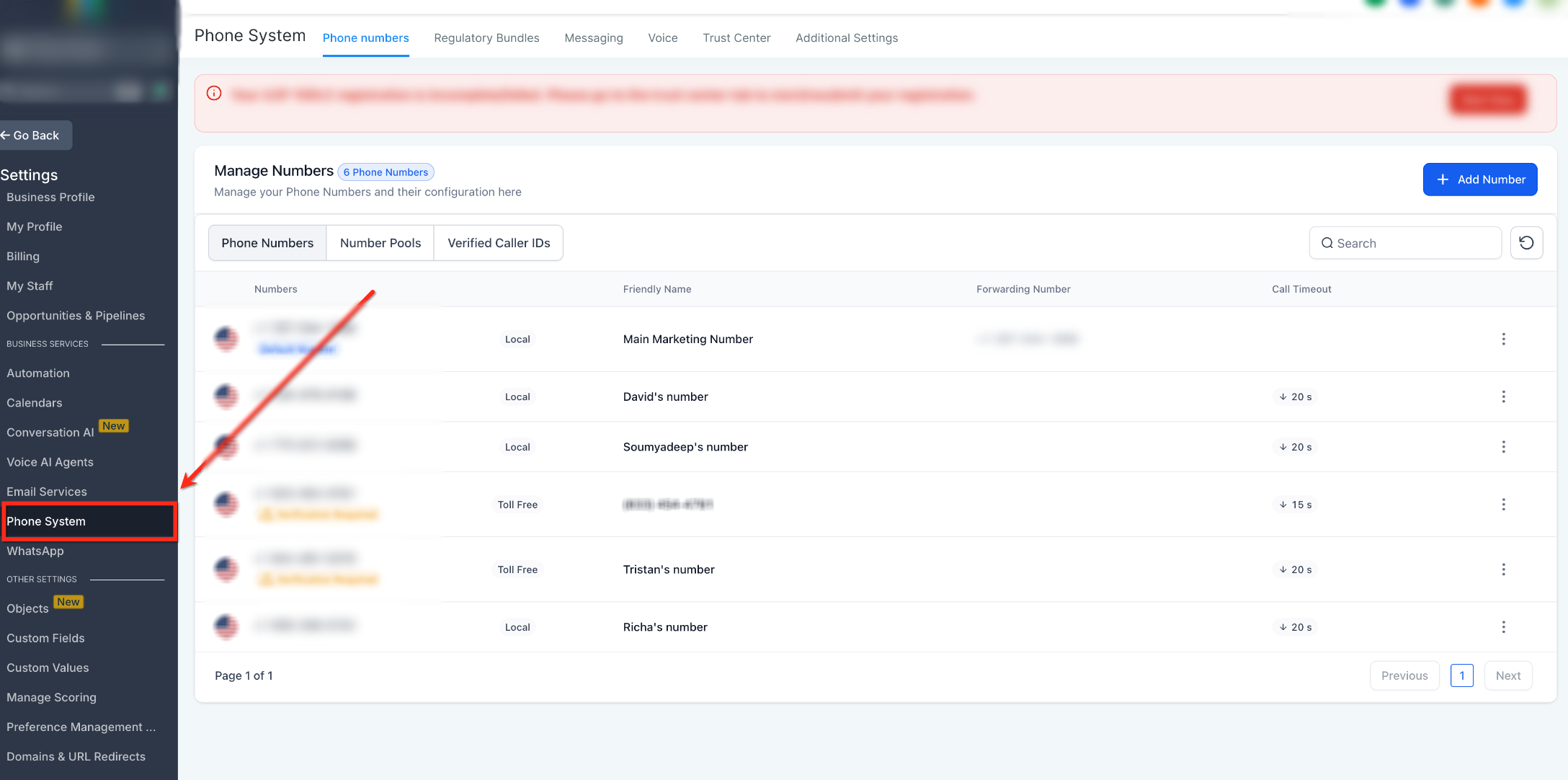
The feature lives under Settings > Phone System in the subaccount UI. All subsequent configuration steps, routing, forwarding, assigning to users, or registering for messaging, are accessed through the same Phone numbers tab.
03How businesses use phone numbers
- Real estate brokerage. The brokerage adds a local number to each agent’s subaccount, then configures call routing so inbound leads ring the appropriate agent’s phone. Messaging registration is completed so the agent can send SMS updates to clients.
- Medical clinic. The clinic purchases a toll free number, assigns it to the front desk team, and sets up voicemail and call forwarding to on call doctors. The number is also registered for compliant text messages to patients.
- Ecommerce store. An online retailer buys a local number, enables SMS capability, and registers the number for A2P 10DLC. The number is then linked to order status workflows that send automated texts to customers.
04The numbers and rules that matter
- Persona verification required for eligible +1 numbers in US, Canada, Puerto Rico and +972 numbers in Israel.
05Before you start
- Log in to the subaccount where the number will be used.
- Confirm the phone provider (LC Phone or a connected Twilio account) matches the intended workflow.
06How to set up and use phone numbers in HighLevel
Purchase a phone number
- Log in to the HighLevel subaccount, click Settings, and select Phone System.
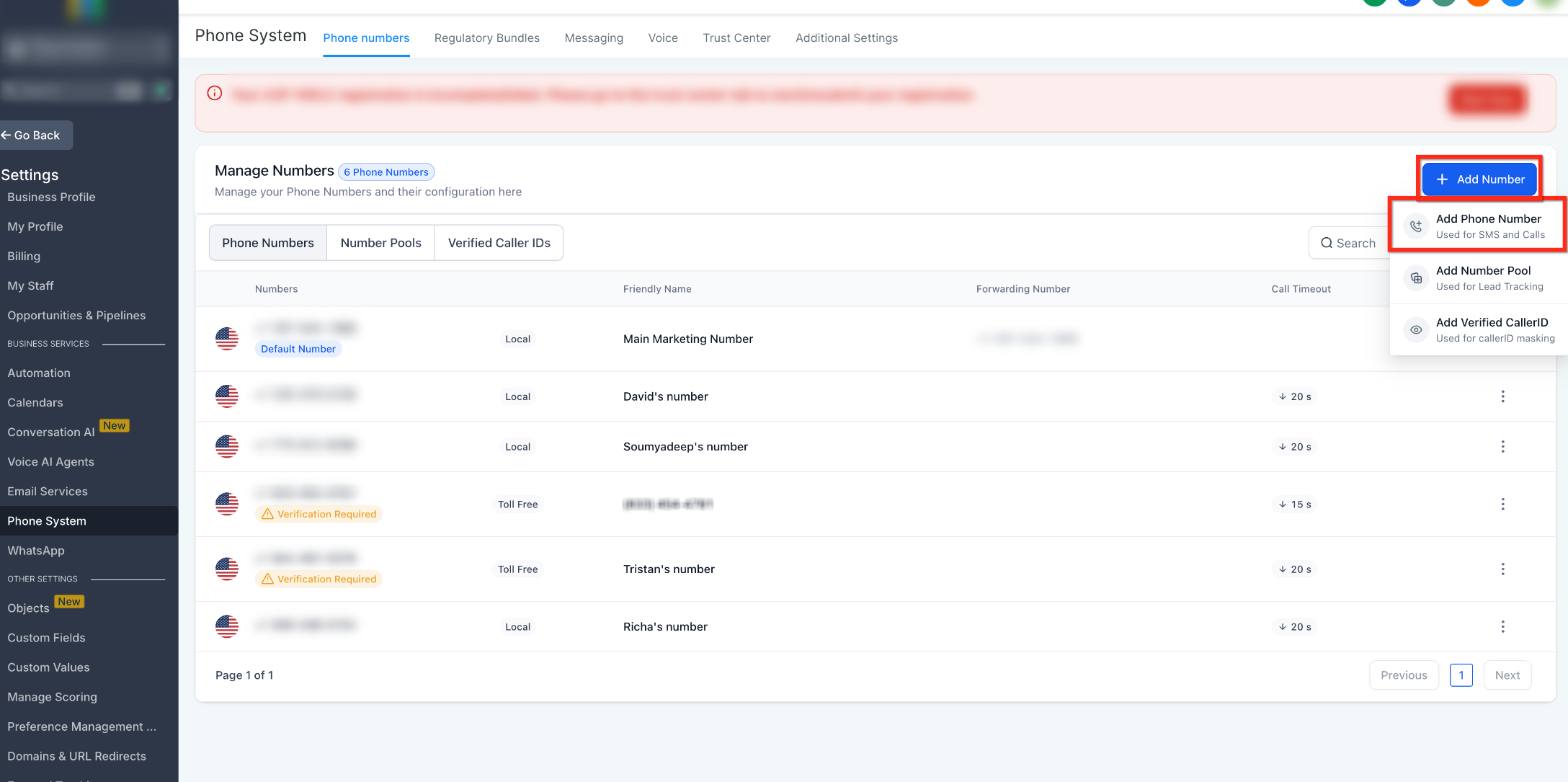
- Open the Phone numbers tab, click + Add Number, and choose Add Phone Number.
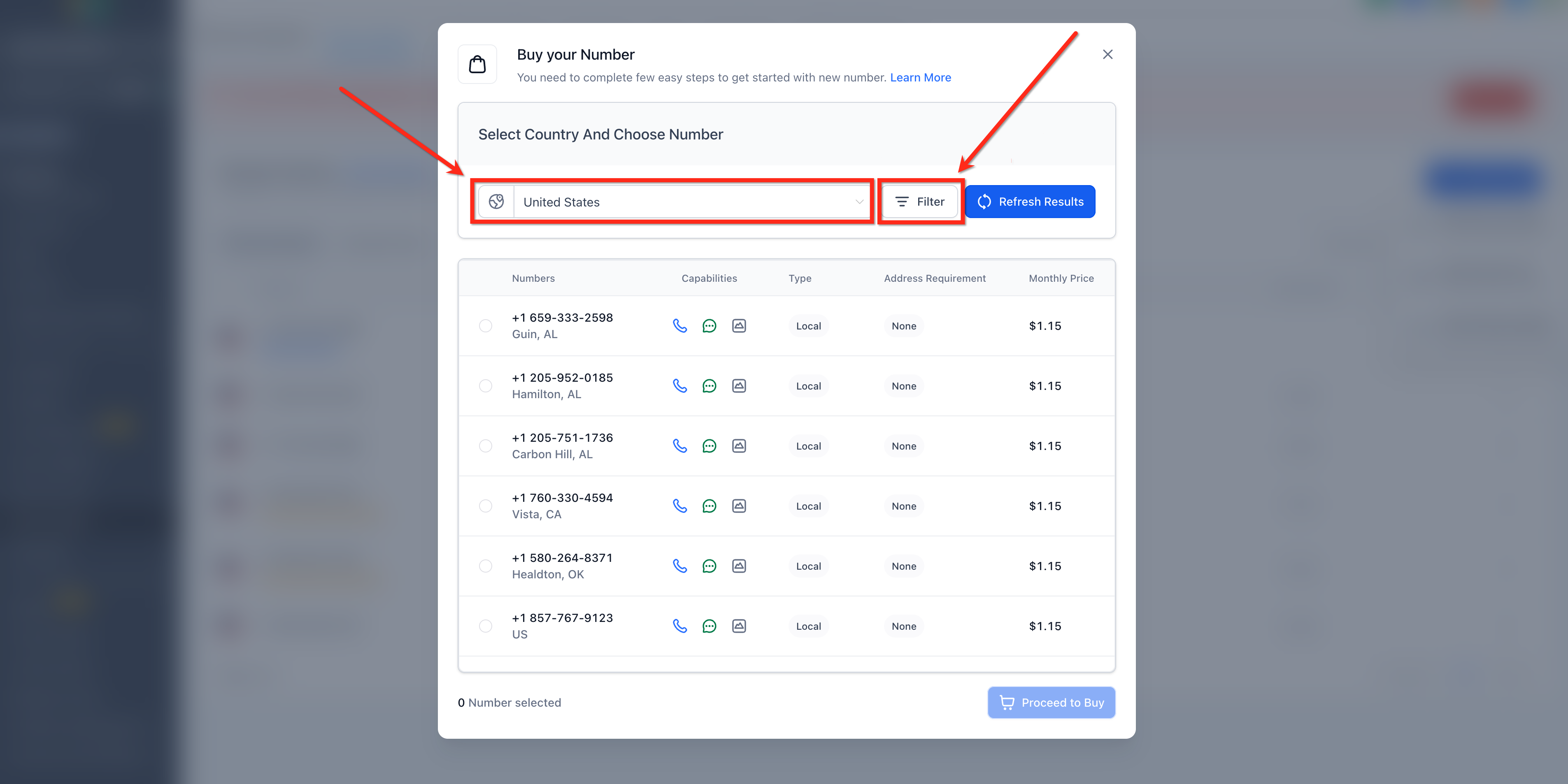
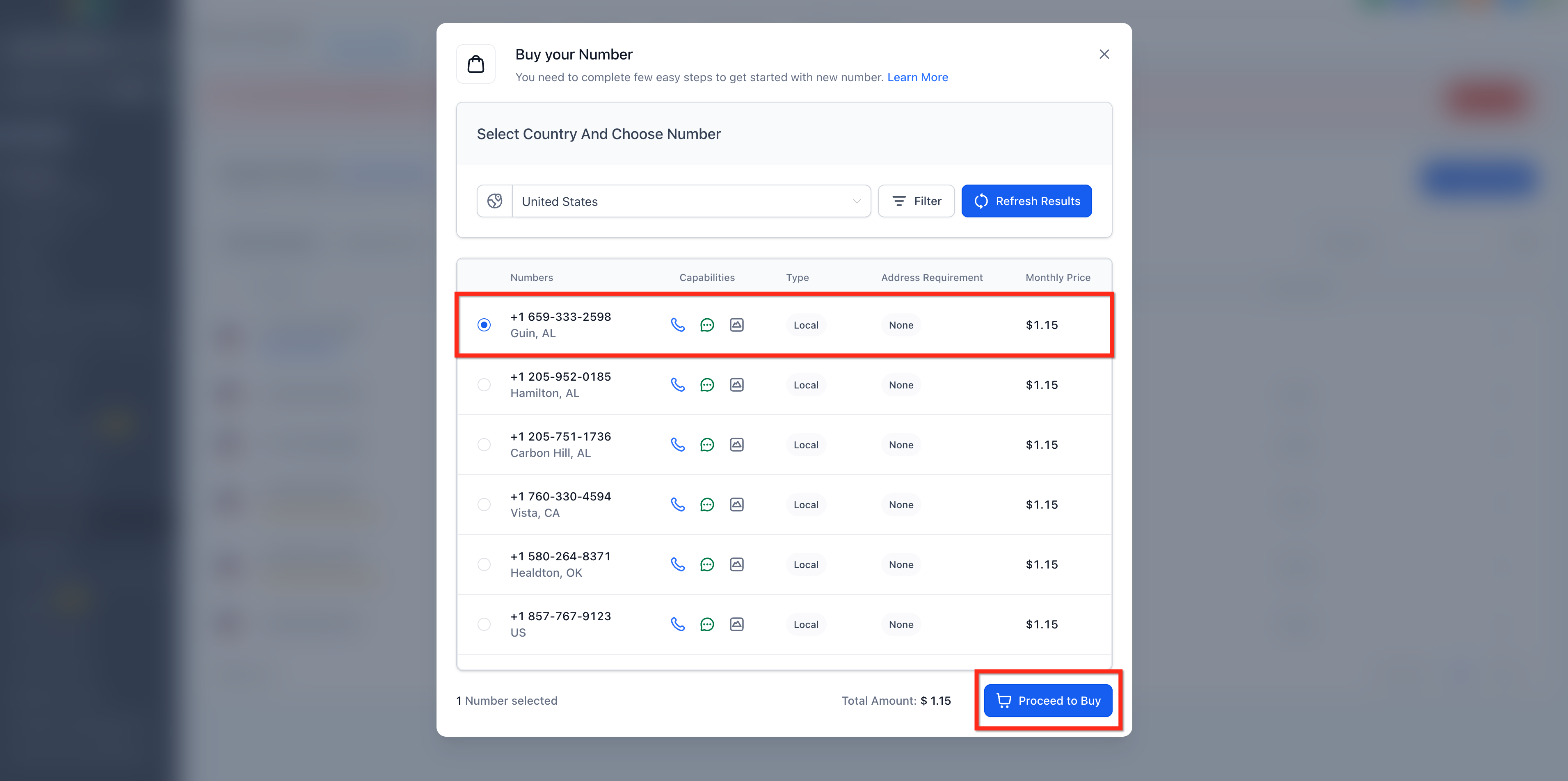
- Select the desired Country, click Filter, and apply any needed filters such as digits, voice, SMS, or number type.
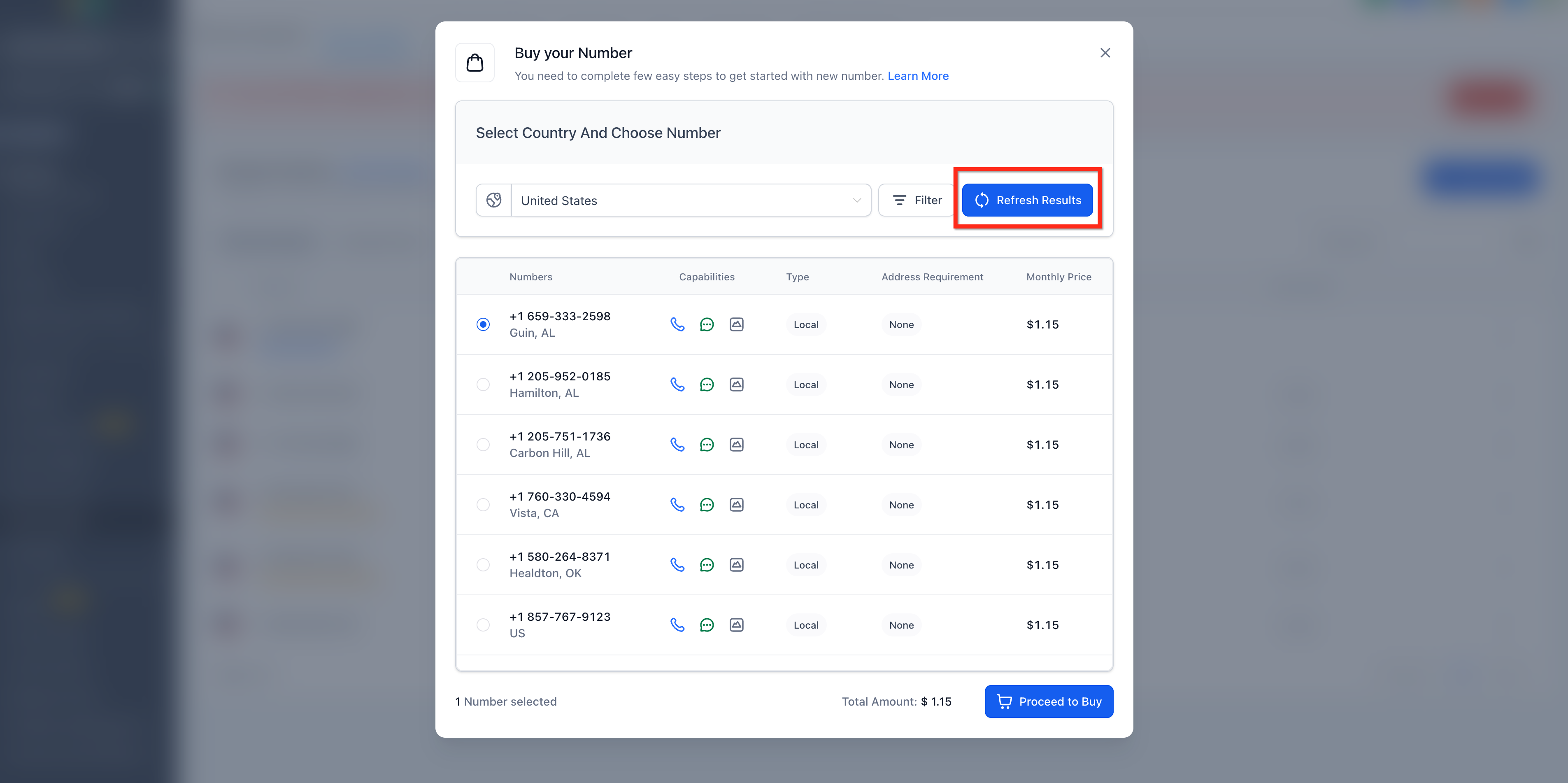
- Review the available numbers, select the preferred one, and refresh results or adjust filters if needed.
- Click Proceed to Buy for the selected number.
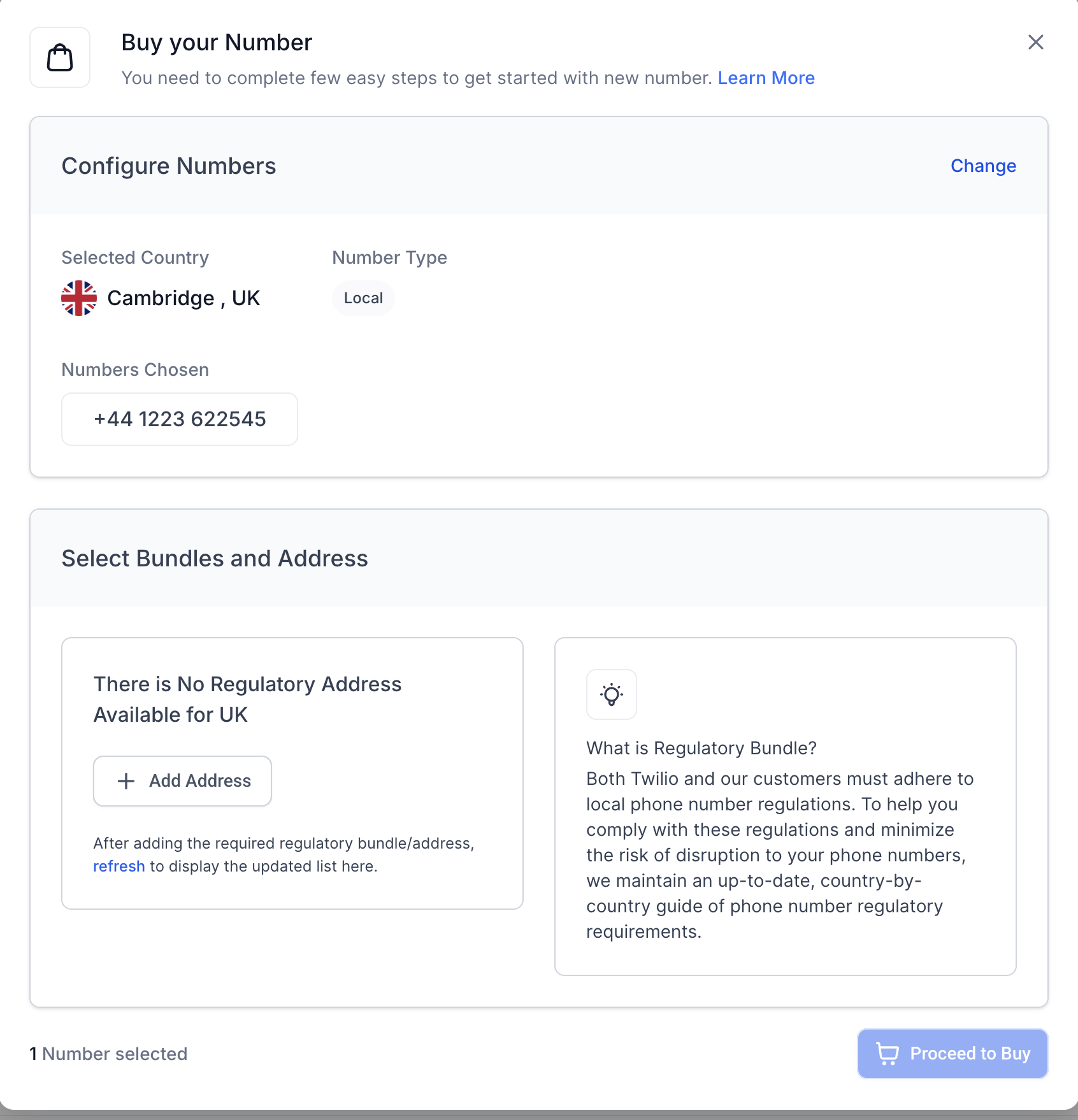
- If the flow prompts for Persona verification, address bundle or regulatory bundle, complete those requirements before proceeding.
- Confirm the purchase to add the number to the subaccount.
Post purchase configuration
- Open Settings > Phone System > Phone numbers and verify the new number appears in the list.
- Open the number’s configuration panel.
- Set routing, forwarding, voicemail, or user assignment settings as needed.
- Place a test call to confirm inbound call handling works as intended.
- Complete any required messaging registration or verification before sending SMS or MMS.
07What it looks like in HighLevel
08Things to know before you rely on it
- Number availability changes frequently; a searched number may become unavailable before purchase.
- Monthly rental charges vary by country and number type and may include additional usage or registration fees.
- Persona verification is required for eligible +1 numbers (US, Canada, Puerto Rico) and +972 numbers (Israel) if not already completed.
- Some countries and number types need an Address Bundle or Regulatory Bundle before provisioning.
09If something goes wrong
- Purchase fails because the wrong subaccount was used.. Confirm you are logged into the subaccount where the number should be used.
- Identity verification prompt appears and purchase stops.. Complete the Persona verification process before proceeding.
- Required address or regulatory information is missing.. Fill in the required address or regulatory bundle details and obtain approval.
- Selected number is no longer available.. Click Refresh Results and choose a different available number.
- No suitable numbers appear in the search results.. Broaden the filters, try a nearby or overlay area code, or search a different number type.
- Proceed to Buy does not complete the transaction.. Check subaccount, phone provider, Persona verification, address/regulatory requirements, and inventory availability before contacting Support.
10How it connects to the rest of HighLevel
- Moving phone numbers across accounts Phone number migration guide
- Buy a toll free number and set it up Toll free purchase guide
- Phone system pricing and billing details Pricing guide
Michael's take

A business that wants a professional line for calls and texts needs a number that lives inside HighLevel, not a personal handset. The first thing I would lock down is the correct subaccount and phone provider so the number lands where the team actually uses it.
Once the number is in place, I would double check any Persona or regulatory steps that HighLevel prompts for. Skipping those early checks can lead to a purchase that looks successful but then stalls when you try to send a text or receive a call.