
01Who this is for
- Sales representatives who need a personal business line so calls go straight to them.
- Support teams that share a single contact number, allowing any available agent to answer.
- Agency owners managing multiple subaccounts and wanting to control call routing per user.
02LC Phone numbers, explained
LC Phone number user assignment is a configuration within HighLevel that maps inbound calls to specific users. A number can be set as a dedicated line for one user or as a shared line that rings several team members.
The feature resides in the subaccount. Dedicated routing is edited from the individual user’s profile, while shared routing is configured on the phone number record under Settings. Both methods use the platform’s built in call and voicemail settings.
Using this control helps align phone handling with your sales, support, or operational structures, ensuring the right people receive calls when they come in.
03How businesses use LC Phone numbers
- Real estate agency. The agency opens Settings > My Staff, edits each agent’s profile, expands Call & Voicemail Settings, and selects the agent’s LC Phone number in the Inbound Number field. This gives every agent a unique inbound line for client calls.
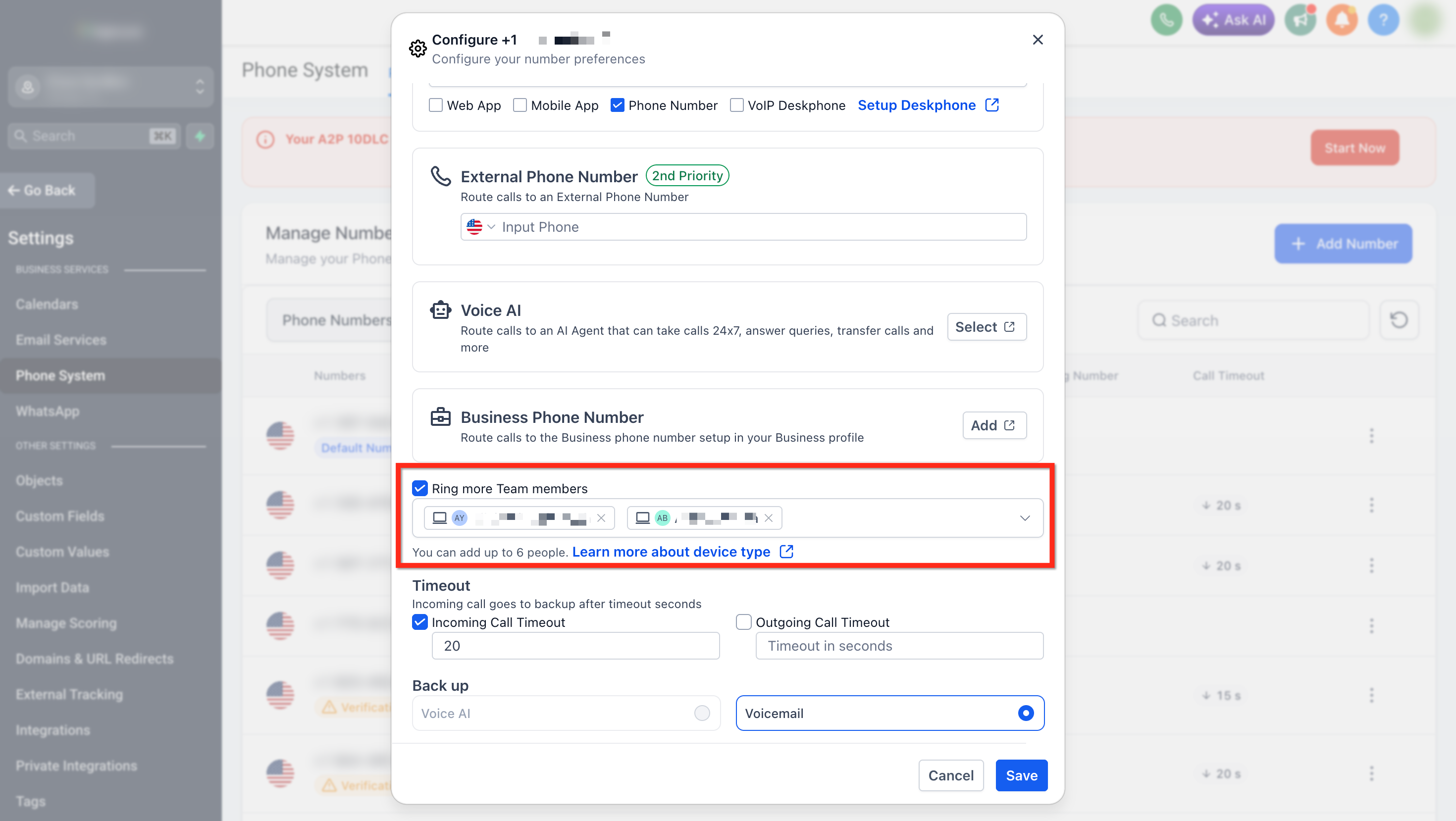
- Dental practice. The practice opens Settings > Phone System > Phone Numbers, edits the clinic’s main LC Phone number, chooses a primary receptionist in the Route calls to an Internal Team Member dropdown, enables Ring More Team Members, and adds all front desk staff. Calls to the clinic number ring any available receptionist.
- SaaS startup. The startup goes to Settings > Phone System > Phone Numbers, selects its support LC Phone number, sets a lead support engineer as the initial recipient, checks Ring More Team Members, and adds up to six engineers. Incoming support calls ring all listed engineers.
04The numbers and rules that matter
- You can add up to six team members for shared routing.
05Before you start
- A phone number must be purchased in the subaccount before any routing can be configured.
06How to set up and use LC Phone numbers in HighLevel
Assign one LC Phone number to one user
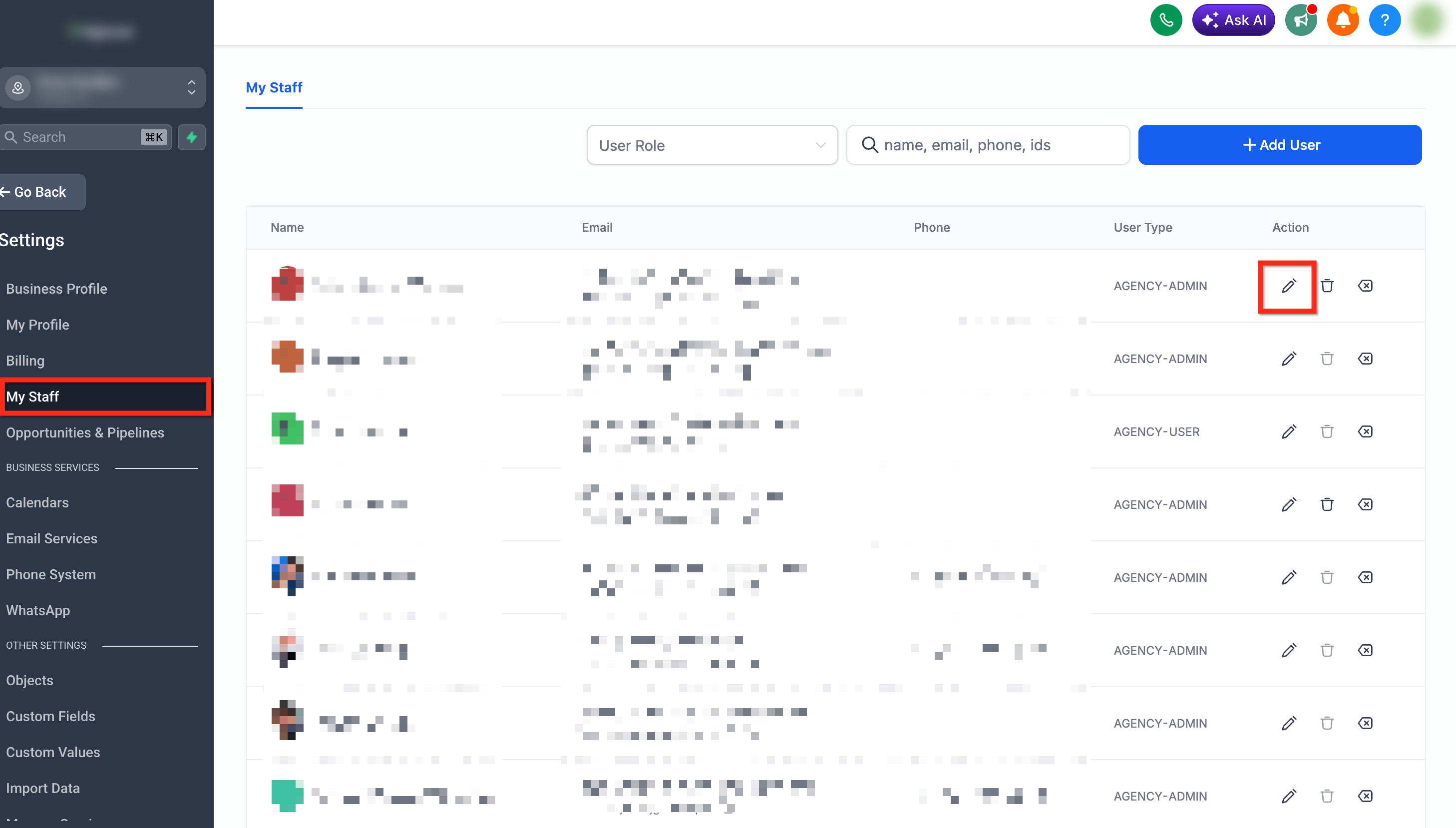
- Open Settings in the subaccount.
- Select My Staff.
- Find the user who should receive the calls.
- Click Edit to open the user’s profile.
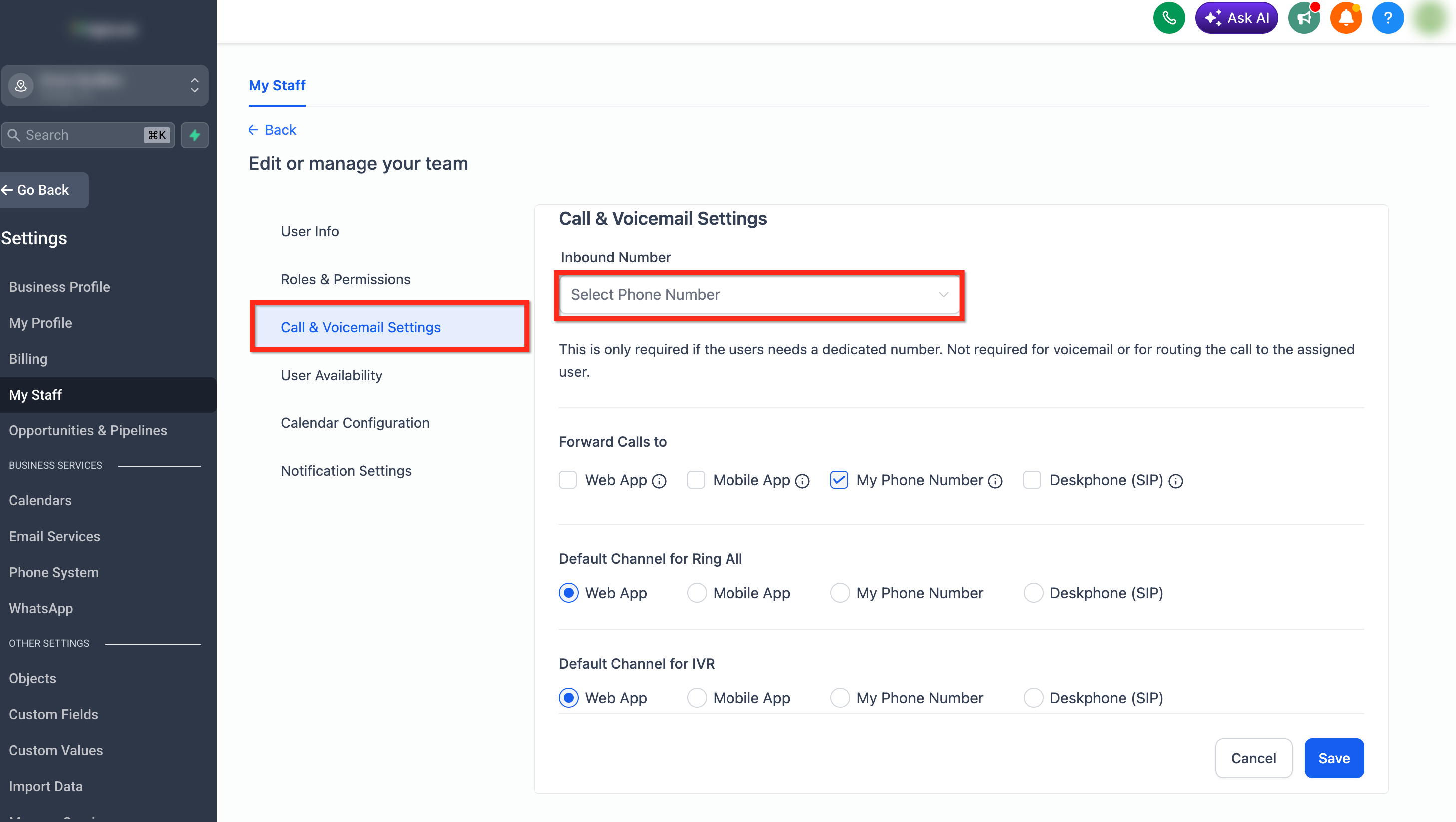
- Expand the Call & Voicemail Settings section.
- Locate the Inbound Number field.
- Choose the LC Phone number to assign.
- Save the user’s settings.
Route one LC Phone number to multiple users
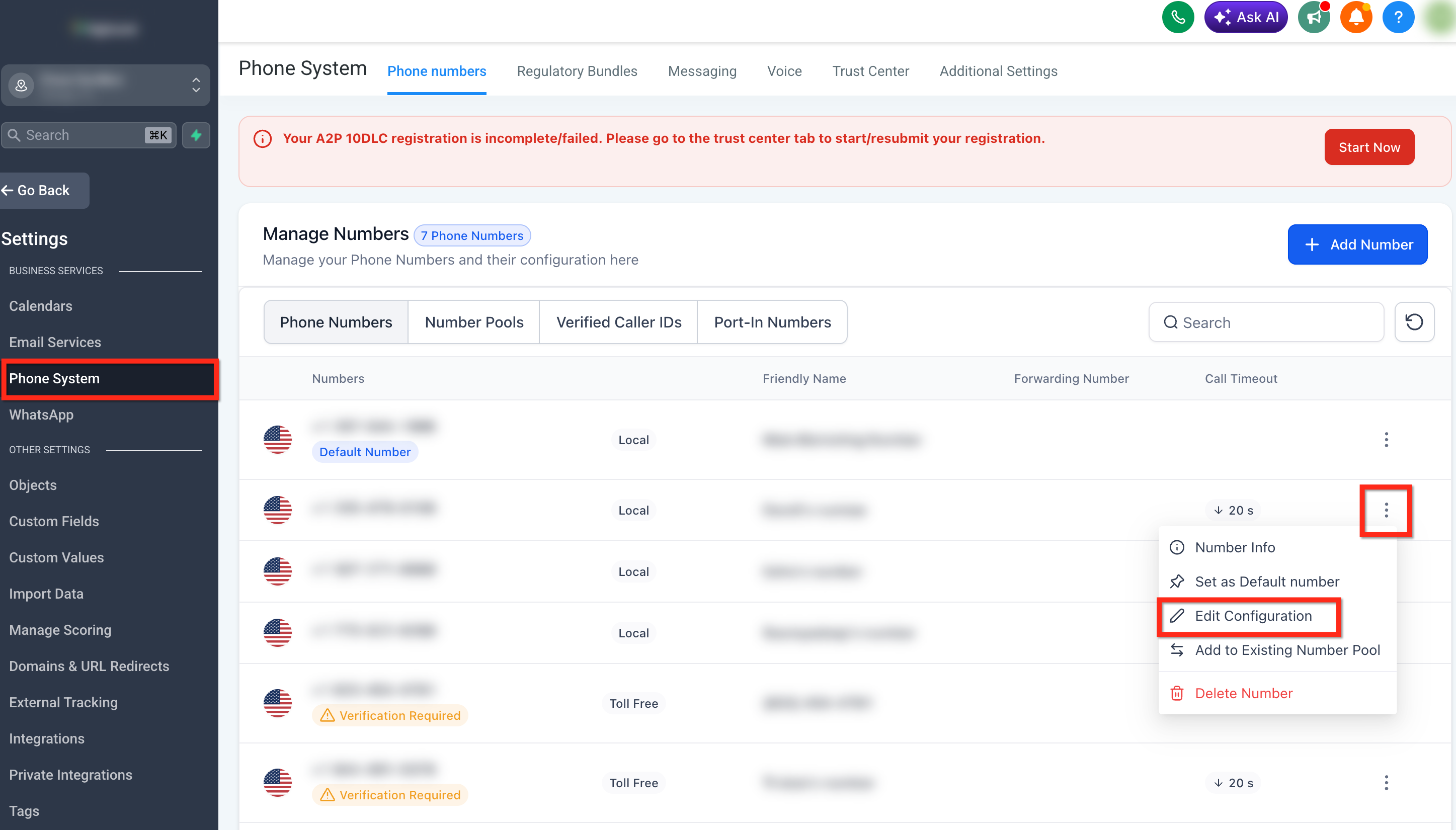
- Navigate to Settings > Phone System > Phone Numbers.
- Find the LC Phone number you want to edit.
- Click the three dot menu next to that number.
- Select Edit Configuration.
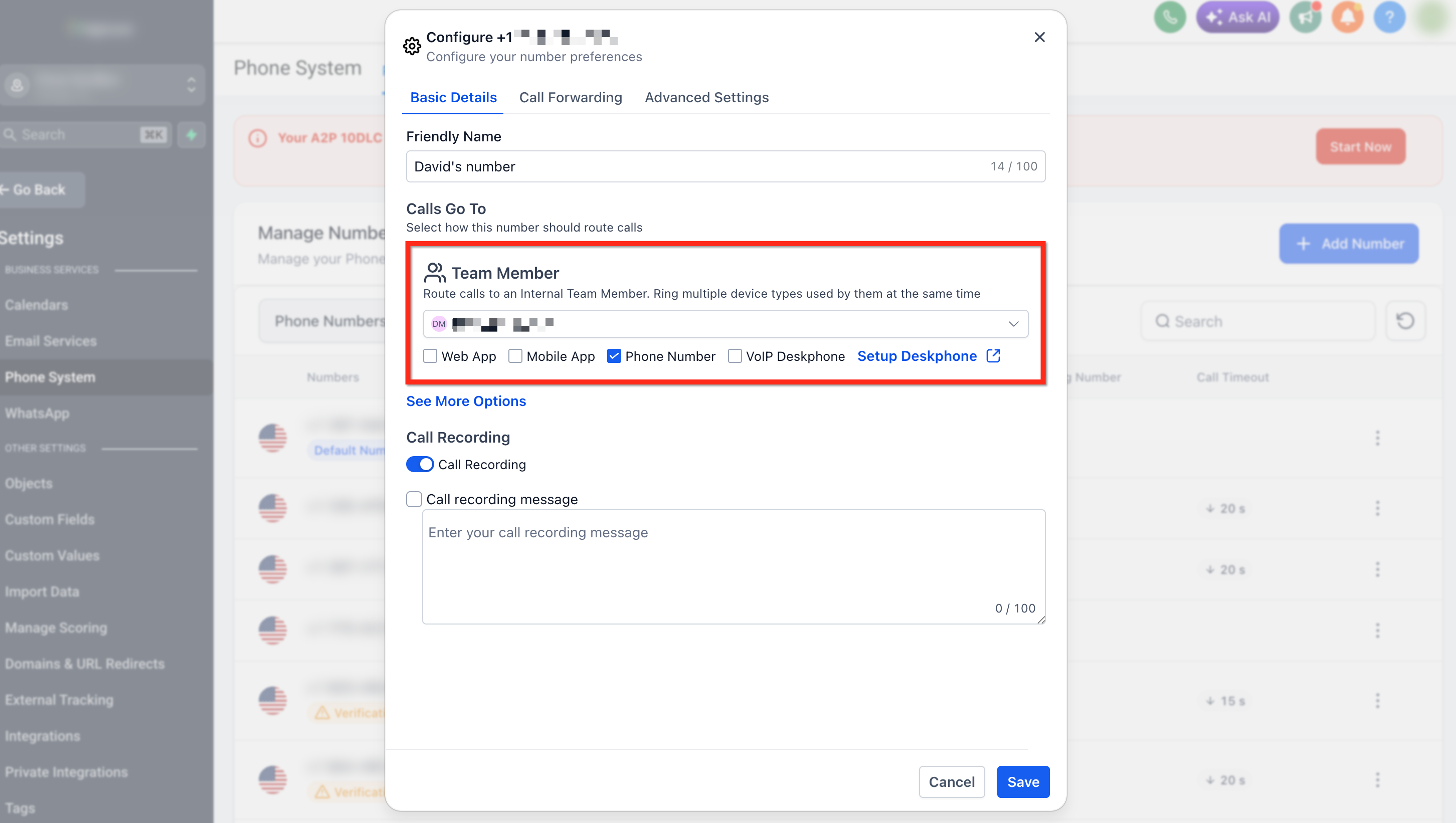
- In the Basic Details tab, pick a team member from the Route calls to an Internal Team Member dropdown.
- Open the Call Forwarding tab and check the Ring More Team Members option.
- Add up to six additional team members who should receive the calls.
- Review the selections and save the phone number configuration.
07What it looks like in HighLevel
08Settings that matter
- Inbound Number. Specifies which LC Phone number routes inbound calls to the selected user.
- Route calls to an Internal Team Member. Selects the primary team member who will receive calls for the phone number.
- Ring More Team Members. When enabled, allows additional team members to be added so the same call rings multiple users.
- Call & Voicemail Settings. Section in a user’s profile that holds the Inbound Number field and other call preferences.
- Basic Details tab. Contains the Route calls to an Internal Team Member dropdown for initial recipient selection.
- Call Forwarding tab. Provides the Ring More Team Members option and lists the extra users to include.
- Default Channel for Ring All. Lets each user decide which device rings when they are part of a shared routing group.
09Things to know before you rely on it
- Only one LC number can be assigned directly to a user at any time.
- A single LC number can be assigned to only one user for dedicated routing; shared routing must use the multiple user method.
- Up to six team members can be added for shared routing on a single number.
10How it connects to the rest of HighLevel
- Purchase a phone number before assigning it to a user. Buy phone number
- Review all options for editing phone number configuration. Phone number settings overview
- Move phone numbers between subaccounts if needed. Transfer numbers
Michael's take

Assigning LC Phone numbers in HighLevel is useful when you need clear call ownership or shared coverage. Skip it if you never use inbound phone calls or if your team handles all calls through a different system.