
01Who this is for
- Agency owners who manage client phone numbers need to ensure inbound texts reach the conversation view.
- Business managers using Twilio for messaging must verify that their webhook points to HighLevel to keep records accurate.
- Founders relying on the platform’s native LC Phone should know they must contact support for inbound SMS issues.
02Inbound SMS, explained
The feature addresses situations where incoming text messages either do not appear in the HighLevel Conversations tab or are mistakenly logged as phone calls. It works for numbers supplied through Twilio as well as those provisioned by the platform’s native LC Phone.
For Twilio linked numbers, the platform expects a specific webhook URL to receive inbound messages. If that URL or its HTTP method is mis configured, the platform cannot process the incoming payload, leading to missing messages or mis categorisation. LC Phone numbers are managed internally, so the same webhook cannot be edited by the user.
All troubleshooting steps are performed inside the Twilio console for Twilio numbers, while LC Phone issues require a support ticket. The process involves confirming number capabilities, checking webhook settings, testing with a live text, and reviewing Twilio logs for delivery status.
03How businesses use inbound SMS
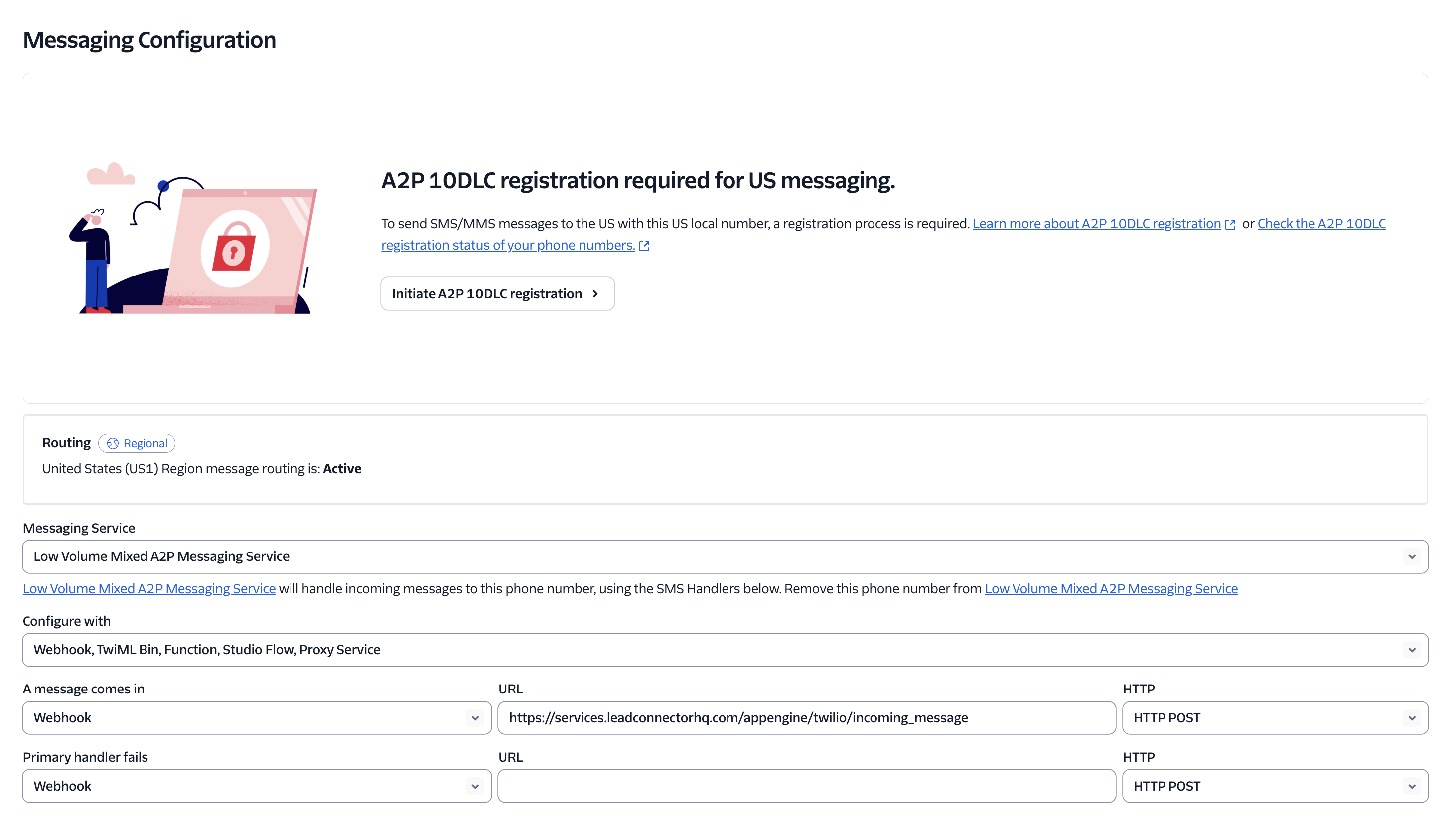
- Digital marketing agency. The agency logs into the client’s Twilio account, locates the specific number, and ensures the inbound message webhook points to https://services.leadconnectorhq.com/appengine/twilio/incoming_message with HTTP POST. After saving, they send a test SMS from a personal phone to confirm the message appears in the client’s HighLevel conversation thread.
- Ecommerce store. The store’s owner checks that the purchased Twilio number supports SMS (and MMS if needed) by viewing the number details. If the store uses a Messaging Service, the owner validates the service’s Integration tab for the same webhook URL and POST method, then tests a real customer text to verify receipt.
- Consulting practice. When inbound texts are showing up as calls, the practice confirms whether the number is an LC Phone line. Recognising it is managed by HighLevel, they open a support request rather than attempting webhook changes, allowing the platform team to correct the routing.
04Before you start
- A functional Twilio account with login credentials.
- Knowledge of the Twilio Account SID linked to the HighLevel subaccount.
- The phone number must be active and capable of SMS (or MMS if media is used).
05How to set up and use inbound SMS in HighLevel
Resolve missing or mis categorized inbound SMS for Twilio numbers
- Sign in to the Twilio website using your credentials.
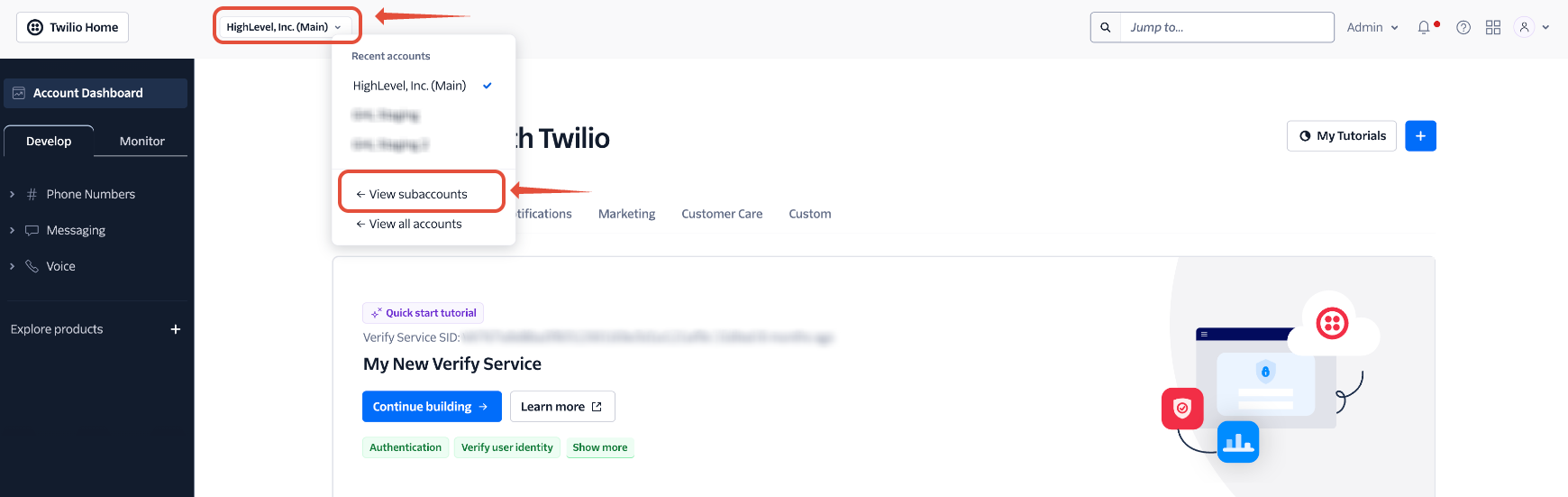
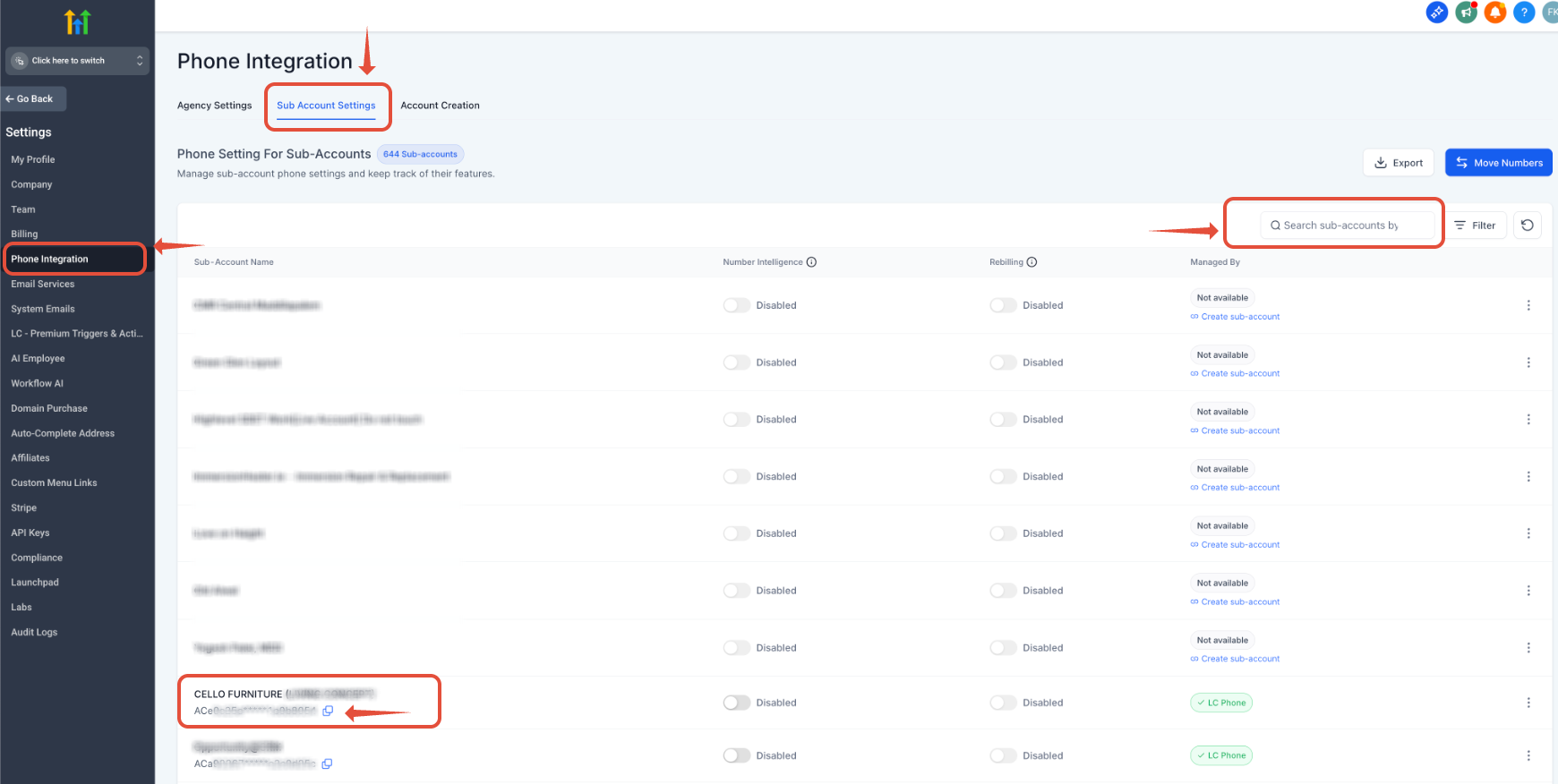
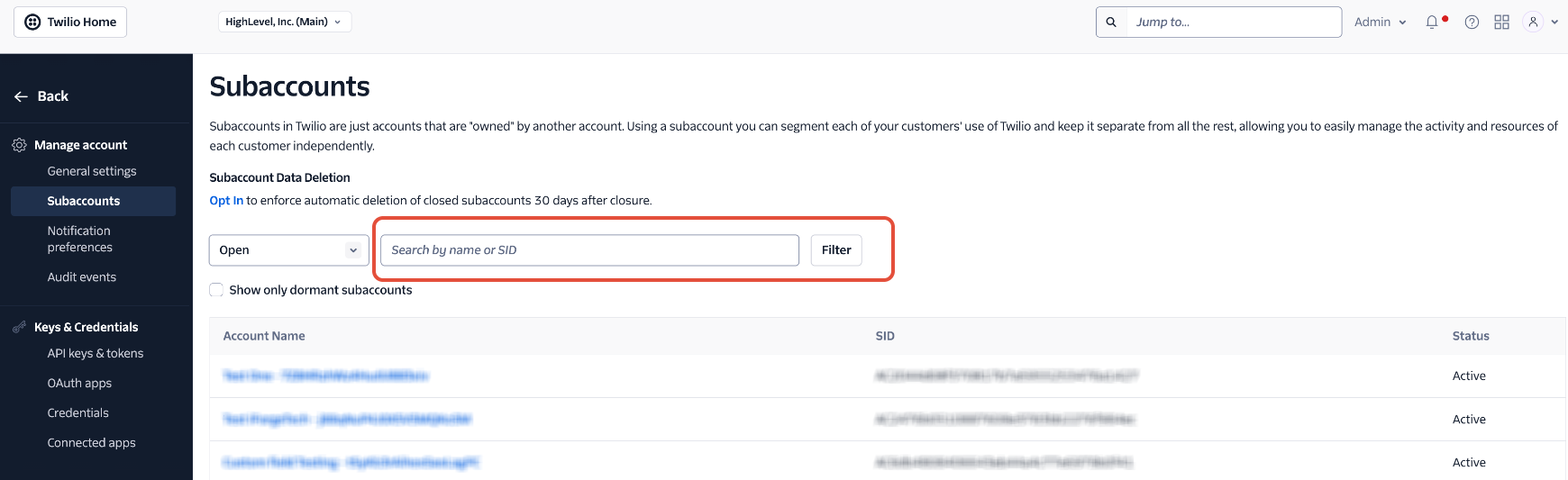
- If you have multiple subaccounts, copy the Account SID from Agency View › Settings › Phone Integration › Subaccount Settings in HighLevel and paste it into the Twilio subaccount search bar to open the correct subaccount.
- Navigate to Phone Numbers › Manage › Active Numbers and select the number that is not delivering texts.
- Open the number’s Messaging settings and set the inbound webhook to https://services.leadconnectorhq.com/appengine/twilio/incoming_message using HTTP POST, then save.
- If the number belongs to a Messaging Service, open that service, go to Integration, choose Send a webhook for Incoming Messages, paste the same URL, set both Request and Fallback methods to HTTP POST, and save.
- Send a fresh SMS from an external device to the Twilio number and verify the text appears in HighLevel Conversations.
- If the message still does not arrive, review the corresponding entry in Monitor › Logs › Messaging, note the Message SID and timestamp, and open a ticket with Twilio Support.
06What it looks like in HighLevel
07Settings that matter
- A message comes in webhook. Specifies the URL that Twilio calls when a text arrives; it must point to HighLevel’s inbound_message endpoint and use HTTP POST.
- Send a webhook (Messaging Service Integration). Defines the webhook URL for incoming messages when the number is part of a Messaging Service; also requires HTTP POST for both primary and fallback URLs.
08Things to know before you rely on it
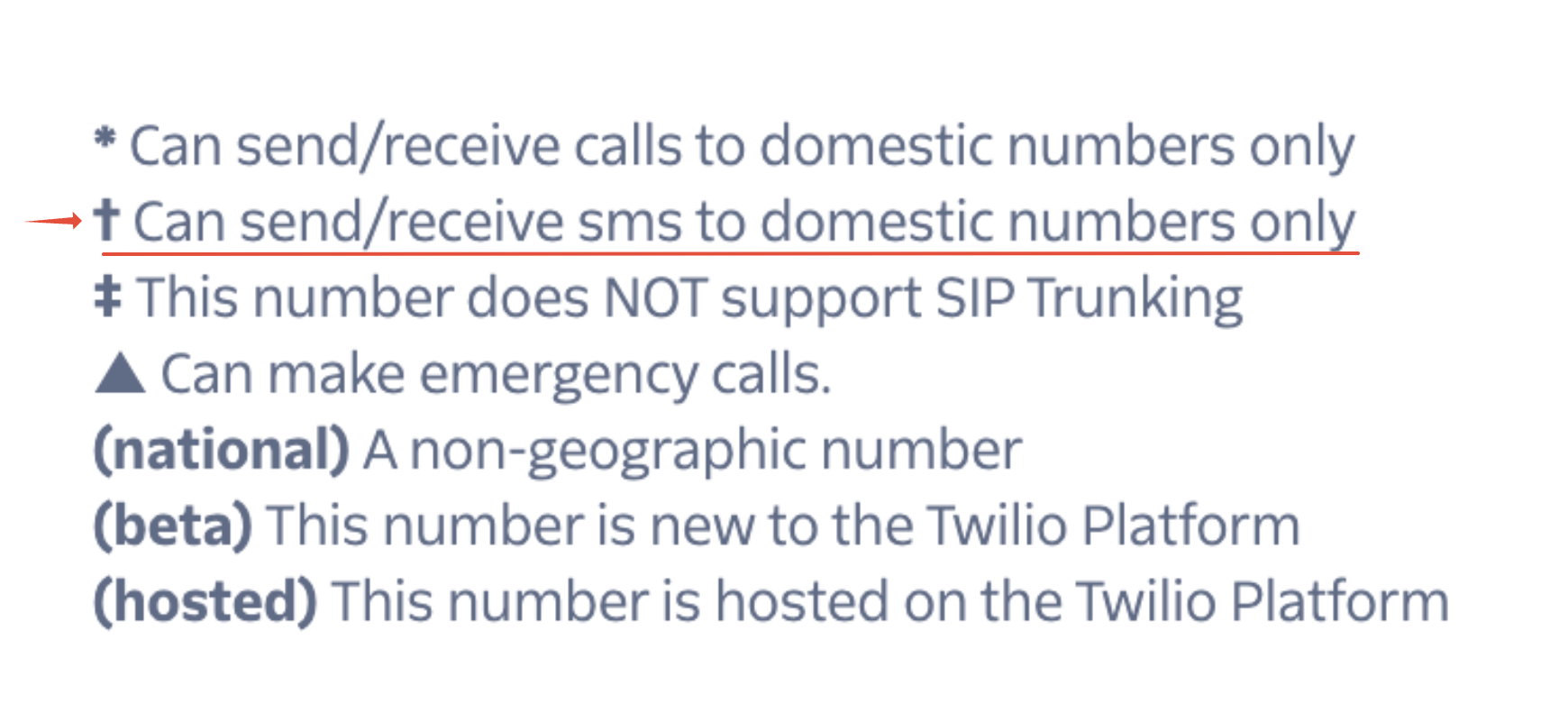
- A dagger (†) beside a Twilio number indicates the SMS capability is limited to domestic messaging only.
- LC Phone numbers cannot have their webhook edited by users; resolution must come from HighLevel support.
09If something goes wrong
- Inbound SMS does not appear in Conversations. Confirm the webhook URL and method are correctly set for the number or its Messaging Service, then test with a new text.
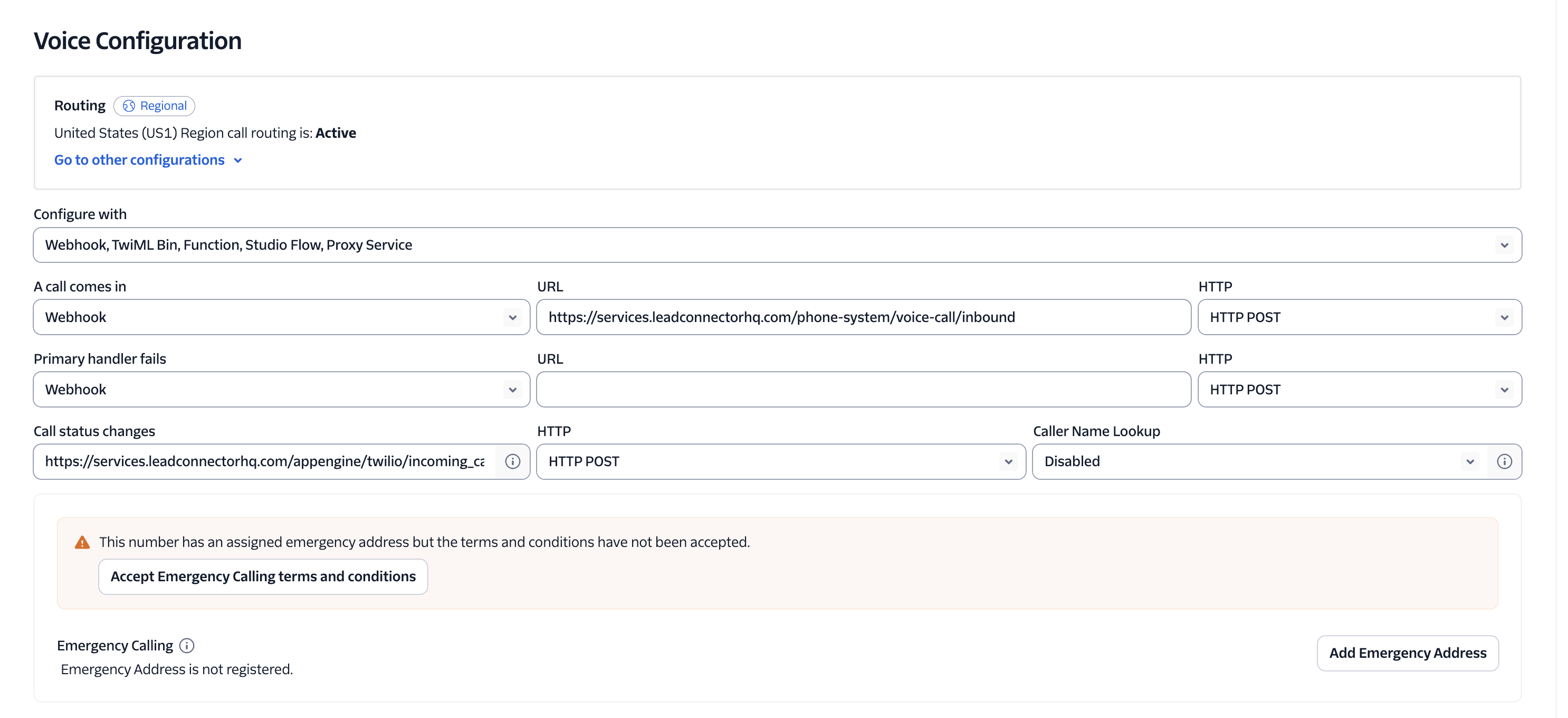
- Incoming text shows up as a call. Verify the inbound message routing configuration in Twilio; adjust the webhook as described and ensure the method is HTTP POST.
- Twilio log shows Delivered but HighLevel still shows nothing. Copy the Message SID and relevant timestamps, then contact Twilio Support to trace where the payload stopped.
10How it connects to the rest of HighLevel
- Review common SMS delivery errors to understand log status codes. SMS delivery errors guide
- Check the HighLevel SMS compliance settings for opt out handling and sender ID requirements. SMS compliance settings
- Read the best practices for SMS deliverability to avoid carrier restrictions. SMS deliverability best practices
Michael's take

People often assume they can tweak the LC Phone webhook themselves, but the platform controls those settings. The only path is to open a ticket with Support and let them handle the fix.
If I were in the same spot, I would first verify that my number is a Twilio number and then walk through the webhook checks step by step. That way I know exactly where the breakdown occurs before involving Support.