
01Who this is for
- Call center managers, they can route calls to agents without assigning personal numbers, simplifying staffing changes.
- Agency owners, they can enable transfers for team members who only use the platform’s apps, keeping numbers centralized.
02Call transfers without a personal phone number, explained
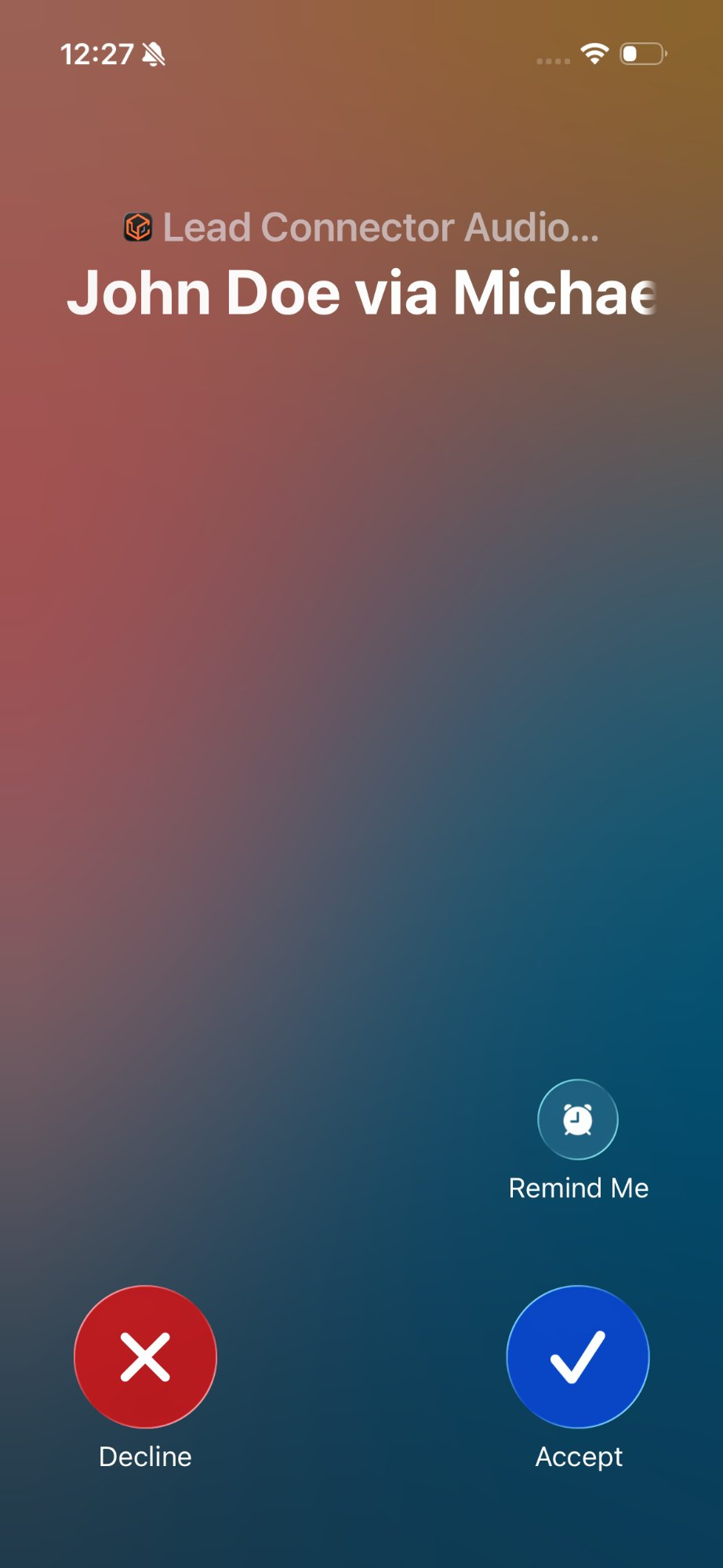
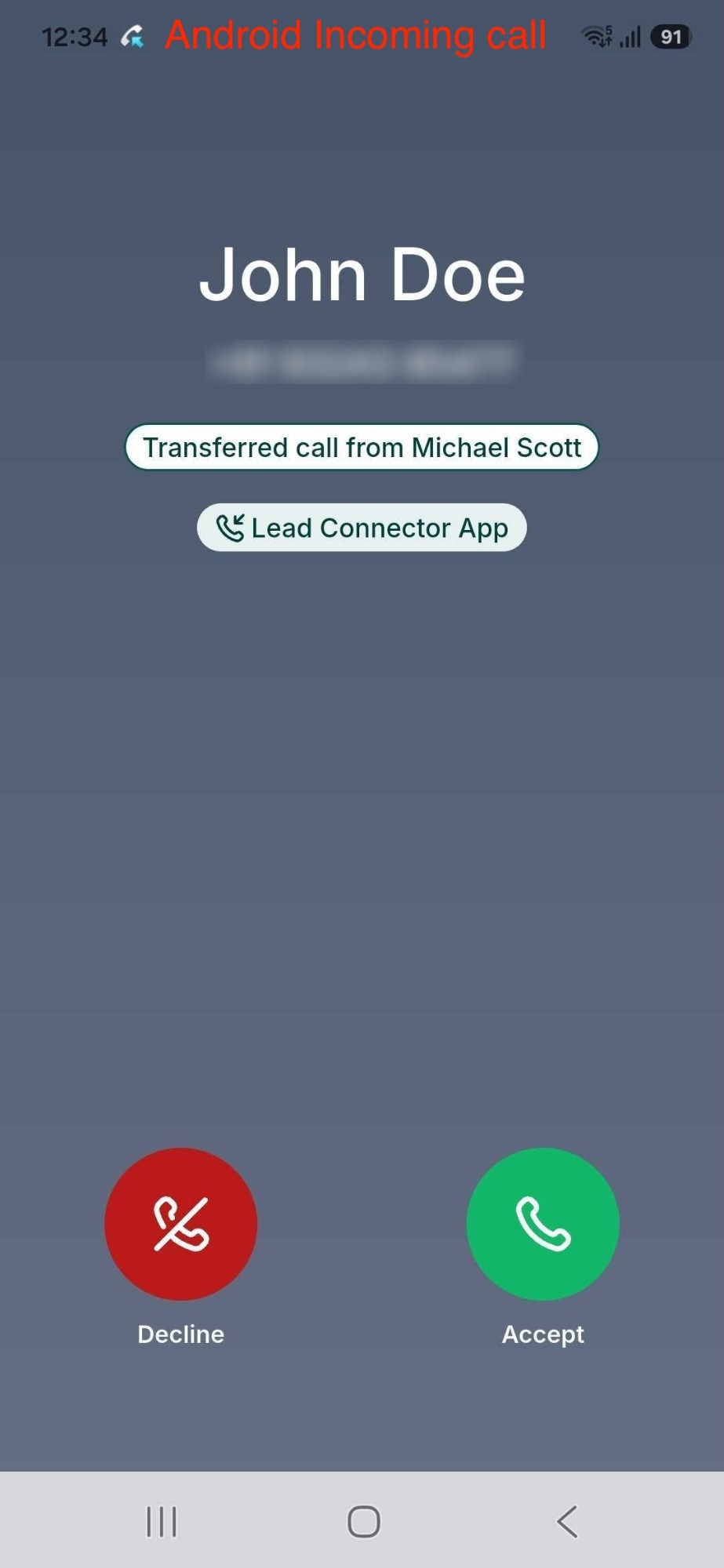
The transfer function works inside the HighLevel mobile app. While a call is active you tap the transfer icon and choose a staff user. The platform reads the selected user’s Forward Calls to settings and rings every destination they have configured at the same time. You can hand off the call as a warm transfer (hold and introduce) or a blind transfer (immediate hand off). This works for both inbound and outbound calls and follows the existing warm and blind transfer workflows. The transferred call shows the original caller’s name with a via label on iOS or a Transferred call from banner on Android.
03How businesses use call transfers without a personal phone number
- Marketing agency. An account manager receives a prospect call on their web app, then transfers it to a copywriter who only uses the mobile app. The transfer rings the copywriter’s phone and app simultaneously, allowing them to pick up from any device.
- Real estate office. A listing agent answers a buyer’s inbound call on their SIP deskphone and transfers it to a colleague who works from a laptop using the HighLevel web app. The colleague’s web app rings alongside their mobile app, ensuring the call is answered promptly.
- Fitness studio. The front desk staff member starts an outbound appointment reminder call from the mobile app and then blind transfers it to a trainer who only has the HighLevel desktop app configured. The trainer’s desktop app rings, letting them take over the call right away.
04How to set up and use call transfers without a personal phone number in HighLevel
Transfer a call to a staff member
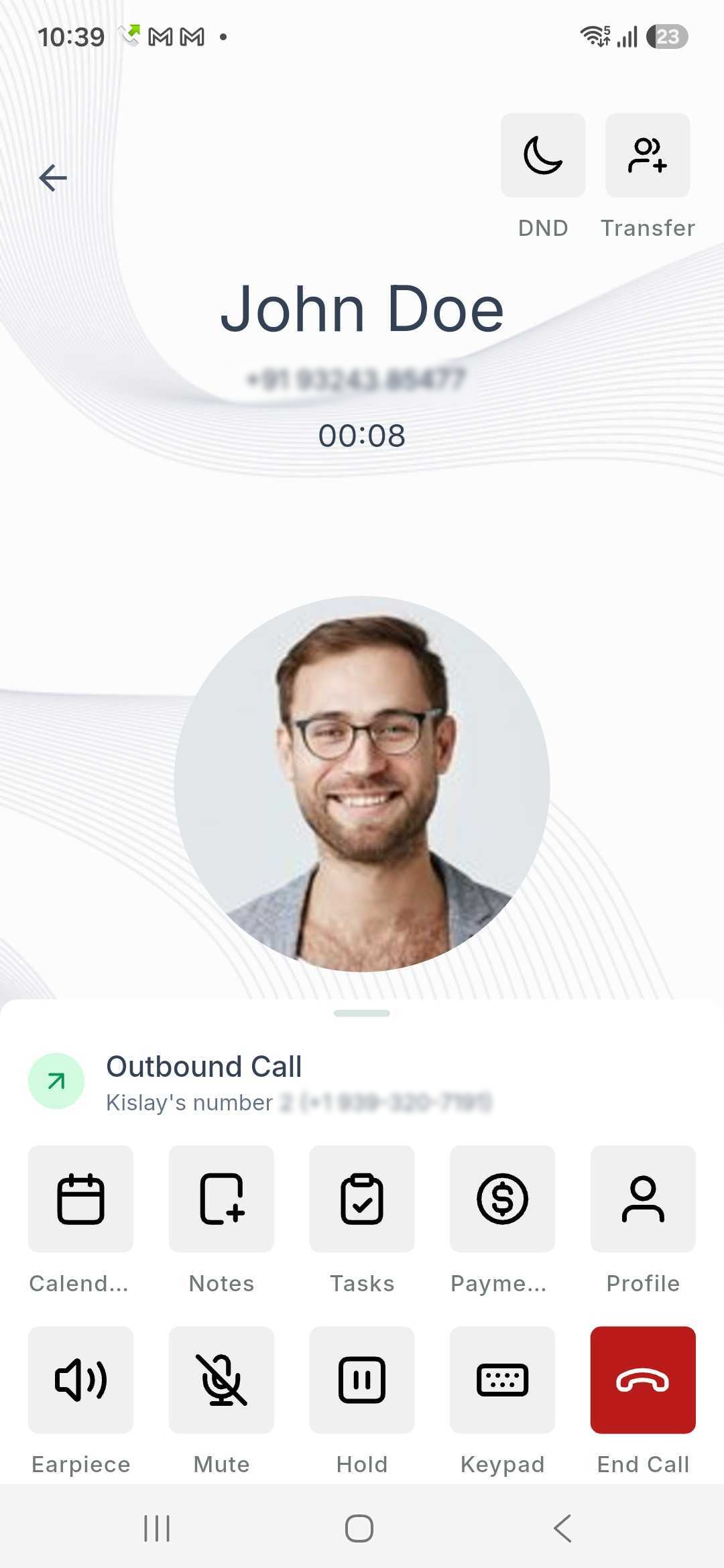
- Answer an incoming call or place an outbound call using the HighLevel mobile app.
- Tap the Transfer button in the top right corner of the call screen.
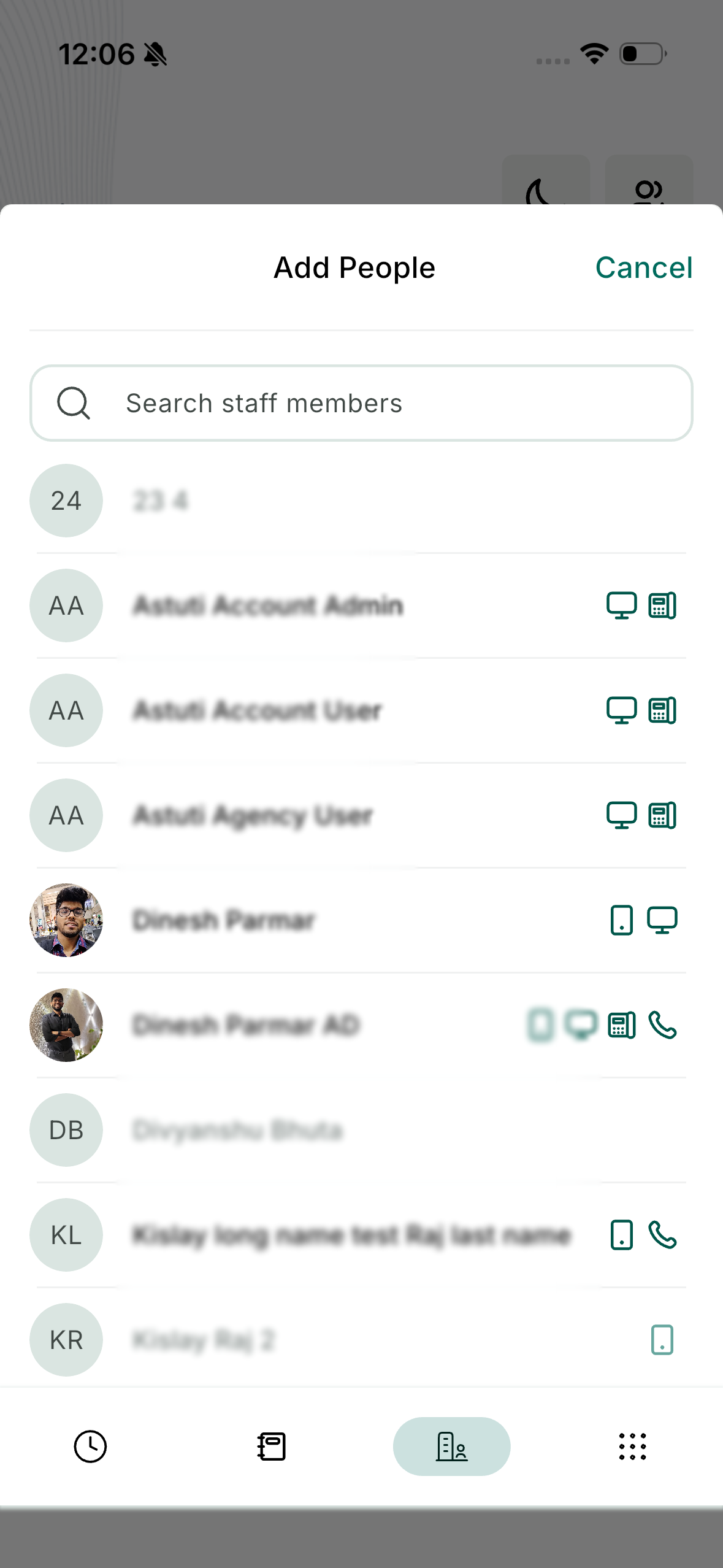
- Open the Staff Members tab and locate the desired staff user; users without any eligible destination appear disabled and cannot be selected.
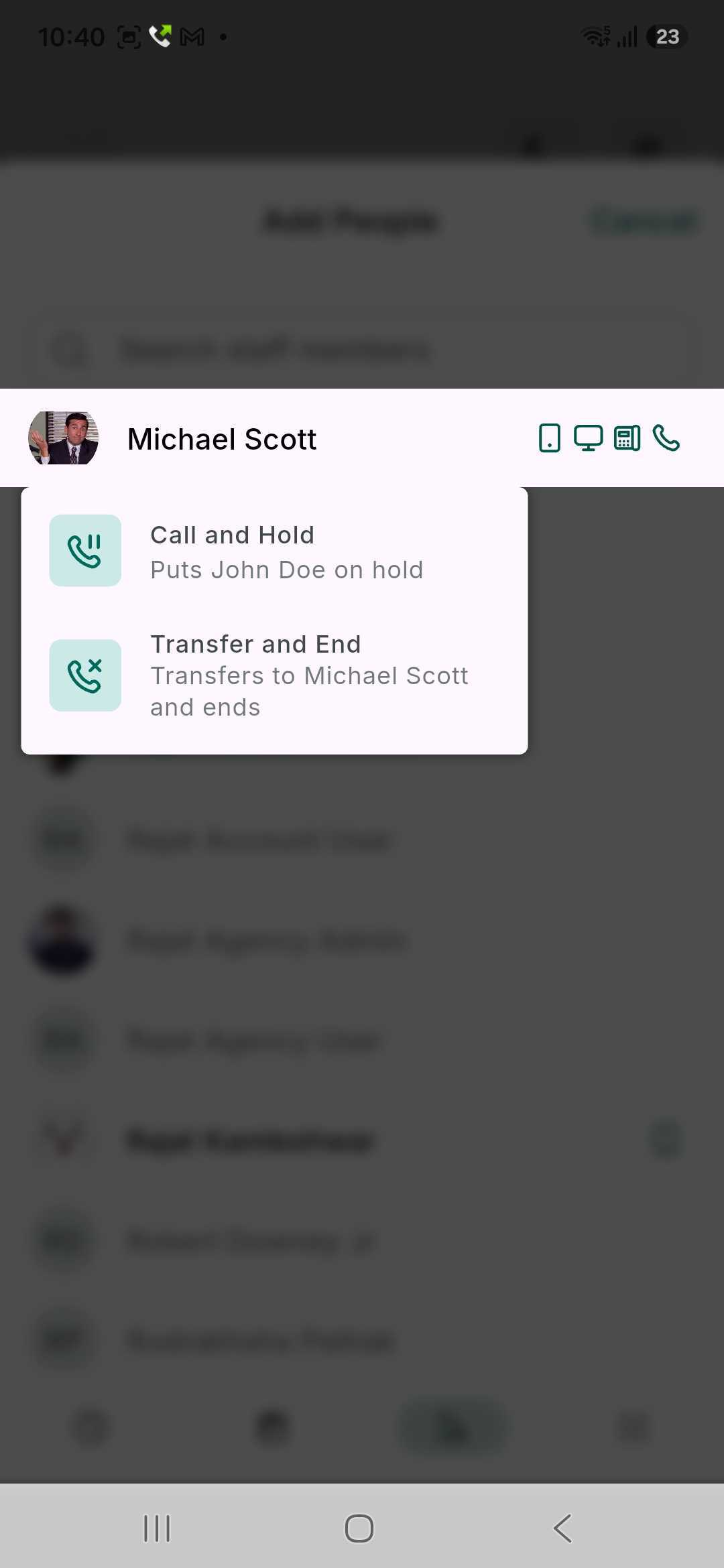
- Select either Hold and Call for a warm transfer or Transfer and End for a blind transfer.
- The receiving staff member accepts the transfer; on iOS the incoming call banner shows the caller’s name followed by via and the name of the transferring staff member, while on Android it shows Transferred call from and the transferring staff member.
05What it looks like in HighLevel
06Settings that matter
- Forward Calls to. Controls which devices, Mobile App, Web App, Phone or SIP deskphone, the platform will ring when a call is transferred to that staff member.
07Things to know before you rely on it
- At least one receiving destination must be configured for the staff member; otherwise the user appears disabled in the transfer list.
- Transfers are directed to the user, not to a specific device; all of the user’s eligible destinations ring together.
- The transferred staff member cannot re transfer the same call.
08How it connects to the rest of HighLevel
- Enable inbound calls on the HighLevel mobile app to receive transferred calls on your phone. Enable inbound calls
- Use the web app softphone for outbound calls that can later be transferred. Web app softphone
- Review pricing and billing details for the phone system before adding new users. Phone system pricing
Michael's take

Do I really need a personal phone number for every team member to handle transferred calls? In HighLevel you don’t. The system looks at whatever devices a staff member has set up. The mobile app, web app, a desk phone or SIP. And rings them all at once. If I were setting this up, I’d first make sure each user’s Forward Calls to list contains at least one reachable device. Once that’s in place, the transfer button works exactly like the classic warm or blind transfers you already know, just without the personal number hurdle.