
01Who this is for
- Marketing agencies that manage multiple client subaccounts can enable RCS in Labs and send rich campaigns while keeping brand consistency.
- Ecommerce retailers can deliver product cards and tappable buttons to customers, increasing interaction compared with plain SMS.
- Service based businesses such as clinics can use RCS reminders with actionable buttons and rely on SMS fallback for contacts without RCS support.
02RCS messaging, explained
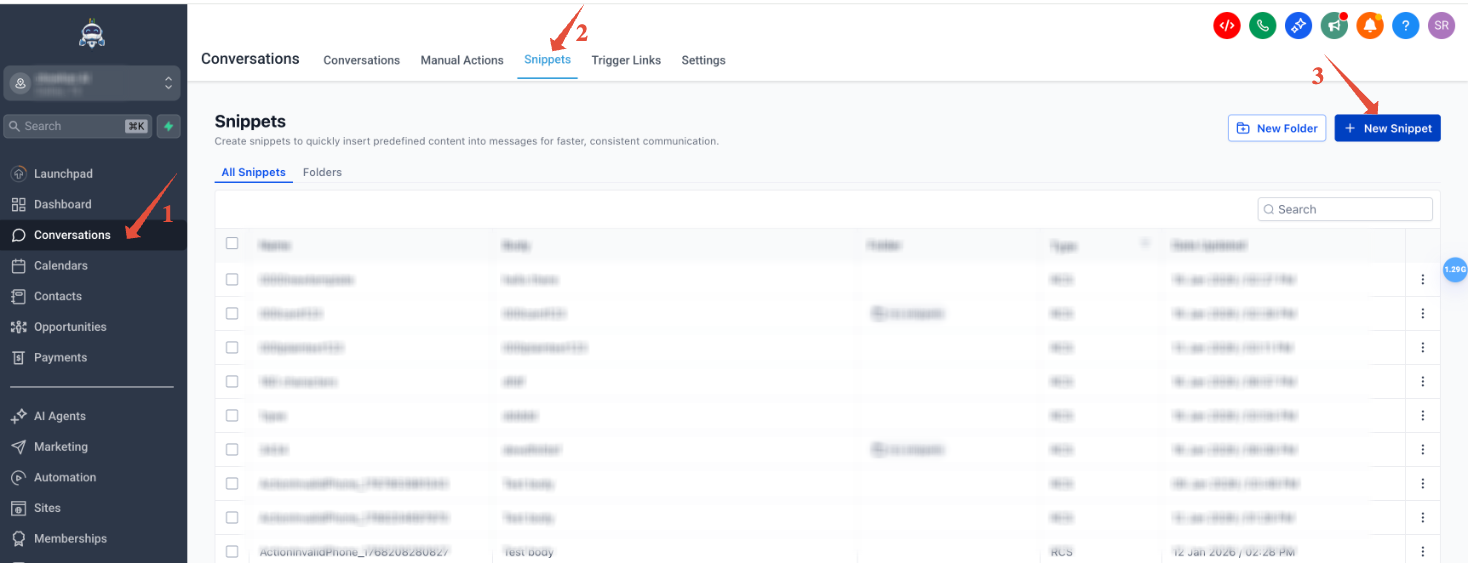
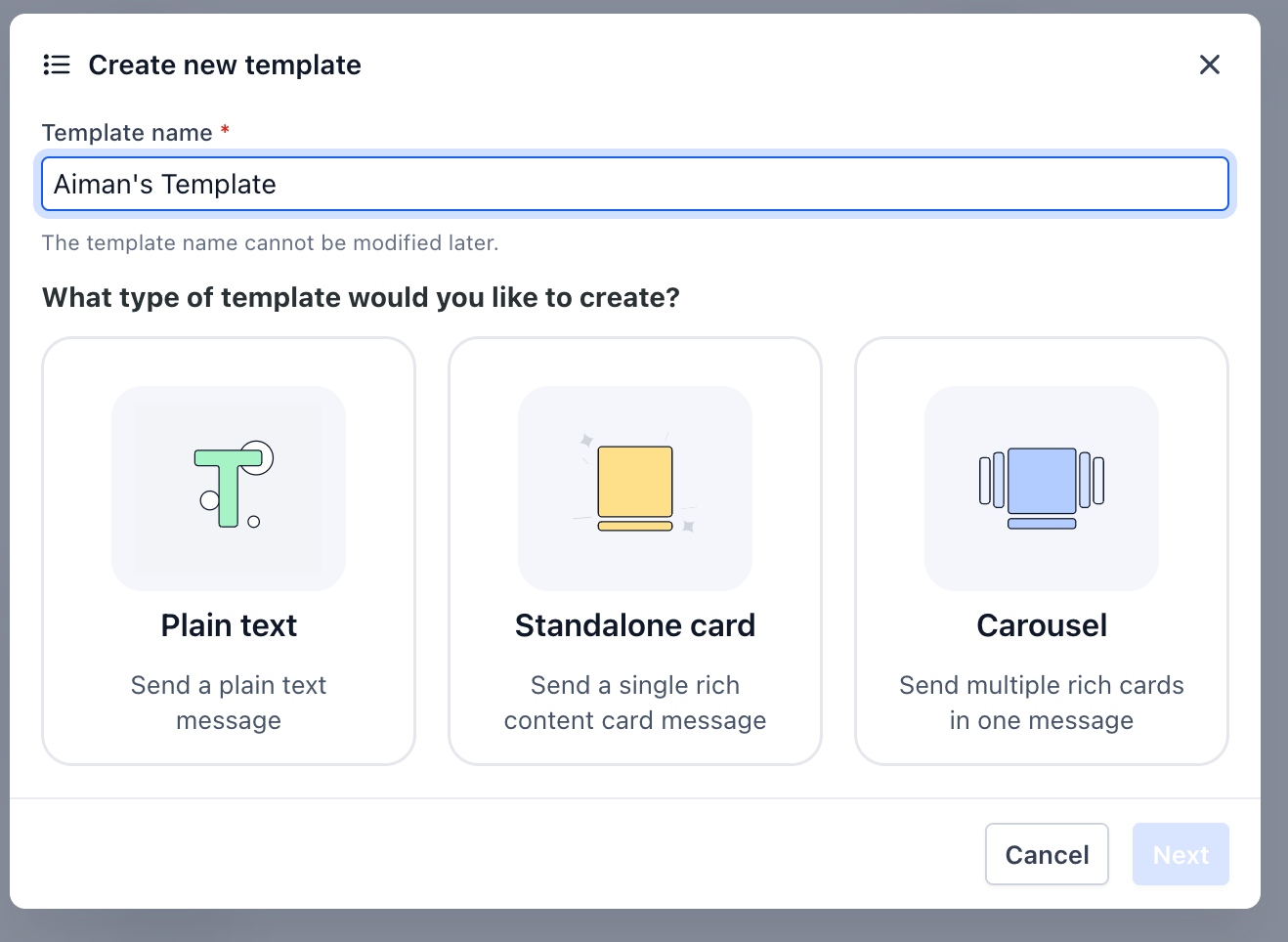
RCS adds a modern messaging layer to HighLevel. Once enabled, businesses can send messages that show a brand name instead of a phone number, include images, cards, carousels and tappable actions like Call or Open URL. The platform stores reusable RCS snippets and lets you launch them from one to one Conversations, bulk actions or automated workflows.
When a recipient’s device or carrier cannot handle RCS, HighLevel automatically substitutes an SMS version if fallback is turned on. Delivery status shows Sent, Delivered and, when supported, Opened signals. All RCS activity lives under the Labs section for activation and under Settings > Messaging > RCS for fallback configuration.
03How businesses use RCS messaging
- Dental practice. Create an RCS snippet with an appointment reminder card that includes a “Reschedule” button. Send the snippet to all patients with upcoming visits using a bulk RCS action, then track delivery and open signals.
- Real estate agency. Add an RCS Interactive Message action to a workflow that fires when a lead reaches the “Showing Scheduled” stage. The message displays a property carousel with buttons to request more info or book a tour.
- Online retailer. Design a carousel RCS snippet showcasing new products. Use the bulk RCS send feature to schedule the campaign for a promotional launch, selecting the approved sender ID and monitoring progress on the Bulk Actions page.
04The numbers and rules that matter
- Basic Outbound/Inbound US price per segment $0.0083 (per HighLevel's help center, checked November 2026).
- Basic Inbound US price per message $0.0083 (per HighLevel's help center, checked November 2026).
- Rich Single RCS Inbound US price $0.0165 per message (per HighLevel's help center, checked November 2026).
- Rich RCS Outbound US price $0.0220 per message (per HighLevel's help center, checked November 2026).
- One segment is 160 UTF 8 bytes.
- Location Accounts: Twilio pricing + 5% markup.
05Before you start
- RCS must be enabled for the subaccount through Labs.
- The account must use LC Phone (LeadConnector Phone System) as the phone provider.
- Business identity details such as brand name, website, support contact, address and logo should be prepared.
- A documented opt in process for messaging must be in place.
06How to set up and use RCS messaging in HighLevel
Enable and set up RCS
- Confirm that RCS is turned on for the subaccount in Labs.
- Verify that LC Phone is the active phone provider for the account.
- Activate RCS in Labs for the subaccount via Agency View > Settings > Labs > RCS Messaging > Manage.
- Create the RCS Sender ID either by requesting Support (ISV) or by navigating to Twilio > Develop > RCS > Senders.
- Submit the newly created Sender ID for carrier and Google approval.
- Enable SMS fallback in Settings > Messaging > RCS > Fallback.
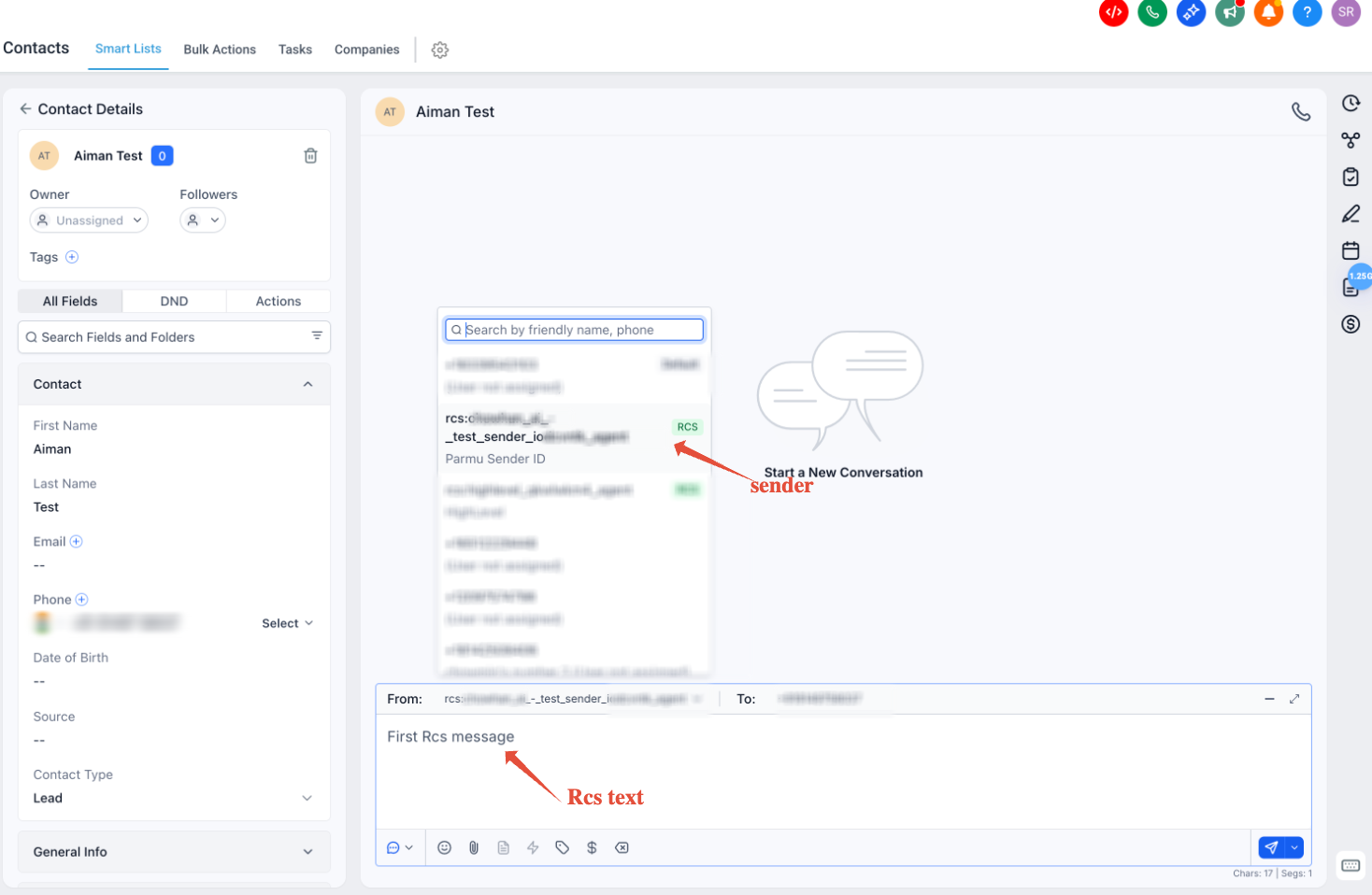
- Send a test message from Conversations to an RCS compatible contact to confirm delivery and fallback behavior.
Send RCS via bulk actions
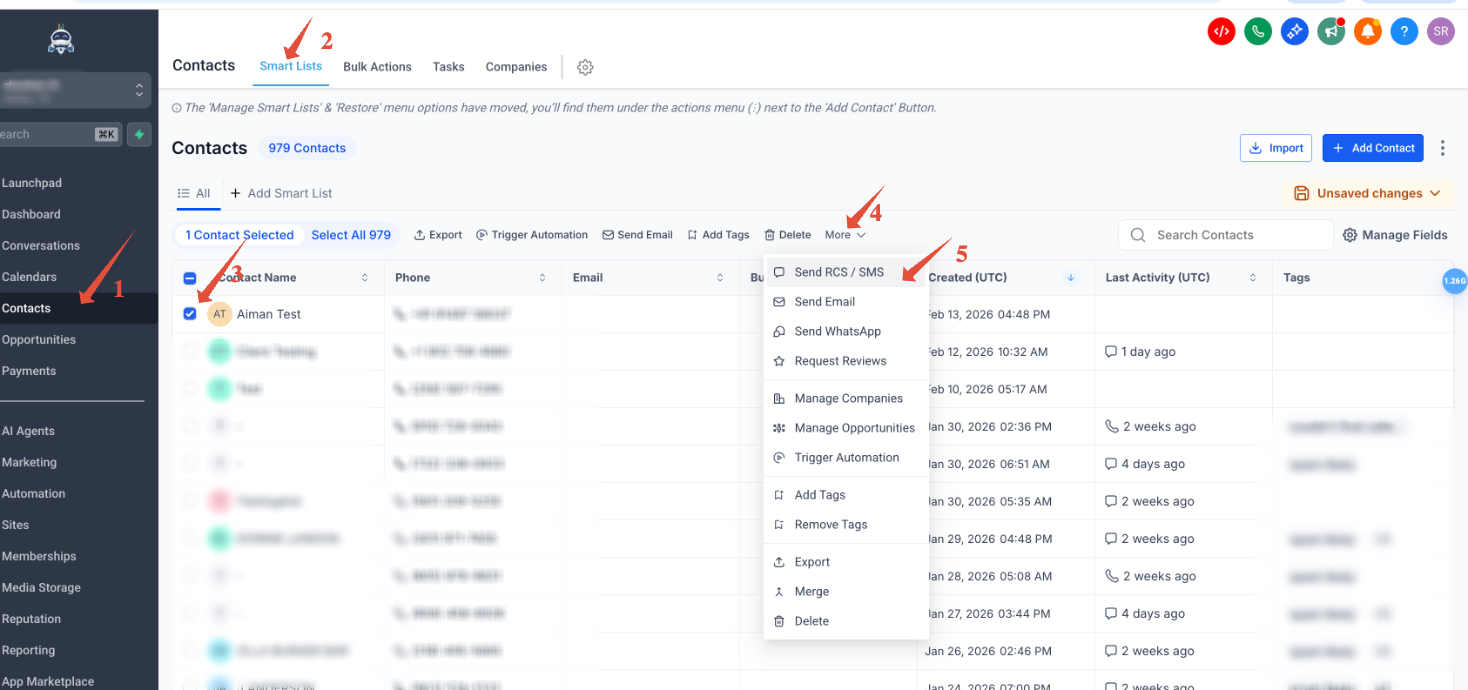
- Open Contacts, go to Smart Lists, select the target contacts, click More, and choose Send SMS & RCS.
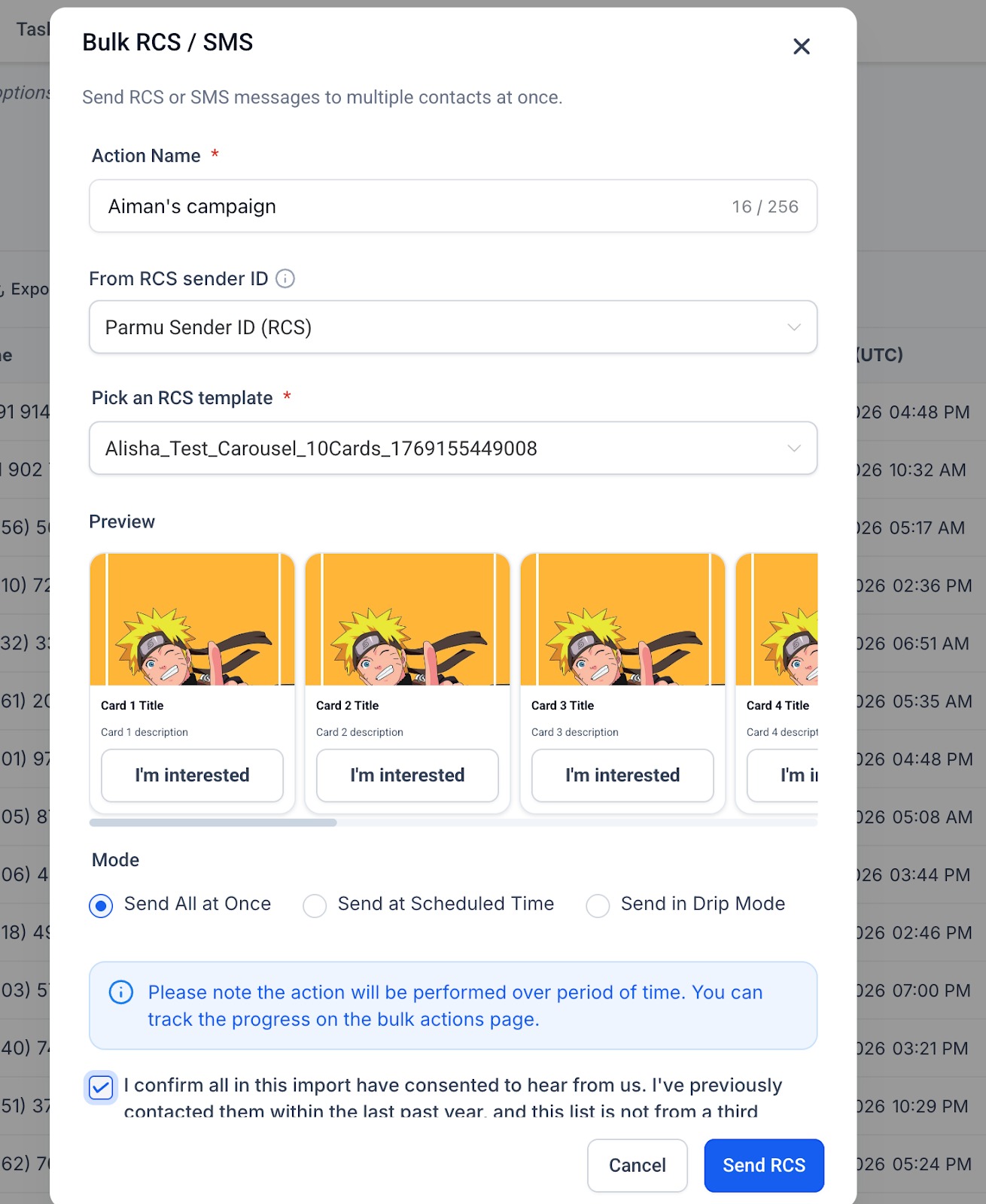
- Enter a name for the campaign in the Action Name field.
- Choose the approved RCS Sender ID from the From RCS Sender ID dropdown.
- Pick the RCS snippet to send in the Pick an RCS Template field.
- Select the sending mode (All at Once, Scheduled Time, or Drip) in the Mode Selection field.
- Check the consent confirmation box.
- Click Send RCS to launch the bulk send.
- If you opted to check progress, open the Bulk Actions page to monitor status.
Automate RCS in a workflow
- Navigate to Automation > Workflows.
- Open an existing workflow or create a new one.
- Add the Send RCS or RCS Interactive Message action to the canvas.
- Configure the message content and select the approved Sender ID.
- Publish the workflow to activate automated RCS delivery.
07What it looks like in HighLevel

08Settings that matter
- RCS Messaging. Enables or disables RCS capability for a subaccount in Labs.
- From RCS Sender ID. Specifies which approved sender is used for outgoing RCS messages.
- Pick an RCS Template. Selects a saved RCS snippet that forms the message body.
- Mode Selection. Determines how a bulk RCS send is paced: immediately, at a scheduled time, or gradually (drip).
- Consent Confirmation. Requires the user to confirm that contacts have opted in before the bulk send proceeds.
- Fallback to SMS. Turns on automatic replacement of RCS with SMS when the recipient cannot receive RCS.
09Things to know before you rely on it
- RCS is not active by default; it must be enabled through Labs.
- Only subaccounts that use LC Phone can enable RCS.
- A sender ID must be approved by carriers and Google before any RCS messages can be sent.
- Recipients without RCS compatible devices or carriers receive SMS fallback if it is enabled.
- All messages must follow opt in, opt out and prohibited content rules.
- US pricing: Basic outbound RCS text costs $0.0083 per segment, Basic inbound RCS text $0.0083 per message, Rich Single RCS inbound $0.0165 per message, Rich RCS outbound $0.0220 per message (per HighLevel's help center, checked November 2026).
10How it connects to the rest of HighLevel
- SMS compliance rules for opt out and sender identification SMS compliance
- Pricing details for SMS and RCS usage Phone system pricing
- Begin a trial to test RCS capabilities Start trial
Michael's take

Most people think turning on RCS in Labs is enough to start sending rich messages. In reality the sender profile still needs carrier and Google approval before any RCS traffic can leave the platform.
If I were setting this up, I would first verify LC Phone is the active provider, then follow the step by step activation, create a simple plain text snippet and send a test to a known RCS capable device. I’d watch the status indicators and confirm the SMS fallback works before launching a bulk campaign.