
01Who this is for
- Founders who need clear visibility into how inbound calls are routed to avoid missed conversations.
- Support managers who must adjust ring priorities and timeouts to ensure calls reach the right team member or voicemail.
02Incoming call settings, explained
The Incoming Call Settings screen gathers every rule that can answer, forward or redirect an inbound call. It displays which options are enabled, which user or number will answer, and the order the platform evaluates each rule.
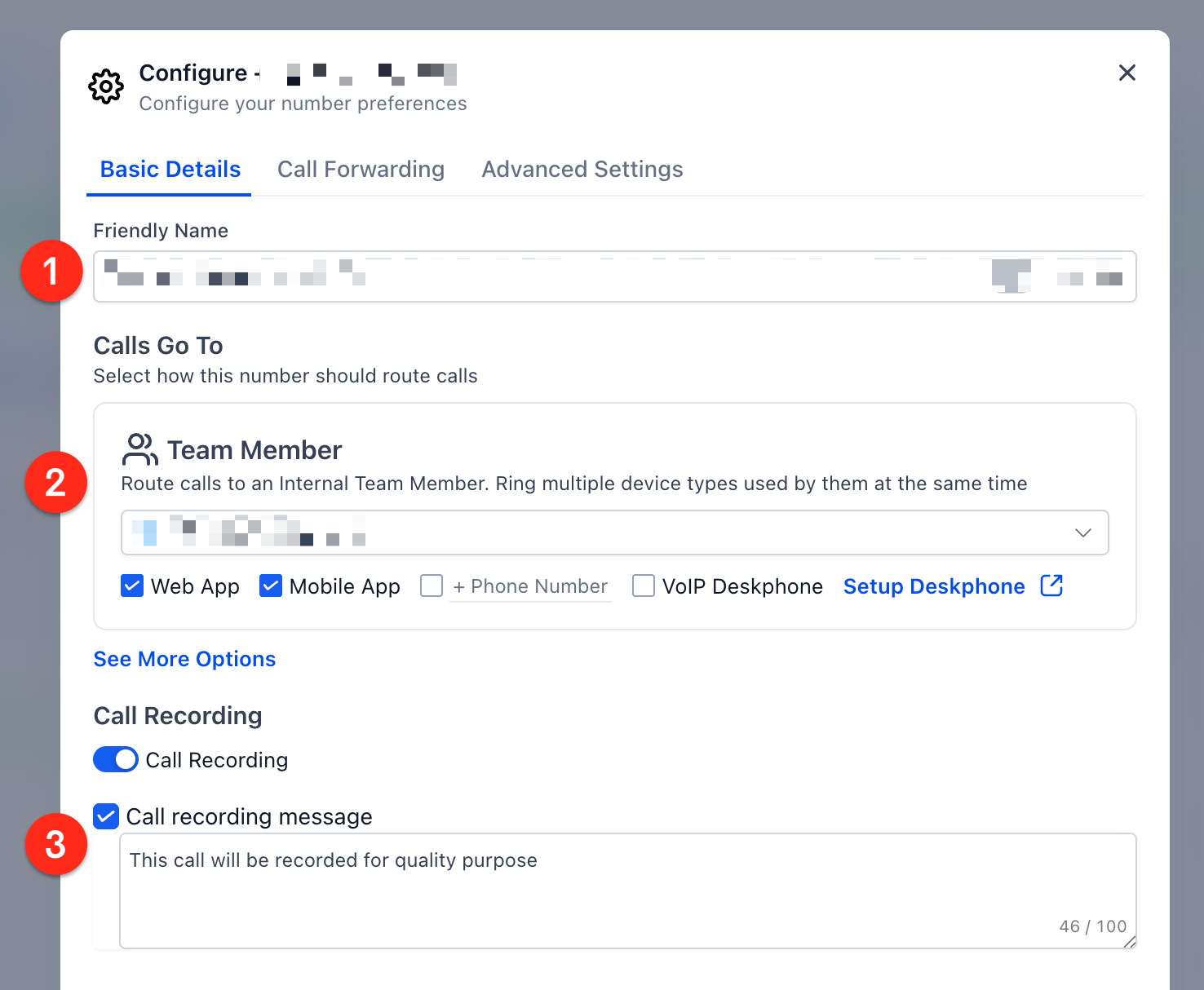
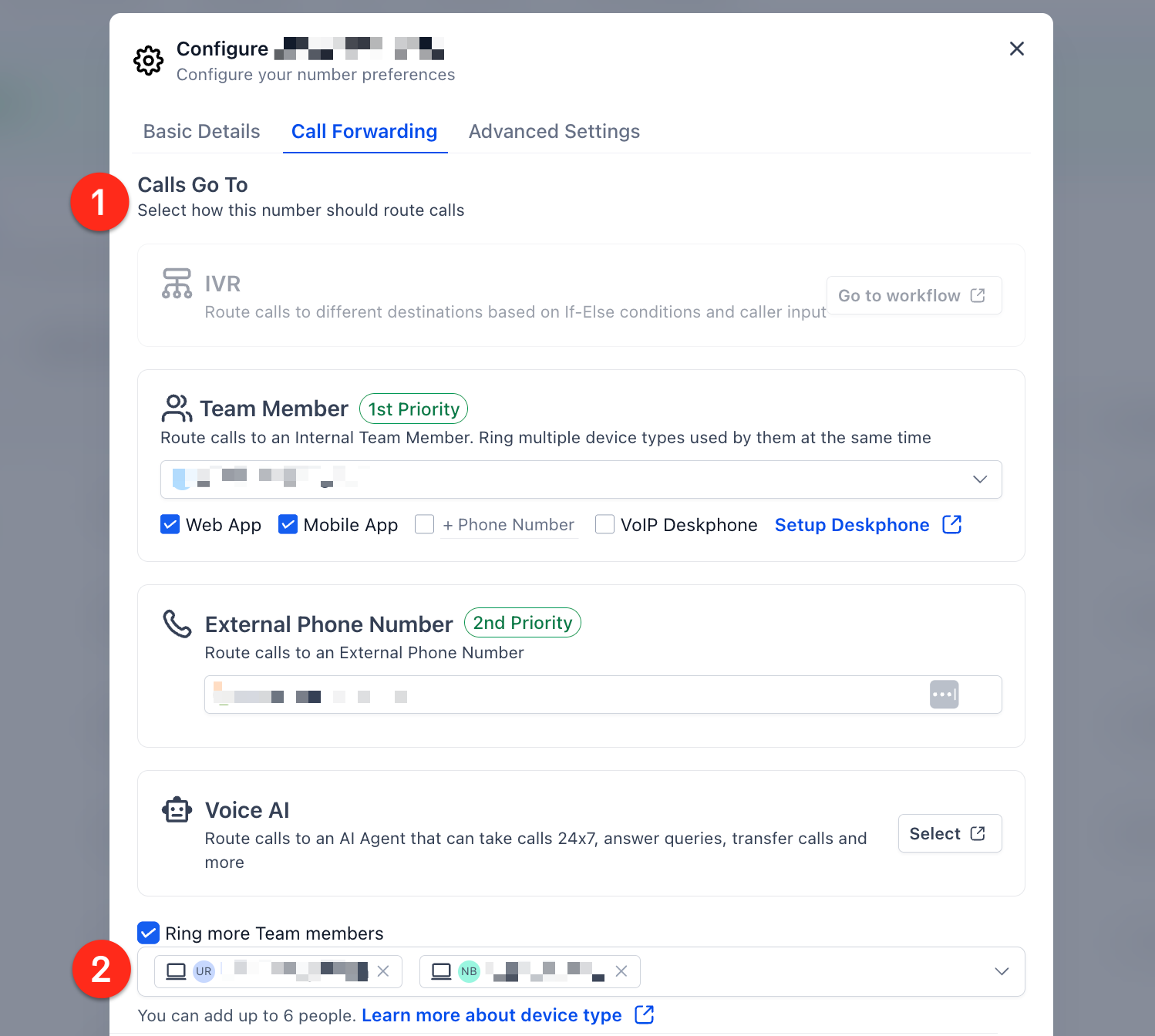
You can rename a phone number, select a primary team member, configure where the call rings (web app, mobile app, deskphone, or another number), and enable call recording with a disclosure message. The Call Forwarding tab defines backup destinations when a call is not answered.
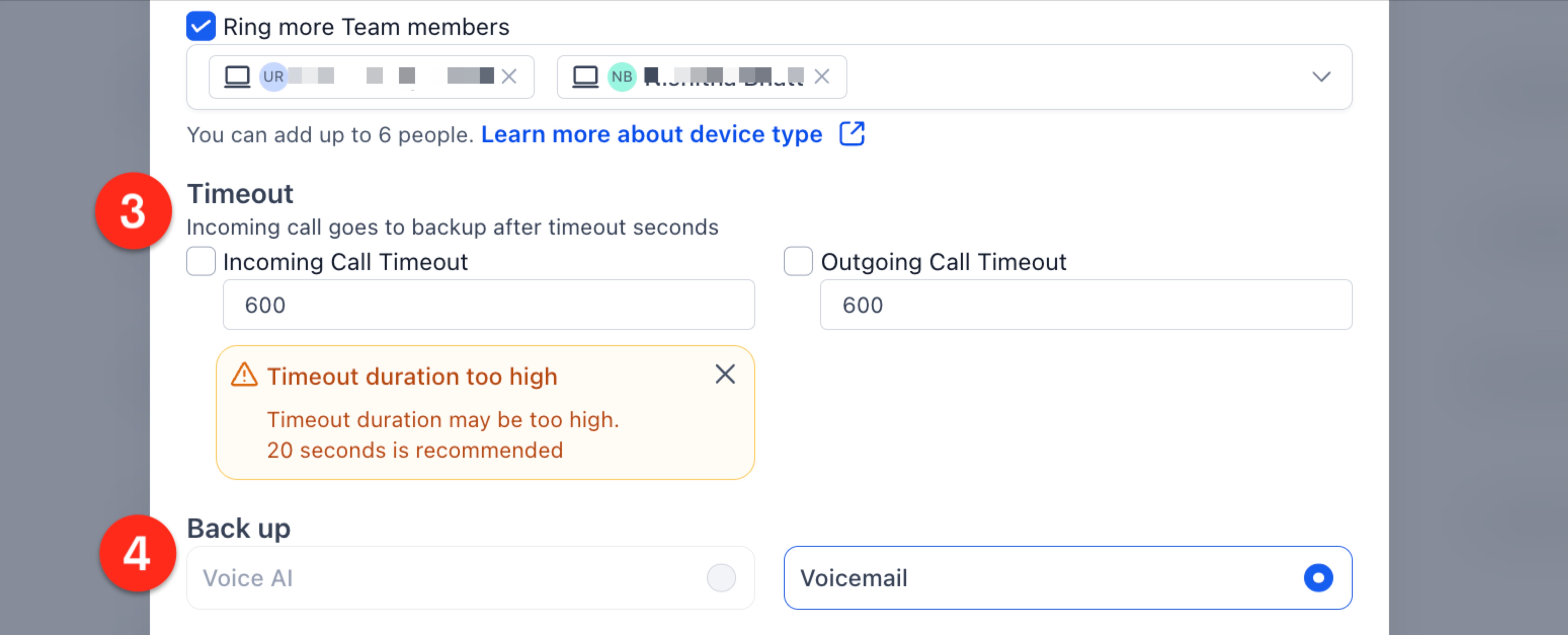
A new guidance overlay warns when the Incoming Call Timeout is set too high or too low, helping you keep the value around 20 seconds. When the timeout expires, the call follows the designated backup behavior, either to Voice AI or CRM voicemail.
03How businesses use incoming call settings
- Real estate agency. The agency opens Incoming Call Settings for its office number, assigns the lead generation specialist as the primary recipient, and sets a 20 second timeout so unanswered calls go to the agency’s voicemail.
- Dental practice. The practice edits the ring options so calls ring on both the web app and the deskphone simultaneously, enables call recording with a disclosure prompt, and configures a timeout that forwards unanswered calls to the practice’s voicemail.
- Online coaching service. The coach selects an external phone number as a second priority destination and enables up to six additional team members to ring together. A healthy timeout ensures that if no coach answers, the call is sent to a Voice AI bot.
04The numbers and rules that matter
- Recommended timeout ~20 seconds.
- Too high (above ~20 seconds) may send calls to carrier voicemail.
- Too low (below ~15 seconds) may ring too briefly or fail to connect.
- Can ring up to 6 additional users.
05Before you start
- To receive calls from private or anonymous numbers, enable Allow private calls under Subaccount Settings > Phone System > Voice > Other Settings > Inbound Calls.
06How to set up and use incoming call settings in HighLevel
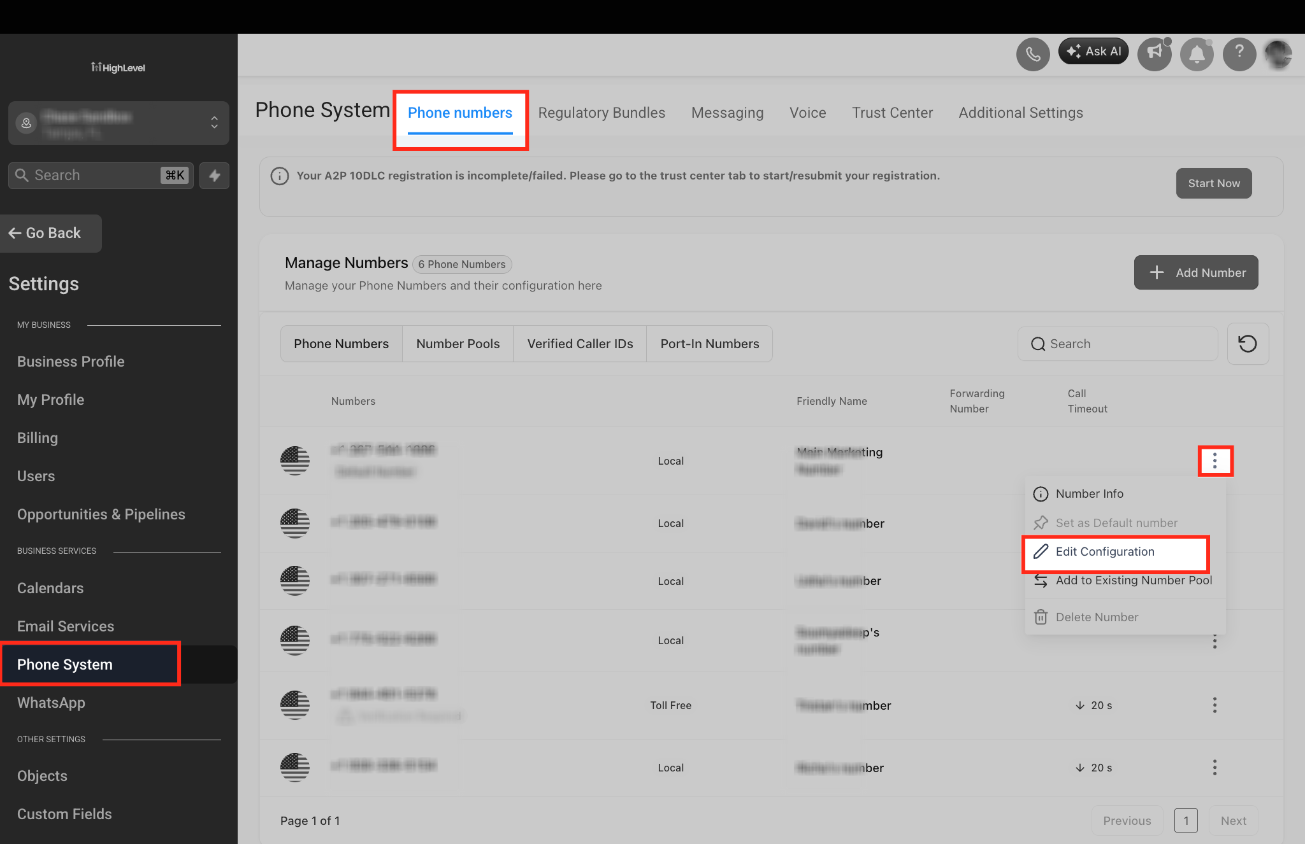
Open Incoming Call Settings for a phone number
- Navigate to Settings > Phone Numbers.
- Select the Phone Numbers tab.
- Click the three dot menu next to the desired phone number.
- Choose Edit Configuration.
07What it looks like in HighLevel
08Settings that matter
- Friendly Name. Sets a custom label for the phone number to make it easier to identify.
- Calls Go To. Designates the primary team member who will receive inbound calls.
- Ring Options. Specifies the devices (Web App, Mobile App, Phone Number, VoIP Deskphone) that will ring when a call arrives.
- Call Recording. Enables or disables recording of inbound calls and can add a disclosure message.
- Incoming Call Timeout. Defines how many seconds the system rings before sending the call to a backup destination.
- Backup Behavior. Determines whether a timed out call goes to Voice AI or CRM voicemail.
- Ring More Team Members. Allows up to six additional users to be added to the ring list.
09Things to know before you rely on it
- The recommended timeout range is around 20 seconds; values above about 20 seconds may send calls to carrier voicemail, while values below about 15 seconds may cut the call off too quickly.
- Only one destination rings at a time, based on the priority order defined in the settings.
- Ring More Team Members can include up to six extra users.
10How it connects to the rest of HighLevel
- Edit phone number settings in HighLevel subaccounts Phone number configuration
- How to Purchase a Phone Number Buy a number
- HighLevel phone system pricing and rebilling guide Pricing guide
Michael's take

I prefer to set the timeout near the suggested ~20 second mark and watch the warning messages.