
01Who this is for
- Sales managers, can reach more prospects faster by dialing three numbers at once.
- Customer support teams, reduce idle time while waiting for calls to be answered.
02MultiLine Dialer, explained
The multiline dialer is a calling tool inside the Phone System. An admin must first enable the feature under Settings > Phone System > Voice > Other Settings > Outbound Calls. Once active, each user chooses to ring one, two, or three contacts at a time.
When a call starts, the dialer dials the selected number of contacts. The first person who answers is connected, and any other ringing calls end immediately. If two people answer at the same moment, the second hears a callback message and moves to the top of the call list for the next attempt.
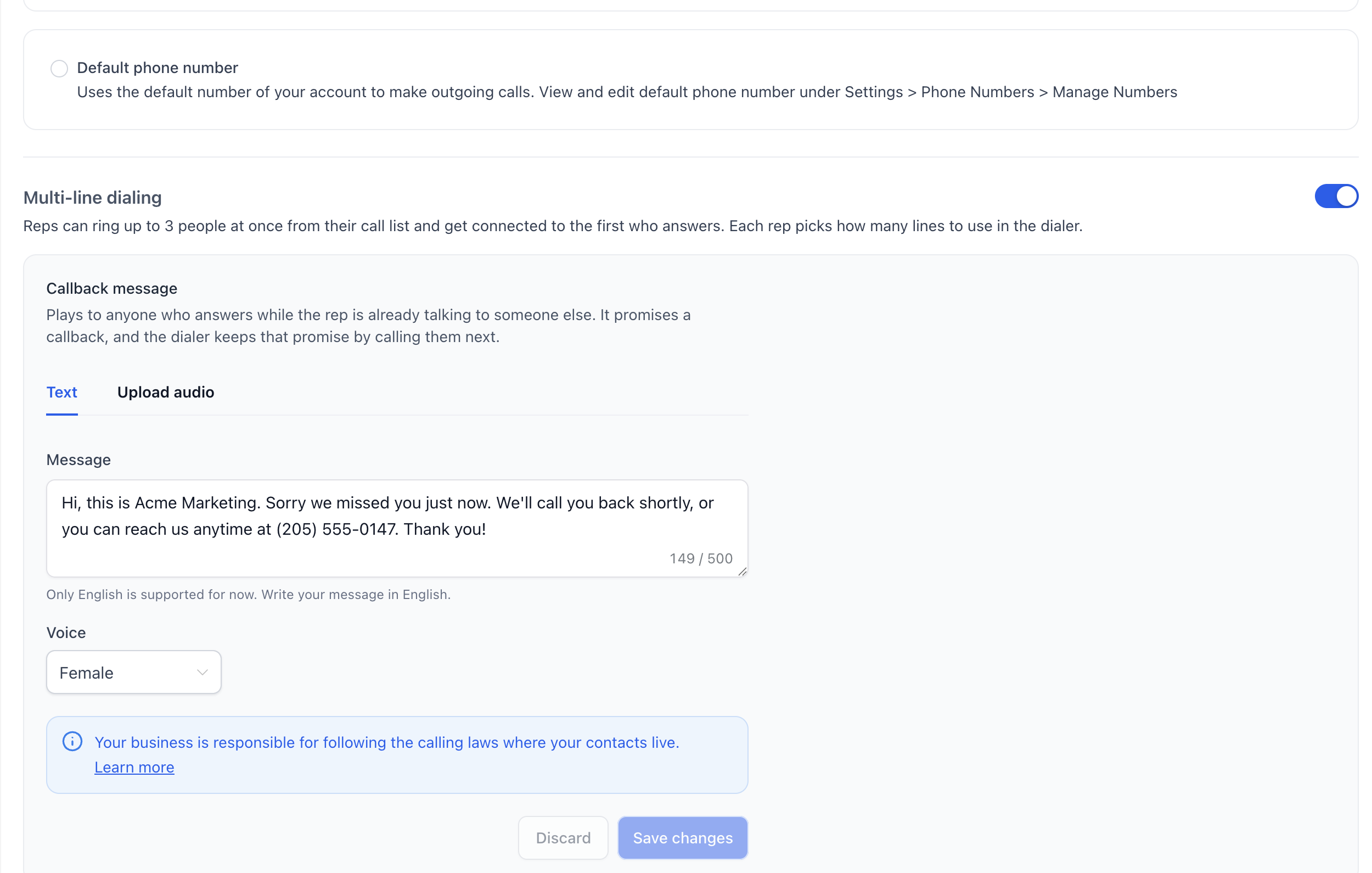
A callback message can be created as text to speech (up to 500 characters, English only) or as an uploaded recording. The message plays for callers who answer after another line is already in use. Contacts without a phone number are ignored, and a contact whose phone rang but did not answer waits 15 minutes before being retried.
03How businesses use the multiline dialer
- Real estate agency. Agents add homeowner leads from the Contacts view, then start the dialer to ring three numbers at once. The first answer connects the agent, while any later answers receive the pre recorded callback message.
- Dental practice. Staff create a short callback message that mentions the practice phone number. When patients answer after the line is already in use, they hear the message and are placed back at the top of the list for a prompt return call.
- Marketing agency. The team pulls prospect opportunities from the Opportunities list, selects them, and clicks Call. The dialer then calls up to three prospects simultaneously, moving on automatically based on who answers.
04The numbers and rules that matter
- Calls up to three contacts at once.
- Callback message up to 500 characters.
- A contact that rang but did not answer waits 15 minutes before being called again.
05Before you start
- An admin has turned on multiline dialing for the account.
- A callback message has been recorded or typed.
- Outbound calls are set to use LeadConnector phone numbers.
- All contacts in the call list have a phone number.
06How to set up and use the multiline dialer in HighLevel
Turn on multiline dialing
- Go to Settings > Phone System.
- Select the Voice tab.
- Under Other Settings locate Outbound Calls.
- Turn on the Multi line dialing switch.
Set up the callback message
- In Settings > Phone System > Voice > Other Settings > Outbound Calls, find the Callback message section.
- Choose either Text or Upload audio.
- If using Text, type a message up to 500 characters and pick a voice (English only).
- If using Upload audio, attach the recorded file.
- Select Save changes.
Add contacts to your call list
- Go to Contacts.
- Select the contacts you want to call, using filters or search as needed.
- Choose More > Call.
- Go to Opportunities.
- Switch to list view using the list icon at the top right.
- Select the opportunities you want to call.
- Click Call in the bar that appears.
Start dialing
- Open the dialer with the phone icon in the top navigation bar.
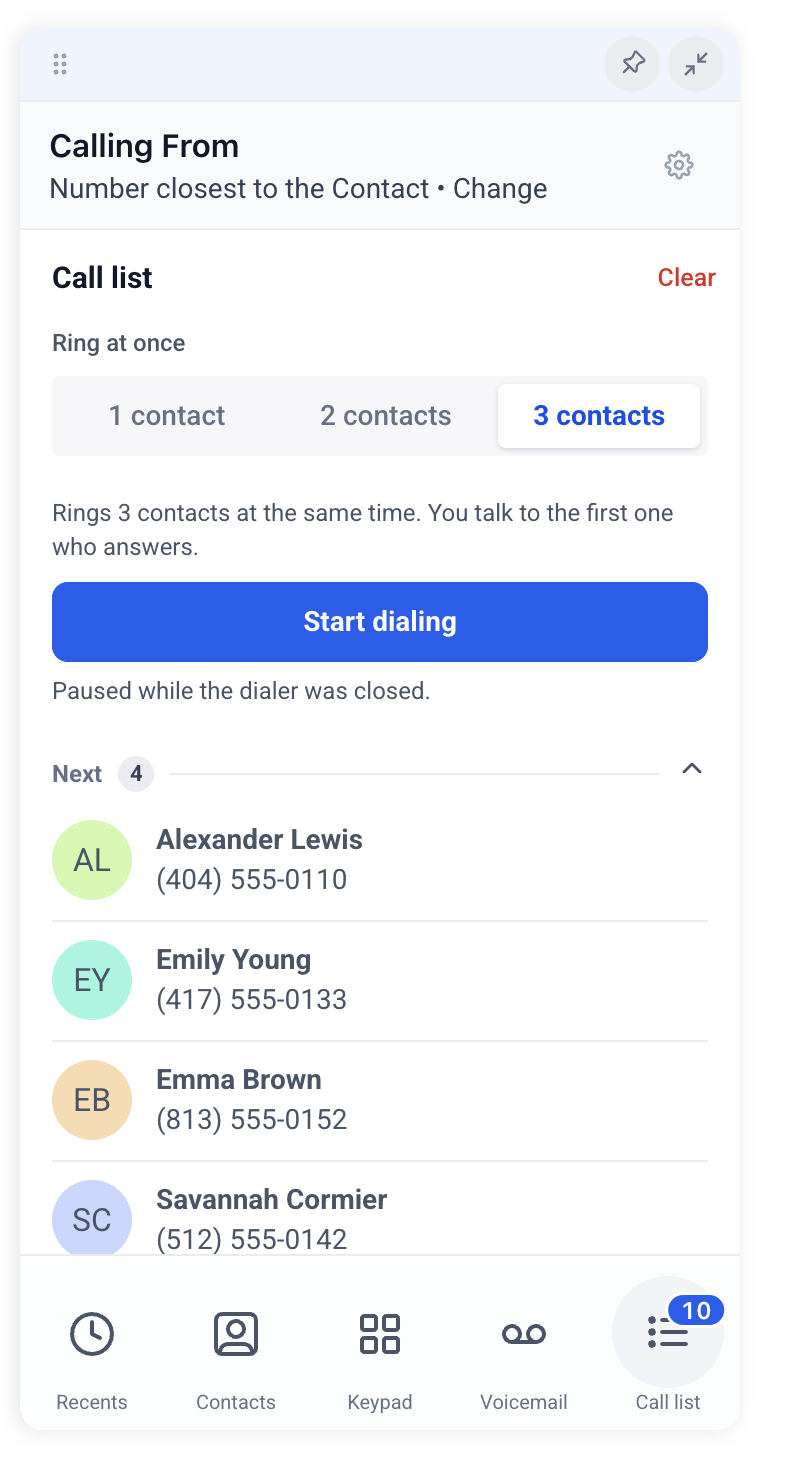
- Select the Call list tab; the badge shows how many contacts are waiting.
- Under Ring at once, pick 1, 2, or 3 contacts to call simultaneously.
- Select Start dialing.
- If you close the dialer mid session, the list pauses. Select Start dialing again to resume.
07What it looks like in HighLevel
08Settings that matter
- Multi line dialing. Enables the dialer to place up to three outbound calls at the same time.
- Callback message. Defines the audio played to callers who answer after another call is already in progress; can be text to speech (up to 500 characters, English only) or an uploaded recording.
09Things to know before you rely on it
- The feature is in private beta and may not appear for all accounts.
- A maximum of three contacts can be rung at once.
- Text callback messages are limited to 500 characters and English language only.
- Contacts without a phone number are automatically skipped.
- If a phone rings and then stops, the contact waits 15 minutes before being retried.
- Changing the callback message does not affect calls already ringing.
10How it connects to the rest of HighLevel
- Review pricing details for HighLevel phone features. Pricing
- Learn about HighLevel’s built in LC Phone for agencies. LC Phone overview
- Start a free 30 day trial to test the multiline dialer. Start trial
Michael's take

Ever wonder why your outbound reps spend half their day listening to phones ring? The multiline dialer fixes that by ringing up to three numbers at once and connecting you to the first person who picks up. It lets you keep the conversation flowing and reduces wasted time.
If I were setting this up, I’d first record a concise callback message that tells the second caller you’ll be right back. That way the experience feels personal and you don’t leave anyone hanging while you talk to the first answer.