
01Who this is for
- Agency admins who manage team member contact info and need to keep account takeovers from happening.
- Solo Founders who rely on a single phone for SMS notifications and want to protect their login credentials.
- Customer support managers responsible for updating client numbers while maintaining compliance.
02Mandatory 2FA for phone number updates, explained
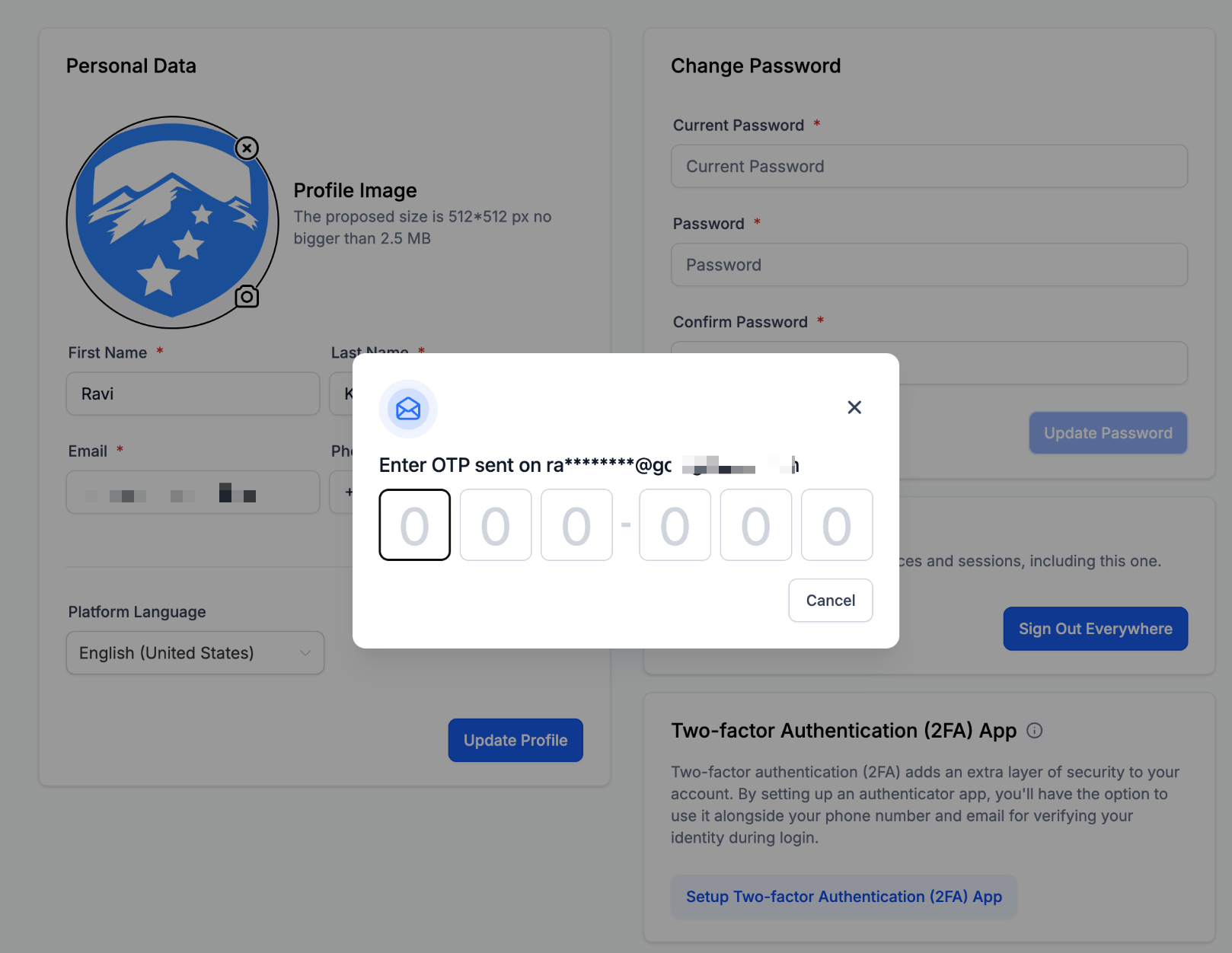
The feature adds a mandatory two factor authentication challenge whenever a user edits the phone number field on their profile. After entering the new number, HighLevel prompts a modal that lists only the verification channels already trusted for that account, a verified email address, a verified phone, or a configured authenticator app.
The selected channel receives a one time code, which the user must enter to complete the update. The code is never sent to the new phone number, preventing attackers from hijacking the account by swapping numbers. Daily limits of five change attempts per user apply, and attempts beyond that are blocked until the next day.
Both self service users and admins follow the same verification flow, but the OTP is delivered to the person whose number is being changed. The setting lives within the user’s profile page or the team management area under Settings.
03How businesses use mandatory 2FA for phone number updates
- Digital marketing agency. An admin opens Settings > Team, selects a marketer’s profile, edits the phone field, chooses the marketer’s verified email in the verification modal, inputs the received OTP and saves the change. The OTP goes to the marketer, not the admin.
- Solo SaaS Founder. The Founder navigates to Settings > My Profile, updates the personal phone number, selects the existing verified email in the verification modal, enters the email OTP, and confirms the change. This secures the Founder’s login without involving a new device.
- Customer support center. A support manager edits a team member’s phone number from Settings > Team, selects the member’s authenticator app as the verification method, the member supplies the six digit TOTP, and the manager finalizes the update.
04The numbers and rules that matter
- Maximum of 5 phone/email change attempts per user per day.
05Before you start
- At least one verified channel (email, phone, or authenticator app) must be set up on the user’s profile.
- The user’s role must permit editing their own profile, or the admin must have permission to edit team member profiles.
06How to set up and use mandatory 2FA for phone number updates in HighLevel
Self service phone number update
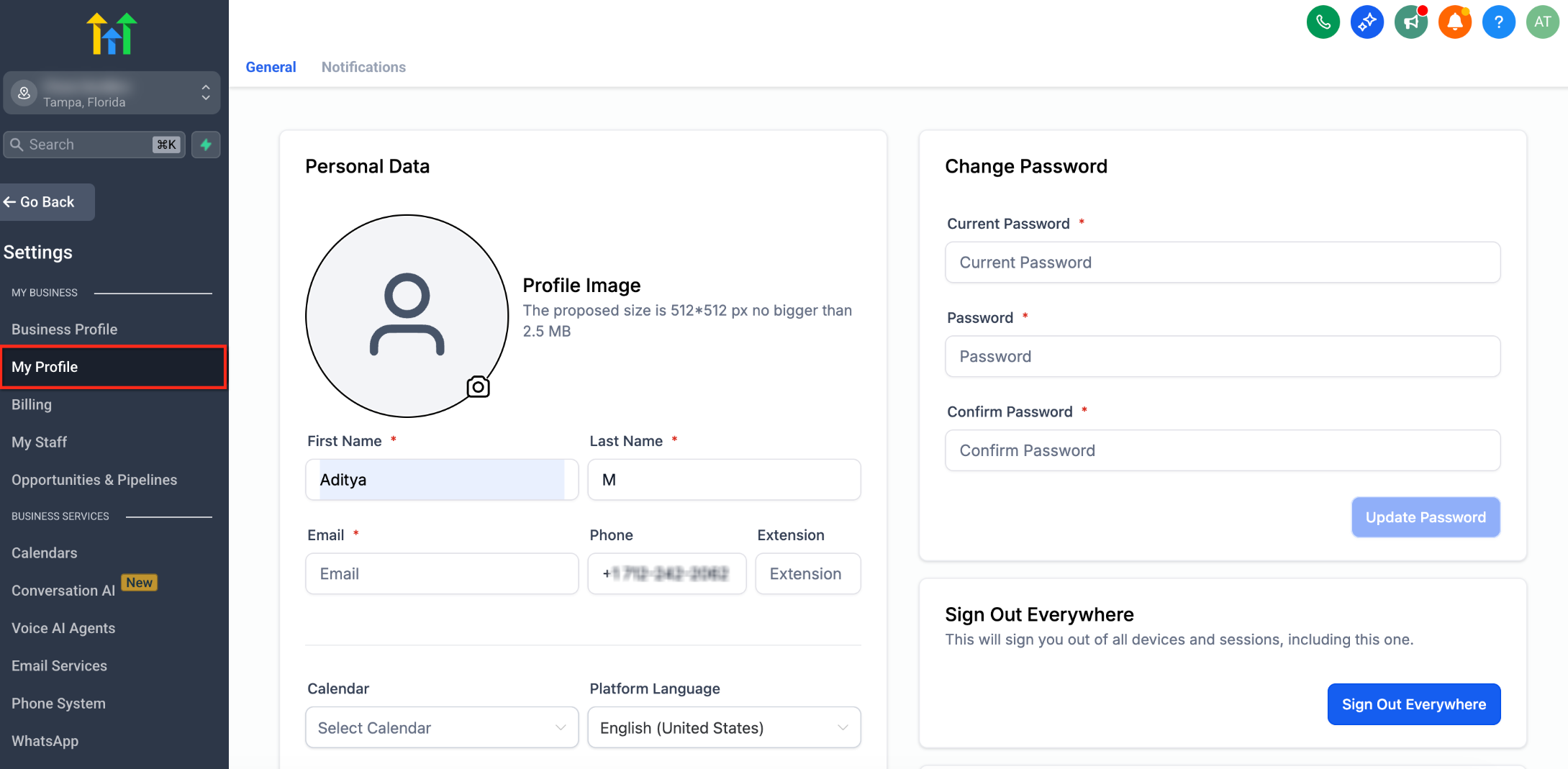
- Open Settings > My Profile (or the user profile page).
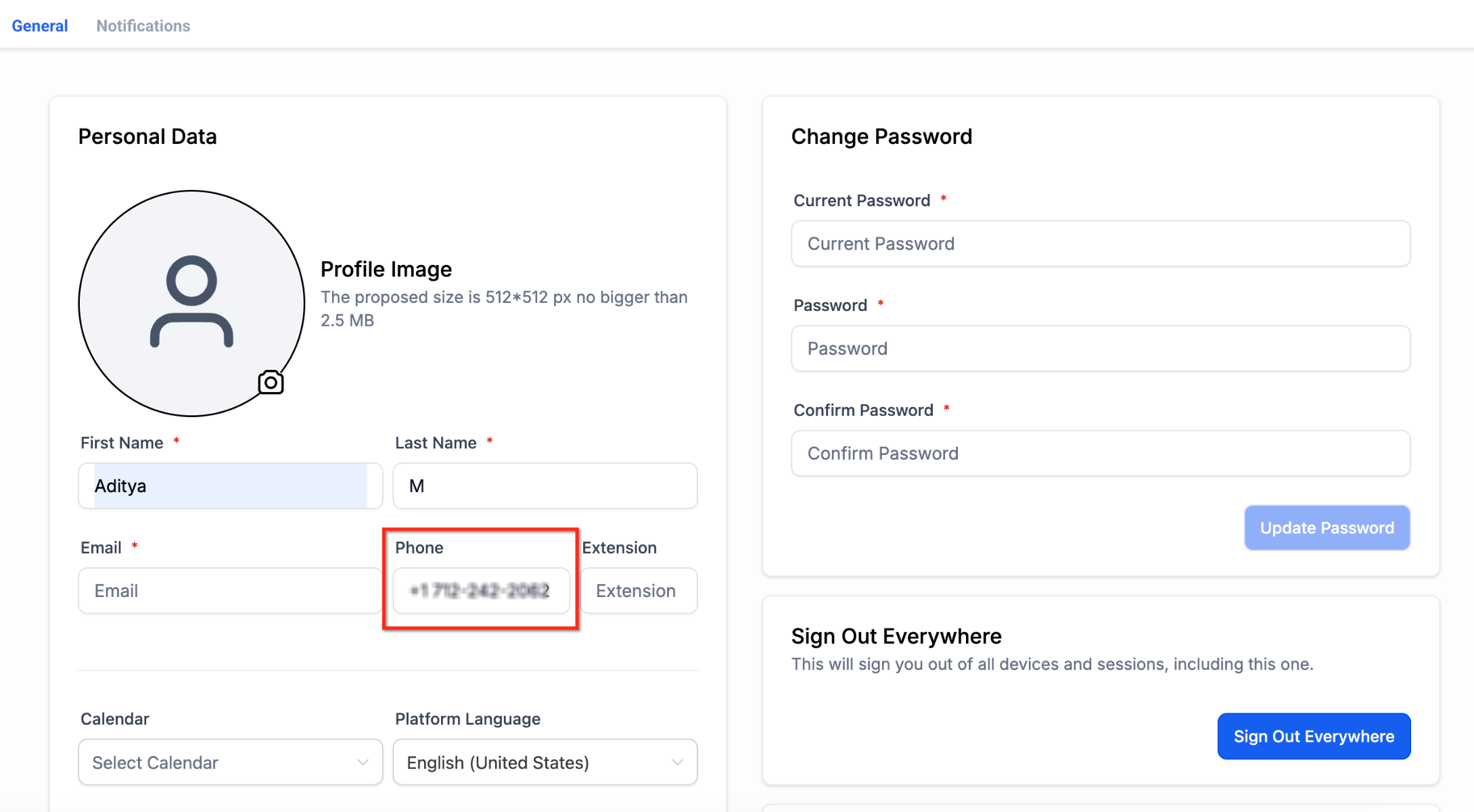
- In Personal Data, click the edit button for the phone number.
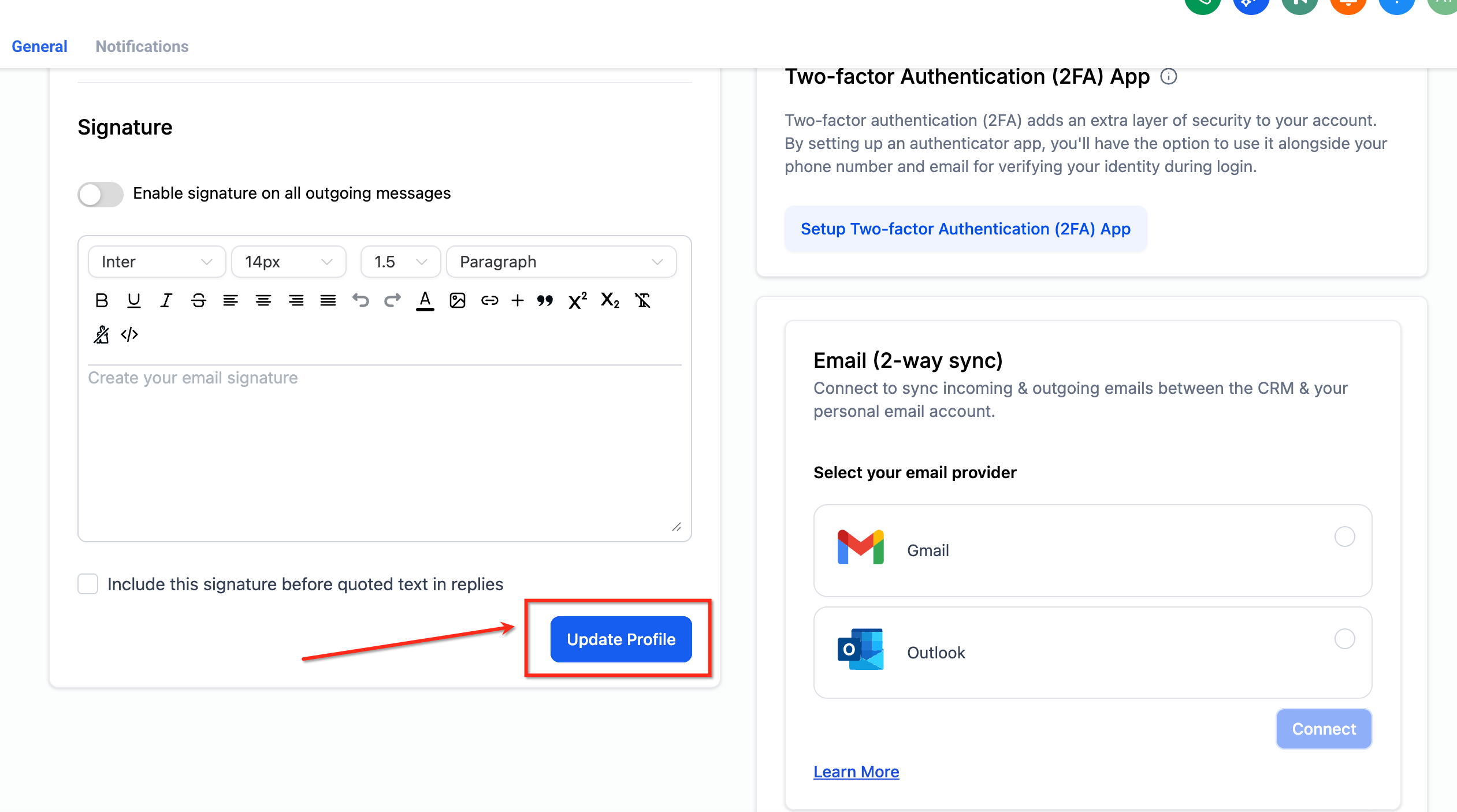
- Type the new phone number and press Update Profile.
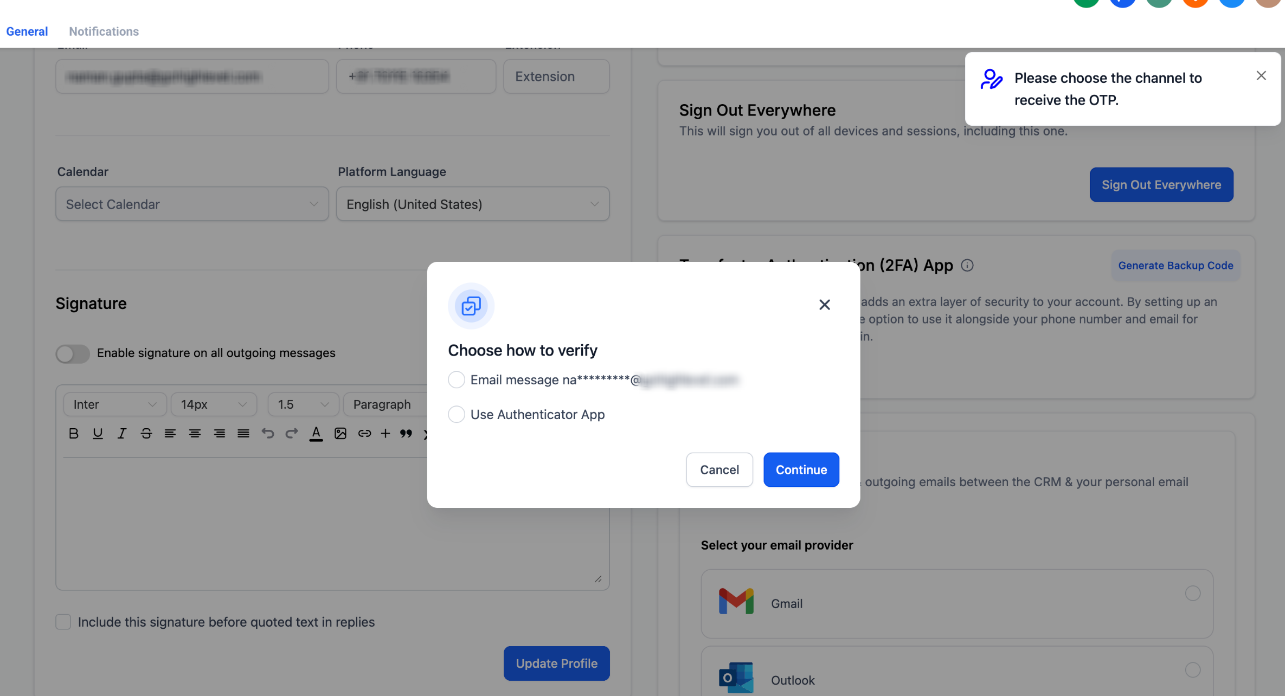
- When the Choose how to verify modal appears, select Email, Text message, or Authenticator App.
- Click Continue.
- Retrieve the OTP from the chosen channel and enter it in the prompt.
- Confirm the change and view the success message.
- If SMS is not shown, verify the current phone or use Email or Authenticator App.
Admin update team member’s phone number
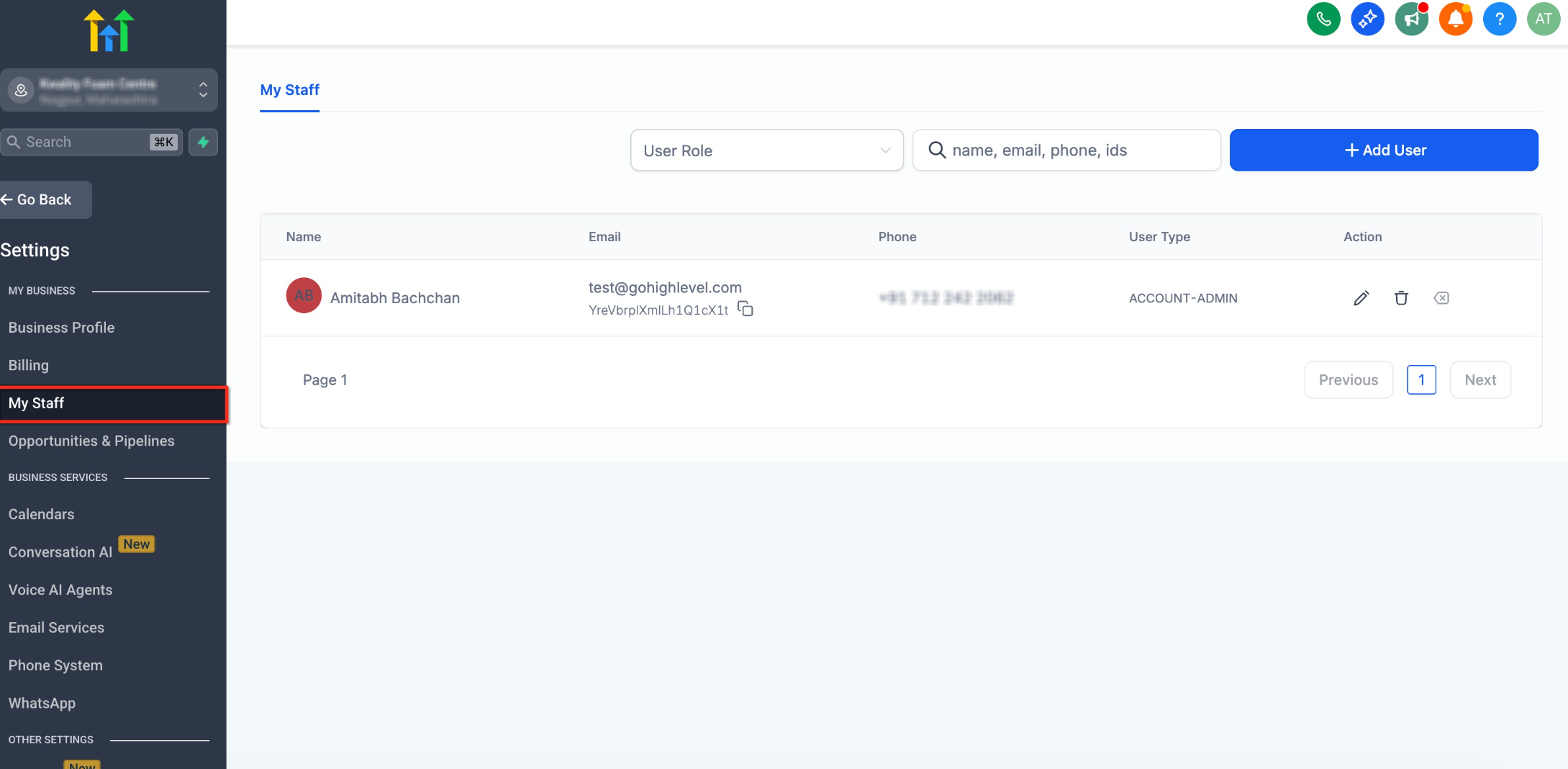
- Navigate to Settings > Team and open the target team member’s profile.
- Edit the Phone number field and enter the new number.
- In the Choose how to verify modal, select an available verification channel.
- Enter the OTP (or have the team member supply the TOTP) and click Continue.
- Observe the success message confirming the updated number.
- OTP will not be sent to the new number being added.
07What it looks like in HighLevel
08Settings that matter
- Choose how to verify. Controls which already verified channel (email, SMS, or authenticator app) receives the one time code for phone number changes.
09Things to know before you rely on it
- A maximum of five phone or email change attempts per user is allowed each day.
- When the daily limit is reached, further attempts are blocked until the counter resets.
- Verification codes are never sent to the newly entered phone number.
10If something goes wrong
- No verification options available. Set up an authenticator app or verify the email address first; at least one trusted channel is required.
- SMS option missing. Verify the current phone number on the profile, then the SMS channel will appear.
- OTP not received. Check spam or junk folders for email, ensure mobile network coverage for SMS, and request a new code after the resend timer expires.
- Daily limit reached. Wait until the next day for the attempt counter to reset before trying again.
- Lost access to both email and phone. Use backup codes if they are set up, or ask the account owner or admin for assistance.
11How it connects to the rest of HighLevel
- Edit phone number settings in subaccounts Phone number configuration
- How to purchase a new phone number Buy phone number
- HighLevel phone system pricing and rebilling guide Pricing guide
Michael's take

Wondering if the new 2FA requirement will slow down your team’s day to day workflow? It adds a quick step. Pick a trusted channel, grab the code, and confirm. But it stops a whole class of account takeover attacks that happen when someone hijacks a newly added phone number.
If I were rolling this out, I’d first make sure every user has at least one verified channel, preferably an authenticator app, so the process never stalls. A quick check of the daily attempt limit also helps you avoid surprise lockouts during busy periods.