
01Who this is for
- Founders who need predictable call handling for sales and support teams, ensuring the right person answers first.
- Small agencies that assign contacts to specific account managers, so owner based routing can reach the correct staff member.
- Businesses using an external office line, requiring a reliable fallback to voicemail or Voice AI after a timeout.
02Inbound call routing, explained
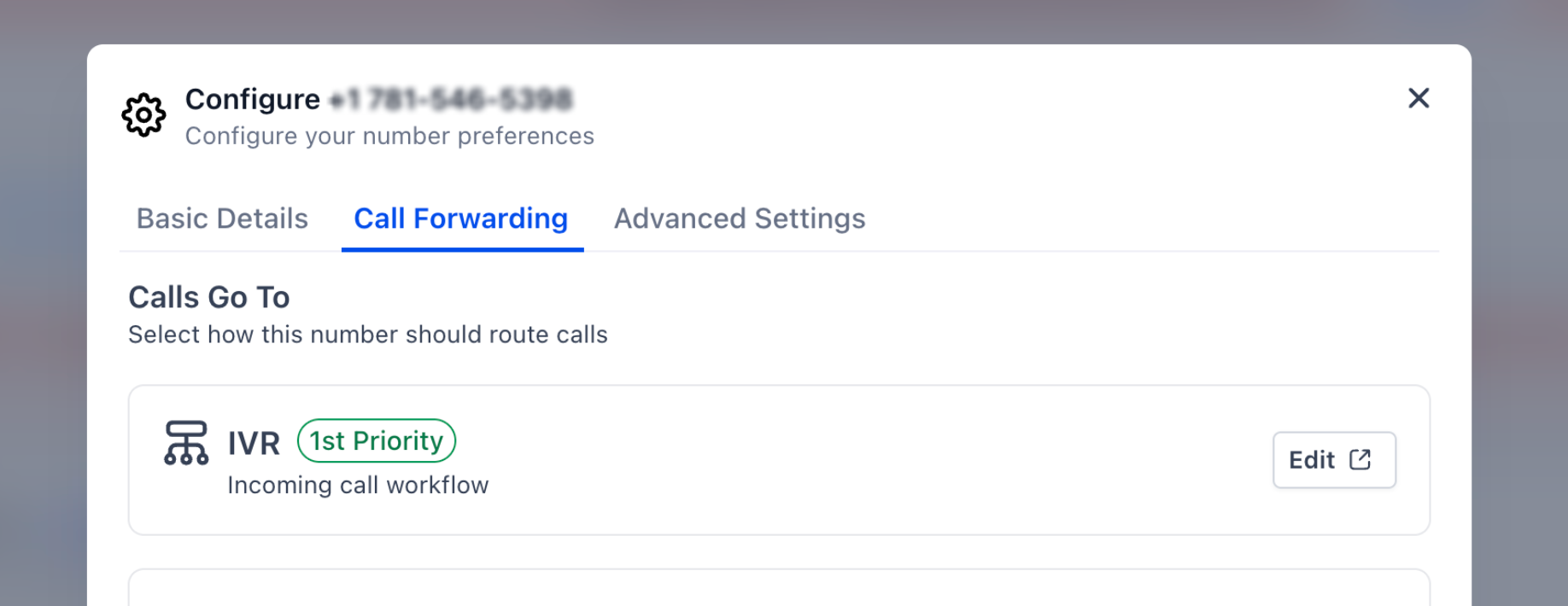
Inbound call routing is the decision engine that chooses where an incoming phone call goes. It can direct callers to an IVR, a Voice AI bot, a designated user’s devices, additional ring more members, an external forwarding number, or a backup like voicemail. The system follows a priority list, starting with any IVR or workflow attached to the number, then checking owner based rules, team routing, forwarding destinations and finally the backup.
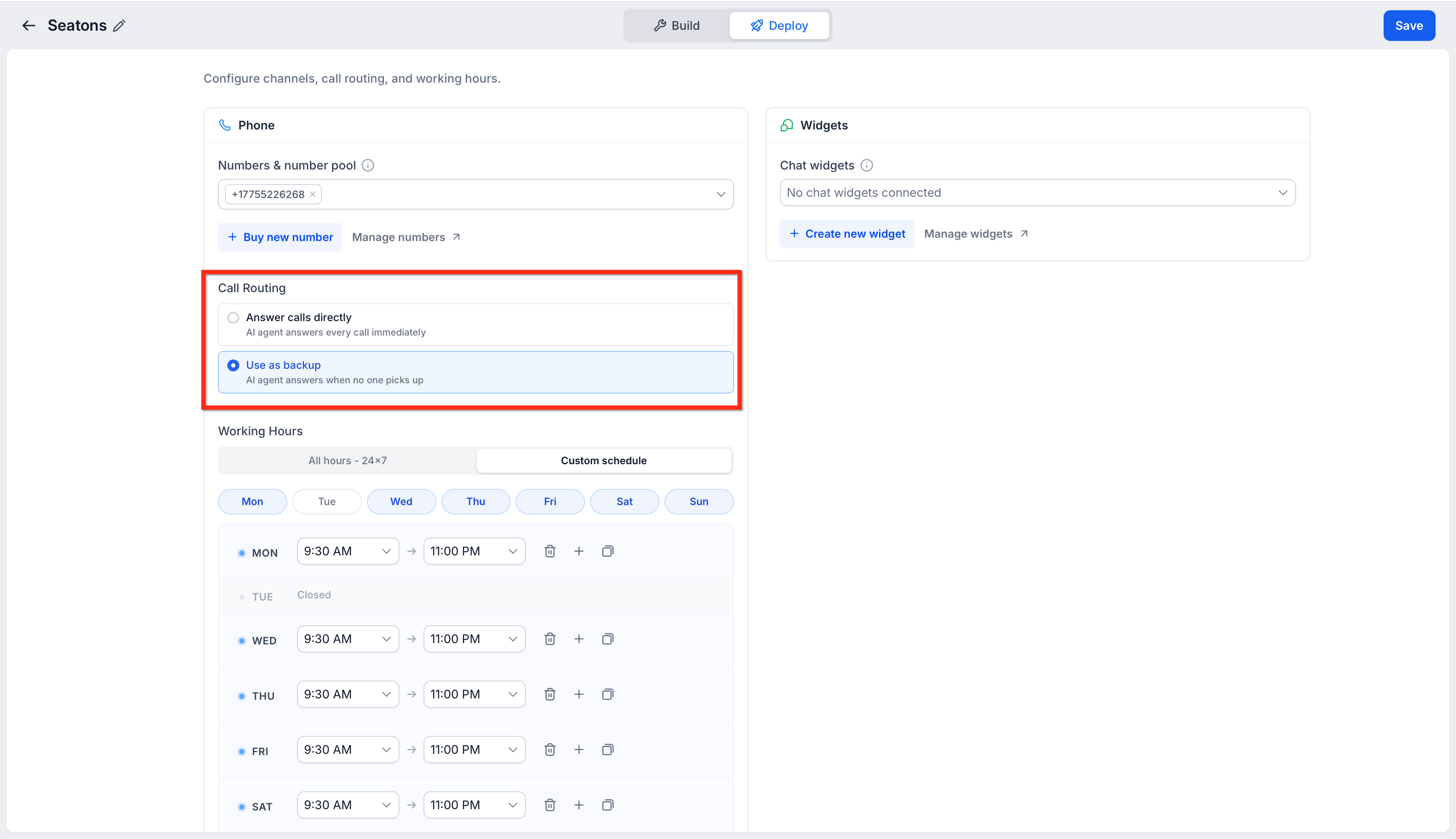
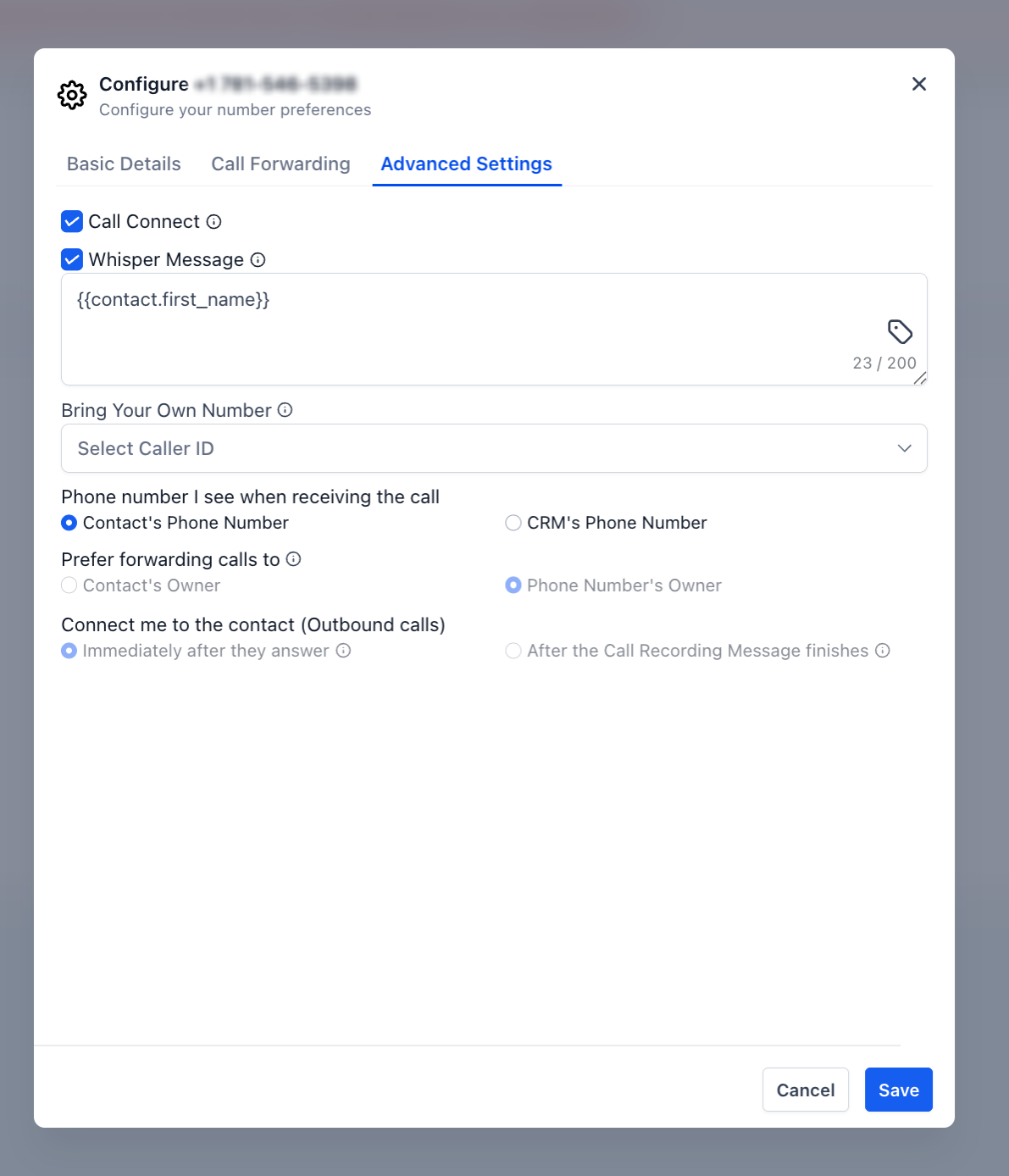
All routing options live in the phone number configuration page (Settings > Phone System > Phone Numbers > Edit Configuration) and in separate settings for Voice AI (AI Agents > Voice AI > Deploy). Advanced Settings on the same page let you fine tune call connect, whisper messages, caller ID display and owner preference rules.
When a call arrives, HighLevel checks each rule in order. If a rule succeeds, such as a user answering on an enabled device, the evaluation stops. If no rule answers before the timeout, the call is sent to the chosen backup. This flow repeats for every inbound call.
03How businesses use inbound call routing
- Dental practice. The practice creates an IVR that offers appointments and billing options, then assigns each patient contact to the appropriate dentist. Calls from known patients route directly to their dentist before the office’s main number, while new callers follow the general forwarding path.
- Real estate agency. Agents are added as Ring More Team Members on the agency’s listing line so any agent can pick up a client call. The agency also sets a short timeout and a voicemail backup so leads are never missed.
- Online coaching business. A Voice AI agent is deployed as a backup that greets callers after the coach’s devices stop ringing. The business configures the AI to operate only during off hours, ensuring live support during the day.
04The numbers and rules that matter
- Add up to six additional users for Ring More Team Members.
- Approximately 20 seconds is a useful starting point for Incoming Call Timeout.
05Before you start
- A phone number must exist in the platform.
- If IVR is required, the workflow needs to be built beforehand.
06How to set up and use inbound call routing in HighLevel
Set up inbound call routing
- Navigate to Settings > Phone System > Phone Numbers and open the Edit Configuration for the target number.
- Verify which user owns the number and whether any contacts are linked to owners.
- If an IVR is needed, build the workflow in Automation > Workflows and link it to the number.
- Select the main team member and enable the desired device types for that user.
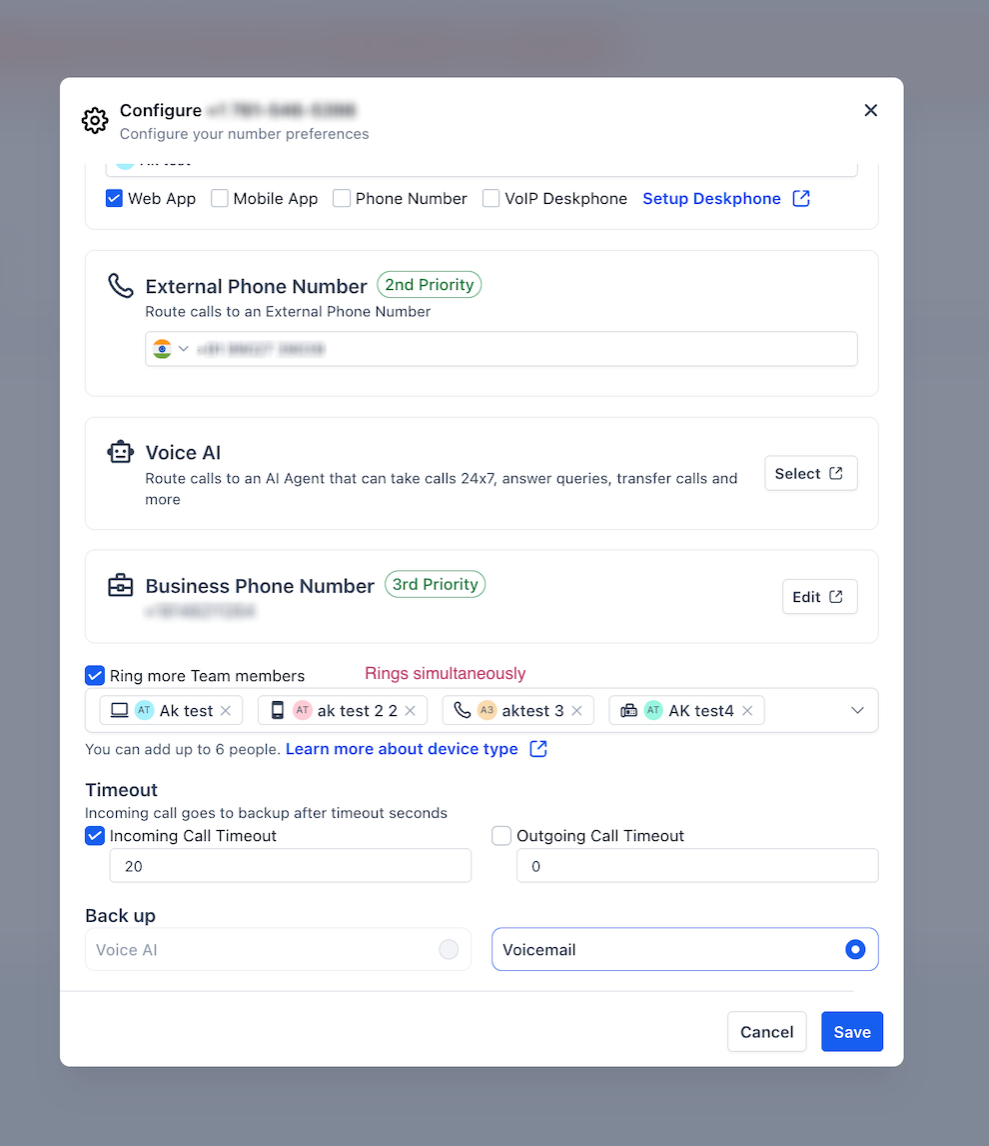
- Activate Ring More Team Members and choose any additional users who should share the call.
- Add an external or business forwarding number as a lower priority destination.
- Set the Incoming Call Timeout, using roughly twenty seconds as a starting point.
- Choose a backup option, either a Voice AI agent or voicemail.
- Open Advanced Settings and confirm the Call Connect, Whisper Message, caller ID and owner preference selections.
- If a Voice AI agent participates, go to AI Agents > Voice AI, pick the agent and set its routing mode.
- Save the configuration and place test calls from both assigned contacts and unknown numbers to verify the flow.
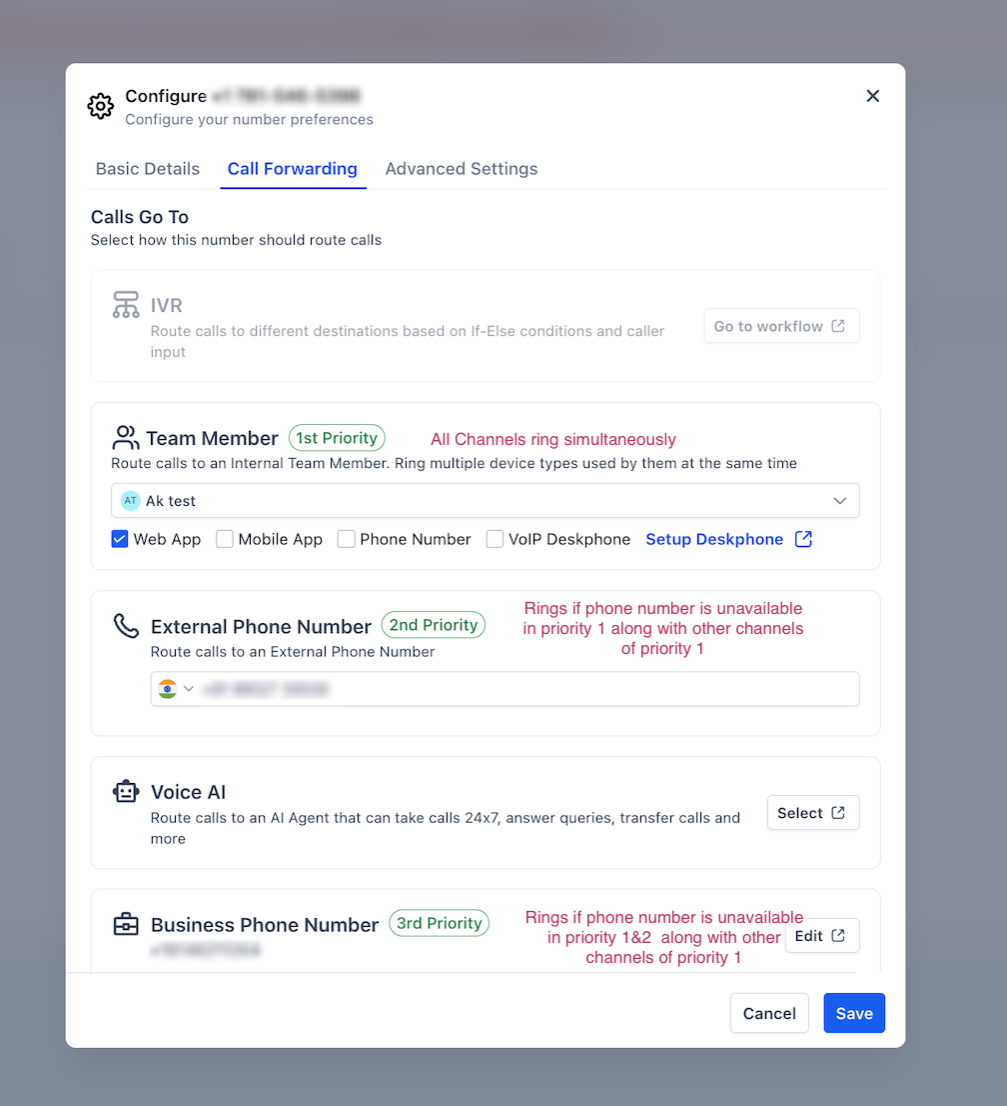
07What it looks like in HighLevel

08Settings that matter
- Call Forwarding. Determines whether an IVR, team member, external number, Voice AI, business number, Ring More members, timeout or backup will answer the call.
- Advanced Settings. Controls call connect behavior, whisper messages, caller ID display and which owner preference is applied.
- Call Connect. Requires the receiving party to confirm the call before it is marked as connected, helping avoid false answers by machines.
- Whisper Message. Plays a brief notice to the receiving party, such as the caller’s name, before linking the two parties.
- Caller ID Display. Sets which phone number appears on the recipient’s device when a call is forwarded.
- Prefer forwarding calls to. Chooses whether the contact’s assigned owner or the phone number’s owner takes priority in routing.
- Incoming Call Timeout. Specifies how long HighLevel rings a destination before moving to the backup.
- Backup. Defines where an unanswered call goes after the timeout, either to a Voice AI agent or to voicemail.
- Ring More Team Members. Allows up to six extra users to ring simultaneously with the primary team member.
- Voice AI Routing Mode. Sets the AI agent to either answer calls directly or act only as a backup after other routes fail.
09Things to know before you rely on it
- Ring More Team Members can include a maximum of six extra users.
- Calls are automatically disconnected after two hours.
- The Incoming Call Timeout is adjustable; 20 seconds is only a recommended starting point.
- Owner based routing can override the general forwarding destination.
10If something goes wrong
- The wrong user or number is receiving the call. Check if the caller matches an existing contact, verify the contact’s assigned user, see if the phone number has an owner, review the Prefer forwarding calls to setting and Ring More Team Members, and confirm the external forwarding destination.
- A team member is not receiving calls. Ensure the user is part of the routing path, verify enabled calling devices, confirm mobile permissions if using the app, and make sure IVR or Voice AI isn’t handling the call first.
- Calls reach voicemail too quickly. Adjust the Incoming Call Timeout to a longer value, verify the intended user or forwarding number is available, review Call Connect if using an external number, and check the selected backup.
- Carrier voicemail answers before HighLevel voicemail. Reduce the Incoming Call Timeout, test how fast the external carrier’s voicemail picks up, and tweak the timeout so HighLevel reaches its backup first.
- Voice AI does not answer. Open AI Agents > Voice AI > Deploy, confirm the routing mode (Answer directly or Use as backup), verify the correct phone number or number pool is assigned, and check Working Hours.
11How it connects to the rest of HighLevel
- Set up number pools for call tracking Call tracking pools
- Guide to fixing spam labeled outbound calls Outbound spam fix
- HighLevel phone system pricing and rebilling details Pricing guide
- Start a 30 day HighLevel trial Free trial
- The HighLevel Founder Plan overview Founder Plan
Michael's take

In my experience, reviewing the Prefer forwarding calls to setting early helps avoid unexpected routing.