
01Who this is for
- Call center supervisors who need to audit each leg of a transferred call for quality assurance.
- Sales managers who want to review specific portions of prospect conversations without listening to an entire call.
- Customer support teams that require transcript access to quickly locate information discussed in different call stages.
02Multiple call recordings, explained
The mobile version of HighLevel displays all audio files linked to a single phone call. When a call is transferred or has multiple stages, each segment is saved as an individual recording. The app lists these recordings together, letting users pick any one to play.
Each recording may also have its own text transcript if the backend generates one. The transcript appears in the conversation view next to the selected recording. An indicator such as “1 of 3” shows which recording is currently active. The feature is available throughout the Recents list, Contact Call Details pages, and the Conversations tab within the mobile app.
03How businesses use multiple call recordings
- Real estate agency. Agents open the HighLevel mobile app, locate a client call in Recents, and select the recording that captures the property walkthrough after a transfer. They play that segment to confirm details and read the attached transcript to extract key property features.
- Healthcare clinic. Front desk staff use the mobile app to find a patient call that was routed to a nurse. By selecting the second recording, they listen to the medical advice portion and view its transcript to verify that follow up instructions were documented correctly.
- Insurance brokerage. Brokers open Conversations in the app, pick the call recording that contains the policy explanation after a transfer, and read the transcript to ensure all coverage details were communicated before finalizing the sale.
04The numbers and rules that matter
- Position indicator shows format such as "1 of 3"
05How to set up and use multiple call recordings in HighLevel
Access multiple call recordings on mobile
- Open the HighLevel mobile app.
- Navigate to Recents, Contact Call Details, or Conversations.
- Find a call that includes more than one recording.
- Select the recording you wish to review.
- Tap play to listen to the chosen recording.
View individual call transcripts
- Open Conversations in the HighLevel mobile app.
- Locate the conversation that holds the recorded call.
- Open the call and choose the specific recording.
- Read the transcript that appears for that recording, if one is provided.
06What it looks like in HighLevel
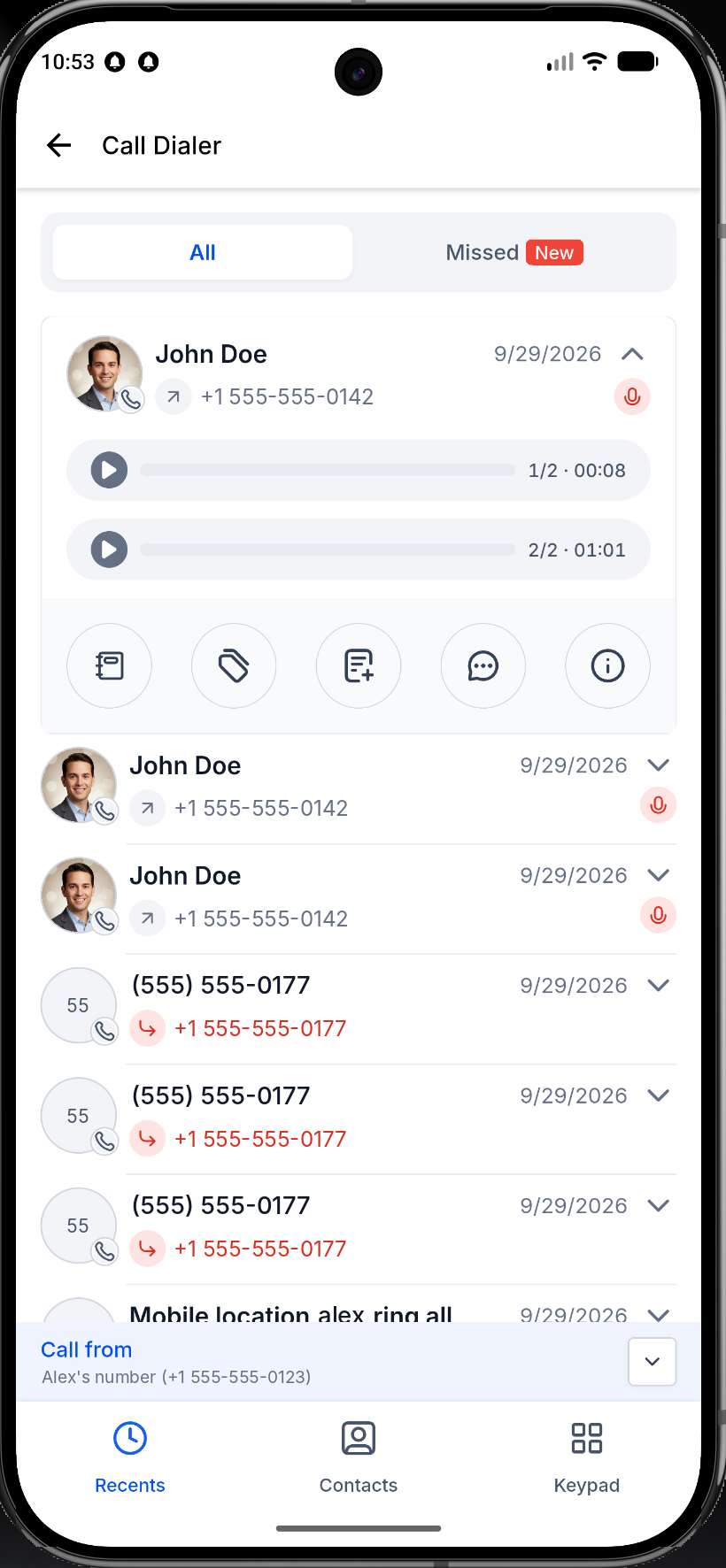
07Things to know before you rely on it
- A transcript is shown only when the backend supplies one for the selected recording.
- If a call has a single recording, the display behaves as it did before this enhancement.
08How it connects to the rest of HighLevel
- Explore HighLevel’s LC Phone built in calling and SMS for agencies. LC Phone overview
- Review the HighLevel phone system pricing and rebilling details. Pricing guide
- Start a 30 day trial to test the mobile call recording features. 30 day trial
Michael's take

If a call generates multiple recordings, the mobile app lets you access each one and any available transcript. Make sure the call actually produced separate recordings before expecting multiple playback options.