
01Who this is for
- Businesses that use the HighLevel phone system and need a consistent voicemail greeting.
- Individual users who want a personal voicemail that can override the company default.
02Voicemails, explained
The voicemail feature stores an audio file that plays when a call reaches the platform's voicemail. You can set a default file for the entire subaccount, override it with a personal file for a specific user, or attach a file to a workflow action that dials a contact and leaves the message.
The recordings must be MP3 or WAV files encoded at 64 kbps. HighLevel does not require a particular recording tool; any editor that can export those formats works. After uploading, you test the file by calling the associated phone number or running the workflow with a test contact.
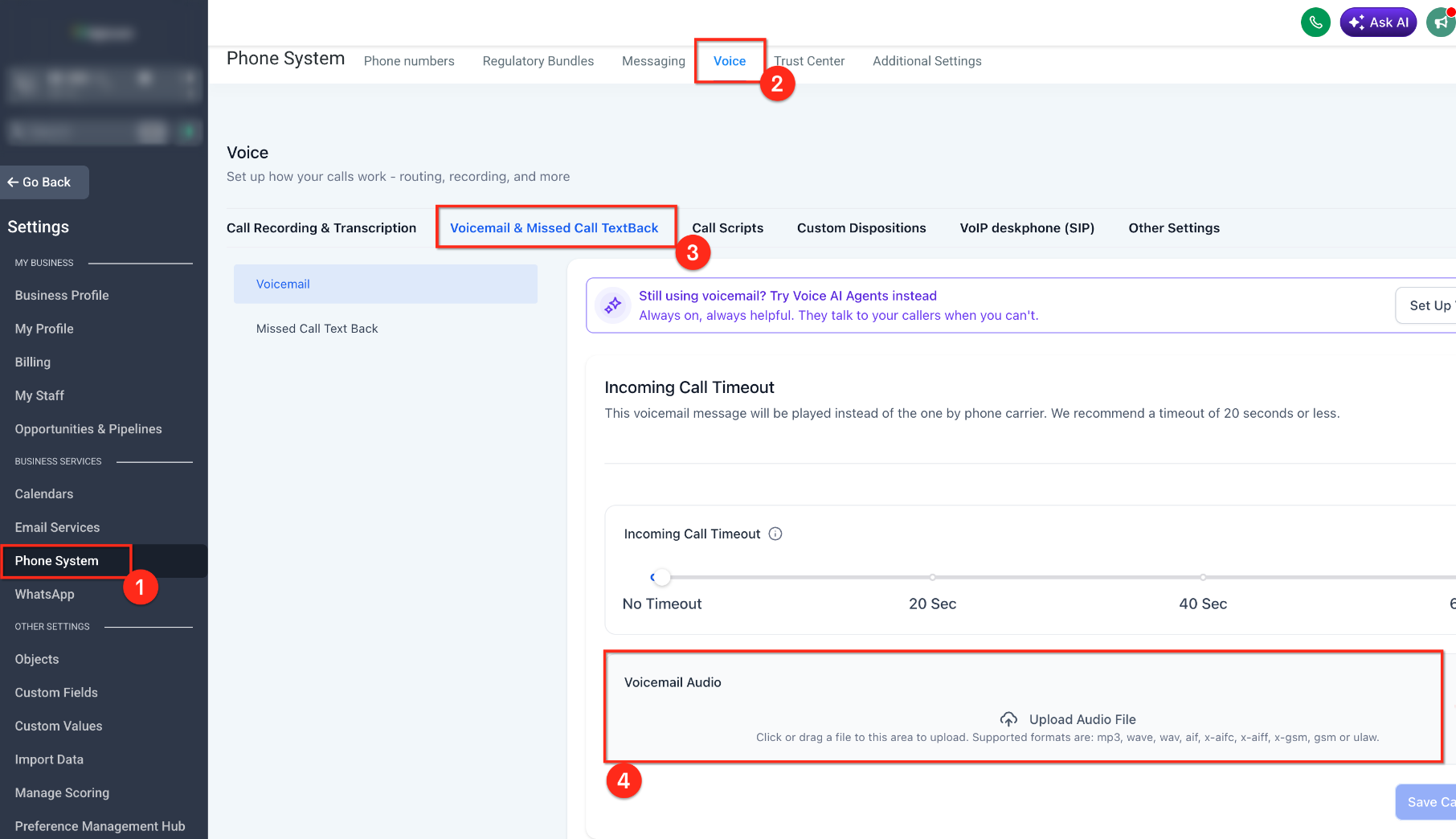
All voicemail settings are found within the subaccount’s Settings area. Company level options appear under Call & Voicemail Settings, while individual user options are in each user’s call and voicemail settings.
03How businesses use voicemails
- Dental practice. Upload a calm, professional greeting as the company voicemail so patients hear the same message after hours. If a dentist needs a personal greeting, add a separate file in that dentist’s user settings, which will play when calls are assigned to them.
- Real estate agency. Create a prerecorded market update message and add it as a voicemail drop in a nurture workflow. The workflow dials leads and leaves the update automatically, using the uploaded MP3 at the required bitrate.
- Online coaching business. Record a brief welcome message for the brand’s support line and set it as the company voicemail. Coaches can also upload their own introductions in their user settings, which take precedence when a client calls them directly.
04The numbers and rules that matter
- File format: MP3 or WAV.
- Audio quality: 64 kbps.
05How to set up and use voicemails in HighLevel
Set up company voicemail
- Navigate to Subaccount > Settings > Phone System.
- Scroll to the Call & Voicemail Settings section.
- Upload an MP3 or WAV recording.
- Save the changes.
- Call the HighLevel phone number from another phone to confirm the greeting plays.
Set up user voicemail
- Go to Subaccount > Settings > Users.
- Select the user you want to edit.
- Open that user's call and voicemail settings.
- Upload an MP3 or WAV file for the user.
- Save the settings and test by calling the number assigned to that user.
Add a voicemail drop to a workflow
- Open the workflow you wish to edit.
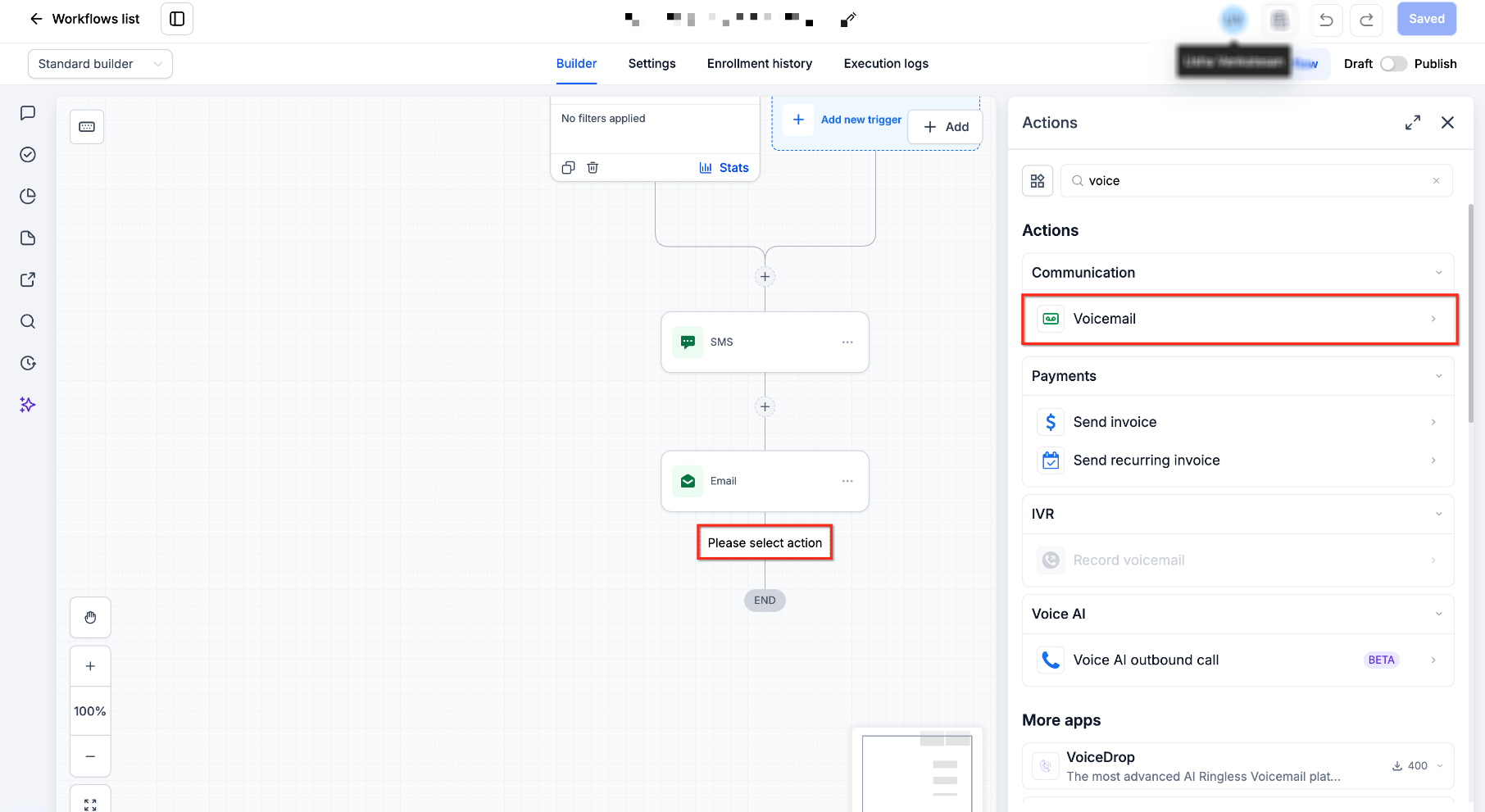
- Click the + button to add a new action.
- Search for and select the Voicemail action.
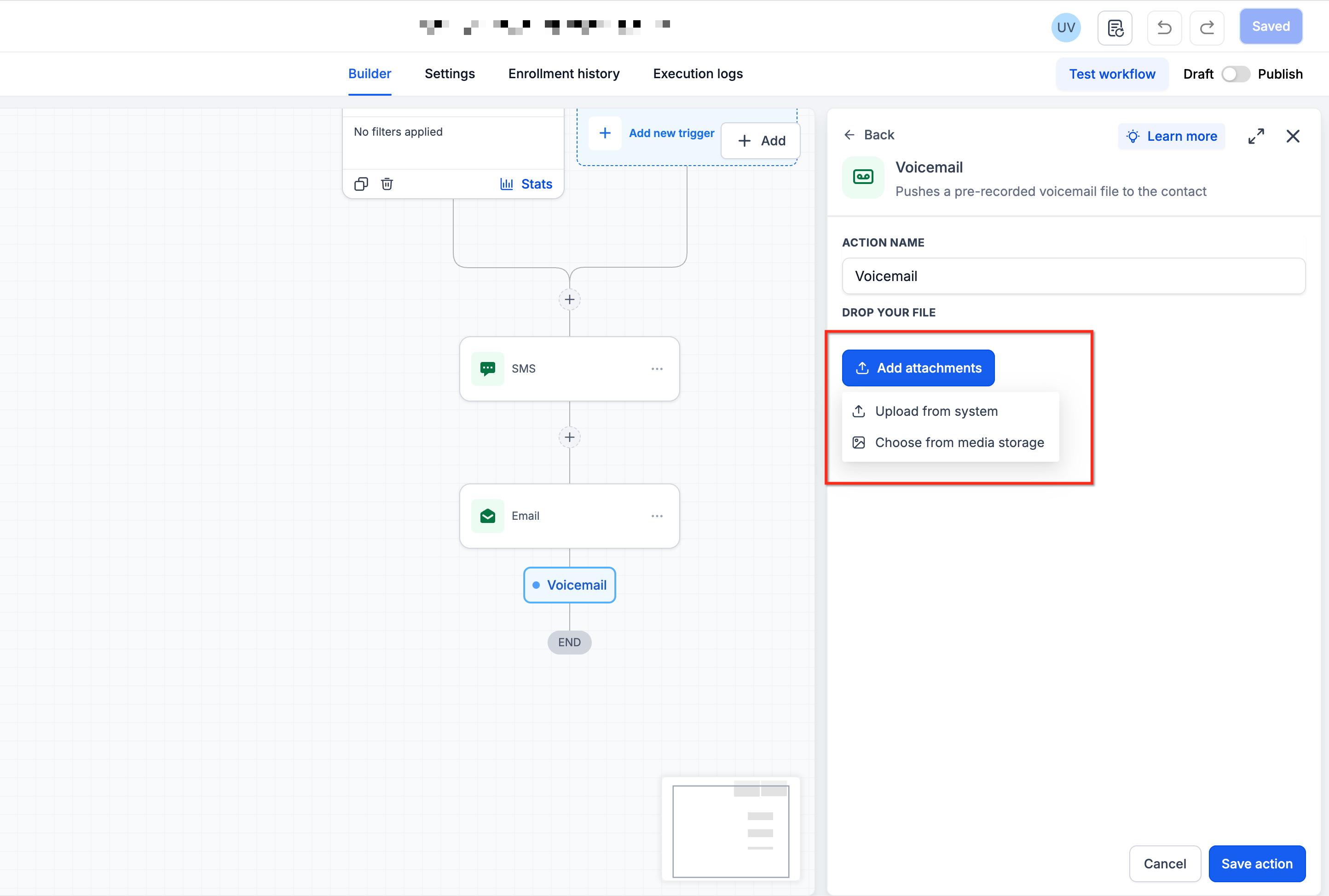
- Upload an MP3 or WAV file encoded at 64 kbps.
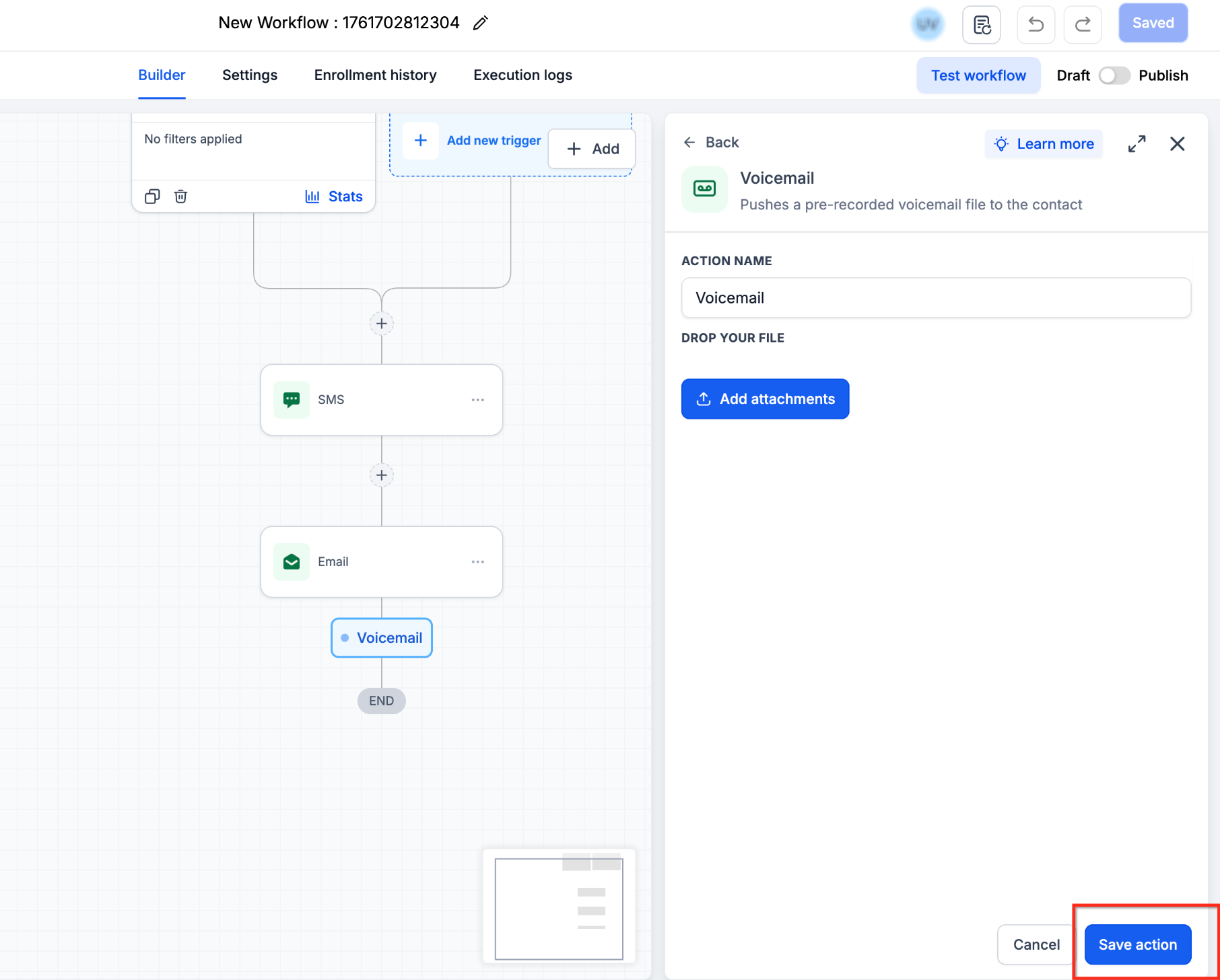
- Click Save Action.
- Save or publish the workflow and run a test contact.
06What it looks like in HighLevel
07Settings that matter
- Call & Voicemail Settings. Controls the default voicemail recording used for the entire subaccount.
- User call and voicemail settings. Allows an individual user to upload a personal voicemail recording that overrides the company default.
08Things to know before you rely on it
- Only MP3 or WAV files are accepted.
- Audio should be exported at 64 kbps; higher bitrates may cause playback problems.
- If the incoming call timeout is set too long, a carrier’s voicemail may answer before HighLevel’s recording plays.
09If something goes wrong
- Uploaded voicemail file plays incorrectly or not at all.. Verify the file is MP3 or WAV, re export it at 64 kbps, upload the new version, save, and test again.
10How it connects to the rest of HighLevel
- Explore all phone system features available in HighLevel. All Phone System features
- Review pricing details for the phone system and rebilling options. Phone system pricing guide
- Start a 30 day trial to try voicemail and other platform tools. 30 day trial
Michael's take

People often think any high fidelity recording will work, but carriers expect a modest 64 kbps MP3 or WAV.
I would record a clean, short greeting, export it at 64 kbps, and then test it both as the company default and in a workflow drop before rolling it out to real contacts.