
01Who this is for
- Customer support teams, receive instant alerts to respond promptly to client texts.
- Sales representatives, stay aware of inbound replies without monitoring the Conversations tab.
02Inbound SMS notifications, explained
The feature creates a workflow that watches for incoming SMS replies and triggers an internal notification sent as an SMS. The inbound message remains stored in the Conversations area; it is not moved or forwarded by call forwarding settings. The workflow can include dynamic values such as the contact's name and the reply body.
To use the feature, you add a Customer Replied trigger, filter for the SMS reply channel, and attach an Internal Notification action set to SMS. You can also enable or disable Allow Re entry to control whether a contact may re enter the workflow after it finishes.
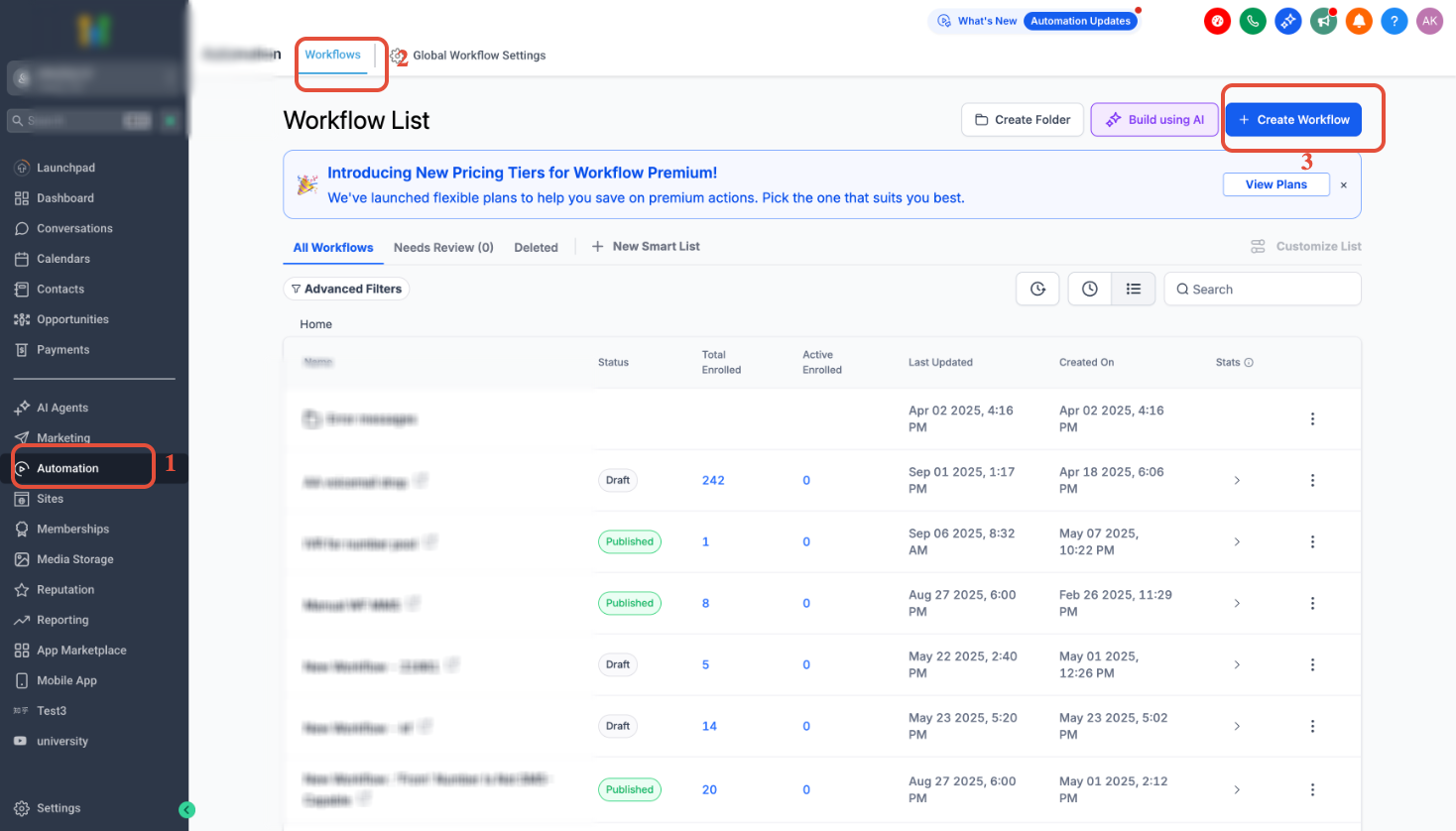
The workflow lives under Automation > Workflows and uses the same internal notification infrastructure that supports users, roles, or teams as recipients.
03How businesses use inbound SMS notifications
- Real estate agency. Agents configure a workflow that alerts the lead management team when a prospect texts back. The notification includes the prospect's name and message so the team can follow up without checking Conversations constantly.
- Dental practice. The office sets up a workflow to notify the front desk when patients reply to appointment reminders. The SMS contains the patient’s first name and reply text, allowing staff to confirm or reschedule quickly.
- Online coaching business. Coaches create a workflow that sends a coach specific SMS whenever a client replies to a coaching prompt. The alert shows the client’s name and response, helping coaches prepare for upcoming sessions.
04The numbers and rules that matter
- If the SMS body exceeds approximately 1,600 characters, delivery can fail.
05How to set up and use inbound SMS notifications in HighLevel
Create inbound SMS notification workflow
- Navigate to Automation > Workflows > Create Workflow.
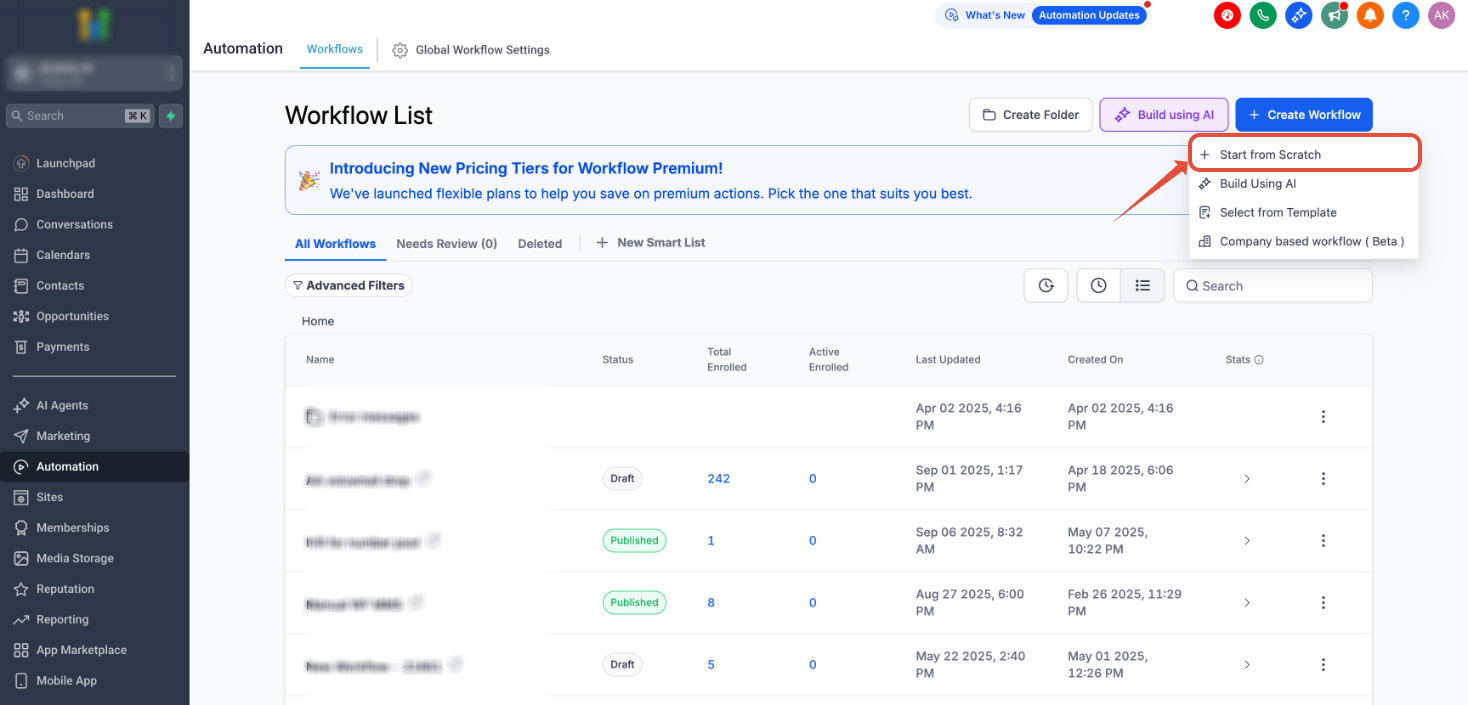
- Choose Start from Scratch and click Create New Workflow.
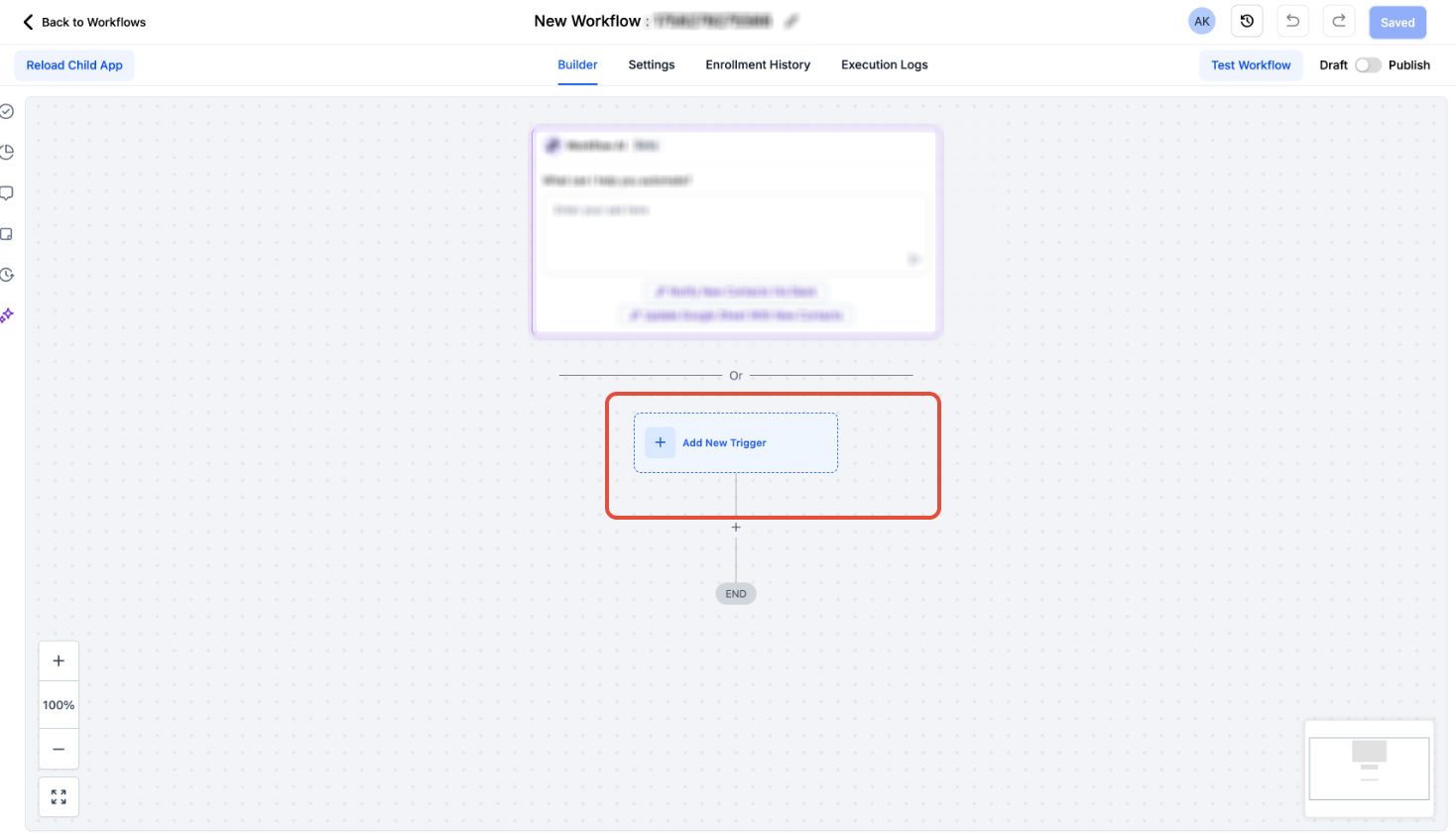
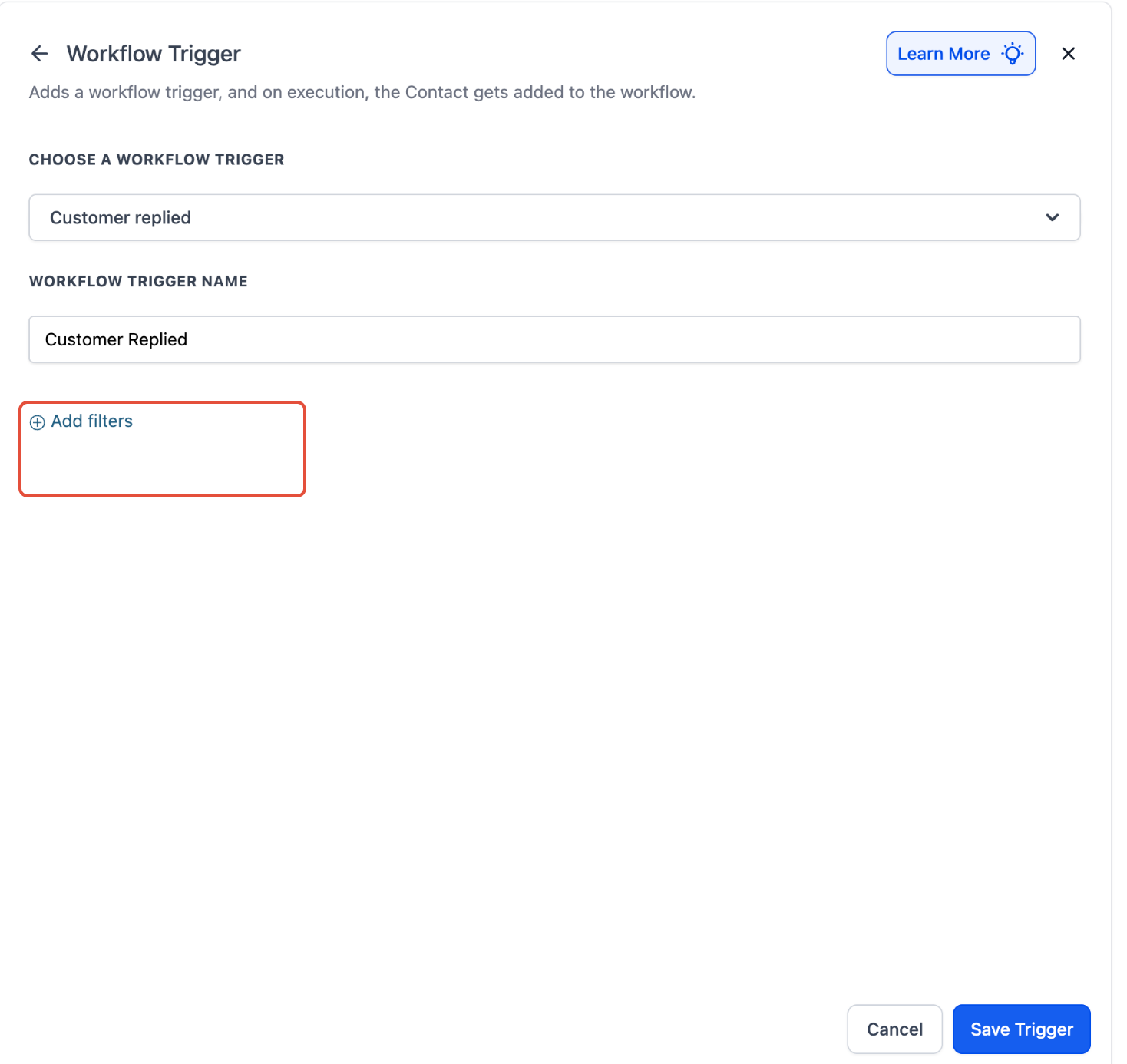
- Click Add New Workflow Trigger.
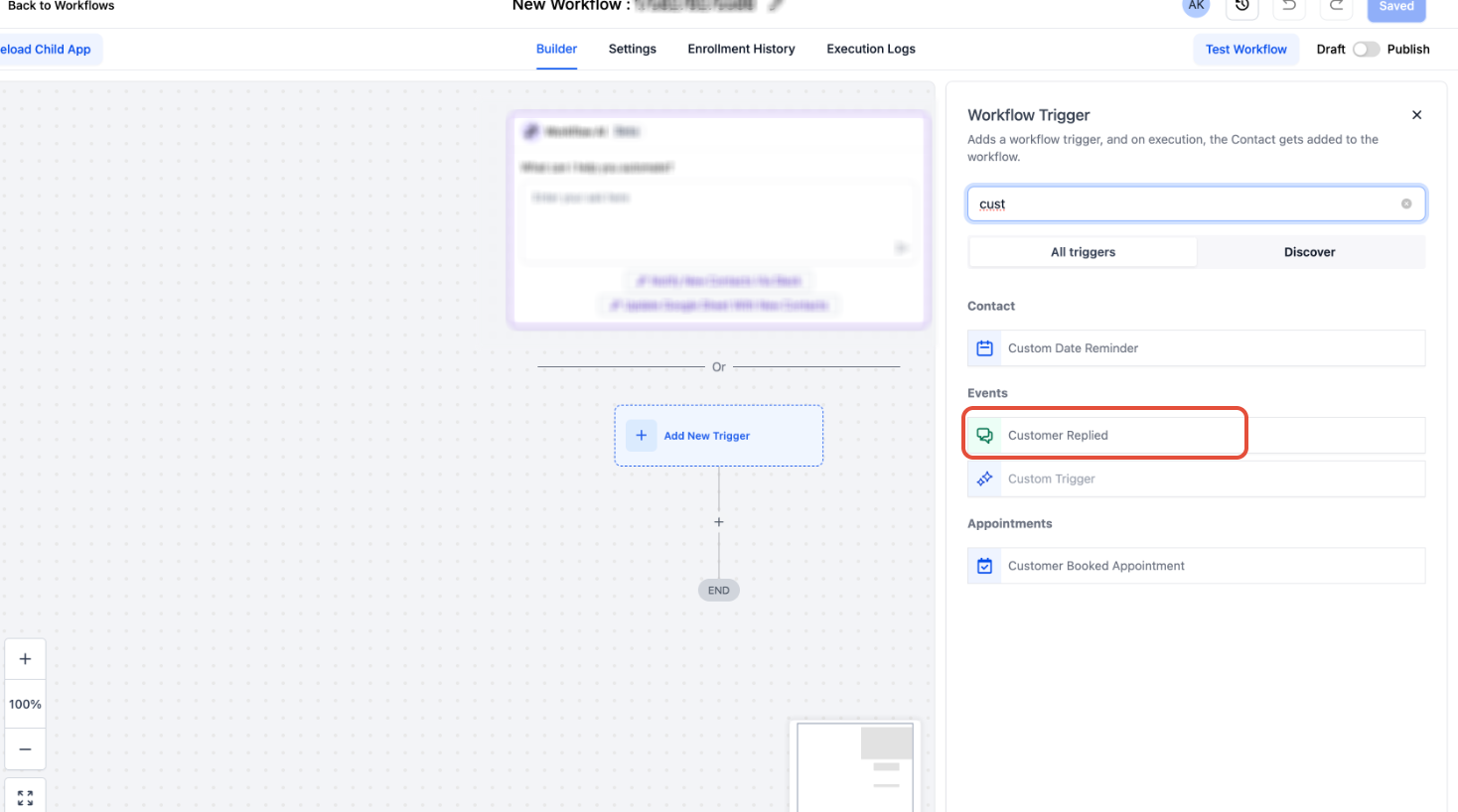
- Select Customer Replied as the trigger type.
- Click Add Filters.
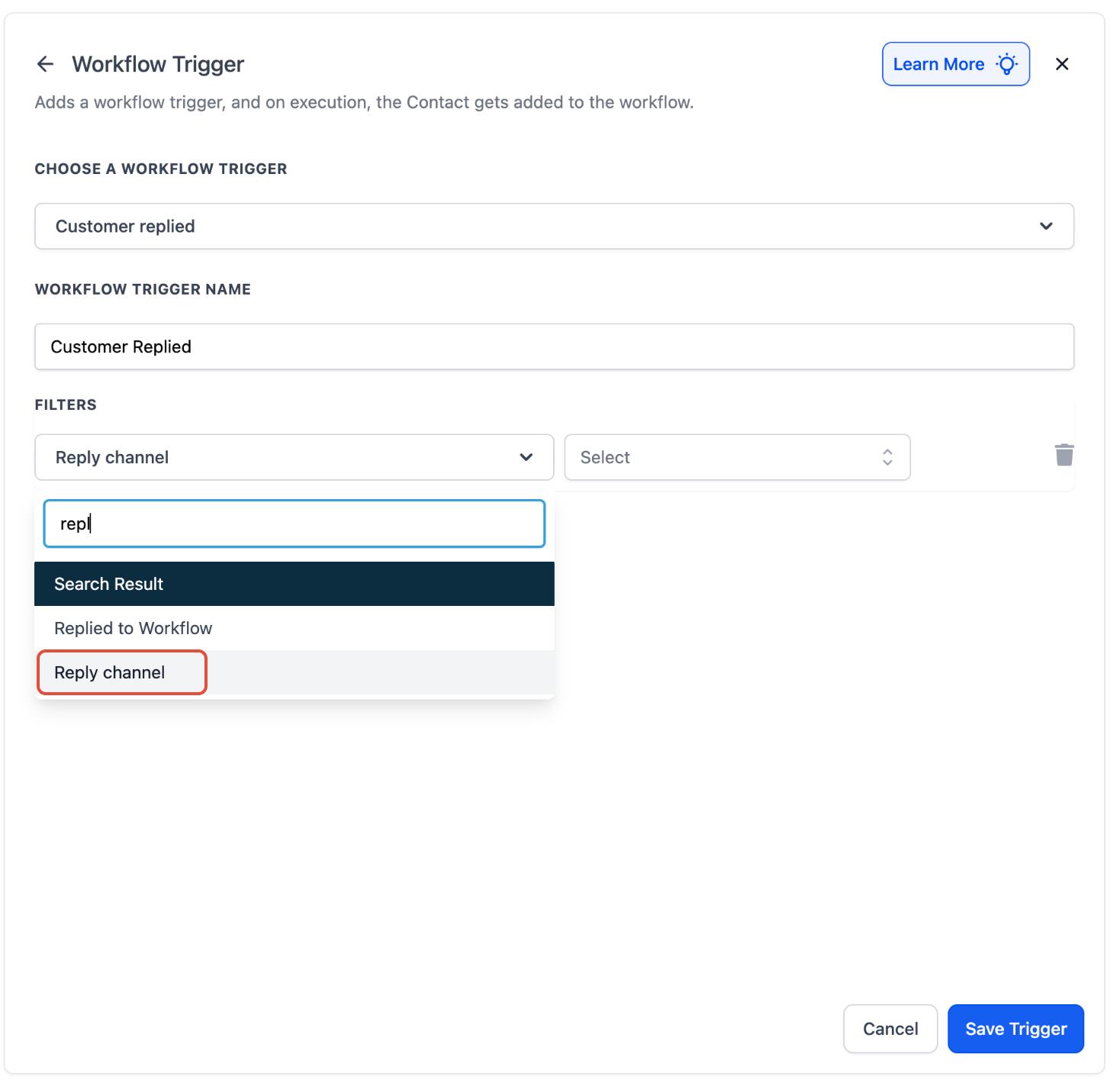
- Choose Reply Channel as the filter field.
- Select SMS for the Reply Channel filter.
- Click Save Trigger to apply the filter.
- Below the trigger, click the action area and select Send Internal Notification.
- Set the notification type to SMS and pick the internal recipient.
- In the notification message, open the Custom Values picker and select Message > Message Body to insert the placeholder.
- Add additional contact values such as Contact > First Name to the message.
- Save the action, publish the workflow, and test with a real SMS reply.
- Test the workflow before relying on it for live conversations.
Configure re entry for repeated SMS replies
- Open the workflow settings and locate the Allow Re entry option.
- Toggle Allow Re entry on so contacts may enter again after completing the workflow.
- Save the workflow settings.
06What it looks like in HighLevel
07Settings that matter
- Reply Channel. Filters the Customer Replied trigger so that only messages received via SMS start the workflow.
- Allow Re entry. Controls whether a contact can re enter the workflow after it has finished or after manual removal.
- Internal Notification type. Selects SMS as the channel for the internal alert that is sent to the chosen recipient.
08Things to know before you rely on it
- SMS notifications longer than about 1,600 characters may fail to send.
- A contact cannot re enter the workflow while it is still active.
- Internal SMS alerts generate outbound messaging charges.
- The original inbound SMS remains in Conversations and is not forwarded by call forwarding settings.
09If something goes wrong
- The workflow does not trigger. Verify the trigger is Customer Replied, the filter is Reply Channel = SMS, and the workflow is published and active.
- Notification action runs but the user does not receive the SMS. Check that the internal user has a valid phone number, review execution history for errors, and examine any failed SMS logs for error codes.
- Notification is too long. Keep the SMS body concise or use a different internal notification channel when the message may exceed roughly 1,600 characters.
10How it connects to the rest of HighLevel
- Review SMS compliance rules for opt out and sender ID SMS compliance
- Use the SMS delivery troubleshooting checklist if alerts are not received SMS troubleshooting
- Check the phone system pricing and rebilling guide for messaging costs Pricing guide
Michael's take

Most people think the inbound SMS alert will automatically forward the original text to another number, but it only creates a separate internal notification. I would set up the workflow first, then test it by sending a reply from a contact to see the alert arrive on the intended phone.
If I were building a notification system, I’d keep the SMS template short and add the contact’s name and {{message.body}}. That way the team gets the key info without risking the 1,600 character limit.