
01Who this is for
- Founders of agencies that need to run promotional campaigns, they can reuse a single rich card across multiple lists.
- Customer support teams looking to send interactive appointment reminders, the buttons let recipients respond directly.
- Marketing managers who want to showcase multiple products in a swipeable carousel, each card can carry its own image and link.
02RCS snippets, explained
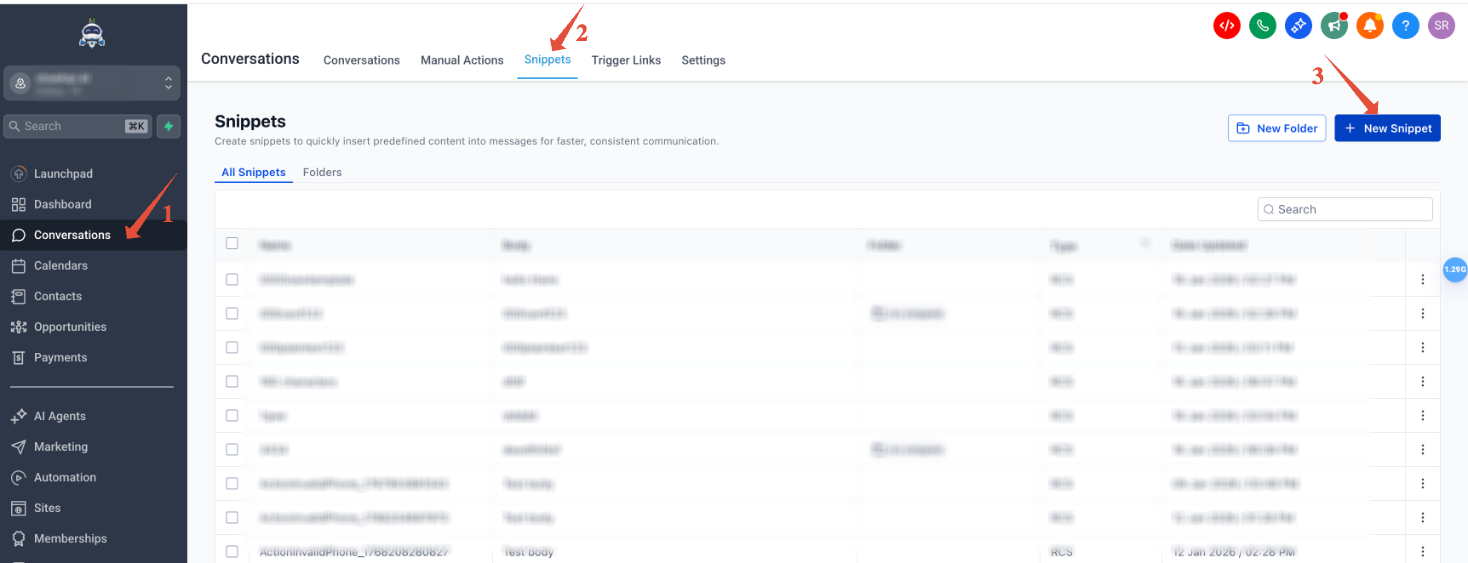
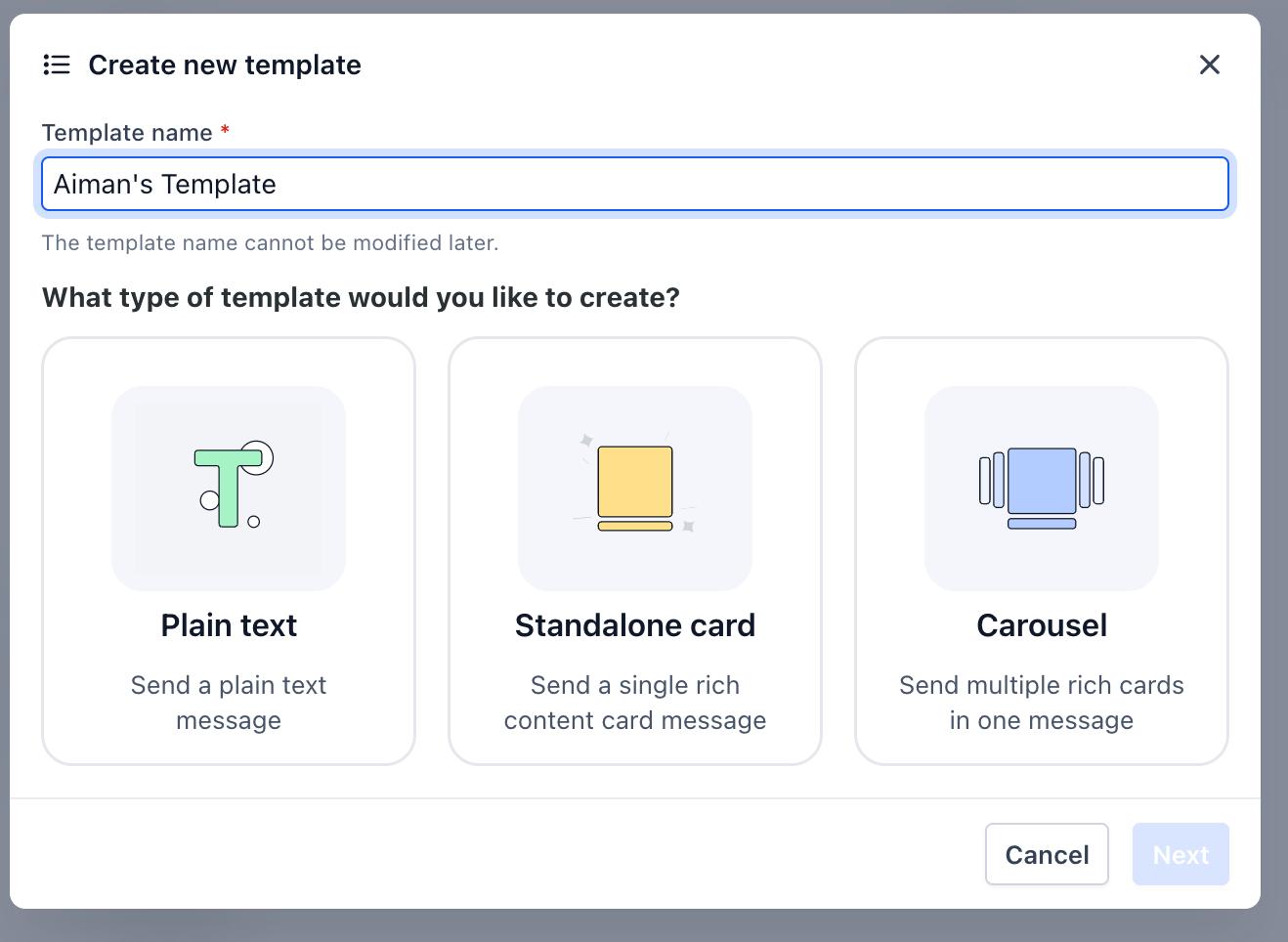
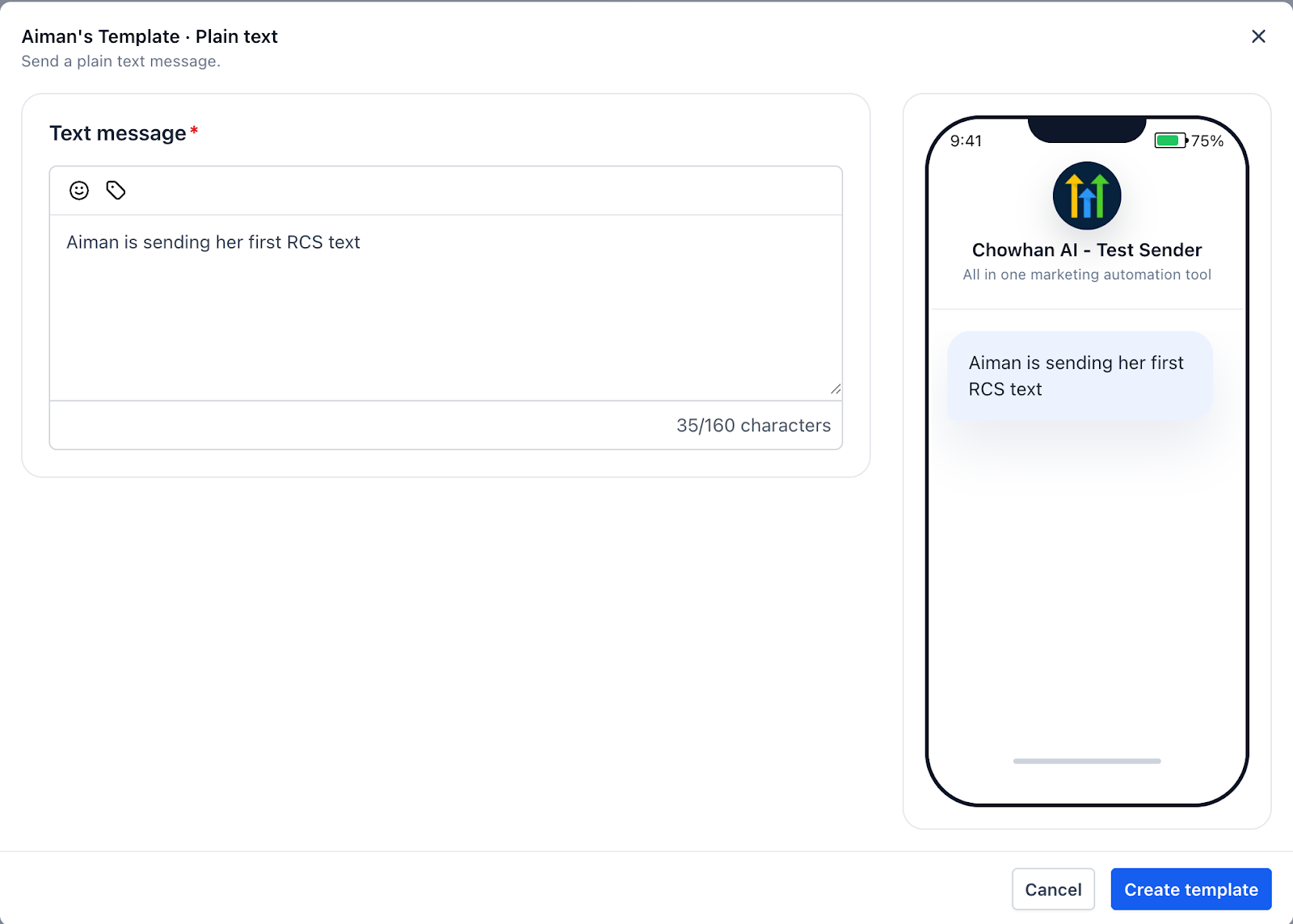
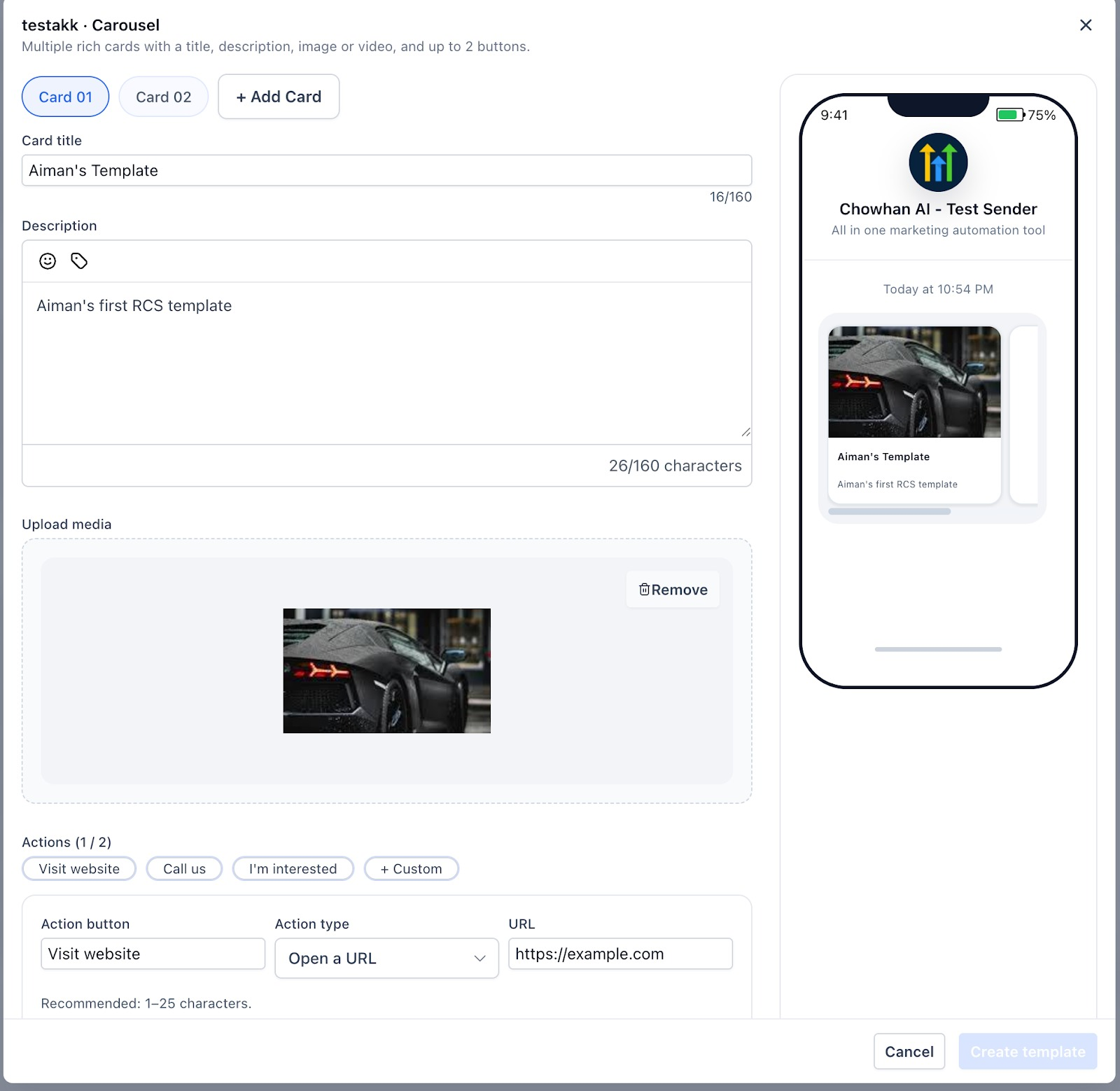
RCS snippets let you design rich, interactive messages that appear inside a contact’s native messaging app. The platform stores each snippet in the Conversations > Snippets library, where you can pick a format, Plain Text, Standalone Card or Carousel, and add media, titles, descriptions and up to three action buttons.
When you send a snippet via Bulk Actions, HighLevel delivers the rich version to devices that support RCS. Devices that cannot display RCS receive the plain text fallback you defined. The send process is managed from the Contacts area, where you select a Smart List, configure a few required fields and launch the campaign.
The feature is currently only available to accounts in the RCS Private Beta and works with approved Sender IDs. You can also trigger snippets from Workflows or send a single rich message directly from a conversation thread.
03How businesses use RCS snippets
- Ecommerce store. Create a Standalone Card that showcases a limited time discount with an image and a "Shop Now" button. Save it as a snippet, then select the snippet in Bulk Actions to send the promotion to a segment of recent purchasers.
- Dental practice. Build a Carousel containing cards for each available appointment slot, each with a "Book" button. After saving the carousel snippet, use Bulk Actions to reach patients who need a reminder, letting them tap the preferred time directly.
- SaaS startup. Design a Plain Text snippet that confirms a new account activation. Include the fallback text only, then send it from a one to one conversation when a user replies to the onboarding workflow.
04The numbers and rules that matter
- Carousel format requires a minimum of 2 cards and a maximum of 10 cards.
- Standalone Card supports up to three action buttons.
- Carousel cards support up to two action buttons per card.
05Before you start
- RCS must be enabled on the account.
- An approved RCS Sender ID must be in place.
06How to set up and use RCS snippets in HighLevel
Create an RCS snippet
- Navigate to Conversations > Snippets > Add RCS Snippet and pick a template format.
- Enter a distinct name for the new template.
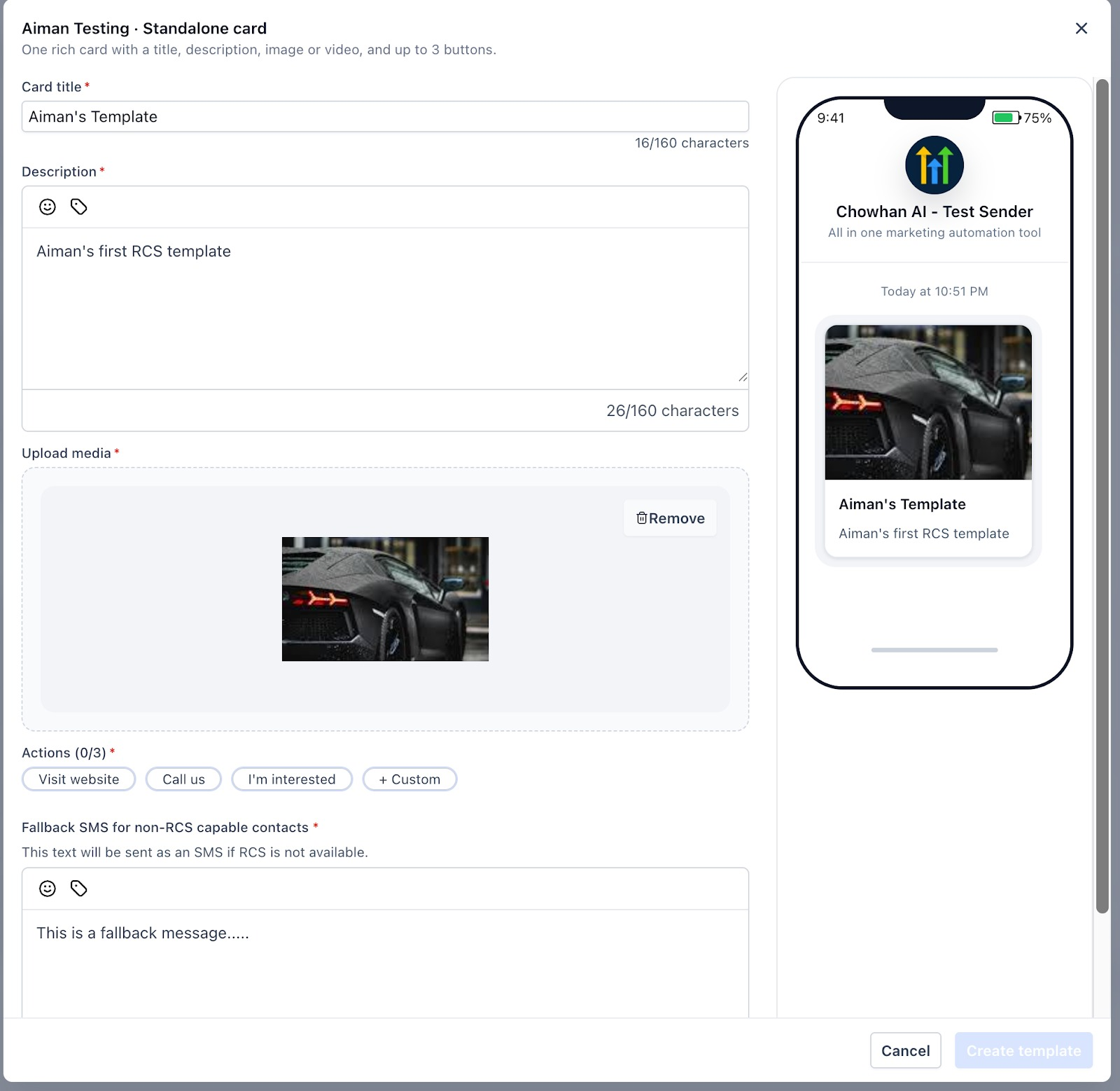
- Provide the card title, description and any custom tags.
- Upload an image or other media file for the card.
- Add up to three action buttons (two for Carousel cards) and configure each to call, open a URL, or suggest a reply.
- Write the plain text fallback message in the designated field, a fallback is required for Standalone Card and Carousel formats and the platform will not let you save without it.
- Press Create Template to store the snippet.
- Confirm the snippet appears in the Snippets library before proceeding.
Send RCS messages to your contacts
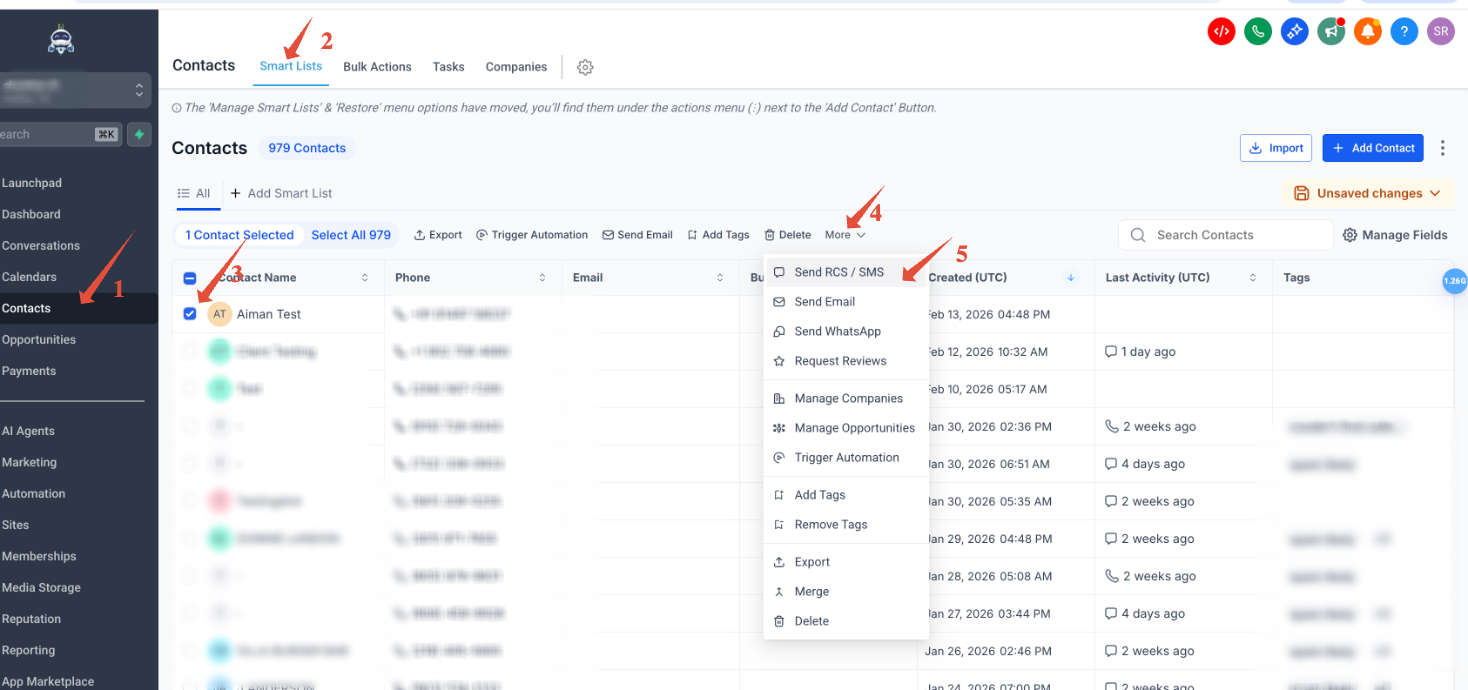
- Open Contacts, access Smart Lists and select the contacts you want to reach.
- Click More > Send SMS & RCS to open the campaign setup screen.
- Enter a recognizable Action Name for the bulk send.
- Choose the approved Sender ID from the From dropdown.
- Select the previously saved RCS snippet from the RCS Template list.
- Pick a Send Mode, all at once, scheduled, or drip.
- Check the consent box to confirm contacts have opted in; the Send button will not activate without this.
- Review the preview, then click Send RCS. Bulk Actions is the only method for sending RCS snippets at scale.
- Monitor progress on the Bulk Actions page.
07What it looks like in HighLevel
08Settings that matter
- Action Name. Identifies the bulk send on the tracking page.
- From (Sender ID). Selects the approved RCS Sender ID that appears to recipients.
- RCS Template. Chooses which saved snippet will be used for the campaign.
- Send Mode. Determines whether messages are sent immediately, at a set time, or in a drip sequence.
- Consent Checkbox. Confirms that all selected contacts have opted in; required before the Send button activates.
09Things to know before you rely on it
- The feature is only available in the RCS Private Beta.
- A snippet is required for Standalone Card and Carousel formats; plain text messages can be sent without one.
- Standalone Cards support up to three action buttons; Carousels allow up to two buttons per card.
- Carousels must contain between two and ten cards.
- Every rich format needs a fallback SMS; the platform will not save the template without it.
- Bulk Actions is the sole method for sending RCS snippets at scale.
- Sending RCS snippets from the Conversations composer is limited to beta participants.
10How it connects to the rest of HighLevel
- Review SMS compliance rules and Sender ID requirements. SMS compliance settings
- Understand pricing and rebilling for phone system usage. Phone system pricing
- Start a trial to explore RCS and other messaging features. 30 day trial
Michael's take

RCS snippets feel a bit risky because you need a fallback message and an approved Sender ID before you can send anything. Without those, the send button stays disabled.
Once you have the basics in place, the ability to build a rich card and send it to a list. Or trigger it from a workflow. Adds a modern touch that many customers notice. Start simple, watch the delivery stats, then explore carousels for more complex offers.