
01Who this is for
- Founders of ecommerce brands, need precise control over opt out wording to stay compliant with carrier rules.
- Healthcare practice owners, must ensure patients can easily unsubscribe or request assistance via SMS.
- Real estate agencies, want to customize help keywords so prospects receive instant guidance.
02Advanced opt out management, explained
The feature lives inside the Twilio Console for the Messaging Service that holds your phone numbers. When Advanced Opt Out is turned on, the service watches incoming messages for the keywords you define and sends back the confirmation text you set. It works for three categories: opt out, opt in and help.
When a customer texts a configured opt out word, the system blocks further messages to that number until an allowed opt in word is received. Opt in and help keywords behave similarly, each triggering the custom reply you supplied. Keyword matching ignores case but requires the entire incoming message to equal a configured keyword.
03How businesses use advanced opt out management
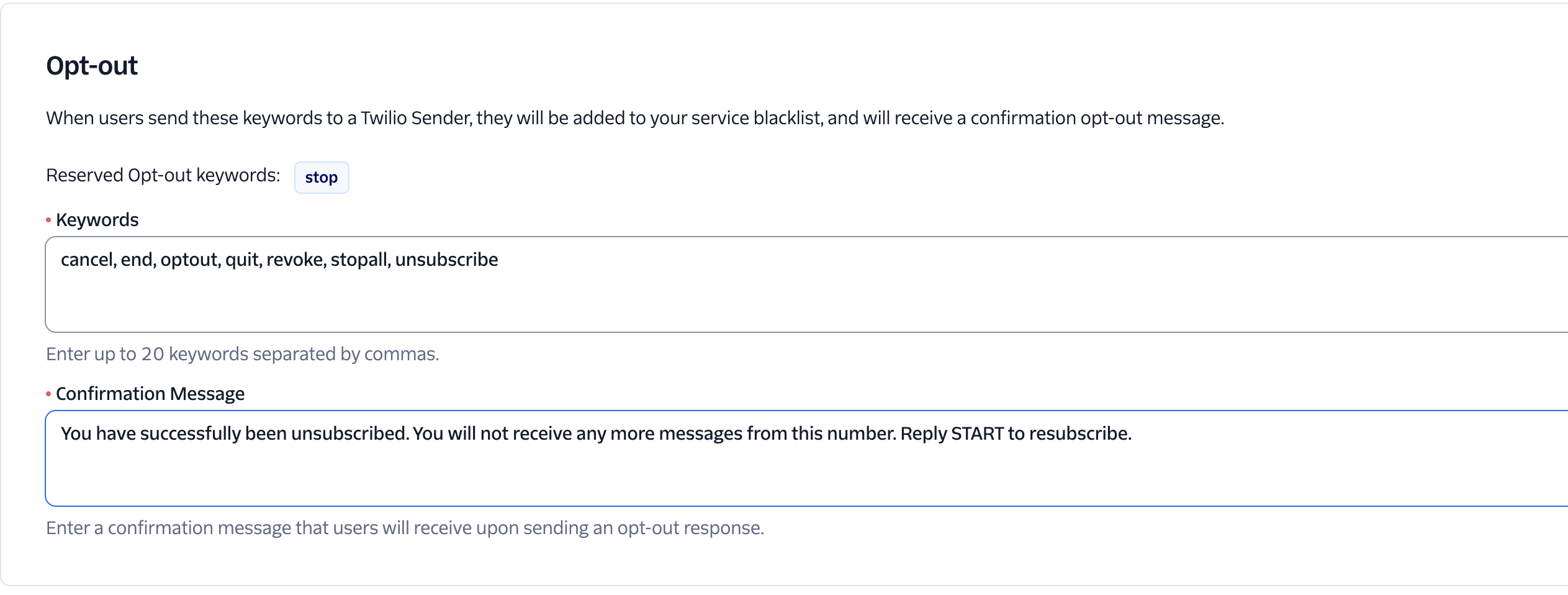
- Ecommerce retailer. The retailer adds the word STOPALL to the opt out list and writes a concise unsubscribe confirmation. Shoppers texting STOPALL receive the tailored reply and are removed from further promotions until they text START.
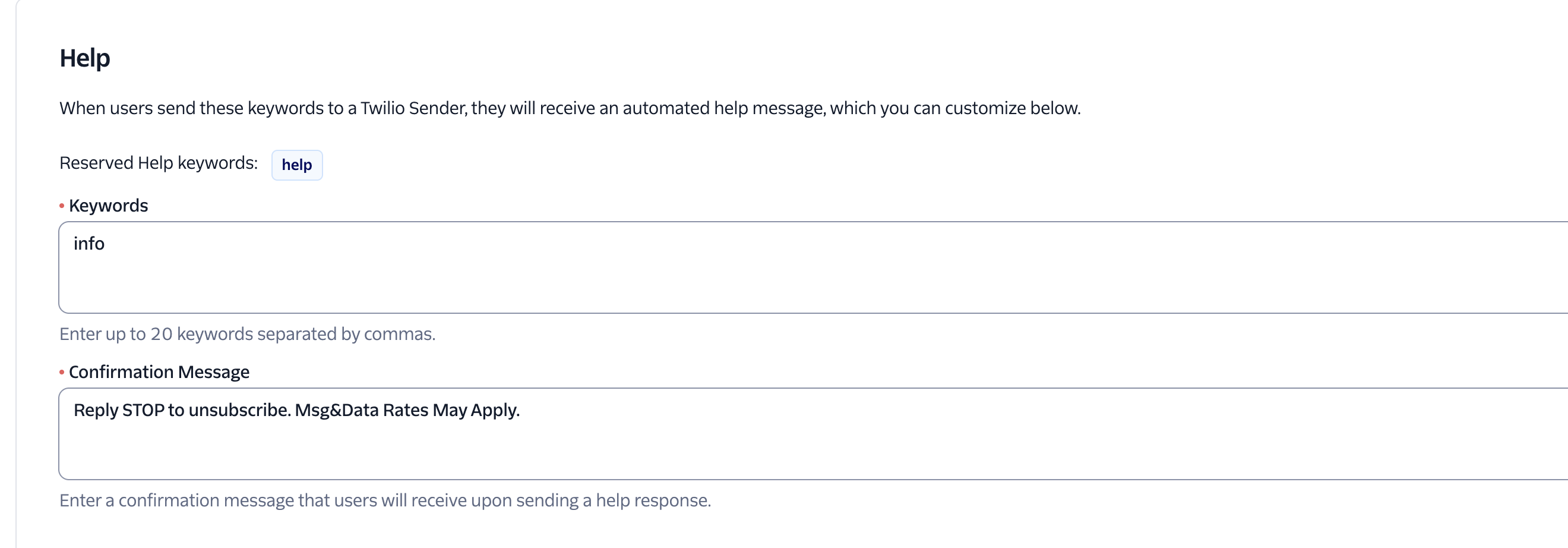
- Medical clinic. The clinic adds INFO as a help keyword and sets a reply with contact details for urgent questions. Patients texting INFO get the automated message with the clinic’s phone number and hours.
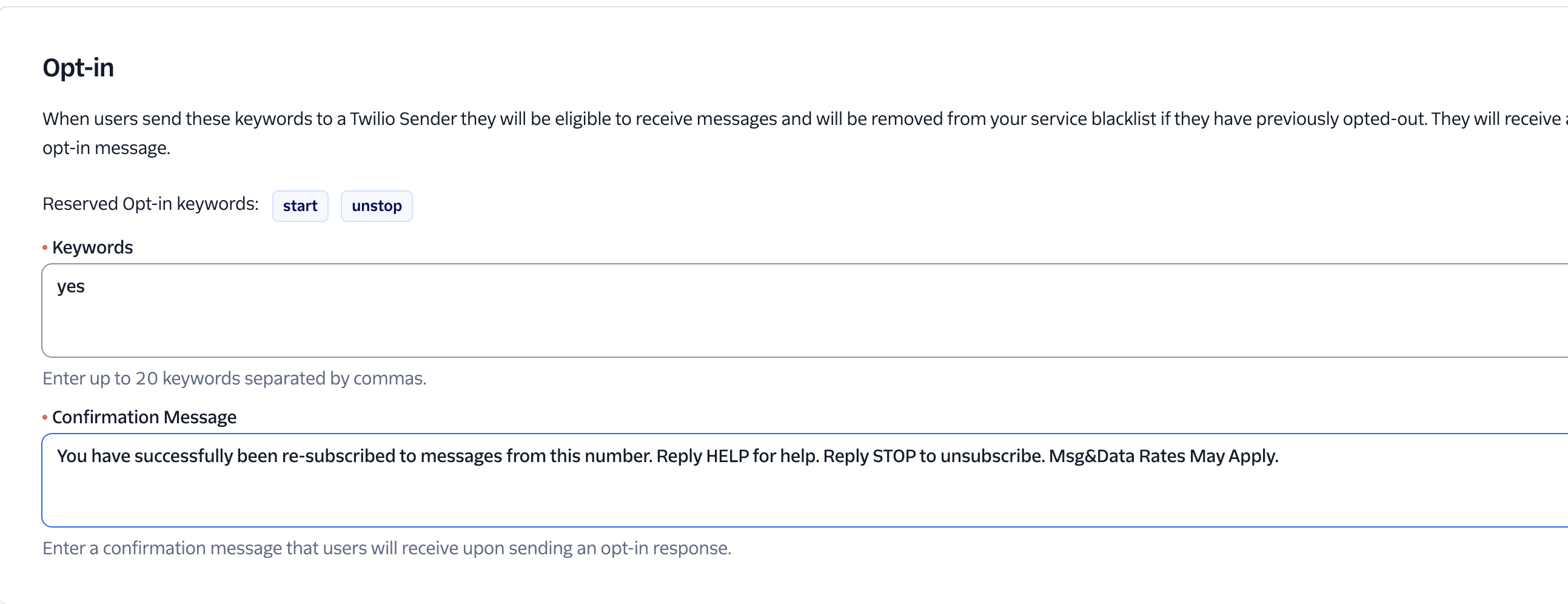
- Real estate brokerage. The brokerage includes YES as an additional opt in keyword alongside START. When a lead texts YES after previously opting out, the system sends the brokerage’s re subscription confirmation.
04Before you start
- Use a non ISV Twilio account.
- Have a Messaging Service that contains the phone numbers you want to manage.
05How to set up and use advanced opt out management in HighLevel
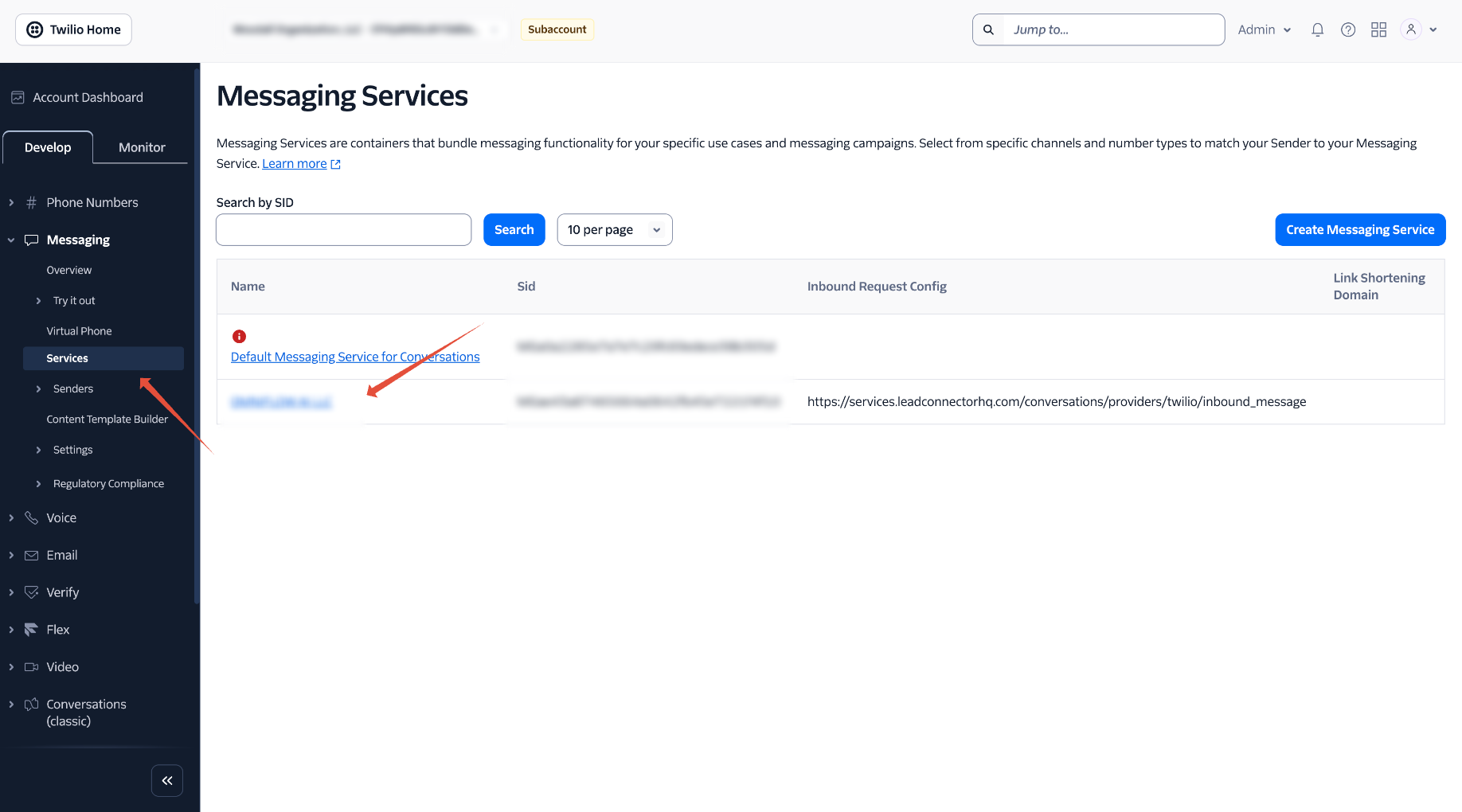
Open the Messaging Service
- Log in to the Twilio Console.
- Navigate to Messaging > Services.
- Select the Messaging Service that includes your phone numbers.
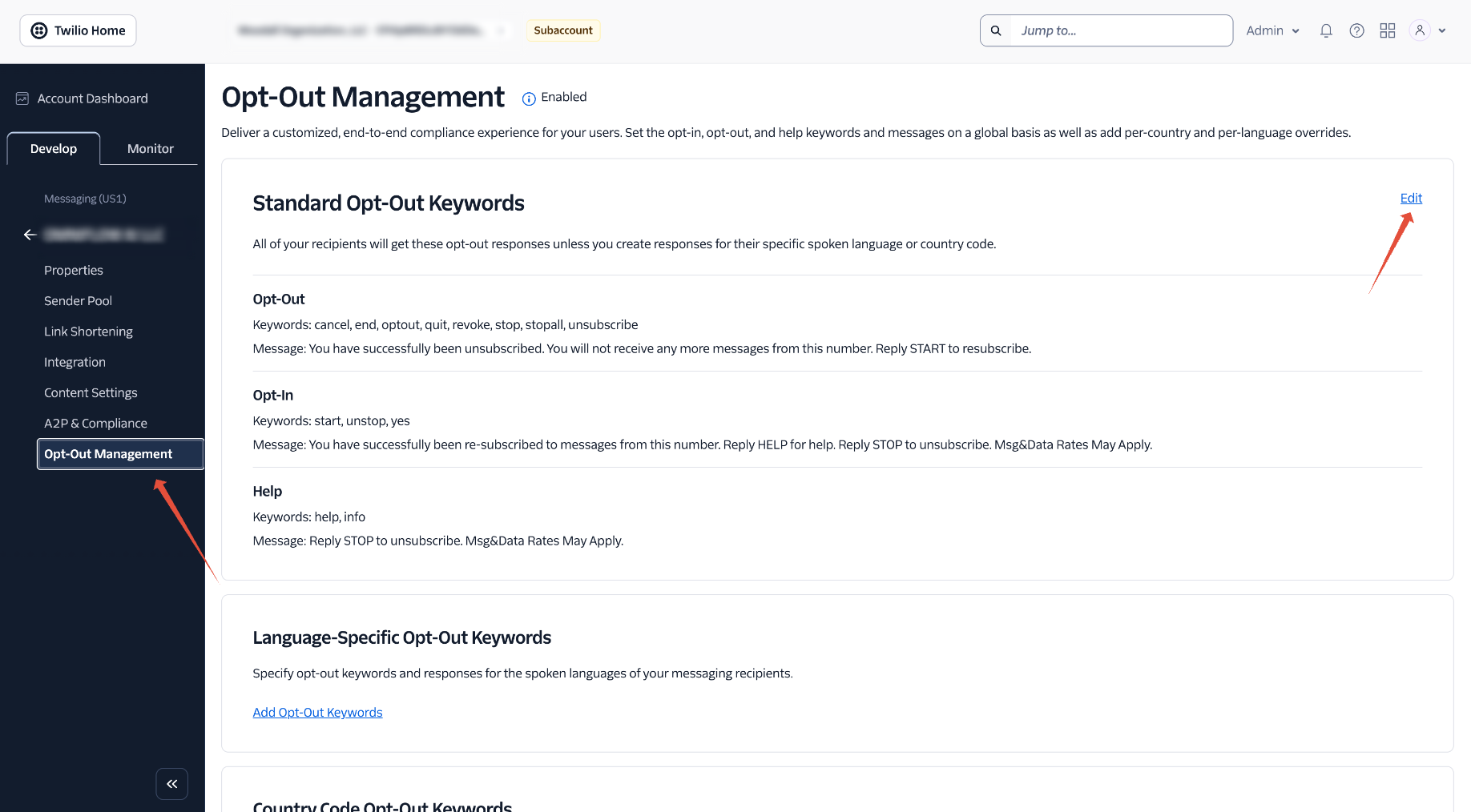
Open Opt Out Management
- From the Messaging Service menu choose Opt Out Management.
- If Advanced Opt Out is not already active, click Enable Advanced Opt Out.
Edit the Standard Opt Out Keywords
- Under Standard Opt Out Keywords, click Edit.
- Add or change opt out keywords and type the confirmation message you want sent.
- Add or change opt in keywords and type the confirmation message you want sent.
- Add or change help keywords and type the automatic help response you want sent.
Save the Changes
- Click Save.
06What it looks like in HighLevel
07Settings that matter
- Advanced Opt, Out. Enables the custom keyword handling for the selected Messaging Service.
- Standard Opt, Out Keywords. Defines the lists of opt out, opt in and help words and the automatic replies associated with each list.
08Things to know before you rely on it
- STOP, START, UNSTOP and HELP are reserved keywords and cannot be removed.
- Disabling Advanced Opt Out after it is enabled requires contacting Twilio Support.
- Keyword matching is case insensitive but requires the entire incoming message to equal a configured keyword.
09How it connects to the rest of HighLevel
- Review general SMS compliance settings, including opt out and sender ID requirements. SMS compliance settings
- Learn how to avoid carrier filtering errors that can affect opt out messages. Prevent SMS filtering
- Check HighLevel pricing and plan options if you need to upgrade for additional Twilio capacity. Pricing and plans
Michael's take

Advanced opt out management can be useful for businesses that send SMS because it provides customizable opt out, opt in and help keywords.
Don’t forget that you can’t turn the feature off yourself once it’s on; you’ll need to contact support.