
01Who this is for
- Agency owners who manage multiple client numbers can assign each staff member a dedicated number to keep replies routed correctly.
- Service based businesses such as dental practices can set a default outbound number so new contacts always see the clinic’s main line.
- Real estate teams can override the sender in a workflow to guarantee marketing texts come from a branded number.
02Sender priority order, explained
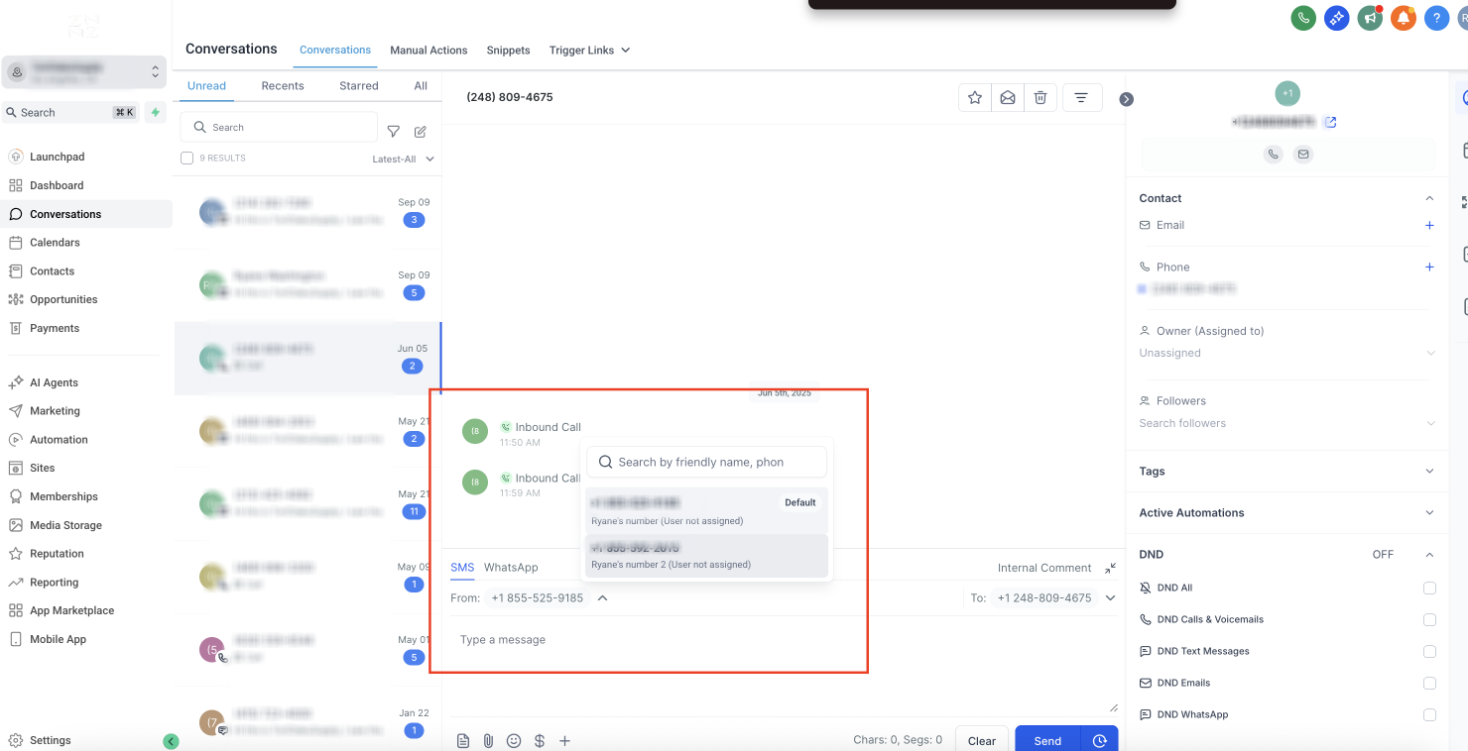
The feature decides which Twilio phone number appears as the sender for every SMS sent from the platform. It follows a fixed order: a manually selected number, the sending user's assigned number, the number already used in the conversation, and finally the account’s default outbound number.
When the platform sends a message, it checks each rule in sequence and uses the first applicable number. The settings live in the staff profile (Call & Voicemail Settings), the workflow builder (From Number dropdown), and the account’s default outbound number configuration.
03How businesses use sender priority order
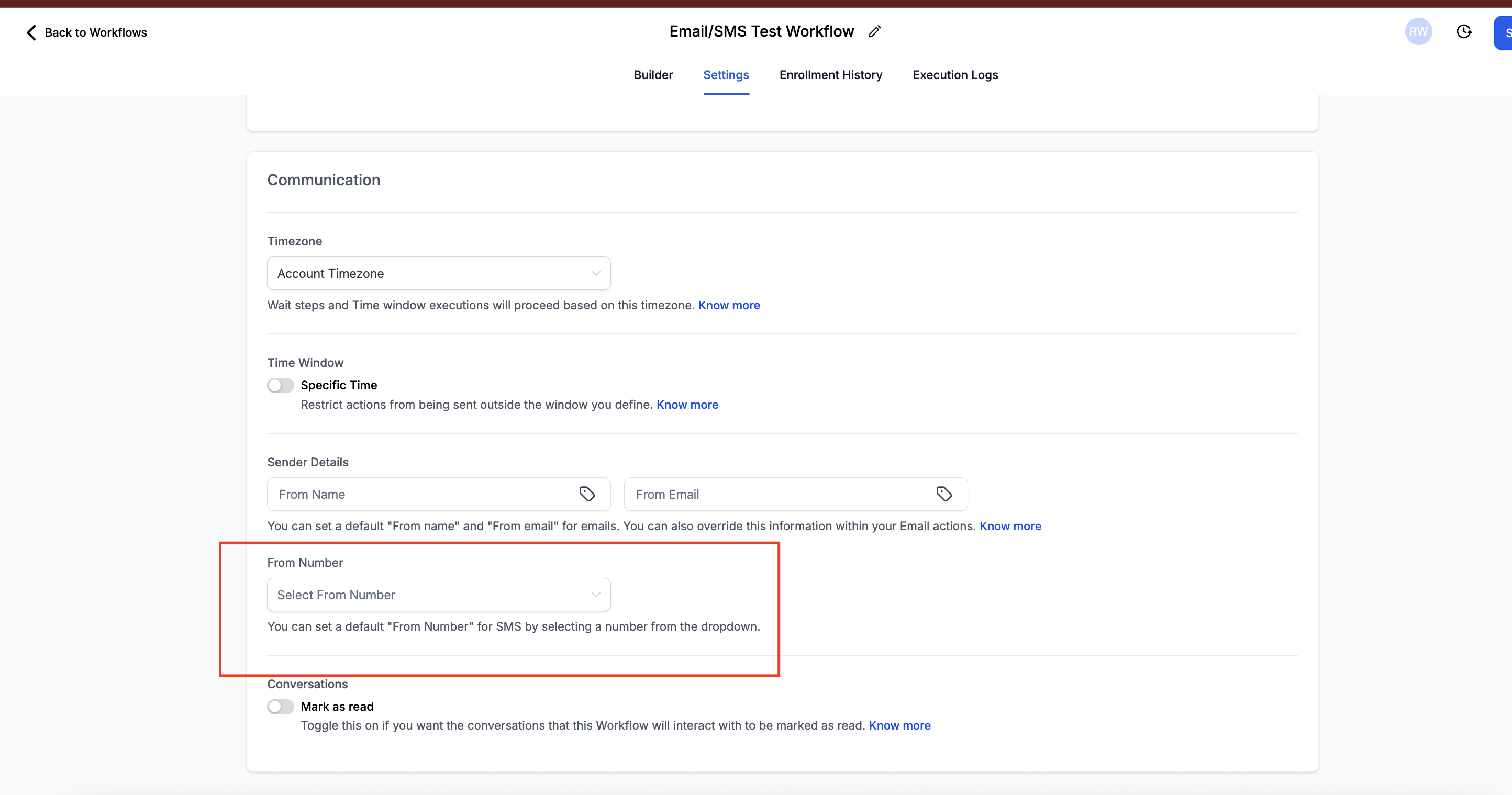
- Marketing agency. The agency sets a specific number in each client workflow’s Send SMS step. The chosen number is stored in the From Number dropdown, ensuring all campaign texts use the same branded line regardless of the staff member who triggers the workflow.
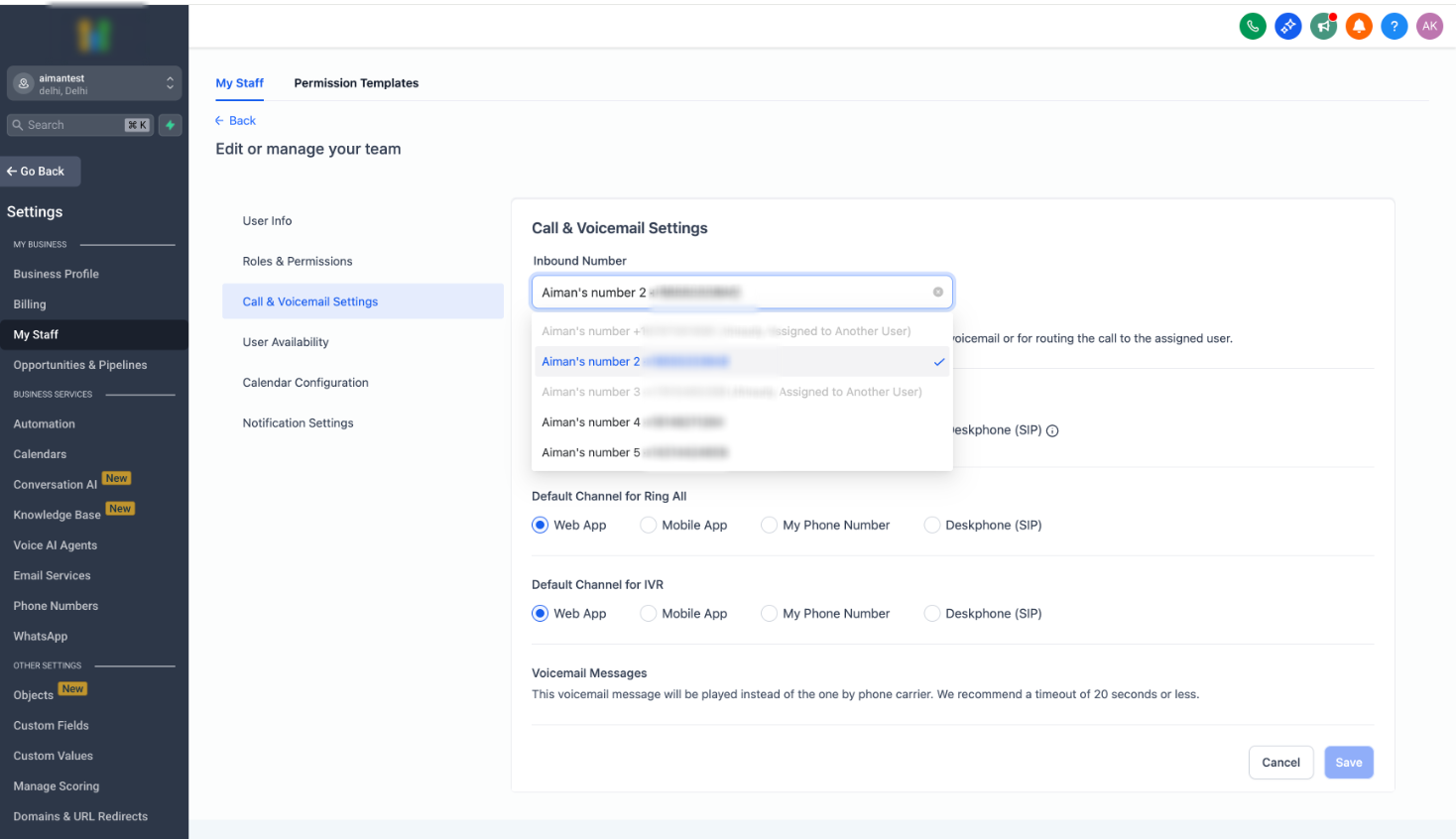
- Dental practice. Each dentist is given a personal Twilio line via the Call & Voicemail Settings page. When the dentist sends a reminder SMS, the platform automatically uses that assigned number, so replies go straight to the dentist’s phone.
- Real estate brokerage. Agents have individual numbers assigned in My Staff. If an agent sends a property update, the system selects the agent’s number. If the number cannot send SMS, HighLevel falls back to the brokerage’s default outbound number.
04The numbers and rules that matter
- Priority 1: Caller supplied number (explicitly set in the message).
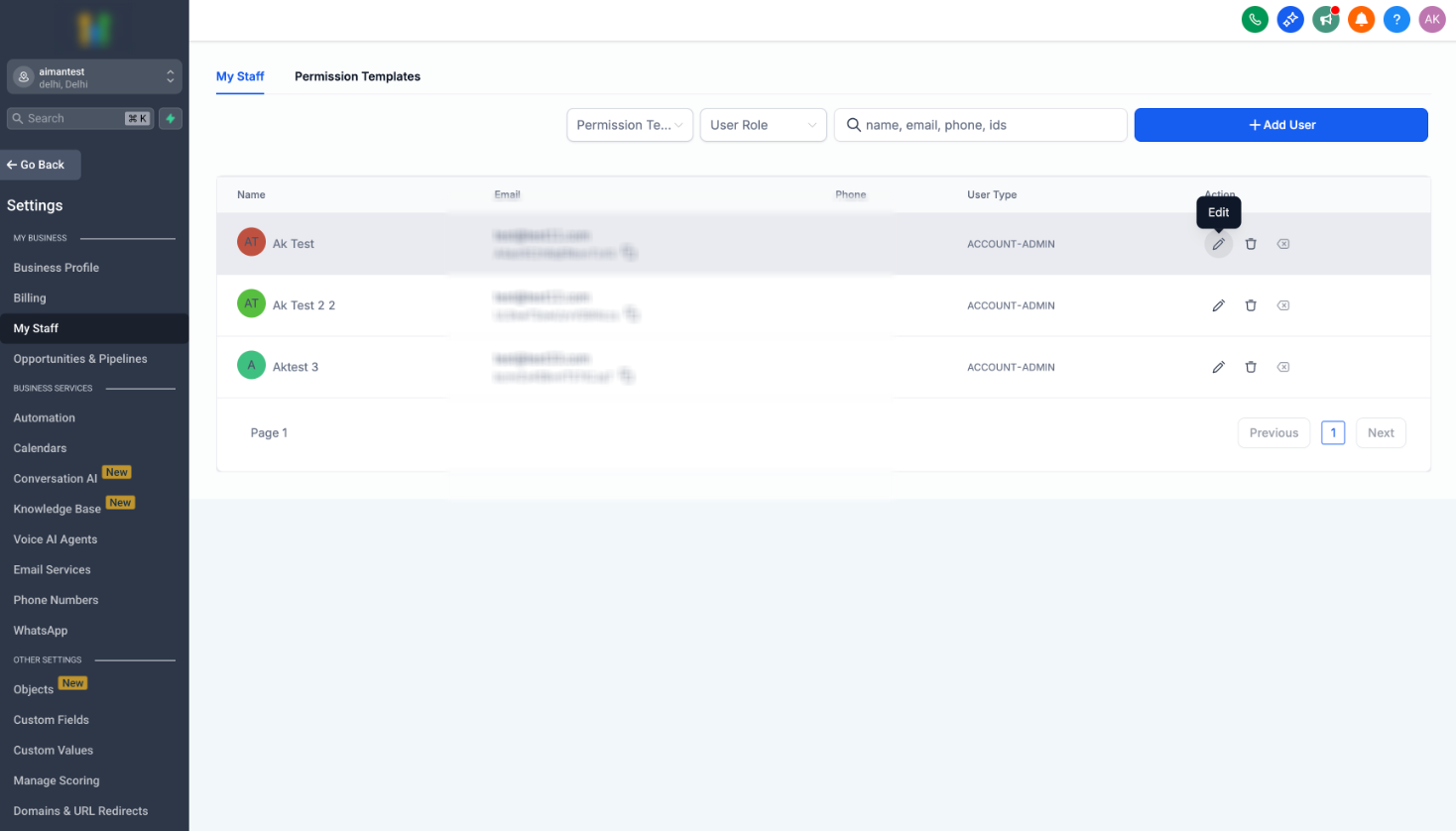
- Priority 2: User assigned number (assigned in Subaccount Settings > My Staff).
- Priority 3: Last used number (the number already tied to the conversation).
- Priority 4: Default outbound number (account default).
05Before you start
- The number you want to use must be provisioned in the same subaccount and be SMS compatible.
- The number must meet any required messaging registration and compliance requirements.
06How to set up and use sender priority order in HighLevel
Assign a phone number to a user
- Open Subaccount Settings and select My Staff.
- Click edit on the staff member you want to configure.
- Expand the Call & Voicemail Settings section.
- Choose a Twilio phone number and assign it to the staff member.
Choose a from number in a workflow
- Open the Workflow builder and edit a Send SMS action.
- Locate the From Number dropdown within the action settings.
- Select the desired phone number from the list.
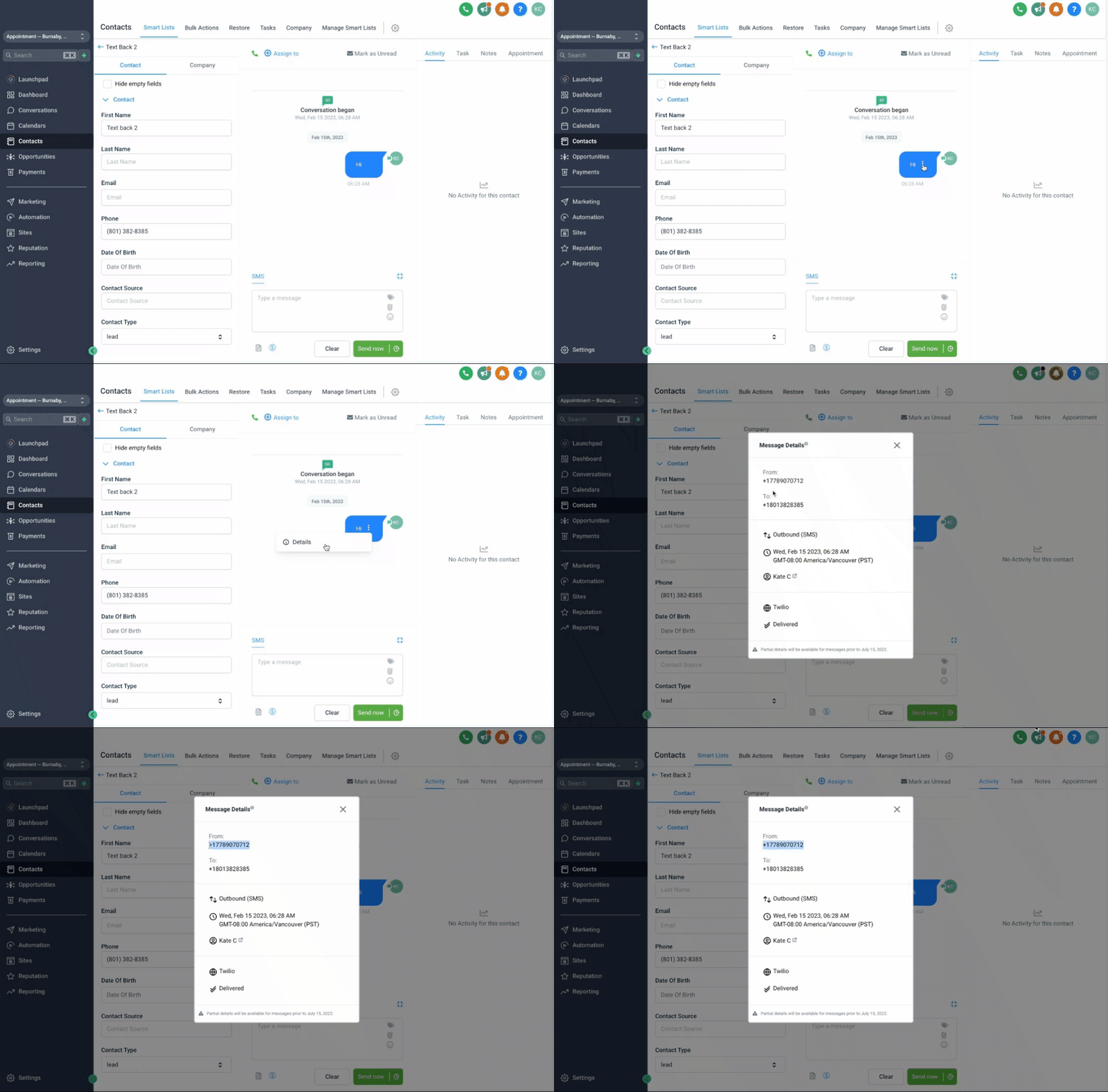
Check which number was used for a specific SMS
- Hover over the SMS message in the conversation view.
- Click the three dot menu and choose Details.
- Read the displayed Twilio number that was used to send the message.
07What it looks like in HighLevel
08Settings that matter
- From Number. Controls which phone line is used for an individual SMS when you set it in a workflow’s Send SMS step.
- Call & Voicemail Settings. Allows you to assign a specific Twilio phone number to a staff member.
- Default outbound number. Serves as the fallback sender when no other rule applies.
09Things to know before you rely on it
- The selected “From” number must be provisioned in the same subaccount and be SMS compatible.
- If a staff member’s assigned number cannot send SMS, the platform automatically falls back to the default outbound number.
- When the number tied to an existing conversation is removed, the system uses the default outbound number.
- The priority order is fixed and cannot be reordered.
10If something goes wrong
- SMS still comes from an old number after a new one is added.. Set the desired number explicitly on the message or automation, or update the staff member’s assigned number.
11How it connects to the rest of HighLevel
- SMS compliance settings and sender ID SMS compliance
- Best practices for SMS deliverability Deliverability guide
- Spotting and monitoring SMS delivery errors Delivery errors
Michael's take

Keeping a contact’s view of your brand consistent is essential. When you have several Twilio numbers, it’s easy for messages to jump between them, confusing prospects. The first thing I would get right is the default outbound number, making sure it’s the one you want people to see most of the time.
Once the default is set, I would assign each staff member a dedicated number and use the workflow From Number option for any campaign that needs a single, branded sender. This gives you control without having to chase down why a text came from the wrong line.